

If the built-in Windows File Explorer doesn’t quite meet your needs, you’re not alone. Many power users prefer alternative file managers such as OneCommander, XYplorer, Total Commander, or File Pilot for their additional features like tabbed browsing, dual-pane views, and advanced customization. Fortunately, it’s possible to set your preferred third-party tool as the default file explorer in Windows. Here’s how you can do it safely and effectively.
Why Change the Default File Explorer?
Windows File Explorer has improved over the years, adding features such as tabbed browsing and better archive management. However, it still lacks certain functionalities that specialized third-party file managers offer, such as:
- Tabbed interfaces and dual-pane views for easier file management.
- Advanced search capabilities and filtering options.
- Customizable interfaces and themes.
- Built-in integration with cloud services like Google Drive and OneDrive.
- Automated scripting for repetitive tasks.
For example, OneCommander offers a modern interface, advanced filtering, and built-in cloud integration. XYplorer provides scripting support and powerful search features, while Total Commander excels in batch processing and file comparisons.
How to Set Your Preferred File Manager as Default
Some file managers like OneCommander allow you to set them as default directly from their settings. To do this in OneCommander, click the gear icon (bottom-left corner), navigate to the “Advanced” tab, and select the “Register as default file manager” checkbox.
If your chosen file manager lacks this built-in feature, you’ll need to set it manually through the Windows registry. Here’s a detailed, step-by-step guide:
"C:\Path\To\Your\FileManager.exe" with the file path you copied in Step 1.
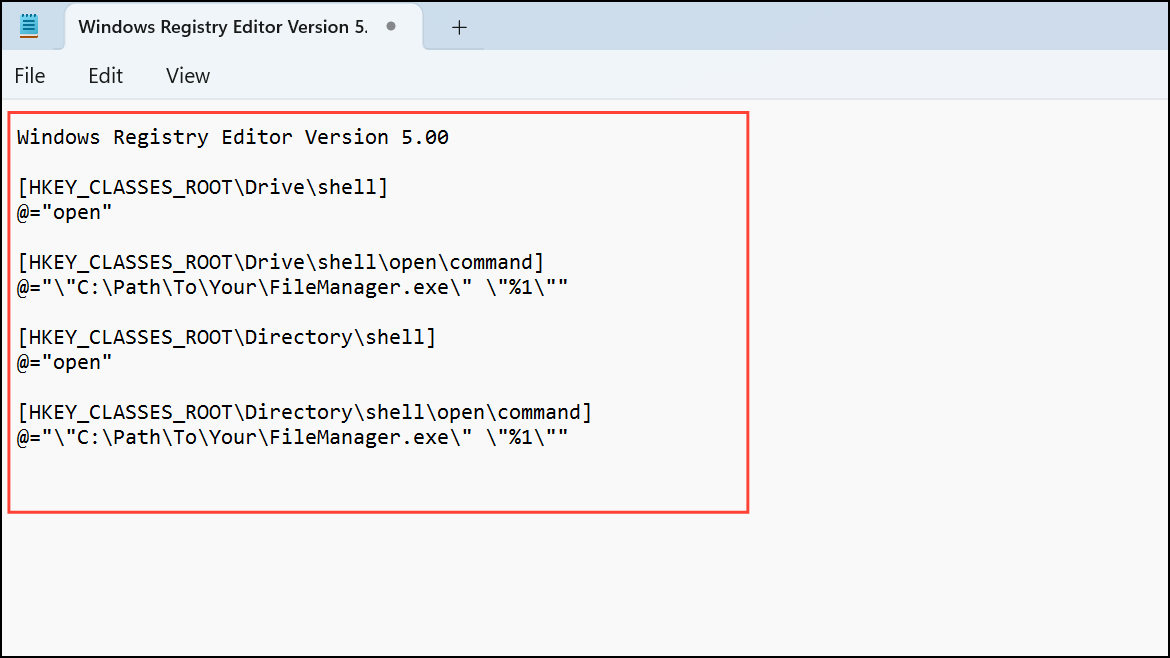
Windows Registry Editor Version 5.00

[HKEY_CLASSES_ROOT\Drive\shell]
@="open"

[HKEY_CLASSES_ROOT\Drive\shell\open\command]
@="\"C:\Path\To\Your\FileManager.exe\" \"%1\""

[HKEY_CLASSES_ROOT\Directory\shell]
@="open"

[HKEY_CLASSES_ROOT\Directory\shell\open\command]
@="\"C:\Path\To\Your\FileManager.exe\" \"%1\""
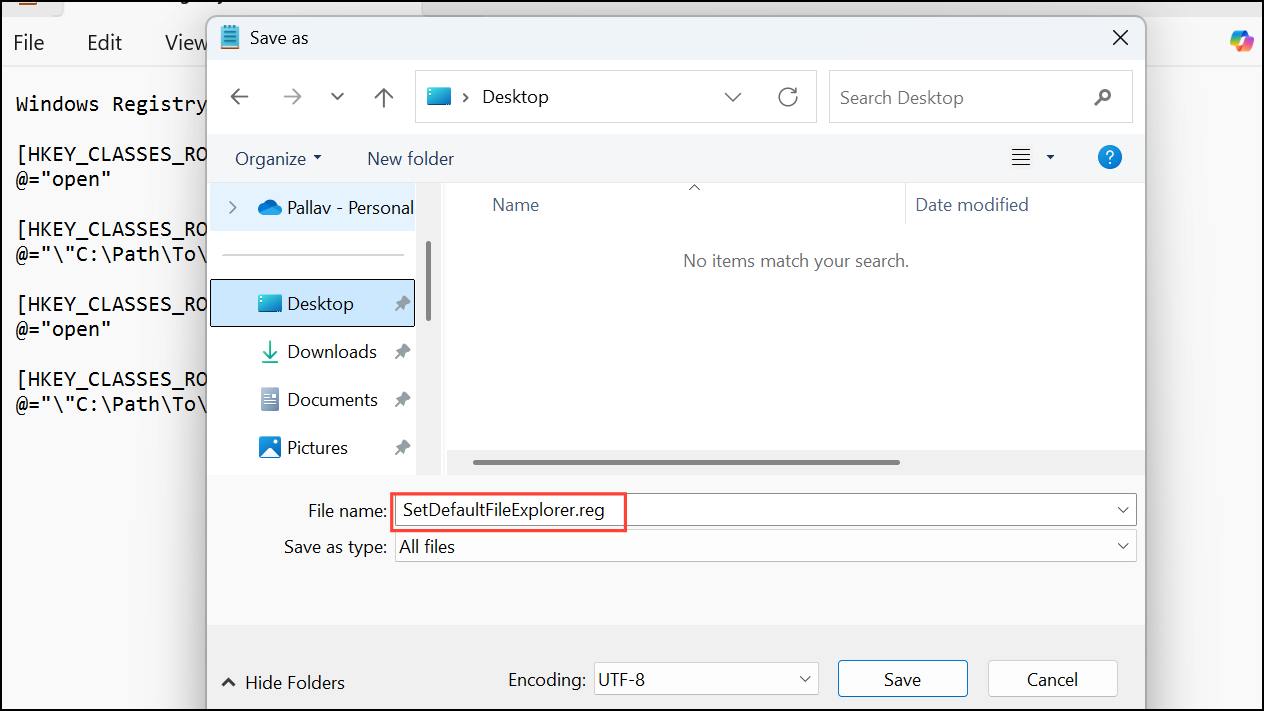
If you ever decide to revert to the original Windows File Explorer, open the Registry Editor, navigate to HKEY_CLASSES_ROOT\Drive\shell and HKEY_CLASSES_ROOT\Directory\shell, and delete the “open” keys you created.
Make the Win+E Shortcut Open Your Third-Party File Manager
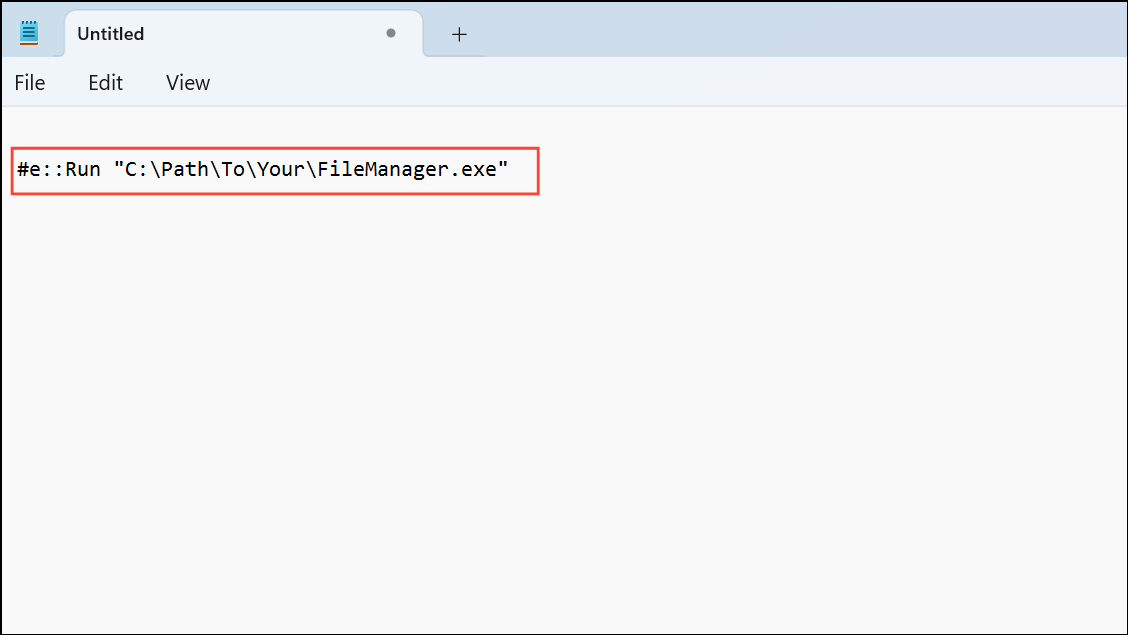
By default, pressing Win+E opens Windows File Explorer. To redirect this shortcut to your third-party file manager, you can use AutoHotkey:
#e::Run "C:\Path\To\Your\FileManager.exe"
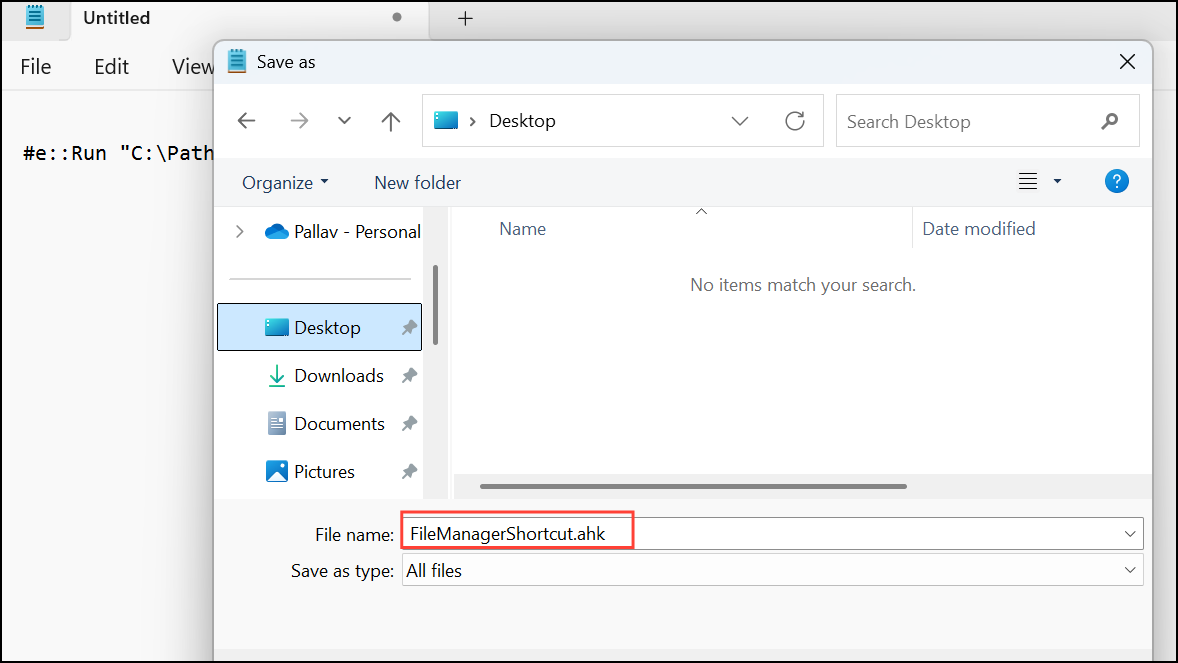
Win+E will launch your preferred file manager..ahk file to the Startup folder. Open the Run dialog (Win+R) and type %AppData%\Microsoft\Windows\Start Menu\Programs\Startup, then paste the script file there.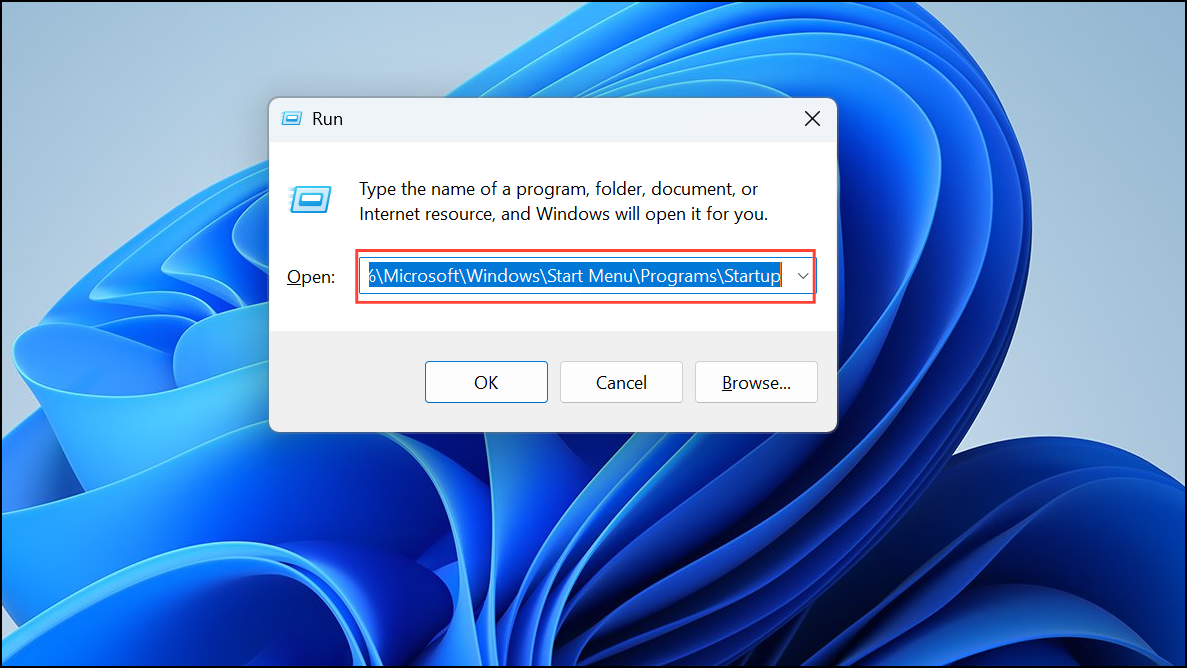
Switching your default file explorer in Windows can make your workflow smoother and more efficient. With these steps, you can easily set up your favorite third-party file manager to handle your daily file management tasks.





