SmartArt graphics in Microsoft Word provide a structured way to present information visually, making complex ideas easier to understand. While Word does not allow direct conversion of standalone images into SmartArt, you can use SmartArt layouts that include image placeholders to integrate your pictures into organized diagrams. This approach helps you display images alongside text in a cohesive, professional format. The following steps explain how to convert a picture to SmartArt using the built-in tools in Word, along with tips for customizing your graphic.
Using Picture-Enabled SmartArt Layouts
Insert tab on the Ribbon. In the Illustrations group, click SmartArt. This opens the SmartArt Graphic selection dialog box.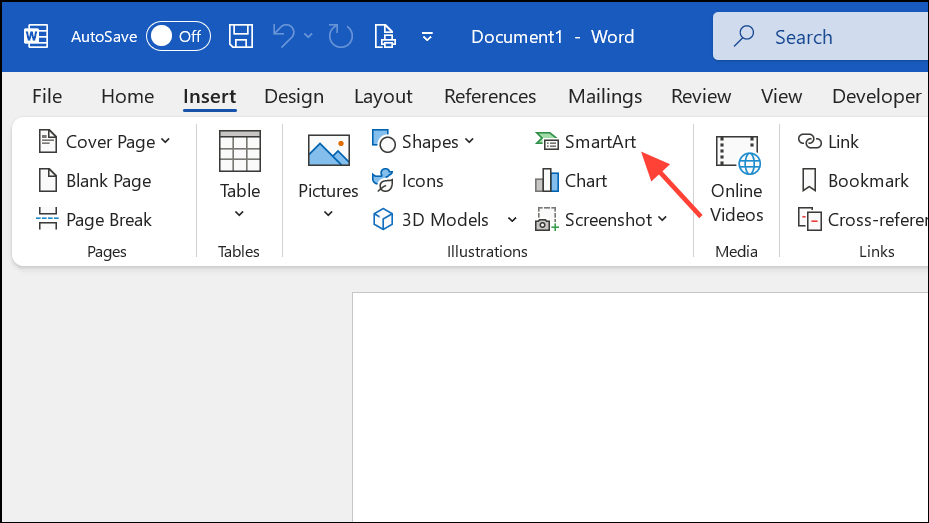
Picture category on the left. Choose a SmartArt layout that includes image placeholders, such as Picture Accent Process or Picture List. Click OK to insert the selected layout into your document.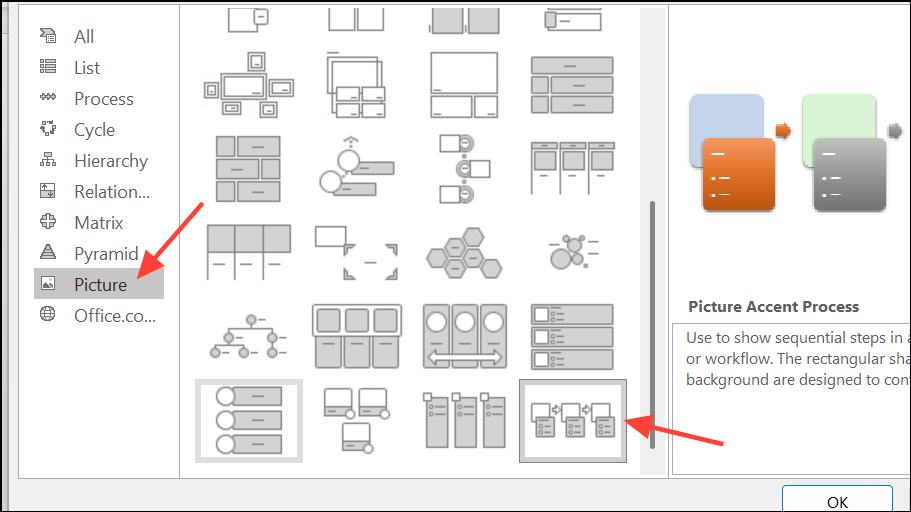
Insert. The image will appear inside the SmartArt shape.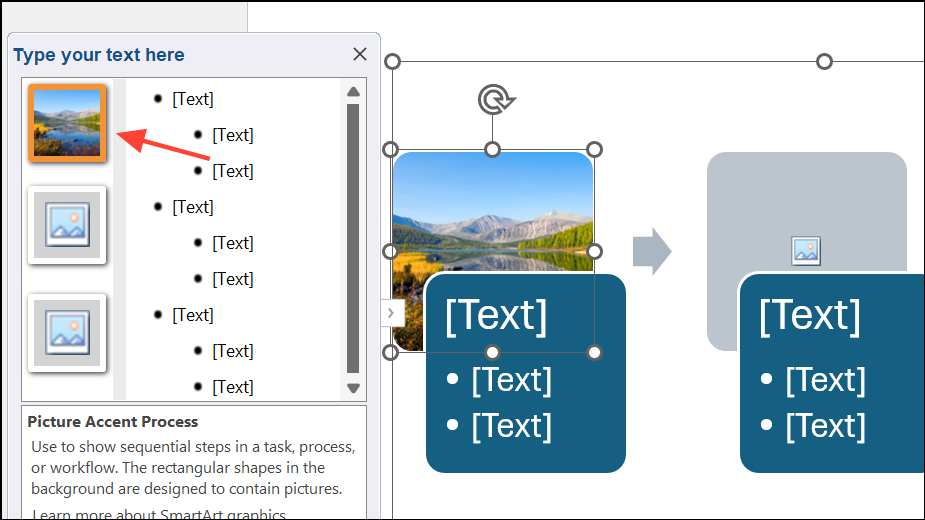
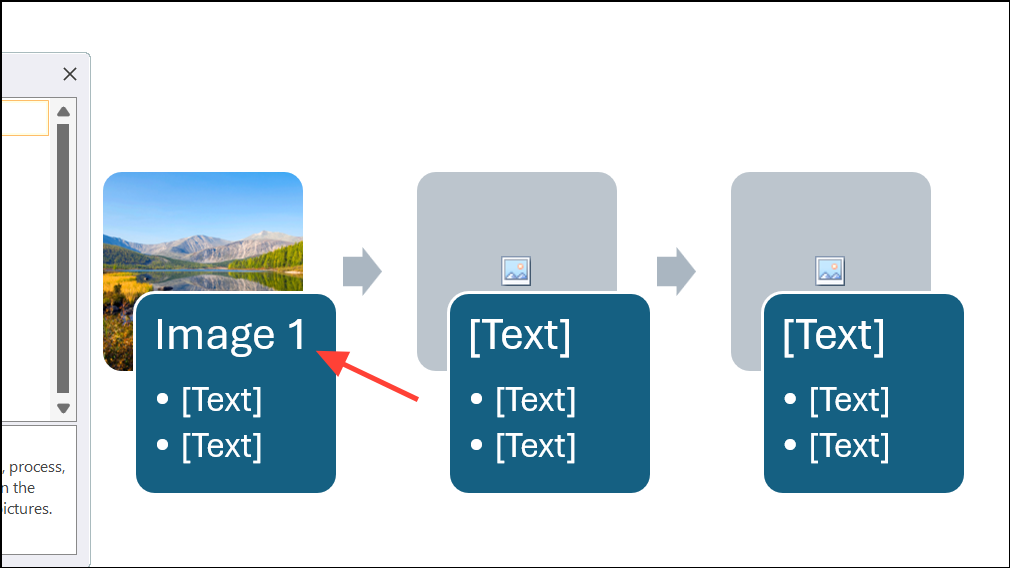
SmartArt Design and Format tabs will appear on the Ribbon. Use these tabs to change the layout, color scheme, or apply different SmartArt styles. This step lets you tailor the look of your graphic to fit your document’s design.Alternative: Manually Positioning Images Over SmartArt
If you want to use a picture in a SmartArt layout that does not support images, you can manually overlay the image on top of a SmartArt shape. This method is less dynamic, as the image and SmartArt will not move together if you edit the graphic, but it allows for more flexibility in design.
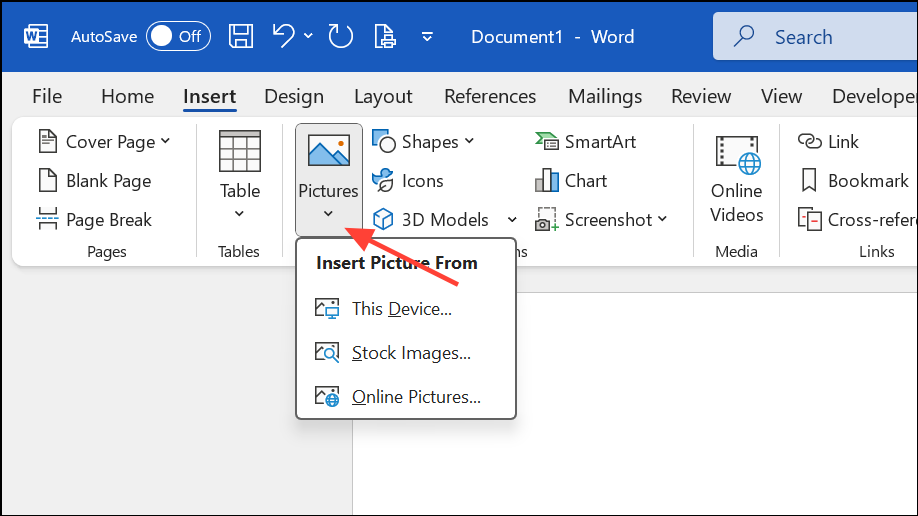
Picture Format tab to adjust the image as needed.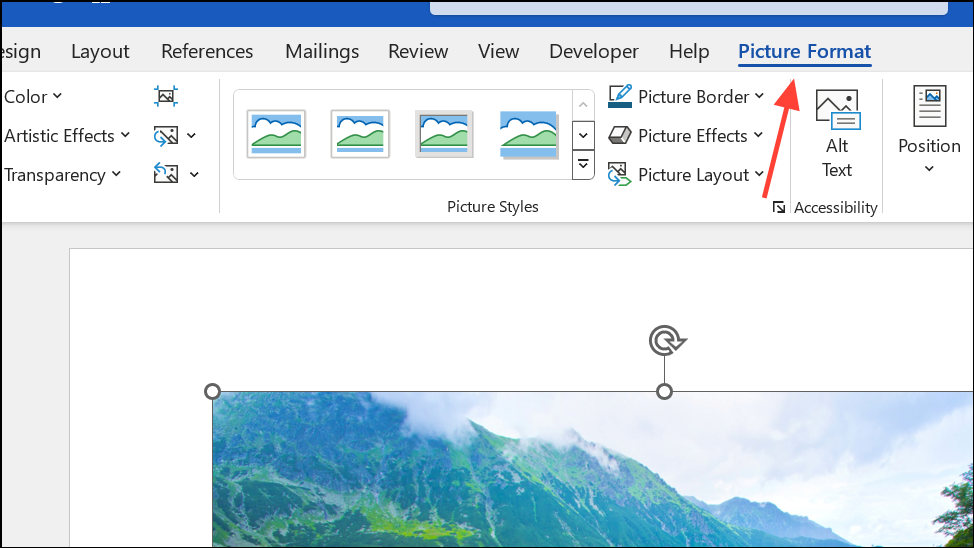
Group from the context menu. Note that grouping disables some SmartArt editing features.Tips for Working with Images in SmartArt
- To replace an image in a SmartArt shape, right-click the image and select
Change PictureorChange Graphic > From Stock Images(on supported versions). - If the SmartArt text pane is not visible, click the small arrow on the left edge of the graphic to open it.
- Some SmartArt layouts automatically resize text and images to fit the shapes, which improves alignment and readability.
- Custom SmartArt templates with dynamic image support are not natively supported in Word; you must use the built-in layouts or create custom diagrams using shapes and manual formatting.
Integrating pictures into SmartArt graphics in Word streamlines how you present visual information, making your documents more organized and engaging. Experiment with different SmartArt layouts to find the best fit for your content and design needs.