Numbered lists in Microsoft Word can automatically continue numbering from previous sections, causing confusion when you want a new list to start at 1. This default behavior can disrupt the structure of reports, outlines, or multi-section documents, especially when you need each section’s list to begin independently. Understanding how to restart numbering, adjust list formatting, and address stubborn numbering issues ensures your document stays organized and readable.
Restart Numbering Using the Right-Click Menu
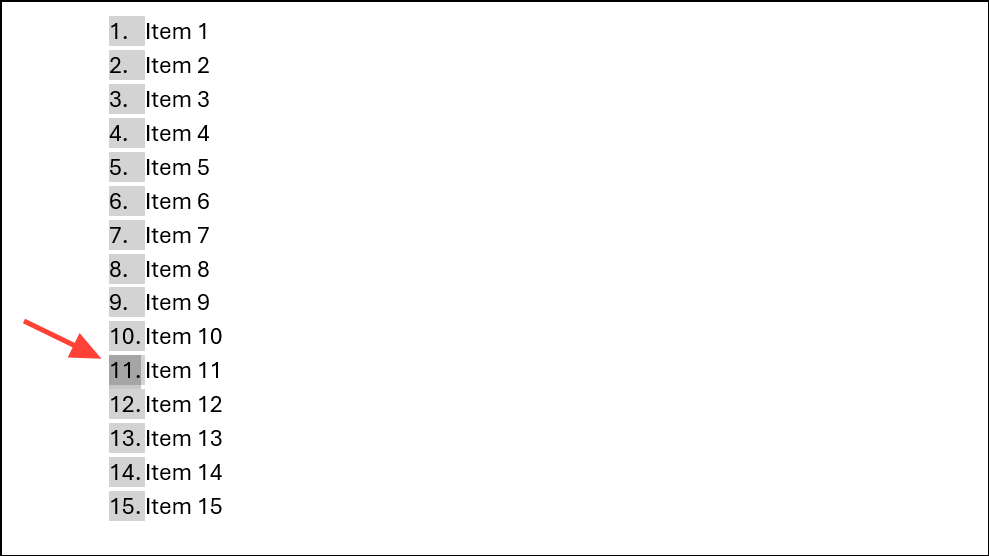
Restart at 1 to begin a new sequence starting from 1, or choose Set Numbering Value if you want to start from a different number. In the dialog box, enter your desired starting value and confirm.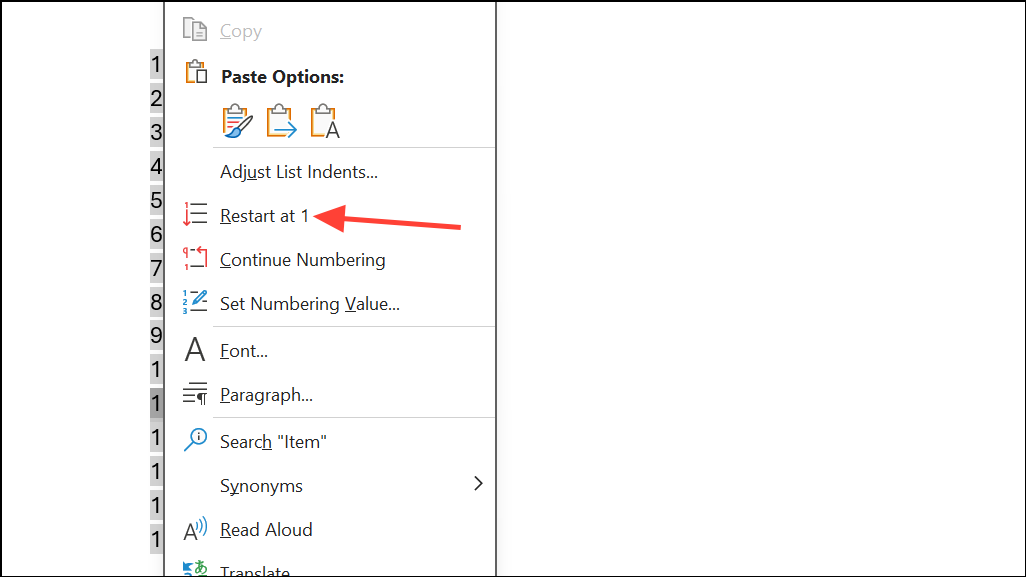
This method is straightforward and works well for most simple lists. It prevents Word from automatically continuing numbering from previous lists, giving you clear breaks between sections.
Adjust List Indentation and Formatting
Word sometimes applies different indentation or formatting to new lists, especially when copying and pasting content or using custom styles. If your new numbered list begins at the wrong indent level or appears visually misaligned, you may need to adjust the paragraph formatting.
Paragraph dialog from the toolbar or by right-clicking and selecting Paragraph.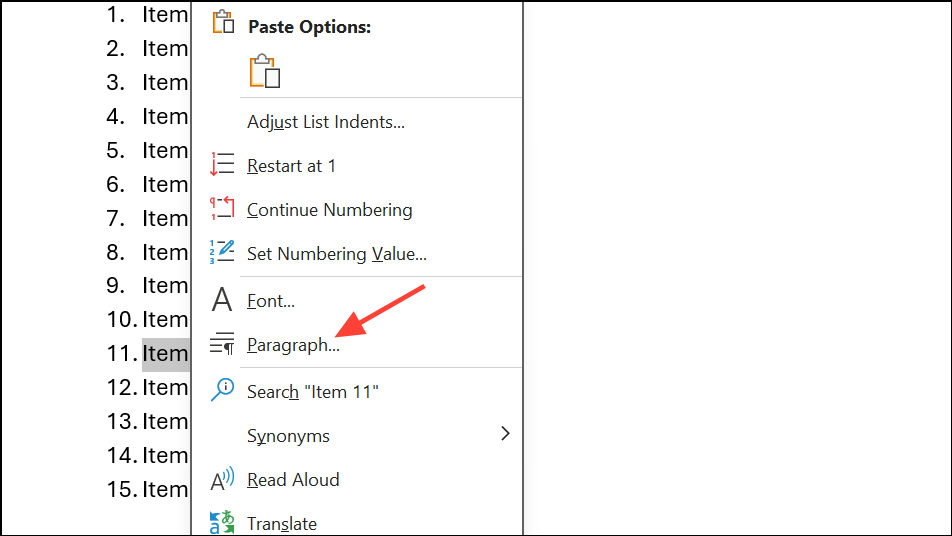
Indentation settings to match your preferred layout. Set both Left and Special indents as needed for consistency throughout the document.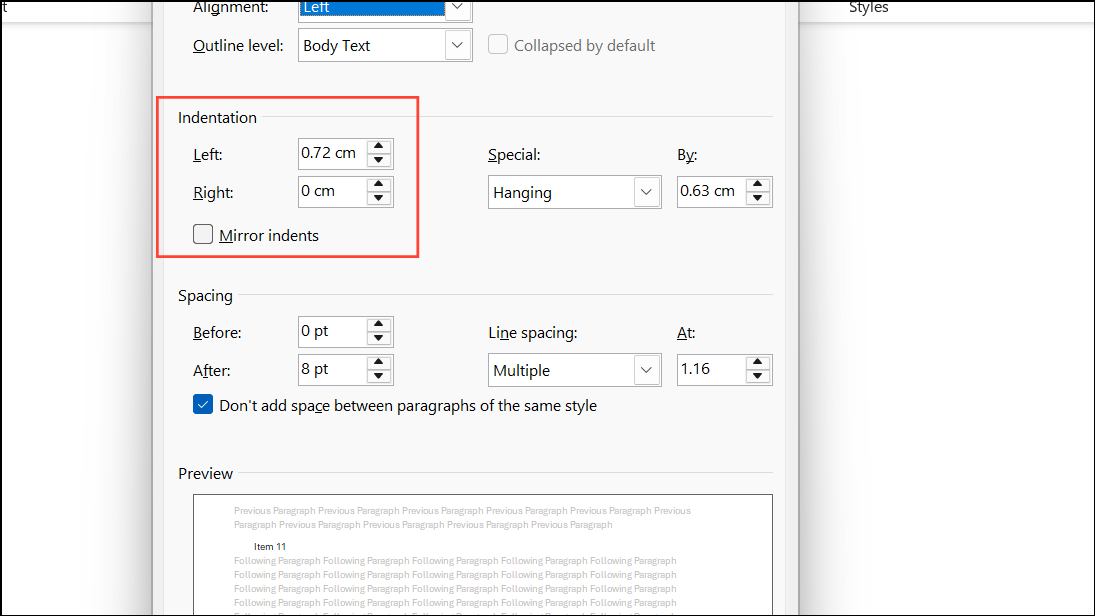
This step ensures your lists are not only numbered correctly but also visually aligned in the way you want.
Restart Numbering Automatically with Multilevel Lists and Styles
For documents with complex structures—like outlines with multiple levels or sections where each needs its own numbered sequence—setting up multilevel lists tied to paragraph styles is the most reliable approach. This method can automate restarts and maintain consistent formatting, especially in long documents.
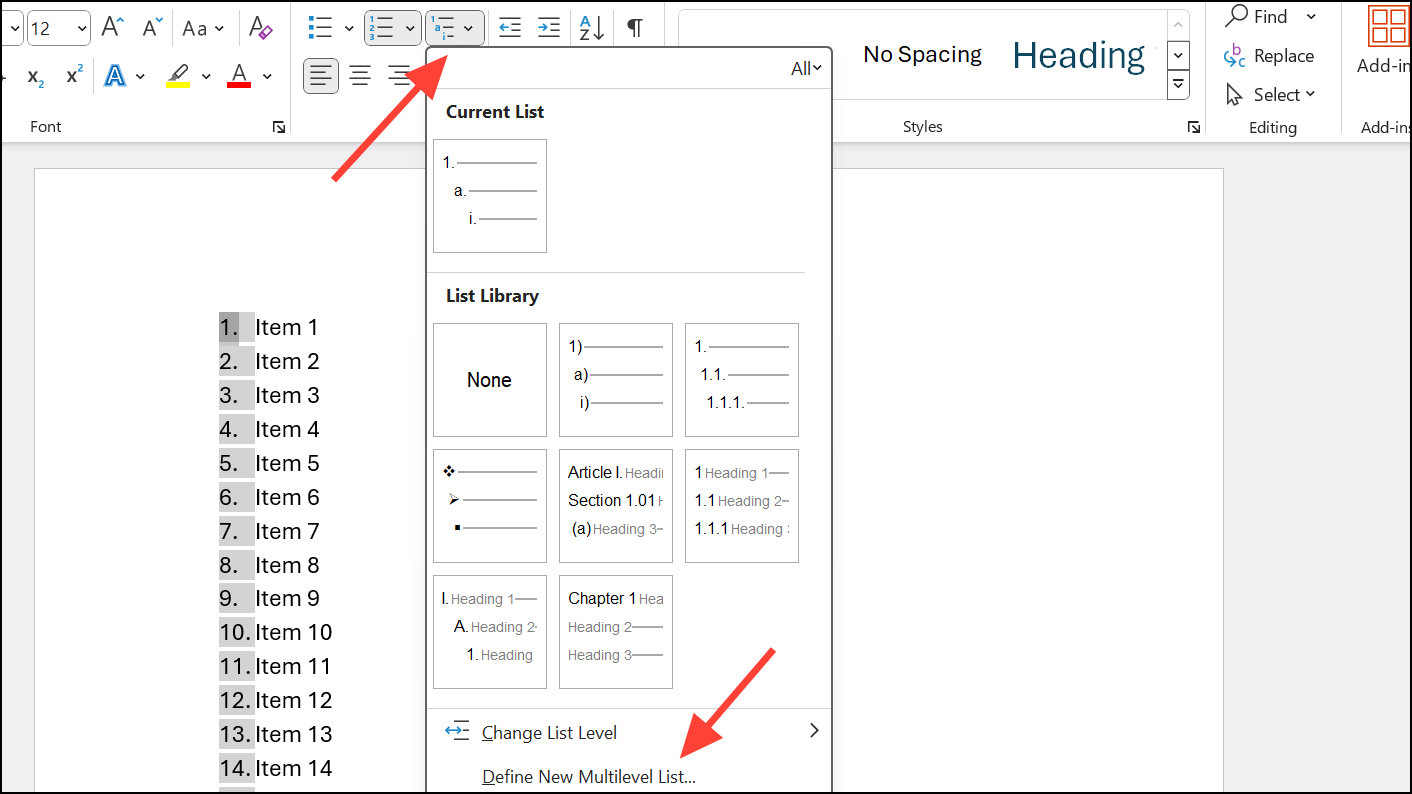
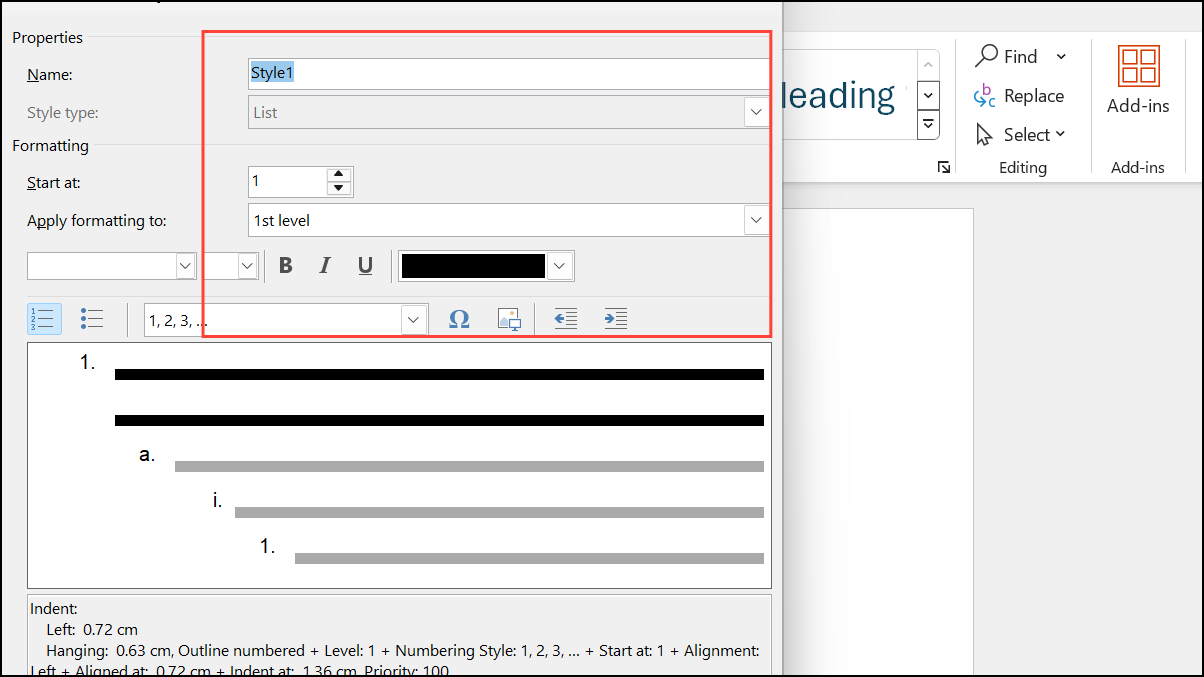
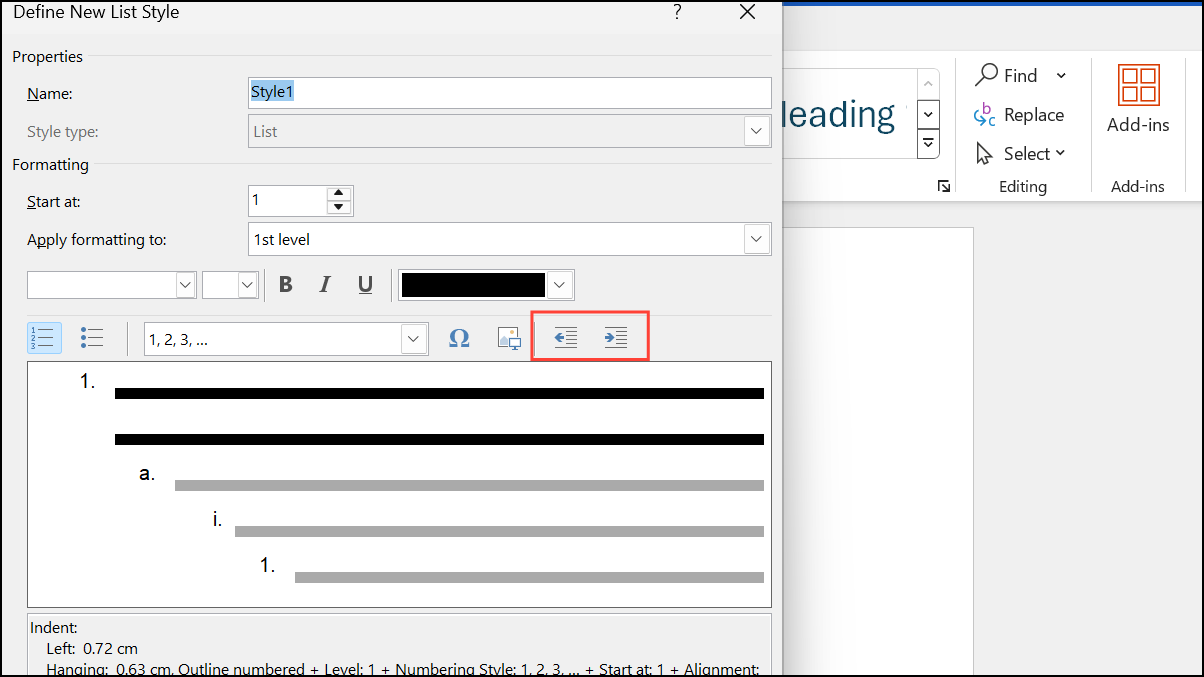
This approach ensures that whenever you apply the designated style, Word restarts the numbering sequence automatically—no manual intervention needed for each section.
Troubleshooting: When Restart Numbering Doesn’t Work
Sometimes, right-clicking and selecting Restart at 1 or Set Numbering Value fails to reset the numbering, especially if hidden formatting or previous list styles persist. If this happens:
- Try undoing the restart action immediately (
Ctrl + Z). Occasionally, this forces Word to recognize the restart and apply it correctly. - Clear formatting from the affected paragraph using the
Clear All Formattingbutton in the Home tab before reapplying the numbered list.
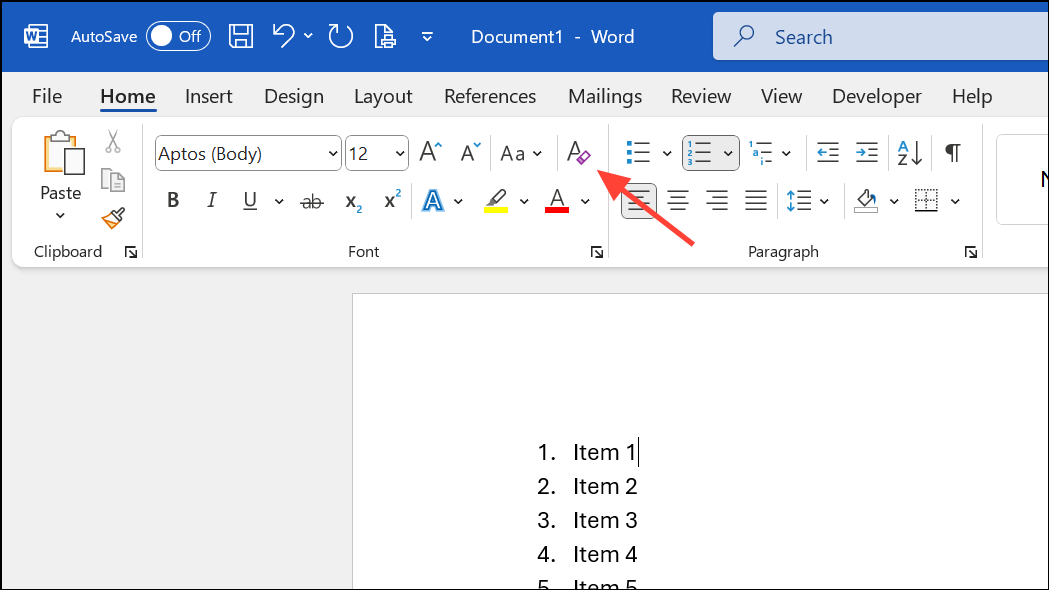
- If persistent problems remain, copy the content into a new document to strip out problematic formatting, then reapply numbering as needed.
Be aware that Word’s numbering system can sometimes behave unpredictably due to underlying formatting or style conflicts. Using styles and multilevel lists as described above helps prevent many of these issues.
Resetting numbered lists in Microsoft Word is simple once you know the right methods. Whether you need a quick manual restart or automated section numbering, these steps keep your lists organized and your documents looking professional.