Grouping text and pictures in Microsoft Word streamlines document editing by letting you move, resize, or format multiple objects together. This technique is especially useful for creating layouts, headers, or infographics where text and images must stay aligned. However, grouping is only possible when certain formatting conditions are met, and recent Word updates have changed how grouping works in some cases.
Group Text Boxes and Pictures Using the Format Tab
Layout Options icon next to it. Choose any wrapping style except In Line with Text—options like Square, Tight, or Behind Text will work. This step is crucial, as grouping is disabled if any object uses In Line with Text.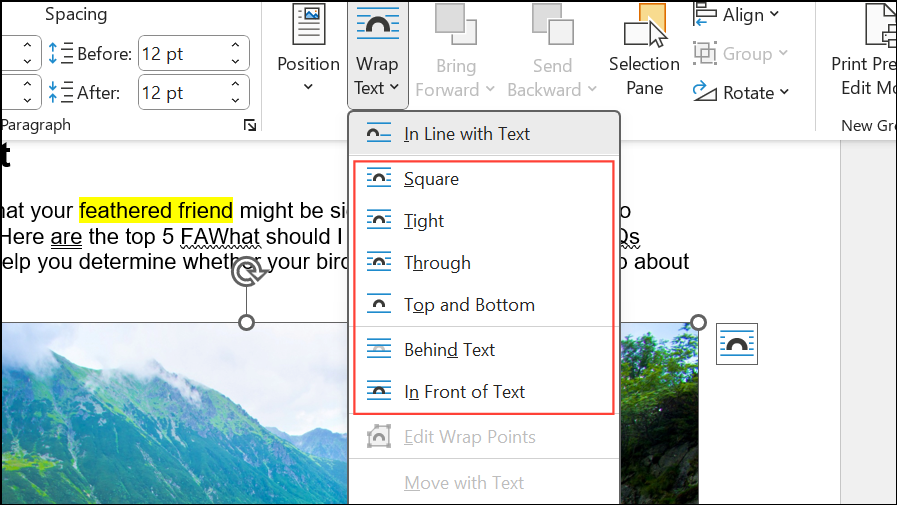
Ctrl key (or Command on Mac) and click each object you want to group. Ensure all objects are selected; you’ll see selection handles around each one.Picture Format or Shape Format tab on the ribbon. Click Group in the Arrange section, then select Group from the dropdown menu. The selected objects will now act as a single unit.Ungroup from the same menu.Troubleshooting When Grouping Is Unavailable
If the Group option is grayed out or you cannot select multiple objects, review these points:
- Verify that every object uses a floating text wrapping style (not
In Line with Text). - Ensure the document is not in Compatibility Mode (
.docformat). Save the file as.docxto access newer grouping features. - If objects still can’t be grouped, copy them into a new Word document. Sometimes, document corruption or legacy formatting blocks grouping.
- Check that you are not attempting to group incompatible object types (e.g., grouped images from different sources or formats).
Some users report persistent issues even after changing all settings. In rare cases, grouping works in a new document but not in the original file—copying content to a fresh document often resolves this.
Alternative Methods for Grouping
Using a Drawing Canvas
Insert > Shapes > New Drawing Canvas (found at the bottom of the shapes menu).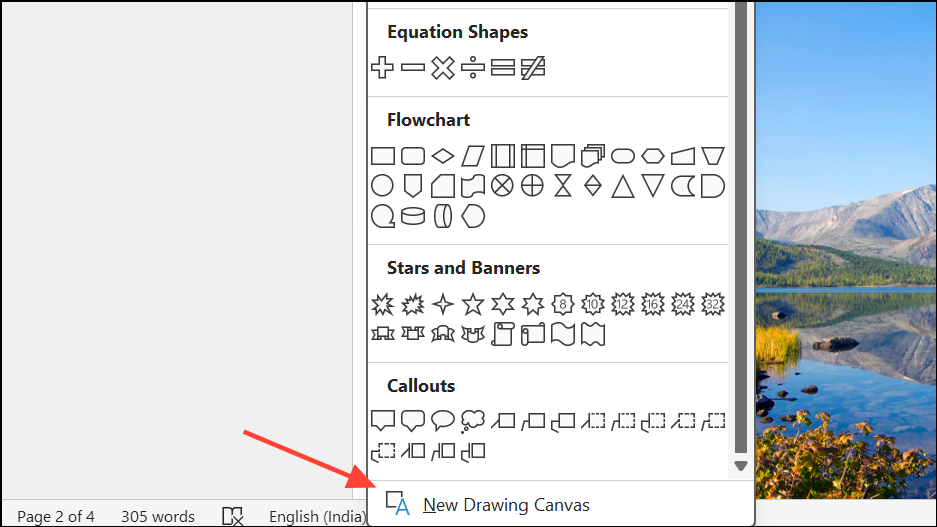
Using PowerPoint as a Workaround
This method is useful if Word’s grouping feature is unavailable, but note that some formatting options may not transfer perfectly.
Combining Objects with a Screenshot
This approach is quick and bypasses grouping limitations, but the combined object is now a static image and cannot be edited as separate elements.
Grouping text and pictures in Word improves layout control and saves time when moving or resizing related objects. If grouping fails, adjusting text wrapping or using a drawing canvas usually solves the issue, while PowerPoint and screenshot workarounds offer alternatives when standard methods don’t work.