How to Fish, the co-op fishing shooter from Dazed Games, routes voice through a built-in proximity system called Proxy Chat. If your teammates cannot hear you, the usual cause is the wrong input device being active. You can pick the correct microphone directly inside the game without touching Windows settings or an external app.
Quick answer: Press Escape, open Options, go to the Audio tab, find the Proxy Chat section, and click the arrows next to Microphone until your device name is shown. Then Save.
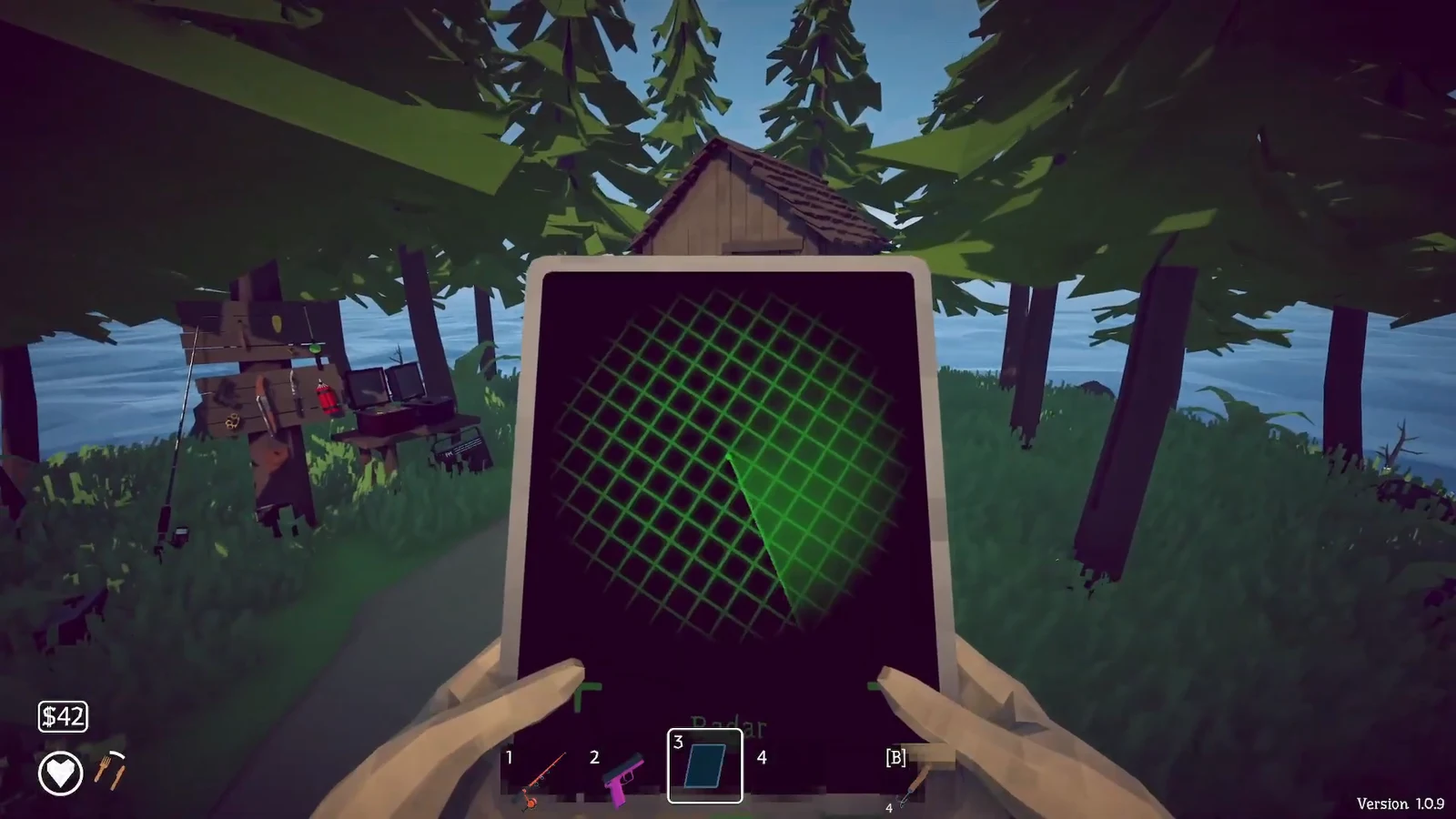
Change the Proximity Chat microphone in the Audio tab
The microphone selector sits inside the Proxy Chat section of the Audio settings. You can reach it mid-session, so there is no need to quit to the main menu.
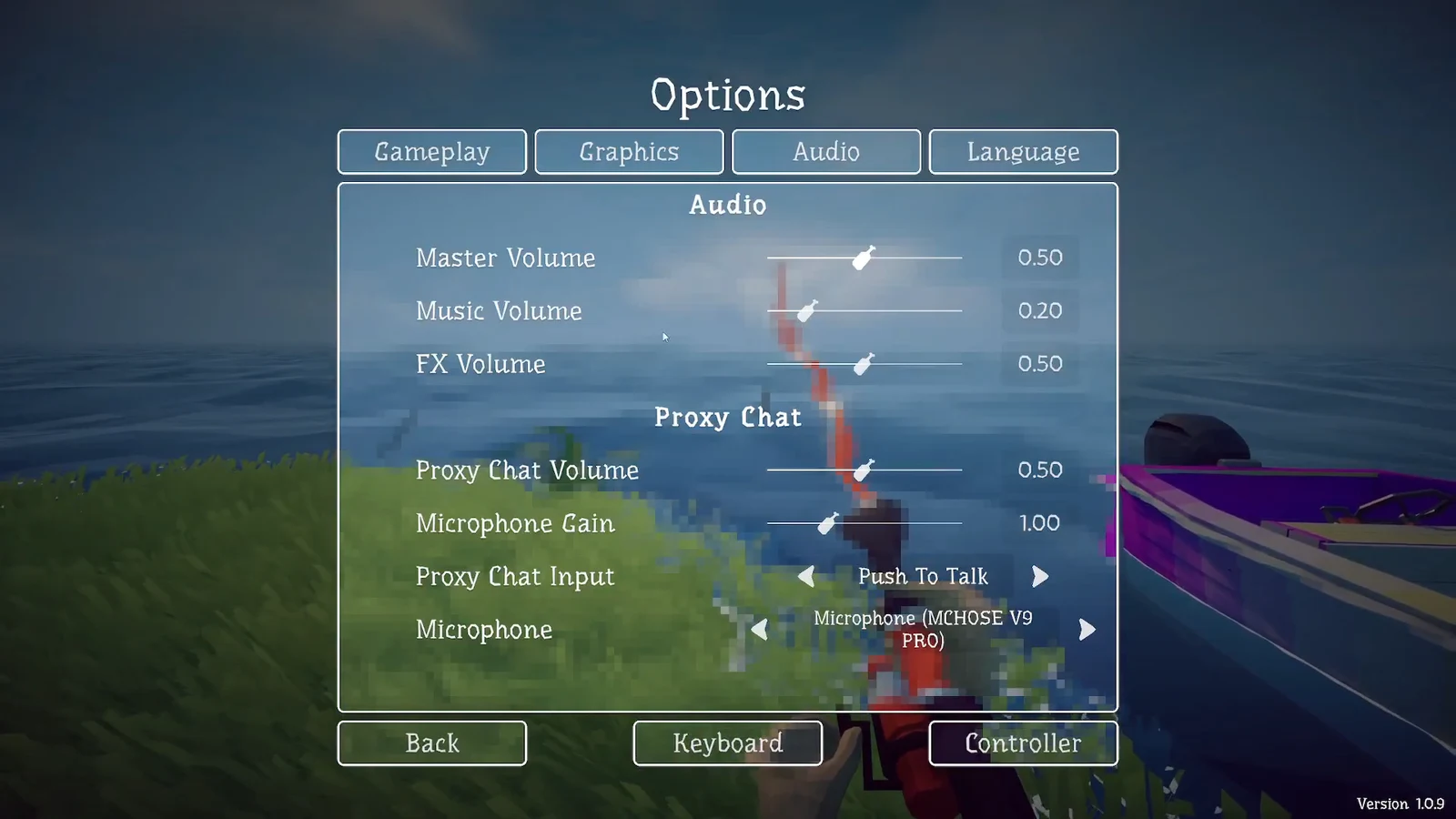
Microphone (MCHOSE V9 PRO) to Microphone (2- fifine Microphone).Set Microphone Gain and Proxy Chat Volume
Two sliders in the same Proxy Chat section control how loud you sound and how loud everyone else is. Adjust them after picking the device so the levels match your setup.
| Setting | What it controls | Example value |
|---|---|---|
| Microphone Gain | How strongly your own input is boosted before it is sent | 1.27 |
| Proxy Chat Volume | How loud nearby players sound to you | 0.65 |
Raise Microphone Gain if teammates say you are too quiet, and lower Proxy Chat Volume if incoming voices drown out gunfire and callouts during a boss fight. The Proxy Chat Input option nearby also lets you set how the mic transmits, including a Push To Talk mode.
Confirm the microphone change worked
You know the swap took effect when the Microphone line displays the name of the device you selected rather than the previous one. After saving and returning to the game, speak while a teammate is within your audio range and ask if they can hear you clearly.
If the wrong device is still picked up, reopen the Audio tab and cycle the arrows again, making sure the intended microphone is plugged in and recognized by your system before you start. Setting your preferred mic as the default device in Windows can prevent the game from defaulting back to the wrong input.
Note: Proximity chat only carries to players who are physically close in the shared session, so voice fades as distance grows. Test it while standing near a teammate rather than across the map.
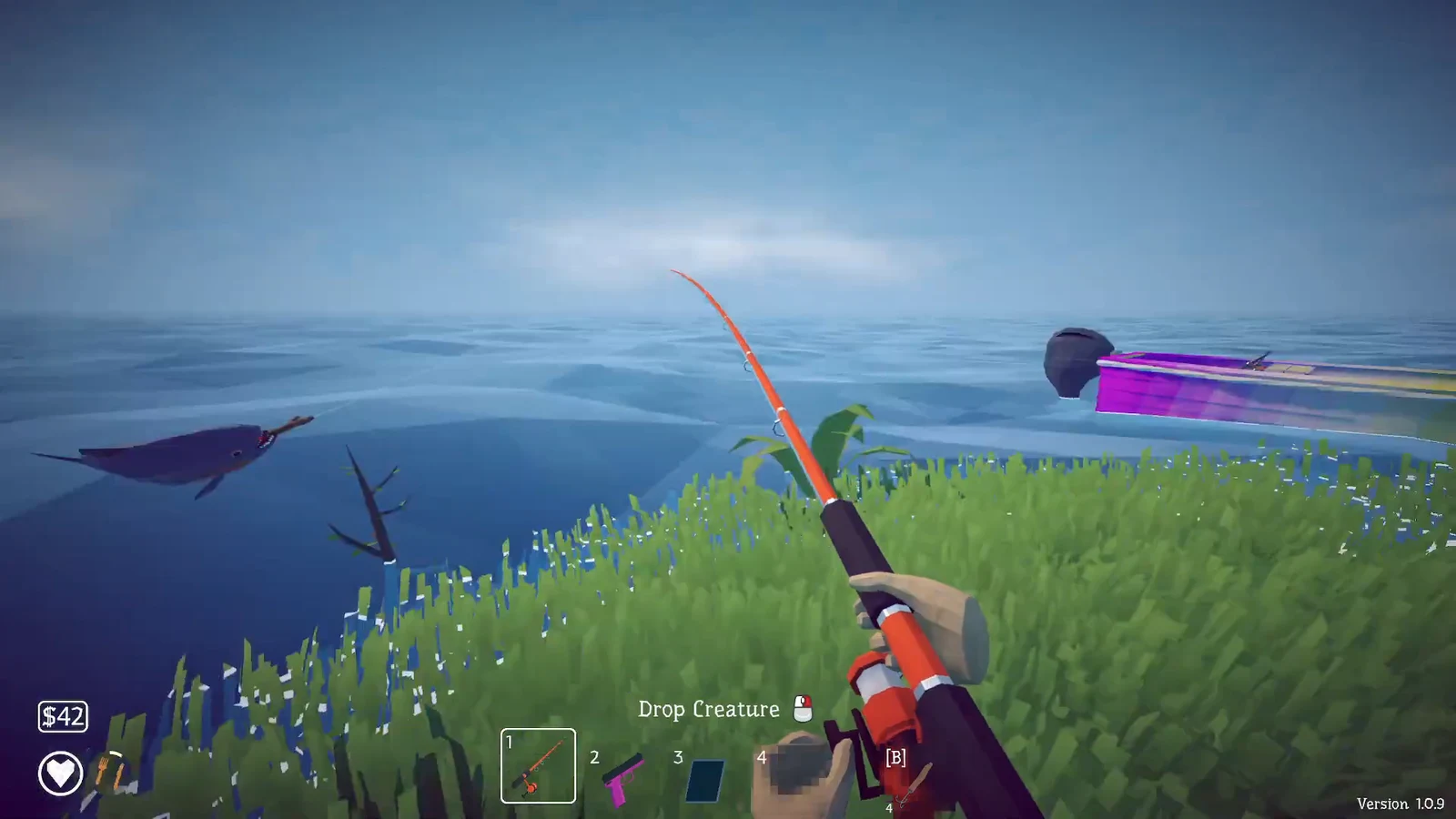
With the correct microphone active and the gain balanced against incoming voices, proximity chat stays readable through the busiest parts of a run, from reeling in a catch to dropping a boss. Once your device shows in the Proxy Chat section and your squad confirms they can hear you, the setup is done.