The error message “Excel cannot open the file because the file format or extension is not valid” appears when Microsoft Excel fails to recognize or access a workbook due to file corruption, mismatched extensions, permission issues, or compatibility conflicts. This problem can prevent you from opening important spreadsheets, disrupt workflow, and, in some cases, put critical business data at risk. Addressing the root cause—whether it’s file corruption, incorrect permissions, or a simple extension mismatch—can restore access and minimize data loss.
Repair the Excel File Using the Open and Repair Feature
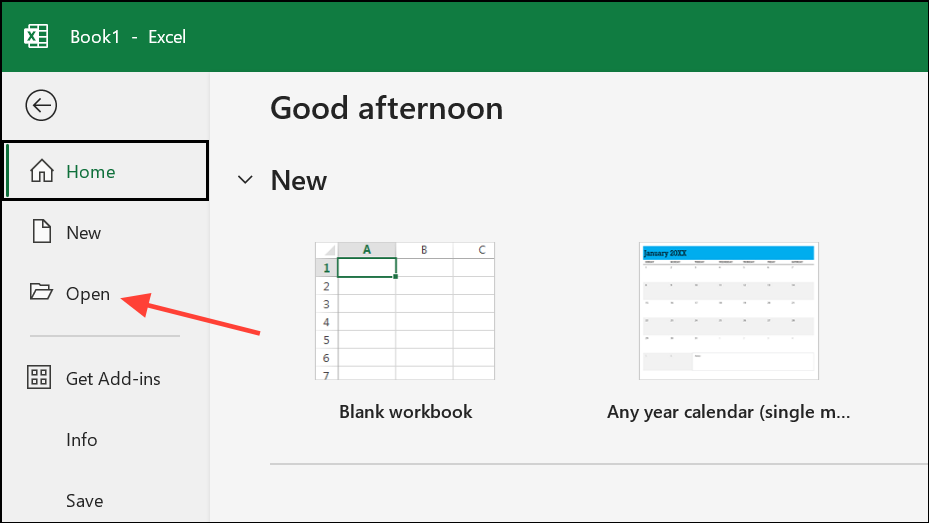
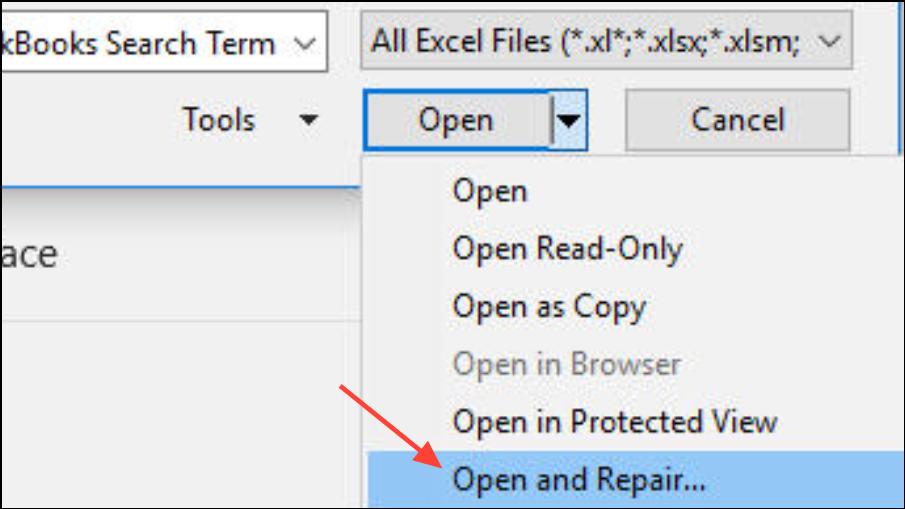
This method works best for files that are only partially corrupted or have suffered minor damage due to interruptions or crashes. It is the most direct way to recover access to a file without relying on third-party tools.
Restore Previous Versions of the File
If no previous versions are listed, this option may not be available. Enabling File History or regular backups is recommended for future protection.
Adjust File Permissions to Allow Access
Insufficient permissions can prevent Excel from opening a file, especially if it was downloaded, transferred from another device, or stored on a network location.
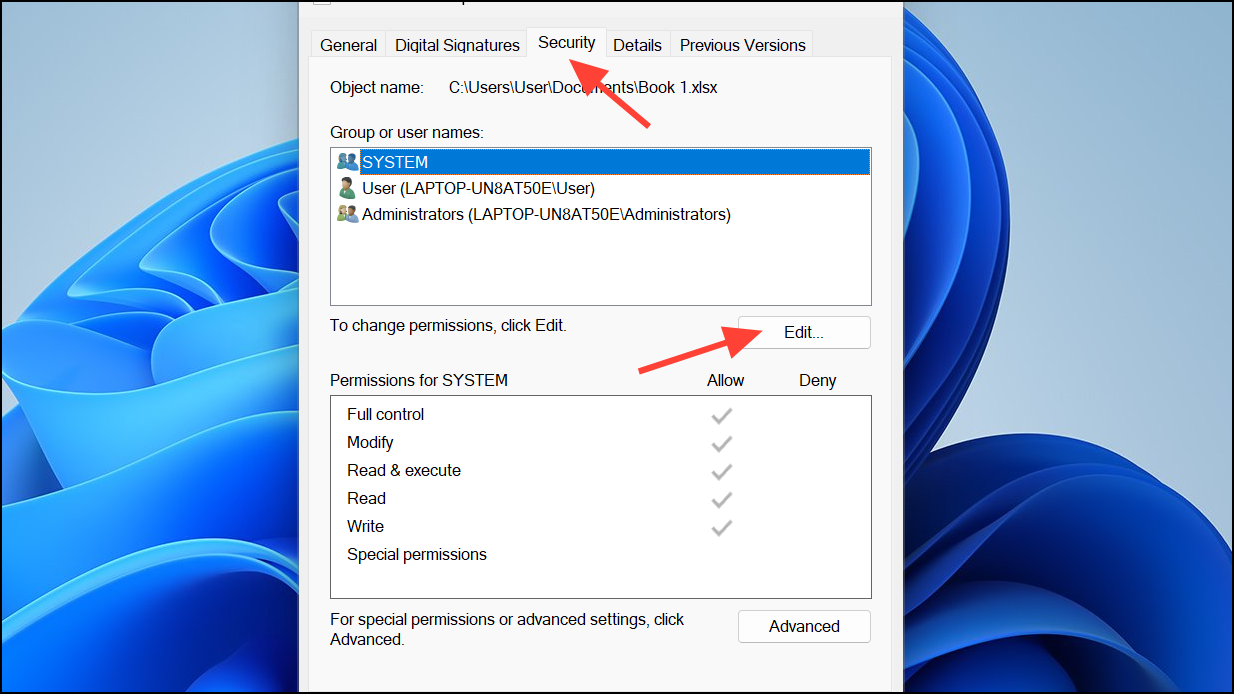
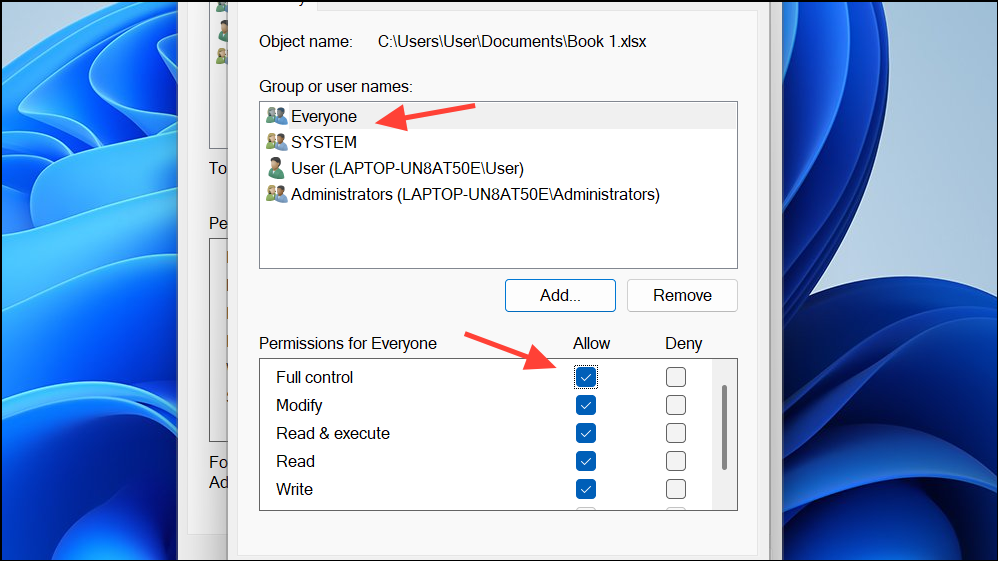
After adjusting permissions, try opening the file again in Excel. This process is especially useful for files transferred between users or devices, or when files are blocked after download.
Change the File Extension to Match the Actual Format
Excel files saved with the wrong extension (for example, renaming a .xls file to .xlsx) may trigger the format error. Ensuring the extension matches the file’s internal structure can resolve compatibility issues.
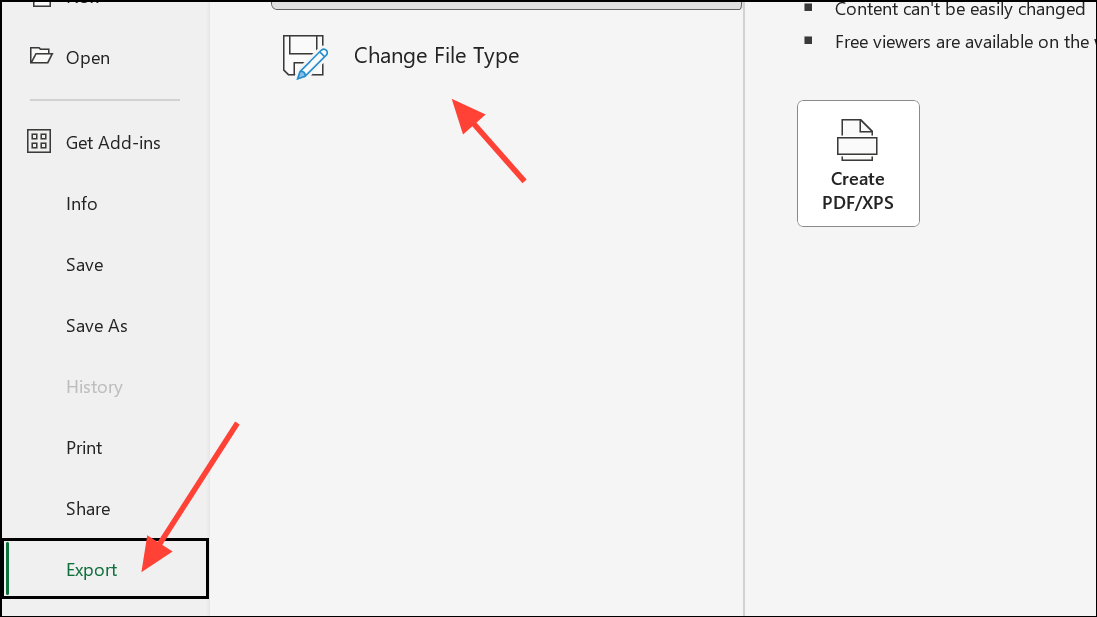
Do not attempt to manually rename file extensions in File Explorer, as this does not convert the file’s internal structure and may worsen the issue.
Recover Unsaved or Autosaved Workbooks
When workbooks are lost due to crashes or accidental closure without saving, Excel’s built-in recovery tools may help retrieve unsaved content.
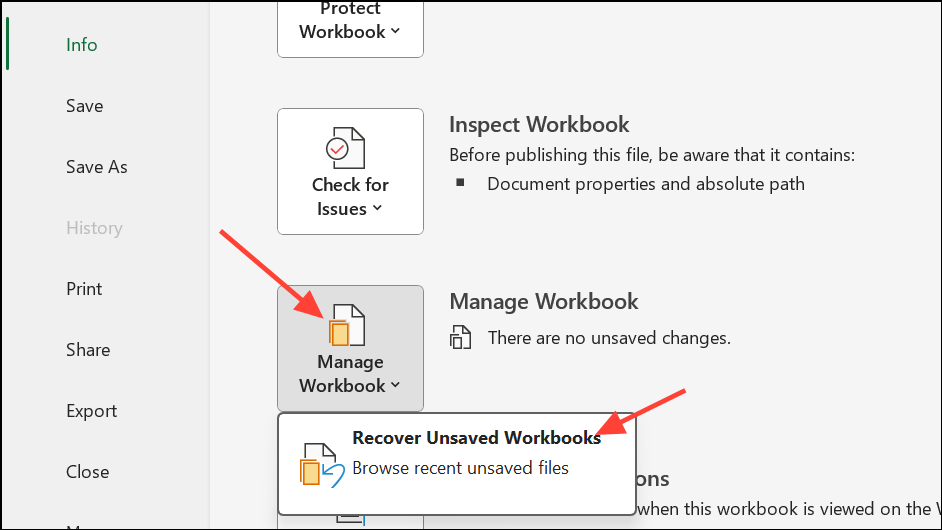
This method is only available if Excel’s AutoSave or AutoRecover features are enabled. Regularly saving your work and enabling these features can minimize data loss in the future.
Use a Professional File Repair Tool as a Last Resort
If built-in Excel features fail to repair or recover your file, specialized repair tools like Stellar Repair for Excel or EaseUS Fixo Document Repair can attempt to restore severely corrupted workbooks. These tools analyze file structure, extract recoverable data, and rebuild spreadsheets in a new, working file.
To use a repair tool, download and install the software from a reputable source. Launch the application, add the problematic Excel file, and initiate the repair process. Most tools offer a preview of recoverable data before saving the repaired file. Always back up the original file before using third-party utilities.
Additional Tips to Prevent Future Errors
- Always use Save As to change file formats instead of renaming extensions in File Explorer.
- Regularly back up important Excel files to cloud storage or external drives.
- Keep Microsoft Office updated to ensure compatibility with new file formats.
- Run antivirus scans to prevent malware-induced file corruption.
- Enable AutoSave and AutoRecover features in Excel for ongoing protection.
Resolving the Excel file format or extension error restores access to your spreadsheets and helps avoid future disruptions. Consistent backups and cautious handling of file extensions and permissions will keep your data safer going forward.