Checkboxes are useful only when each one writes TRUE/FALSE to a reliable location. The quickest setup depends on your Excel version and whether you’re working with the new in‑cell checkboxes or legacy Form Controls. The sections below cover both, including bulk linking for existing checkboxes and cross‑sheet mirroring.
Excel 365 in‑cell checkboxes (Insert tab) — add many at once
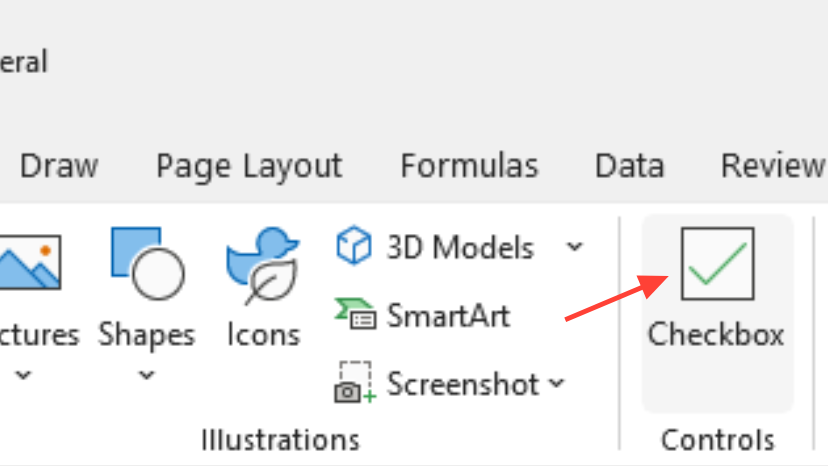
COUNTIF(B2:B400,TRUE) to count checked items or referencing the cells directly in logic.Link existing Form Control checkboxes to matching cells (bulk relink)
When to use: You already have Form Control checkboxes (Developer tab) and need each one to write to its corresponding row/column without re‑inserting them.
Alt+F11. In the Project pane, choose your workbook to ensure the macro runs on the correct sheet.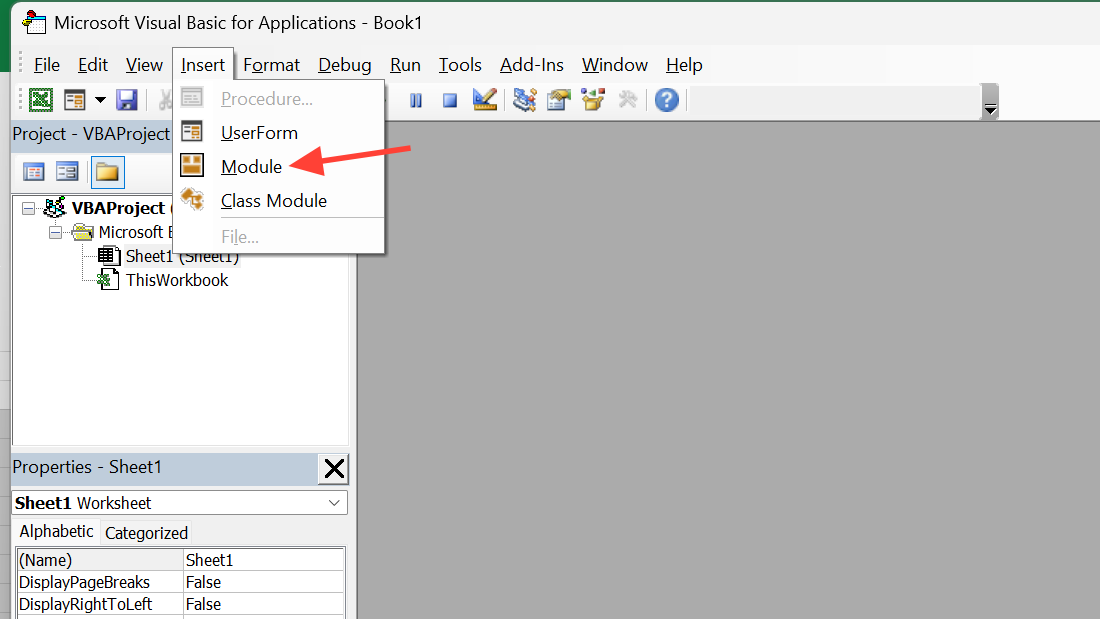
LinkedCell to a cell offset from the checkbox’s top‑left cell. Adjust lCol to control which column receives TRUE/FALSE.Sub LinkCheckBoxes_ToOffset()
Dim chk As CheckBox
Dim lCol As Long
'Link each checkbox to a cell lCol columns to the right of the box's top-left cell.
'Set to 0 to link to the same cell; 1 for next column; 2 for two columns over, etc.
lCol = 1
For Each chk In ActiveSheet.CheckBoxes
chk.LinkedCell = chk.TopLeftCell.Offset(0, lCol).Address
chk.Caption = "" 'Optional: hide caption so only the box shows.
Next chk
End Sub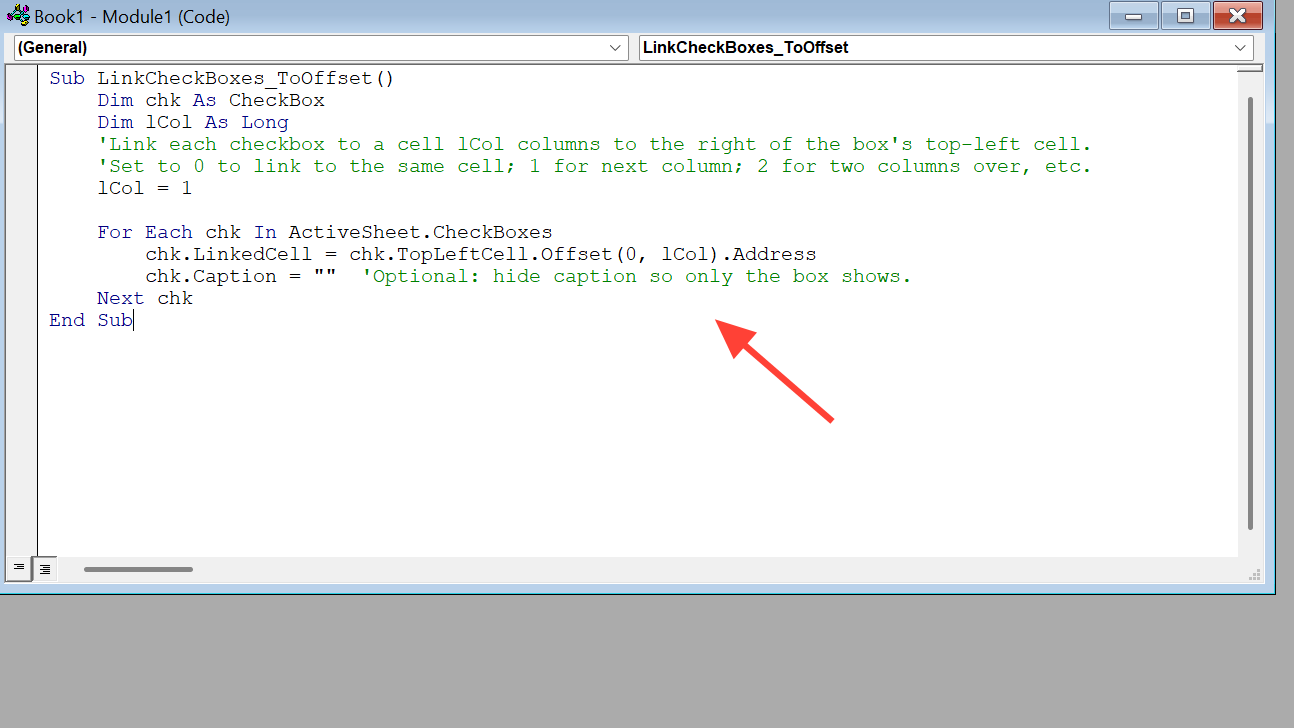
Alt+F8, select LinkCheckBoxes_ToOffset, then click Run. Toggle a few boxes to confirm each writes to the correct cell.Cross‑sheet linking for existing checkboxes
Sheet2!C5). It keeps the pairing by row.Sub LinkCheckBoxes_ToOtherSheet()
Dim chk As CheckBox
Dim linkSheet As Worksheet
Dim rowOffset As Long, colOffset As Long
'Set the target sheet for the TRUE/FALSE values:
Set linkSheet = ThisWorkbook.Worksheets("Sheet2")
'Adjust offsets relative to each checkbox's TopLeftCell:
'Example: same row, 2 columns to the right on the target sheet.
rowOffset = 0
colOffset = 2
For Each chk In ActiveSheet.CheckBoxes
chk.LinkedCell = linkSheet.Cells( _
chk.TopLeftCell.Row + rowOffset, _
chk.TopLeftCell.Column + colOffset).Address(External:=True)
Next chk
End SubAdd and link new Form Control checkboxes in bulk (create + link)
When to use: You need to insert many Form Control checkboxes and link each one to a specific column or to the same cell it sits in.
Create in one column and link to another column (by row)
Sub AddCheckboxes_LinkByRow()
    Dim i As Long

    'Place checkboxes in column A and link to column C on the same row.
    'Change the loop to cover your actual row range.
    For i = 2 To 300
        With ActiveSheet.CheckBoxes.Add( _
                Cells(i, "A").Left, _
                Cells(i, "A").Top, _
                72, 17.25)
            .Caption = ""
            .Value = xlOff
            .LinkedCell = "C" & i
            .Display3DShading = False
        End With
    Next i
End Sub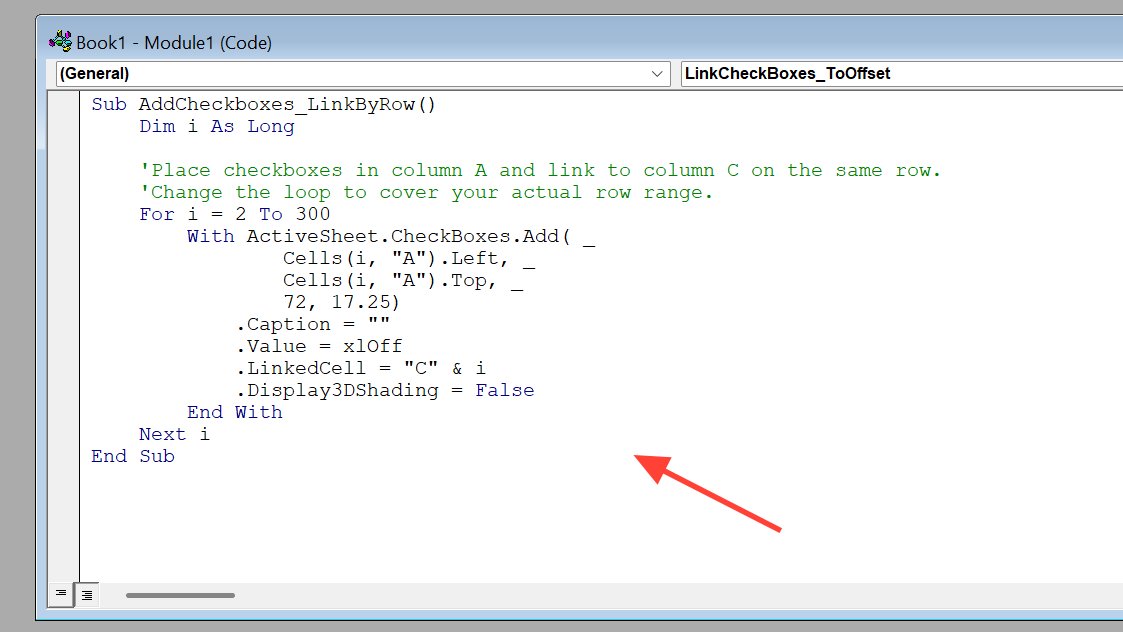
Create one checkbox per cell and link to the same cell (aligned to grid)
Sub AddCheckboxes_OnePerCell_SameCellLink()
    Dim Rng As Range, WorkRng As Range, ws As Worksheet

    Application.ScreenUpdating = False

    'Delete any existing checkboxes to prevent overlap.
    ActiveSheet.CheckBoxes.Delete

    'Adjust the range to the cells where you want checkboxes.
    Set WorkRng = Range("B2:B100")
    Set ws = ActiveSheet

    For Each Rng In WorkRng
        'Optional gate: only add a checkbox if a neighbor cell has content.
        'If Cells(Rng.Row, "A").Value <> "" Then
            With ws.CheckBoxes.Add(Rng.Left, Rng.Top, Rng.Width, Rng.Height)
                .LinkedCell = Rng.Address
                .Characters.Text = ""
                .Name = Rng.Address
            End With
        'End If
    Next

    Application.ScreenUpdating = True
End SubMirror one checkbox across multiple places (shared link)
LinkedCell to all of them (for example, set each to Master!B2). Checking any one updates that single linked cell, which updates them all.=Master!B2 where you need the same TRUE/FALSE. This works across sheets and keeps everything consistent.Use the linked TRUE/FALSE in formulas and filters
COUNTIF. Example: =COUNTIF(C2:C300,TRUE) counts how many boxes are checked in a linked column.=SUMPRODUCT((C2:C300=TRUE)*E2:E300) totals only the amounts on checked rows.Pick the approach that matches your sheet: in‑cell checkboxes for modern Microsoft 365, or the macros here for fast bulk work with Form Controls. Either way, you’ll move from manual linking to a setup that’s consistent and easy to maintain.