
Hytale’s early access launch has exposed a range of launcher issues that prevent players from installing or starting the game. The problems range from installer freezes during firewall setup to downloads that stall mid-patch, launchers that close immediately after opening, and silent failures where the installer appears to do nothing at all. Most of these failures stem from overloaded patch servers, aggressive antivirus software, or the launcher pointing to the wrong executable after an update.
Quick answer: Restart the Hytale launcher fully to clear broken download sessions. If the launcher closes immediately, navigate to %appdata%\Roaming\Hytale\install\release\package\launcher\[version folder] and run hytale-launcher.exe directly. If the installer hangs or does nothing, check your antivirus for blocked actions and manually allow Hytale.
Restart the launcher to fix stalled downloads and patch errors
When the Hytale launcher hangs during installation or displays an INTERNAL_ERROR message while downloading patch files, the download session has usually broken mid-stream. This happens most often during high server load when too many players are installing at once. The fastest fix is to restart the launcher completely rather than just retrying the download button.
If the exact same INTERNAL_ERROR appears repeatedly after relaunching, the patch servers may still be under heavy strain. In that situation, spacing out retries rather than hammering the button every few seconds tends to work better. The game files are under 2 GB, so once the connection stabilizes, the download should complete quickly.
Run the correct launcher executable when the shortcut fails
A common problem is that the desktop or taskbar shortcut created by the installer points to an updater stub rather than the actual launcher. When you click the shortcut, a brief download window appears and then closes, leaving nothing running. The real launcher executable is buried in a versioned subfolder inside the game installation directory.
%appdata%\Roaming\Hytale. You can paste that path directly into the Explorer address bar.install folder, then release, then package, then launcher. Inside the launcher folder, you will see a subfolder with a date and version string, such as 2026.01.13-b6c7e88. Open that folder.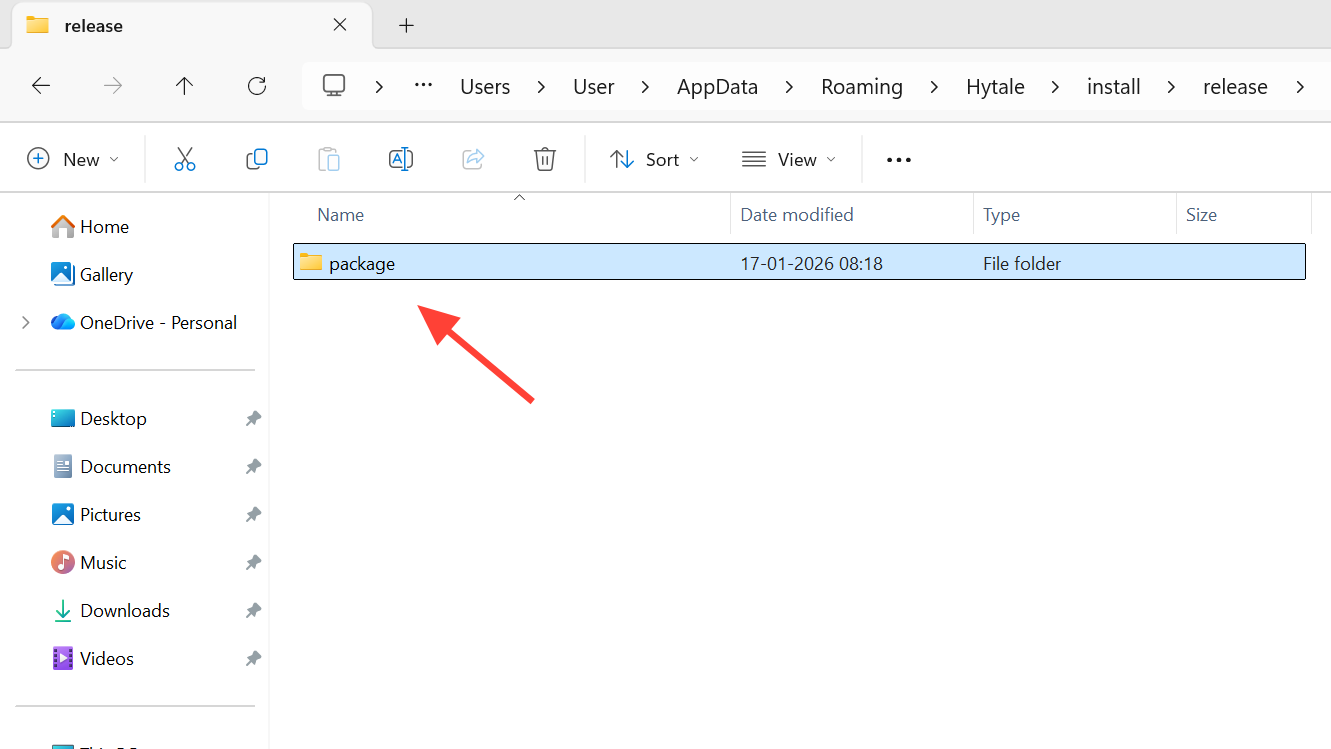
hytale-launcher.exe. Double-click it to start the launcher. If it opens successfully, right-click the executable, choose Create shortcut, and move that shortcut to your desktop or taskbar to replace the broken one.After a patch is applied, the version folder name may change. If the shortcut stops working again, repeat these steps and look for the folder with the newer date or version string. The launcher will always be inside the most recent versioned subfolder.
Allow Hytale through antivirus and endpoint protection
On some PCs, especially those managed by security suites like RAV Endpoint Protection, the installer for Hytale or its launcher is blocked or silently quarantined. When you double-click the installer and nothing happens, the antivirus has usually intercepted it without showing a clear notification.
Installer.exe.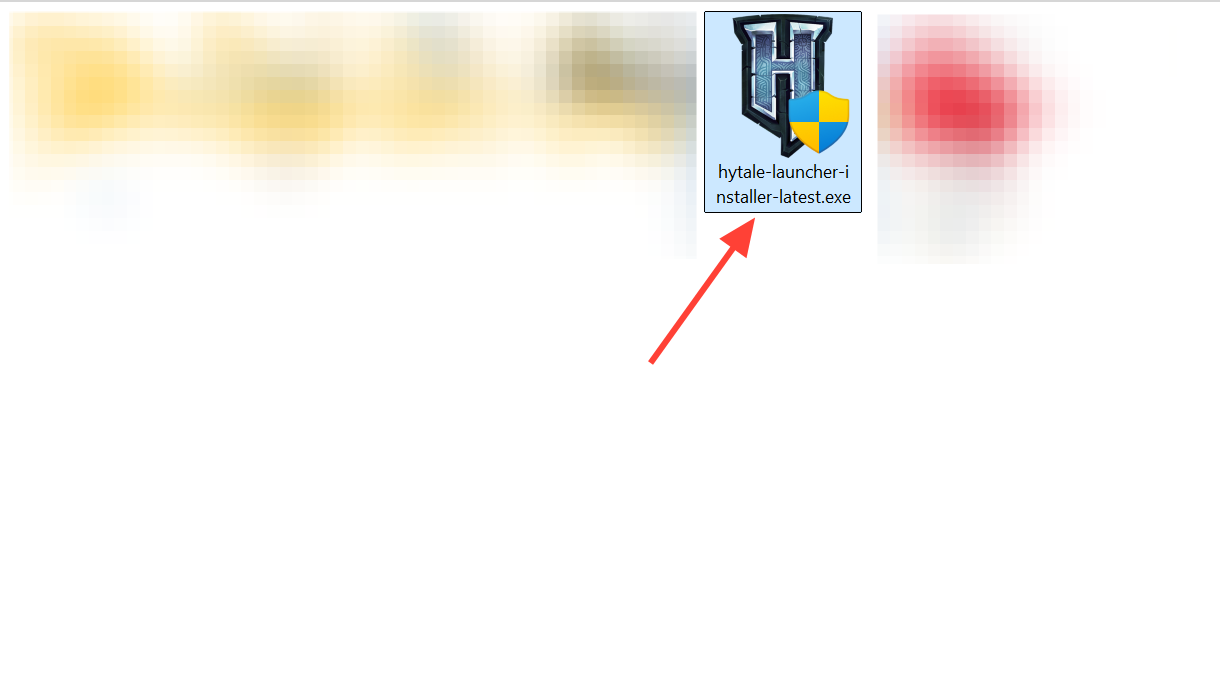
For other antivirus products, the names and menus will differ, but the logic is the same: review recent blocks, restore the Hytale installer if it was quarantined, and create an exception so the launcher can install and update the game without being interrupted. Temporarily disabling the antivirus during installation also works, but remember to re-enable it afterward.
Fix installer stuck on Windows Firewall rules
Some players report that the installer freezes during the step labeled “Adding Windows Firewall Rules for Hytale.” The progress bar stops moving after displaying “OK” four times. This usually means the installer does not have permission to modify firewall settings or the firewall service is blocking the request.
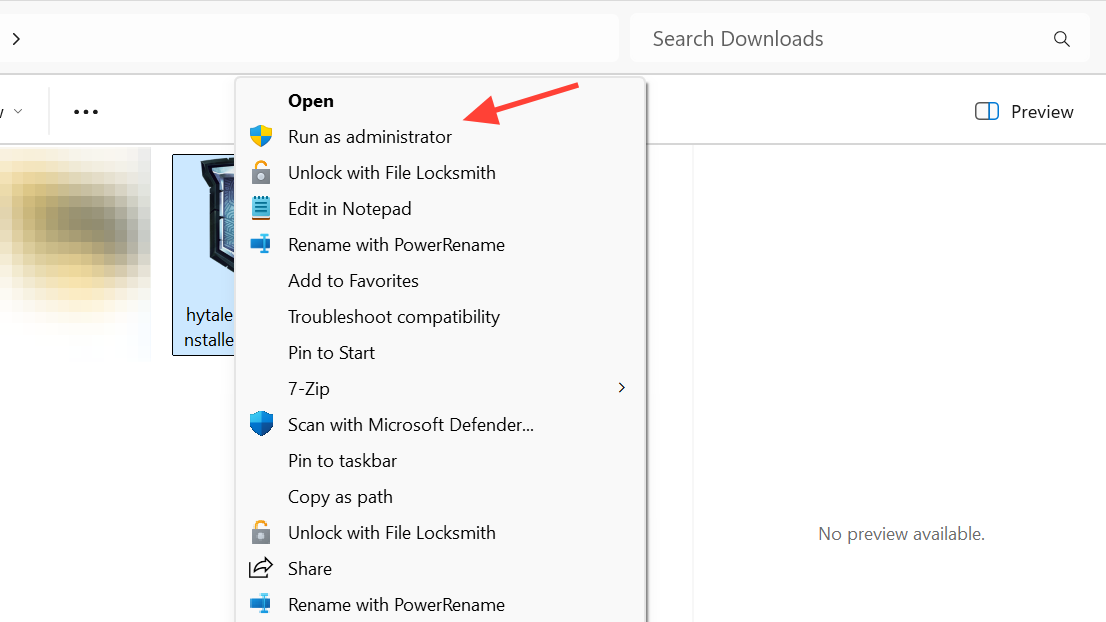
Another workaround is to install the launcher to C:\Program Files (x86) instead of the default C:\Program Files location. Some users found that changing the install path allowed the firewall step to complete without hanging.
Reset or reinstall the launcher when downloads fail immediately
When the launcher refuses to even begin the download or fails almost instantly, the local install state may be corrupted. Resetting or reinstalling the launcher usually resolves this.
If a full reset still does not help, fully uninstall the launcher from your system and download a fresh copy from the official Hytale site at hytale.com/download. Then reinstall it and sign back in before trying to install the game again.
Free up disk space to fix update errors
If you see an error message stating “not enough space to download update,” your system does not have enough free disk space to unpack the update files. Hytale updates, especially early access patches, can be larger than expected and require extra temporary space to apply correctly.
Fix Mac launch failures with Local Network permission
On Mac, the launcher may open successfully but the game itself never starts after clicking play. The icon in the dock loads briefly and then shows “application not responding.” This happens when macOS blocks Hytale from accessing the local network, which the game requires for authentication between the launcher and the game client.
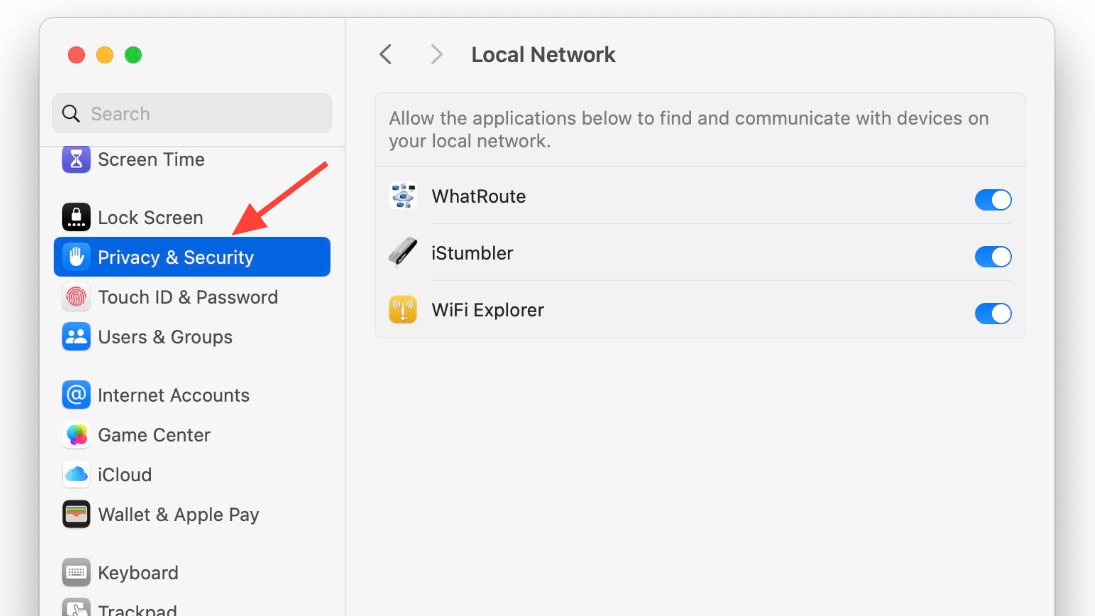
If the Local Network permission is already enabled and the game still does not launch, force-close the launcher from Activity Monitor and restart it. On some Macs, killing and restarting the launcher detaches it from the game process and allows the game to run. This workaround does not always work, but it succeeds often enough to be worth trying.
Another Mac-specific issue is that the launcher may download game assets but fail to unpack them. If you are comfortable using Terminal, navigate to ~/Library/Application Support/Hytale/install/release/package/game/latest and run unzip Assets.zip -d Client/Hytale.app/Contents/Assets to manually extract the assets. This fix has worked for some players, but may need to be repeated after each update.
Manual extraction for ARM64 Windows devices
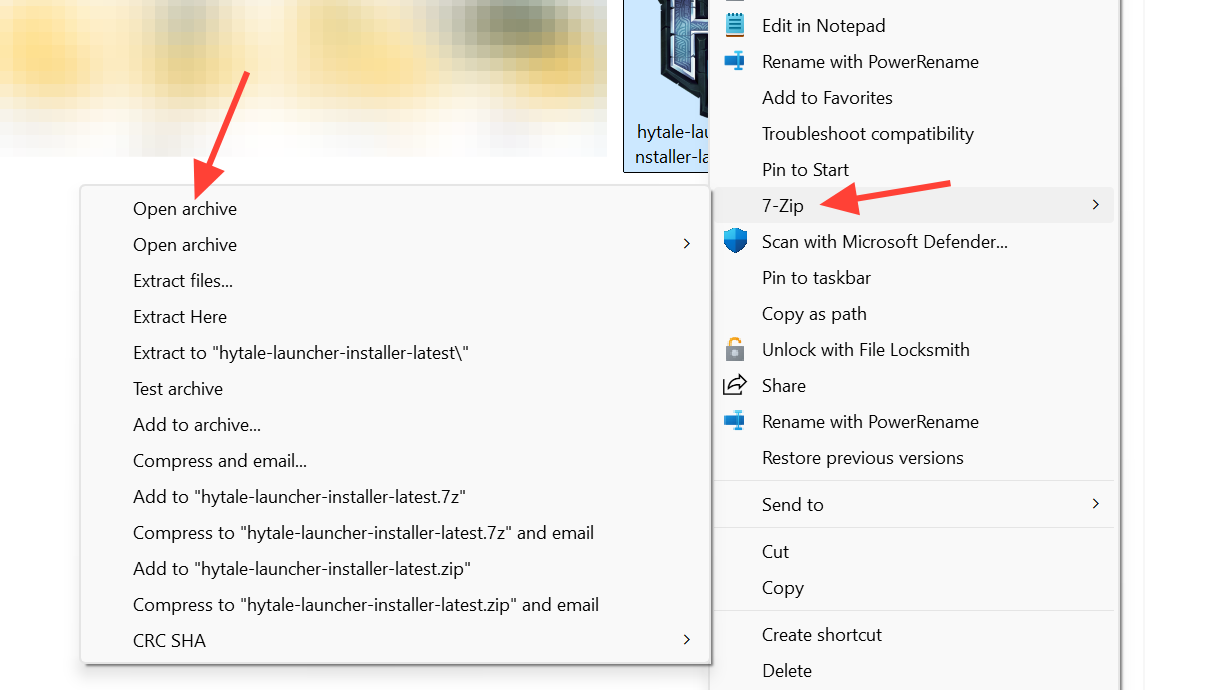
On ARM64 Windows devices such as the Microsoft Surface Pro 11 with Snapdragon X Elite, the installer sometimes refuses to run at all. When you check the Hytale folder, the only file present is uninstall.exe. The installer has not actually installed anything.
hytale-launcher.exe or a folder named app-64 or payload. Drag and drop all those files into a new folder on your desktop.hytale-launcher.exe directly from that folder. You can create a shortcut to this executable for easier access.This manual extraction bypasses the installer entirely and works on ARM64 devices where the standard installer fails silently.
Use a stable network or VPN for persistent download failures
There are cases where local configuration is fine but the route between your ISP and the Hytale patch servers is unstable. Symptoms include downloads that never start, or downloads that fail rapidly even after reinstalling and resetting the launcher.
Changing networks or using a VPN will not fix issues caused by antivirus, permissions, or corrupted launcher state, so combine this with the other fixes rather than relying on it alone.
Report persistent bugs to Hytale support
Hytale is launching in early access, which means rough edges are expected and patches will land quickly. The developers ask players to report bugs directly so launcher and download issues can be prioritized and fixed.
After you have tried relaunching, resetting, reinstalling, checking security tools, and testing another network, head to the official Hytale support site at support.hytale.com if the launcher still fails. Submit a ticket with the exact error text, the rough time it occurs, and any troubleshooting steps you have already taken. Include a launcher log if the support form provides a way to attach it.
Join the Hytale community Discord from the link on hytale.com if you want real-time confirmation that others are seeing the same issue. Community channels often surface widespread launcher problems before formal support updates arrive.
Once the initial rush of players subsides and the team has a chance to tune the patch infrastructure, launcher reliability should improve. For now, relaunching, resetting, watching your security tools, and being patient with the servers are usually enough to get Hytale onto your system.