Teams shutting down unexpectedly during screen sharing often points to conflicts with display drivers, outdated software, or misconfigured system settings. This issue can interrupt meetings, cause lost progress, and force users to switch to less efficient workarounds. Addressing the root causes—ranging from graphics driver compatibility to application cache problems—restores stable functionality and allows seamless collaboration.
Update Microsoft Teams and Windows
Running older versions of Teams or Windows can trigger compatibility issues, especially after major updates or changes to hardware drivers. Keeping both platforms current ensures new bug fixes and improved stability.
Windows + I to open Settings, then select Windows Update from the sidebar. Click Check for updates and install any listed updates. Restart your device if required to apply changes.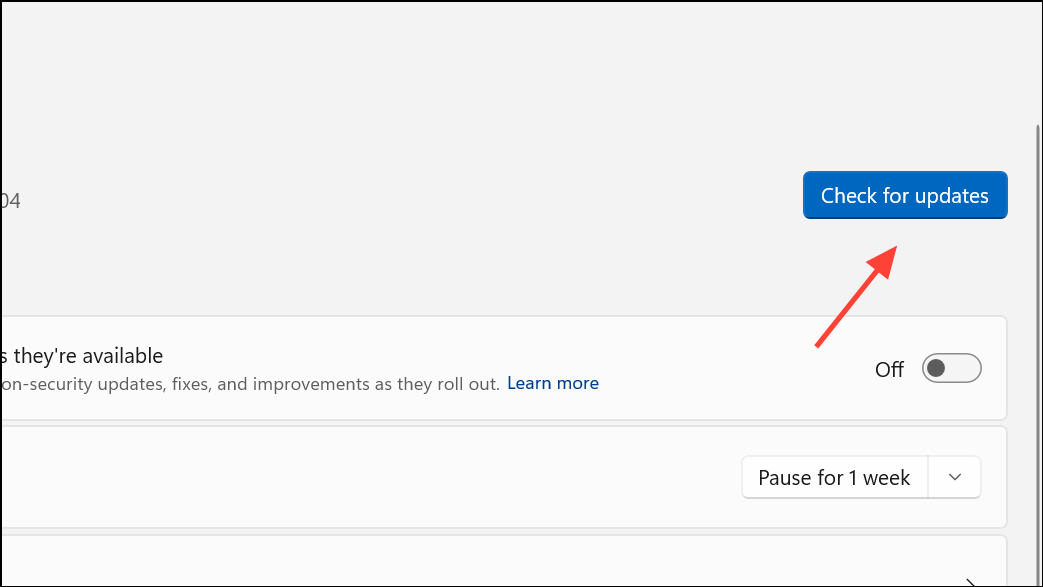
Clear the Microsoft Teams Cache
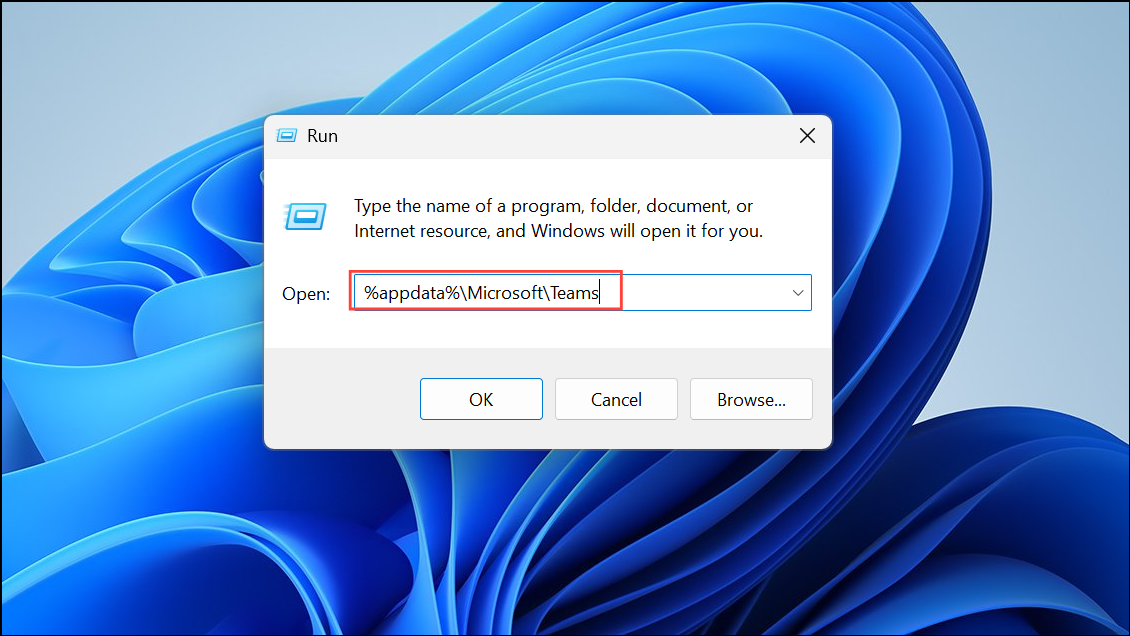
Corrupted or outdated cache files can cause Teams to crash, particularly during resource-intensive actions like screen sharing. Clearing the cache removes problematic files and forces Teams to rebuild them, often resolving persistent crashes.
Repair or Reset Microsoft Teams
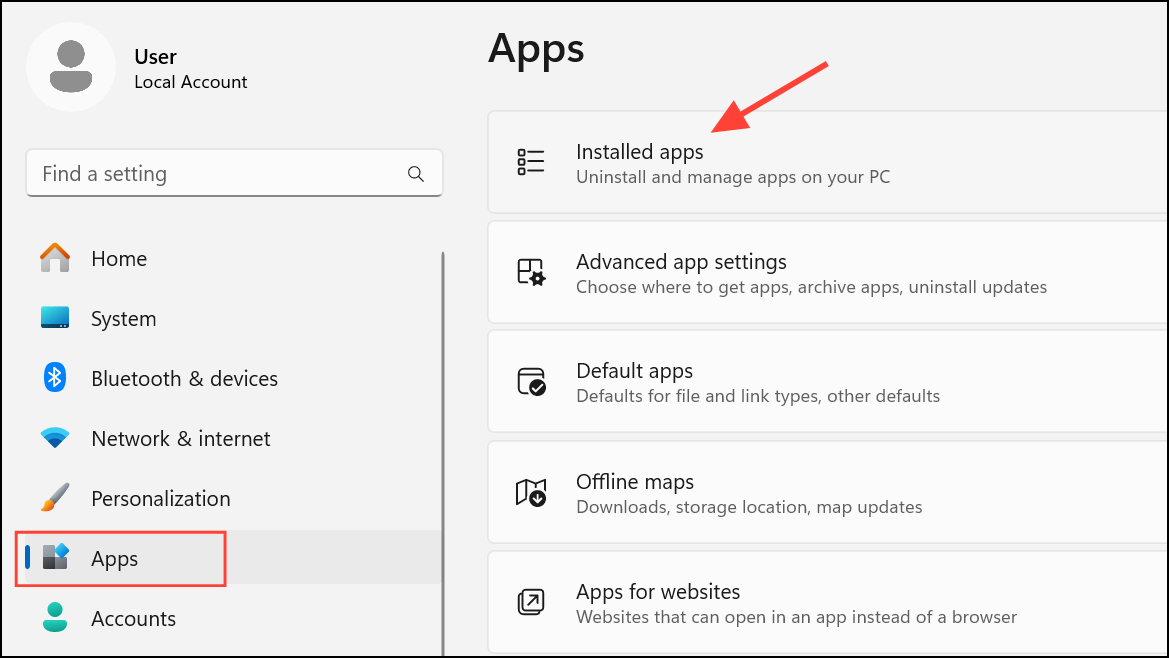
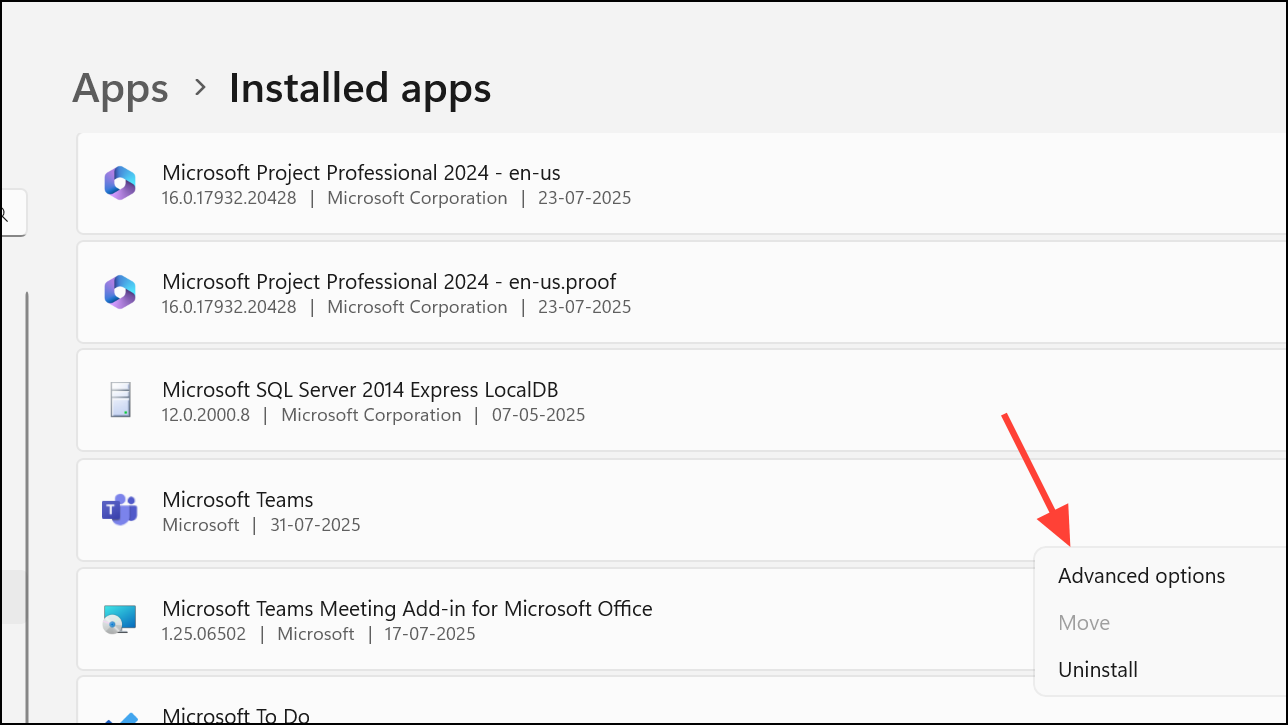
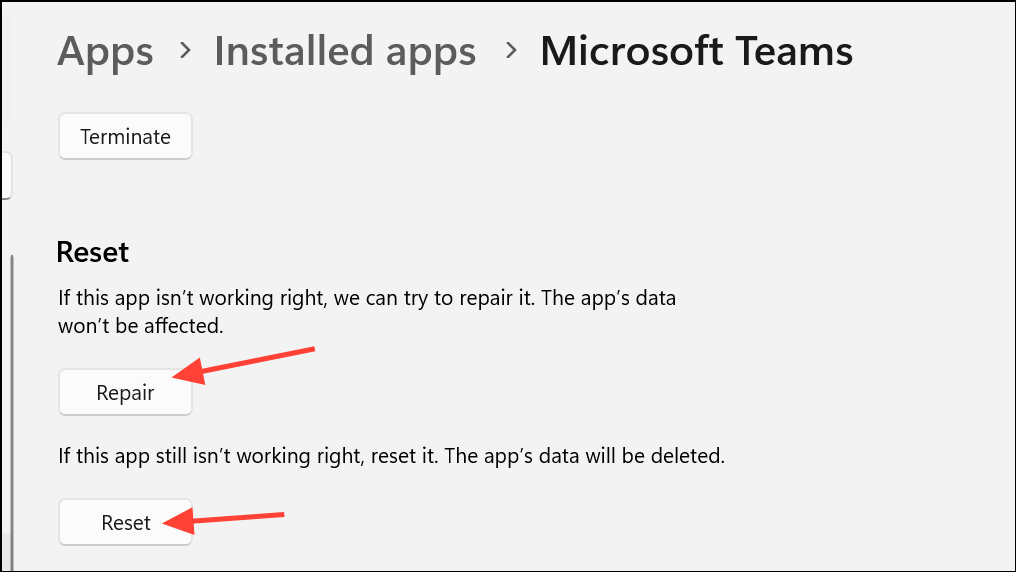
If Teams continues to crash, repairing or resetting the app can address corrupted installation files or settings without requiring a full uninstall. Repair attempts to fix issues while preserving data; reset returns the app to its default state, which may log you out.
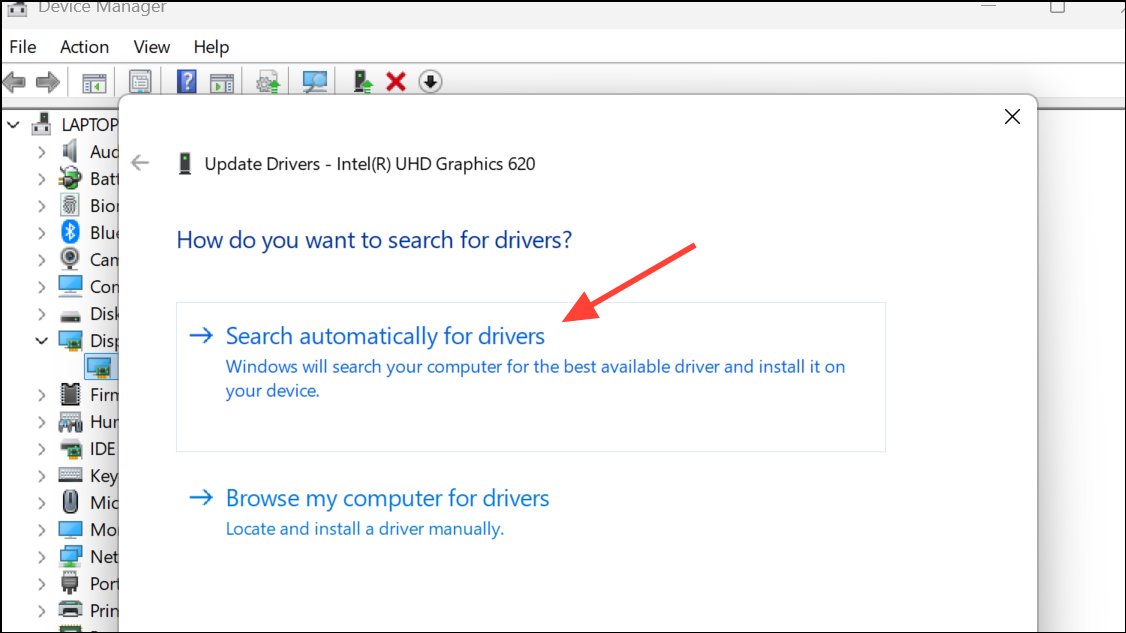
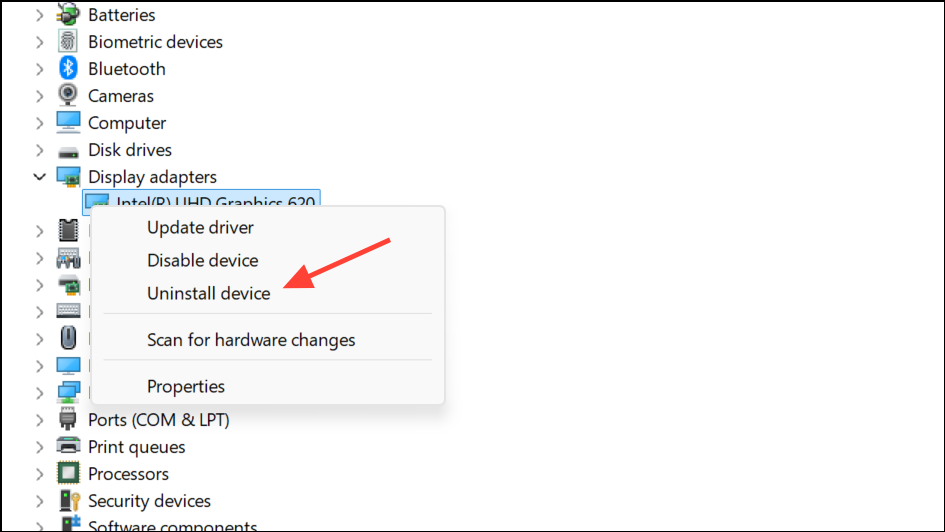
Update or Reinstall Display Drivers
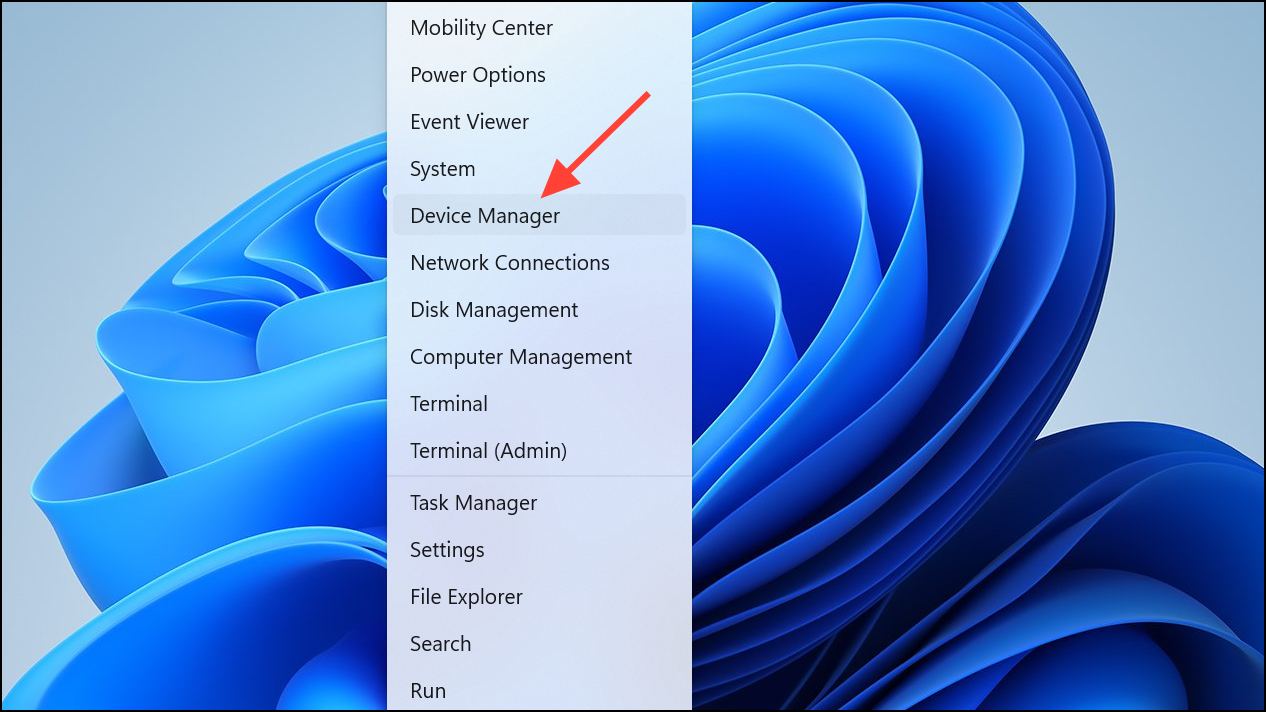
Outdated or incompatible graphics drivers can cause Teams to crash when rendering shared content. Updating drivers ensures compatibility with Teams and Windows updates, while reinstalling addresses corrupt installations.
Disable HDR and Adjust Display Settings
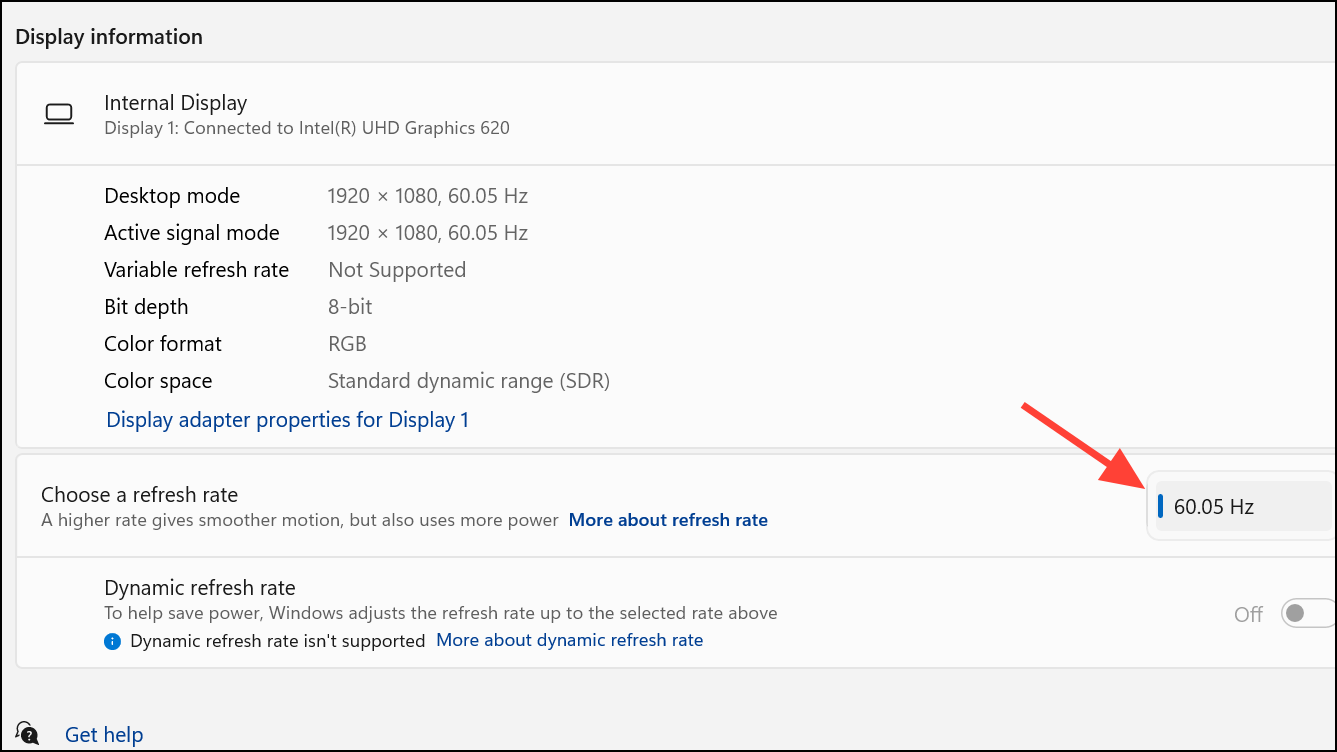
High Dynamic Range (HDR) settings and high refresh rates can conflict with Teams’ screen sharing, especially on certain hardware or with specific driver versions. Disabling HDR and lowering refresh rates often resolves display-related crashes.
Windows + I), go to System > Display, and look for the HDR toggle. If enabled, switch it off.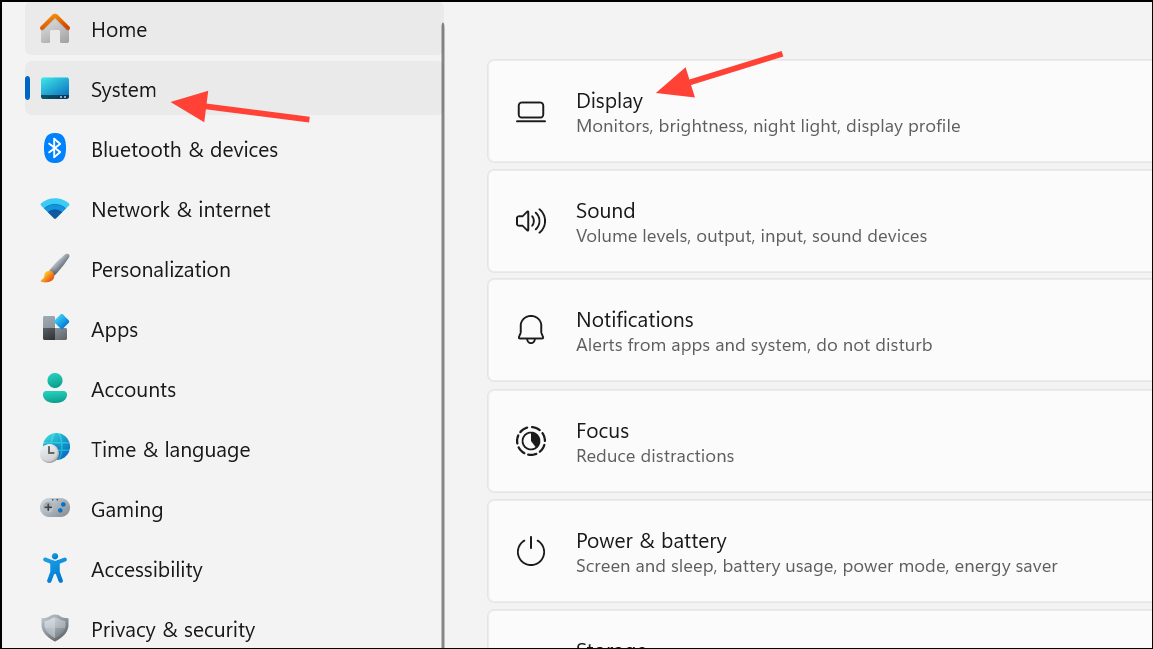
Disable Hardware Acceleration in Teams
Hardware acceleration can sometimes cause instability during screen sharing, particularly on systems with older or problematic graphics cards. Disabling this feature forces Teams to use software rendering, which can improve reliability.
desktop-config.json in a text editor. Locate the "appPreferenceSettings" block and find the "disableGpu" property. Change its value to true. If the property is missing, add "disableGpu": true within the block.Repair Microsoft Edge WebView2 Runtime
Teams relies on WebView2 for rendering certain content. Corruption in the WebView2 runtime can cause Teams to crash, especially during screen sharing. Repairing this component can resolve the issue.
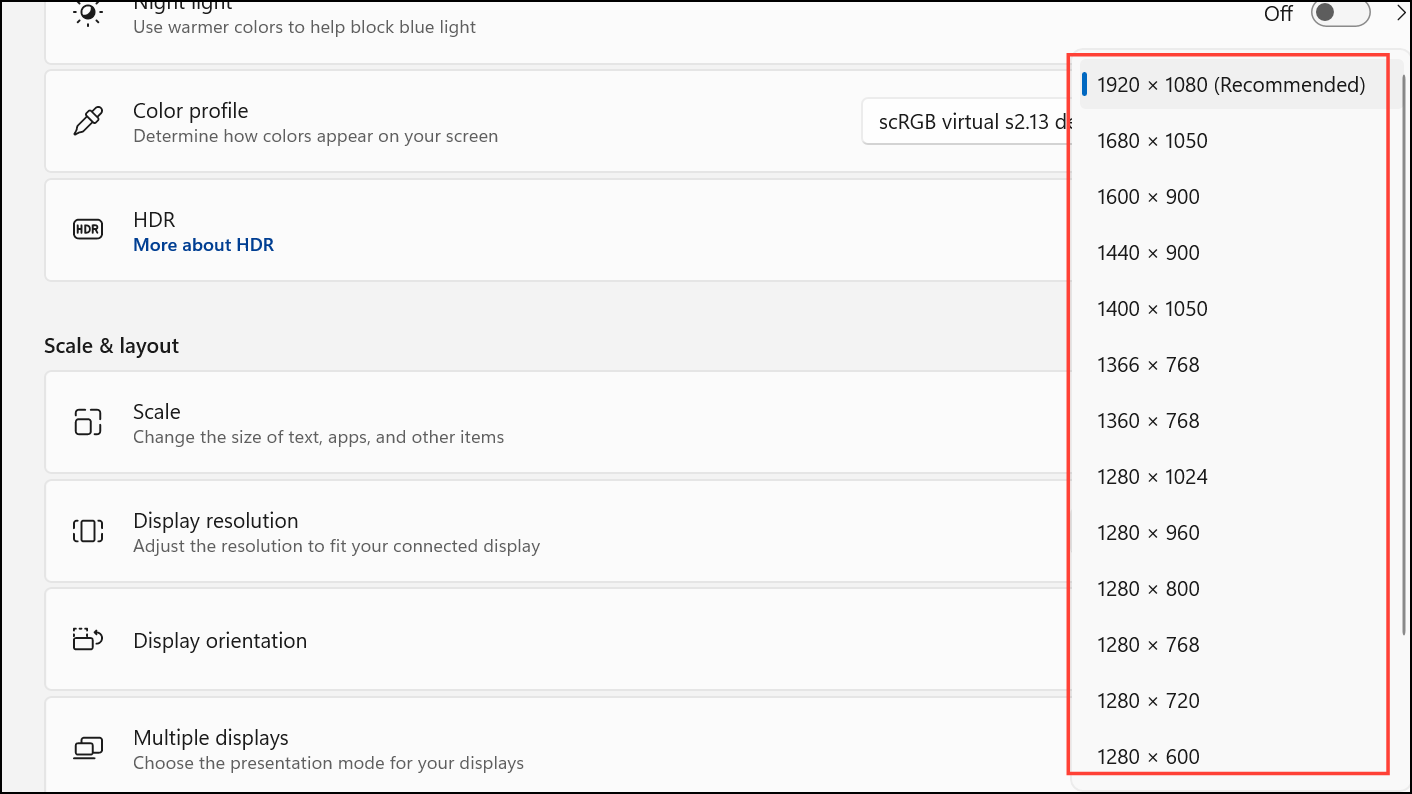
Lower Display Resolution
Teams screen sharing may fail or crash on systems set to high display resolutions. Lowering the resolution reduces system resource usage and can stabilize screen sharing.
Try the Web Version of Teams
If the desktop app continues to crash despite troubleshooting, running Teams in a supported browser (Microsoft Edge or Google Chrome) can serve as a temporary workaround. The web version often bypasses local app conflicts and hardware acceleration issues.
Check Meeting Permissions and Network Connection
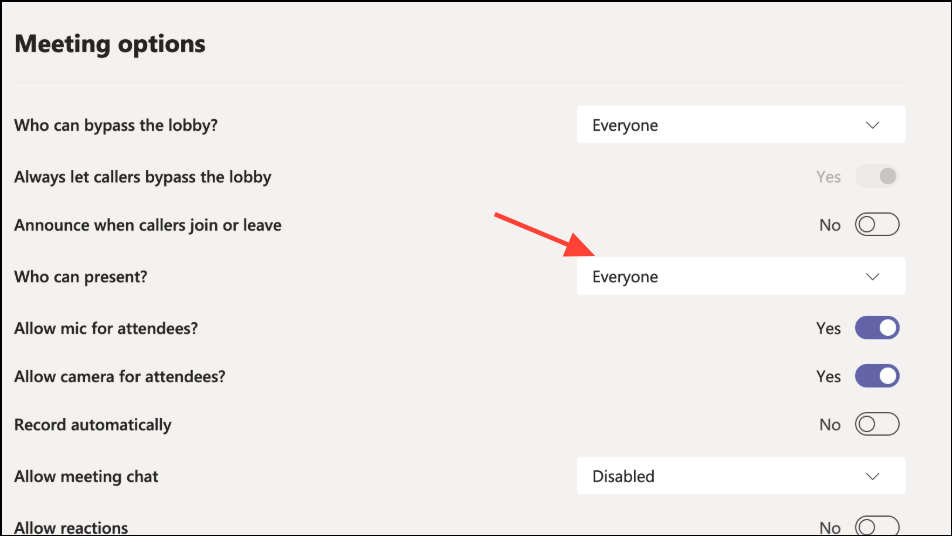
Screen sharing may also fail if meeting permissions restrict presenters or if your network connection is unstable. Ensuring you have presenter rights and a stable connection helps prevent unexpected crashes and black screens.
Following these steps addresses the most common causes of Microsoft Teams crashing during screen sharing, resulting in more stable meetings and uninterrupted collaboration. If problems persist, contacting IT support or Microsoft 365 support may be necessary for deeper investigation.