
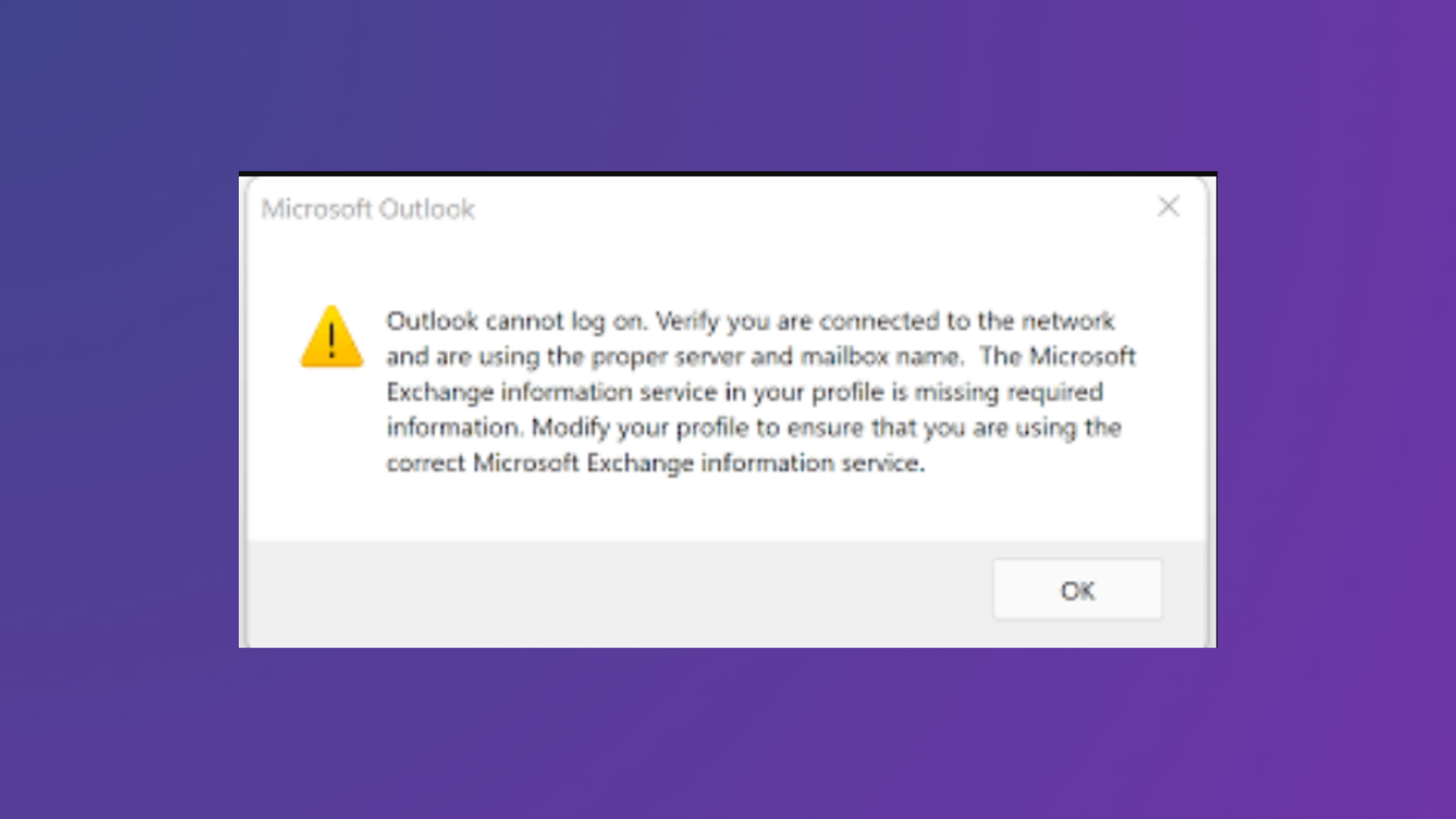
“Outlook cannot log on. Verify you are connected to the network and are using the proper server and mailbox name.” This error appears when Outlook fails to connect to your mail server, often after adding a new account or making profile changes. The result: Outlook refuses to open, blocking access to your inbox and calendar, and sometimes showing additional errors about missing Exchange information or low system resources.
Remove and Recreate Your Outlook Profile
Corrupted Outlook profiles are a leading cause of this error. Removing the problematic profile and creating a new one resets configuration and account information, allowing Outlook to connect cleanly to the mail server.
Control Panel and search for Mail. If you don’t see it, ensure you’re viewing by “Small icons” or “Large icons.”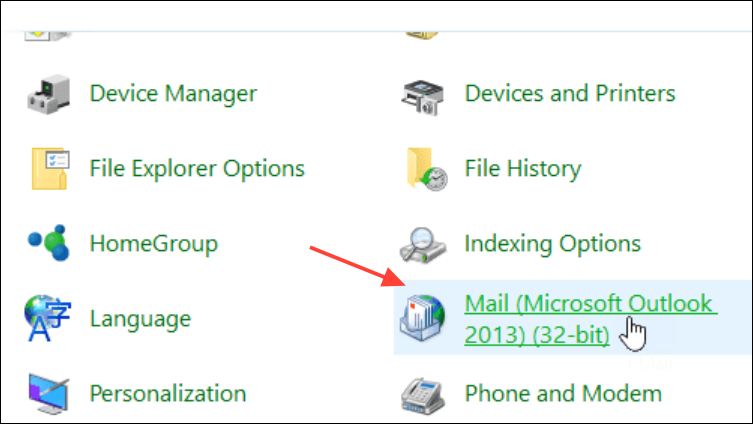
Show Profiles. Select the profile you want to remove and click Remove. Confirm deletion—this will erase local cached data, but not server-stored emails.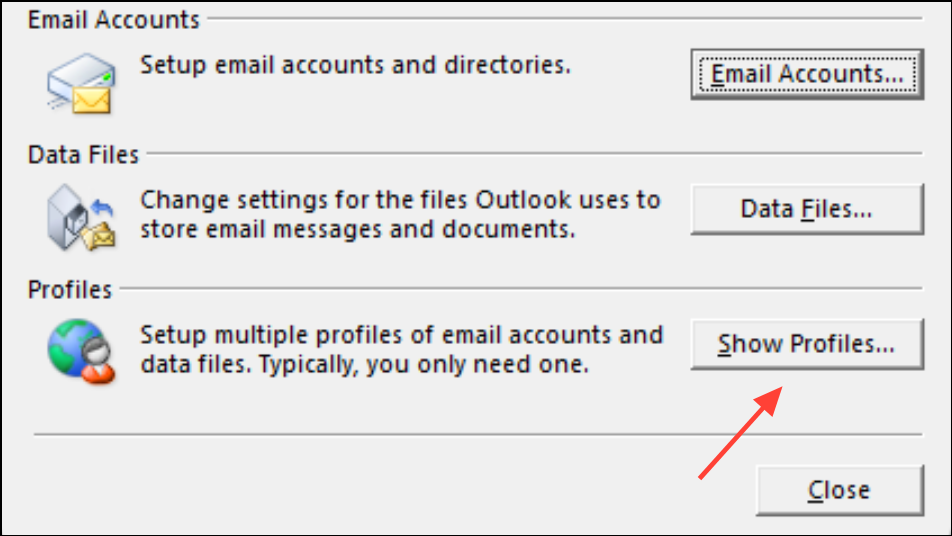
Add to create a new profile. Enter a profile name, then follow prompts to add your email account. Use the correct email address, password, and—if prompted—server settings from your provider or IT admin.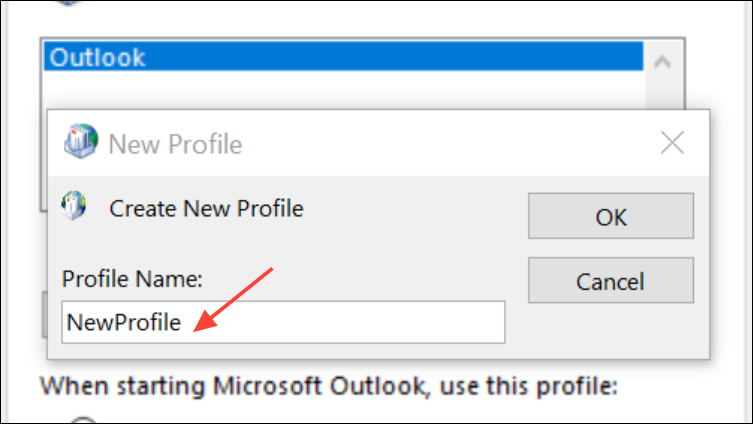
Always use this profile and choosing your new profile from the dropdown list.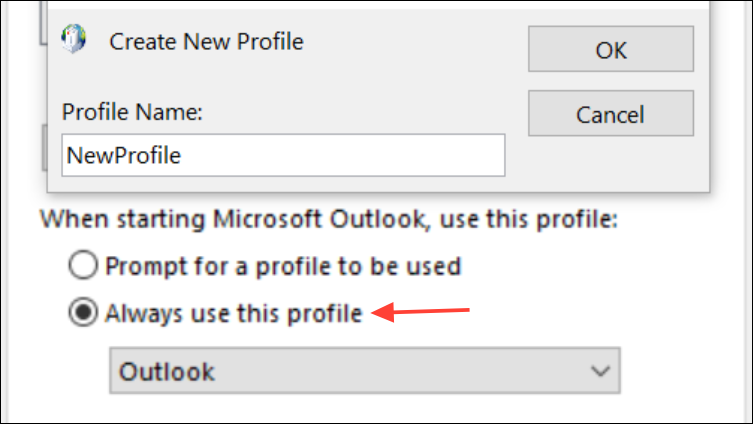
Repair Outlook with the Reset Navigation Pane Command
Outlook’s navigation pane settings sometimes become corrupted, causing startup failures. Resetting these settings can resolve the error without deleting your profile.
Outlook.exe /resetnavpane and press Enter. This command clears customizations in the navigation pane, which can unblock Outlook startup.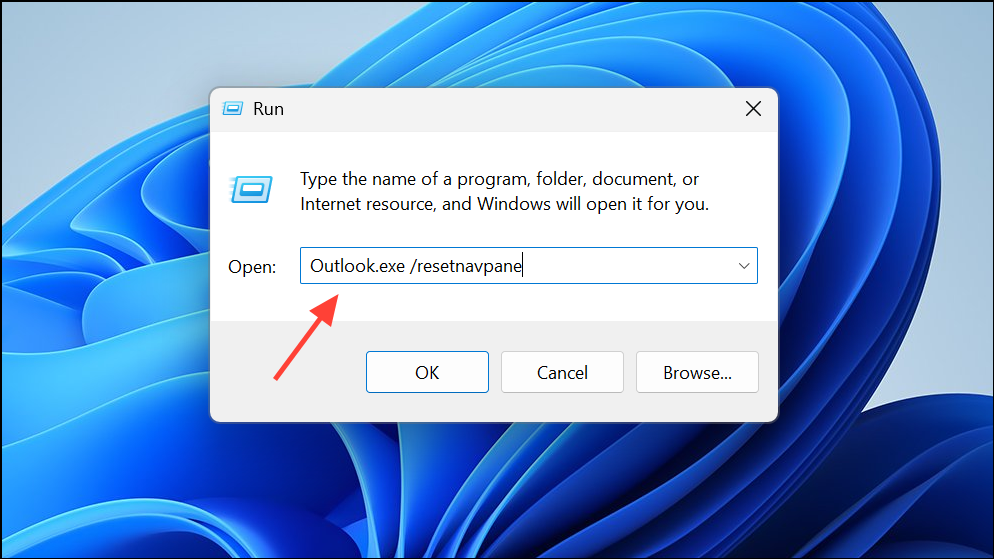
Repair Office or Outlook Installation
Corrupted program files can prevent Outlook from starting or connecting properly. Running a repair can restore missing or damaged files without affecting your data.
Settings > Apps > Installed Apps (Windows 10/11) or Control Panel > Programs and Features (older versions).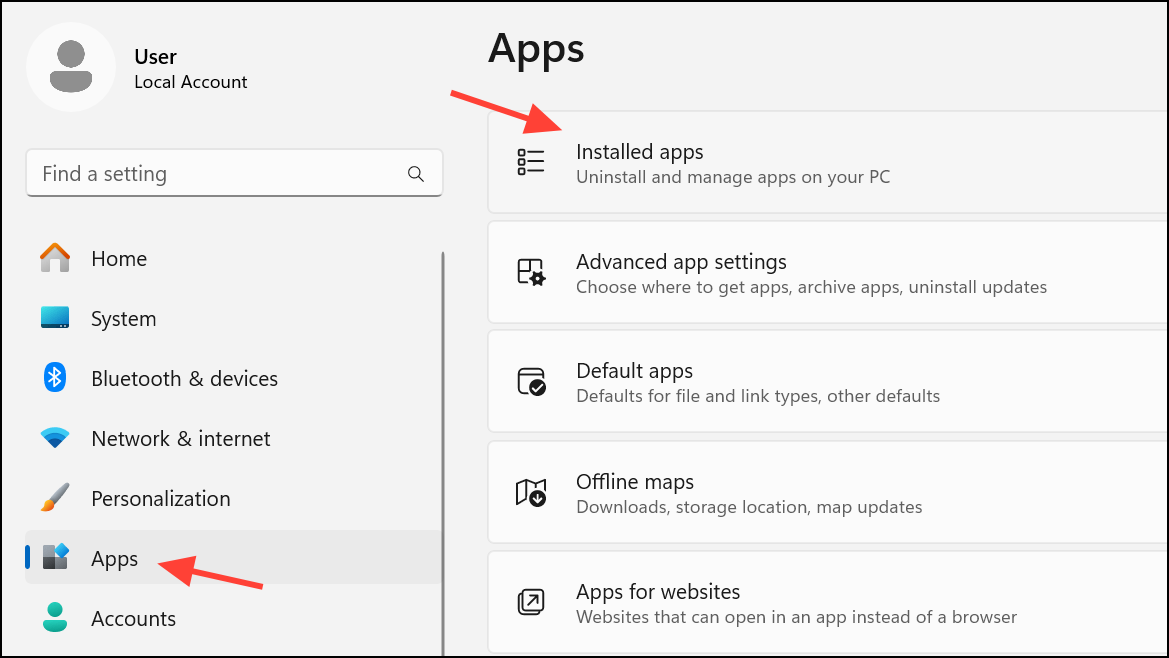
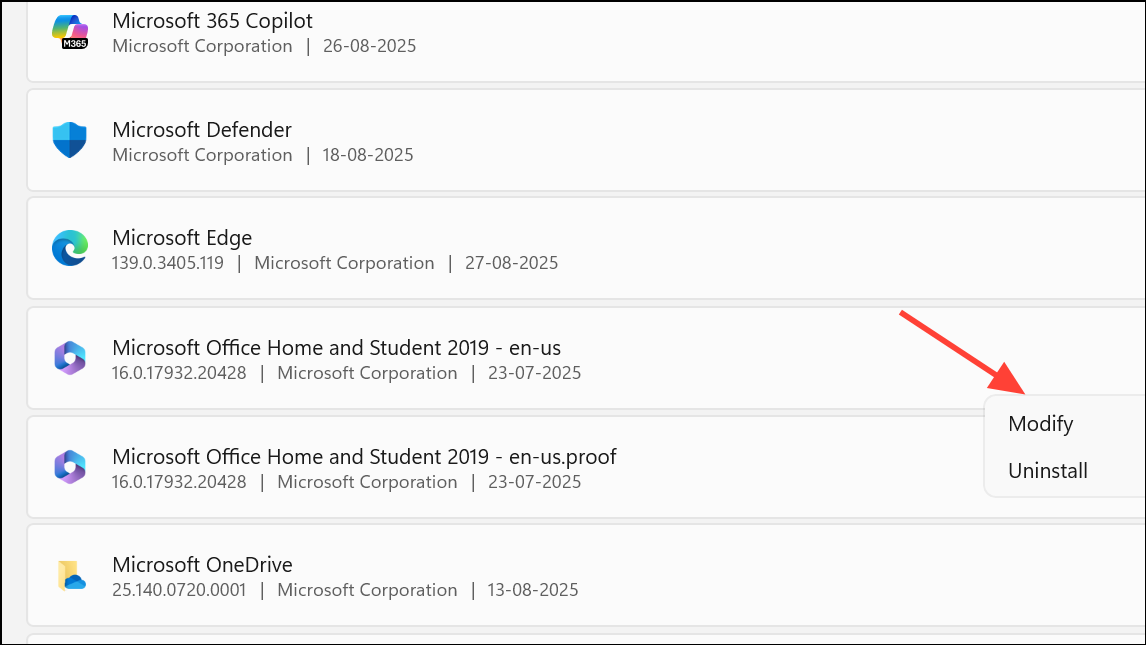
Quick Repair first. If the issue persists, repeat the process and select Online Repair for a deeper fix. Restart your PC and try Outlook again.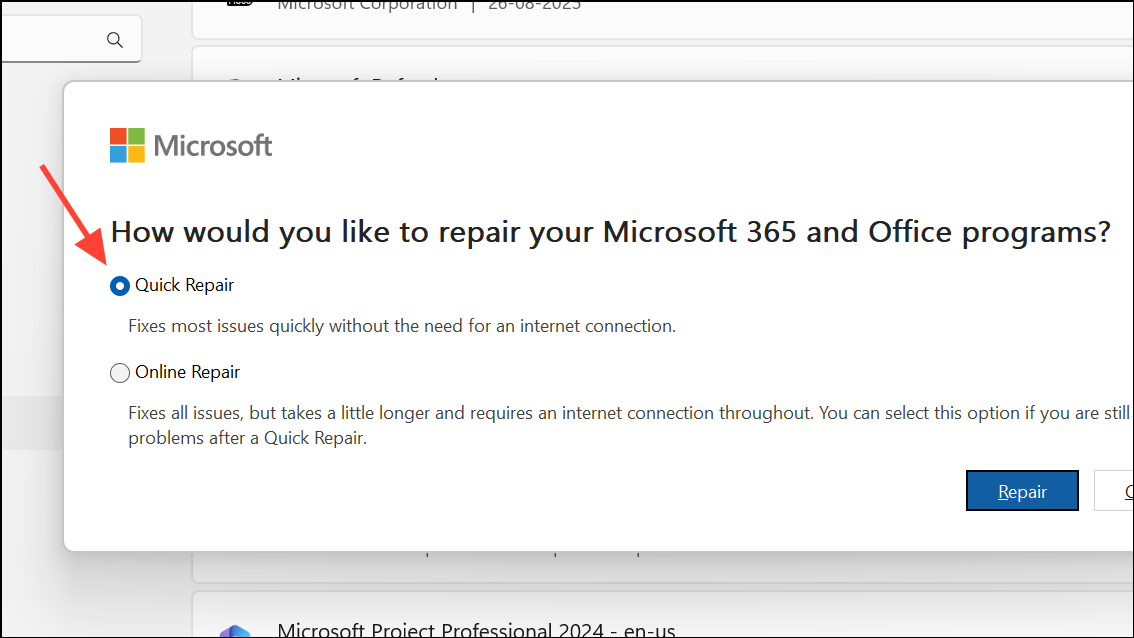
Recreate the OST File
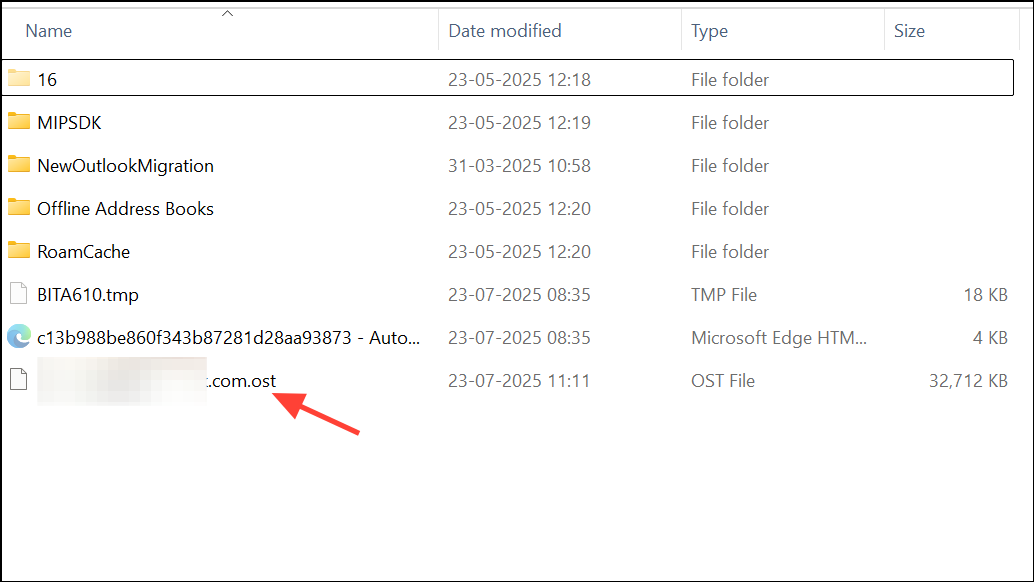
Outlook stores a local cache of your mailbox in an OST file. If this file is damaged, Outlook may fail to start or connect. Deleting and recreating the OST file forces Outlook to download a fresh copy from the server.
C:\Users\[YourUser]\AppData\Local\Microsoft\Outlook. If you don’t see AppData, enable “Show hidden files” in File Explorer.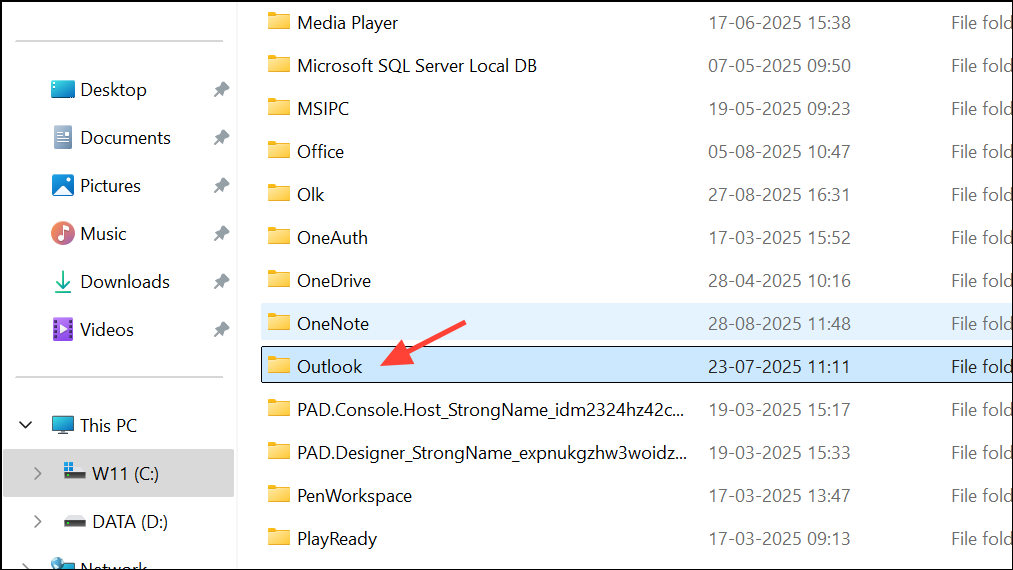
Check Network and Server Connectivity
Outlook cannot authenticate or download messages if your computer is offline or cannot reach the mail server. Confirming network status eliminates basic connectivity issues.
Start Outlook in Safe Mode and Disable Add-ins
Faulty or incompatible add-ins can block Outlook from starting. Safe mode loads Outlook without add-ins, helping you identify and remove problematic extensions.
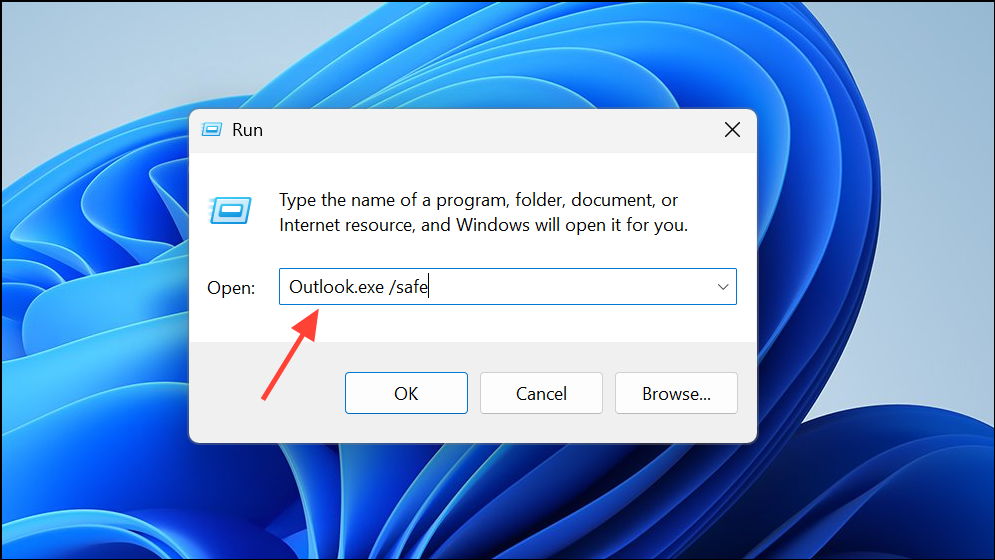
File > Options > Add-ins. At the bottom, set “Manage” to COM Add-ins and click Go. Uncheck all add-ins and restart Outlook normally. Re-enable add-ins one by one to find the culprit.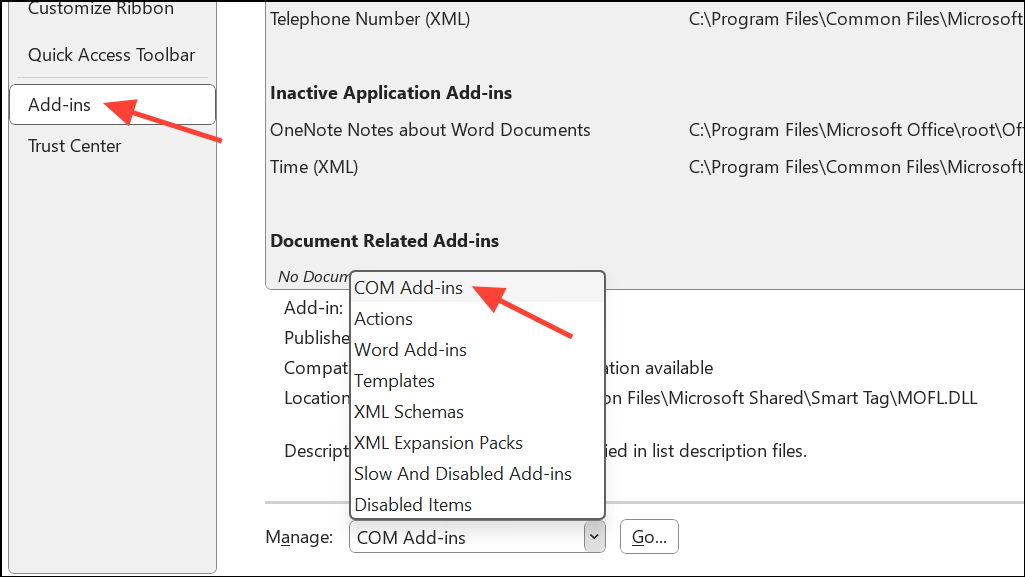
Advanced: Tweak Registry Settings for Autodiscover Issues
In rare cases, Outlook’s autodiscover process fails due to domain or DNS configuration issues, especially in hybrid or custom environments. Adjusting registry keys can direct Outlook to the correct server.
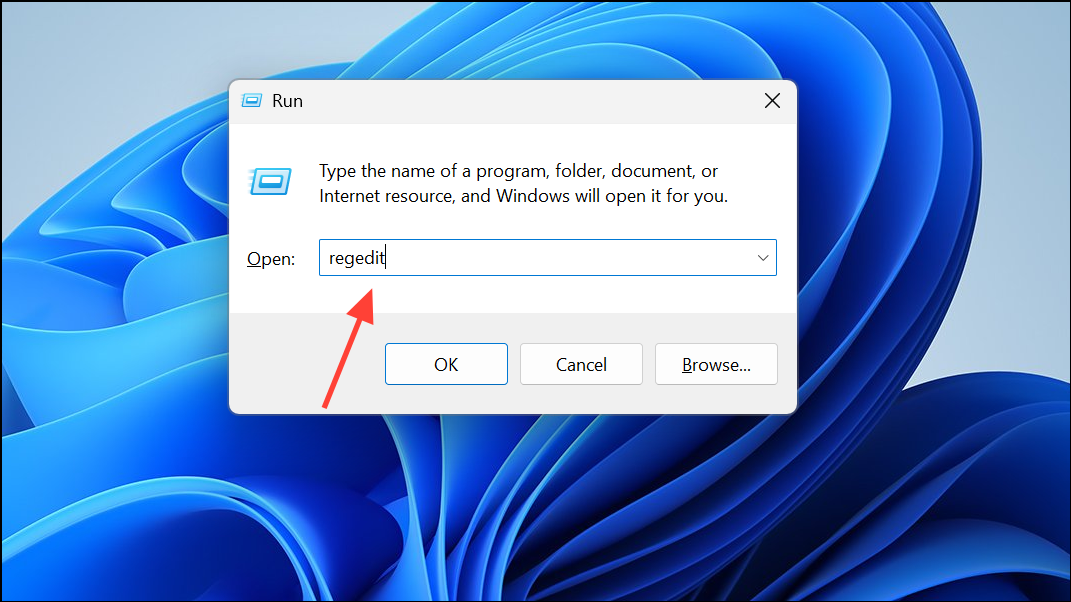
HKEY_CURRENT_USER\Software\Microsoft\Office\16.0\Outlook\AutoDiscover (replace 16.0 with your Outlook version if needed).ExcludeHttpsRootDomain and set it to 1. Repeat under HKEY_CURRENT_USER\Software\Policies\Microsoft\Office\16.0\Outlook\AutoDiscover if present.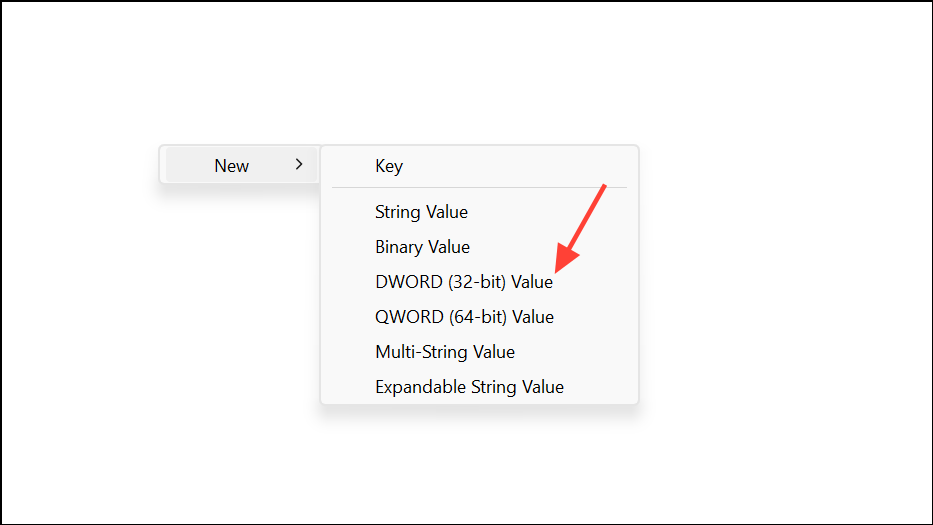
Fixing the “Outlook cannot log on” error usually comes down to repairing or recreating your profile, checking connectivity, and ensuring Outlook’s local files and settings are intact. If all else fails, reinstalling Office is a last resort, but most users regain access with the steps above.





