

Outlook displays error code 0x80040154 when system files are missing or unregistered, add-ins malfunction, or Outlook’s configuration becomes corrupted. This error often prevents the application from sending or receiving emails, disrupts workflow, and can indicate deeper problems with Outlook’s data files or Windows system components. Addressing the root causes restores full email functionality and prevents further data loss.
Repair Corrupted Outlook Data Files
Corrupted PST (Personal Storage Table) files frequently trigger the 0x80040154 error. Microsoft includes a built-in repair utility called the Inbox Repair Tool (scanpst.exe) that checks and repairs minor corruption in Outlook data files. For more severe corruption, third-party tools like SFWare PST Repair, Wondershare Repairit for Email, or DRS PST Recovery may be necessary.
C:\Program Files\Microsoft Office\root\Office16. Find SCANPST.EXE in this folder.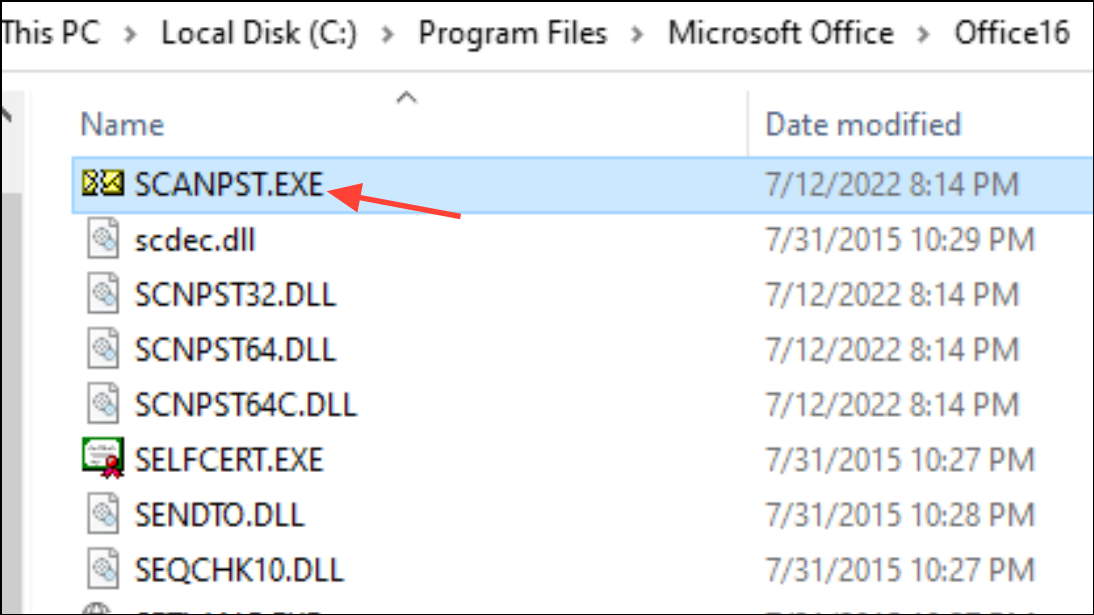
SCANPST.EXE to launch the tool. Click Browse and select the PST file you want to repair. The default location for PST files is usually C:\Users\[YourUsername]\Documents\Outlook Files\.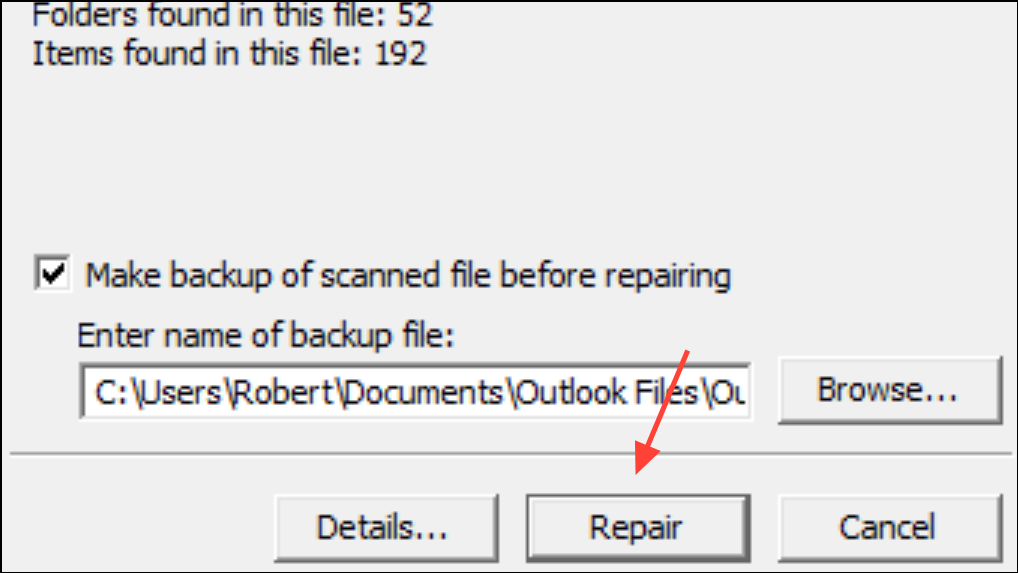
If the built-in tool cannot repair the file, use a dedicated PST recovery tool. These applications can recover data from severely corrupted files and support exporting recovered emails, contacts, and other mailbox items to new PST files or alternative formats.
Re-register the inetcomm.dll File
Outlook relies on the inetcomm.dll file for essential messaging functions. If this DLL is missing or unregistered, Outlook may show the 0x80040154 error when sending or receiving emails.
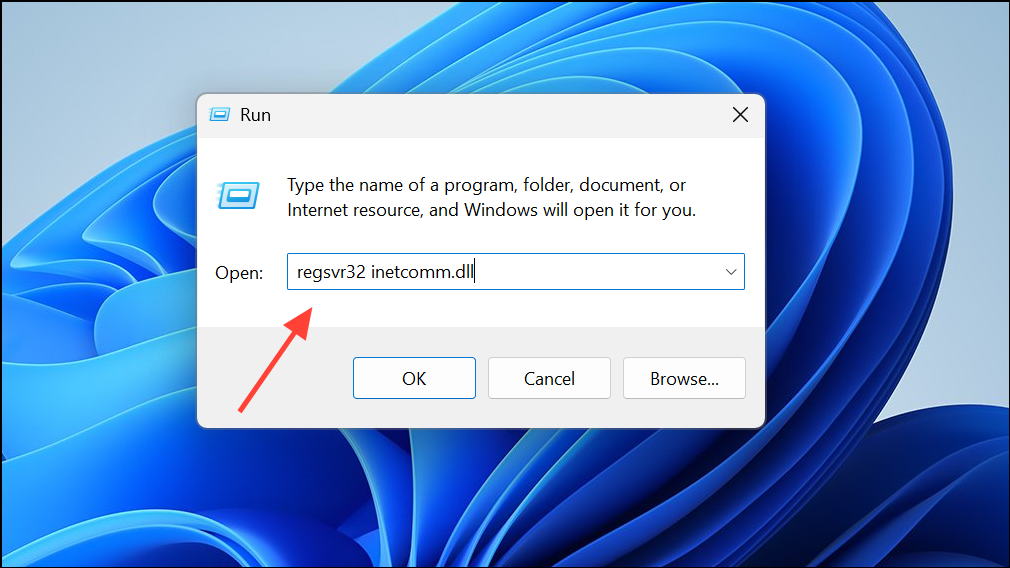
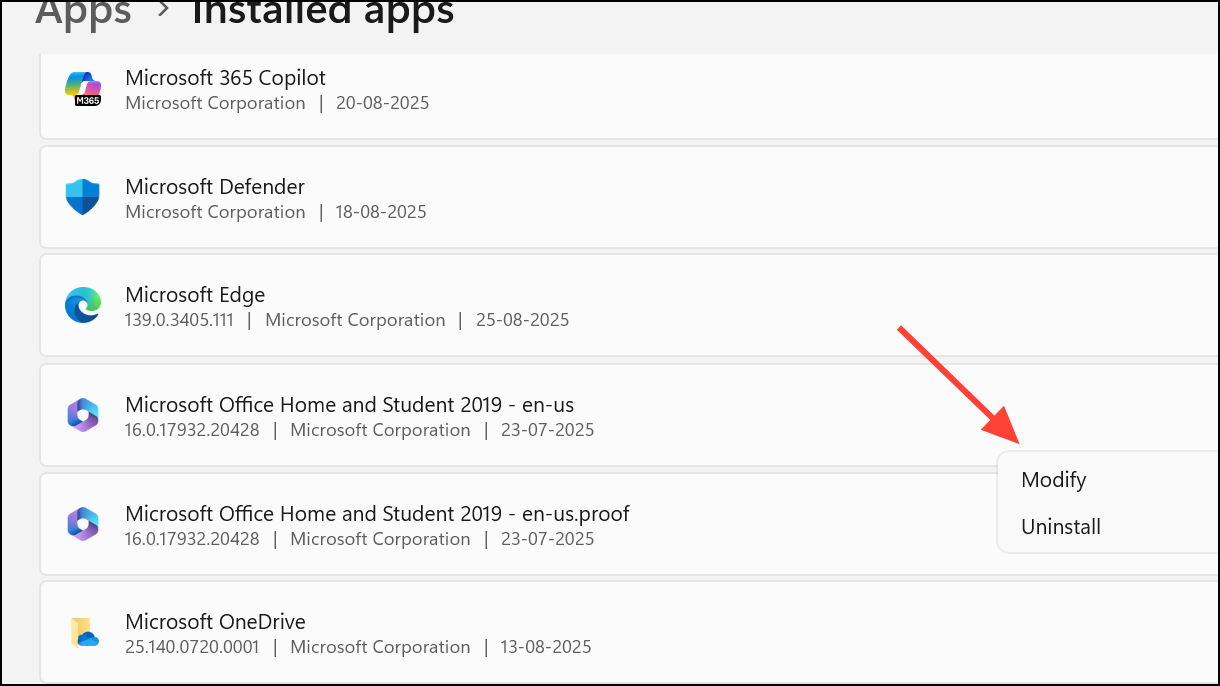
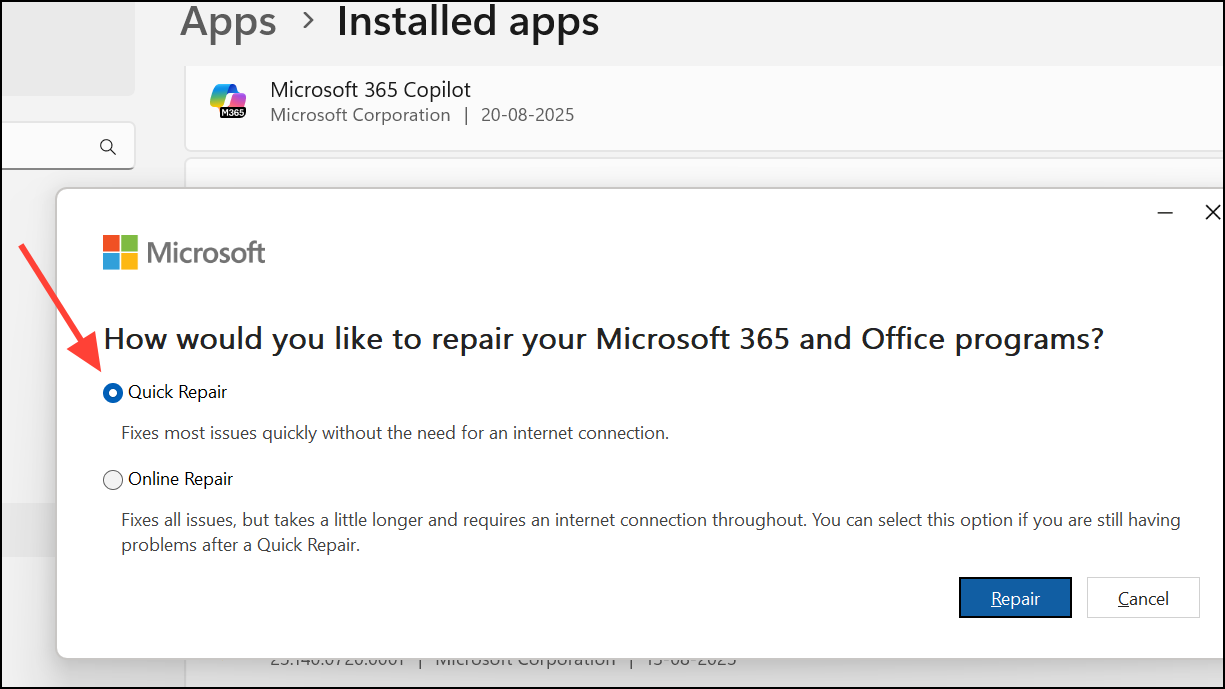
C:\Windows\System32.Repair or Reinstall Microsoft Office
Corrupted or incomplete Office installations can disrupt Outlook’s ability to function, resulting in error 0x80040154. Repairing Office often resolves these issues by restoring missing or damaged files.
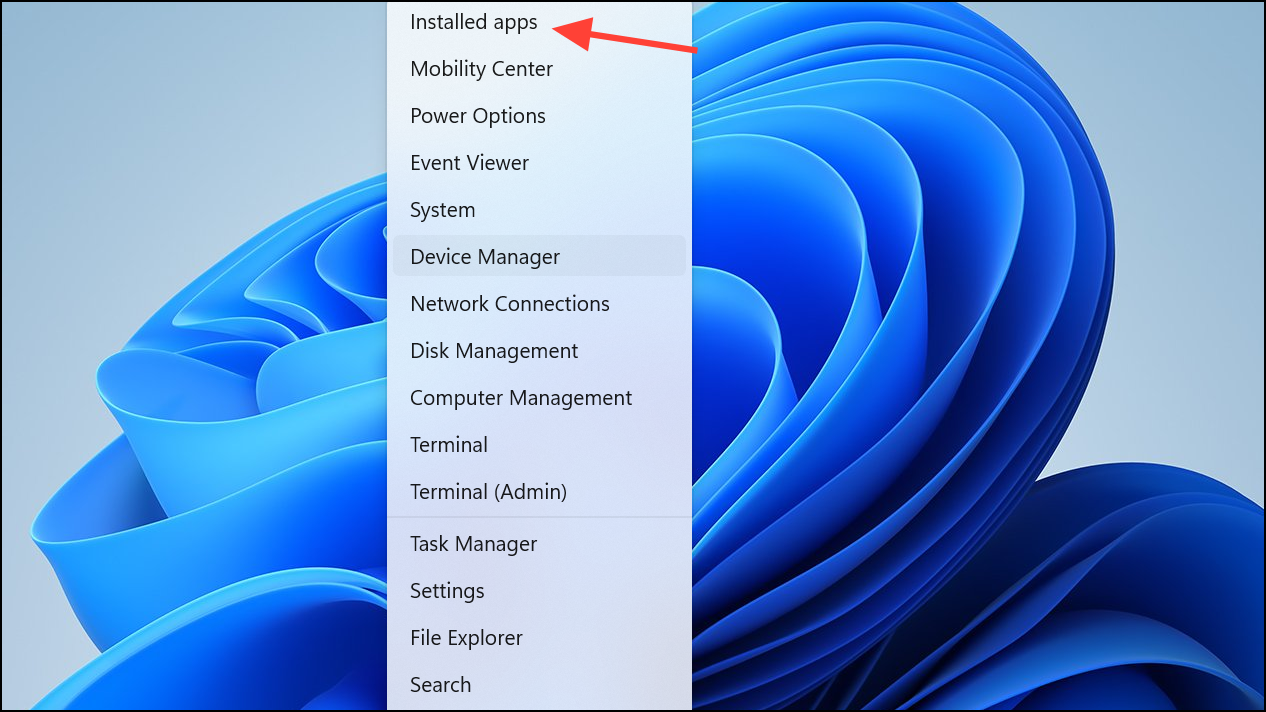
Start Outlook in Safe Mode and Disable Faulty Add-ins
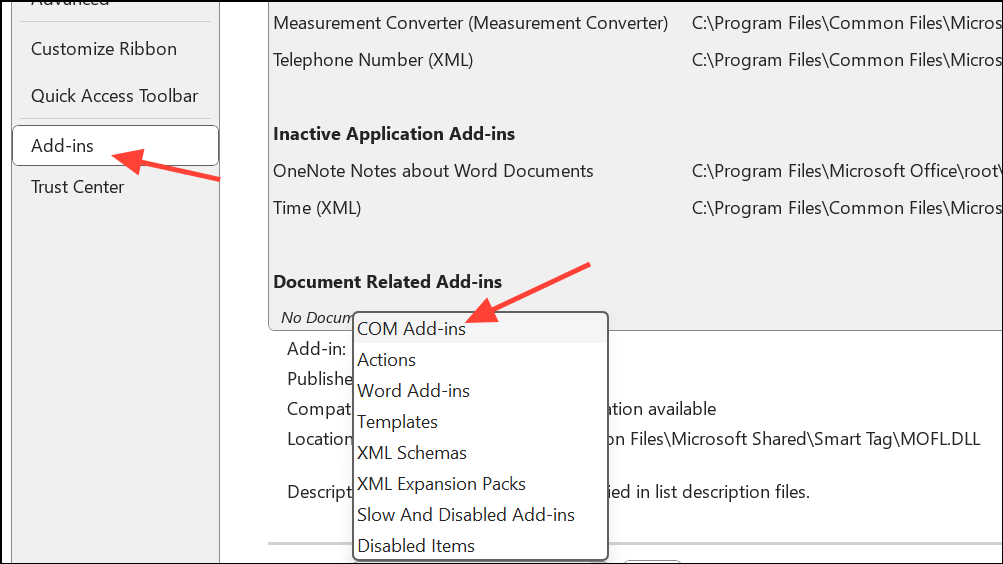
Faulty or incompatible add-ins can interfere with Outlook’s core processes, causing the 0x80040154 error. Running Outlook in Safe Mode disables all add-ins, helping you identify if one is responsible for the issue.
Windows + R, type Outlook /safe, and press Enter. This opens Outlook with all add-ins disabled.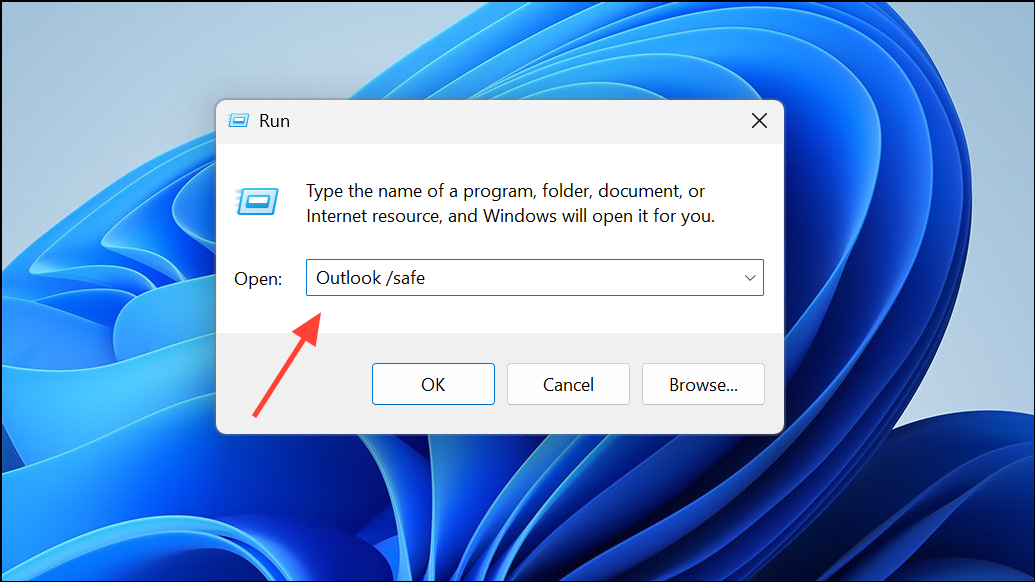
Scan for Malware and Check Antivirus Settings
Malware infections or overactive antivirus software can corrupt Outlook files or block essential components, leading to error 0x80040154. Running a full system scan removes malicious software, while adjusting antivirus settings prevents false positives.
Use Microsoft Support and Recovery Assistant (SaRA)
The Microsoft Support and Recovery Assistant (SaRA) diagnoses and fixes common Outlook configuration problems, including those that trigger error 0x80040154.
Repair Windows System Files
System file corruption can prevent Outlook and other applications from registering or accessing required DLLs, resulting in error 0x80040154. Windows includes built-in utilities to scan and repair system files.
Windows + X and select Command Prompt (Admin) or Windows Terminal (Admin).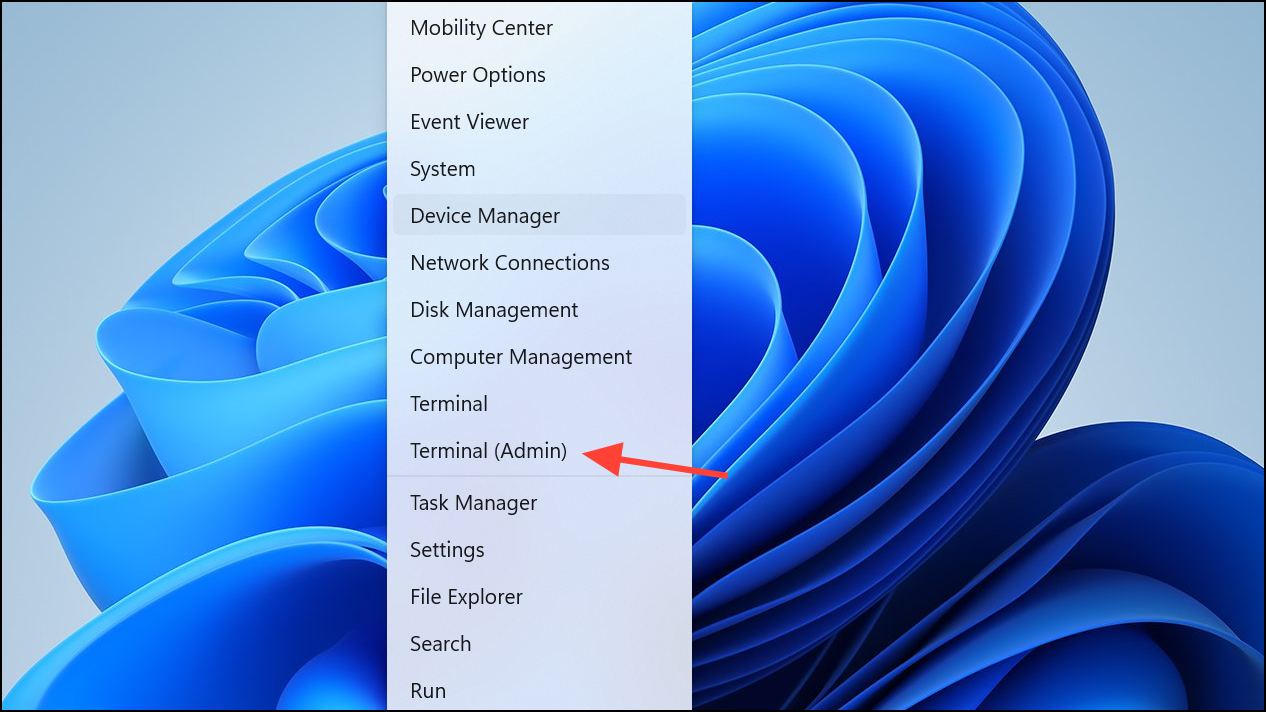
sfc /scannow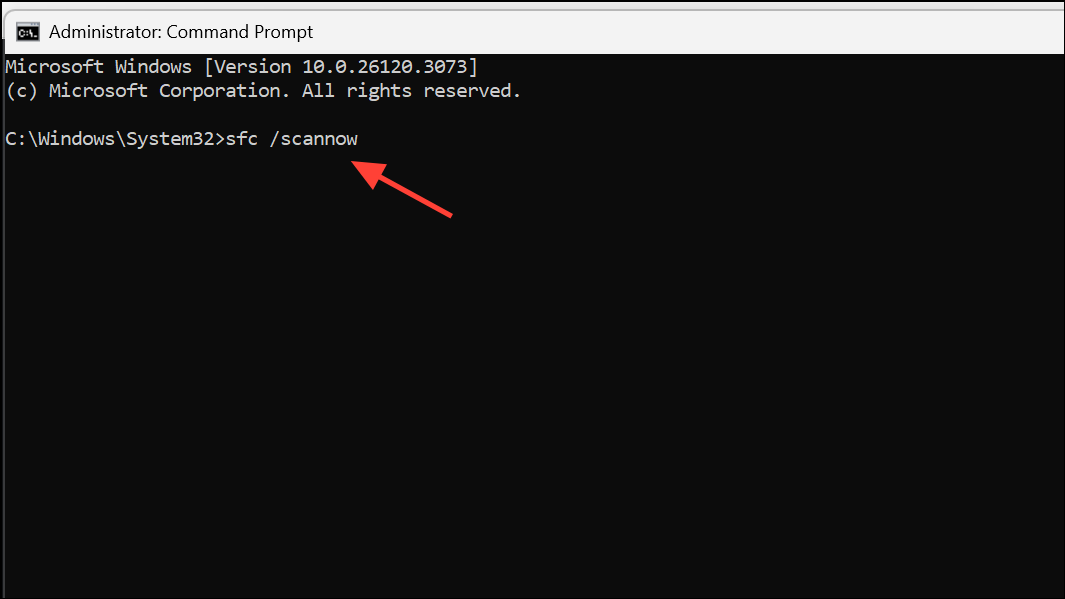
This command checks and repairs damaged or missing system files.
dism /online /cleanup-image /restorehealth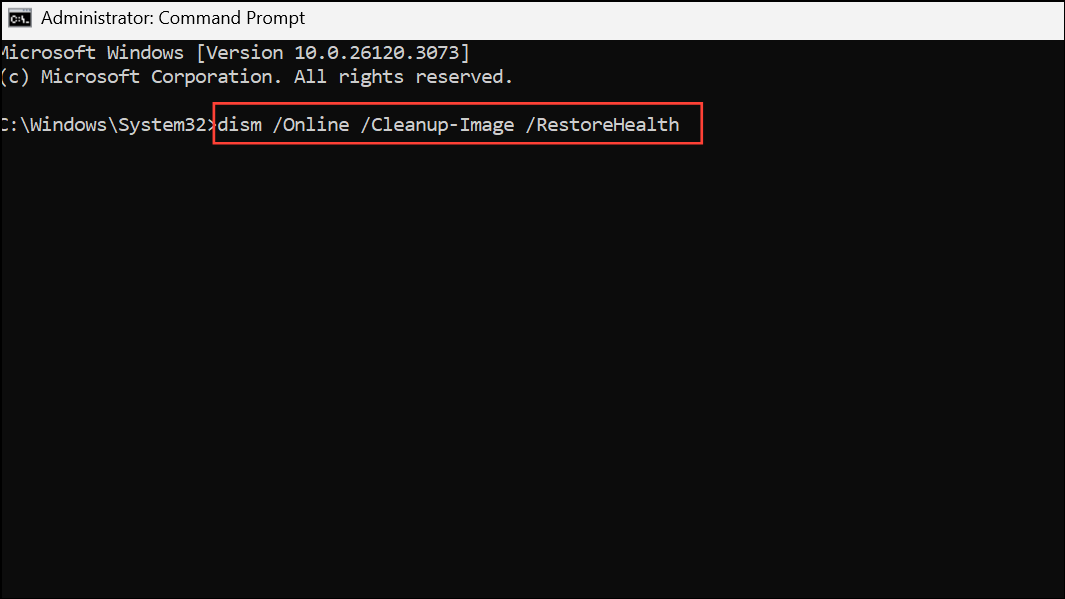
This command uses Windows Update to replace corrupted files. Restart your computer when both scans finish and test Outlook again.
Addressing Outlook error 0x80040154 involves repairing data files, restoring missing DLLs, and resolving configuration problems. These steps restore normal email functionality and prevent future disruptions.





