

Outlook may return a “delivery failed” or “undeliverable” message even when the recipient address is correct. This issue disrupts communication and can cause uncertainty about whether important messages have arrived. Delivery problems can stem from server issues, account restrictions, misconfigurations, or security blocks. Addressing these problems involves a combination of diagnostic tools, careful review of account settings, and targeted troubleshooting based on the specific error message or symptoms observed.
Check for Server or Service Issues First
Outlook can fail to deliver email if there are temporary problems with mail servers or Microsoft’s services. In cases where messages bounce back with errors like “can’t connect to remote server,” “connection timed out,” or “resources temporarily unavailable,” the issue is often outside your control and may resolve itself as the provider restores service.
Verify Recipient Email Address and Domain
Typos or outdated addresses are a leading cause of delivery failures. Even a small mistake in the address or domain (the part after @) will prevent delivery.
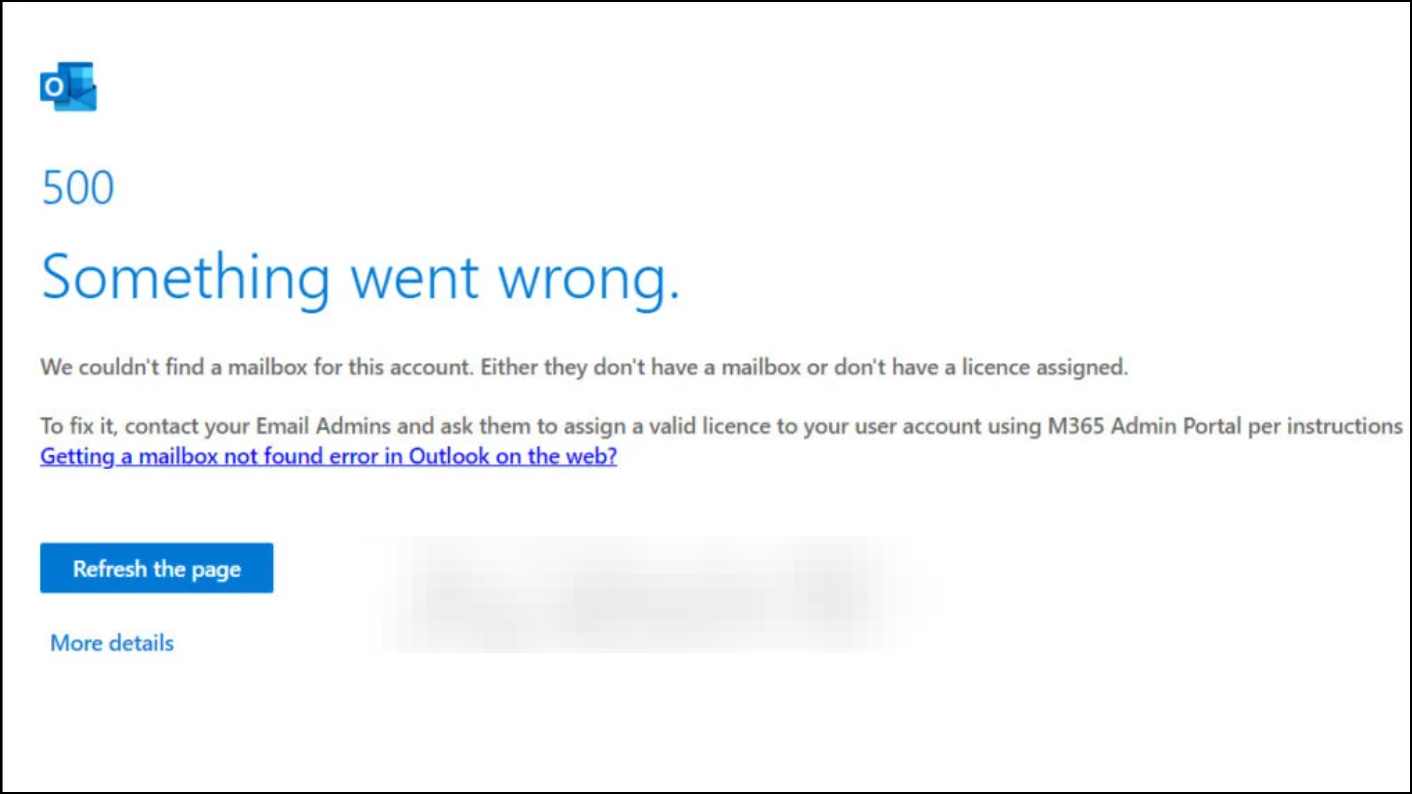
Address Account or Security Restrictions
Outlook and Microsoft 365 accounts may be blocked from sending mail if they are suspected of sending spam or have triggered security alerts. This can result in errors such as “the sending email address was not recognized as a valid sender.”
Review and Adjust Outlook Account Settings
Incorrect configuration of email servers, ports, or authentication can block outgoing mail. This is especially common after provider updates or changes to mail security requirements.
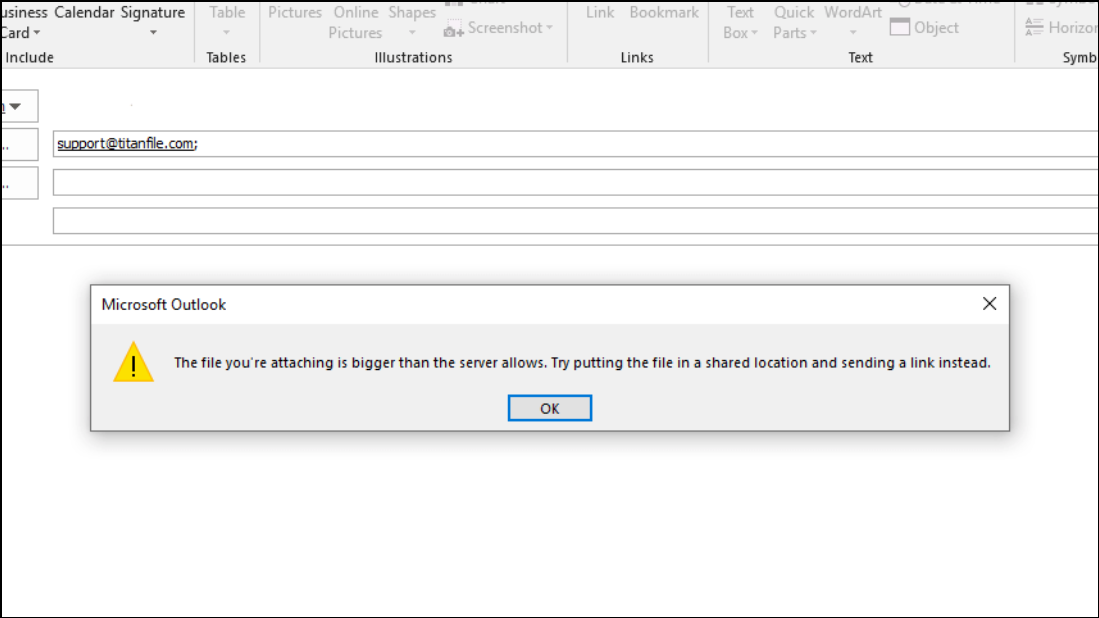
Check for Attachment Size and Message Limits
Messages with large attachments may exceed the recipient’s server limits, leading to delivery failures.
Update or Repair Outlook Application
Corrupted Outlook files, add-ins, or outdated software can disrupt email delivery. Issues may also occur after system updates.
File > Options > Add-Ins and managing the list. Disable or remove any recently added or suspicious add-ins.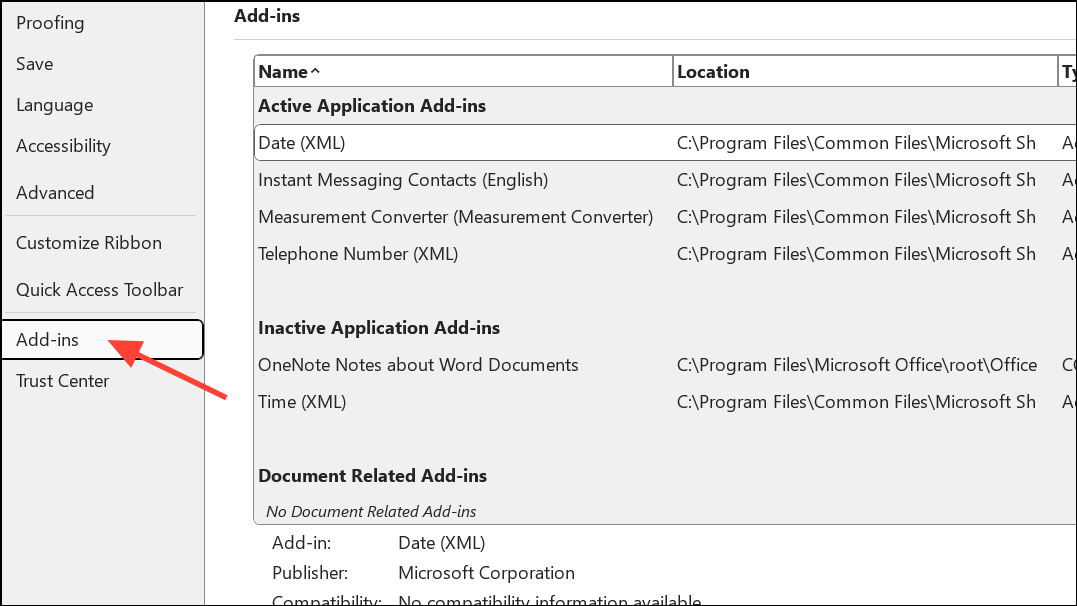
Control Panel > Programs > Programs and Features, select Microsoft Office, and choose “Change” then “Repair.”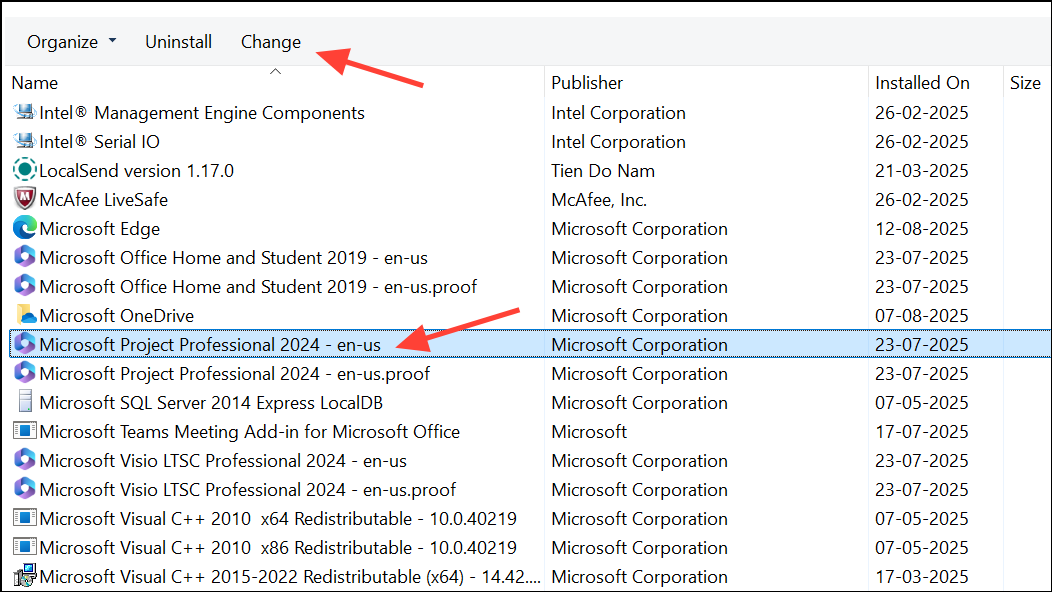
%localappdata%\Microsoft\Outlook in File Explorer, and deleting or backing up .ost or .pst files. Outlook will rebuild these files when restarted, resyncing your mailbox.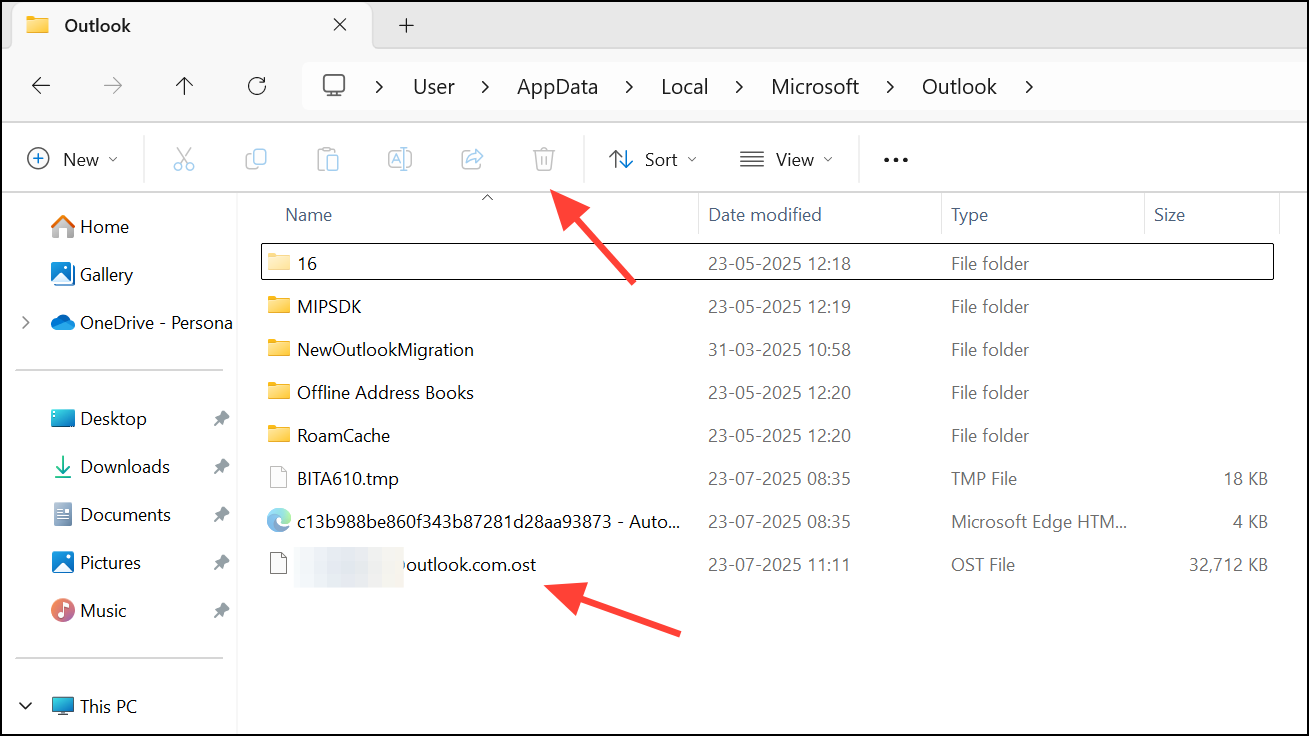
Review Security Software and Firewalls
Overly strict antivirus or firewall rules can block Outlook’s connection to mail servers, causing delivery failures that may not produce clear error messages.
Investigate Mail Flow and Message Trace (For Business and Admins)
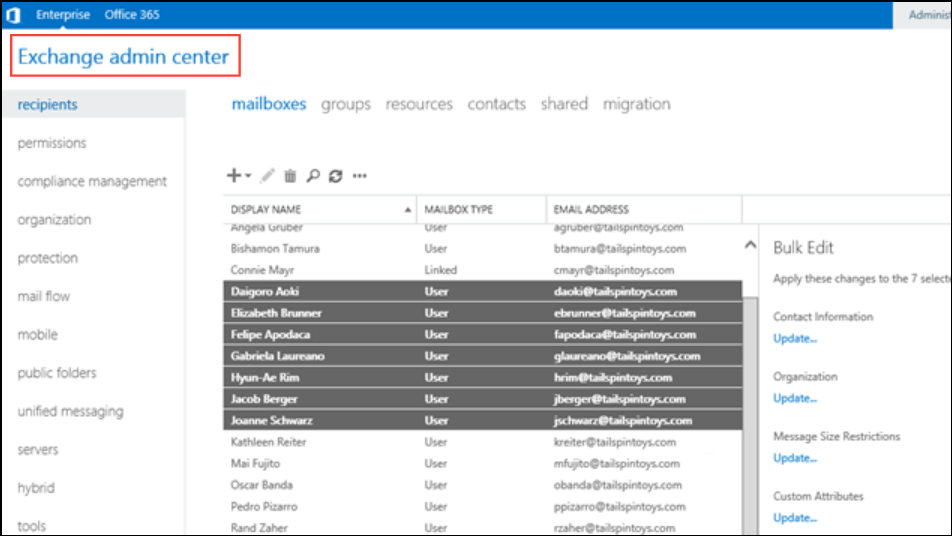
In organizational environments, admins can use diagnostic tools to trace message delivery and identify where failures occur.
Additional Checks and Maintenance Tips
- Ensure your Outlook and Windows installations are fully updated to the latest versions.
- Regularly back up important emails and contacts before making changes to settings or clearing cache files.
- For persistent, unexplained delivery failures, try sending from Outlook.com’s web interface to rule out local application issues.
- If recipients report not receiving messages but you receive no bounce-back, ask them to check their spam or junk folder and add your address to their safe senders list.
- When using rules or forwarding in Outlook, verify they are not redirecting or deleting outgoing or incoming messages unexpectedly.
Addressing Outlook email delivery issues involves targeted troubleshooting based on the specific error and environment. By following these steps, you can restore reliable message delivery and minimize communication disruptions.





