
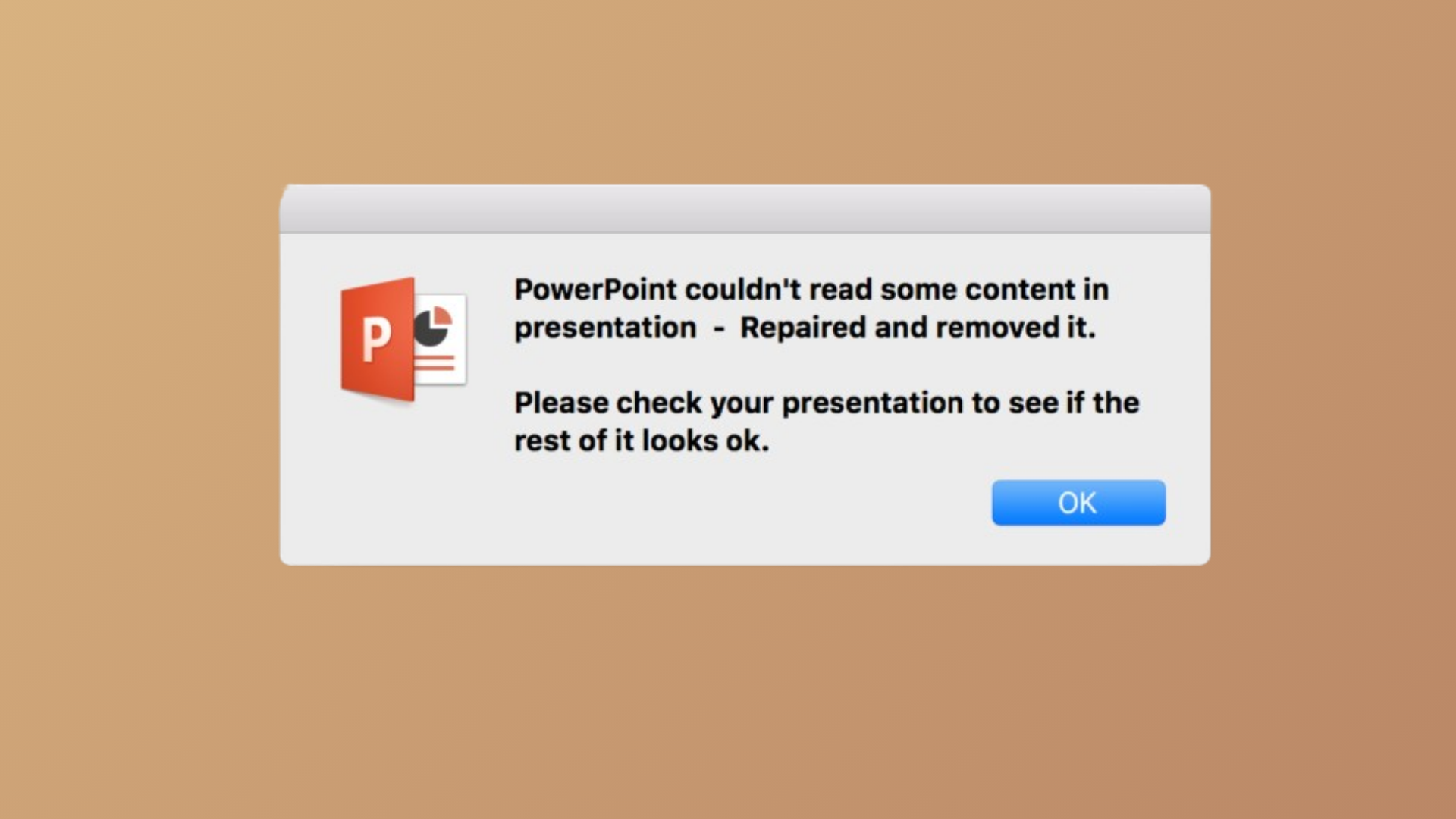
The message “PowerPoint couldn’t read some content” appears when PowerPoint detects file corruption or security restrictions that prevent proper file access. This error often results in missing images, icons, or entire slides, and can disrupt presentations by removing or altering content. The problem typically arises due to file corruption, security settings like Protected View, or issues with file locations—especially when files are stored in synchronized cloud folders or transferred from other devices.
Repair the PowerPoint File Using Built-In Tools
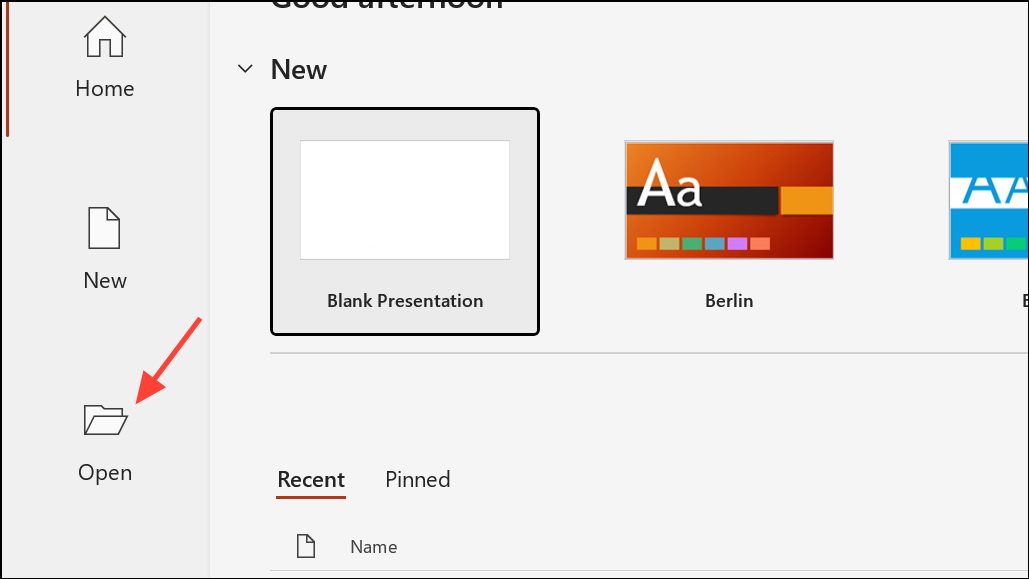
Open button. Choose Open and Repair. PowerPoint will attempt to restore the file and recover as much content as possible. If the repair is successful, save the file under a new name to avoid overwriting the original.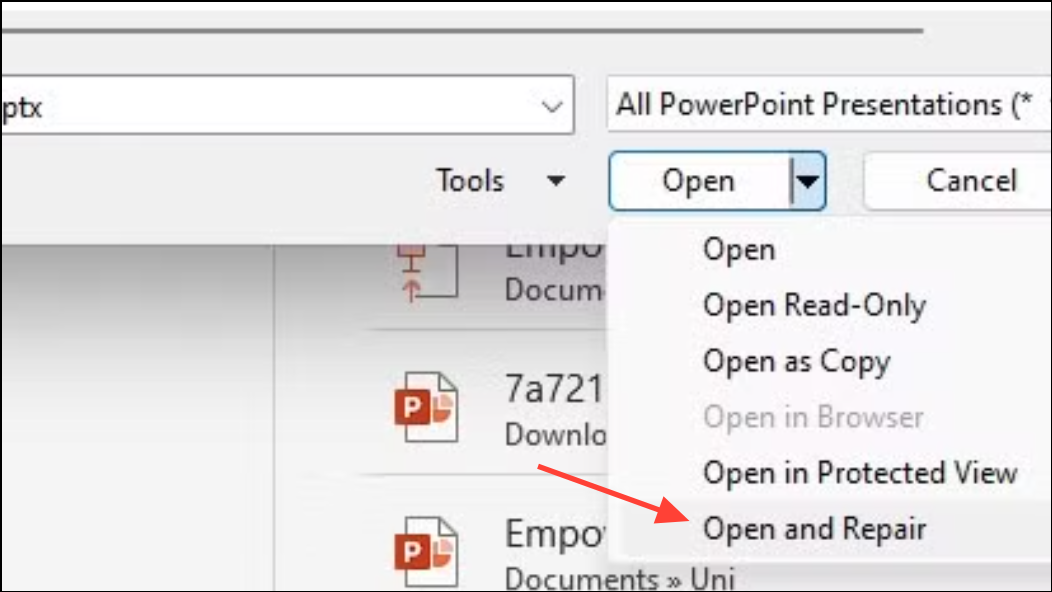
This approach addresses minor corruption and can recover slides, images, and objects that might otherwise be lost. If the file remains inaccessible, consider using a third-party repair tool or alternative methods outlined below.
Adjust Security Settings and Protected View (Windows)
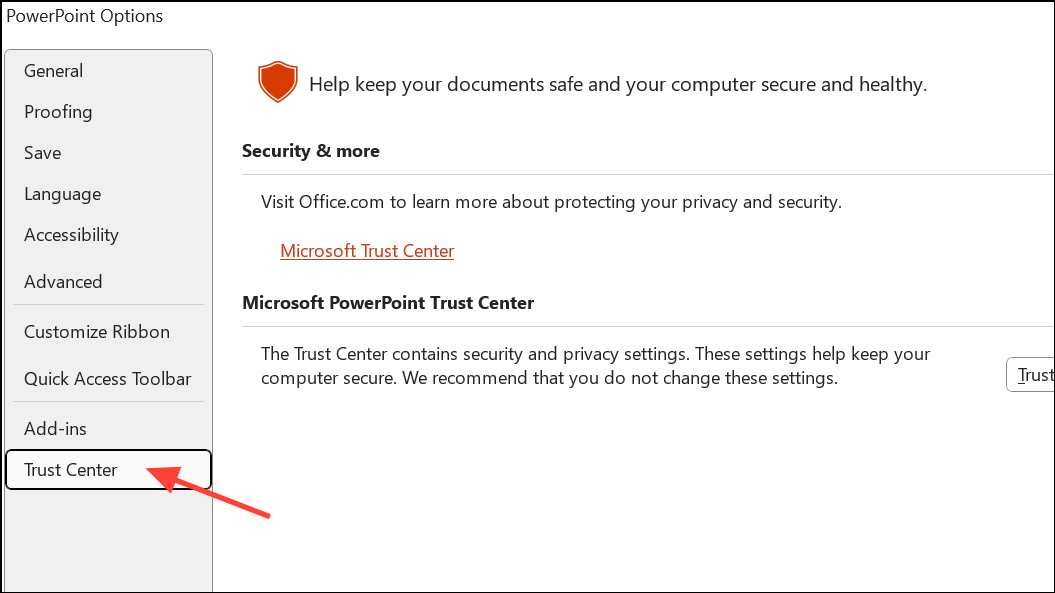
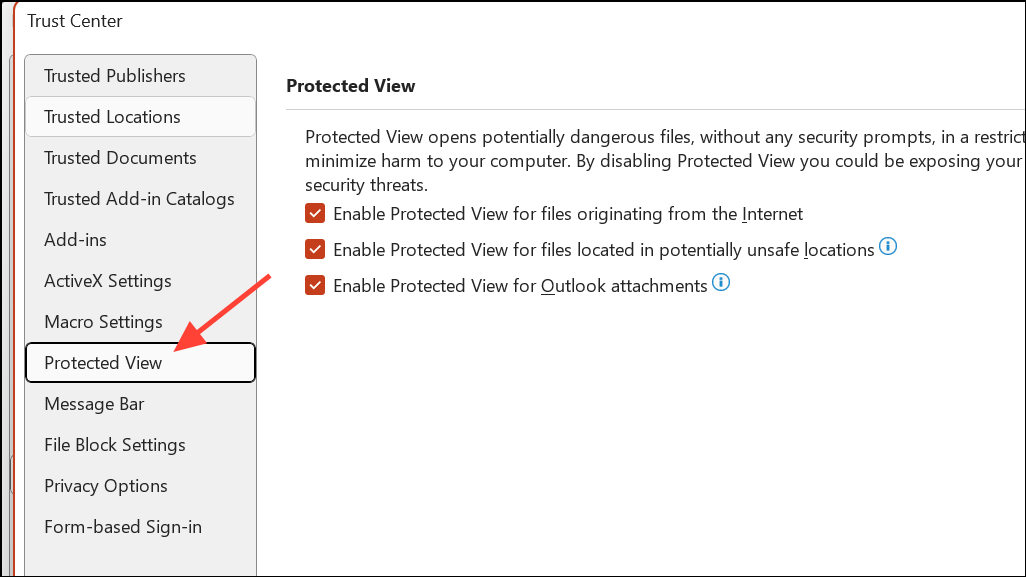
Enable Protected View for files originating from the Internet and Enable Protected View for files located in potentially unsafe locations. Click OK to apply changes.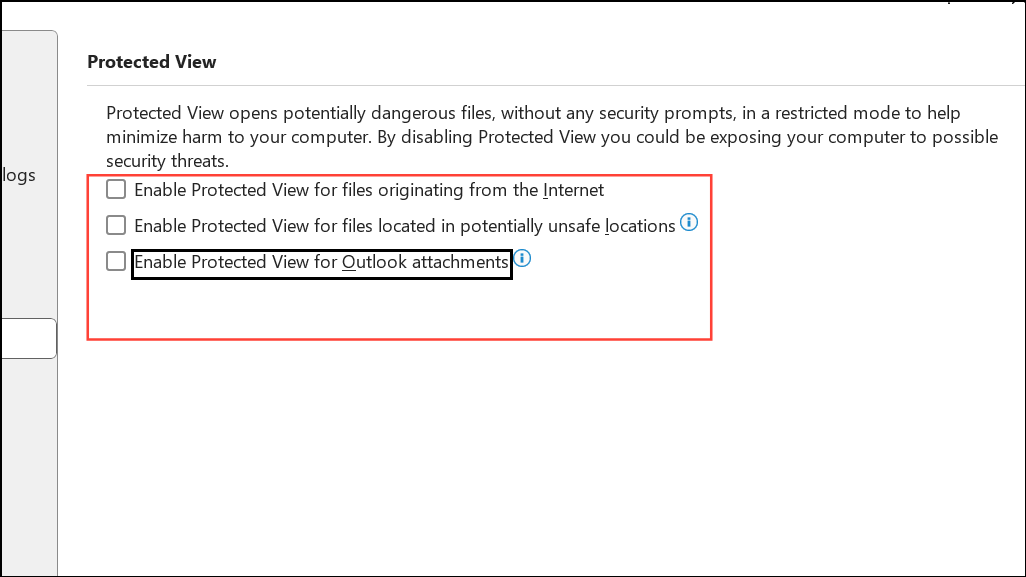
Unblock the PowerPoint File (Windows)
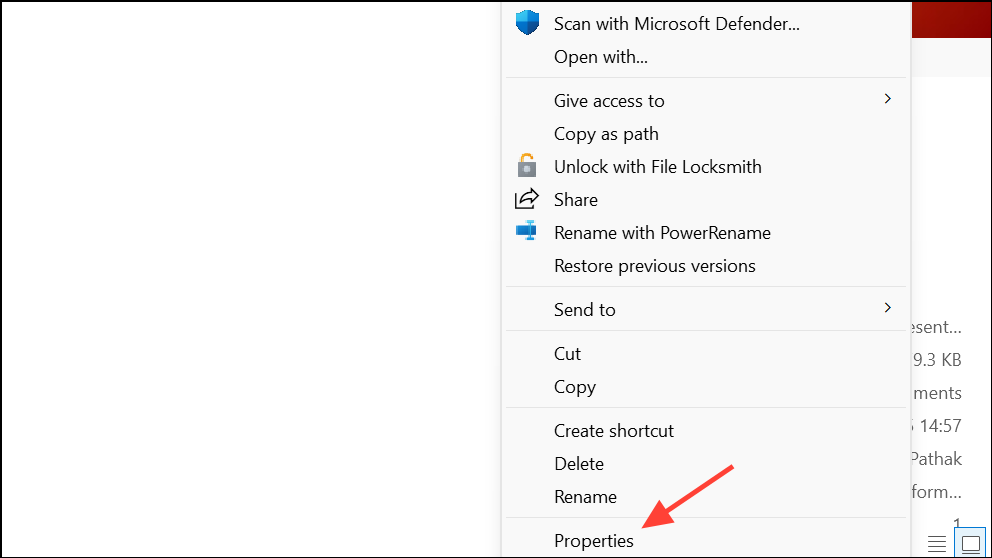
Unblock checkbox near the bottom right. If present, check it, then click Apply and OK.This step removes Windows’ security block on files downloaded from the internet or transferred from other computers, making them accessible to PowerPoint. Attempt to open the file again after unblocking.
Add File Location to Trusted Locations (Windows)
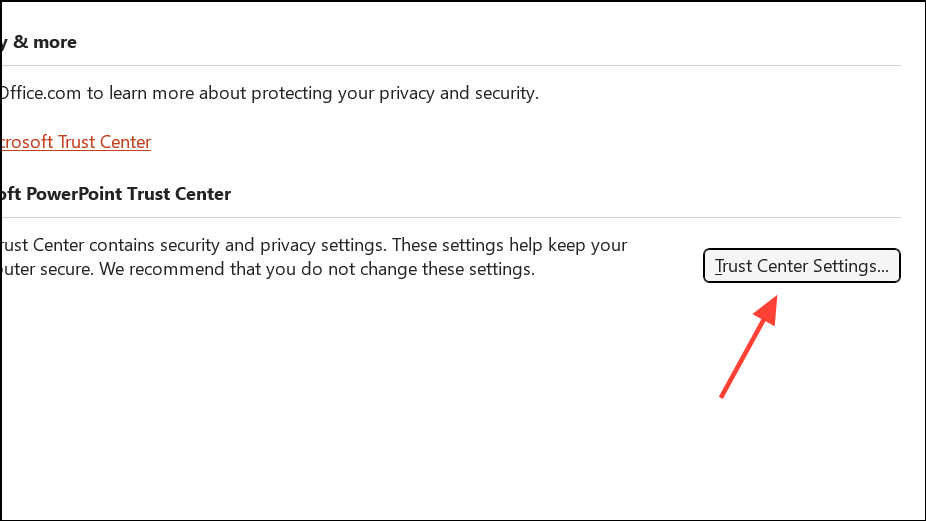
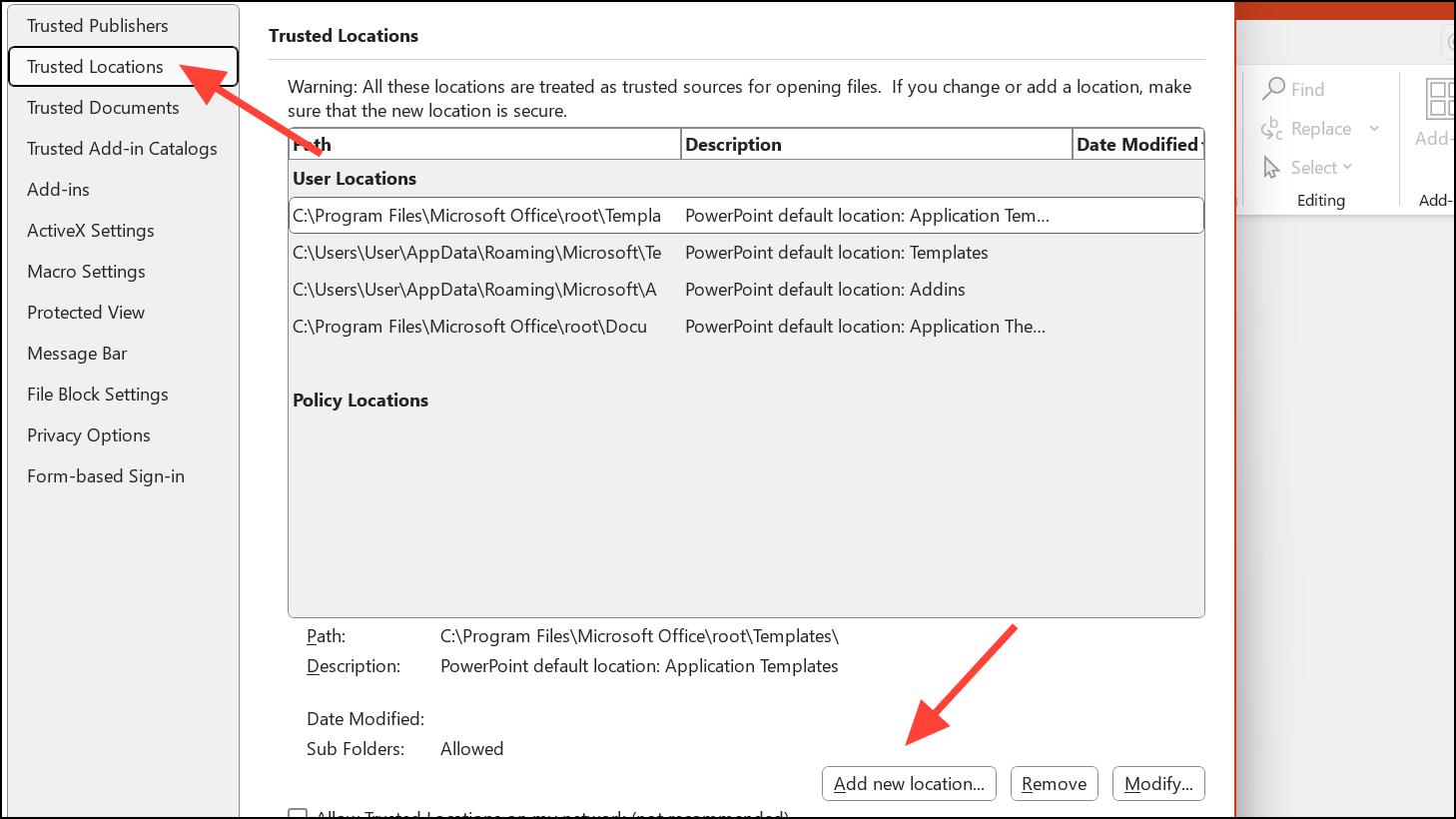
OK to confirm.By adding the folder to Trusted Locations, PowerPoint will bypass certain security checks for files stored there, reducing the likelihood of content errors for files you know are safe.
Change File Location from Synchronized or Temporary Folders
Documents or Desktop.Cut or press Ctrl + X, navigate to your preferred local folder, right-click, and select Paste.Opening and editing files directly from cloud-synced or removable drives increases the risk of file corruption. Always work from a local directory and back up files to the cloud only after saving and closing them.
Manage Full Disk Access and File Permissions (Mac)
+ icon, enter your password if prompted, and add Microsoft PowerPoint to the list. You may need to quit and reopen PowerPoint for changes to take effect.Get Info, and ensure the Locked checkbox is not selected.Granting PowerPoint full disk access and confirming file permissions prevents macOS from blocking PowerPoint files due to privacy restrictions or file locks.
Restore an Earlier Version of the File
Show more options > Restore previous versions. If previous versions are available, select one and restore it.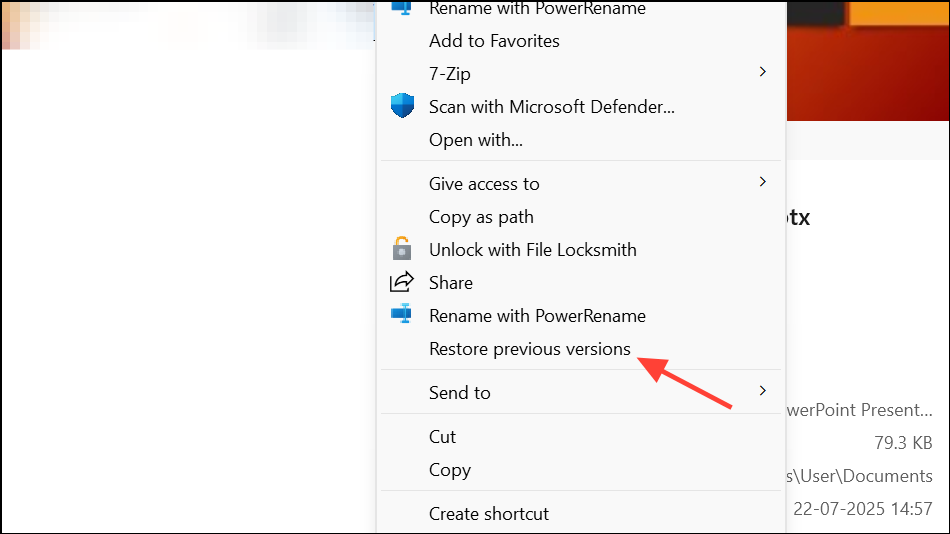
Time Machine, and browse for an earlier backup of the file. Select it and click Restore.Restoring an older version can recover uncorrupted copies of your presentation, especially if the error was caused by recent changes or file corruption.
Try Opening and Exporting from Another Program
.pptx files.File > Download > Microsoft PowerPoint (.pptx).This process can sometimes recover content that PowerPoint fails to read, especially for minor corruptions or format compatibility issues.
Update Microsoft 365 or PowerPoint
Account. Click Microsoft 365 and Office Updates and choose Update now.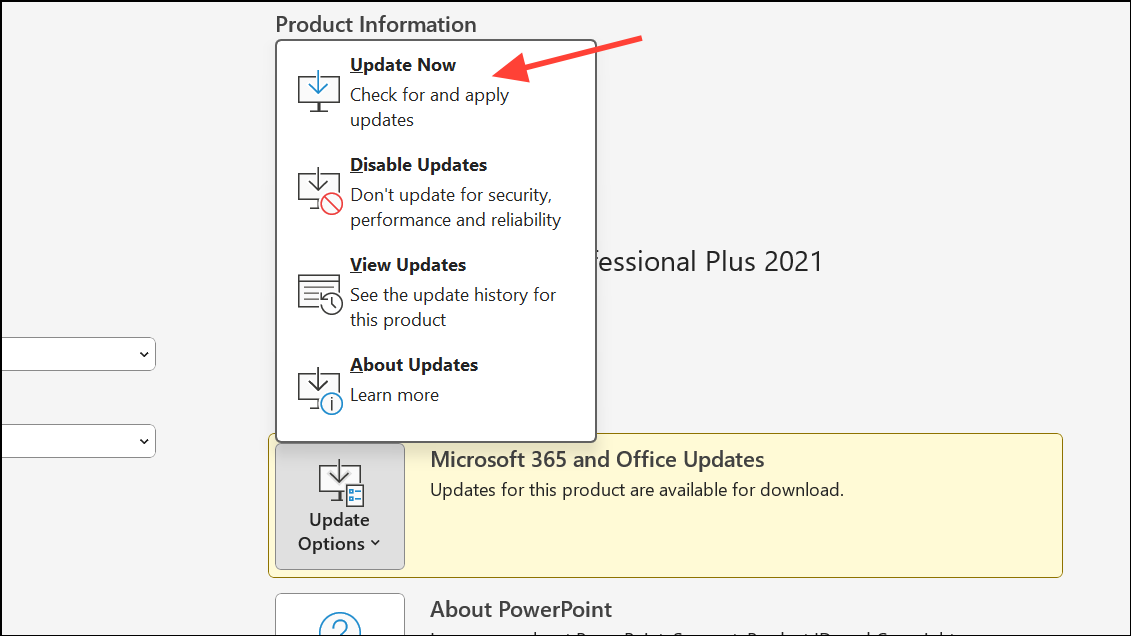
Help > Check for Updates. Install any available updates and enable automatic updates for future reliability.Running the latest version of PowerPoint ensures compatibility with new file formats and reduces software bugs that can cause file access errors.
By methodically addressing file corruption, security restrictions, file locations, and software updates, you can resolve the “PowerPoint couldn’t read some content” error and recover your presentations with minimal data loss.





