

PowerPoint files sometimes open with no visible slides, even though the file size and metadata suggest your content is still present. This issue can disrupt workflow, especially after long hours of editing or when preparing for an important meeting. Addressing blank presentations requires targeted troubleshooting to recover your slides and restore normal functionality.
Repair the PowerPoint File Using a Dedicated Tool
+Add button to browse and select your blank PowerPoint file.
Repair button. The tool will scan and attempt to recover the content from your presentation.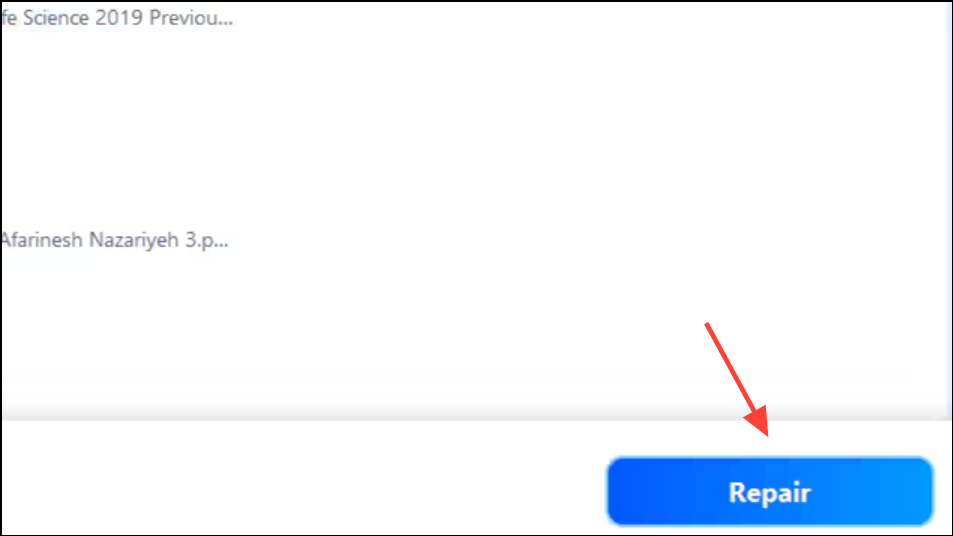
Using a specialized repair tool is effective for files suffering from corruption due to abrupt shutdowns, transfer errors, or malware. This method can restore lost text, images, and formatting in cases where standard fixes fail.
Open a Copy of the Presentation
Copy, then right-click in the folder and select Paste to create a duplicate.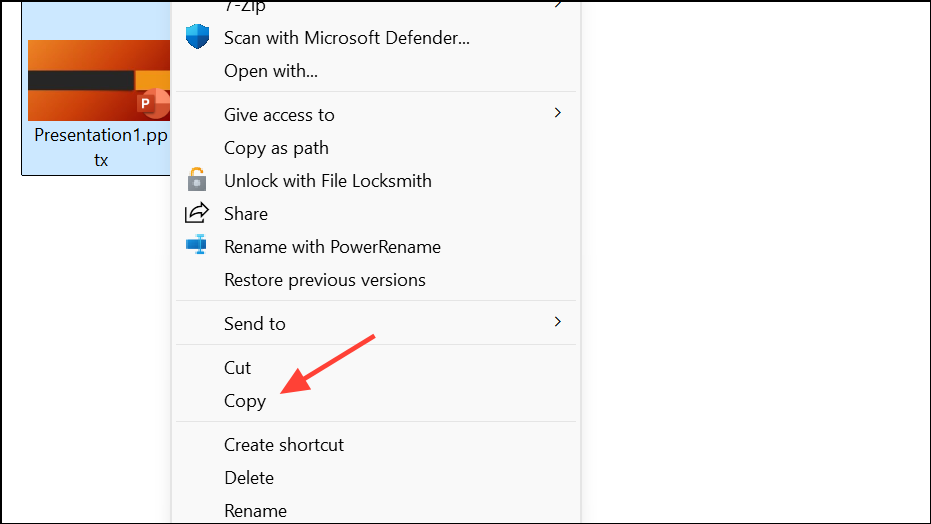
This approach works because creating a new file can prompt Windows or macOS to resolve minor file system issues or clear temporary locks that may be preventing the original from opening correctly. If the copy opens but the original remains blank, continue using the copy and consider deleting the problematic file after confirming your data is intact.
Restart PowerPoint or Reboot Your Device
Restarting the application or your device clears cached data and resets temporary states that may interfere with file loading. This step is especially useful if you notice that blank presentations only occur after extended periods of use or system hibernation.
Repair PowerPoint Installation via Control Panel or Settings
Programs > Programs and Features. On macOS, open Finder and go to the Applications folder.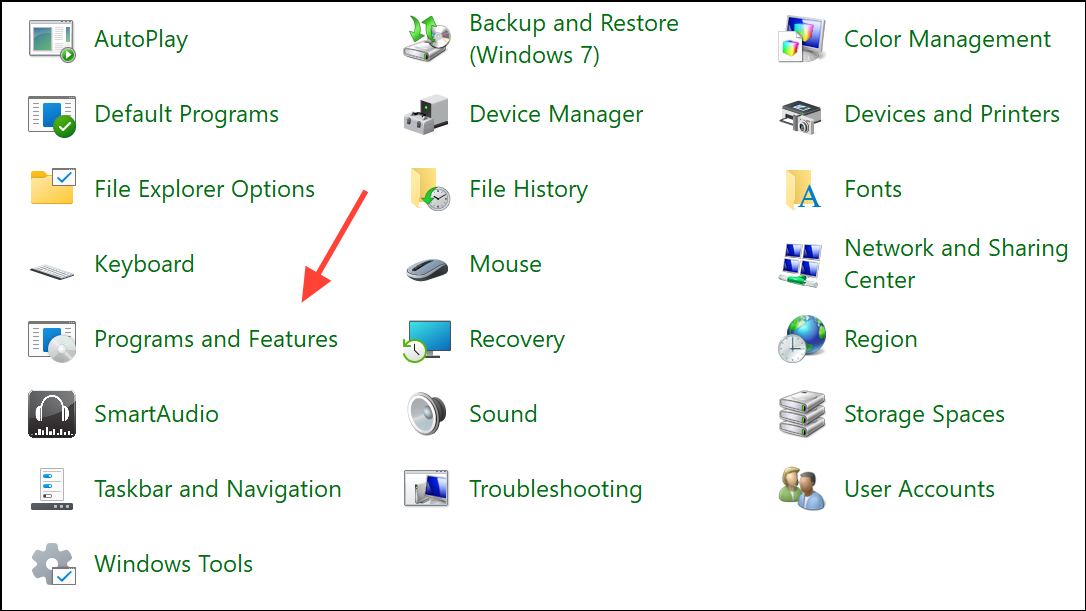
Repair or Change.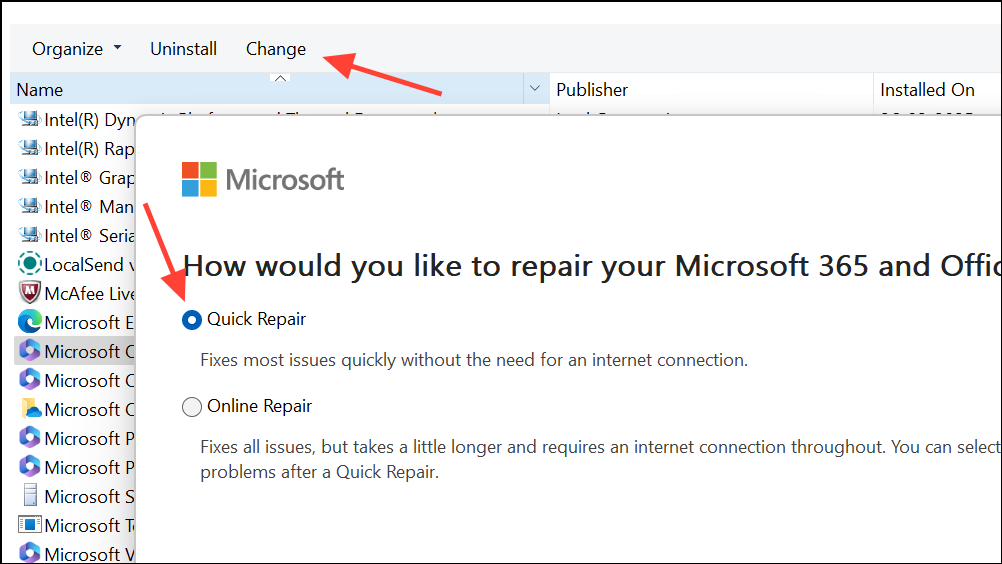
Repairing the Office suite addresses underlying software issues that may cause presentations to open blank, such as corrupted application files, broken add-ins, or faulty updates.
Open the File in Safe Mode
Ctrl key while launching PowerPoint. A prompt will appear asking if you want to start in Safe Mode—click Yes.Safe Mode disables all add-ins and customizations, allowing you to determine if third-party extensions or settings are causing the blank presentation issue.
Reduce File Size to Prevent Loading Issues
Large files with heavy embedded media can exceed memory limits or trigger loading errors, resulting in blank slides. Reducing file size streamlines loading and can restore normal display.
Restore Previous Versions or Recover from Backups
Version History to access previous saved versions.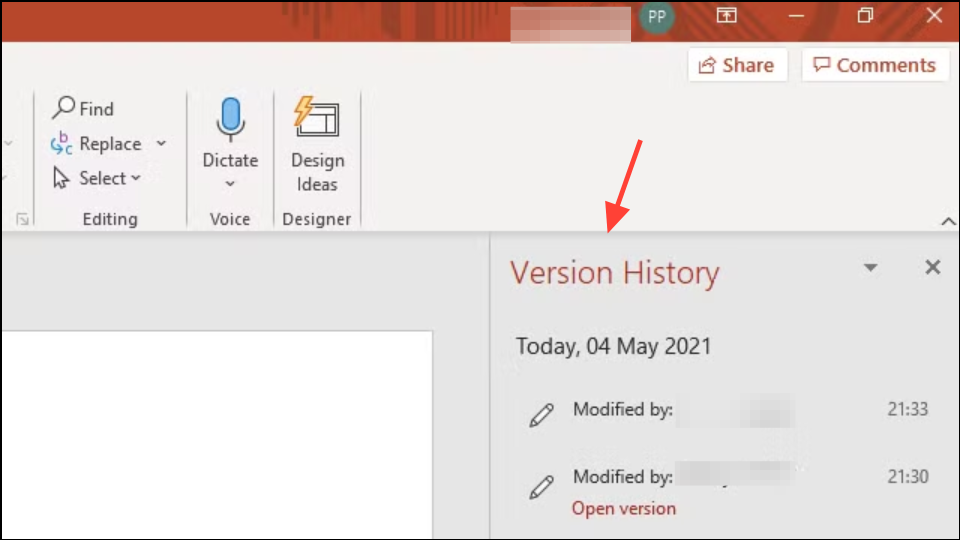
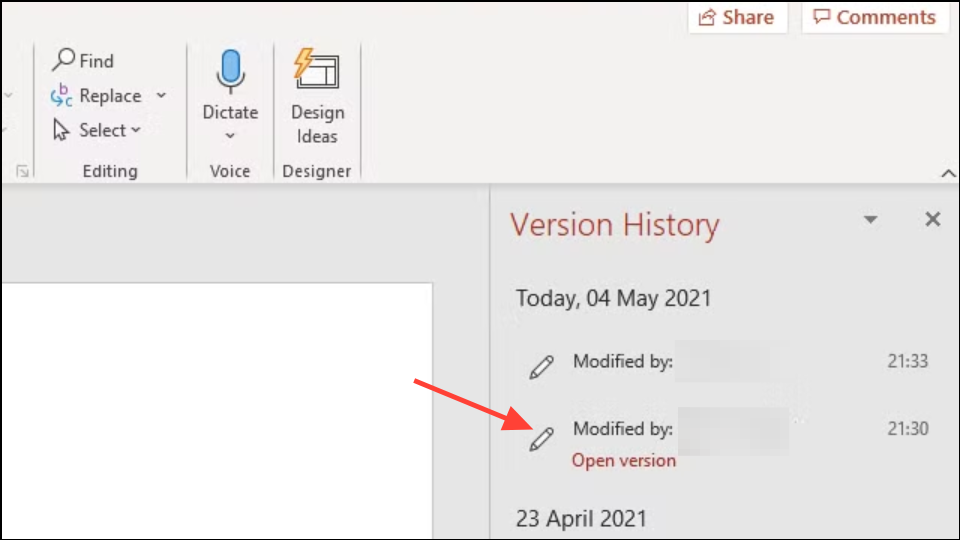
Restoring from backups or previous versions is essential if the current file is irreparably corrupted or blank due to a recent save or crash.
Insert Slides into a New Presentation

This method allows you to salvage content from a problematic file by bypassing any corruption present in the original structure.
Prevent PowerPoint from Opening Blank Presentations by Default
File > Options > General > Start up options and enable Show the Start screen when this application starts.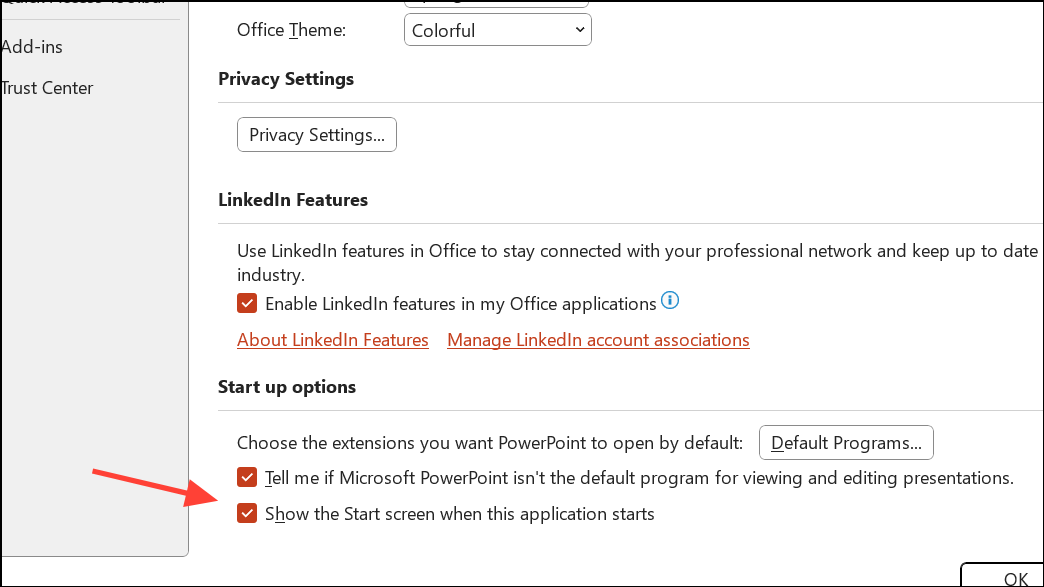
Preferences > General, and select Open Presentation Gallery when opening PowerPoint.This adjustment stops PowerPoint from automatically opening a blank file on startup, allowing you to choose between recent files or templates instead.
Addressing Blank Presentations Triggered by Add-Ins or Plugins
Some users report that PowerPoint opens blank presentations at random, often due to third-party add-ins like the Elgato Stream Deck PowerPoint plugin. Removing or disabling such plugins can resolve the issue.
Disabling or removing problematic plugins prevents PowerPoint from opening new blank files unexpectedly and eliminates background processes that may interfere with normal operation.
Fixing Slides That Go Black in Presentation Mode
When slides turn black during slideshow mode, especially across both Windows and Mac, hardware graphics acceleration is often the cause.
File > Options > Advanced, scroll to the Display section, and check Disable slide show hardware graphics acceleration. Click OK and restart PowerPoint.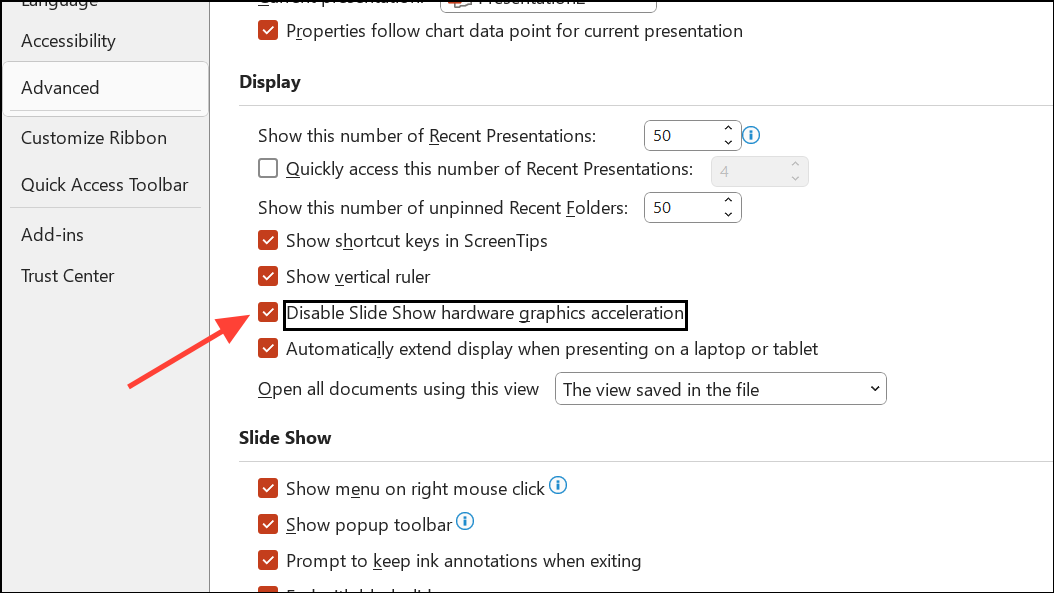
If the problem persists, clear your browser cache or try using a different browser for web-based presentations. Also, confirm whether the issue occurs with all presentations or only specific files, and test on another device if possible.
Blank or empty PowerPoint presentations can be restored using targeted repair tools, file management techniques, and by addressing software or system-level conflicts. Regular backups and cautious use of add-ins help prevent future occurrences.





