
“Something went wrong and we can’t sign you in right now. Please try again later.” This Outlook error message can interrupt email access, disrupt workflow, and create uncertainty about the underlying cause. Addressing this issue requires a systematic approach, since it can be triggered by browser cache problems, corrupted Outlook profiles, server-side restrictions, or authentication conflicts. The following solutions are organized by effectiveness, starting with the most reliable fixes that have produced consistent results for users.
Clear Browser Data and Remove Outlook-Related Credentials
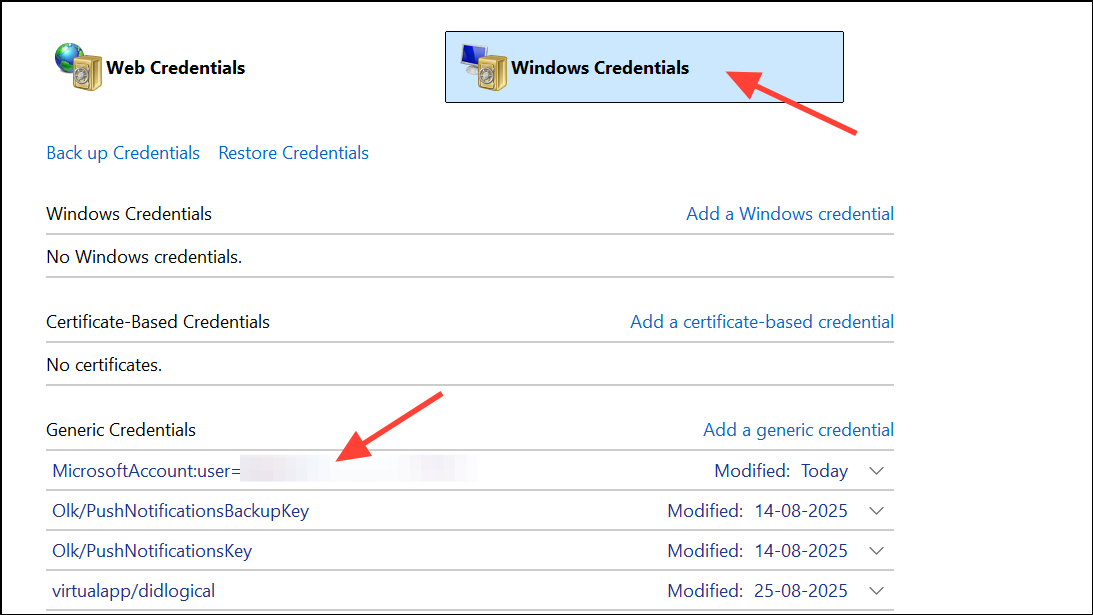
Corrupted browser cache or saved credentials often block successful sign-in attempts, especially when using Outlook.com or Outlook on the web. Removing this data can reset the authentication process and fix mismatched or outdated information.
Ctrl+Shift+Del and select “Clear browsing data.” Choose to delete cached images, cookies, and site data for all time. In Firefox or Edge, access similar options via their settings or privacy menus.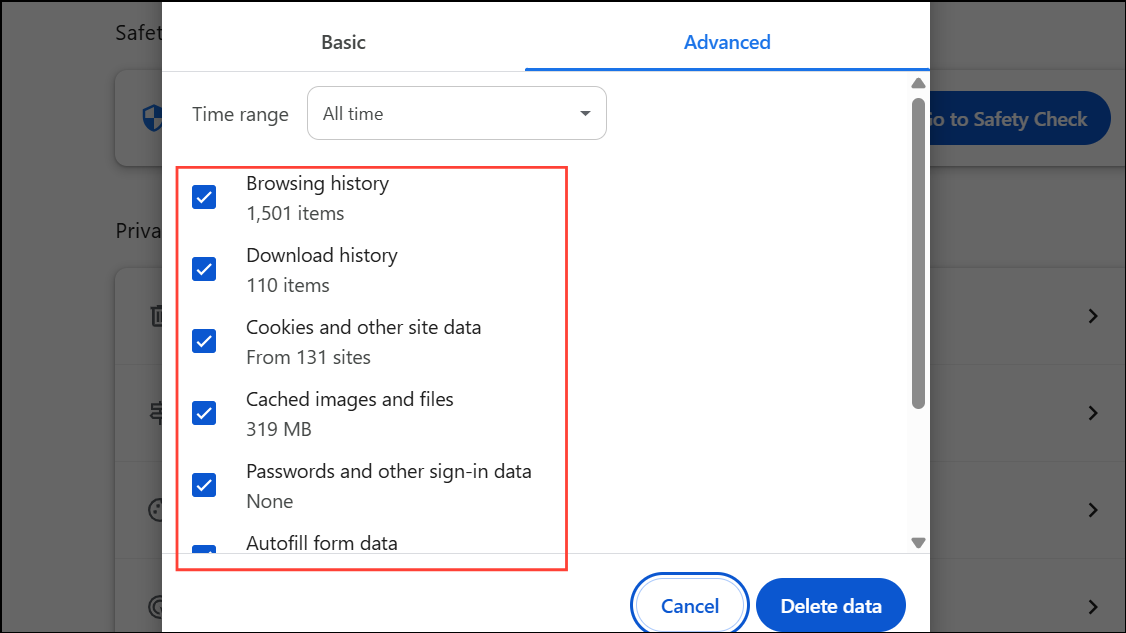
Check for Account Lockouts and Repeated Authentication Attempts
Repeated failed sign-in attempts can trigger Microsoft’s security systems, temporarily locking your account and generating the “too many repeated authentication attempts” error. This is often a protective measure against brute force attacks.
Switch or Update Your Browser
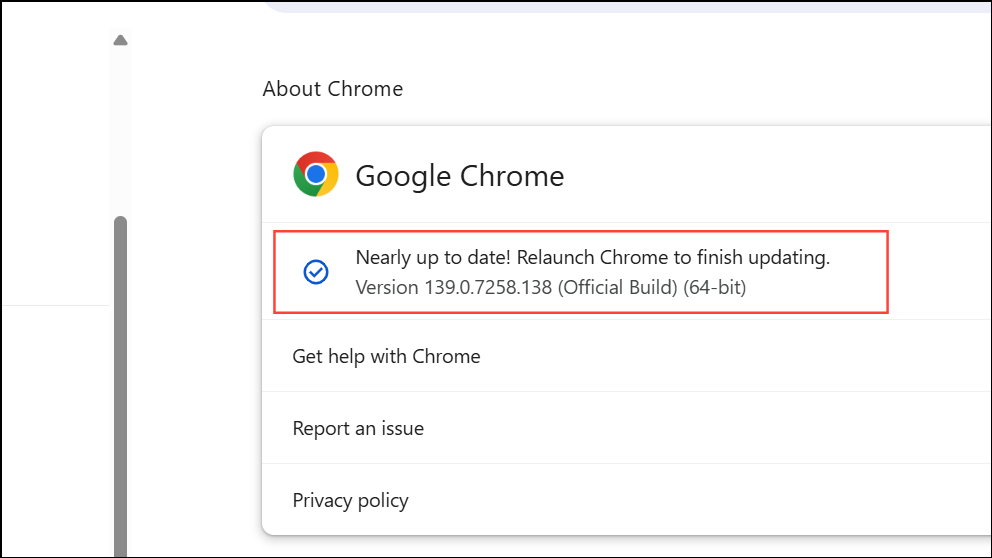
Some users report that Outlook’s sign-in error appears only in specific browsers, often after a browser update or when using persistent tabs. Browser compatibility issues may be at fault.
Restart Outlook in Safe Mode and Disable Add-Ins (Desktop App)
Third-party add-ins can interfere with Outlook’s authentication process, especially in the desktop application. Safe Mode disables these add-ins, allowing you to test if one is causing the error.
Windows+R to open the Run dialog, type outlook.exe /safe, and press Enter. This starts Outlook in Safe Mode.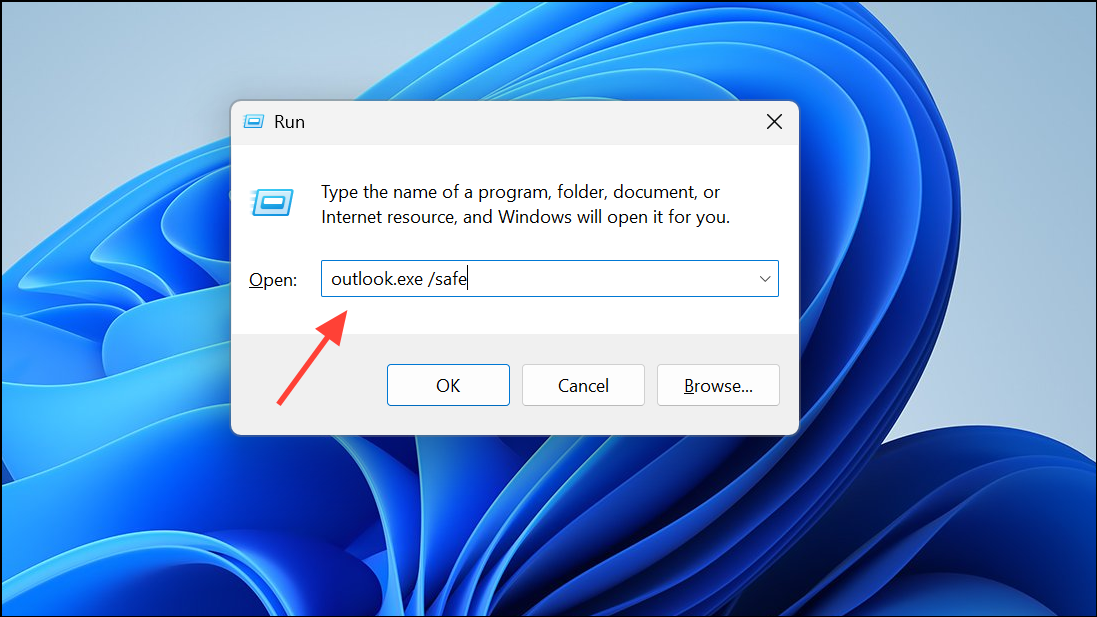
File > Options > Add-Ins, then click “Go” next to COM Add-ins. Uncheck all add-ins to disable them.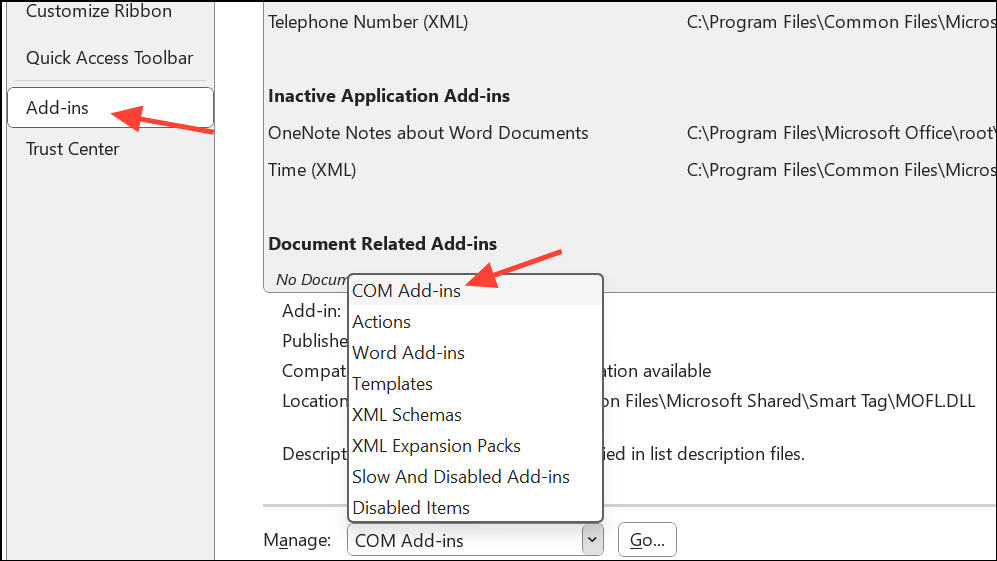
Remove and Re-Add Your Outlook Account
A corrupted Outlook profile or misconfigured account can prevent successful authentication. Removing and re-adding your account resets the connection to Microsoft’s servers.
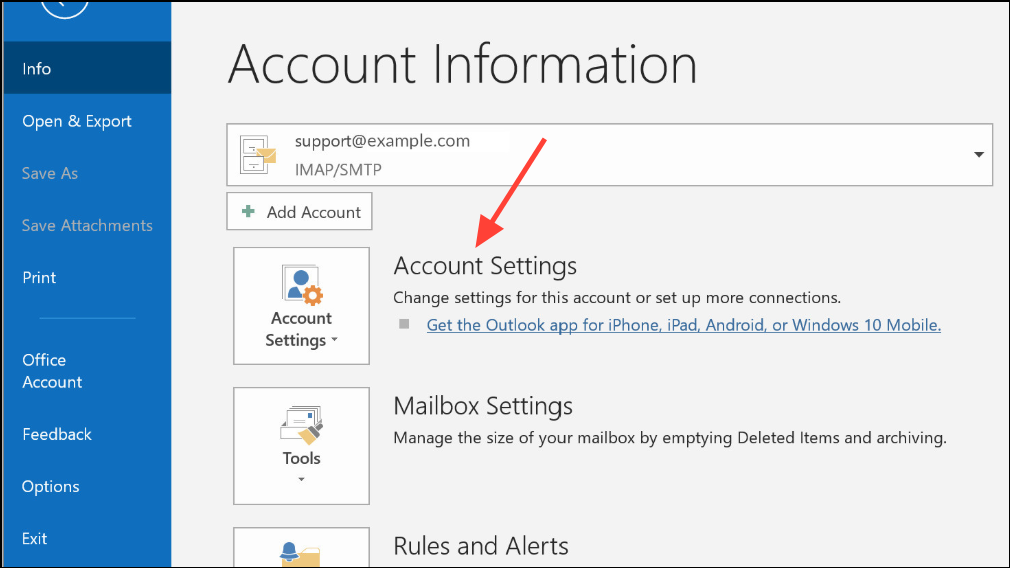
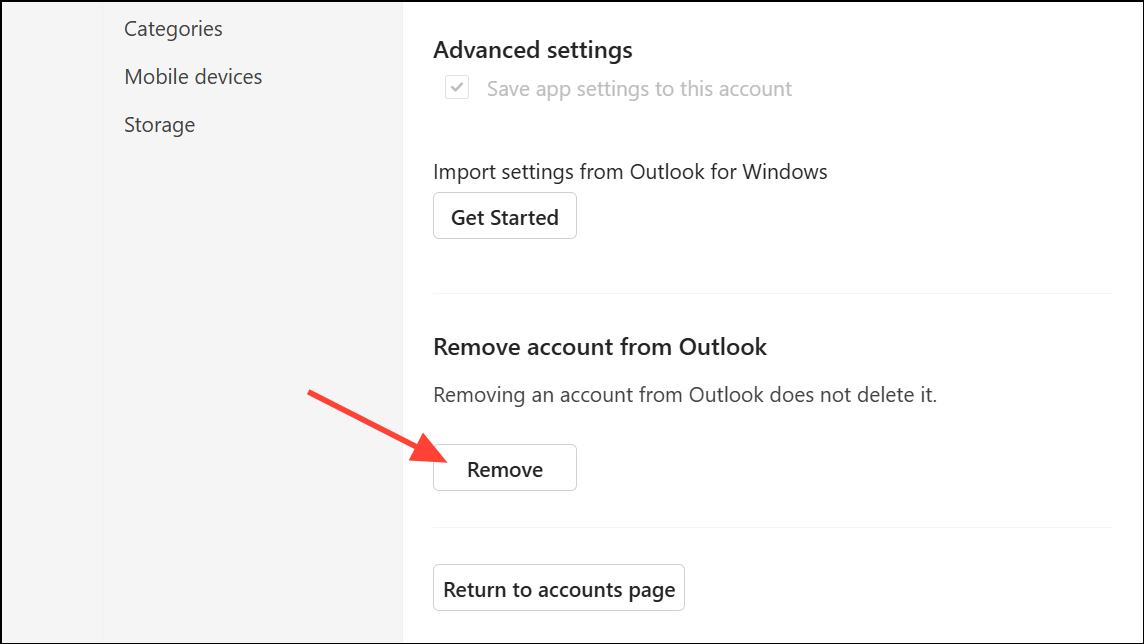
File > Account Settings > Account Settings and click “New” to add your account back. Enter your email address and follow the prompts to authenticate.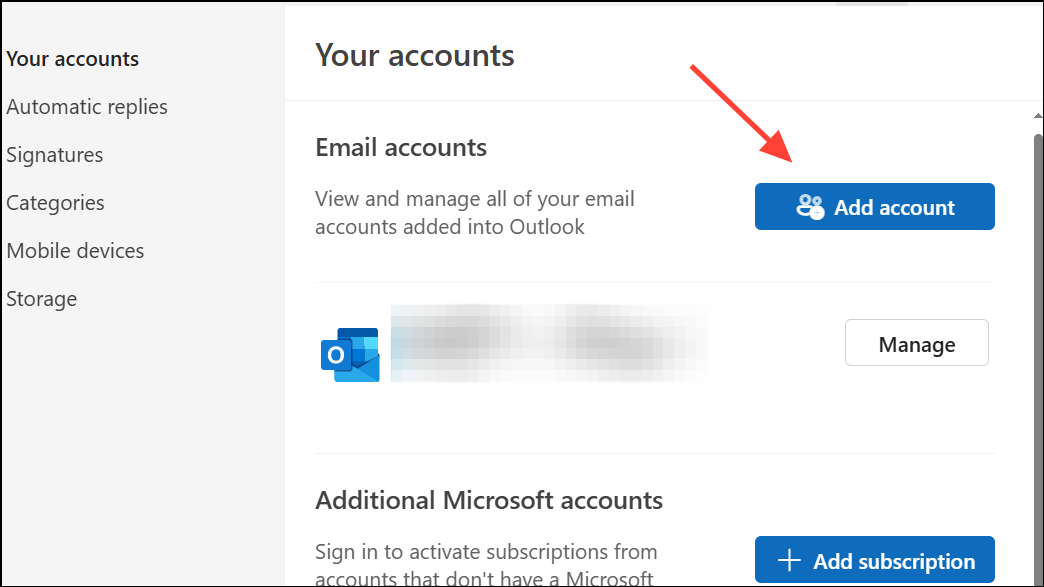
Modify Windows Registry Settings for Autodiscover Issues
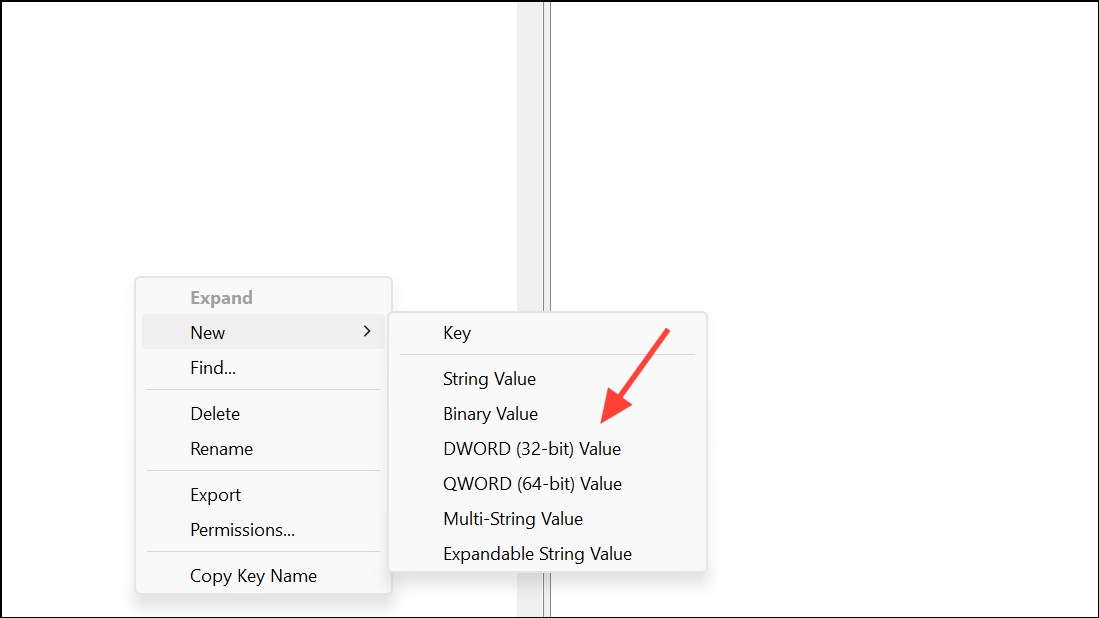
Autodiscover is a process Outlook uses to configure accounts automatically. When it receives unexpected server responses, it may trigger sign-in errors. Adjusting registry values can bypass problematic autodiscover lookups, especially in enterprise environments.
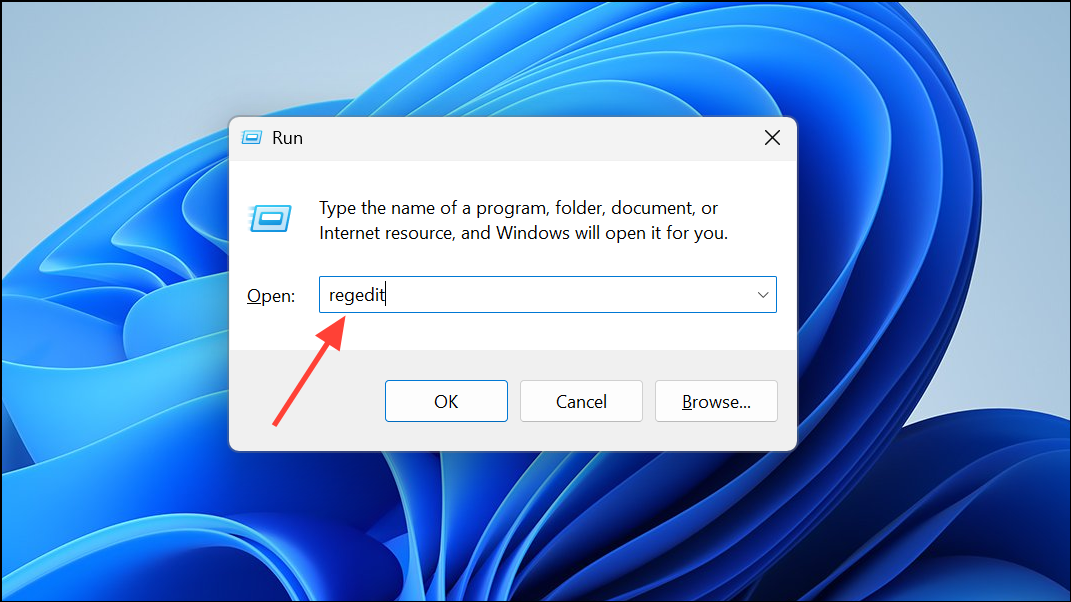
Computer\HKEY_CURRENT_USER\Software\Microsoft\Office\16.0\Outlook\AutoDiscover (replace 16.0 with your Office version if different).1:ExcludeHttpsRootDomainExcludeHttpsAutoDiscoverDomainExcludeSrvRecordExcludeLastKnownGoodUrl
Repair or Reinstall Microsoft Outlook
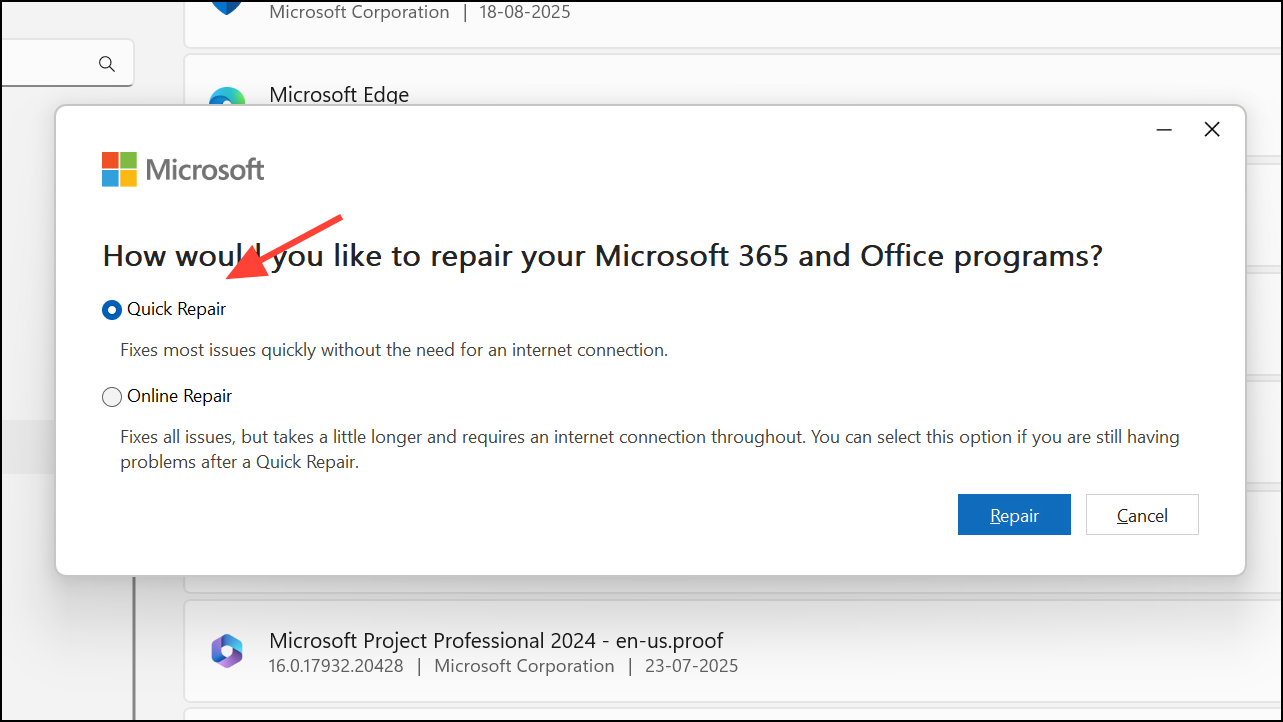
Corrupted program files can cause persistent errors that are not fixed by other means. Repairing or reinstalling Outlook restores missing or damaged files.
Apps > Installed Apps. Find Microsoft Office in the list, click the three-dot menu, and select “Advanced Options” or “Modify”.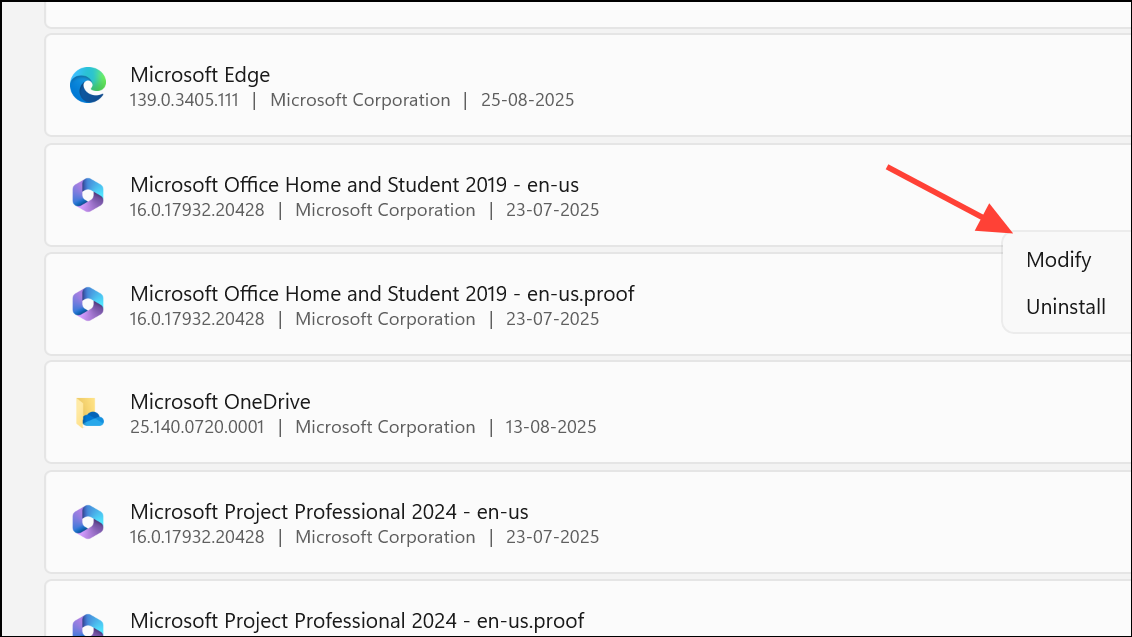
Address Two-Factor Authentication and App Password Issues (Mobile Devices)
On mobile devices, failed sign-ins often result from two-factor authentication (2FA) requirements or outdated app passwords. If you recently enabled 2FA or changed your authentication method, Outlook may need updated permissions.
Resolving the Outlook sign-in error usually restores access within minutes. If issues persist after these steps, contacting Microsoft Support or your organization’s IT administrator is recommended for further investigation.





