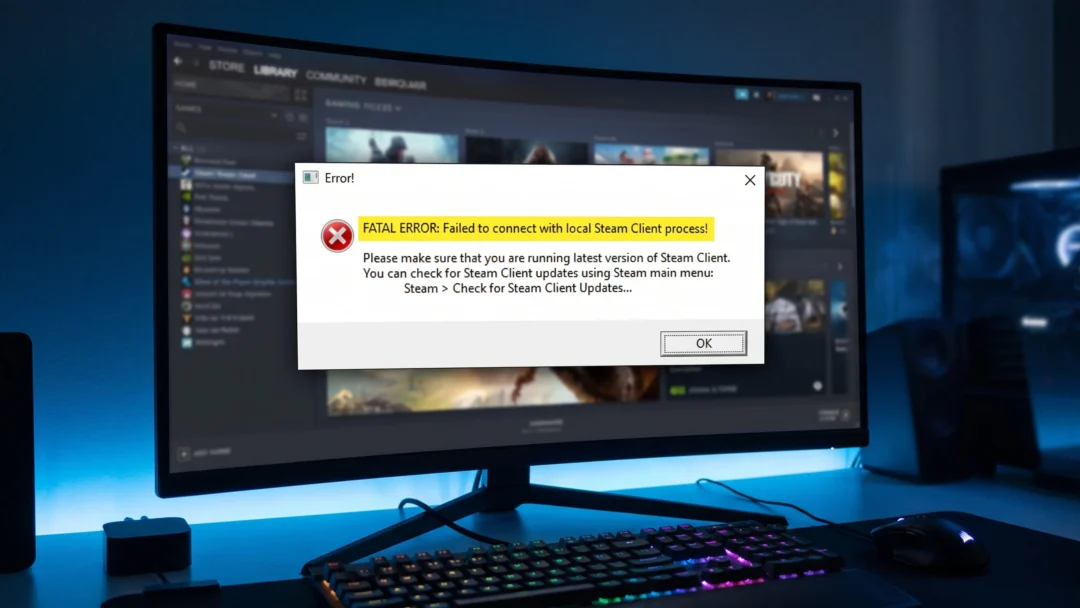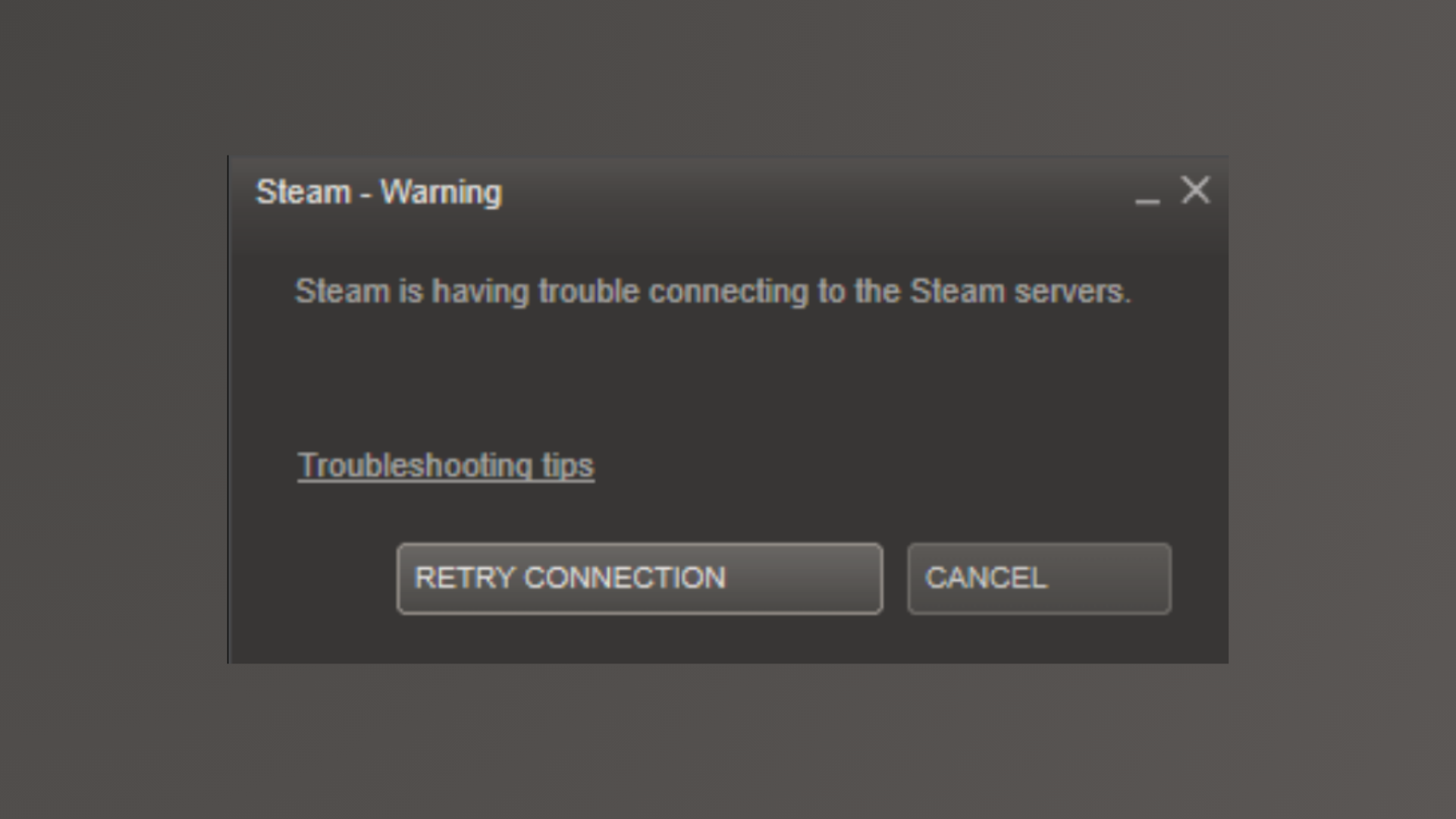
Steam displays the “Steam is having trouble connecting to the Steam servers” error when its client cannot establish a stable connection, even if your internet is otherwise working. This issue can block game downloads, multiplayer access, and even basic account login, often due to corrupted configuration files, network misconfigurations, or temporary server outages.
Delete Corrupted Configuration Files
Corrupted or outdated user configuration files frequently cause Steam’s connection error. Removing the localconfig.vdf file in your Steam userdata directory prompts Steam to rebuild fresh settings, resolving persistent connectivity problems for many users.
Ctrl + Shift + Esc) and ending any Steam-related processes.C:\Program Files (x86)\Steam\userdata.userdata folder, look for a subfolder named with a long string of numbers (this is your Steam user ID). Open this folder, then open the config directory within it.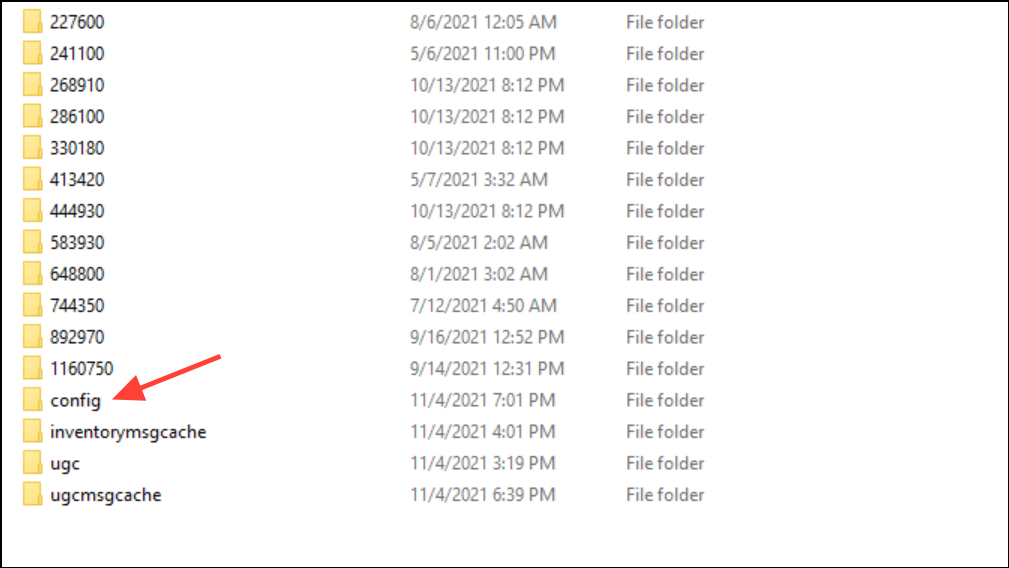
localconfig.vdf file. If you have multiple user ID folders, repeat this step for each.Flush DNS and Reset Network Settings
Network misconfigurations or stale DNS cache can prevent Steam from communicating with its servers. Flushing the DNS, renewing your IP, and resetting Winsock settings can restore proper connectivity.
cmd, right-click Command Prompt, and choose Run as administrator.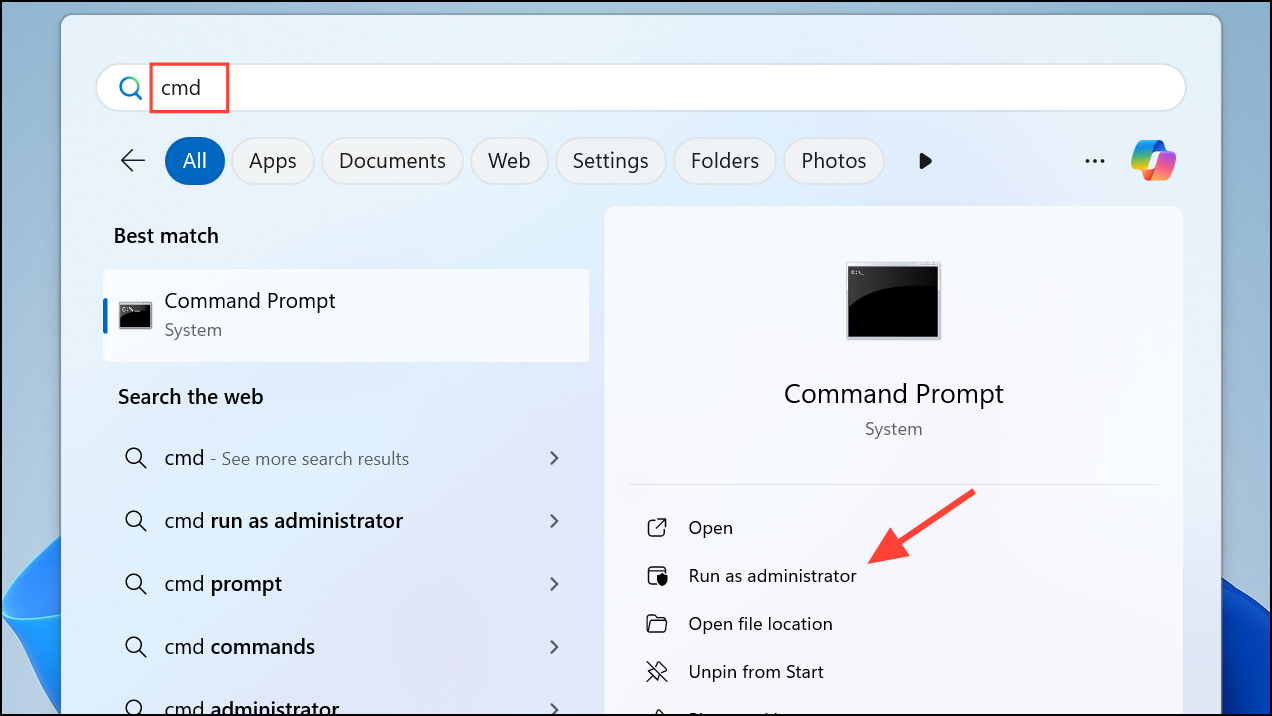
ipconfig /release
ipconfig /all
ipconfig /flushdns
ipconfig /renew
netsh int ip set dns
netsh winsock reset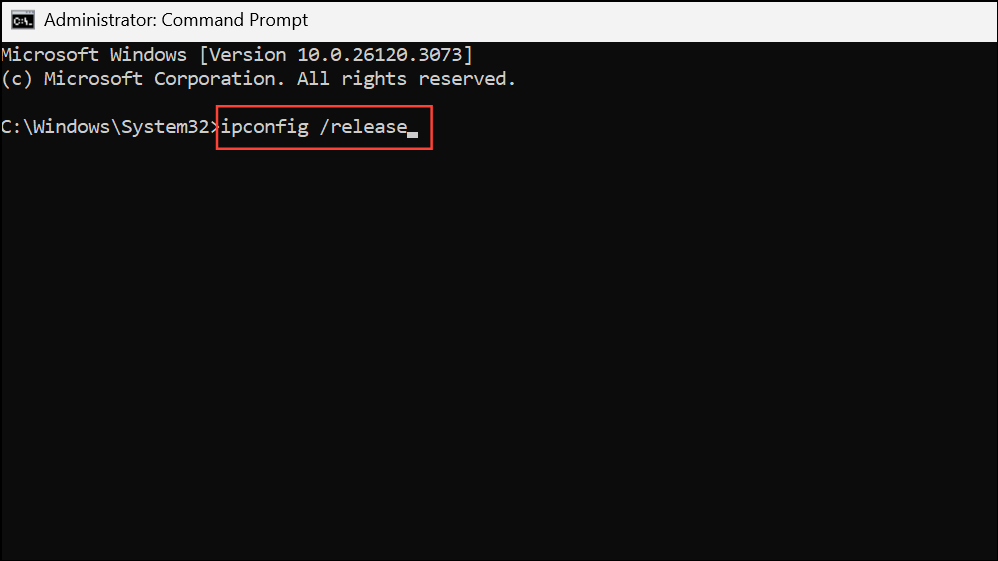
Check Steam Server Status
Sometimes, Steam’s servers are undergoing maintenance or experiencing outages. If this is the case, connection errors will affect all users, not just your system.
Restart Network Devices
Overloaded or misbehaving network hardware can disrupt Steam’s ability to connect. Restarting your modem and router clears temporary glitches and refreshes your internet connection.
Modify Steam Launch Properties
Steam typically uses the UDP protocol for network communication. For some users, forcing Steam to use TCP instead can bypass connection issues caused by restrictive networks or ISPs.
Target field, add a space after the closing quotation mark and type -tcp so it reads something like "C:\Program Files (x86)\Steam\steam.exe" -tcp.Allow Steam Through Firewall and Antivirus
Windows Firewall or third-party security software can block Steam’s network traffic, resulting in persistent connection errors. Granting Steam permission restores its ability to communicate with its servers.
Windows + R, type control firewall.cpl, and press Enter to open Windows Defender Firewall settings.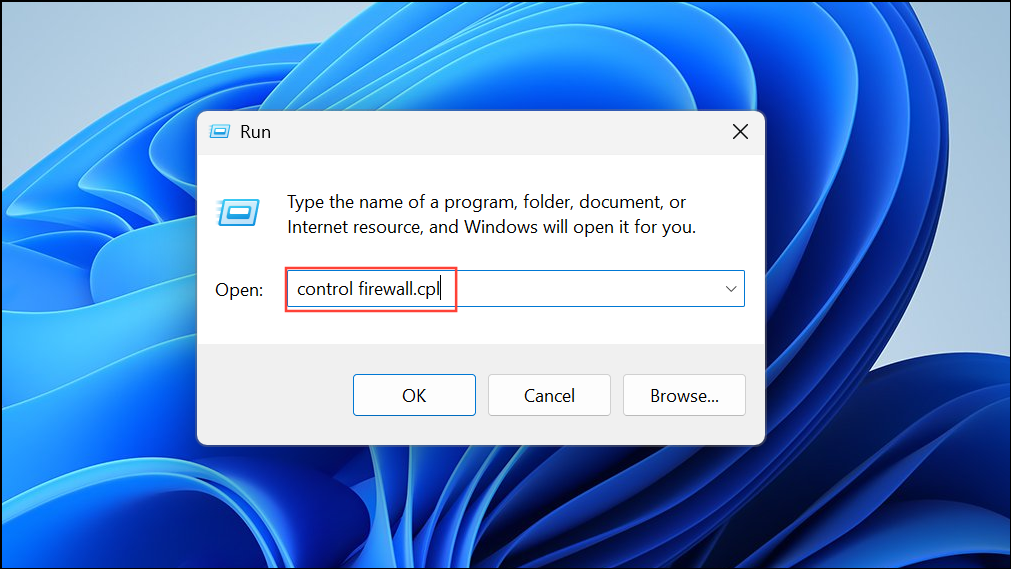
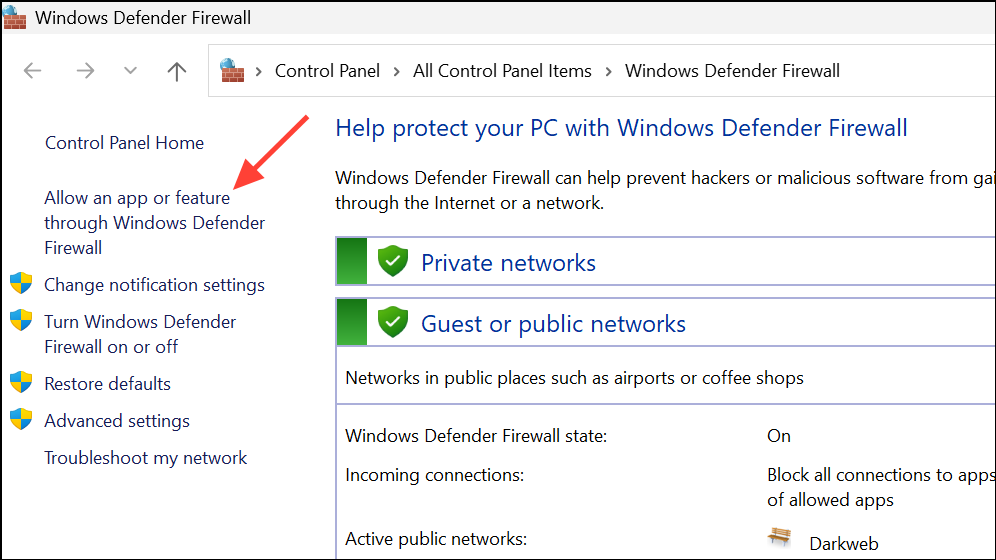
Private and Public boxes are checked. If not, click Change settings, then Allow another app… to add Steam manually.Adjust LAN and Proxy Settings
Misconfigured proxy settings or automatic LAN detection can interfere with Steam’s network access. Disabling these options can restore proper connectivity.
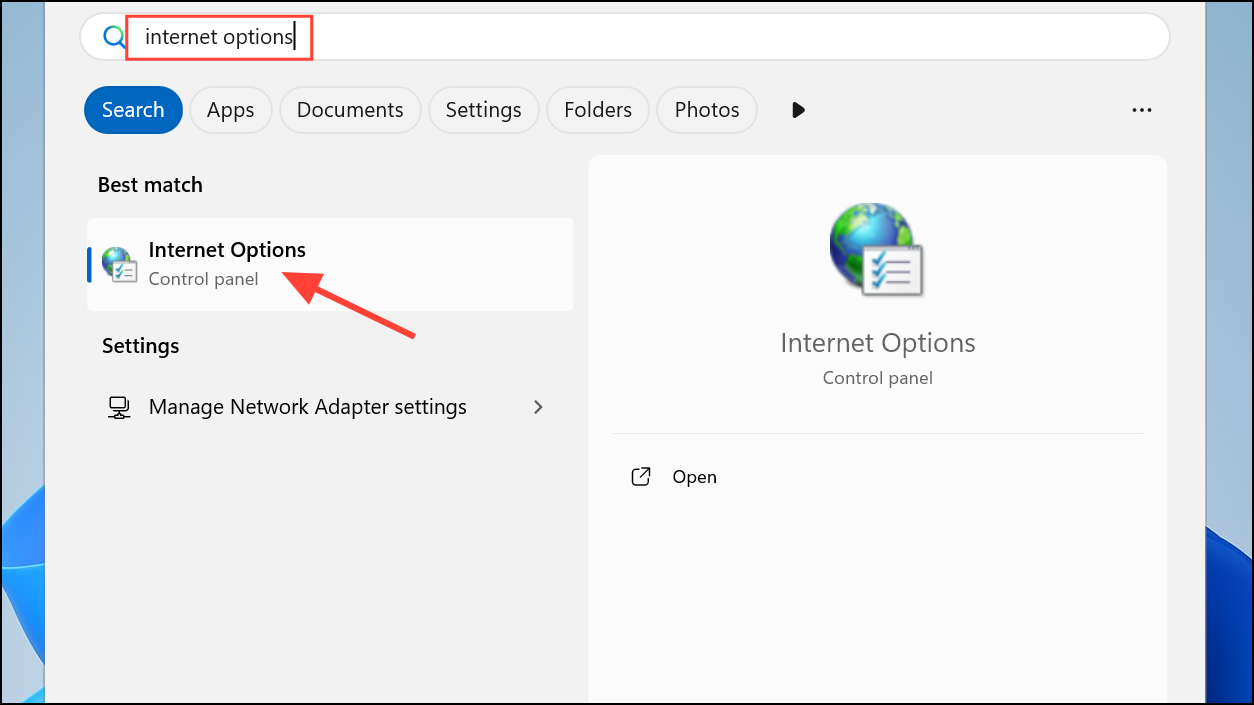
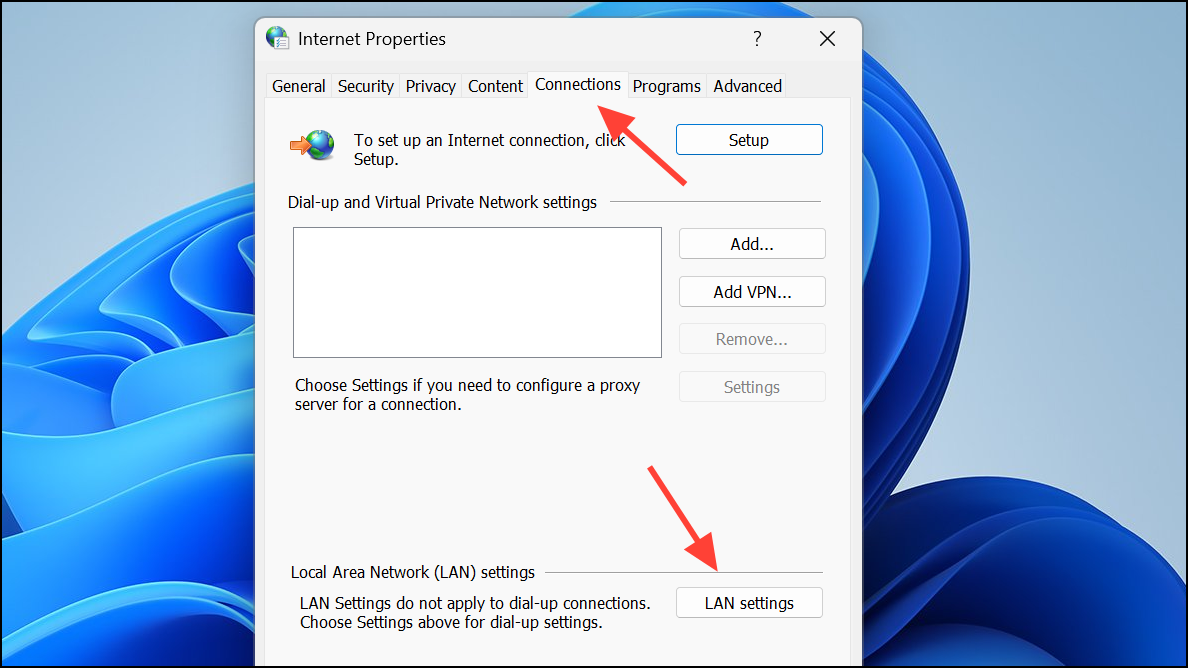
Automatically detect settings and ensure no proxy server is enabled unless required by your network.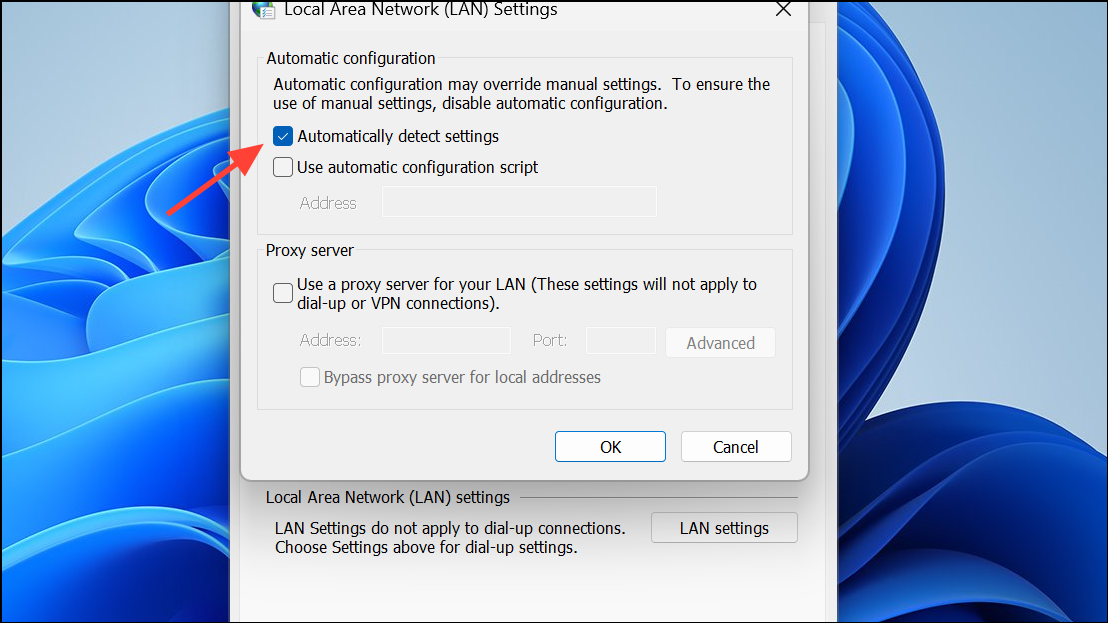
Update Network Adapter Drivers
Outdated or faulty network drivers can cause connectivity problems for Steam and other online services. Updating these drivers can restore stable network performance.
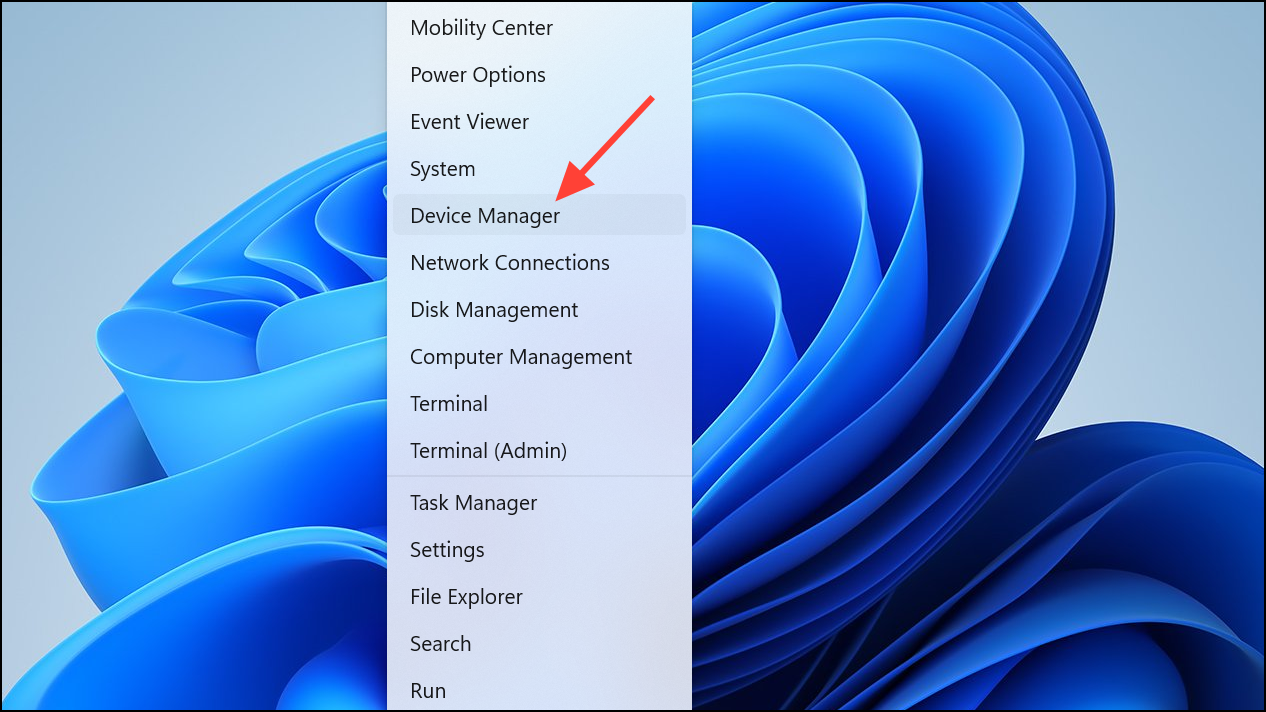
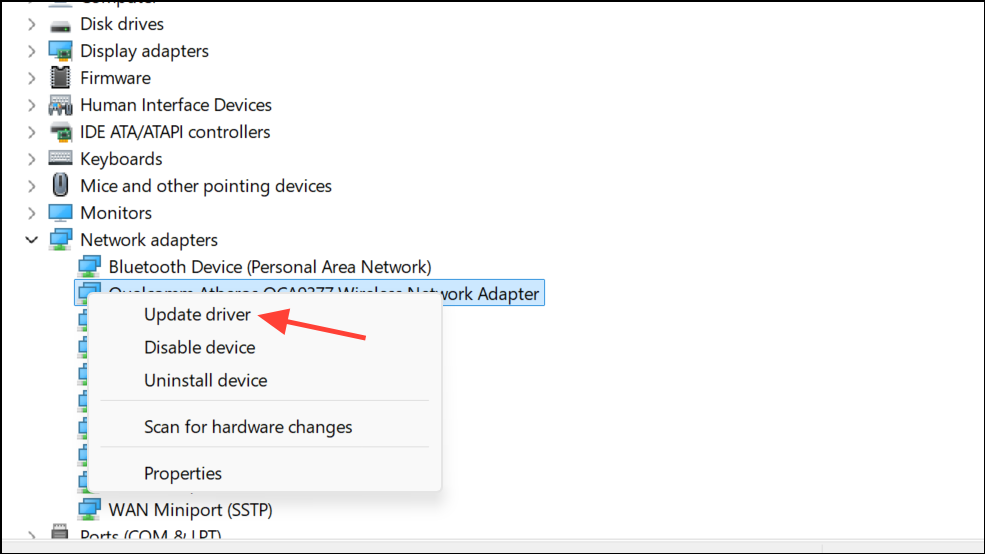
Search automatically for updated driver software and follow the prompts. Restart your computer when finished and test Steam’s connection.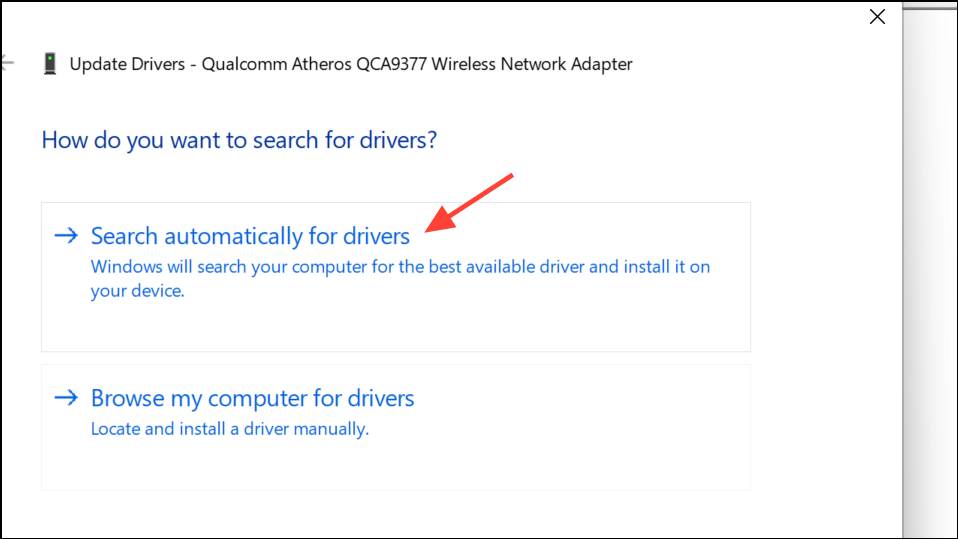
Resolving the “Steam is having trouble connecting to the Steam servers” error typically restores full access to your games and online features. If none of these solutions work, consider checking your system for malware or contacting Steam Support for further assistance.