How to Fix the Attempted Operation Failed Outlook Attachment Error
Resolve the "The attempted operation failed. An object could not be found." error in Outlook and restore normal attachment functionality using proven troubleshooting steps.
Resolve the “The attempted operation failed. An object could not be found.” error in Outlook and restore normal attachment functionality using proven troubleshooting steps.
by Pallav Pathak
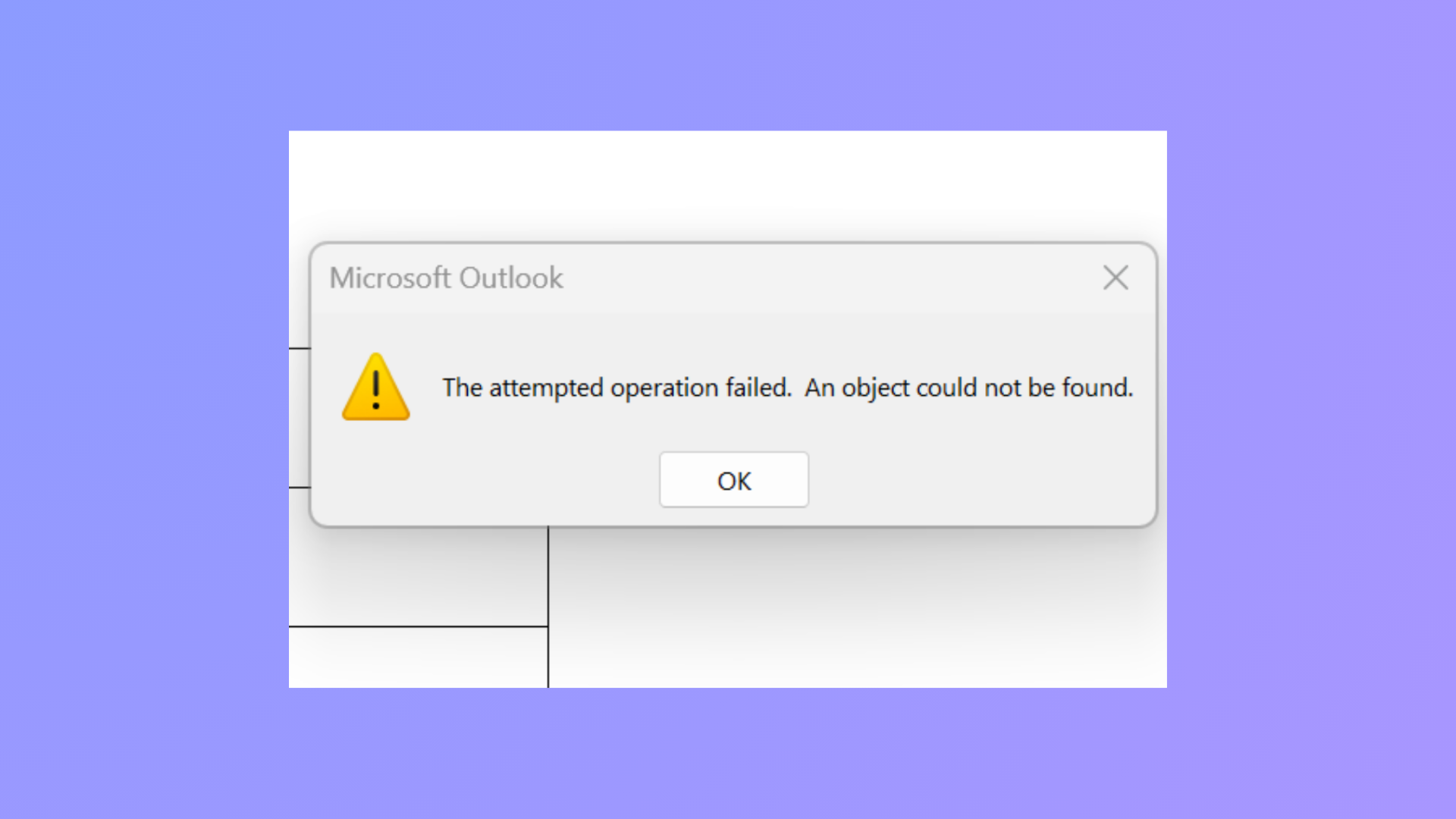
Messages in Outlook may display “The attempted operation failed. An object could not be found.” when sending or opening attachments, halting email workflow and preventing access to important files. This error can stem from issues like corrupted Outlook data files, mismatched compatibility settings, outdated software, or interference from antivirus tools. Addressing these root causes restores Outlook’s ability to send and receive attachments reliably.
Repair Corrupted Outlook Data Files (.pst) with Inbox Repair Tool
Corrupted PST (Personal Storage Table) files frequently cause the “operation failed” error, especially when attachments are involved. Outlook stores emails, attachments, and other mailbox items in these files. When the PST file is damaged, Outlook may fail to locate required objects, resulting in error messages.
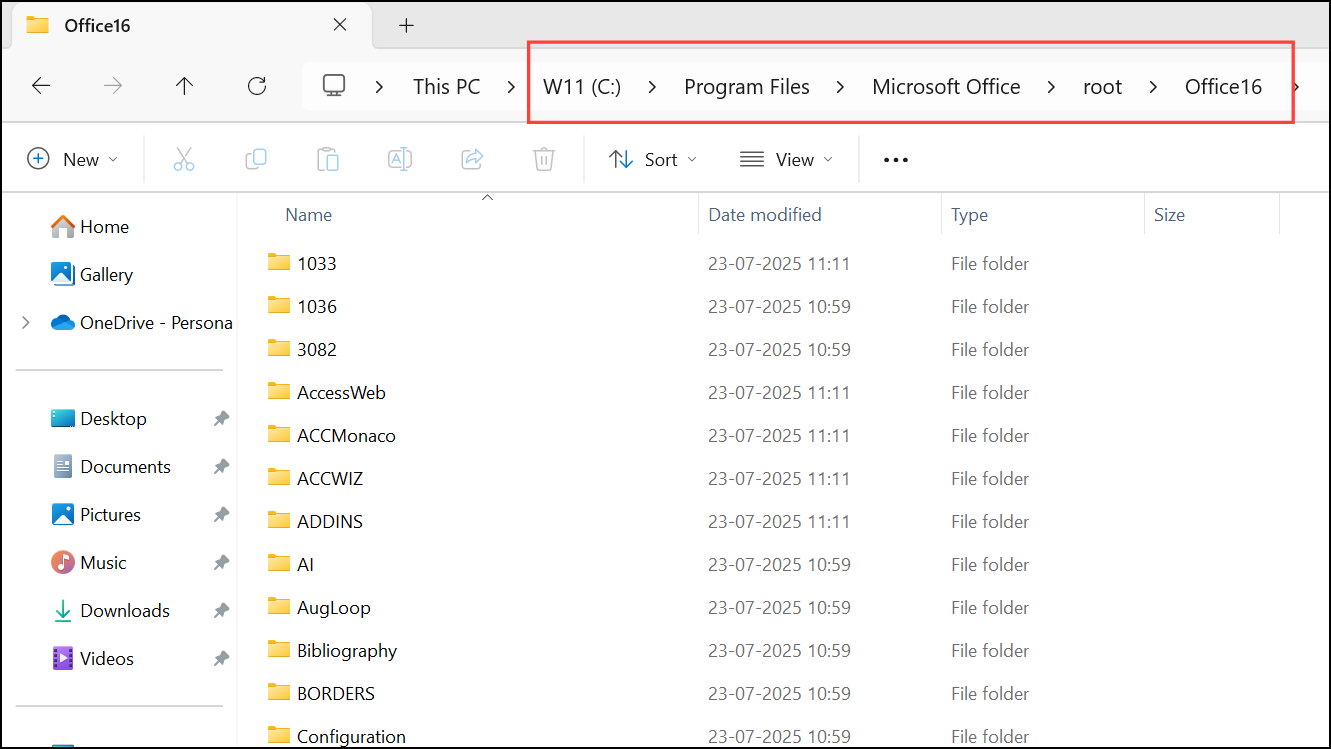
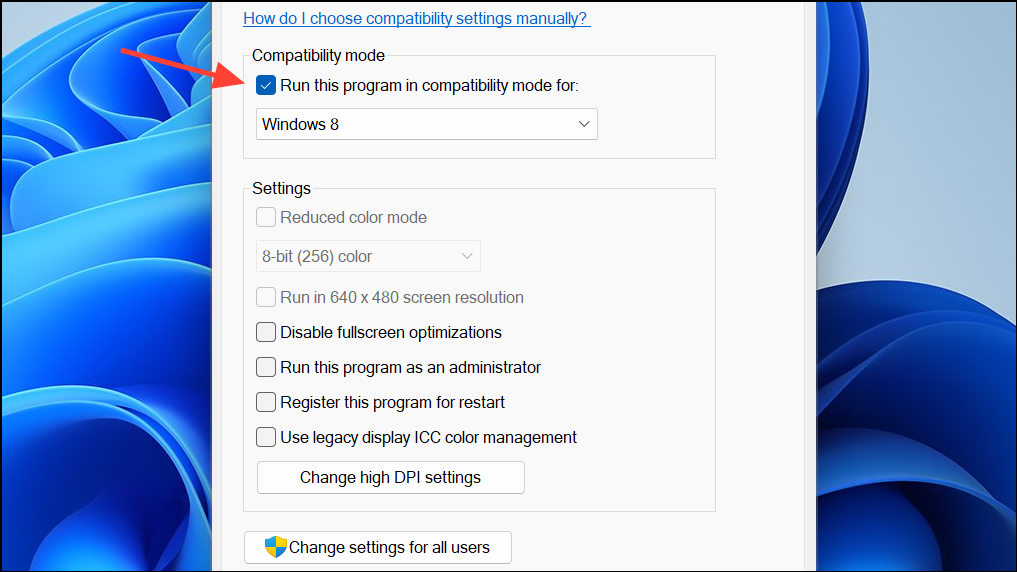
Press Windows key + E to open File Explorer. Navigate to the Office installation folder, typically found at C:\Program Files\Microsoft Office\root\Office16 for Office 2016/2019/365. The exact folder may differ based on your Outlook version.
After the repair, restart Outlook and attempt to send or open attachments again.
Turn Off Antivirus or Email Scanning Features
Antivirus programs often scan outgoing and incoming email attachments, which can block or delay attachment handling and sometimes trigger the operation failed error. Temporarily disabling the antivirus or its email scanning feature helps determine if it is the source of the issue.
Locate the real-time protection or email scanning settings. Temporarily turn off these features. Some programs have a specific toggle for email scanning.
Retry sending or opening attachments in Outlook. If the error disappears, consider adjusting antivirus settings to exclude Outlook or its data files from scanning, or consult your security software’s documentation for safe configuration.
Caution: Disabling antivirus protection may expose your system to threats. Only perform this step for troubleshooting and re-enable protection afterward.
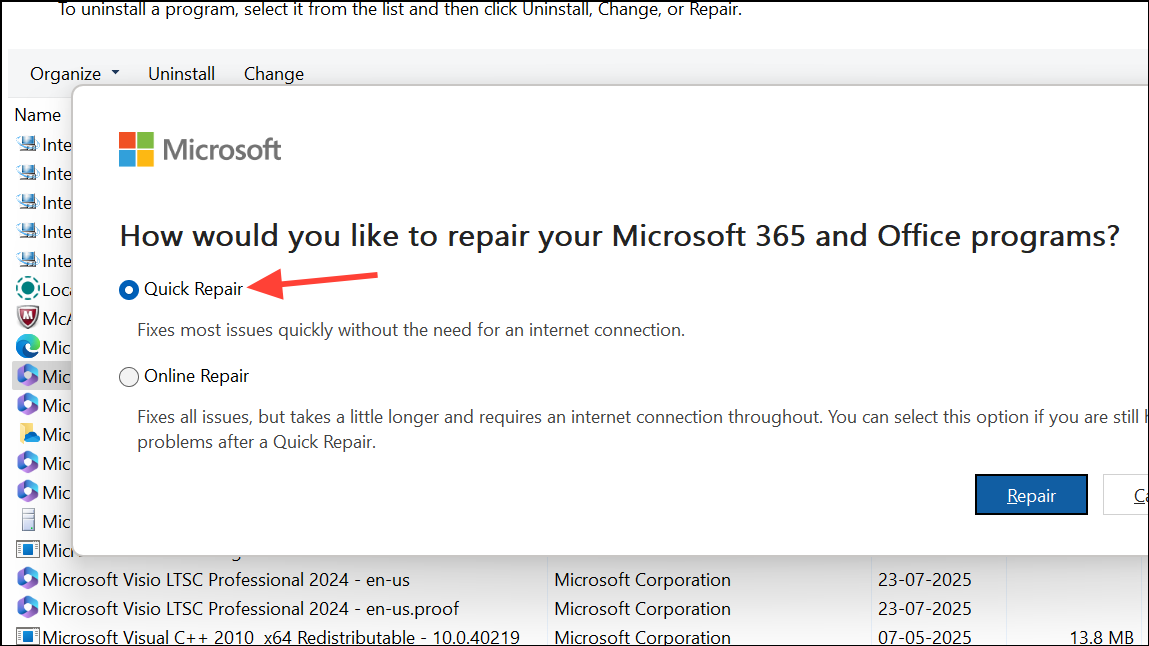
Repair Microsoft Office Installation
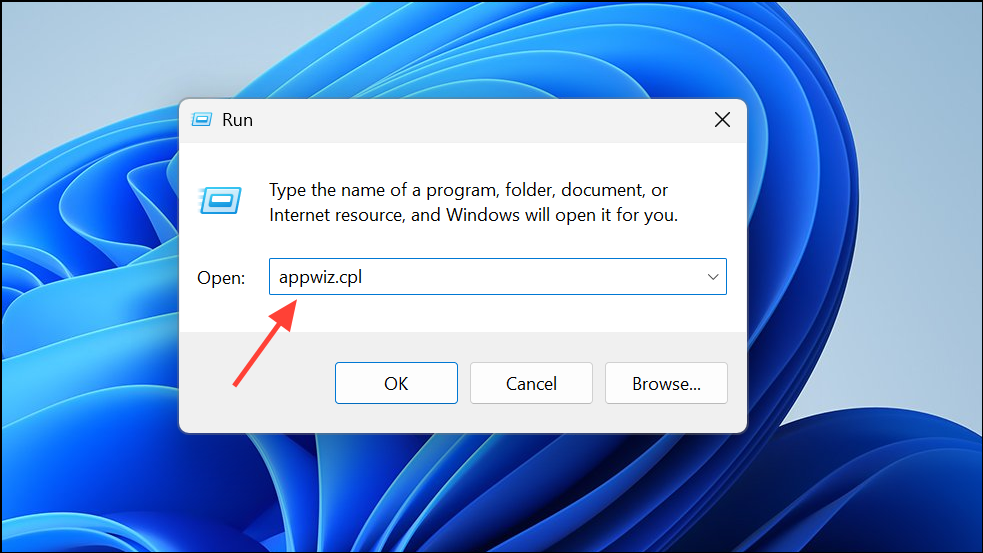
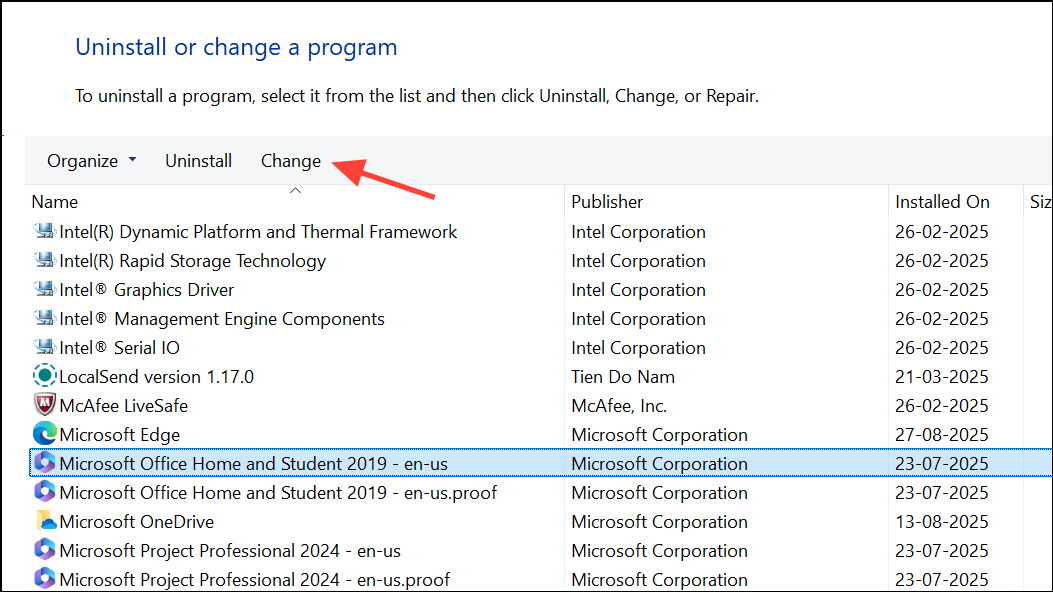
Incomplete or corrupted Office installations can disrupt Outlook’s ability to process attachments. Repairing the Office suite restores missing or damaged components and resolves related errors.
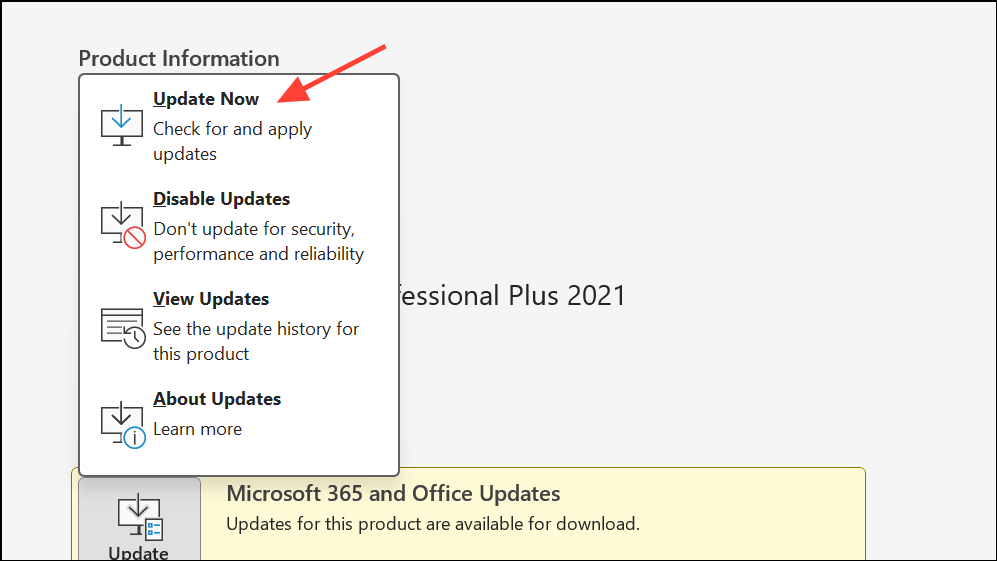
Click “Update Options” and choose “Update Now.” Allow the update process to complete before restarting Outlook.
Create a New Outlook Profile
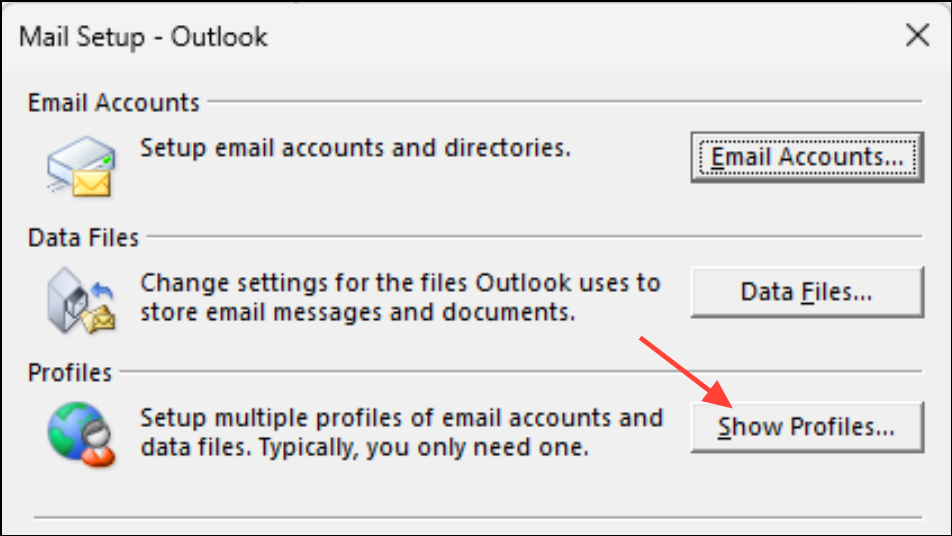
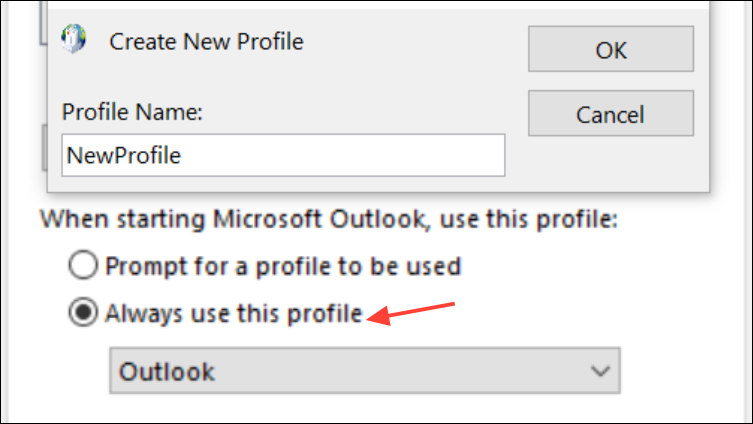
Corrupted Outlook profiles may cause persistent errors, even after other fixes. Creating a new profile resets user-specific settings and resolves profile-related corruption.
After setup, select “Prompt for a profile to be used” or set the new profile as default. Open Outlook with the new profile and check if attachment errors are resolved.
Clean Boot Windows to Eliminate Third-Party Conflicts
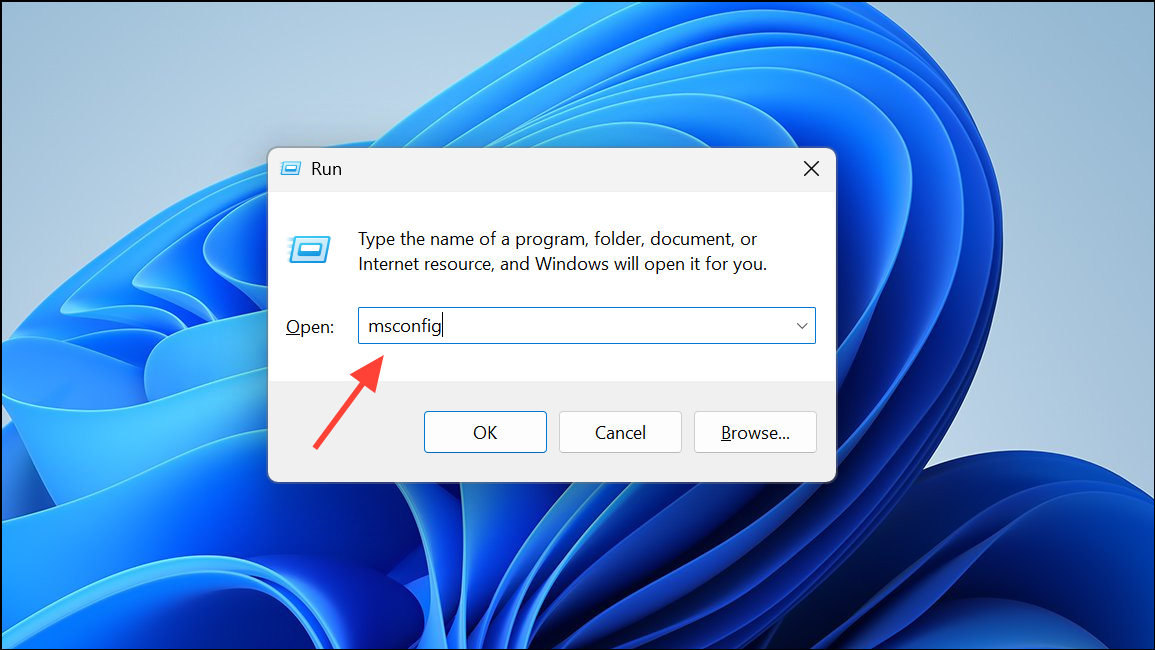
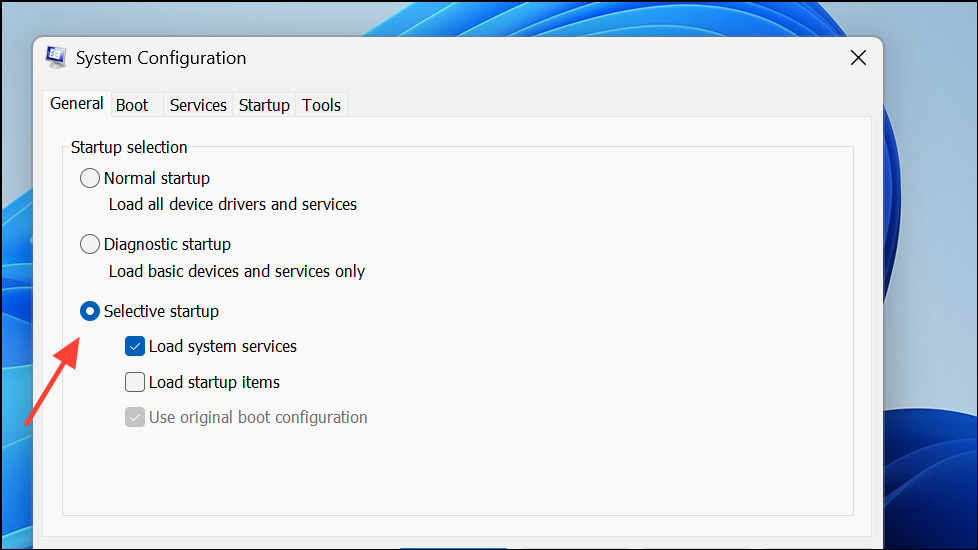
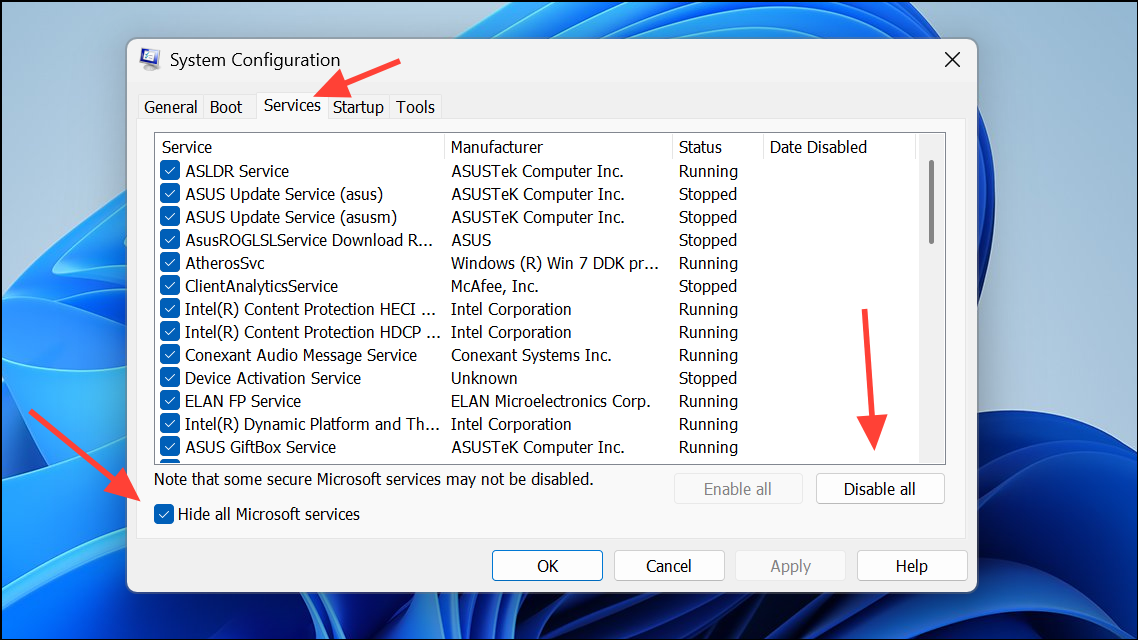
Third-party services or startup programs can interfere with Outlook’s operations. Performing a clean boot loads Windows with minimal drivers and services, helping isolate the cause.
Click “Apply” and “OK,” then restart your computer. Open Outlook and test attachment handling. If the error is gone, re-enable services one at a time to identify the source of the conflict.
Check Attachment Size Limits and Cloud Storage Settings
Outlook restricts attachment sizes, and files stored in cloud services like OneDrive may default to sending as links. If you see a cloud icon or “download failed” error, the file may exceed Outlook’s size limits or require local access.
Copy the file from your cloud storage (e.g., OneDrive) to a local folder on your computer, preferably outside of “Documents” or other synced directories.
To adjust Outlook’s default behavior for attachments, go to File > Options > General, scroll to “Attachment Options,” and select “Always attach them as copies.”
If you frequently send large files, consider using a cloud-sharing link and ensuring recipients have the necessary permissions, or adjust the Outlook attachment size limit in the Windows Registry as described in official Microsoft documentation.
Resolving the “attempted operation failed” error in Outlook attachments involves repairing data files, adjusting settings, and eliminating software conflicts. After applying these steps, Outlook should reliably send and open attachments again.