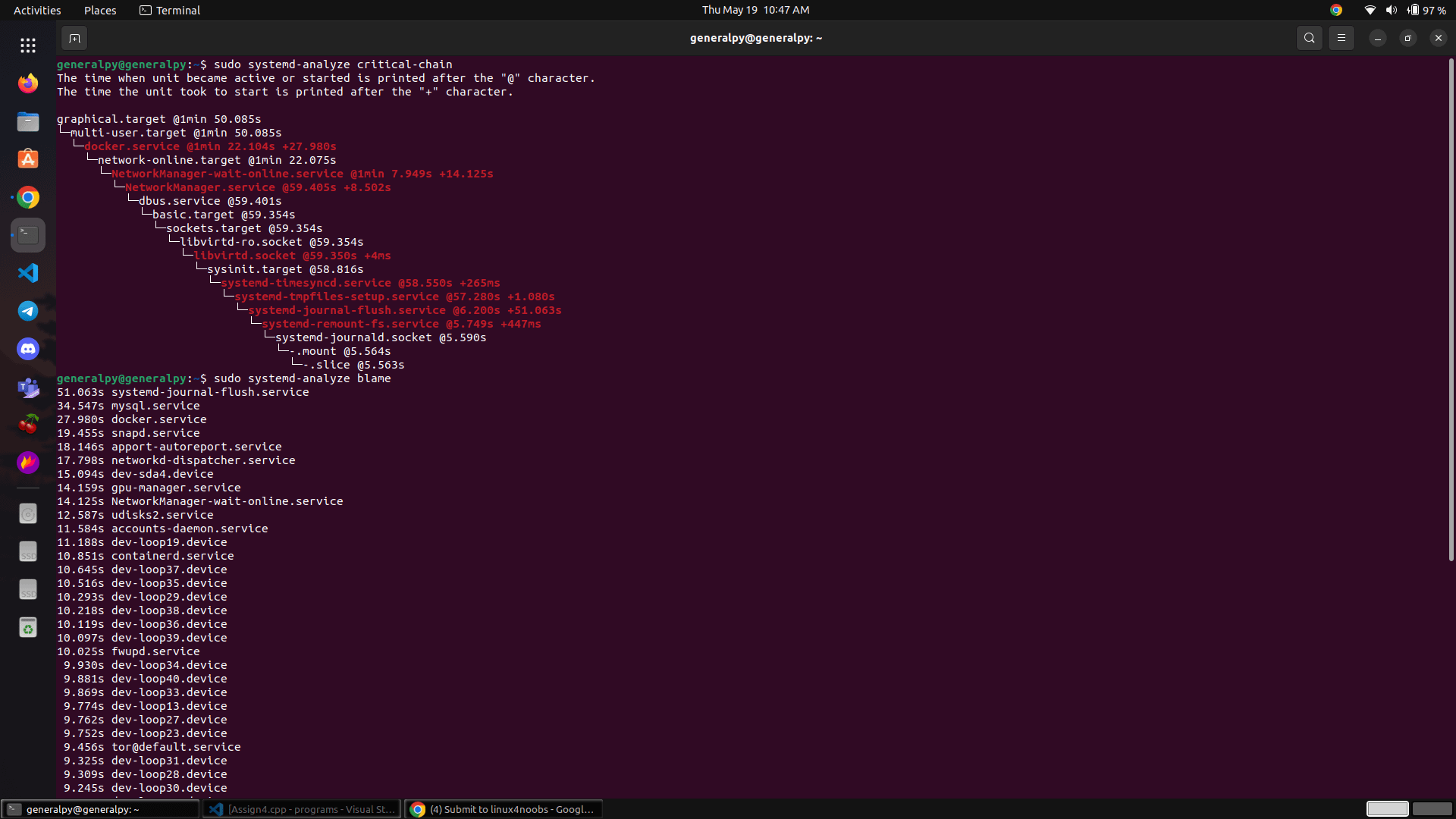
Ubuntu 22.04 may slow down or freeze due to various reasons, including insufficient resources, problematic drivers, or misconfigured settings. Addressing these issues promptly helps restore smooth system performance and prevents unexpected interruptions.
Method 1: Update Your System and Drivers
1Open a terminal window by pressing Ctrl + Alt + T. First, update your package lists by running:
sudo apt update
This command refreshes your system’s repository information, ensuring you have access to the latest software versions.
2After updating the package lists, upgrade all installed packages to their latest versions by running:
sudo apt upgrade -y
This upgrades your system and installed applications, often resolving performance issues and bugs that cause freezes.
3Next, check for additional drivers. Navigate to the “Software & Updates” application by clicking the “Activities” menu, typing “Software & Updates,” and selecting it.
4Under the “Additional Drivers” tab, select the recommended proprietary drivers for your hardware if available, then click “Apply Changes.” This action installs optimized drivers that significantly improve hardware compatibility and reduce freezing.
Method 2: Adjust Swappiness Value
1Ubuntu’s default swappiness value is often set high, causing frequent swapping to disk, which slows down your system. Open a terminal and check your current swappiness value by running:
cat /proc/sys/vm/swappiness
A high value (default is usually 60) means Ubuntu will swap memory to disk more frequently, leading to slower performance.
2To reduce swapping and speed up your system, set a lower swappiness value (recommended between 10 and 20). Open the configuration file by running:
sudo nano /etc/sysctl.conf
At the bottom of this file, add the following line:
vm.swappiness=10
Save the file by pressing Ctrl + O, then exit with Ctrl + X. This change reduces disk swapping, dramatically improving system responsiveness.
3Apply the new swappiness value immediately by running:
sudo sysctl -p
You should notice a quicker response when opening applications or multitasking.
Method 3: Remove Unnecessary Startup Applications
1Excessive startup applications consume system resources, causing slower boot times and overall sluggishness. To manage these, open the “Startup Applications” tool by clicking the “Activities” menu, typing “Startup Applications,” and selecting the app.
2Review the list of startup applications. Disable unnecessary or rarely used programs by selecting them and clicking “Remove” or unchecking the box next to them. Reducing startup items frees up resources, leading to faster boot times and smoother operation.
Method 4: Clean Up System Junk and Cache
1Ubuntu accumulates unnecessary cache files and system junk over time. To clear this clutter, open a terminal and run:
sudo apt autoremove -y && sudo apt autoclean -y
This command removes unused packages and cleans cached package files, freeing valuable disk space and improving system performance.
2Additionally, clear the user’s cache by running:
rm -rf ~/.cache/*
This action removes temporary files stored by applications, further streamlining your system and reducing the likelihood of freezes.
Method 5: Monitor System Resources and Identify Problematic Processes
1Ubuntu includes a built-in system monitor to help identify resource-hungry processes. Open the “System Monitor” by clicking the “Activities” menu, typing “System Monitor,” and selecting it.
2Under the “Processes” tab, sort by CPU or memory usage to identify processes consuming excessive resources. If you discover problematic or unresponsive applications, select the process and click “End Process.” Closing these problematic processes instantly frees resources, resolving freezes and slowdowns.
By following these methods, you can significantly improve Ubuntu 22.04’s performance and eliminate frequent freezes. Regular system maintenance, including periodic updates and cleanup, ensures your system continues running smoothly.