Microsoft Teams may display the “We ran into a problem” error during startup, while joining meetings, or when accessing chats and channels. This message often appears as “We ran into a problem. Try again in a few minutes” or “We ran into a problem…Reconnecting…”. These interruptions can disrupt workflow, delay meetings, and cause confusion about whether the issue is local or related to the Teams service itself. Addressing the root cause—whether it’s a network issue, software glitch, or a service outage—is key to restoring full Teams functionality.
Check for Microsoft Teams Service Outages
Microsoft Teams errors sometimes occur due to temporary outages or maintenance on Microsoft’s servers. Before making changes to your system, verify if the issue is widespread.
Test and Improve Network Connectivity
Unstable or slow internet connections are a common cause of Teams errors, especially those related to reconnecting or loading chats and channels. Ensuring a stable connection can immediately resolve the problem.
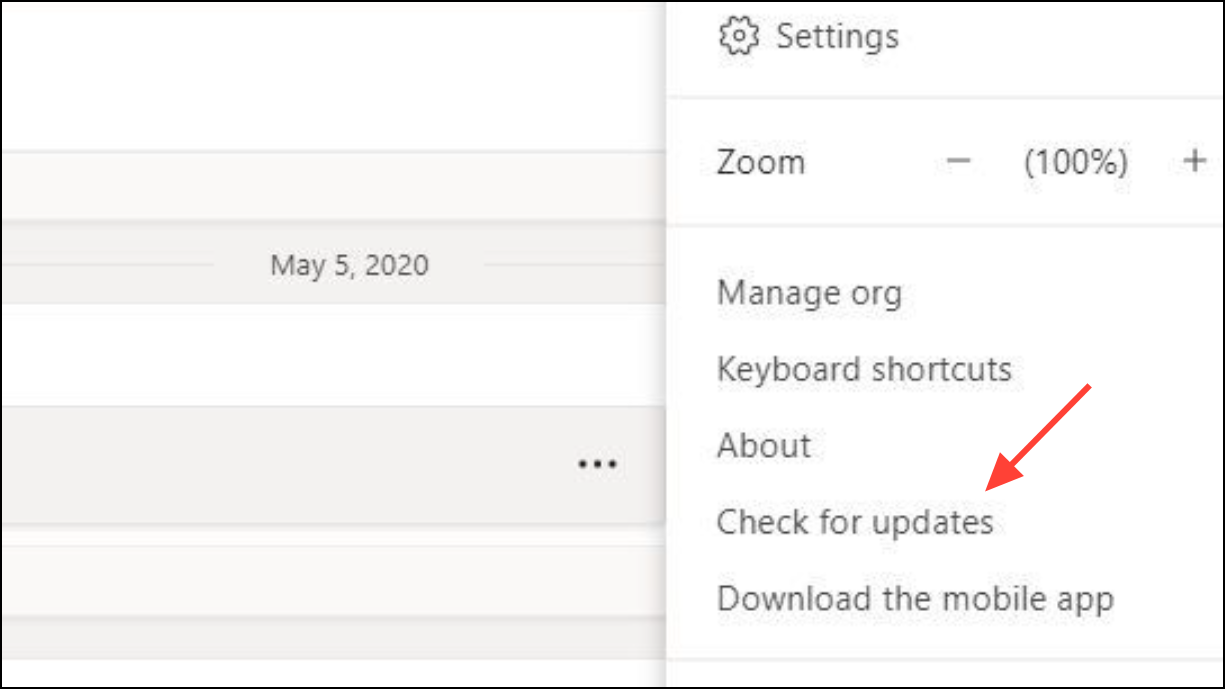
Update Microsoft Teams
Running an outdated version of Teams may cause compatibility issues or prevent you from connecting to new services. Updating Teams can resolve errors caused by software bugs.
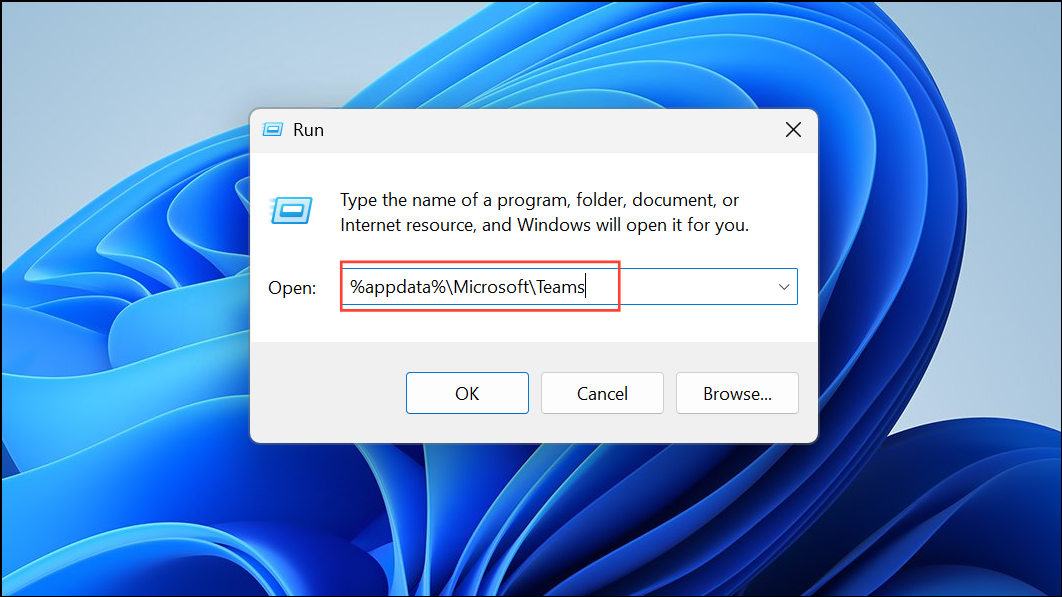
Clear Microsoft Teams Cache
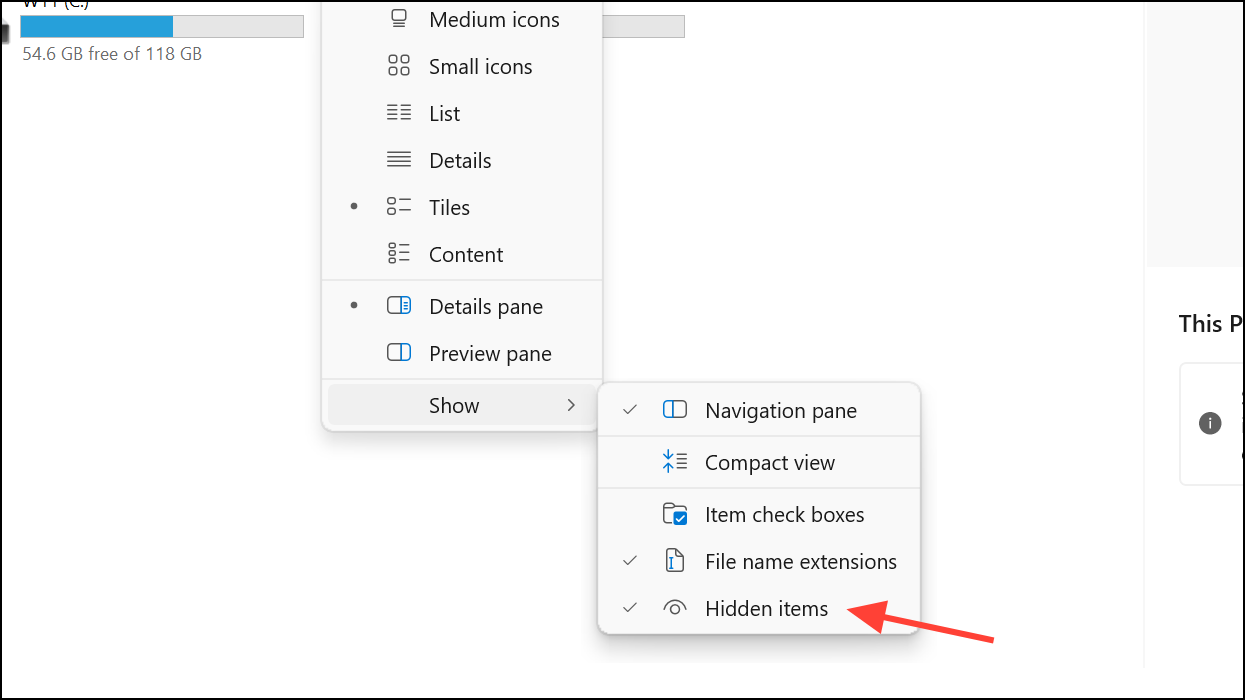
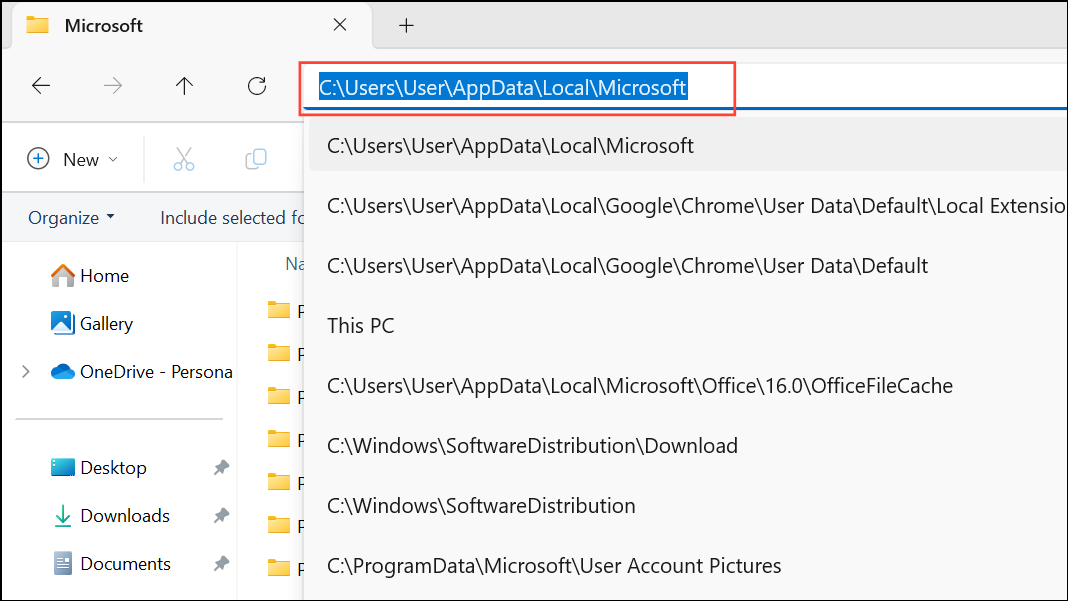
Corrupted or outdated cache files can prevent Teams from loading chats, channels, or user information. Clearing the cache forces Teams to rebuild its local data, which often resolves persistent errors.
Sign Out and Re-Authenticate in Teams
Authentication issues can cause Teams to lose access to organization data, resulting in error messages about chats and channels. Signing out and signing in with the correct account format can refresh your session.
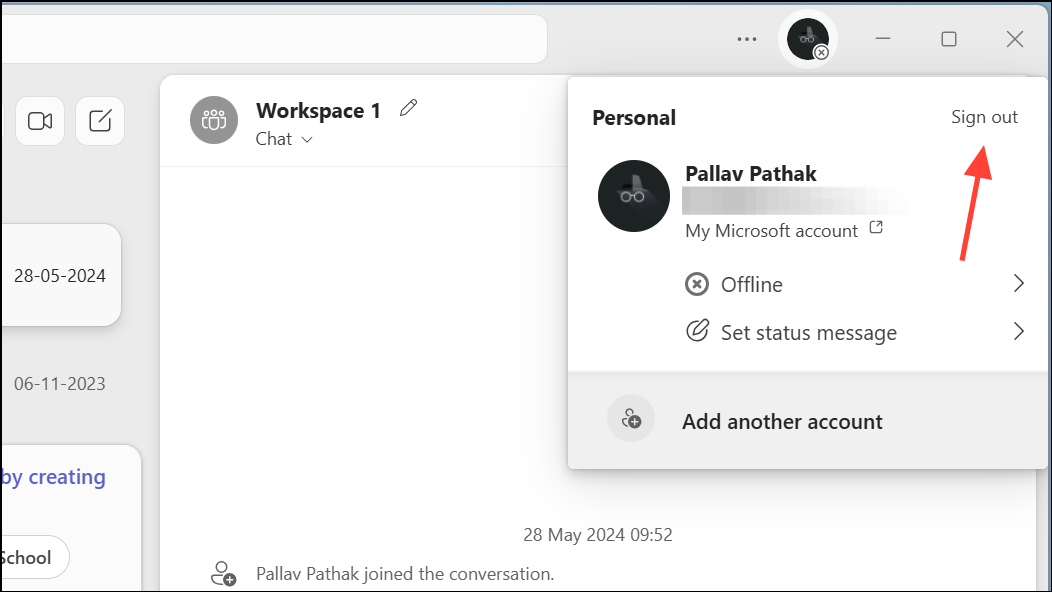
[email protected]) rather than a user principal name (UPN) if possible. Some users report temporary relief from errors by switching login formats.Settings > Accounts > Access work or school, disconnect any associated accounts, and then re-add your account.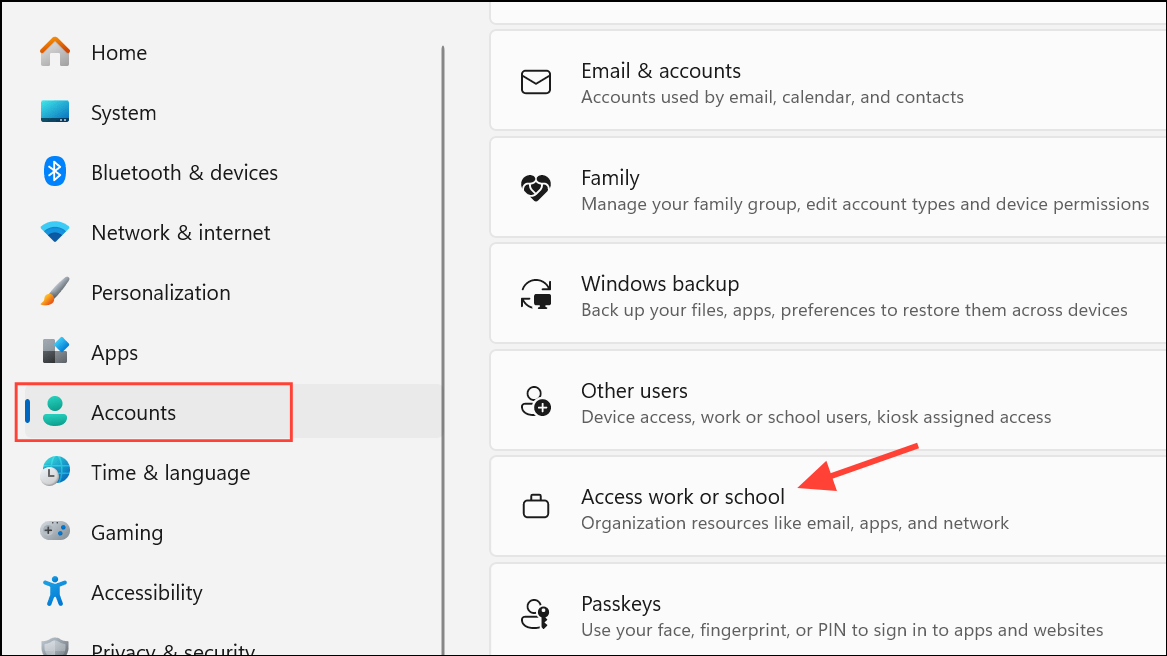
Uninstall and Reinstall Microsoft Teams
Persistent errors that do not resolve with the above steps may indicate a problem with the Teams installation. Reinstalling Teams ensures all program files are replaced with fresh copies.
Control Panel > Programs > Uninstall a program. Find Microsoft Teams in the list and uninstall it.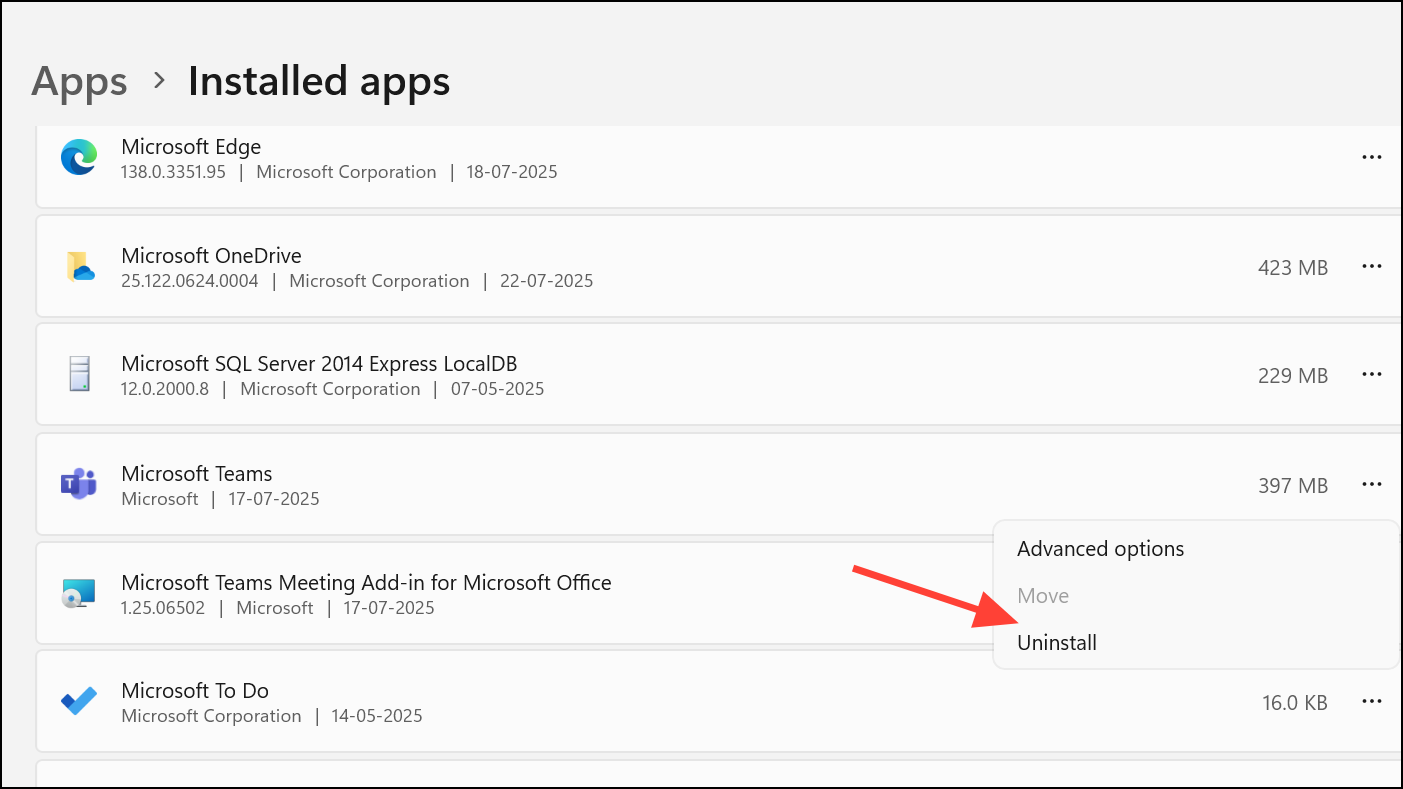
Try the Teams Web Application
If the desktop app continues to show errors, switching to the web version can bypass issues related to local installation or configuration.
Additional Troubleshooting Steps
- Run the Microsoft Store Apps troubleshooter via
Settings > Update & Security > Troubleshoot > Additional troubleshootersto detect and fix issues with Teams installed from the Microsoft Store. - Update your device drivers, especially network adapters, to resolve compatibility problems that could affect Teams connectivity.
- If you are unable to create a new team, confirm you have the necessary permissions and that your organization’s Teams governance settings allow team creation. Consult your IT administrator if unsure.
Resolving the “We ran into a problem” error in Teams typically involves checking service status, optimizing your network, updating software, and clearing cache. If the issue continues, using the web version or contacting Microsoft support can help you get back to work faster.