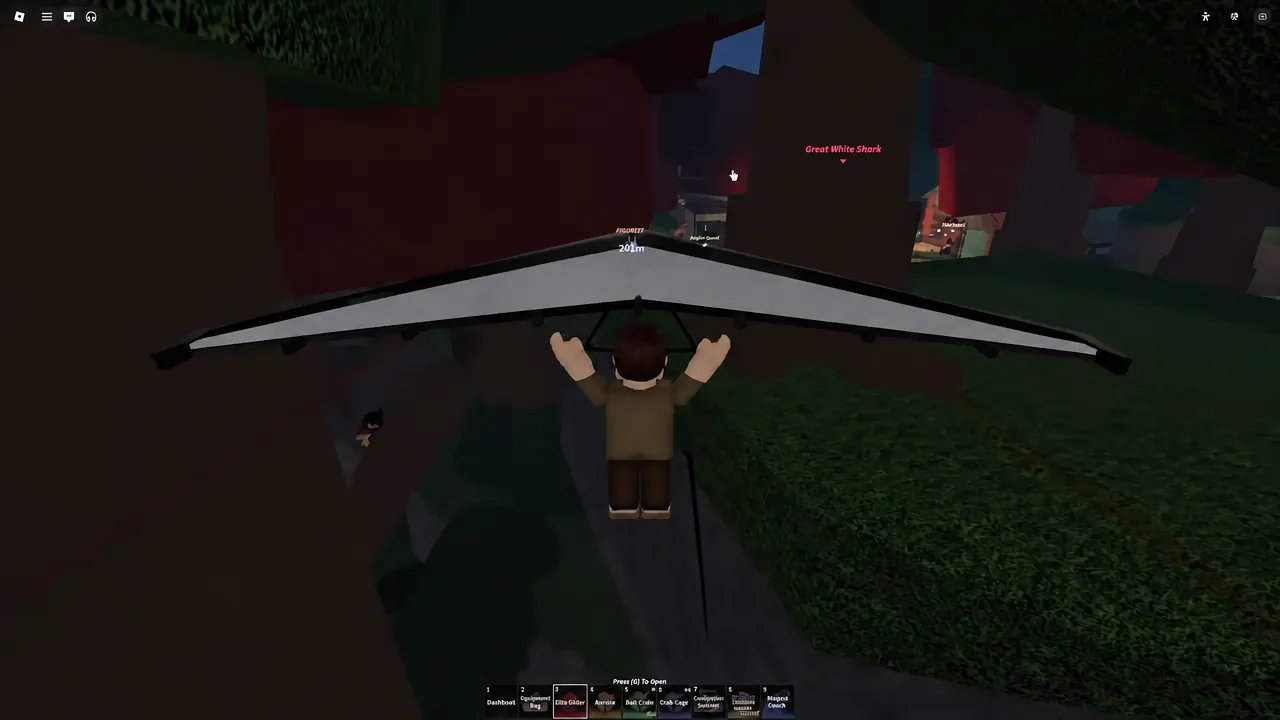
Fisch turns money and materials into a grind, and an AFK macro is how a lot of players skip the repetitive part. The setup is a Windows-only affair built on AutoHotkey, and almost every failure people run into traces back to two things: the wrong AutoHotkey version, or a navigation keybind that does not match between the game and the script.
Quick answer: Install AutoHotkey v1.1, run the DeepFish ALPHA .ahk file, set Roblox’s UI Navigation Toggle to # and enter the same key in the macro’s settings, click Start, equip your rod in game, then press P.
What the Fisch macro automates
The script drives the standard fishing loop with simulated input. It casts the line, clears the shake prompts by stepping through them with Roblox’s UI navigation, plays the reel minigame by watching the bar on screen, and repeats. Nothing about it reads game memory; it reacts to pixels and sends keystrokes, which is exactly why screen colors and keybinds matter so much.
Automation like this runs against how Roblox expects the game to be played, and no macro removes that account risk. Timing randomization and “human-like” input options in various script builds do not make a session undetectable.
Requirements before you run the macro
| Requirement | Detail |
|---|---|
| AutoHotkey version | v1.1 (listed as deprecated on the download page). The v2.0 branch will not run these scripts. |
| Script file | DeepFish ALPHA, published by yatonemercs on GitHub. The release used here is DeepFish ALPHA v1.4.ahk. |
| Platform | Windows. There is no official Fisch macro build for Android or iOS. |
| Roblox setting | UI Navigation Toggle enabled, with its keybind noted. The default the macro expects is #. |
| Rod | Any rod with the standard white and blue reel minigame works without extra setup. |
How to set up the DeepFish ALPHA macro in Fisch
.ahk file, or right-click it and choose Open with AutoHotkey. The macro’s configuration window opens; leave it running in the background.
P to hand control over. The on-screen prompt to press P to start fishing is your cue that the script is listening.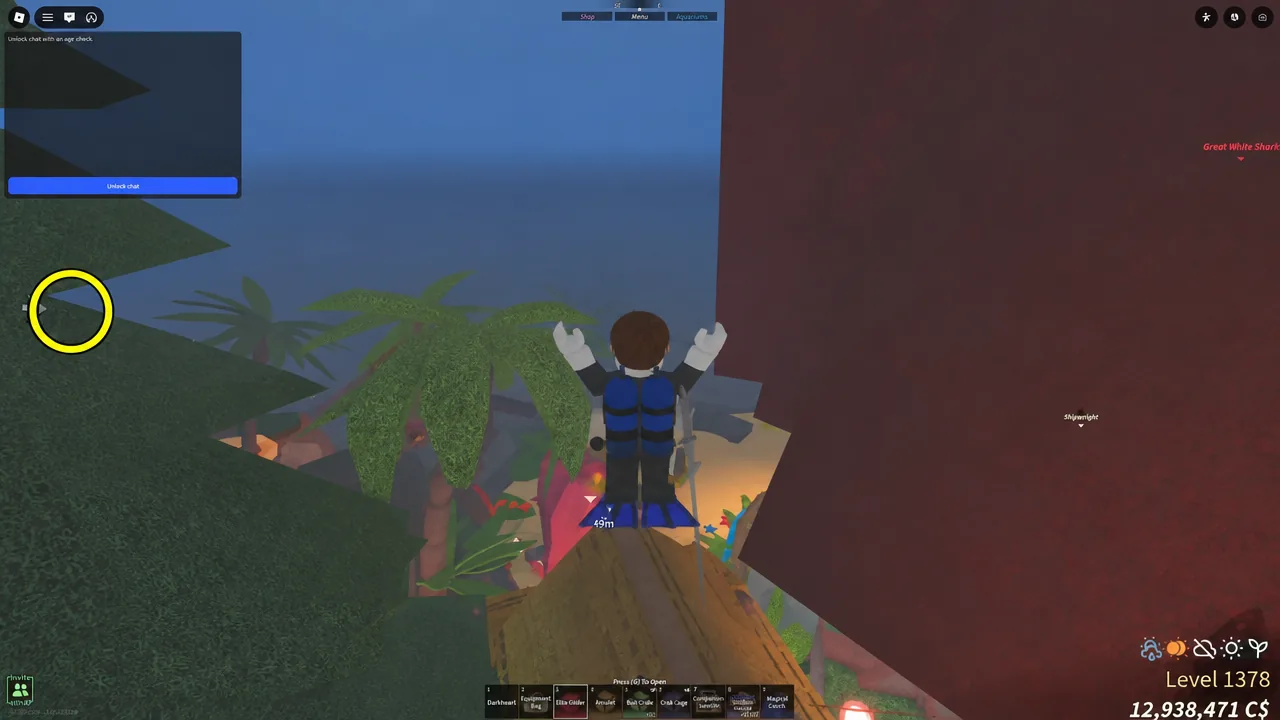
How to confirm the macro is working
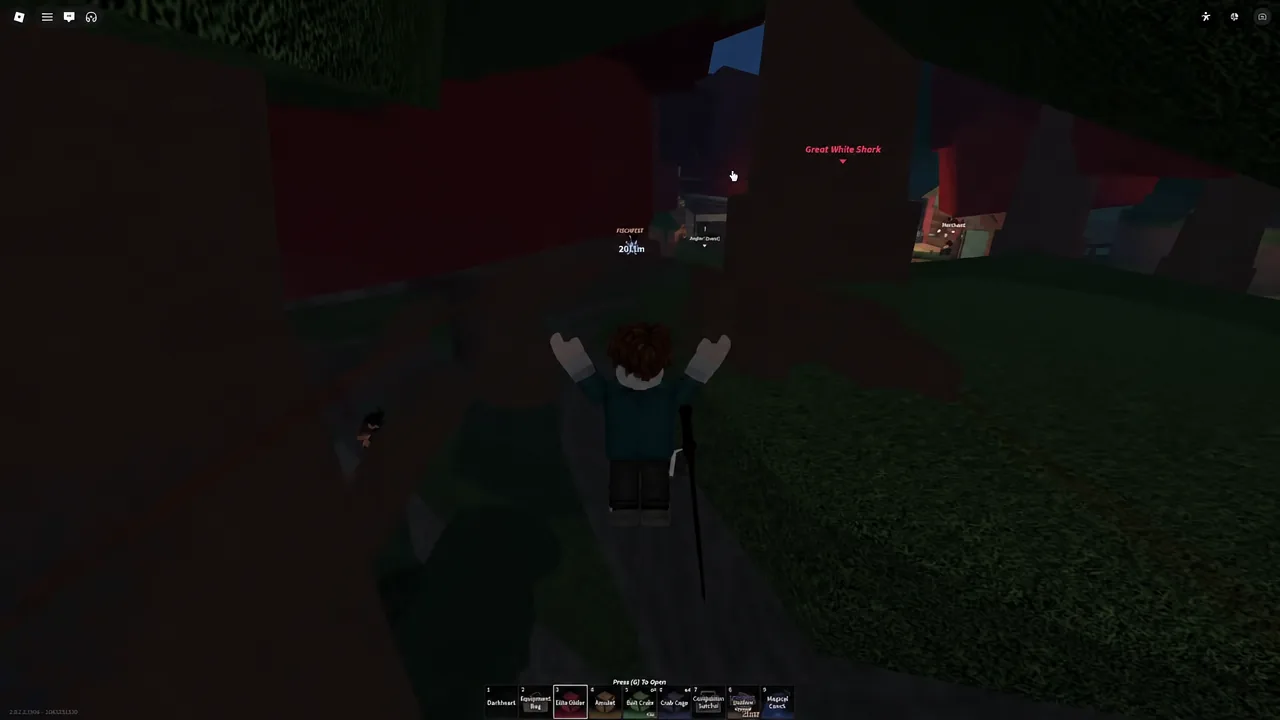
Watch one full cycle before you walk away. A working setup casts on its own, clears the shake prompts without you touching the mouse, plays the reel bar to completion, and starts the next cast. An [AFK] tag appearing over your character is the other easy confirmation that the session is running unattended.
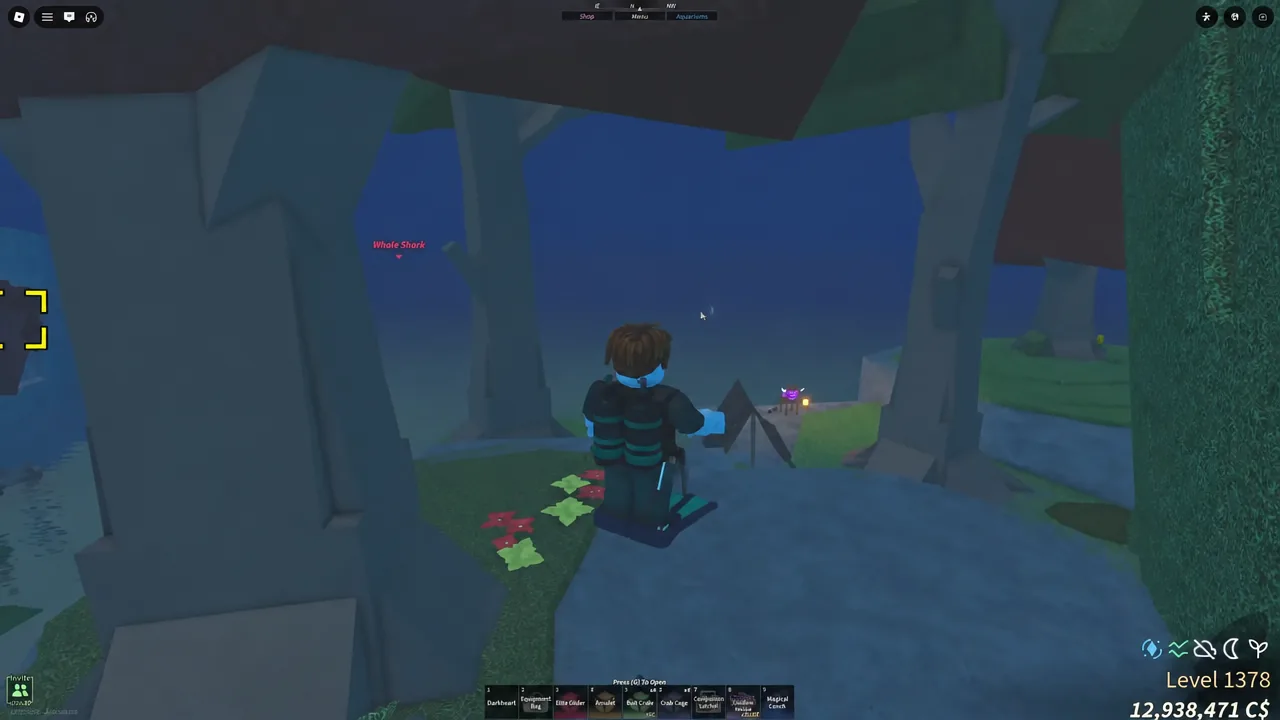
Also check your bait before you commit to a long session. The fishing HUD shows the currently equipped bait and the key that opens the bait menu, and the macro will happily fish for hours with whatever is loaded.
Calibrating the macro for custom rods like the Dark Heart Rod
Specialty rods break the default setup because they recolor the reel minigame. The Dark Heart Rod is the usual example: the script scans for the standard white and blue elements, finds nothing it recognizes, and stalls mid-catch even though everything else is configured correctly.
F9 to snip the minigame area. That capture becomes the reference image the macro’s color picker works from.Note: some macro packages skip manual color picking entirely by offering a custom rod dropdown alongside a normal rod mode, though the list of supported rods is short and varies by build.
Why the Fisch macro stops working
| What you see | Cause and fix |
|---|---|
| Script will not launch at all | AutoHotkey v2.0 is installed instead of v1.1. Install the v1.1 branch and reopen the file. |
| Casts, then freezes on the shake stage | UI Navigation Toggle is off, or the key in the macro does not match the one in Roblox settings. Re-check both and reload the script. |
| Reel bar ignores the fish | A rod with a recolored minigame. Recalibrate with F9 and the color picker. |
| Worked yesterday, fails today | A game update changed the interface. Update to the newest release of the script. |
| Settings revert on restart | The configuration was not saved before starting. Save, then reload the macro. |
Display settings are the other quiet culprit. Because detection is pixel-based, changes to Windows scaling, screen resolution, or in-game graphics between sessions can shift the elements the script looks for. If a previously stable setup suddenly misses, put those back where they were before you start re-picking colors.
Once the keybind matches and the colors resolve, the setup is genuinely hands-off, and the money and materials pile up while you do something else. The trade-off has not changed: you are running third-party input automation against a live Roblox experience, and that is a decision worth making with your eyes open rather than on the promise that it is perfectly safe.