

Power outages, application crashes, or accidentally closing PowerPoint without saving can result in lost presentations and wasted effort. Fortunately, PowerPoint and your operating system provide several reliable options to recover unsaved or deleted files, so you can often restore your work with minimal data loss.
Recover Using PowerPoint’s AutoRecover Feature
PowerPoint’s AutoRecover automatically saves backup copies of your presentation at regular intervals. When the application closes unexpectedly, it attempts to restore the latest version the next time you launch PowerPoint. This feature is enabled by default, but you can check or adjust its settings to fit your workflow.

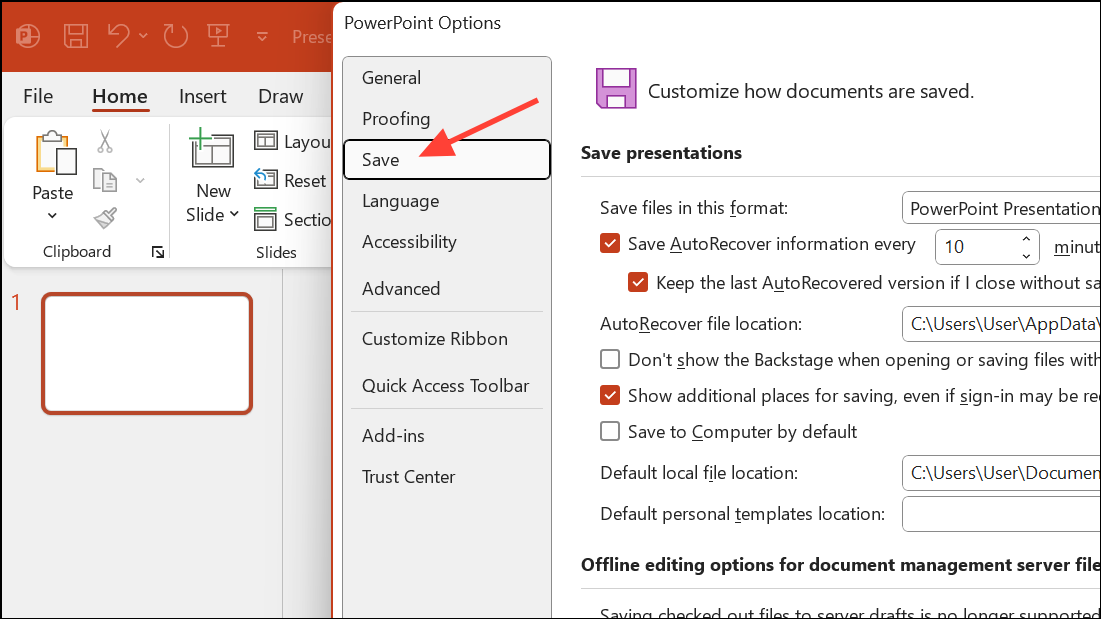
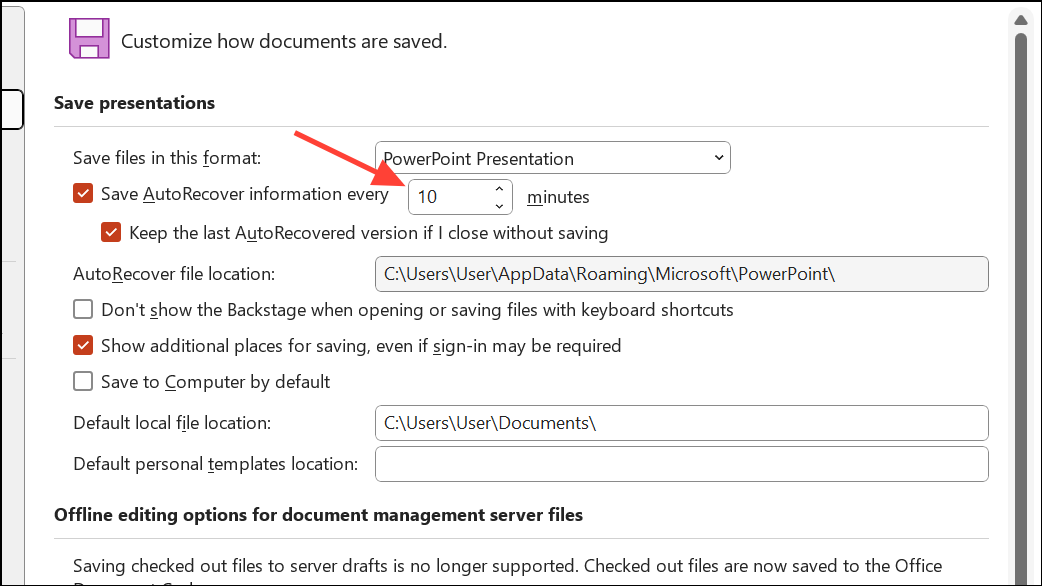
Restore from the AutoRecover or Temporary Files Folder
Even if you never saved your PowerPoint file, temporary or AutoRecover files may exist. These are stored in specific system folders and can often be manually retrieved.
C:\Users\<username>\AppData\Roaming\Microsoft\PowerPoint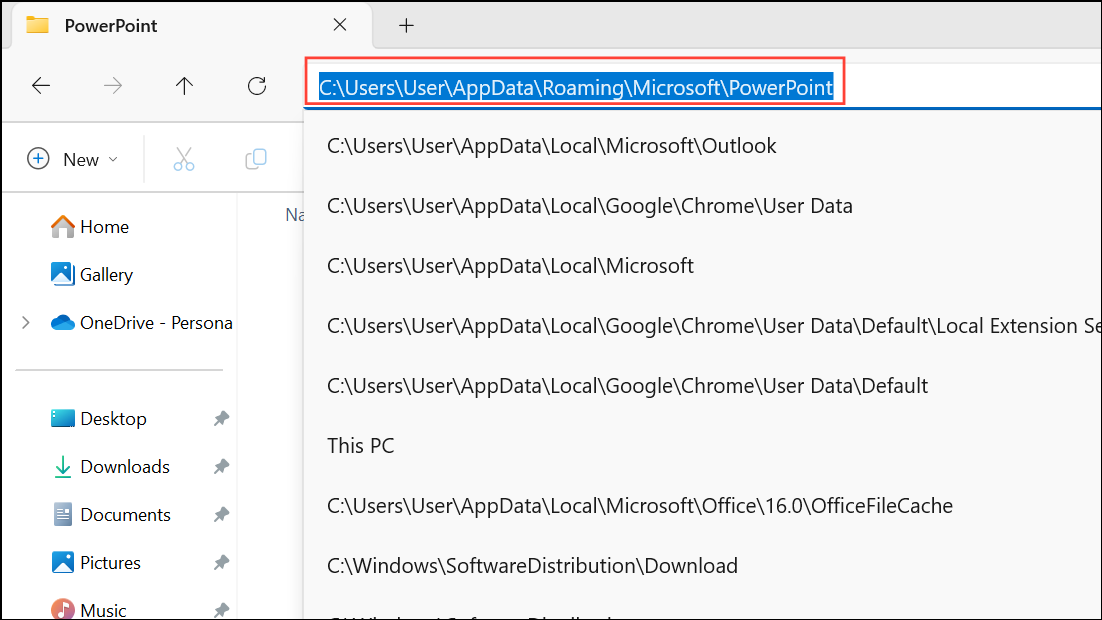
For Mac, use:
/Users/<username>/Library/Containers/Microsoft PowerPoint/Data/Library/Preferences/AutoRecoveryReplace <username> with your account name. On Mac, the AutoRecovery folder is hidden—use the Go to Folder tool in Finder and enter the full path.
.pptx, .ppt, or .tmp extensions. If you find a file with a .tmp extension, rename it to .pptx and try opening it in PowerPoint. This process can uncover unsaved presentations that did not appear in the main recovery options.Recover Unsaved Files via PowerPoint’s Built-In Option
PowerPoint includes a dedicated feature for recovering unsaved presentations that were never manually saved. This is especially helpful after closing a file and selecting “Don’t Save.”


Restore Deleted Presentations from the Recycle Bin or Trash
When a PowerPoint file is deleted, it is typically moved to the Recycle Bin (Windows) or Trash (Mac). You can quickly restore files from these locations if they haven’t been permanently removed.
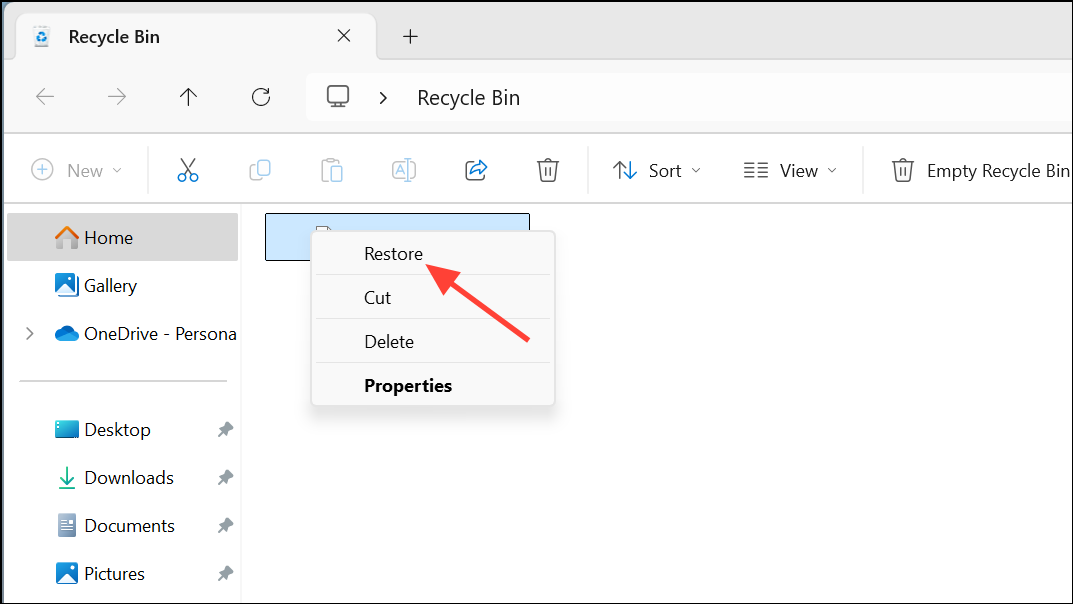
If the Recycle Bin or Trash has been emptied, third-party recovery tools may still be able to retrieve the file, provided it hasn’t been overwritten.
Restore Previous Versions with File History or Time Machine
Windows File History and Mac Time Machine automatically back up files if configured in advance. This allows you to revert to earlier versions of your presentations, even if they’ve been overwritten or deleted.
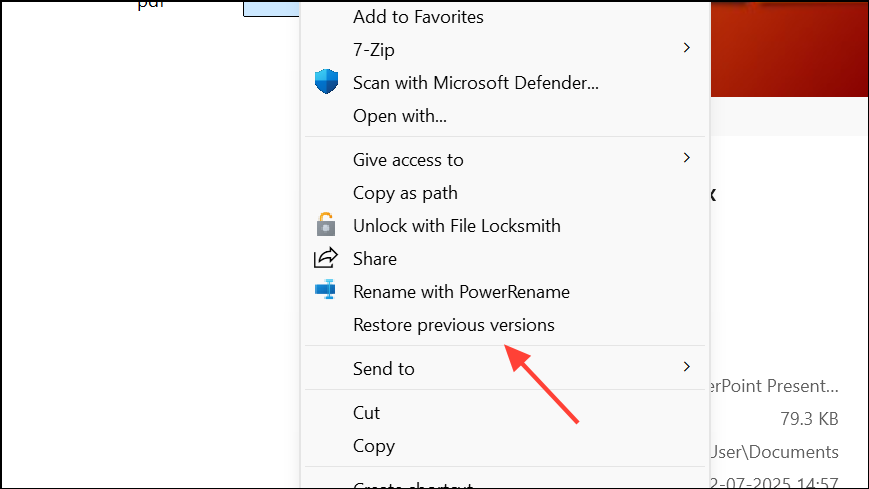
Step 1 (Windows): Right-click the PowerPoint file in File Explorer and select Restore previous versions. Browse the list of available backups and choose the version you want to recover, then click Restore.
Step 1 (Mac): Open Time Machine and navigate to the folder containing your PowerPoint file. Use the timeline to locate the version you need, then click Restore to recover it.
Retrieve Presentations from Temporary Files
In some cases, unsaved PowerPoint files can be found in the Windows Temp directory. These files may have random names or use .tmp extensions.
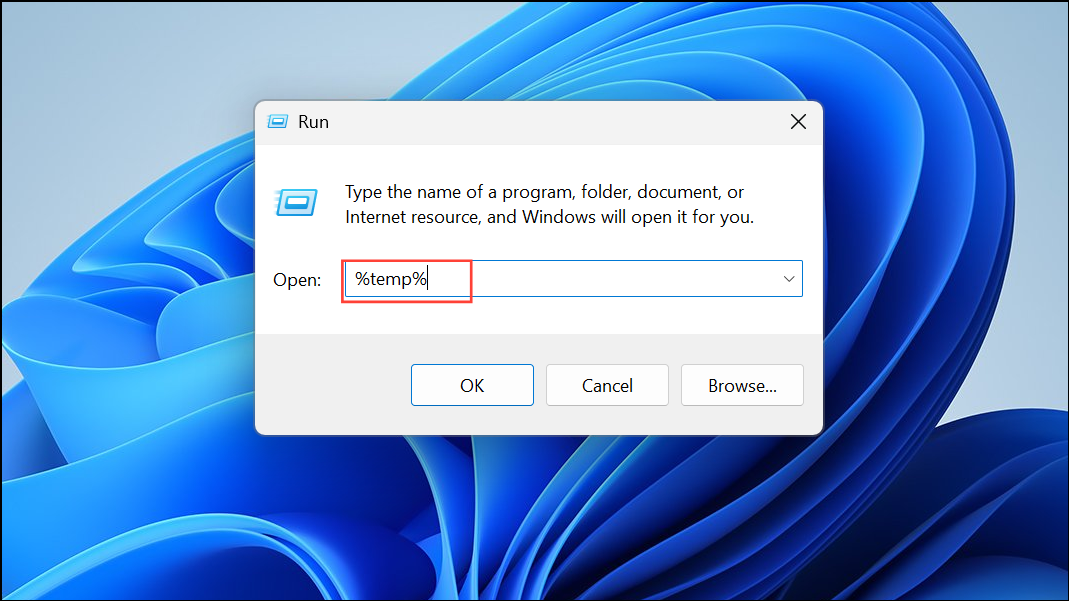
.pptx, .ppt, or ppt*.tmp extensions. If you find a relevant file, copy it to another location, then rename the extension to .pptx and try opening it in PowerPoint.Use Data Recovery Software for Deleted or Unrecoverable Files
When built-in recovery options fail, specialized data recovery software such as Disk Drill or Windows File Recovery can scan your storage device for deleted or lost PowerPoint files. These tools are effective if the file has not been overwritten by new data.
.pptx, .ppt).Recover Older Versions or File History within PowerPoint
PowerPoint for Microsoft 365 and some other versions offer version history for files stored on OneDrive or SharePoint. This allows you to roll back to previous iterations of your presentation.
Repair Corrupt PowerPoint Files
If you manage to recover a PowerPoint file but it won’t open or displays errors, PowerPoint includes a repair option that can fix minor corruption.
Alternatively, uploading the file to Google Slides may allow you to open and recover the content, then download it again as a PowerPoint file.
Tips to Prevent Future Data Loss
- Enable and configure AutoRecover to save backups more frequently.
- Save presentations to OneDrive or SharePoint to activate AutoSave and version history.
- Back up important files to external drives or cloud storage.
- Use
Ctrl+Sregularly to manually save your work. - Protect your computer with a UPS to avoid data loss from sudden shutdowns.
Recovering an unsaved PowerPoint file is often possible with the right approach, whether using AutoRecover, searching temporary folders, or restoring from backups. Regular saves and backups will save you time and stress in the future.





