

Excessive blank lines in a Microsoft Word document can disrupt the flow and make the content appear lengthier than necessary. Removing these unwanted spaces not only enhances readability but also presents a more polished and professional document.
Each time you press the ENTER key in Word, a paragraph tag is added, which can lead to unintended blank lines if not managed carefully. When two paragraph tags appear consecutively, they create an empty line in your document. Manually deleting each blank line can be time-consuming, especially in lengthy documents. Fortunately, Word provides a feature that allows you to remove all blank lines efficiently using the ‘Replace’ function.
Viewing Paragraph Tags in Word
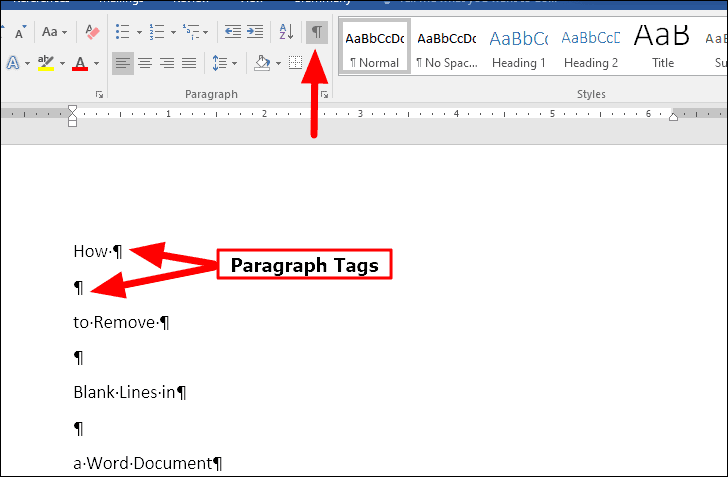
To identify where the blank lines are occurring, you can enable the display of paragraph tags in your document. Click on the ‘Show/Hide ¶‘ icon located in the Home tab’s control bar. This action reveals all the paragraph tags throughout your document. Double paragraph tags indicate a blank line between text segments. By replacing these double tags with single ones, you can eliminate the unnecessary blank lines.
Removing Blank Lines in Word
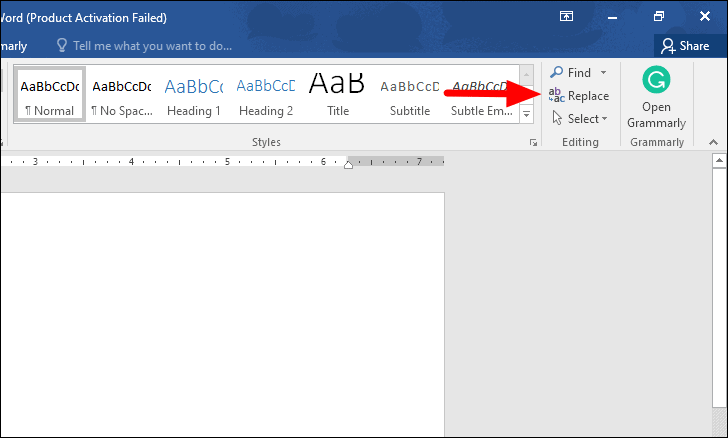
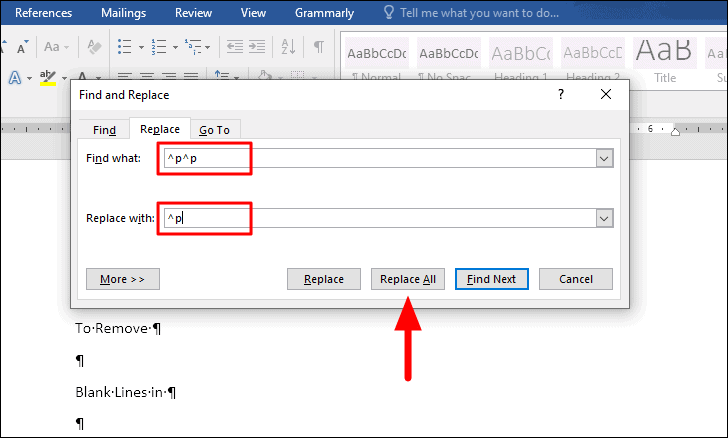
^p^p to represent the double paragraph tags causing the blank lines. In the ‘Replace with’ field, input ^p to signify a single paragraph tag. This setup tells Word to find all instances of two consecutive paragraph tags and replace them with one, effectively removing the blank lines.After entering the codes, click on the ‘Replace All’ button at the bottom of the dialog box. Word will process the command and display a prompt indicating the number of replacements made.
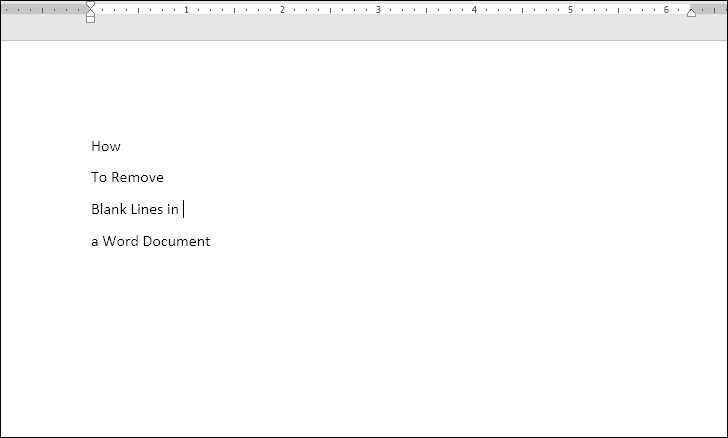
By utilizing the ‘Replace’ function in Word, you can quickly eliminate unwanted blank lines, saving time and ensuring your documents are clean and easy to read.





