

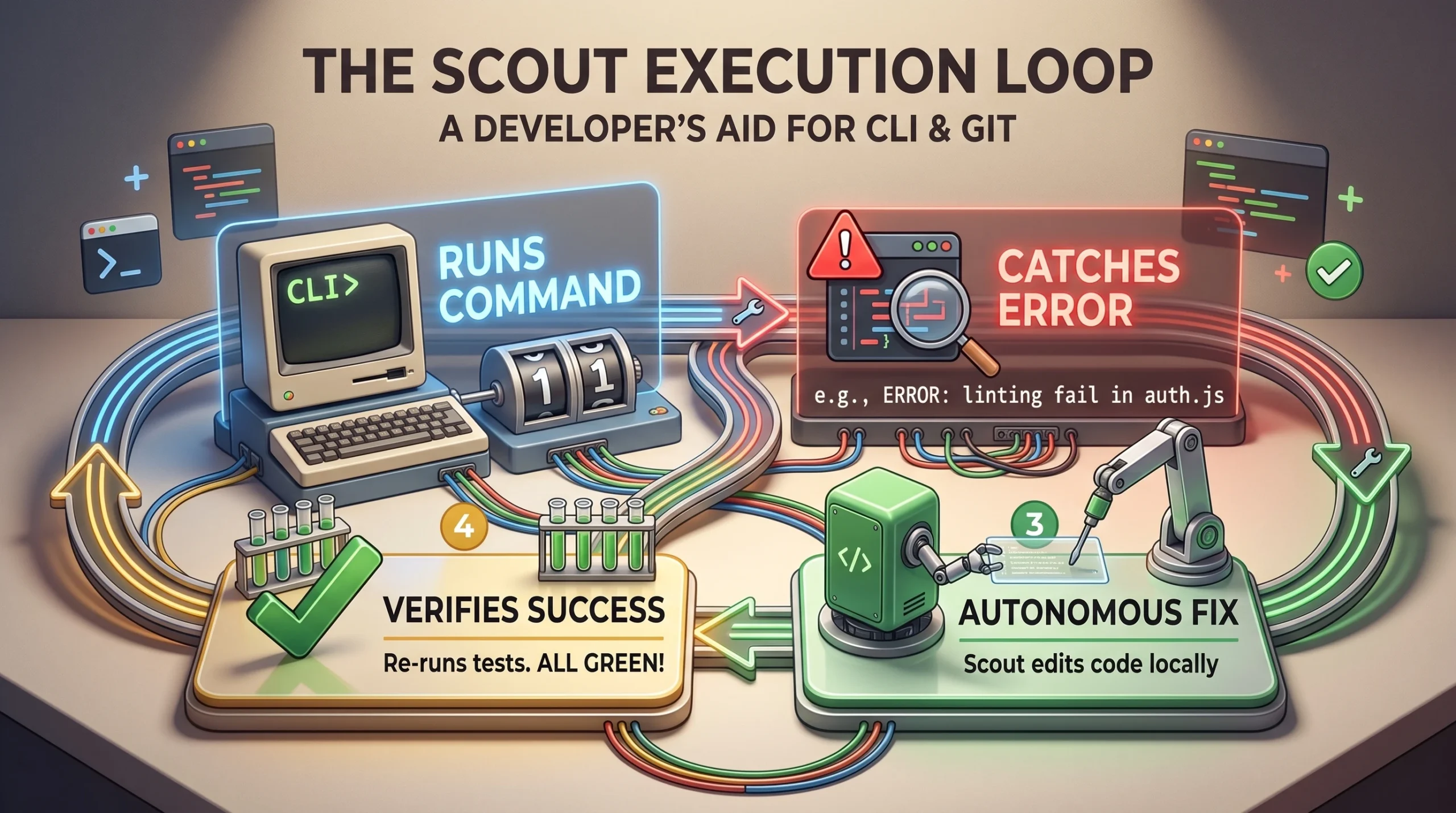
Microsoft Scout runs real shell commands on your machine, which is what separates it from a chat box that only talks back. You can point it at a project and ask it to build, test, lint, or move code through git and gh, and it executes those commands directly in your workspace. What controls the whole thing is a permission system that sorts every command into one of three tiers, so you always know whether Scout acts on its own or stops for your approval.
Quick answer: Shell access is on by default, but auto-approve is off, so Scout shows you the exact command and waits for you to select Approve before anything like git push, npm install, or a network call runs. Read-only commands such as git log and git diff run automatically.
What Scout can run in your terminal
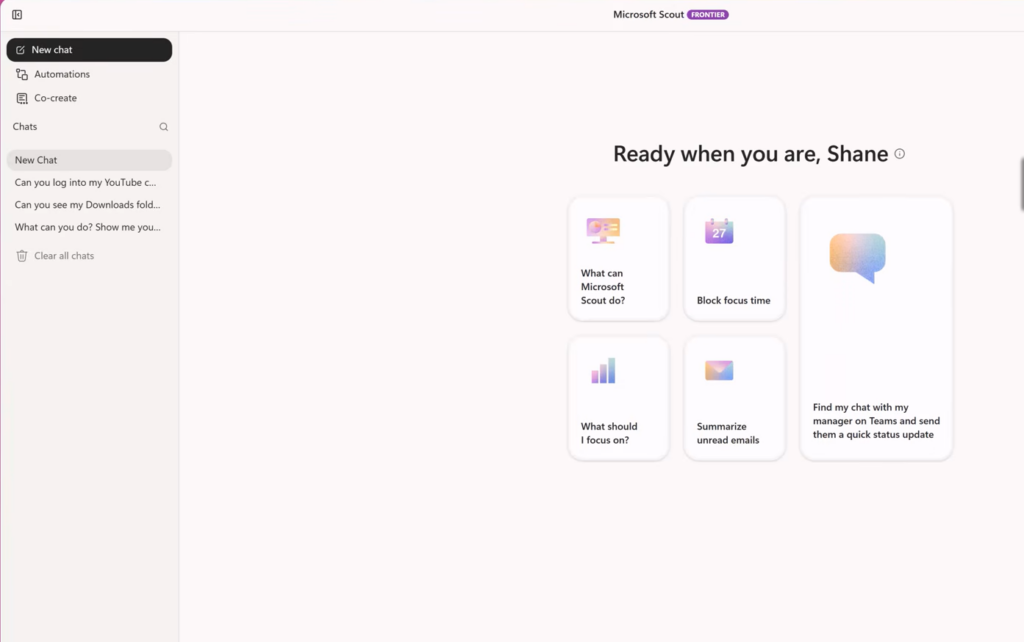
Scout treats your terminal as a normal execution surface. It can install packages, build projects, check system status, and drive developer tools including git, gh, curl, and PowerShell. Instead of pasting commands yourself, you describe the task and Scout translates it into the right command, runs it, and reports the output back inside the conversation.
The developer tasks it handles map cleanly onto everyday work. Here is what those requests look like in practice.
| Task | Example request |
|---|---|
| Build | “Build the project and show me any errors.” |
| Test | “Run the test suite and report failures.” |
| Lint | “Lint the src directory and fix any issues.” |
| Git | “Show me the diff for the last 3 commits” or “Create a branch and commit my changes.” |
| GitHub CLI | “List my open PRs” or “Create a PR with this description.” |
| Debug | “Run the failing test with verbose output and explain the error.” |
The three permission tiers for shell commands
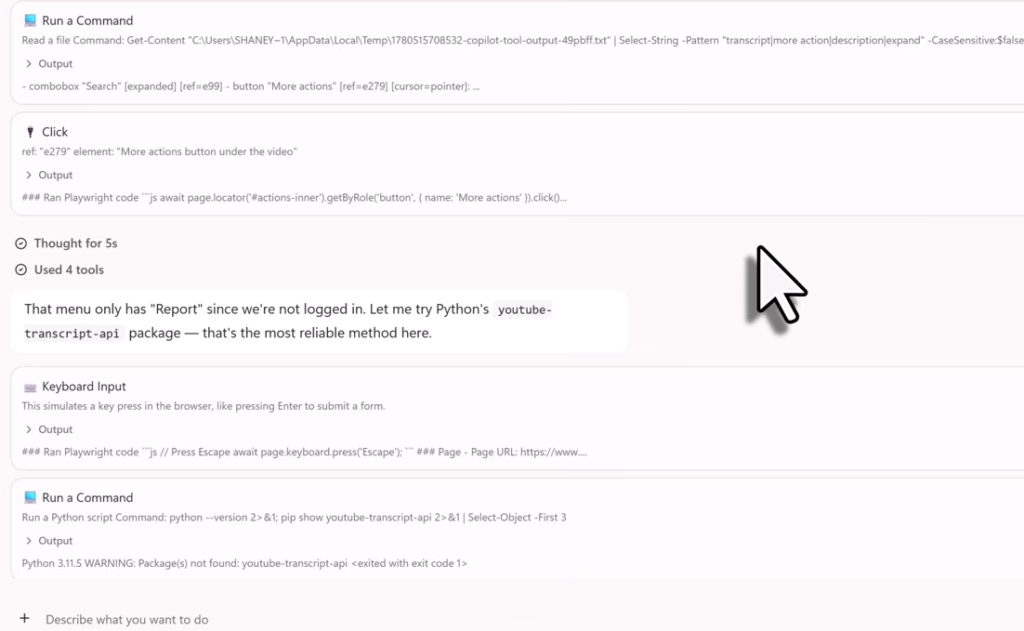
Every command Scout wants to run is classified before it executes. This is the core mechanic that keeps automation from turning into an accident. Read-only commands run silently, anything that writes or reaches the network pauses for you, and destructive commands are blocked outright.
| Tier | Behavior | Examples |
|---|---|---|
| Auto-approve | Runs without prompting | ls, cat, grep, git log, git diff, docker ps, npm list, gh pr list, kubectl get |
| Prompt | Pauses for your approval | npm install, git push, curl, network requests, file writes |
| Deny | Blocked entirely | Destructive commands like rm -rf /, format |
When a command lands in the Prompt tier, Scout displays the exact command it intends to run before doing anything. You then select Approve to let it proceed or Deny to stop it. You can also choose Always allow to auto-approve similar commands in the future, which is convenient for repetitive work but worth using carefully, since one broad approval turns future matching commands into silent actions.
Default settings that affect shell work
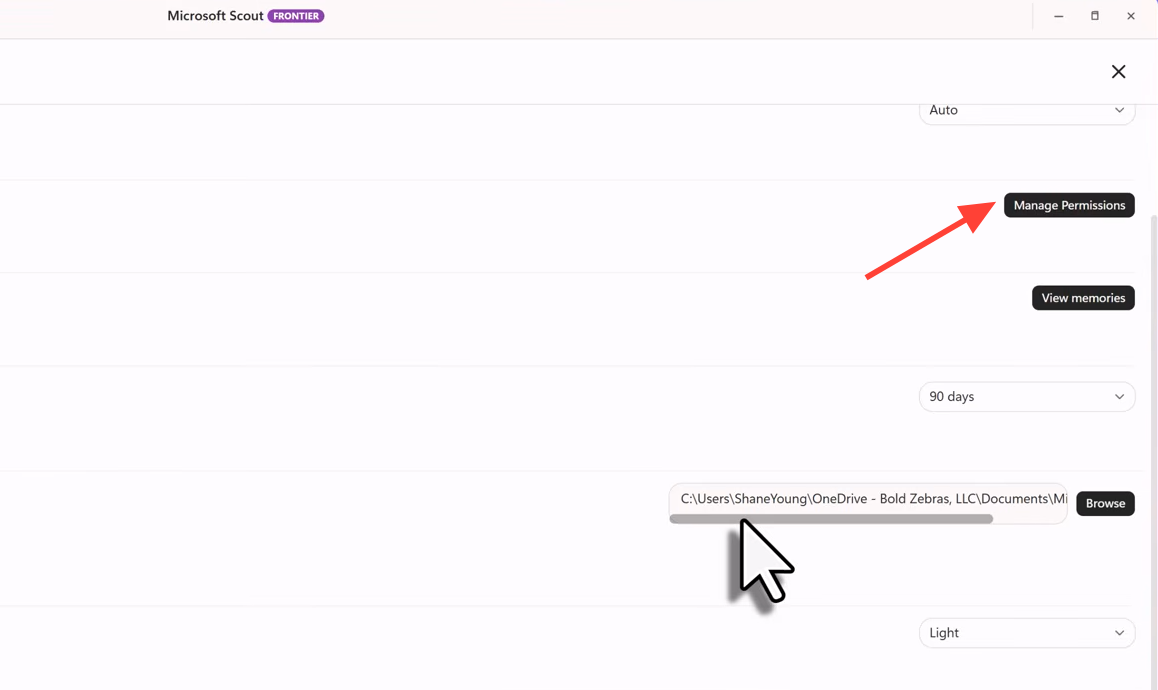
Out of the box, Scout is set up so that it can request command execution but never runs risky commands on its own. Three defaults matter most for developers.
| Setting | Default | Effect |
|---|---|---|
| Shell access | ON | Scout can request execution of terminal commands, still governed by the permission tiers. |
| Auto-approve | OFF | All actions require confirmation; auto-approve must be enabled explicitly per capability. |
| WorkIQ connectivity | ON | Search across your Microsoft 365 data works without extra setup. |
Because Scout also works within a single workspace directory, it can only create documents, run scripts, and organize files inside the folder you assign it. Choosing a folder you use for active projects keeps its shell activity contained to work you actually want it touching.
Customize which commands run automatically
If the default prompts get in the way, or you want tighter limits, you tune the behavior under Settings > Permissions. This is where you shape how much freedom Scout has at the command line.
- Add patterns to the allow list so specific commands run without prompting.
- Add patterns to the deny list to block whole categories of commands.
- Toggle Auto-approve read-only on or off.
- Define sensitive paths that always require approval before access.
Shell and browser automation sit close to local secrets, session cookies, and repository state, so it is worth deciding your allow and deny patterns before you widen anything for convenience. A short deny list for anything destructive is cheaper than cleaning up after a misclassified command.
Hand off heavier work to sub-agents
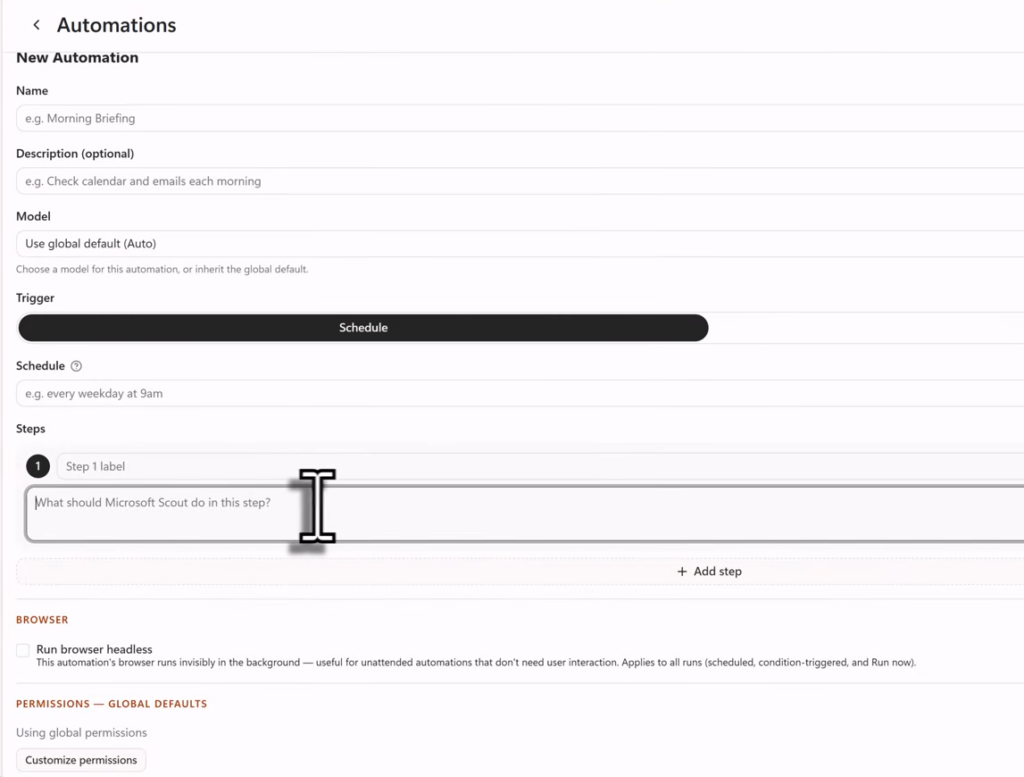
For larger or parallel jobs, Scout can launch specialized sub-agents that run in the background and report when they finish. Several of these are built for development work, and they keep the main conversation free while they churn through a task.
| Agent type | What it does | When to use |
|---|---|---|
| Explore | Fast codebase research across many files and modules | Understanding unfamiliar code, tracing data flows, analyzing architecture |
| Task | Runs builds, tests, lints, and installations | Running a test suite, building a project, installing dependencies |
| Code review | Analyzes code changes for bugs and security issues | Reviewing diffs, checking for logic errors before committing |
| Research | Thorough web and repository searches with citations | Investigating technical questions, comparing libraries, finding docs |
| General-purpose | Full toolset for complex multi-step work | Refactoring across files, implementing features, complex migrations |
Scout decides on its own when a job would benefit from parallel execution or an isolated context, then launches one or more sub-agents with specific instructions. That is how something like a full test run or a diff review can happen without blocking whatever you ask next.
What you need before shell commands work
Scout is a desktop application for Windows and macOS, and it does not open to every Microsoft 365 user yet. It runs inside Microsoft’s Frontier early-access channel, and the developer-focused features are exactly why the setup looks the way it does. The requirement for a GitHub Copilot license is a direct tell that Scout is meant to execute code, not just read office documents.
| Requirement | Detail |
|---|---|
| Platform | Windows 11 or macOS 12 (Monterey) or later |
| Account | Microsoft 365 work or school account (personal accounts unsupported) |
| Microsoft 365 Copilot | Active license assigned to your account |
| GitHub Copilot | Business or Enterprise license |
| Windows library | Latest Microsoft Visual C++ redistributable |
| Install rights | Local administrator permissions and an Intune-enabled account |
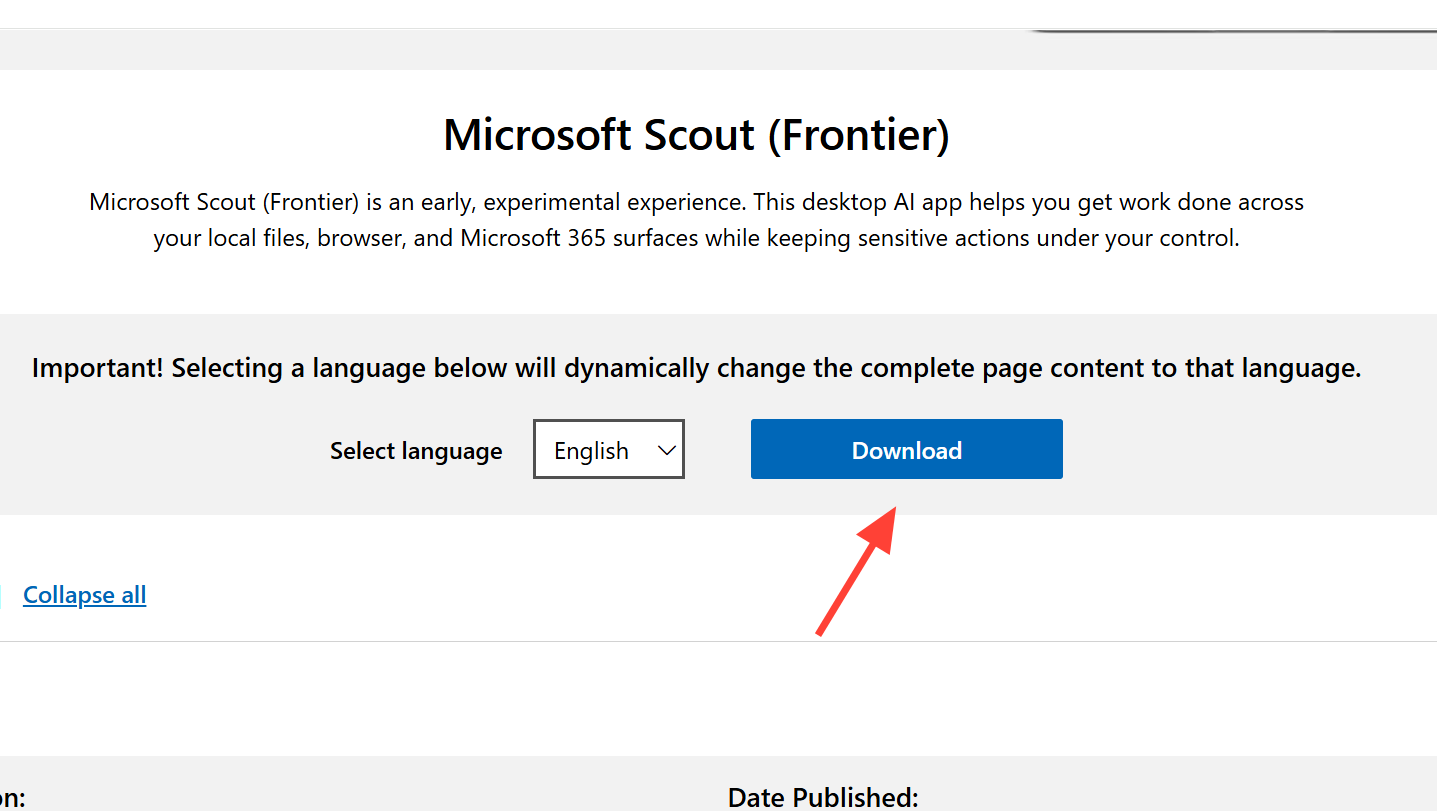
Your IT admin also has to complete the Scout access setup before you can sign in, and enrollment in the Frontier program with an opt-in attestation is part of that. Once those pieces are in place, you download and run the Microsoft Scout installer for your platform. During sign-in, you authenticate with your organizational Microsoft 365 credentials and then sign in to GitHub with your Copilot license. Admins can review the GitHub Copilot organization setup if that license is not yet assigned.
How to confirm a command actually ran
Scout shows its work as it goes. Progress streams into the conversation in real time, including the tool calls it makes, any permission prompts, files it creates, and the final results. Output renders in rich markdown, so build errors, test failures, and command output come back with headings, tables, and syntax-highlighted code blocks rather than a flat wall of text.
For commands that write to disk, you verify the outcome the same way you would any other terminal task. Files Scout creates or edits are saved to your workspace directory, and Word, Excel, and PowerPoint files open in their native applications. If a git operation like a branch creation or commit was in the Prompt tier, seeing your Approve confirmation followed by the command’s output in the conversation is the signal it went through.
Scout is prerelease software, so its capabilities and defaults can shift while it stays in preview. The permission model, though, is the part worth learning first. Once you understand which commands auto-run, which pause for you, and where to adjust those boundaries, driving git and the shell through Scout becomes predictable instead of a gamble.