Want to add a touch of personality to your Windows 11 desktop? Learn how to set a GIF as wallpaper using the free and easy-to-use apps Lively Wallpaper and BioniX.
Want to add a touch of personality to your Windows 11 desktop? Learn how to set a GIF as wallpaper using the free and easy-to-use apps Lively Wallpaper and BioniX.
by Parth Sawhney
Windows 11 offers a sleek and modern interface, but you can make it even more dynamic by setting a GIF as your wallpaper. Although the operating system doesn’t natively support GIF wallpapers, there are third-party applications that enable you to personalize your desktop with animated images.
This guide will walk you through setting a GIF as your wallpaper using two popular apps: Lively Wallpaper and BioniX. By following the steps below, you can transform your desktop into a lively and engaging space.
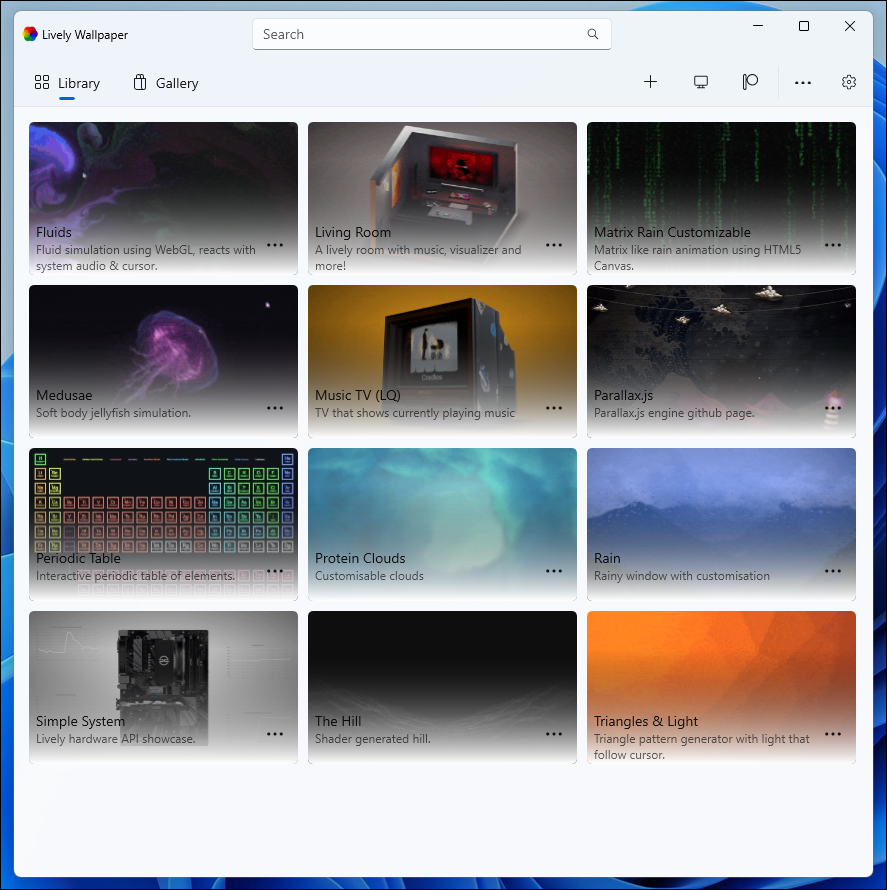
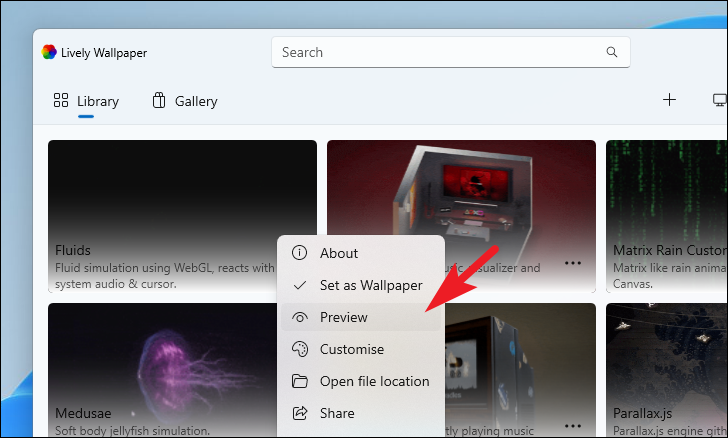
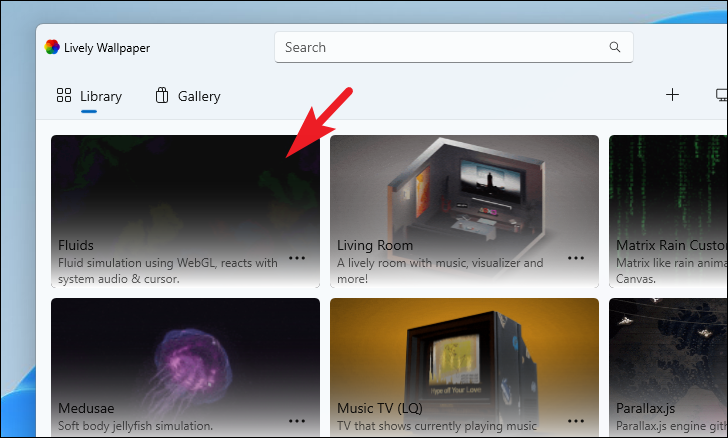
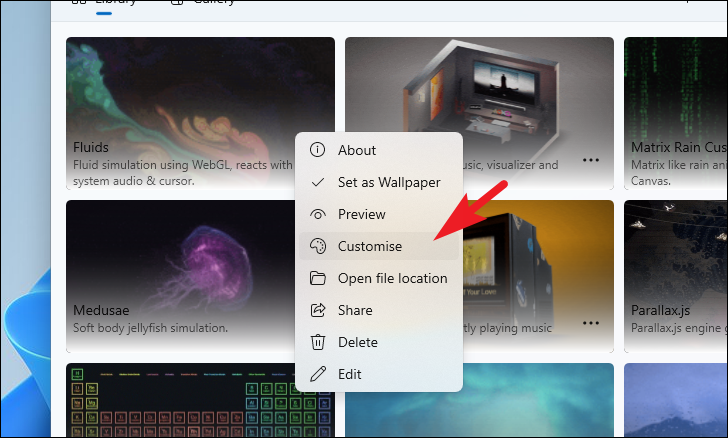
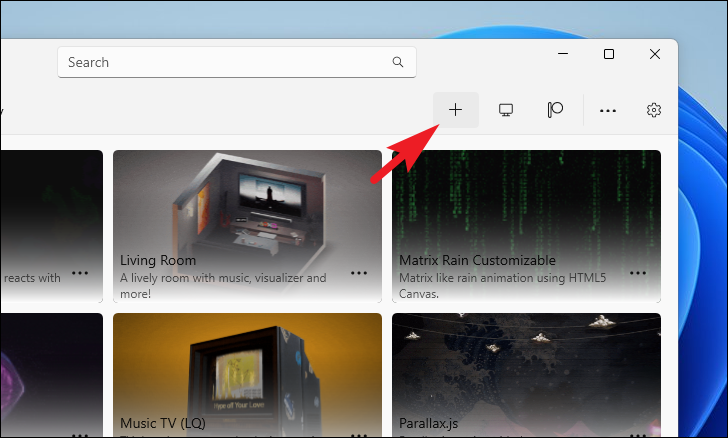
After installation, open the Lively Wallpaper app. In the Library section, you’ll find a variety of GIF wallpapers ready to use. You can choose one of these pre-loaded GIFs or set your own custom GIF by selecting a file from your computer or by providing its URL.
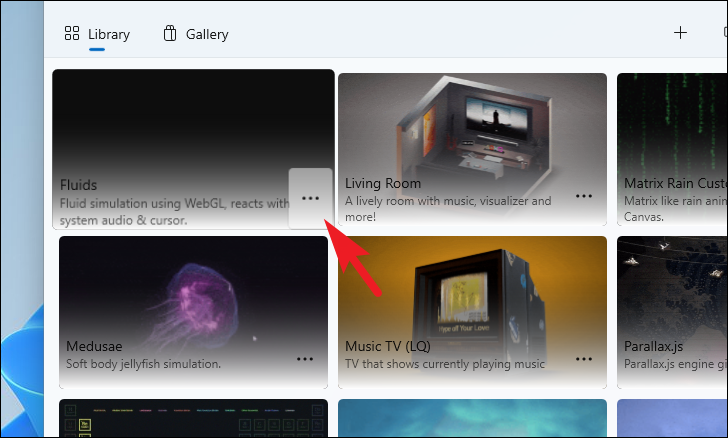
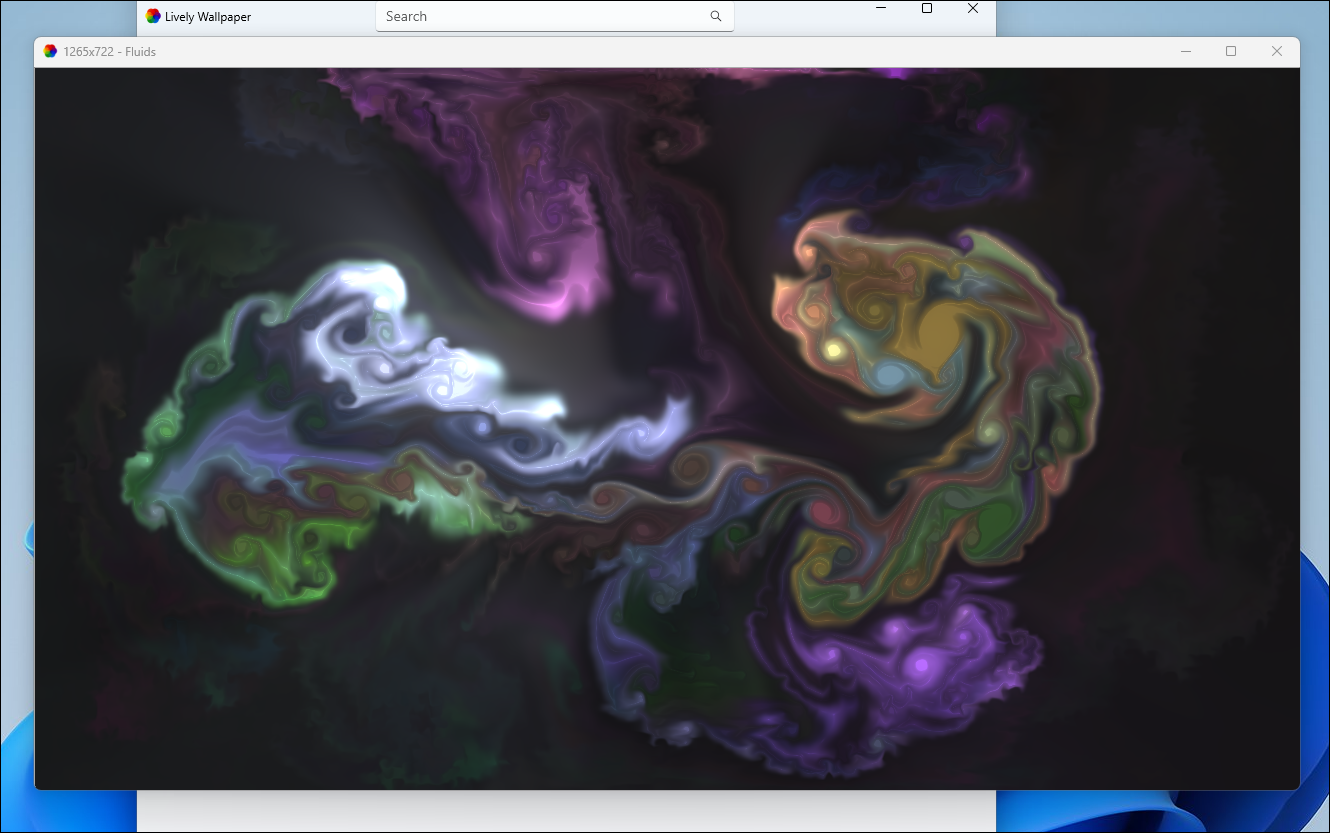
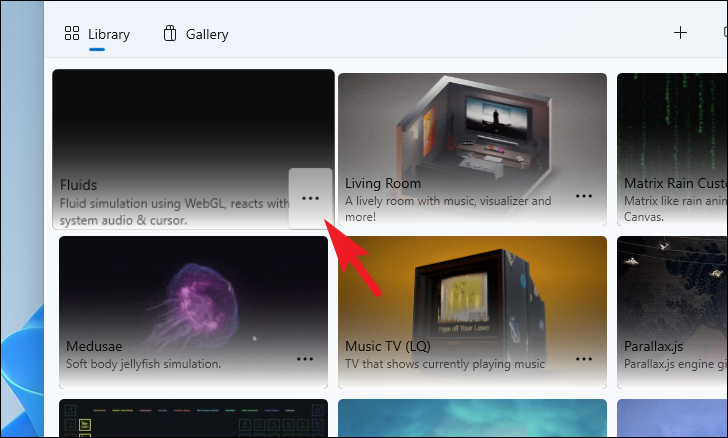
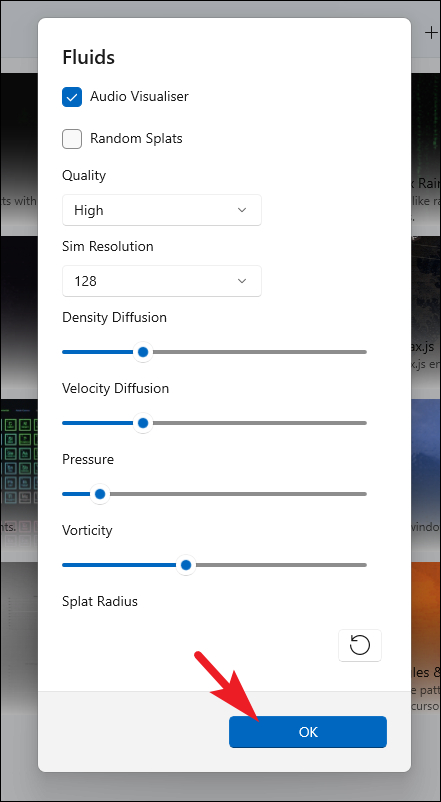
The customization options available will differ depending on the GIF. Some GIFs offer a wide range of settings, while others may have only a few adjustable properties. For example, the GIF in the screenshot allows you to synchronize the animation with audio, modify the background color, and adjust parameters like density, radius, and velocity of a color splash. After making your desired changes, click ‘OK’ to apply them.
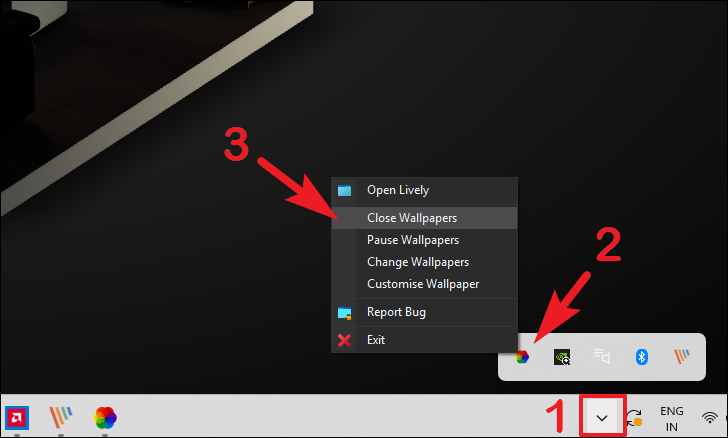
If you want to stop using the GIF as your wallpaper, click on the ‘Chevron’ (upward arrow) in the Taskbar to reveal hidden icons. Then, right-click the ‘Lively’ icon and select ‘Close Wallpapers’ from the context menu.
Setting your own custom GIF as wallpaper in Lively Wallpaper
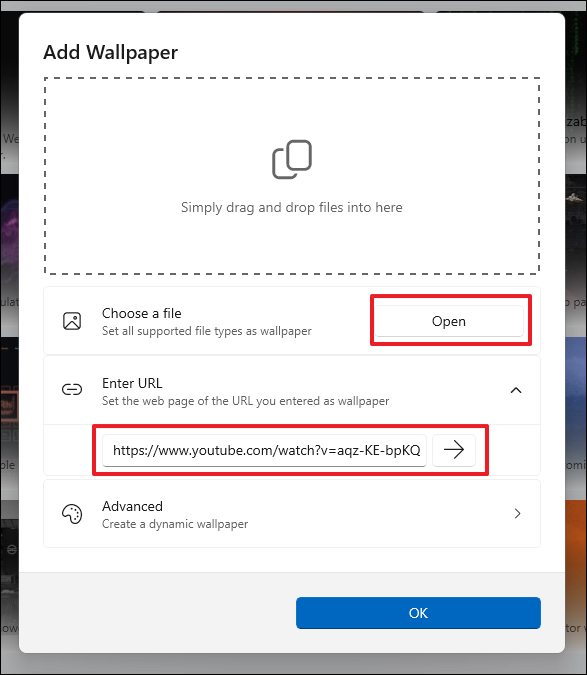
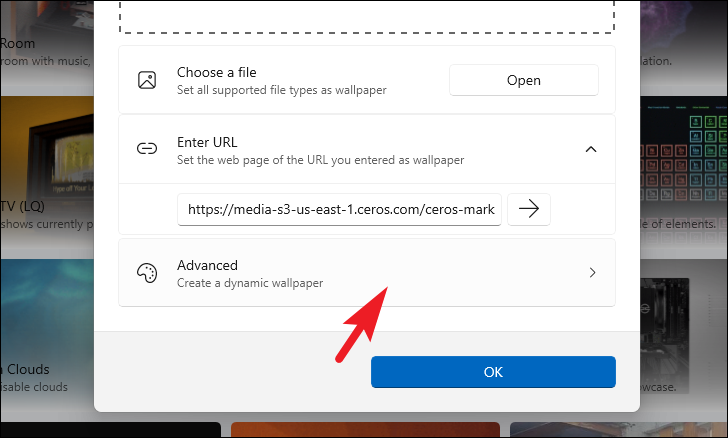
In the window that appears, click ‘Open’ to select a GIF file from your computer. Alternatively, you can paste a GIF’s URL into the ‘Enter URL’ field and click the ‘Right Arrow’ icon to use an online GIF as your wallpaper.
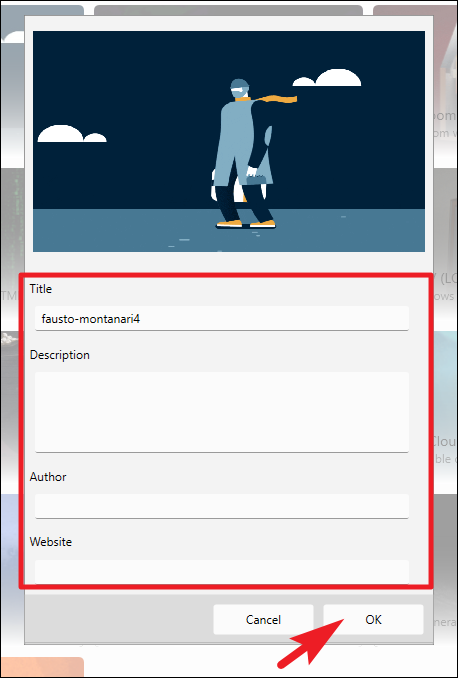
If you’re selecting a GIF from your local storage, after clicking ‘Open’, navigate to and select the GIF file in the File Explorer window. You can then customize the wallpaper’s name, add a description, and include the author’s name if desired. When you’re finished, click ‘OK’. The GIF will be set as your wallpaper immediately and will also appear in your Lively library.
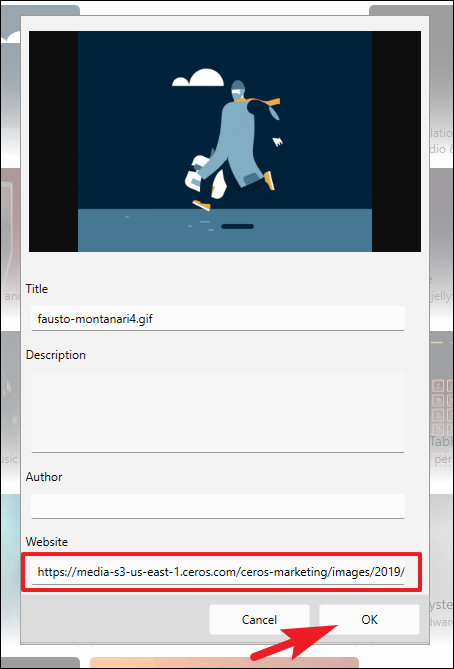
If you opted to use a GIF from an online source by pasting its URL, a similar window will appear where you can change the GIF’s name, add a description, and include the author’s name. Keep in mind that if the GIF is removed from the provided web address, your wallpaper may no longer work. Click ‘OK’ when you’re ready to set it as your wallpaper.
Note: Make sure to enter the URL of the GIF file itself, not the webpage where it’s displayed.
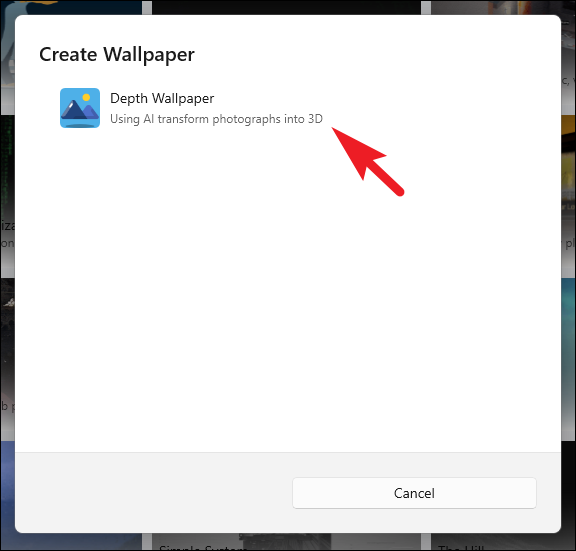
Convert 2D images to 3D and set them as your wallpaper in Lively
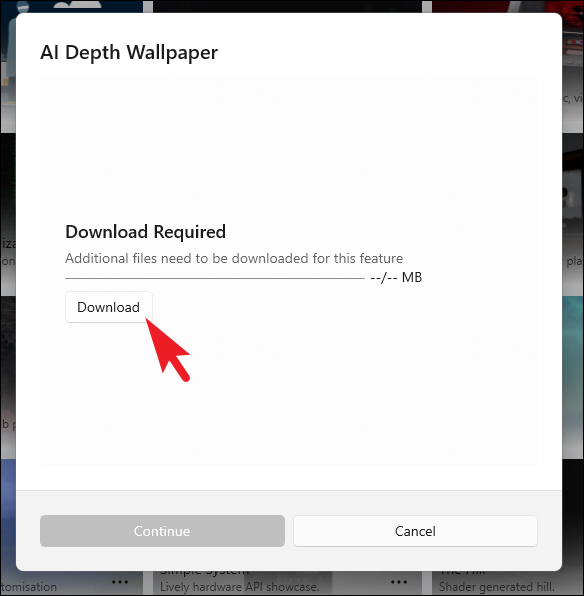
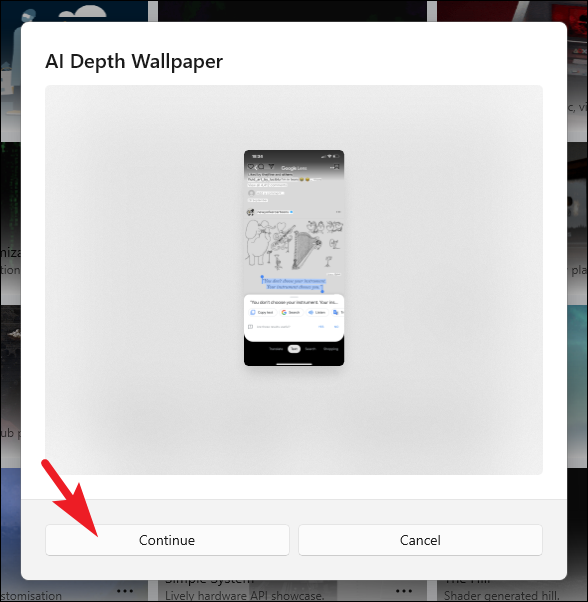
Another feature of Lively Wallpaper is the ability to convert 2D images into 3D and use them as your wallpaper.
Lively will process the image and set it as your wallpaper. The wallpaper will now have a 3D effect, tilting and reacting to the movement of your mouse cursor.
Using BioniX app to set a GIF as a wallpaper
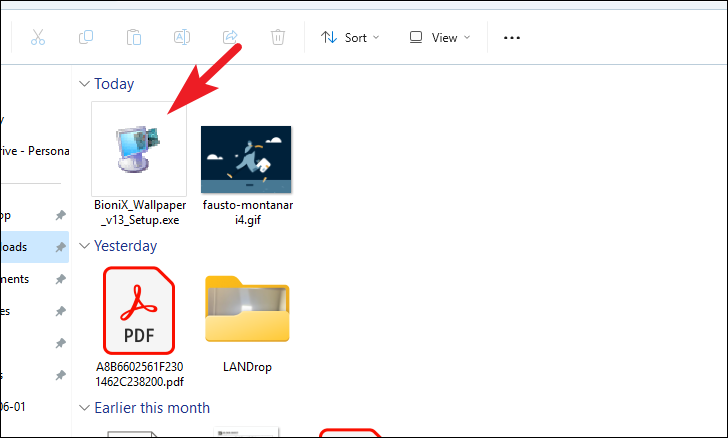
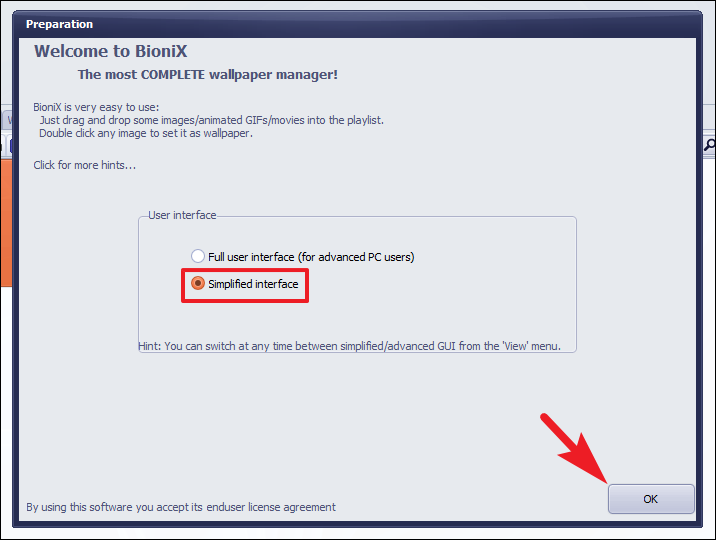
BioniX is another application that allows you to set a GIF as your wallpaper on Windows 11. It also offers features like creating a playlist of GIFs and setting a timer to automatically change your wallpaper.
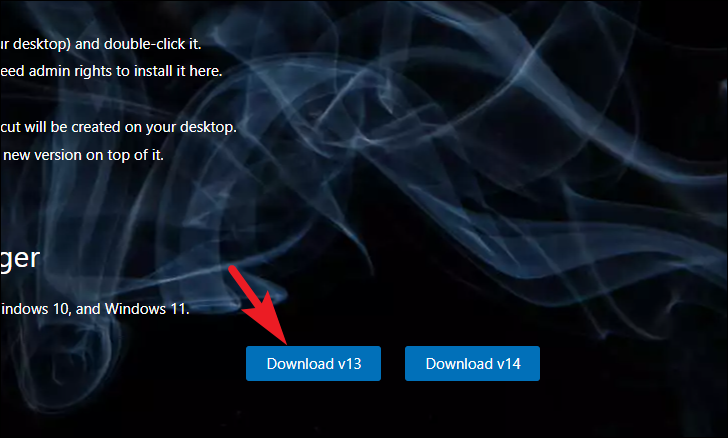
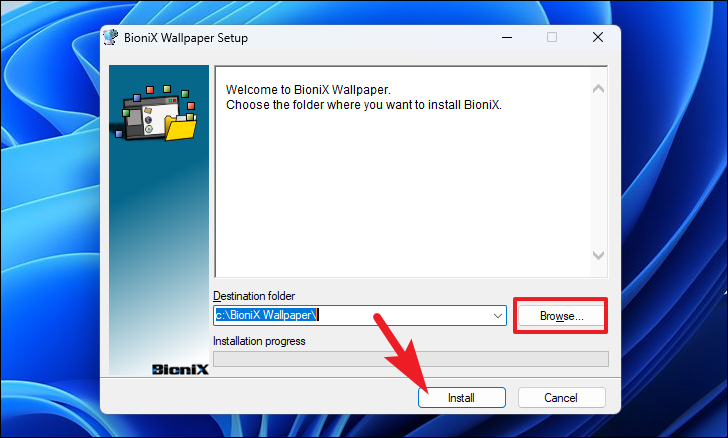
In the installer window, click ‘Browse’ if you want to change the installation directory. Otherwise, click ‘Install’ to proceed with the default settings.
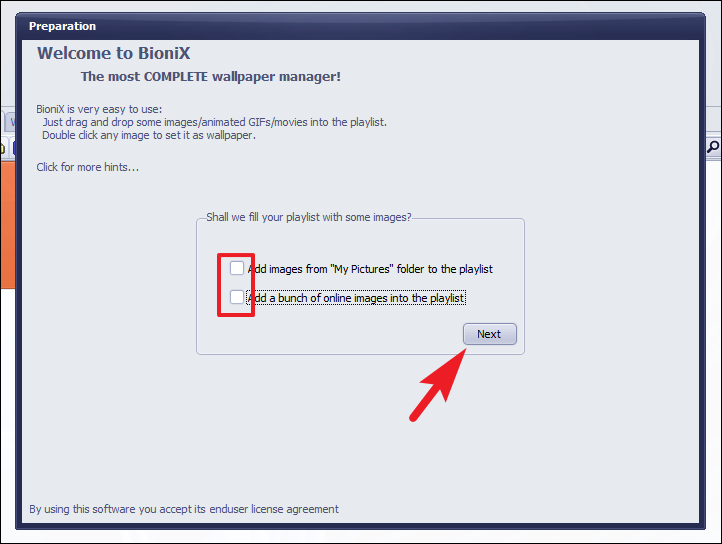
In the setup window, uncheck both boxes if you don’t want to import images from your ‘Pictures’ folder or the internet. Then, click ‘Next’ to continue.
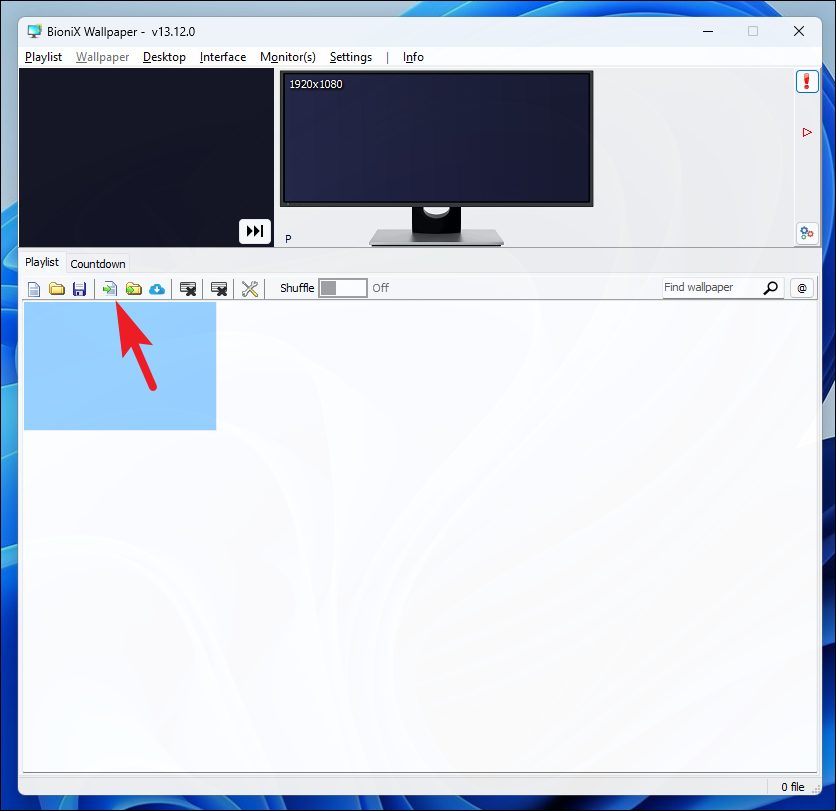
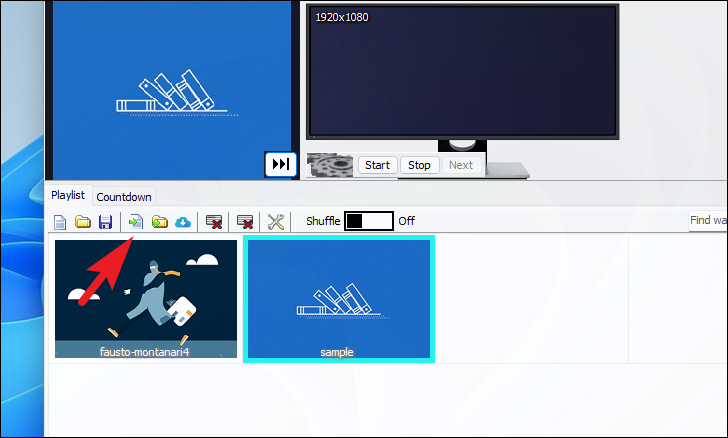
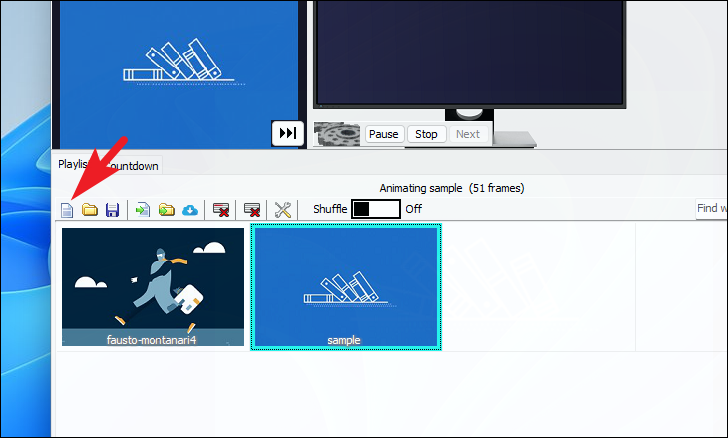
You can add your GIF files by dragging and dropping them into the lower section of the BioniX window. Alternatively, click the ‘Add wallpaper’ icon to open a File Explorer window and select your GIF files.
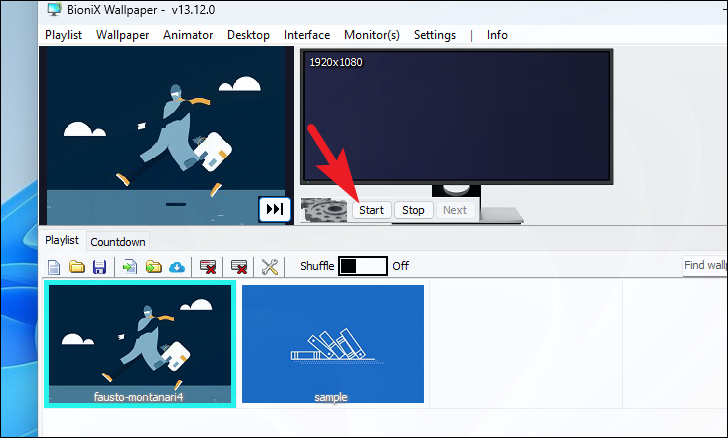
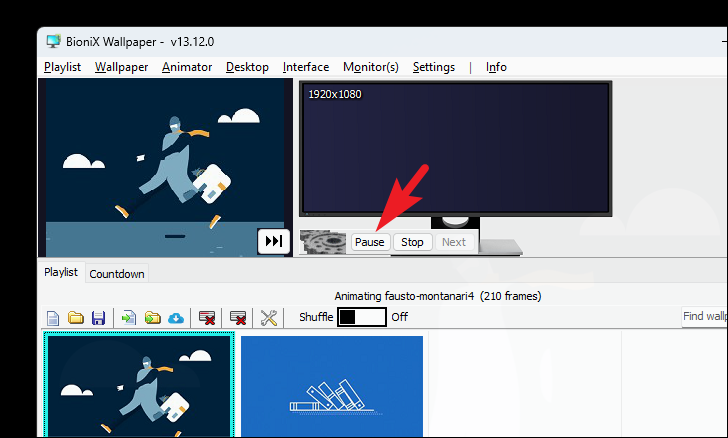
After adding the desired GIFs, click ‘Start’ to set them as your wallpaper. If you want the wallpapers to display in random order, enable the ‘Shuffle’ option.
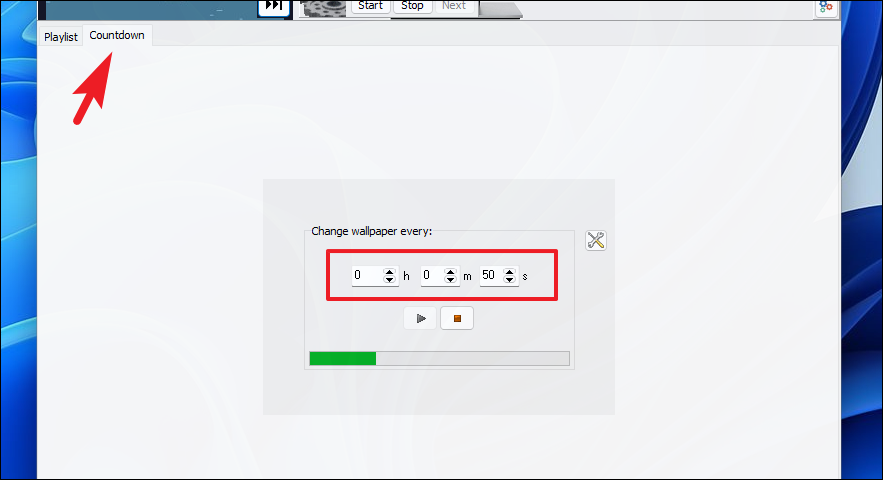
To set how frequently the GIF wallpapers change, click on ‘Countdown’. Adjust the timer by specifying the hours, minutes, or seconds between changes. The new timing will take effect immediately.
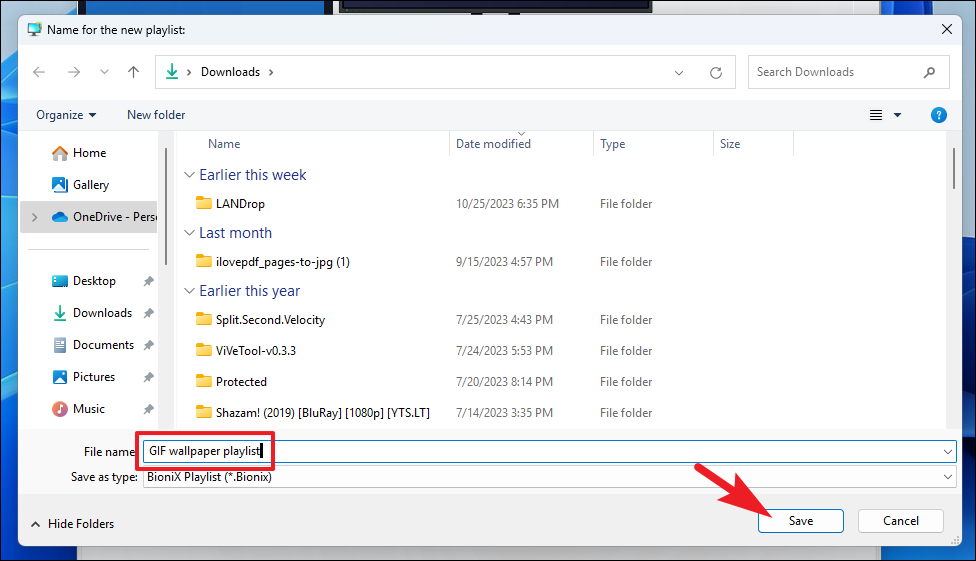
Enter a name for your wallpaper playlist and click ‘Save’ to store it.
While Windows 11 doesn’t provide a built-in option to set GIFs as wallpapers, applications like Lively Wallpaper and BioniX make it possible to personalize your desktop with animated backgrounds.