WhatsApp now allows users to secure their accounts with passkeys, a modern alternative to traditional SMS-based verification. Passkeys use your device’s built-in security features, such as fingerprint, facial recognition, or screen lock, to verify your identity. This method simplifies the login process, eliminates waiting for SMS codes, and significantly reduces the chances of phishing attacks or unauthorized access.
Here’s how you can set up passkeys on your WhatsApp account, step-by-step:
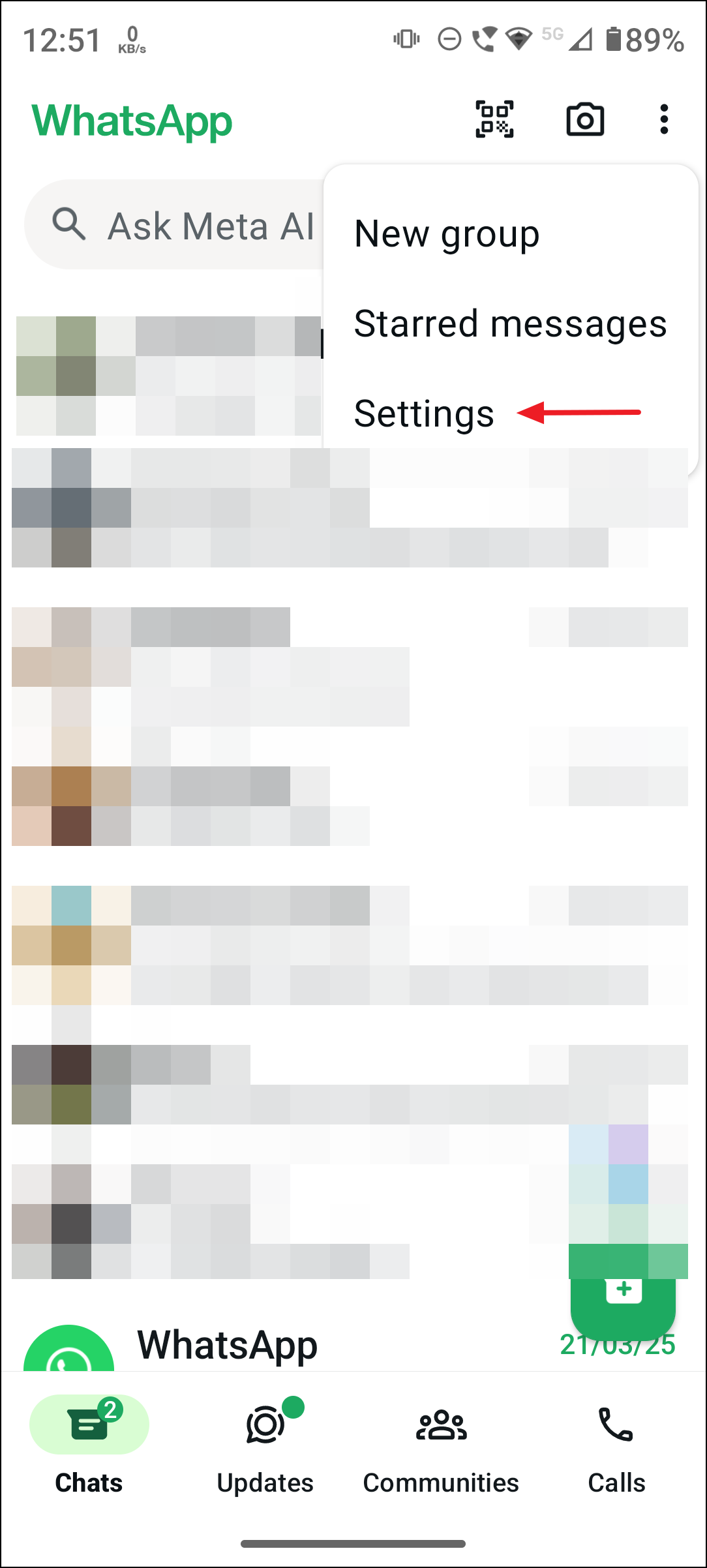
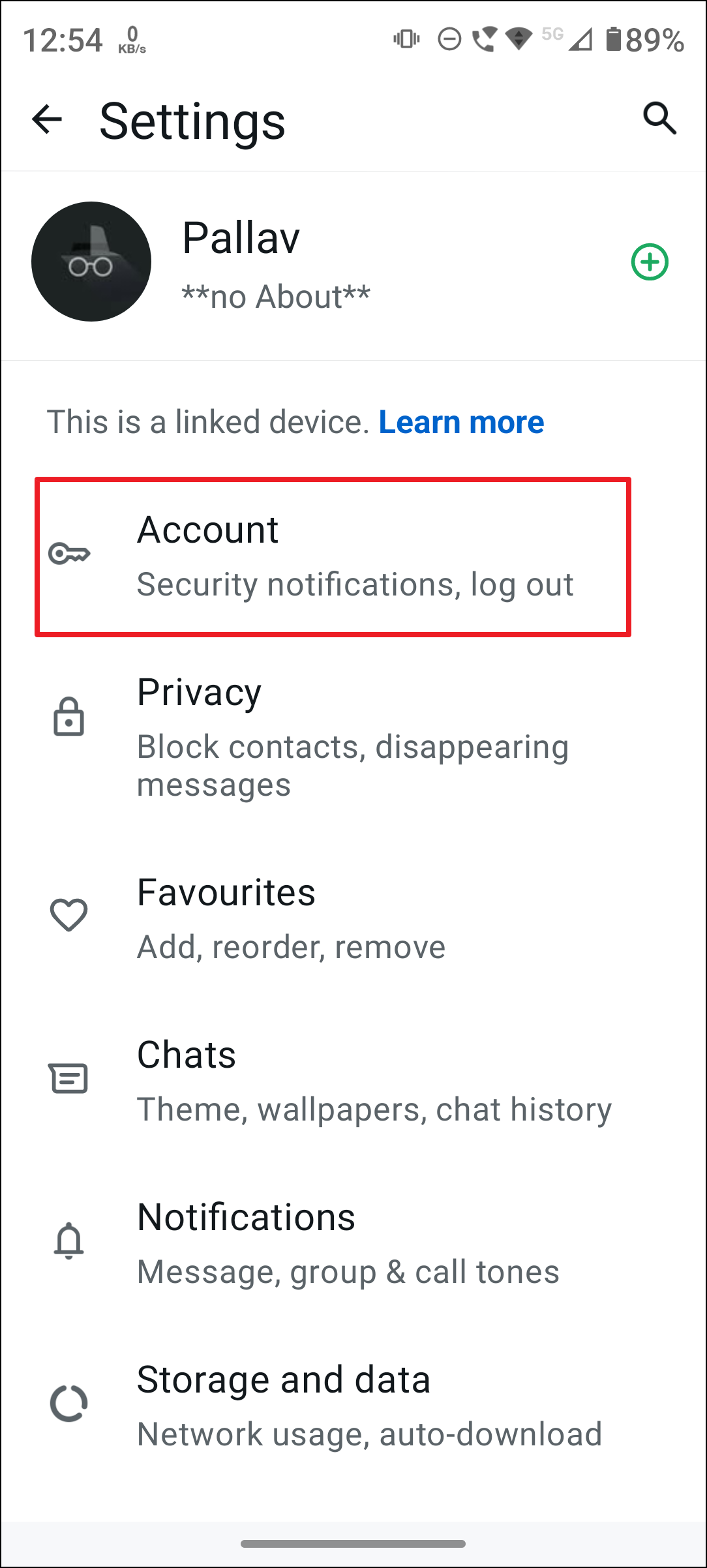

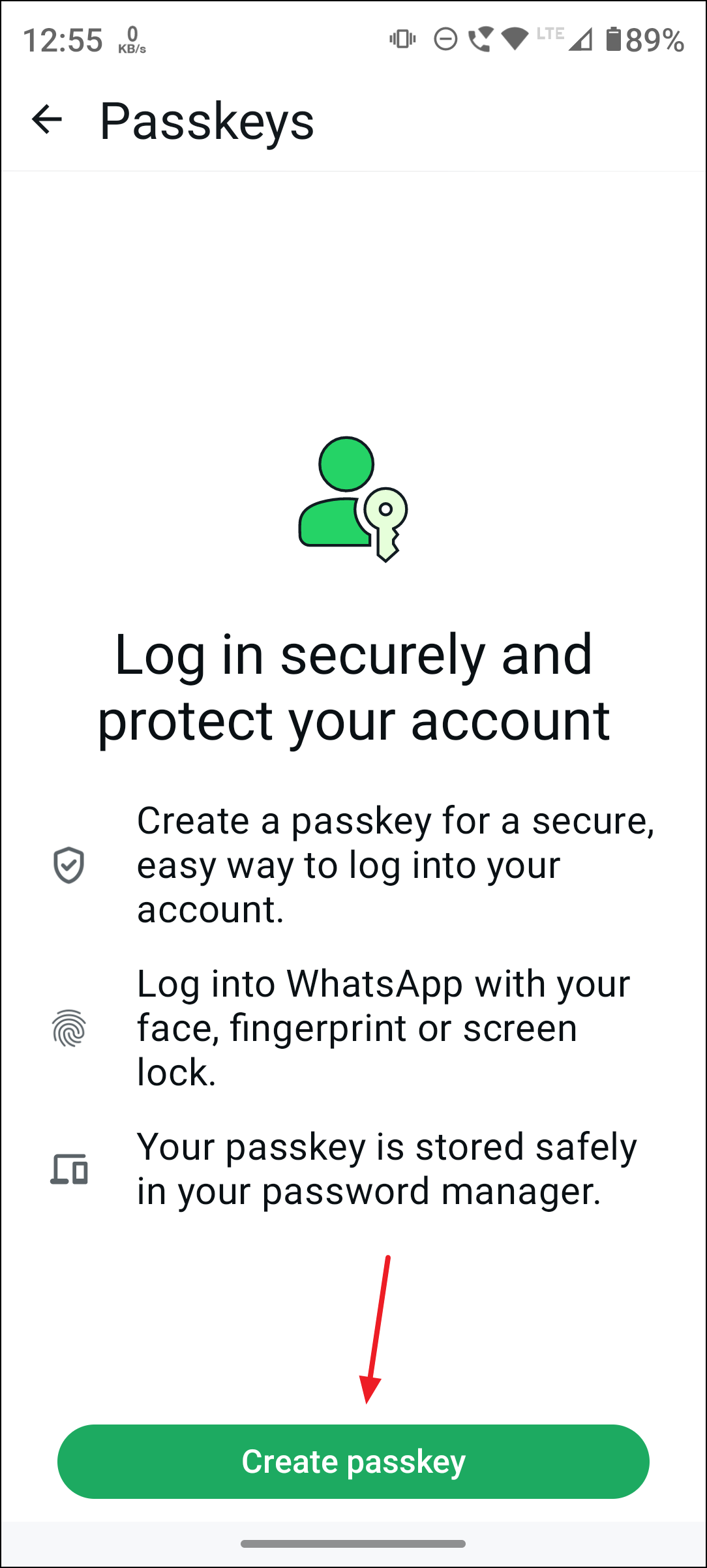
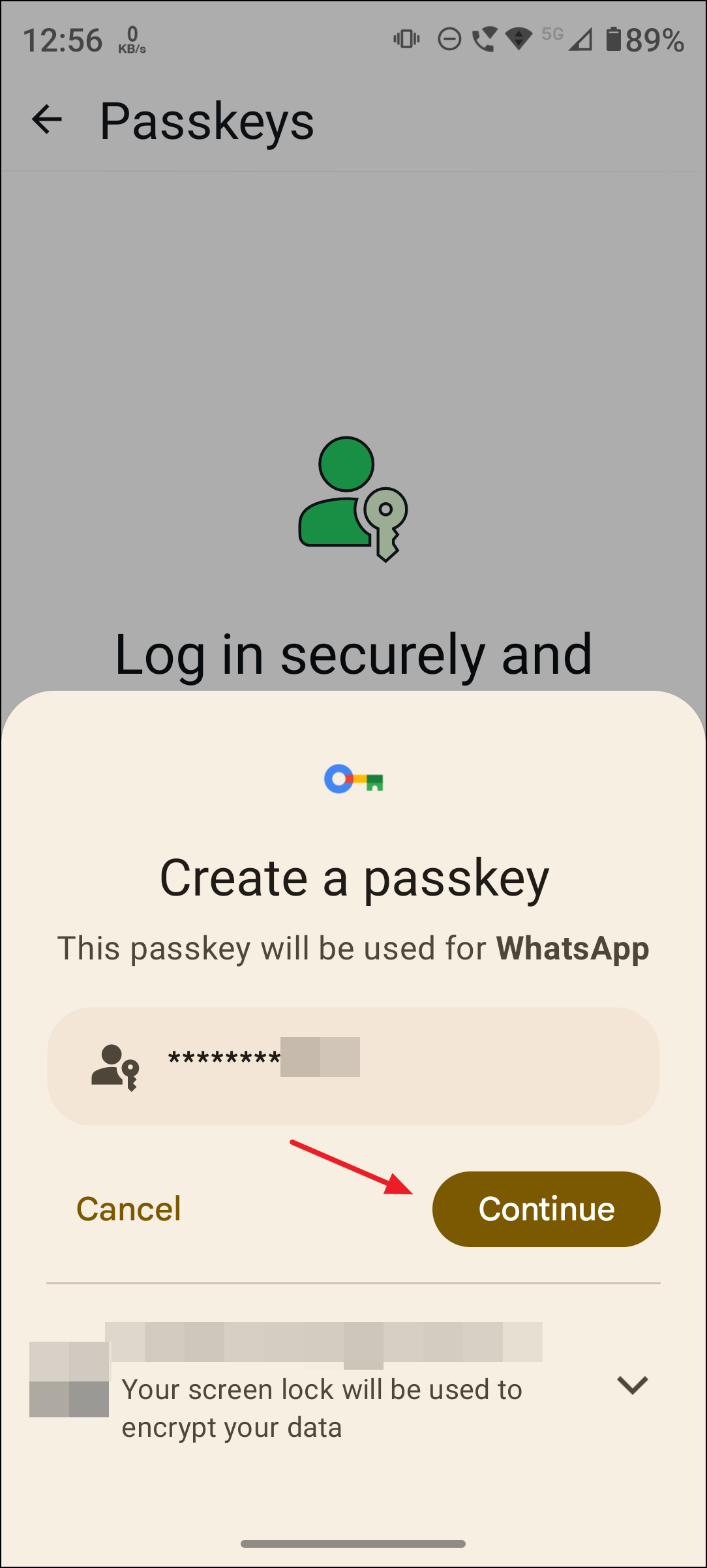
That’s it! Now, whenever you need to verify your WhatsApp account (for example, after reinstalling WhatsApp or setting it up on a new device), you can simply use your device’s biometric or PIN authentication instead of waiting for an SMS code.
How to Delete or Revoke a WhatsApp Passkey
If you decide to stop using passkeys, deleting them is straightforward:


Your passkey is now deleted, and WhatsApp will revert to using SMS-based authentication for your account verification.
Important Considerations for Using WhatsApp Passkeys
Before setting up passkeys, keep these points in mind:
- Ensure your device runs Android 9 or later, as passkeys are currently available only for these versions. iOS support is still rolling out gradually.
- Make sure your device’s screen lock (PIN, fingerprint, or facial recognition) is properly configured and secure.
- If you use a third-party password manager, verify that it supports passkeys. Not all password managers currently offer full passkey support.
- Passkeys do not replace WhatsApp’s two-step verification. Consider enabling two-step verification for an extra layer of security.
Setting up passkeys on WhatsApp is a quick and secure way to streamline your login experience and maintain strong account security. Give it a try and enjoy a simpler, safer way to access your WhatsApp account.