Browsers like Chrome and Firefox automatically detect your geographic location through built-in geolocation services. While convenient for mapping and local services, this can compromise your privacy or restrict access to region-specific content. Fortunately, you can easily spoof your location using several effective methods, including VPNs, browser developer tools, and dedicated extensions.
Using a VPN to Spoof Your Browser Location
The most reliable way to change your browser’s location is by using a Virtual Private Network (VPN). A VPN routes your internet traffic through servers in different locations, assigning you an IP address from the chosen area. This method masks your real IP address, making websites believe you’re accessing from a different location.
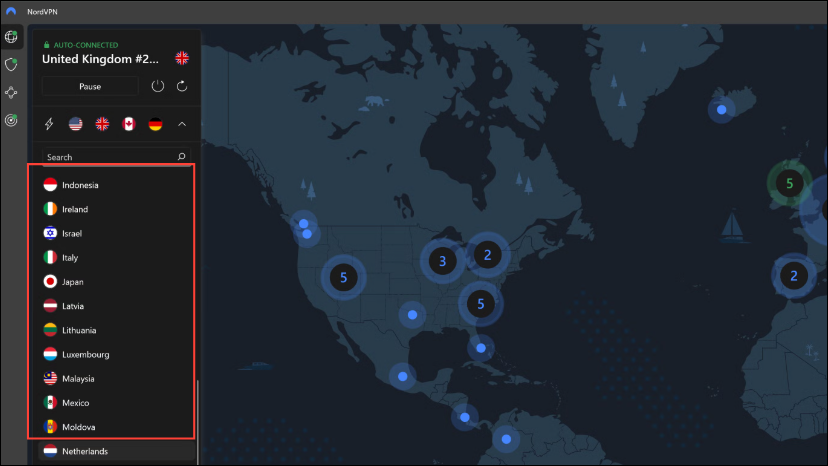
Note that some streaming services may detect and block VPNs. Always select a VPN provider known for reliably bypassing these restrictions, such as NordVPN or ExpressVPN.
Manually Spoofing Location in Google Chrome
Chrome’s developer tools allow manual geolocation spoofing by setting custom latitude and longitude coordinates.
Esc key to open the console drawer, then click the three-dot menu on the left side of the console drawer and select Sensors.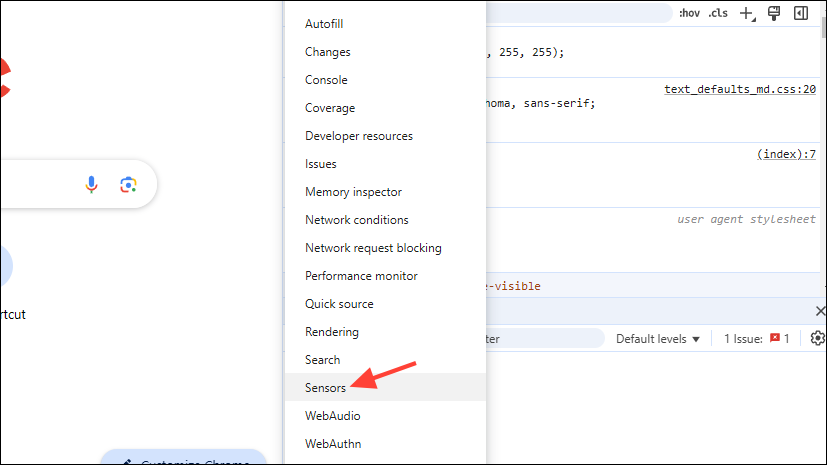
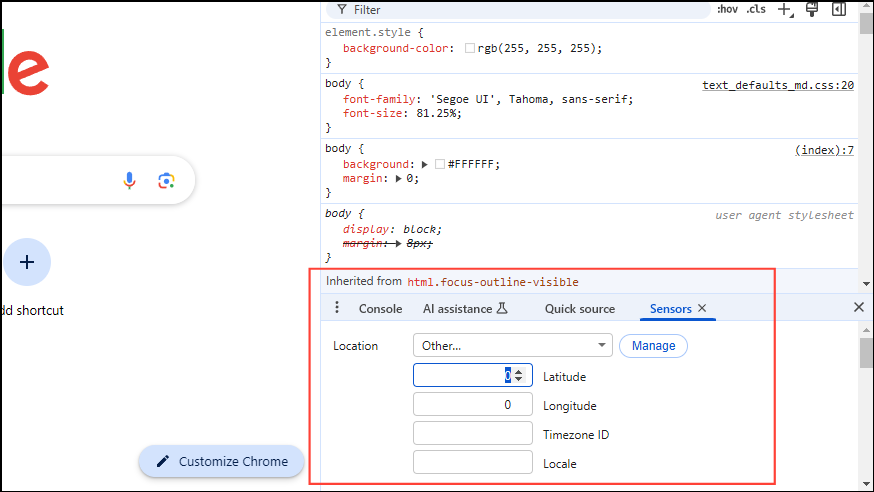
Be aware that this method only affects the browser window where developer tools are open. Opening new windows or tabs without developer tools will revert to your actual location.
Manually Spoofing Location in Mozilla Firefox
Firefox allows you to manually spoof your location using its advanced configuration settings.
about:config in the Firefox address bar and press Enter. Click “Accept the Risk and Continue” when prompted.geo.enabled. Double-click to set its value to false. This prevents Firefox from tracking your real location.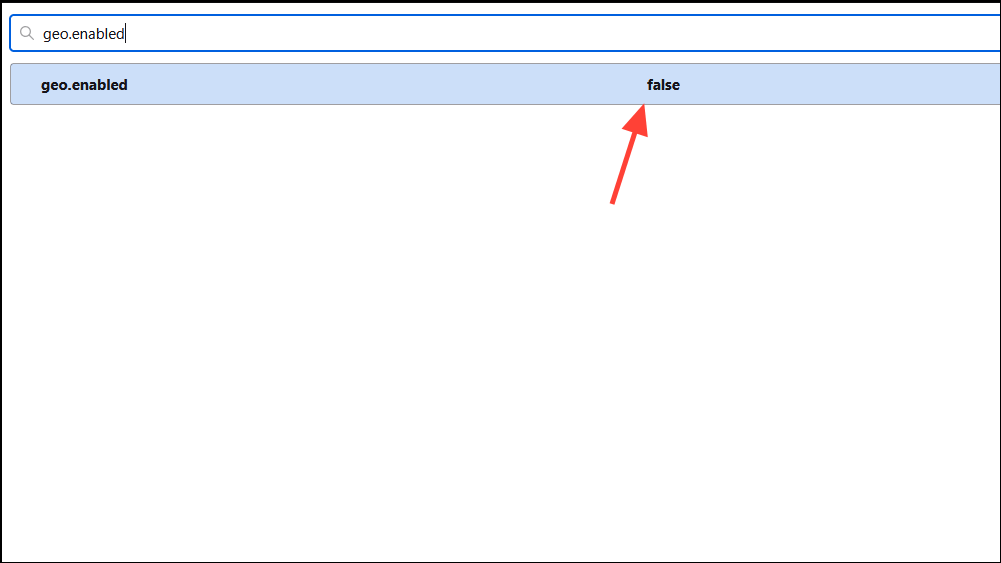
geo.wifi.uri and click the pencil icon to edit it. Enter your desired location using this format:data:application/json,{"location": {"lat": 40.7590, "lng": -73.9845}, "accuracy": 27000.0}Replace latitude (lat) and longitude (lng) with your chosen coordinates. This example places you in Times Square, New York.
After making these changes, Firefox will report your spoofed location to websites. You can verify the new location using a site such as BrowserLeaks.
Using Browser Extensions to Spoof Location
Dedicated browser extensions like Location Guard simplify the spoofing process.
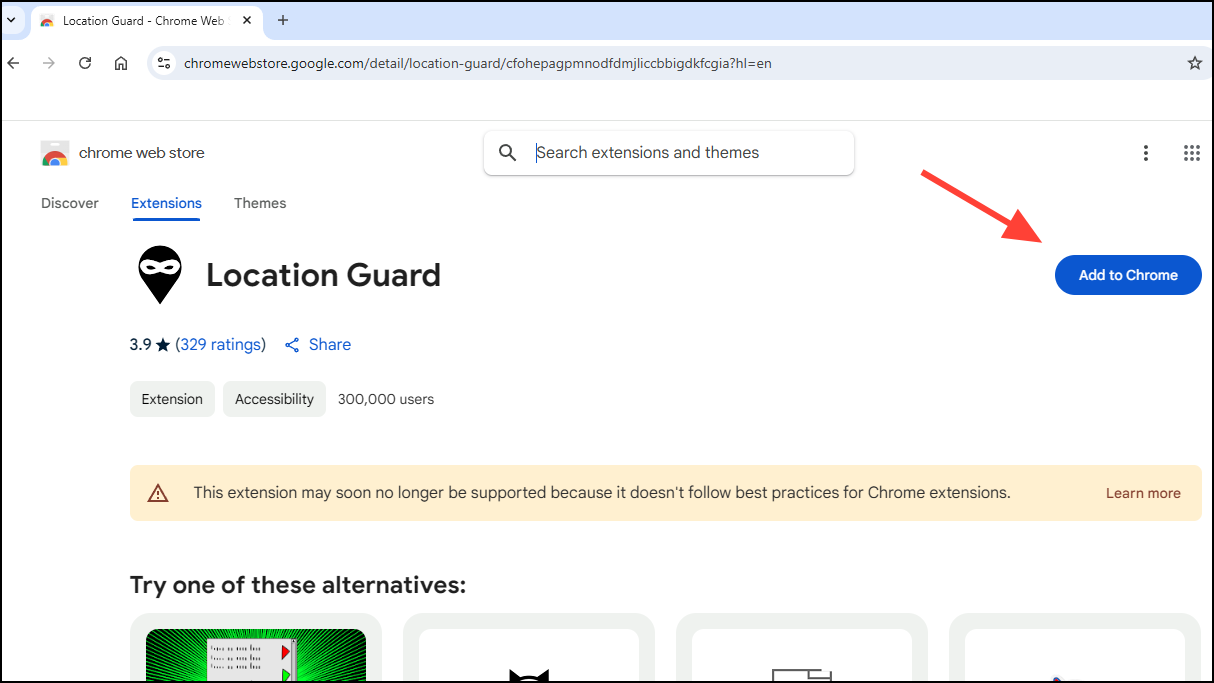
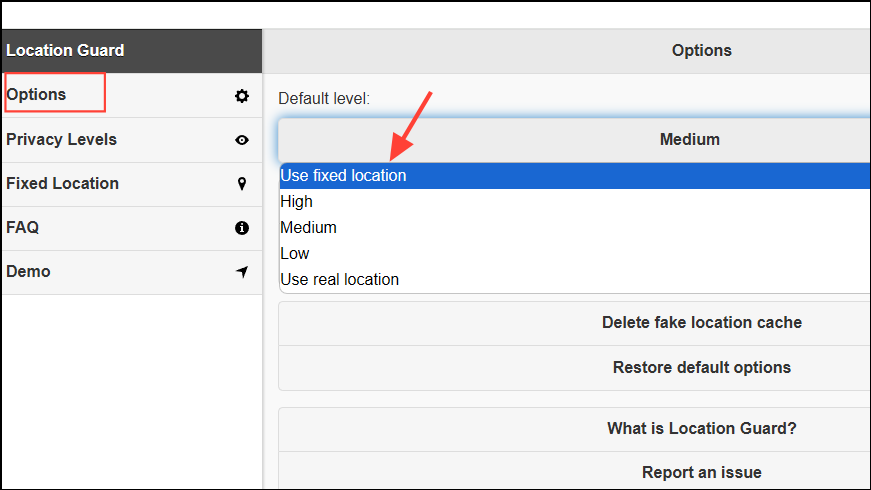
Location Guard automatically applies your chosen location to all sites you visit, making this method convenient and user-friendly. However, note that browser extensions alone do not encrypt your traffic or mask your IP address. For full privacy, combine this method with a VPN.
Preventing WebRTC Leaks
WebRTC (Web Real-Time Communication) can inadvertently reveal your real IP address, even when using a VPN. To prevent this, disable WebRTC in your browser.
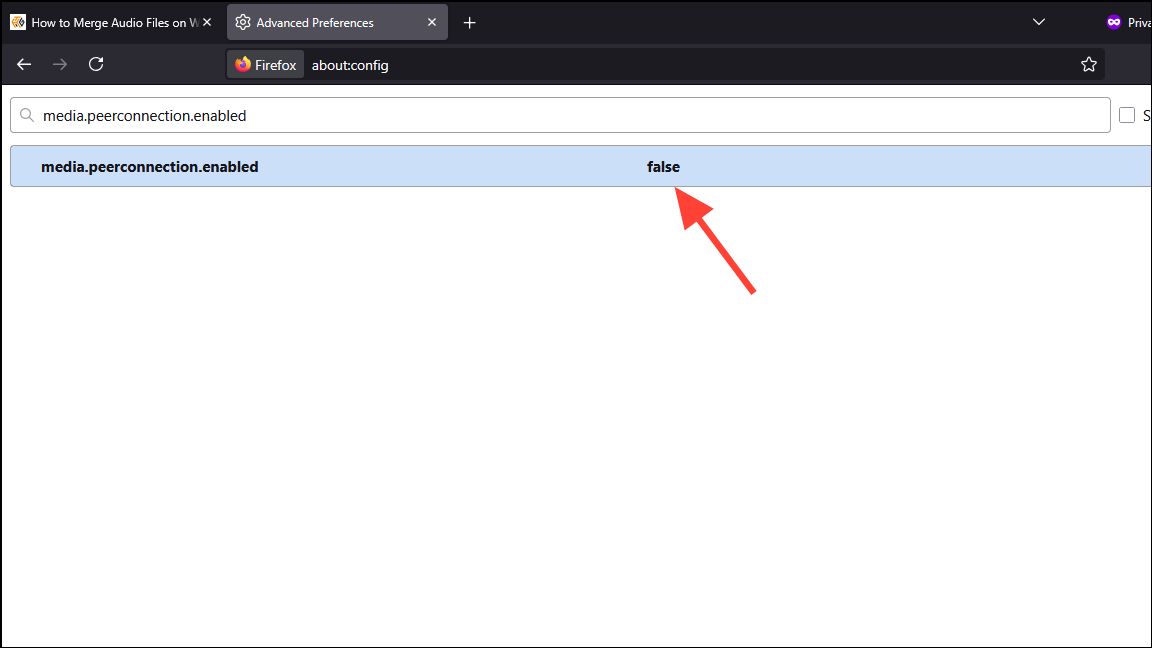
For Firefox: In about:config, search for media.peerconnection.enabled and set its value to false.
For Chrome: Install a WebRTC blocking extension like WebRTC Leak Prevent.
Confirm that WebRTC is disabled by testing your browser at BrowserLeaks WebRTC Test.
By following these steps, you can easily spoof your browser location, protect your privacy, and gain access to geographically restricted content. Combine methods for best results, and always verify your spoofed location through reliable testing sites.