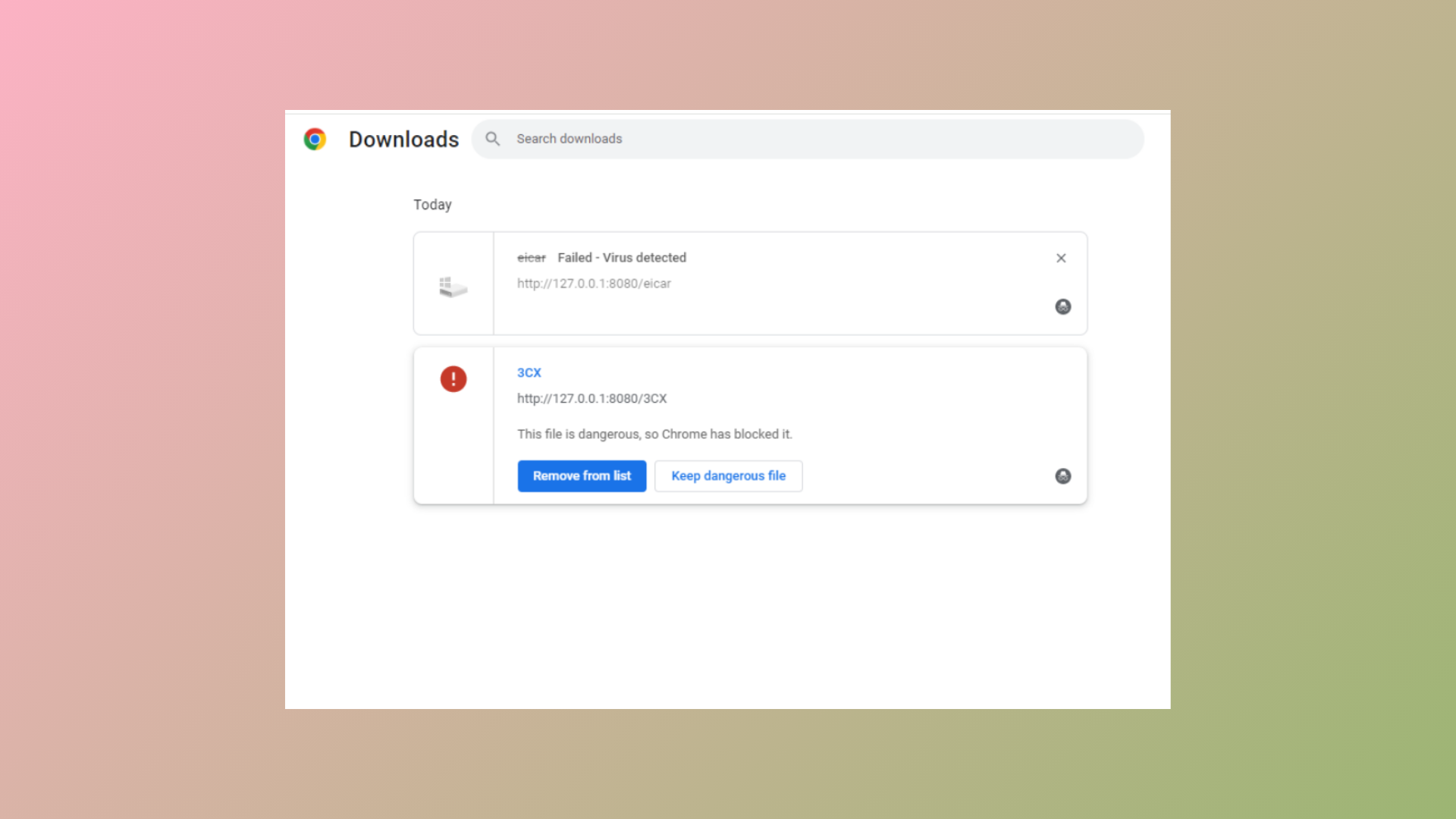
Google Chrome downloads may appear to complete but remain stuck at 100%, preventing you from opening the file or starting new downloads. This often happens because of antivirus scanning, conflicting browser extensions, or problems with the downloaded file or your system’s storage. Addressing these factors can restore normal download functionality and allow files to finish properly.
Temporarily Disable Antivirus or Whitelist the Download Folder
Antivirus software frequently scans files as they finish downloading, which can cause Chrome to display 100% completion while the file remains inaccessible. This extra scan can delay completion, especially with large files or on slower computers. If you trust the source of your download, you can temporarily turn off your antivirus software to determine if it’s causing the delay.
Windows Security from the Start menu, then go to Virus & Threat Protection.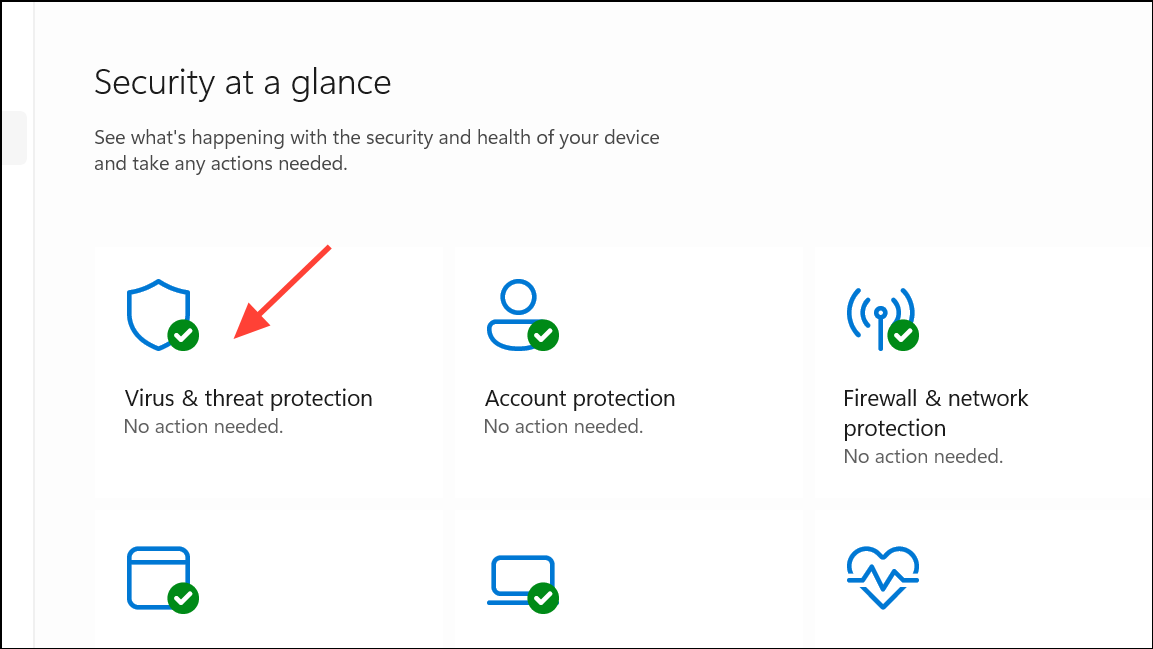
Manage settings under Virus & Threat Protection Settings and toggle off Real-time protection. For third-party antivirus software, right-click the icon and select options like Disable or Pause Protection.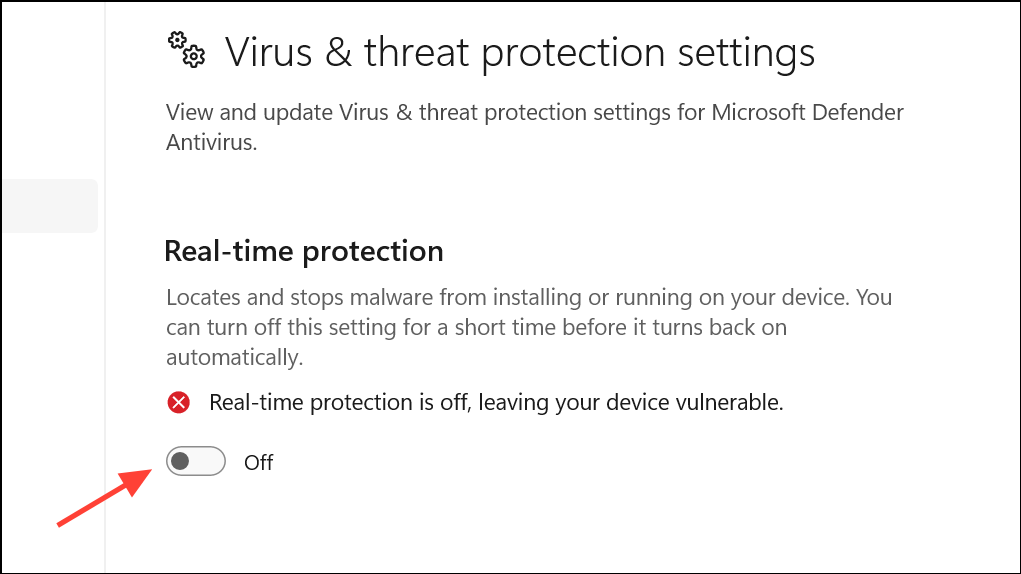
Virus & Threat Protection > Manage settings > Exclusions. For other antivirus software, refer to its documentation for managing exclusions.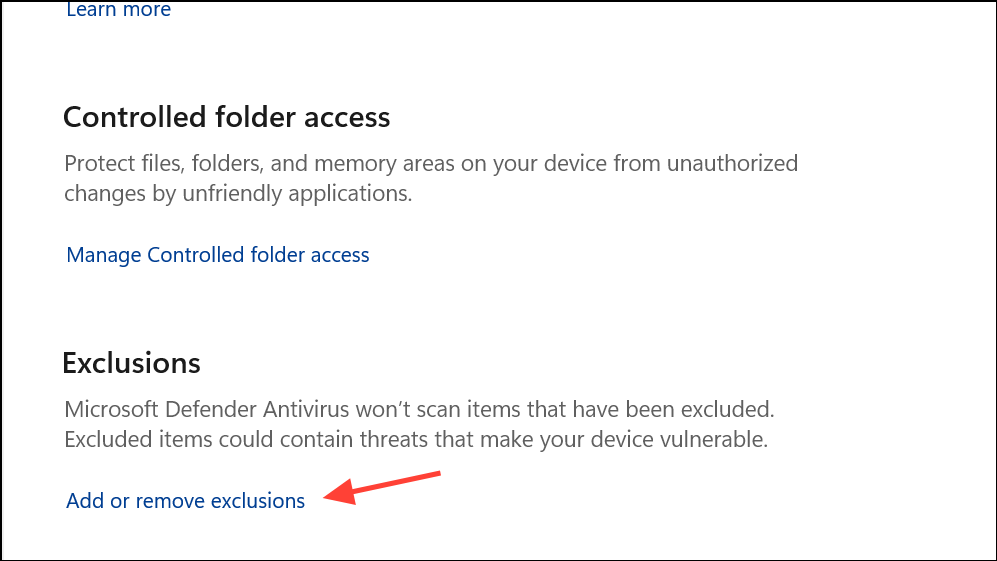
Always re-enable your antivirus protection after troubleshooting to maintain system security.
Pause and Resume the Stuck Download
Sometimes, Chrome downloads stall due to temporary interruptions or software conflicts. Pausing and resuming the download can prompt Chrome to finish processing the file.
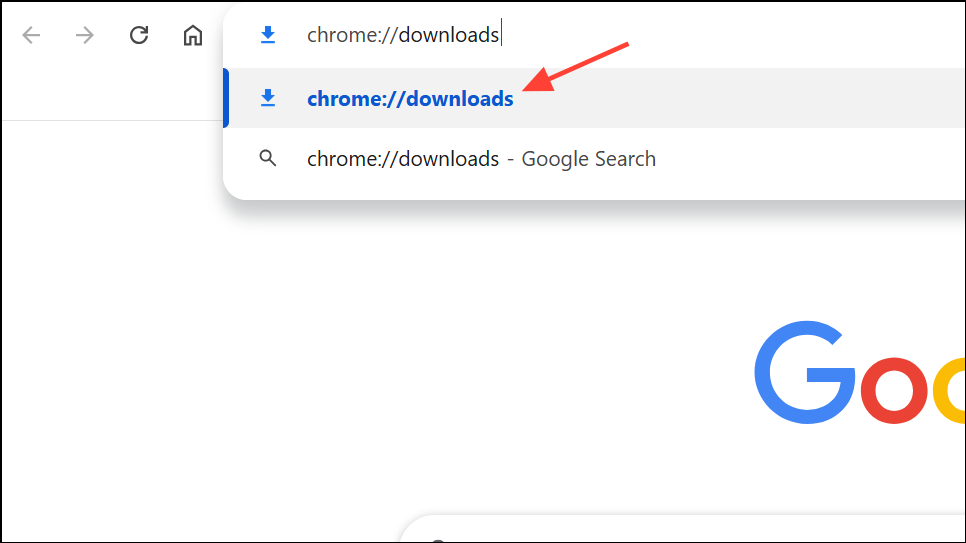
This action can help Chrome re-establish the connection or restart its final checks, allowing the download to complete. If the download remains stuck, proceed to other methods.
Check for Browser Extension Conflicts
Extensions such as download managers, security add-ons, or privacy tools may interfere with the completion of downloads. Disabling these extensions can help identify the source of the problem.
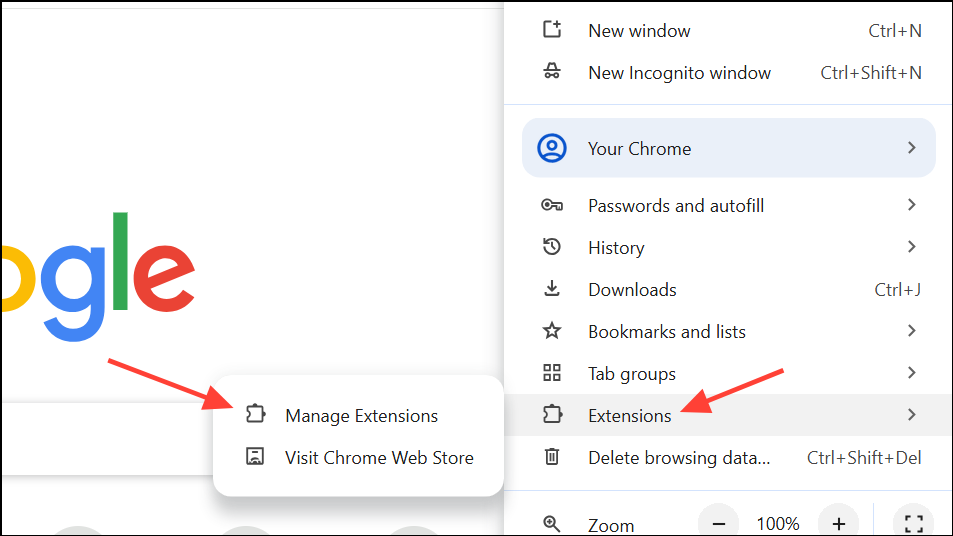
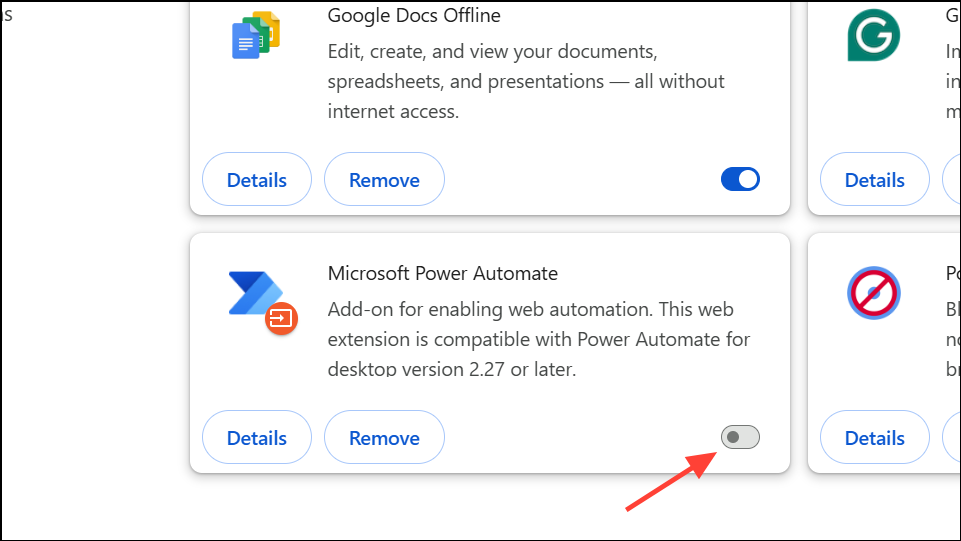
Alternatively, use Chrome’s Incognito mode, which disables most extensions by default. Open a new Incognito window (Ctrl+Shift+N on Windows or Cmd+Shift+N on Mac), and try downloading the file there.
Clear Browser Cache and Cookies
Corrupted or outdated cache files and cookies can disrupt Chrome’s download process. Clearing these can resolve issues where downloads fail to complete.
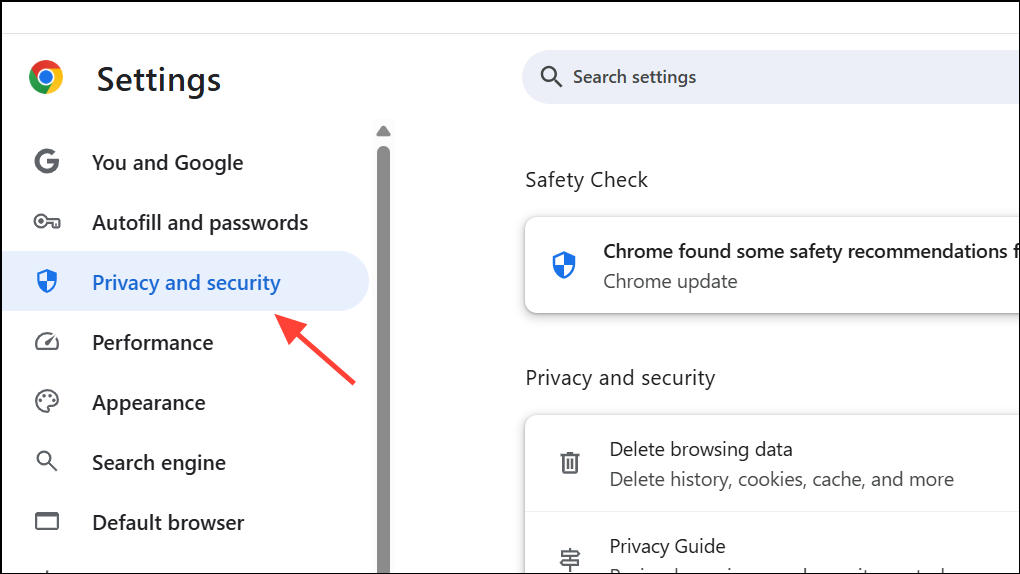
Delete browsing data. Select Cookies and other site data and Cached images and files, then click Clear data.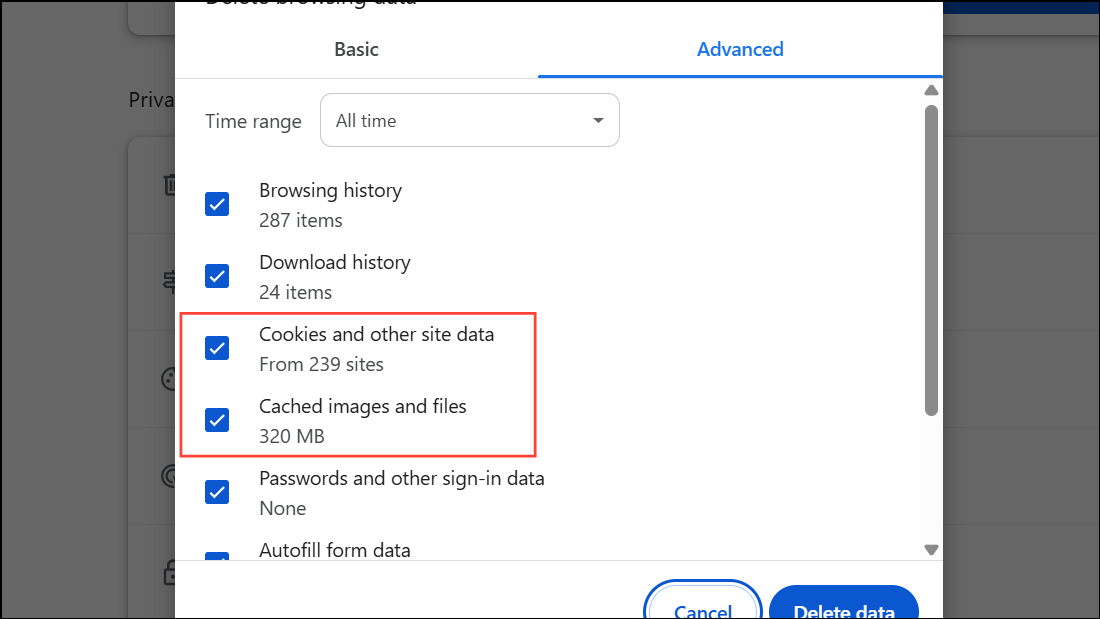
Restart Chrome and attempt the download again. This step removes any temporary files that may be causing conflicts.
Verify Internet Connection and Storage Space
Network interruptions or insufficient disk space can cause downloads to hang at the final stage. Confirming both can prevent incomplete downloads.
This PC and review available space on your download drive. If space is low, delete unnecessary files or move downloads to another drive.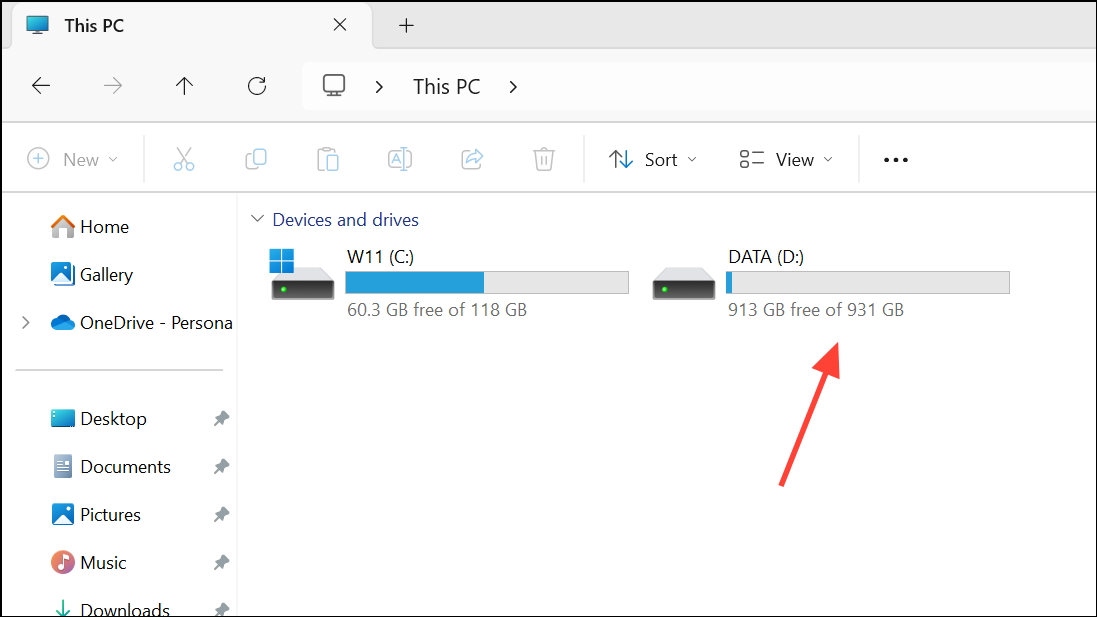
Test for Server or File-Specific Issues
Occasionally, the problem lies with the source server or the specific file you are downloading. A file may be corrupt, or the server may be experiencing technical issues.
Reset or Reinstall Chrome
Persistent download problems may result from misconfigured browser settings or corrupted installation files. Resetting or reinstalling Chrome restores it to factory settings and can resolve lingering issues.
Settings, scroll to Reset settings, and select Restore settings to their original defaults. Confirm the reset.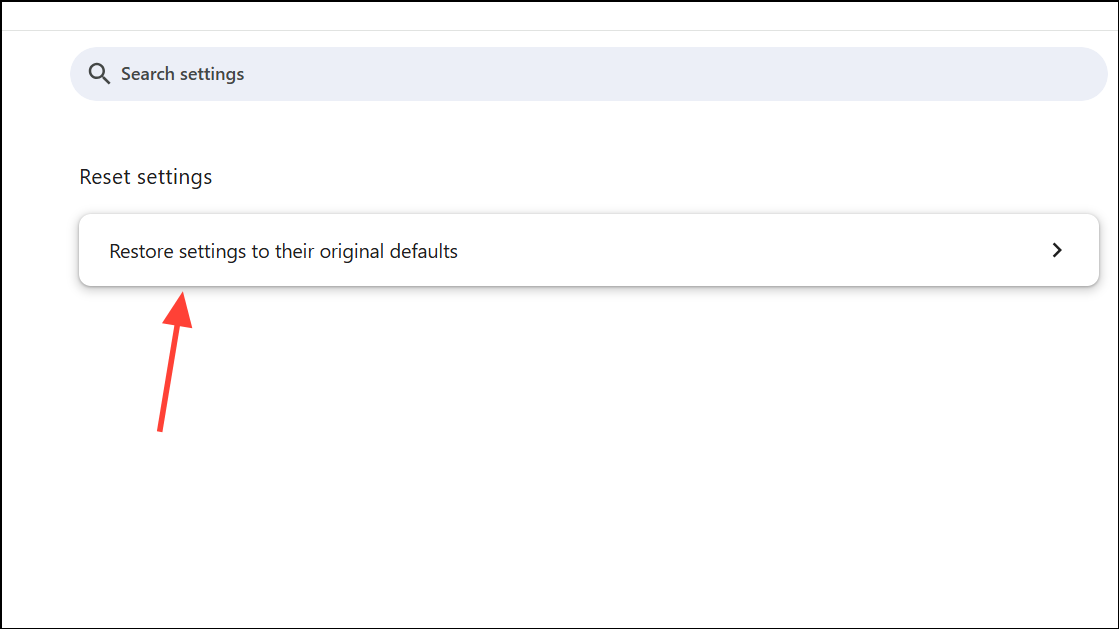
Settings > Apps > Installed apps, find Chrome, and select Uninstall. Download the latest version from the official Chrome website and reinstall it.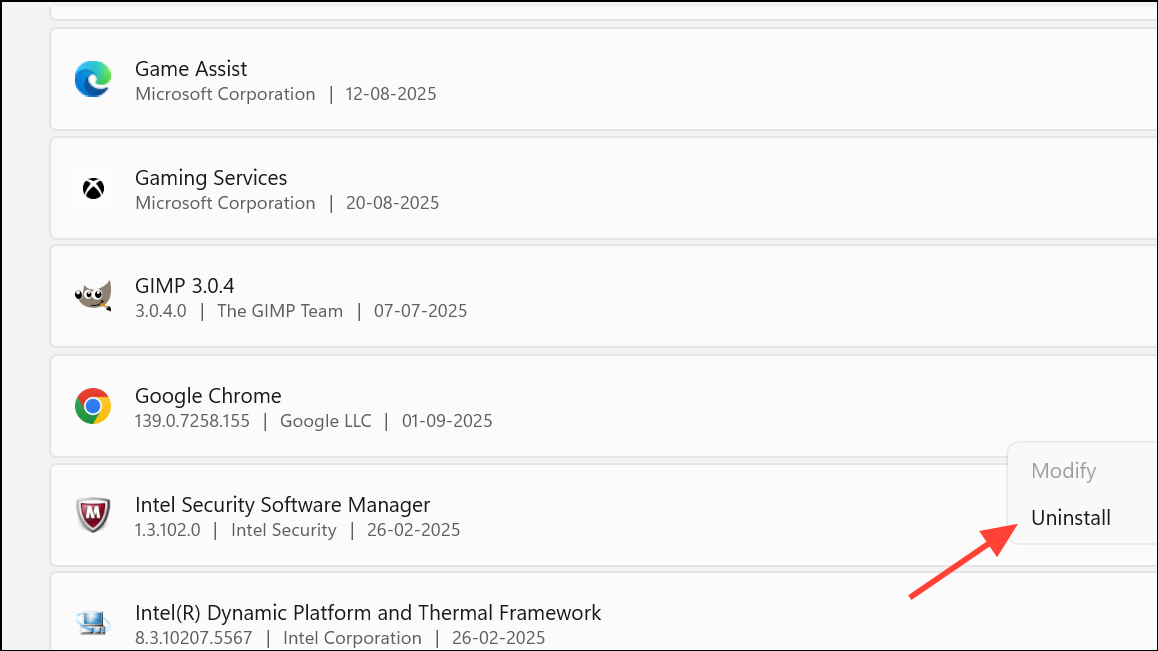
Back up your bookmarks and important browser data before resetting or uninstalling Chrome to avoid data loss.
Stuck Chrome downloads at 100% often result from antivirus scans, browser extension conflicts, or network and storage issues. Addressing these areas usually restores normal download behavior, so you can open files without delay and keep your workflow moving smoothly.