Disable text predictions in the New Outlook to regain full control over your email composition and reduce distractions from unwanted suggestions.
Disable text predictions in the New Outlook to regain full control over your email composition and reduce distractions from unwanted suggestions.
by Pallav Pathak
Text prediction in the New Outlook can interrupt your writing flow by automatically suggesting words or phrases as you type. This feature is designed to speed up email composition, but for many users, it introduces distractions and slows down the process, especially when suggestions are inaccurate or persistent. Disabling text prediction restores a manual, uninterrupted typing experience and helps you maintain your unique writing style.
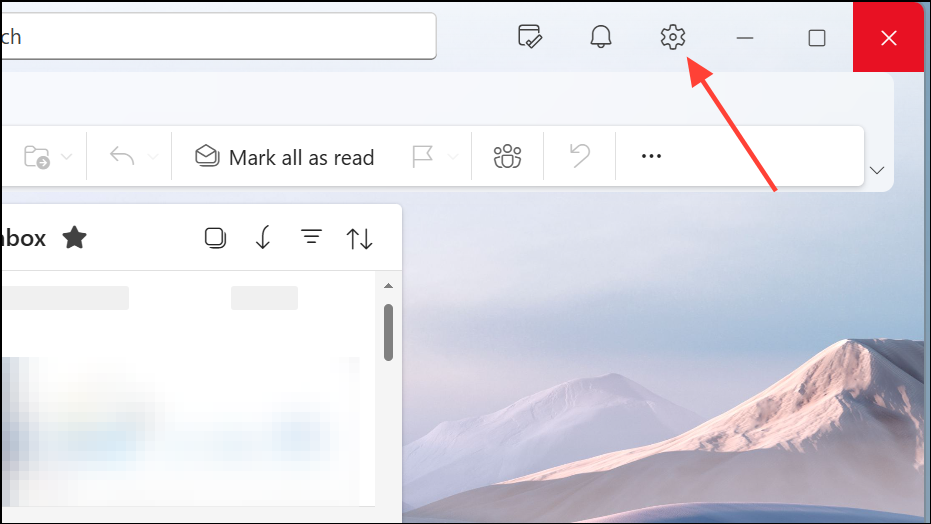
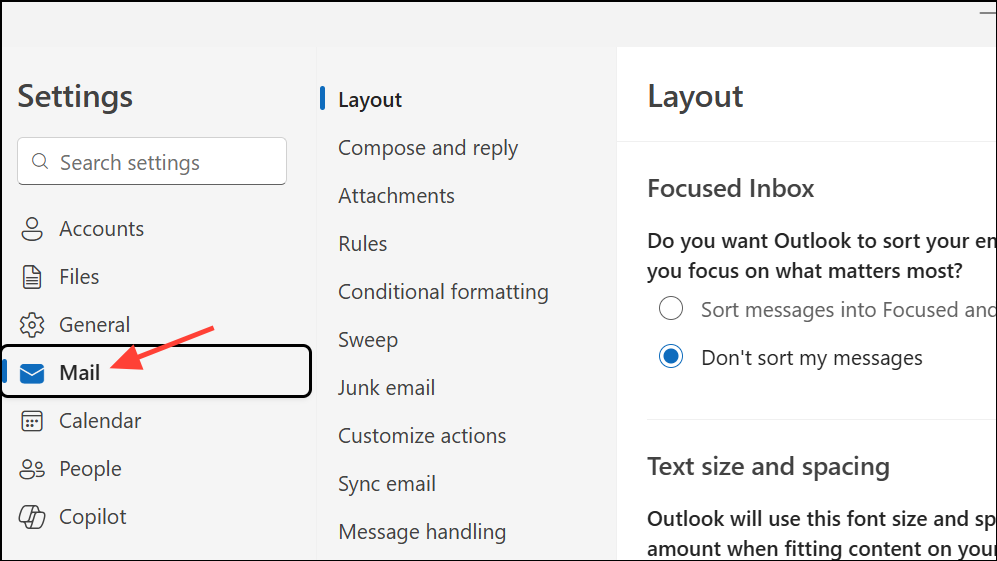
Open the New Outlook application on your Windows device. Locate the gear-shaped Settings icon in the upper right corner of the Outlook window and click it to access the settings menu.
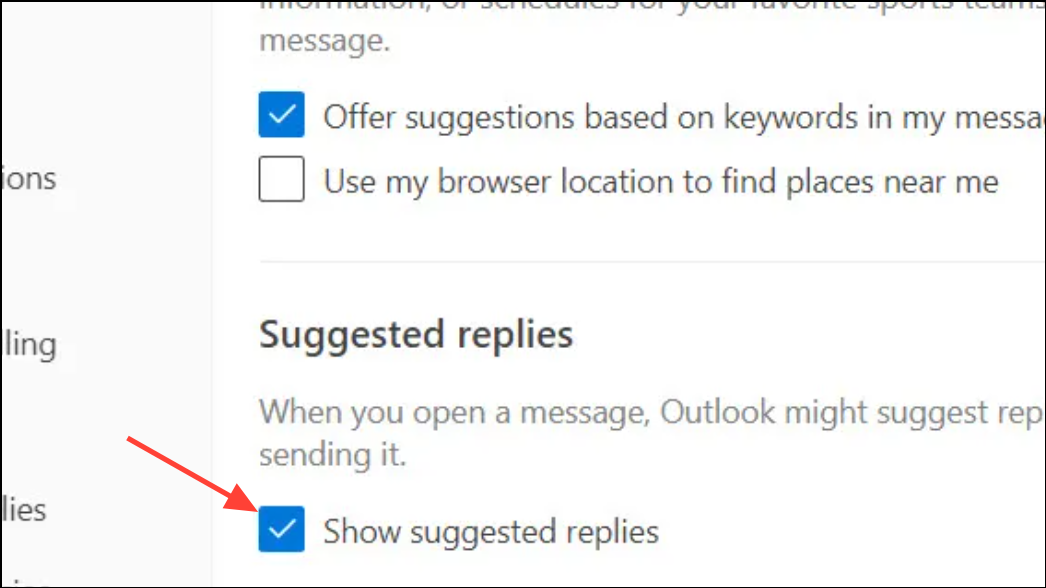
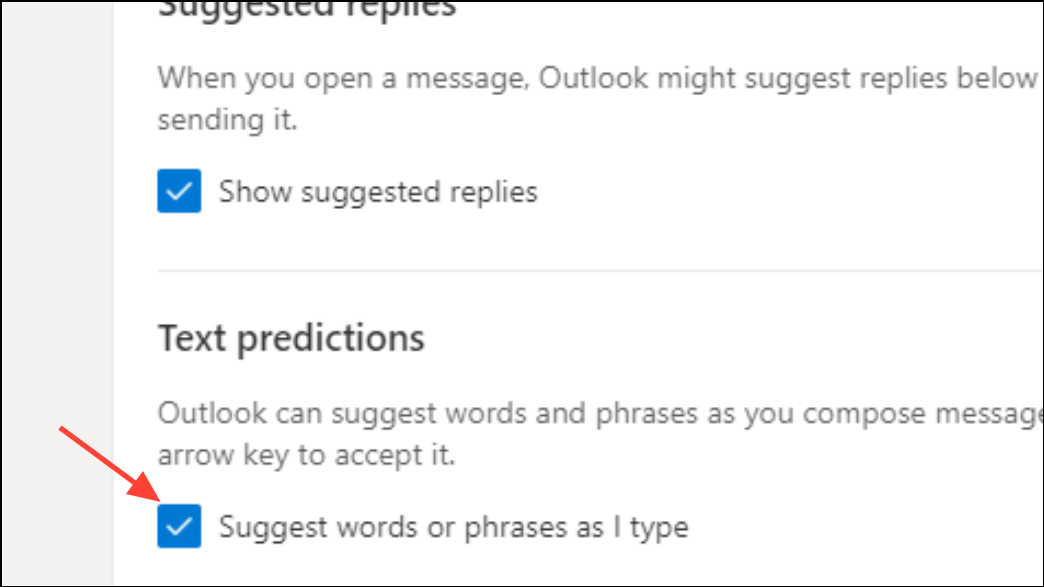
To disable text prediction, turn off the switch next to Text predictions. If you also want to stop Outlook from suggesting quick replies, you can turn off Suggested replies as well.
After making your changes, ensure you save or confirm the settings if prompted. Close the settings pane and return to your inbox or compose window. Text predictions should no longer appear as you type.
Alternative Method: Editor Settings in Message Composition
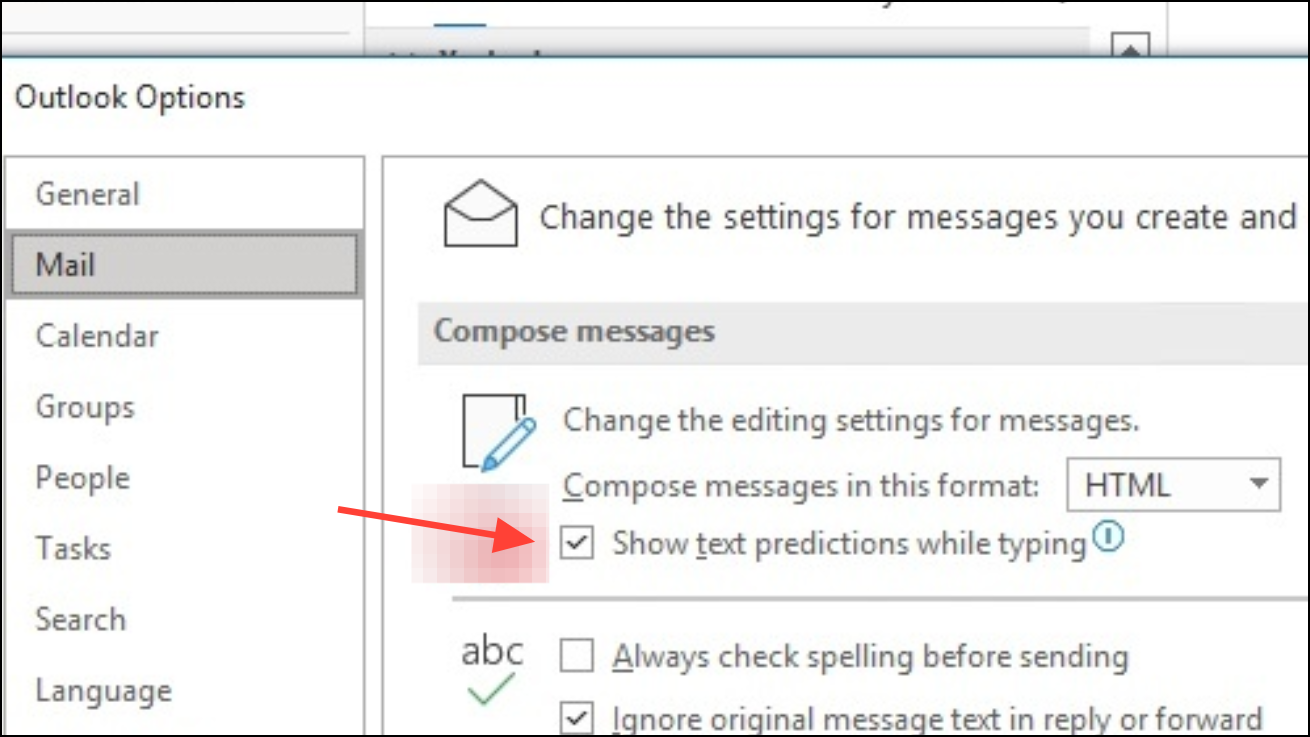
In some cases, text predictions may persist even after turning off the main setting. Outlook includes an additional auto-fill option within its Editor settings, which can override your main preferences.
In the Editor pane, look for a gear or settings icon labeled Editor Settings and select it. This opens a new set of options specific to text editing and suggestions.
Within Editor Settings, find the toggle or checkbox for Auto-fill or Text predictions. Uncheck or turn off this option to fully disable predictive suggestions while composing emails.
Close the Editor settings pane. Continue composing your message to confirm that text predictions are no longer displayed.
Disabling Text Prediction via Windows Keyboard Settings
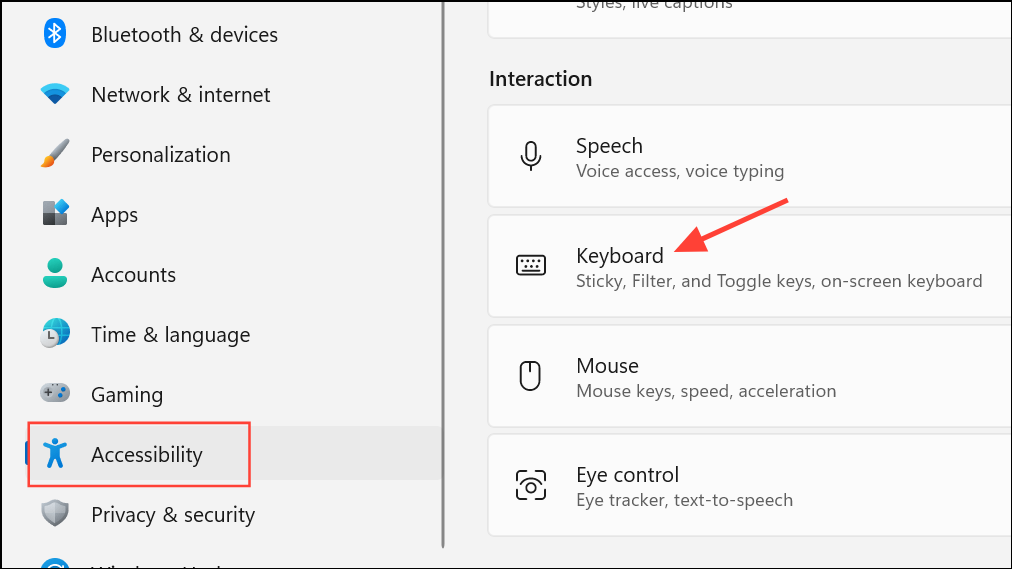
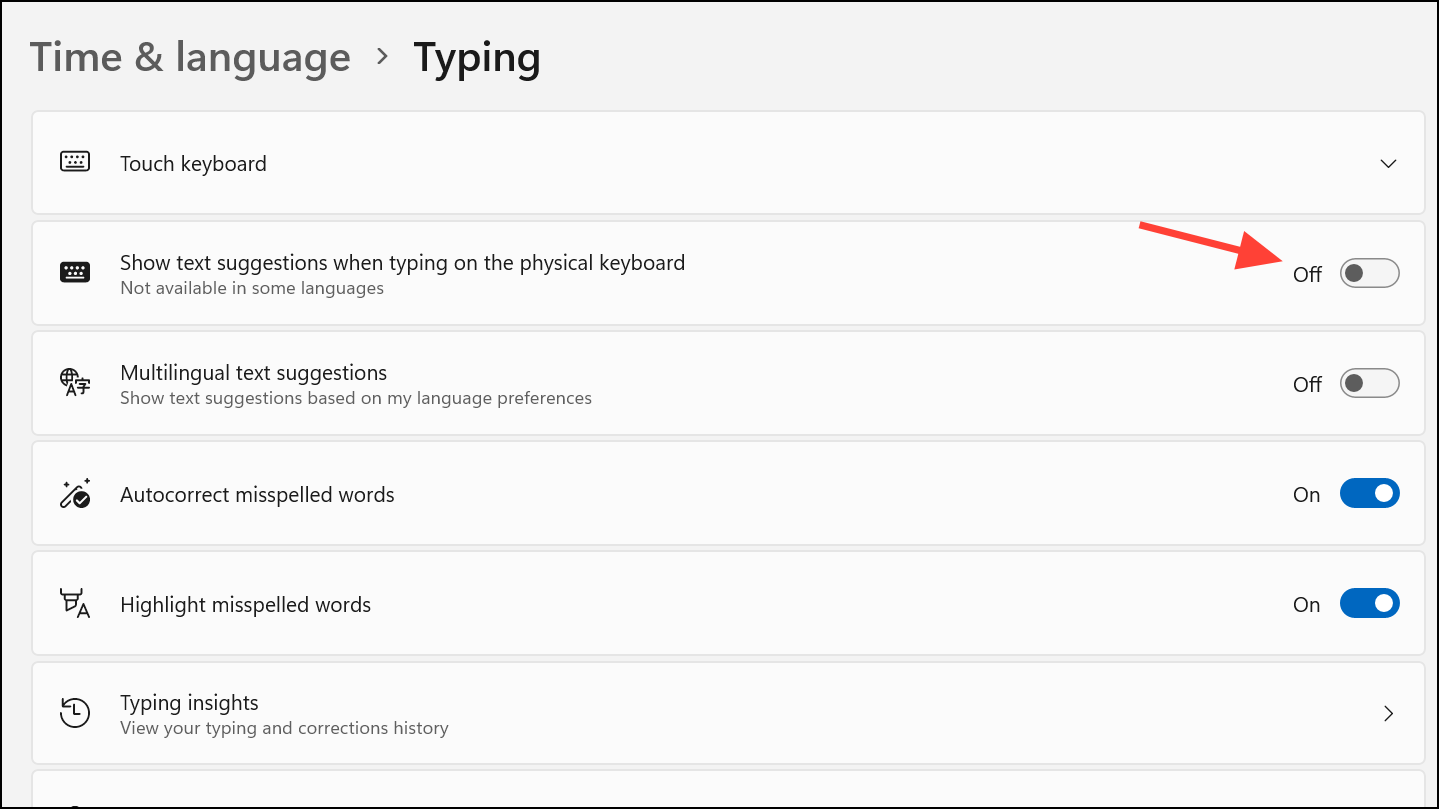
On some systems, Windows-level keyboard settings can also influence text prediction behavior in Outlook and other applications. Adjusting these can stop suggestions from appearing, especially if Outlook settings have no effect.
Close the settings window. Return to Outlook and test whether text predictions have stopped appearing.
Switching Between New and Classic Outlook (Temporary Workaround)
Some users have reported that the New Outlook lacks certain settings available in the Classic version. If you cannot find the required options, you can temporarily switch to Classic Outlook, adjust your preferences, and then return to the New Outlook. However, note that account configurations and settings may not always transfer seamlessly between the two versions.
Close and reopen Outlook. The application will likely revert to the New Outlook interface. Check if your changes persist, but be aware that switching between versions can cause account syncing issues.
Additional Troubleshooting Tips
If the above methods do not work, ensure you are running the latest version of Outlook. Features and settings locations may change with updates.
Some users may not see the text prediction settings due to account type (work, school, or personal) or regional differences. Try accessing Outlook Web or contacting Microsoft Support for further assistance.
On Mac, disabling predictive text is available via Edit > Spelling and Grammar > Show Text Predictions in the application menu.
Turning off text prediction in the New Outlook streamlines your email writing process and reduces unwanted interruptions. If Outlook’s built-in settings are missing or ineffective, try alternative methods or check for application updates to restore control over your typing experience.