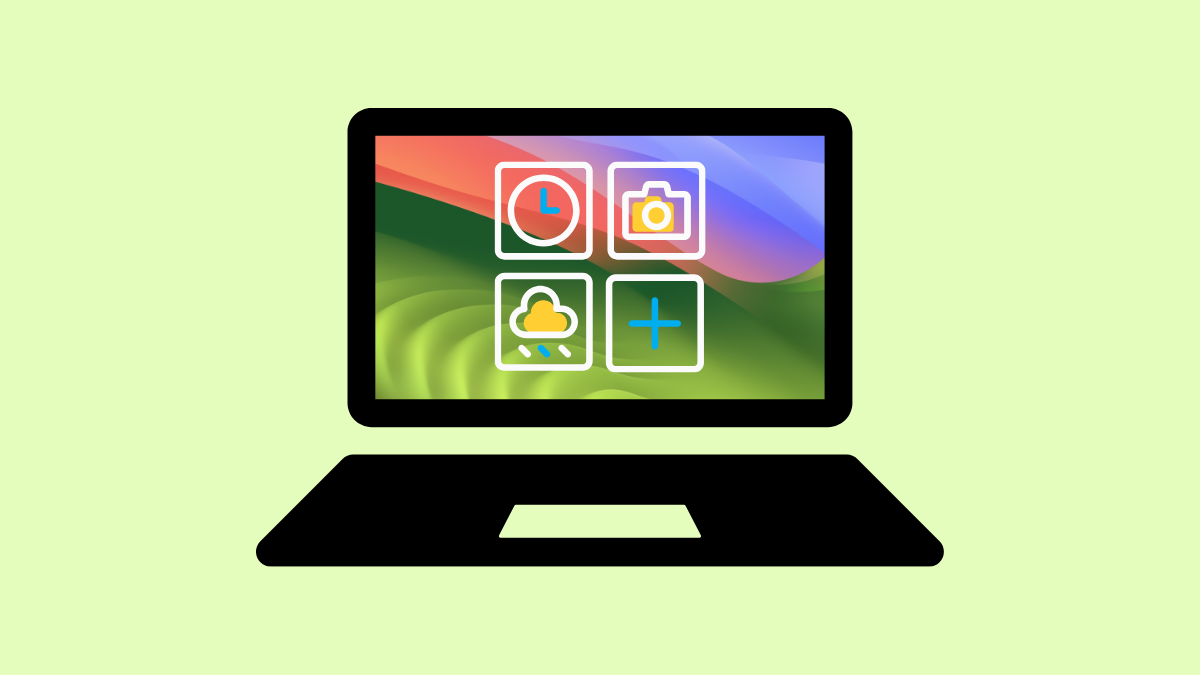
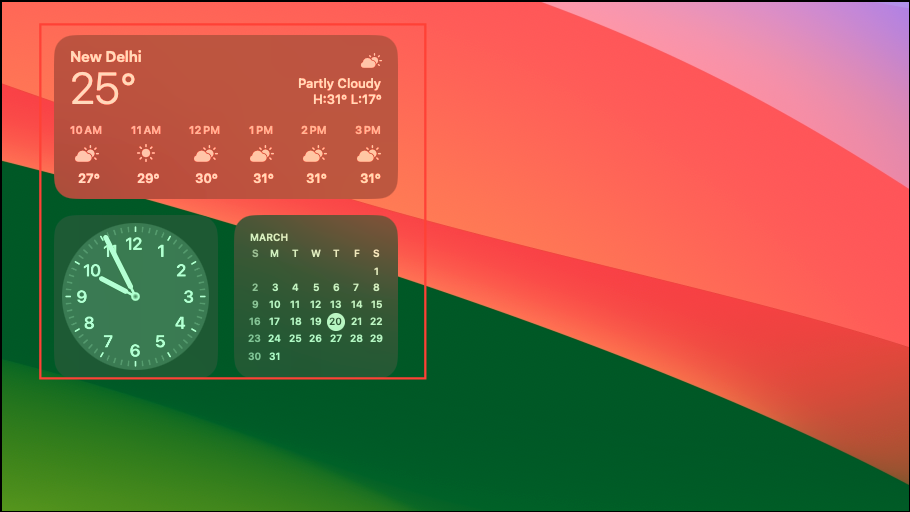
macOS Sonoma introduced interactive widgets that let you access important information and perform quick tasks directly from your desktop. Instead of hiding widgets away in the Notification Center, these widgets now appear right on your desktop, allowing you to streamline your workflow and quickly complete tasks without opening multiple apps. According to Apple’s official announcement, users can now place widgets anywhere on their desktop and interact with them directly, significantly speeding up everyday tasks like checking reminders or controlling smart home devices.
How to Add Widgets to Your Desktop in macOS Sonoma
Edit Widgets from the context menu. This opens the widget gallery, displaying available widgets categorized by apps.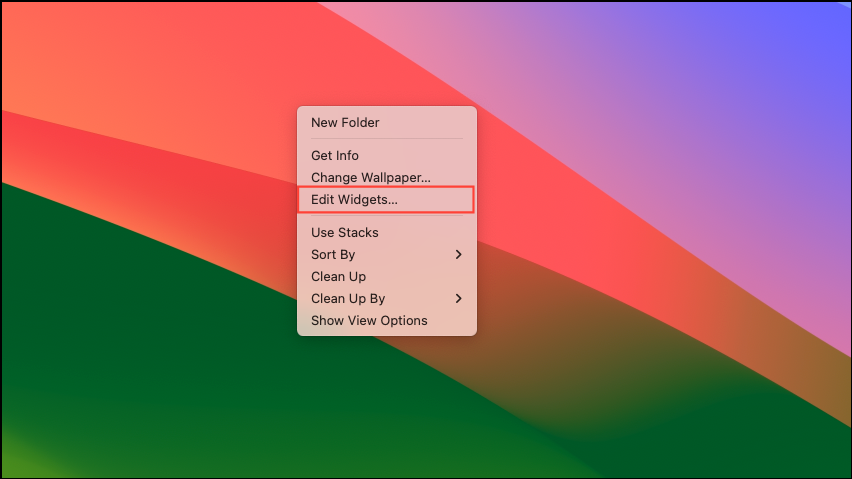
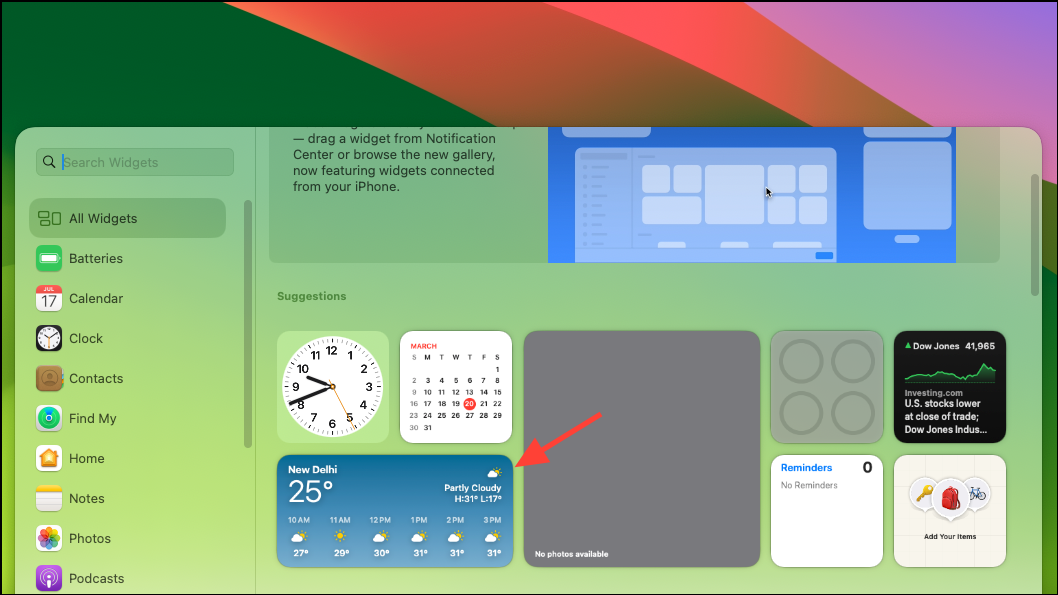
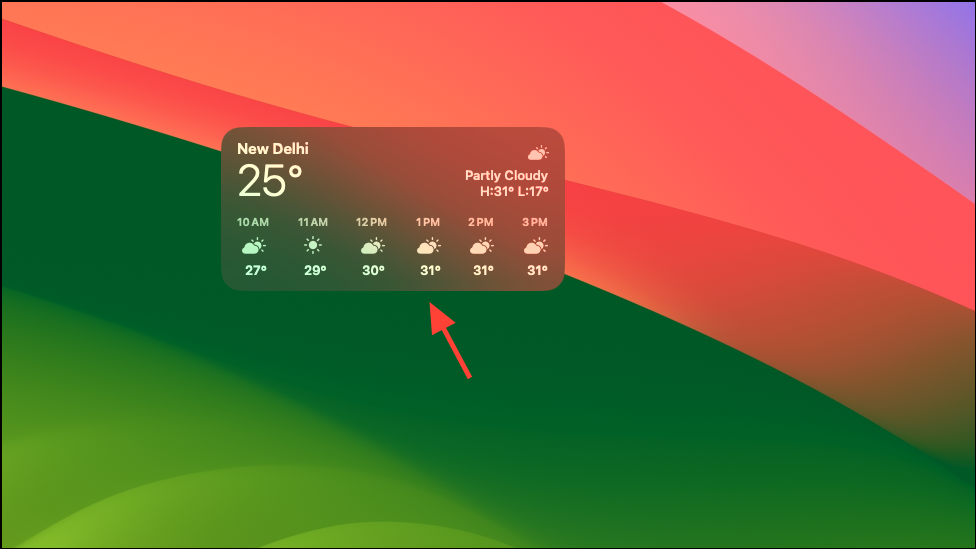
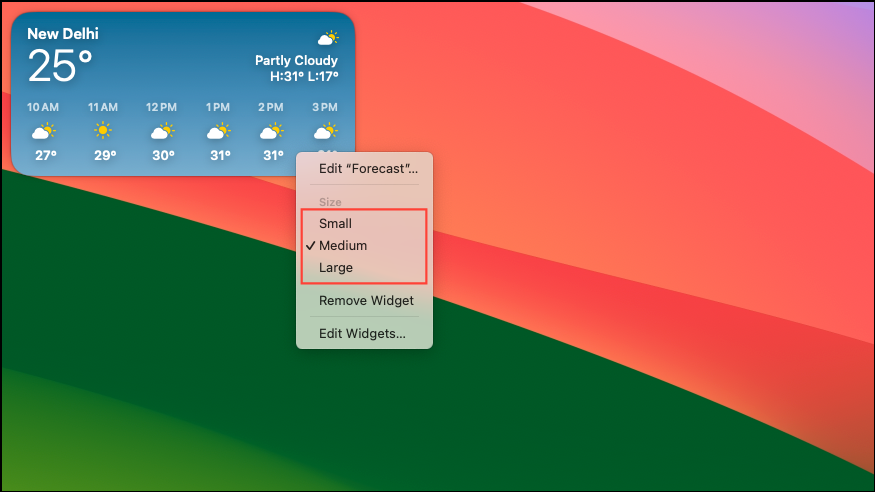
How to Customize and Rearrange Widgets
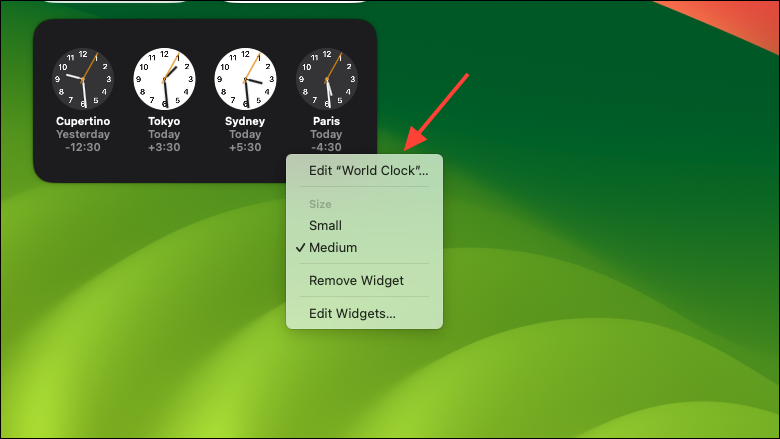
Remove Widget. Alternatively, you can enter the widget editing mode by right-clicking the desktop and selecting Edit Widgets, then clicking the minus icon on the widget you wish to remove.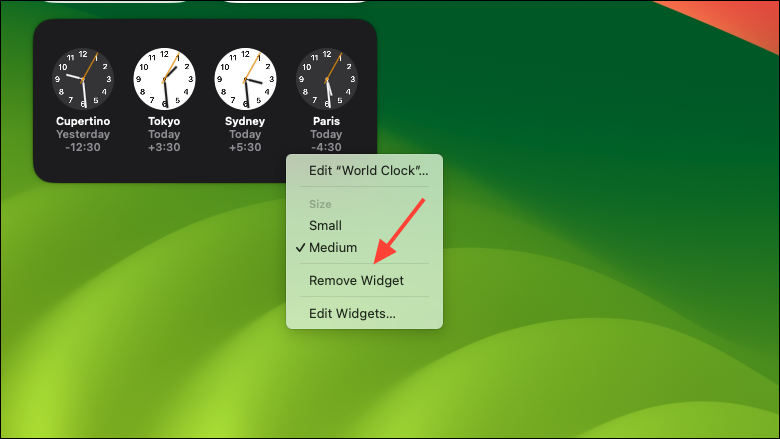
Using Interactive Widgets on macOS Sonoma
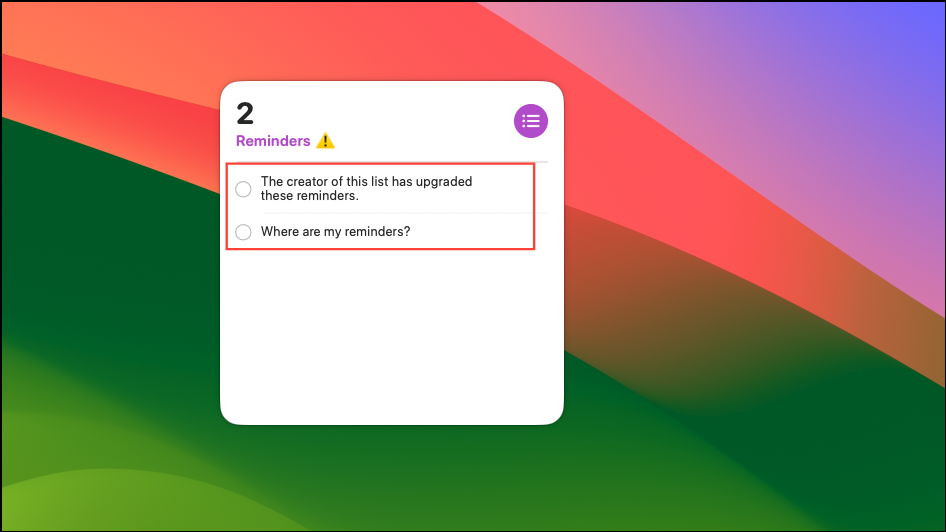
Interactive widgets allow you to perform actions directly from the desktop without opening the associated app. For example, the Reminders widget lets you mark tasks as completed with a single click. Similarly, the Home app widget enables you to control smart home accessories directly from your desktop.
To interact with a widget, simply click on the actionable elements within it. For instance, clicking a checkbox in the Reminders widget marks the task as complete, while clicking a button in the Home widget toggles the state of the connected accessory.
How to Add iPhone Widgets to Your Mac Desktop
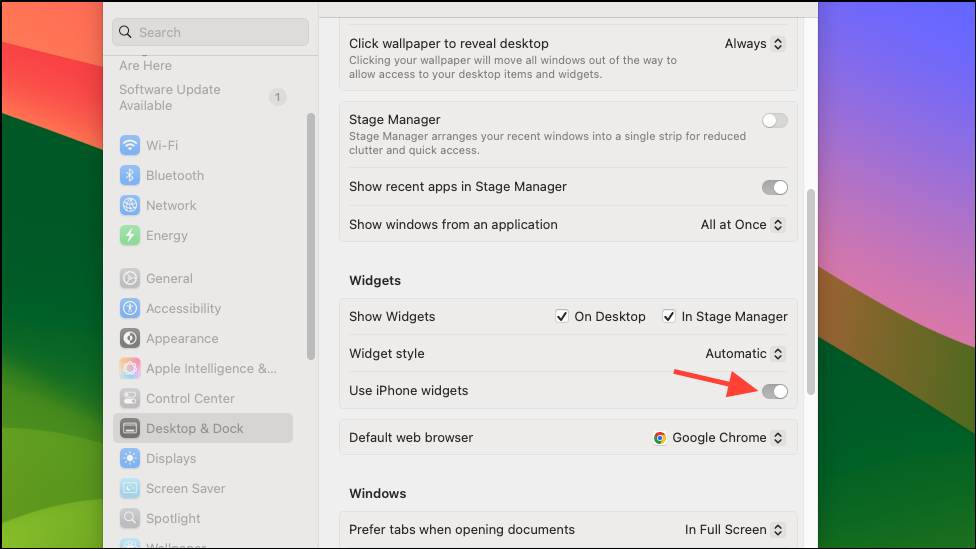
macOS Sonoma also supports widgets from your iPhone through Apple’s Continuity feature. This allows you to use widgets from apps installed on your iPhone—even if those apps aren’t available on macOS.
Edit Widgets, and look for the From iPhone section in the widget gallery.Adjusting Widget Appearance and Behavior
macOS Sonoma allows you to adjust widget appearance and behavior to match your workflow preferences. To access these settings:
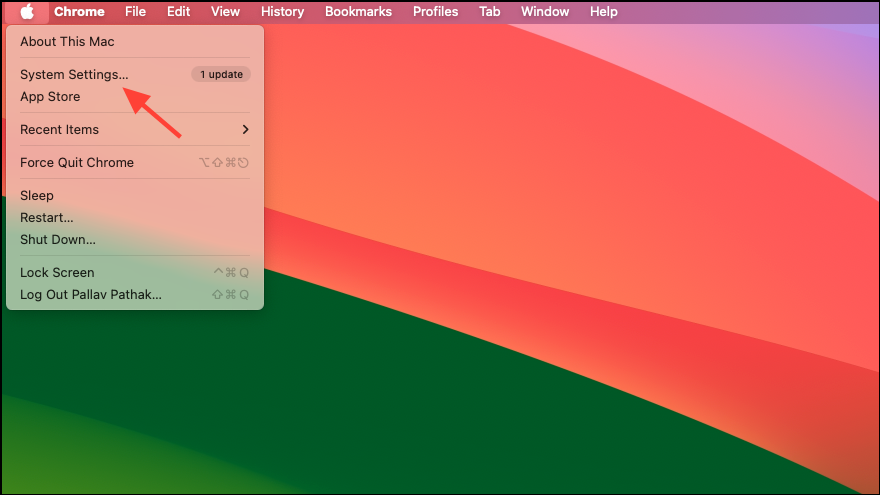
Desktop & Dock. Here, you can choose whether widgets appear on your desktop at all times or only in Stage Manager. You can also adjust the widget style to Automatic, Monochrome, or Color.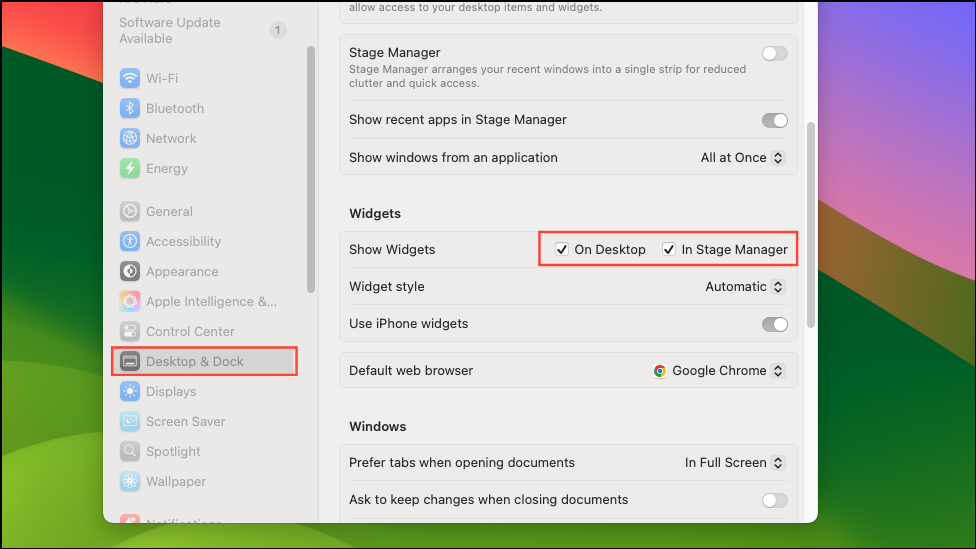
Interactive widgets in macOS Sonoma simplify your workflow by providing quick access to tasks, reminders, and app-specific actions directly from your desktop. Customize and arrange them according to your preferences to boost your daily productivity.