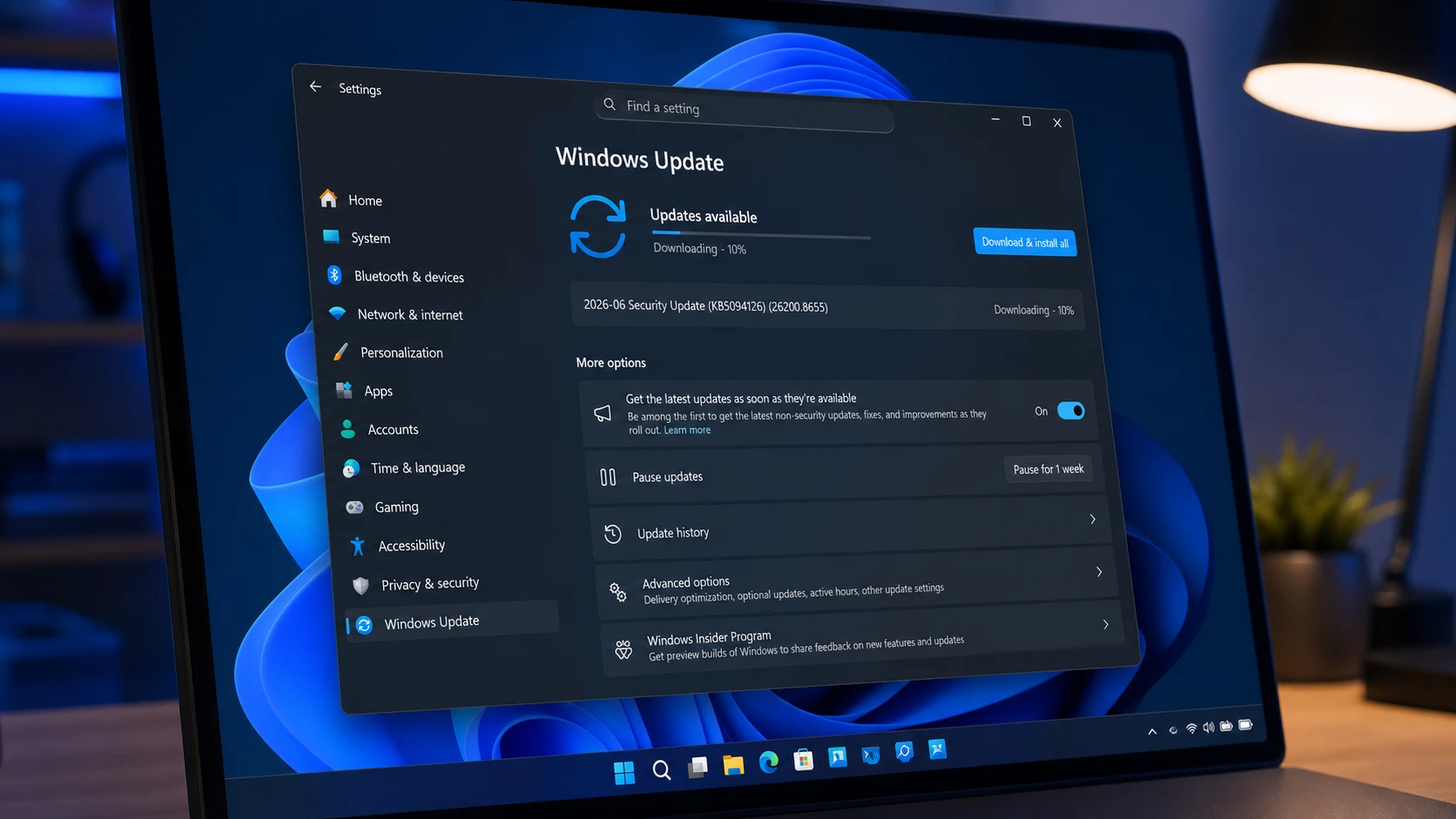
Microsoft began rolling out KB5094126 on June 9, 2026, as the mandatory June Patch Tuesday update for Windows 11. It moves version 25H2 to build 26200.8655 and version 24H2 to build 26100.8655, and it carries both security fixes and a long list of new features that arrive gradually over the following days and weeks.
Quick answer: Open Settings > Windows Update and click Check for updates. When the install finishes and you restart, confirm the OS build reads 26200.8655 (25H2) or 26100.8655 (24H2) under Windows Update history or by running winver.
What KB5094126 includes
KB5094126 applies to Windows 11 versions 25H2 and 24H2. A matching release, KB5093998, covers version 23H2 with fixes only and no new features. Most of the new functionality ships through Controlled Feature Rollout, so installing the update does not mean every feature appears the same day.
| Feature or fix | What it does | Rollout |
|---|---|---|
| Low Latency Profile | Briefly spikes the CPU to speed up Start menu, Search, Action Center, and app launches | Gradual |
| Secure Boot 2023 certificates | Updates expiring 2011 certificates to 2023 versions on eligible PCs | Immediate |
| Shared Audio | Streams one PC’s audio to two Bluetooth LE Audio devices at once | Gradual |
| Multi-App Camera | Lets multiple apps use the same webcam stream simultaneously | Gradual |
| Task Manager NPU columns | Adds NPU usage tracking and an Isolation column for AppContainer apps | Gradual |
| Windows Search | Finds files using as few as two characters | Gradual |
| Dev Drive sizing | Lets you set Dev Drive size in gigabytes | Gradual |
Install KB5094126 and download links
The update downloads and installs automatically through Windows Update unless you have paused updates. For a manual install, multiple PCs, or a failed Windows Update, you can grab the offline .msu installer from the Microsoft Update Catalog. Note that Catalog packages are large, running well above 5GB.
| Version | Build | Architecture | Approx. size |
|---|---|---|---|
| 25H2 | 26200.8655 | x64 | 5383.7 MB |
| 25H2 | 26200.8655 | arm64 | 5383.7 MB |
| 24H2 | 26100.8655 | x64 | 4799.2 MB |
| 24H2 | 26100.8655 | arm64 | 4799.2 MB |
Note: Before installing, creating a restore point and a backup is a sensible precaution in case a third-party driver conflicts with the update.
Low Latency Profile speeds up the shell
The headline change hides behind a plain changelog line that says the update “accelerates app launch and core shell experiences such as Start menu, Search, and Action Center.” That is the Low Latency Profile, a CPU scheduling trick that pushes the processor to its maximum frequency for roughly one to three seconds at the exact moment you trigger an interactive action.
Windows normally ramps clock speed gradually to balance power and performance. The Low Latency Profile bypasses that pacing for a short burst, so flyouts and apps render right away instead of waiting on a climbing clock. The effect is clearest on budget and older hardware. On fast PCs the change is subtle, mostly visible as more consistently smooth shell animations.
There is no Settings toggle. The feature is part of the gradual rollout, so it activates on its own over time. To confirm it is working, watch CPU frequency in Task Manager as you open the Start menu or Search. A brief spike that drops back within a few seconds means the profile is active.
Secure Boot 2023 certificates roll out immediately
Unlike most changes in this release, the Secure Boot certificate update arrives as part of the normal rollout and lands as soon as you install KB5094126. Windows 11 PCs have been running on certificates issued in 2011, and those are expiring in June 2026. The update moves eligible machines to the 2023 certificates.
With this release, quality updates include additional high-confidence device-targeting signals, which widens the pool of PCs that automatically receive the new certificates. Devices only get them after showing enough successful update signals, so the rollout stays controlled even though it is mandatory.
To check your status, go to Windows Security > Device Security and scroll to the Secure Boot section. A message reading “No further certificate changes are needed” means you are done and no action is required. A yellow warning means your device cannot apply the automated update due to hardware or firmware limits, and a red alert means action is needed.
If your PC shows a warning, you likely need an updated BIOS/UEFI from your OEM. Older machines that lack Secure Boot, TPM, or firmware support will not receive the certificate, but Windows continues to boot and run normally either way. A new SecureBoot folder may appear on the C drive after the update; it is expected behavior and should not be deleted.
Enterprise admins also get a new Group Policy and MDM setting, LimitSecureBootRequiredServiceData, under Computer Configuration > Administrative Templates > Windows Components > Secure Boot. When enabled, Windows suppresses the Secure Boot service event normally sent to Microsoft.
Shared Audio for two Bluetooth LE Audio devices
Shared Audio lets two people listen to the same audio from one Windows 11 PC at the same time. It uses Bluetooth LE Audio broadcast technology to stream to two compatible earbuds or headphones, with no requirement to be inside any single brand’s ecosystem.
To use it, open Quick Settings from the taskbar, select Shared Audio, pick two paired and connected Bluetooth LE Audio devices, then start sharing. A taskbar indicator appears whenever sharing is active and gives one-click access to the controls.
Classic Bluetooth headphones are not supported because the feature relies on the synchronized broadcast in LE Audio. To verify your PC supports it, open Settings > Bluetooth & devices > Devices, click a paired headset, and look for the Use LE Audio when available toggle.
Multi-App Camera ends the single-app webcam lock
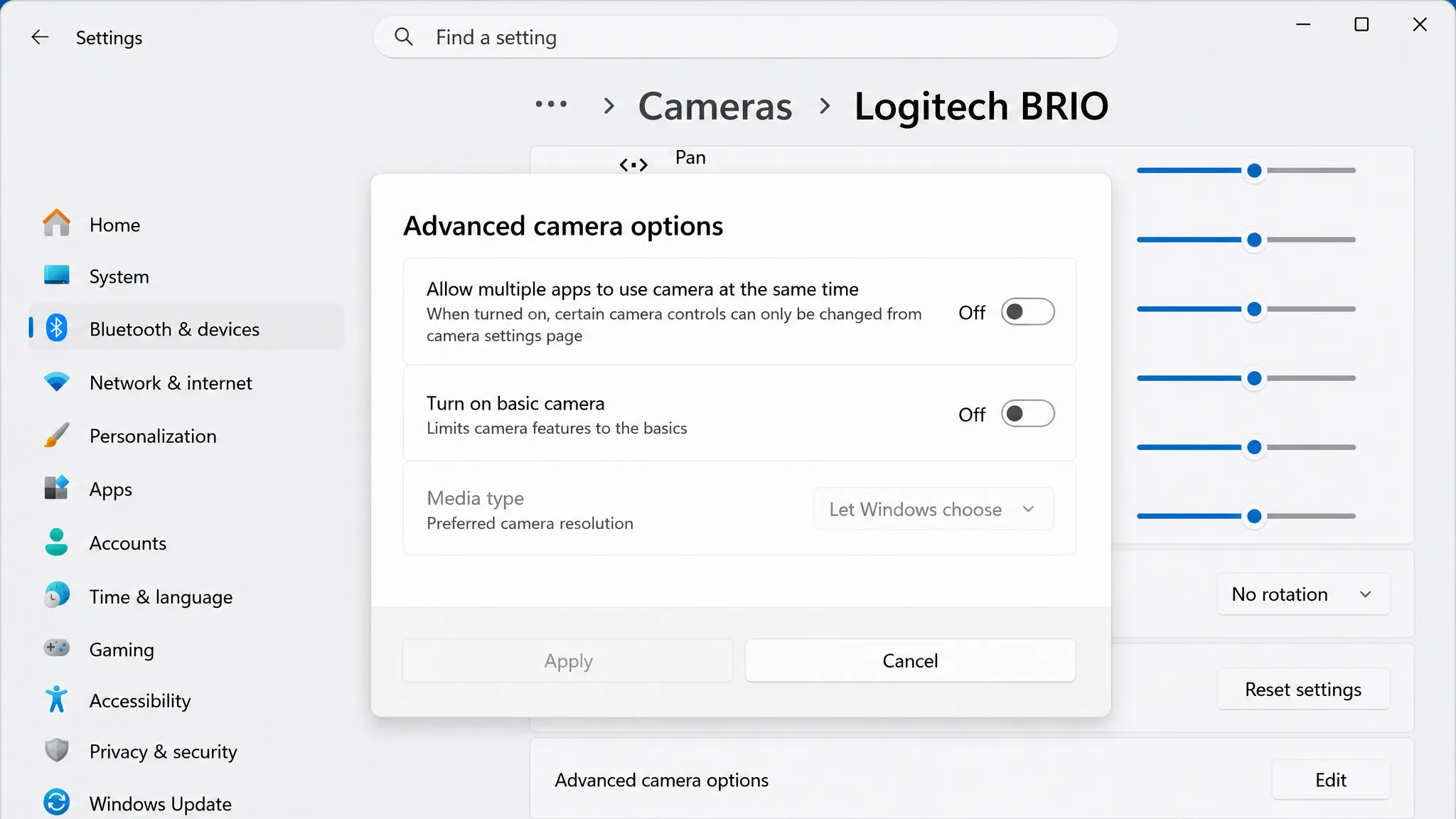
Before this update, Windows held an exclusive hardware lock on the webcam. If one app was using the camera, a second app would error out. Multi-App Camera removes that limit, so several apps can read the same camera stream at once. You can run a video call while recording in OBS, or use two conferencing tools together.
The advanced options live in the Camera settings page and include “Allow multiple apps to use camera at the same time” and “Turn on basic camera.” Basic Camera mode bypasses the OEM driver and falls back to Microsoft’s generic camera driver, which is useful for troubleshooting. If the camera works in Basic mode but not normally, the OEM driver is the likely culprit rather than the hardware.
Managed devices can configure both modes through Group Policy under Computer Configuration > Administrative Templates > Windows Components > Camera > Configure Camera Options.
Task Manager NPU tracking and other refinements
On PCs with an NPU, mostly Copilot+ machines, Task Manager adds optional columns for NPU usage, NPU engine activity, and dedicated or shared NPU memory across the Processes, Users, and Details pages. The Performance page now displays neural engines built into the GPU, and a new Isolation column shows which apps run inside an AppContainer sandbox. A fix also corrects wrong process speed readings on virtual machines after resuming from hibernation.
Several smaller changes round out the release:
- Windows Hello keeps face or fingerprint as the default sign-in method when biometrics are available, and resumes faster from Modern Standby. Using the PIN three times in a row keeps it as the default until you switch back.
- Windows Search now matches files with as few as two characters, helping short, abbreviated names.
- Dev Drive creation and volume resizing now accept sizes in gigabytes instead of megabytes.
- Magnifier gives clearer screen reader announcements and supports magnifying permitted protected content.
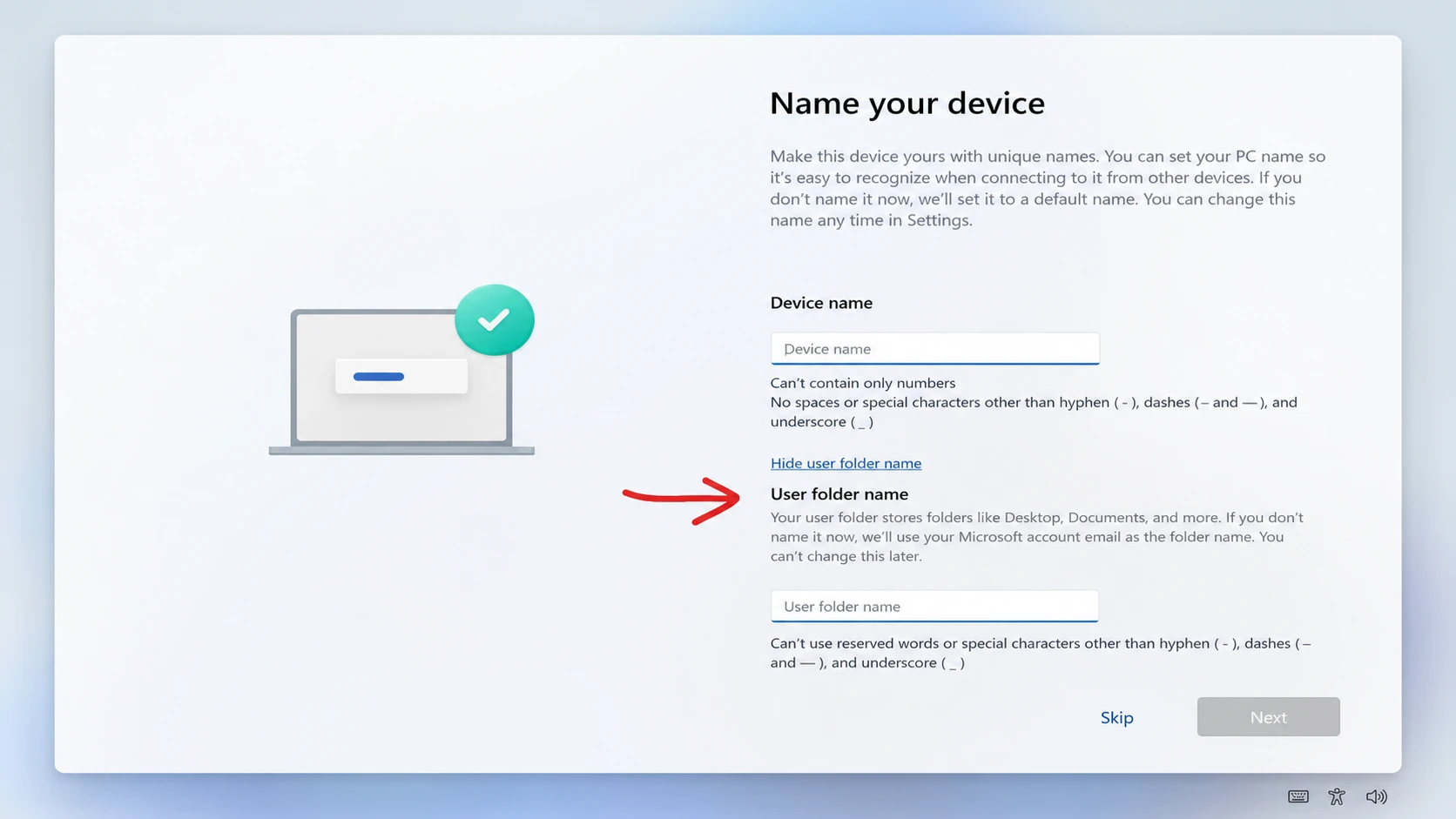
- Windows Setup adds an option to choose a custom user folder name on the Device Name page.
- USB4 docks and hubs turn on displays more reliably, and the USB3 stack gains recovery against hardware faults.
- Times New Roman renders combining diacritical marks in Greek and Cyrillic more accurately.
- Personalization fixes improve accent color matching and wallpaper persistence across restarts and upgrades.
- Microsoft Store gains faster downloads and clearer error reporting when downloads fail under update policy restrictions.
- A fix resolves
HYPERVISOR_ERROR (0x20001)andKMODE_EXCEPTION_NOT_HANDLED (0x1E)blue screens that appeared on some devices after installing KB5089573.
One security change adjusts how Windows handles desktop.ini files. Because of it, custom folder icons or localized folder names may stop appearing for folders in downloaded content or remote locations. The change only affects visual customization and does not block access to files or folders.
Companion updates released alongside KB5094126
Windows 11 23H2 receives KB5093998 (build 22631.7219) with security fixes and no new features, since that version has reached the end of support. Its notable fixes include a BitLocker Recovery issue tied to certain TPM validation settings after the April 2026 update, updated mobile operator profiles, more reliable certificate renewal for managed devices, and better File Explorer search for Chinese text and UTF-8 files without a byte order mark.
Microsoft also shipped .NET security updates (KB5097149 for .NET 8.0.28 and KB5097150 for .NET 9.0.17) and a new Malicious Software Removal Tool build (KB890830).
Confirm the update installed correctly
After the restart, open Settings > Windows Update > Update history and look for KB5094126 in the list. You can also press Windows + R, type msinfo32, and check that the OS build reads 26100.8655 on 24H2 or 26200.8655 on 25H2. From PowerShell, the command Get-HotFix -Id KB5094126 returns the patch details when it is present.
Most of the feature work in this release is incremental and rolls out over time, so the smartest approach is to install the update for its security fixes and let the Low Latency Profile, Shared Audio, and Multi-App Camera reach your device on their own schedule rather than forcing them early.