Marvel Rivals Error Code Fixes for 2100, 220, and 270
Use these fixes for login, connection, and unknown errors in Marvel Rivals, with the current working steps kept up regularly.
Use these fixes for login, connection, and unknown errors in Marvel Rivals, with the current working steps kept up regularly.
by Pallav Pathak
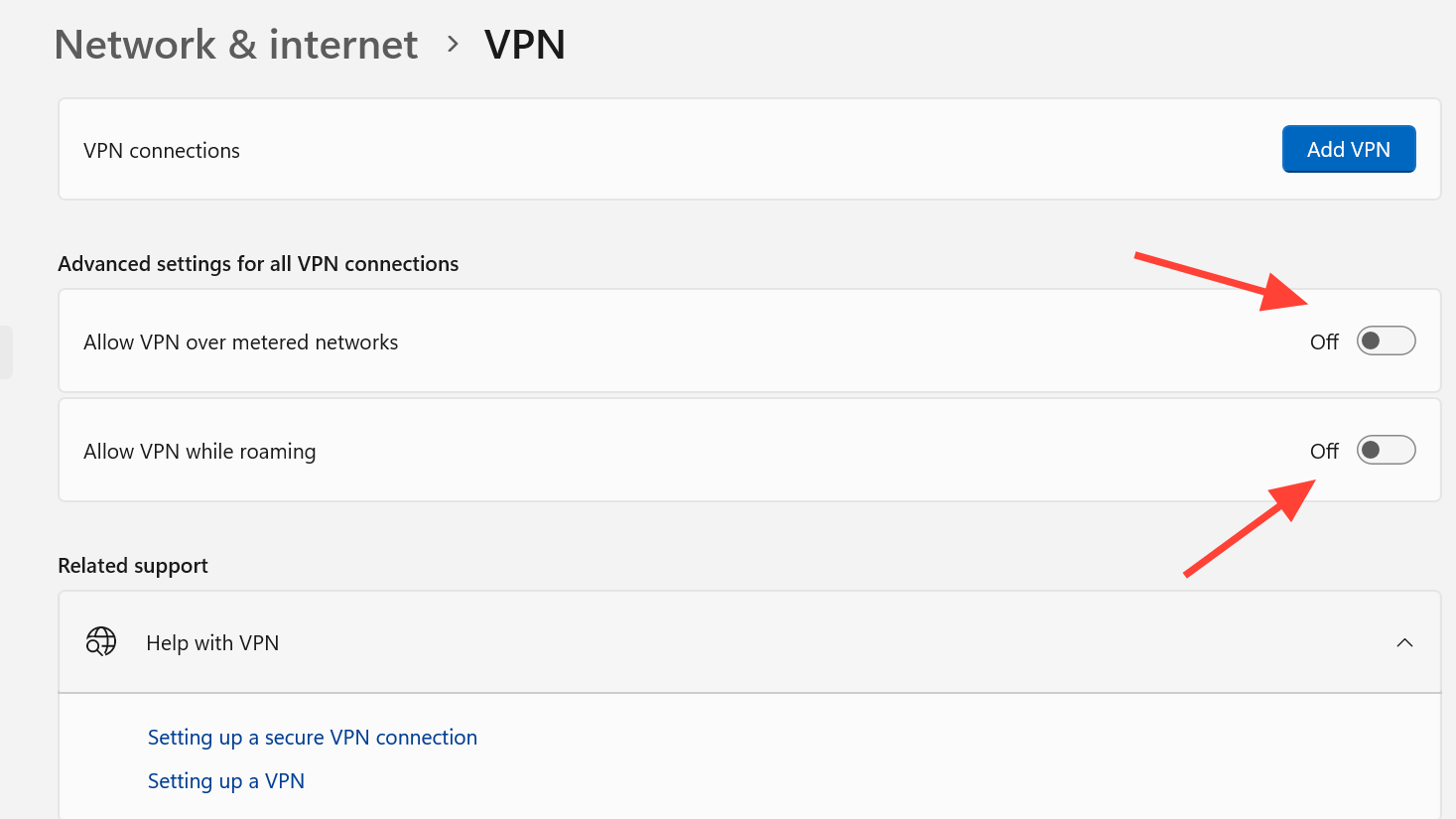
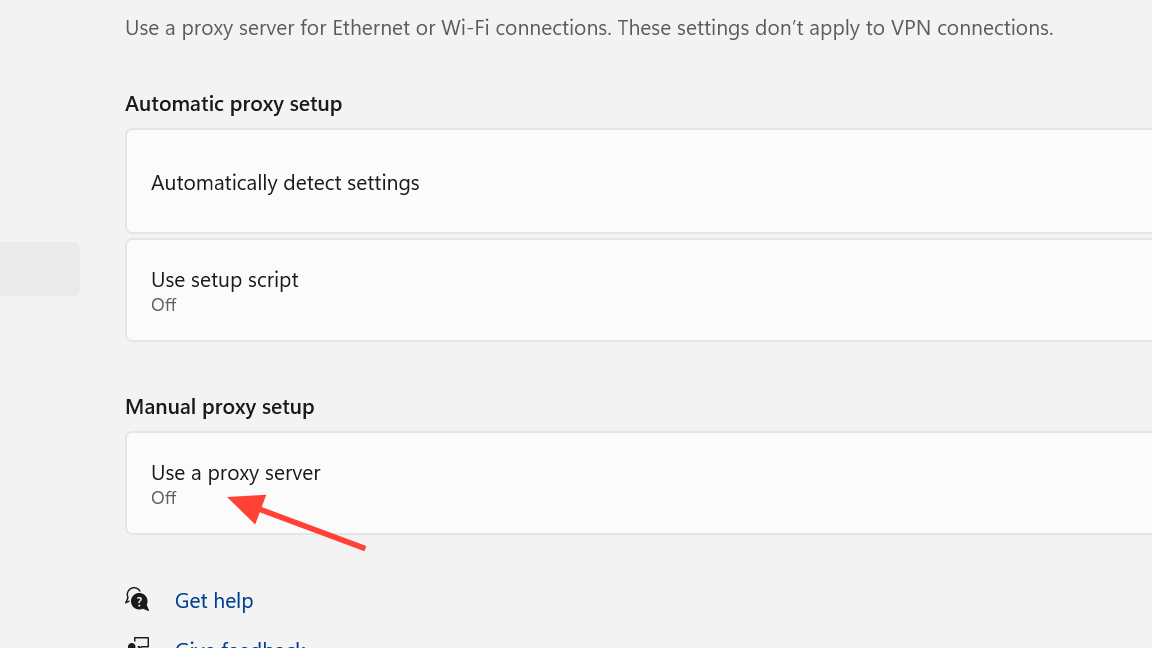
Marvel Rivals errors 2100, 220, and 270 are tied to connection, login, or general client-side faults. The fastest path is to restart the game and your PC first, then check network stability, remove VPN or proxy routing, make sure security software is not blocking the game, and verify the game files through your launcher.
Marvel Rivals error codes covered here
2100 — Connection or login error
220 — Error code with a published fix workflow
270 — Unknown error code
If the fix works, Marvel Rivals should pass the login screen normally or reconnect without showing the same error again.
Check whether your internet connection is stable before you launch the game again. If possible, switch to a wired connection or restart your router to reduce dropouts and packet instability.
Confirm that your firewall or antivirus is not blocking Marvel Rivals. If it is listed as blocked or restricted, move it to the allowed list and then reopen the game.
Launch Marvel Rivals and sign in again. You will know the fix worked if the game logs in normally and error code 2100 does not reappear.
Fix Marvel Rivals error code 220
Error code 220 has a published fix workflow, but the detailed transcript is not surfaced with the listing. In practice, the same connection and client checks used for 2100 are the safest starting point because they address the most common causes behind Marvel Rivals login and network failures.
Check your connection quality and restart your router if needed. If you are on Wi-Fi, a wired connection is the better test because it removes local wireless instability.
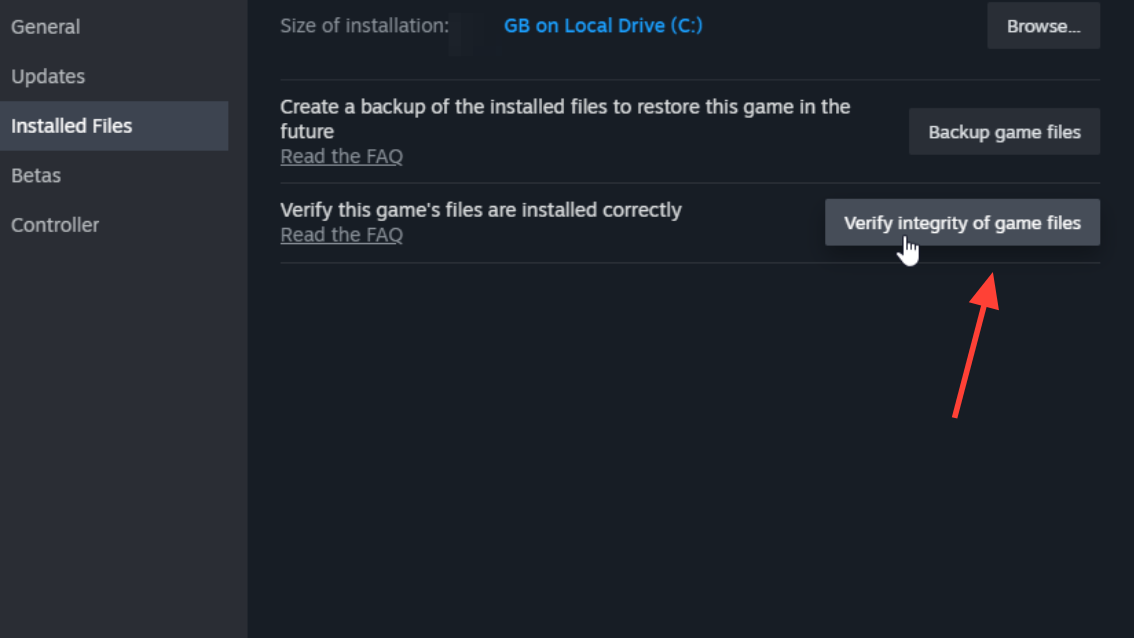
Review your firewall or antivirus settings and allow the game if it has been restricted. After that, verify the game files in the launcher to rule out damaged local files.
Reopen Marvel Rivals and try to log in. The fix is confirmed if the game starts normally and code 220 does not return.
Fix Marvel Rivals error code 270
Error code 270 is presented as an unknown error code. That usually points to a fault the client cannot label clearly, so the most effective response is to work through the same core checks used for login and connection failures.
Make sure your network is stable and not dropping in and out. If the game recently lost connection and your internet came back, reopening the client can be necessary before it reconnects cleanly.
Check that security software is not blocking the game, and then verify the game files through the launcher. Unknown errors can appear when the client is missing or failing to load required files.
Start the game and attempt to connect again. The result is successful when the client gets past the error prompt and loads into the normal login or menu flow.
Marvel Rivals crashes after an update
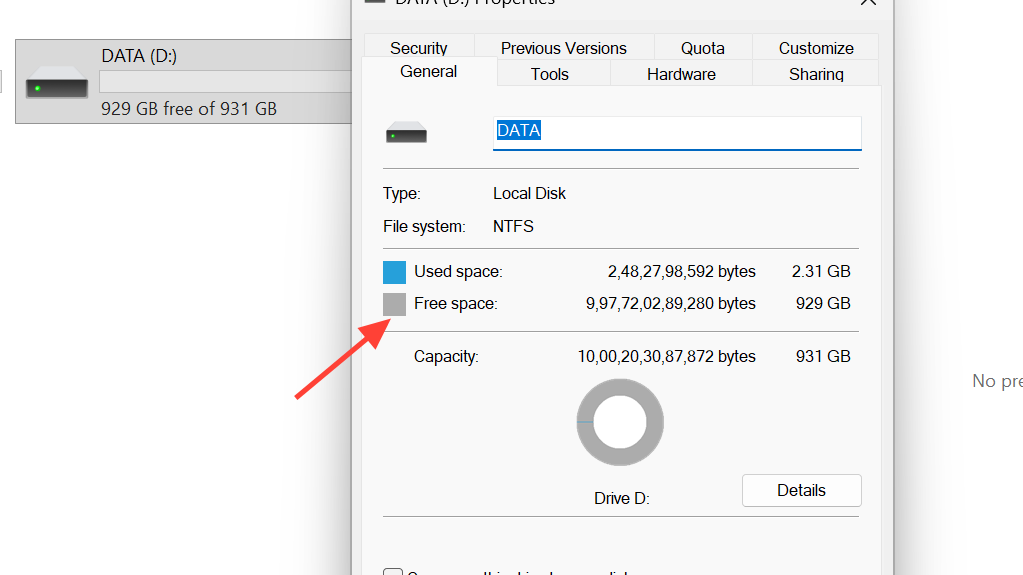
Crashes after an update can line up with local hardware or storage limits, especially if the install size has increased. If the game begins crashing after a patch, verify the game files first and make sure the system has enough room and can handle the updated install without errors.
Make sure the system has enough space for the updated game
If one of these error codes keeps returning after the restart, network, security, and file checks, the issue is usually not resolved inside the client session itself. In that case, repeating the launch after a full system restart is the cleanest confirmation test, because the game should either sign in normally or show the same code again immediately.