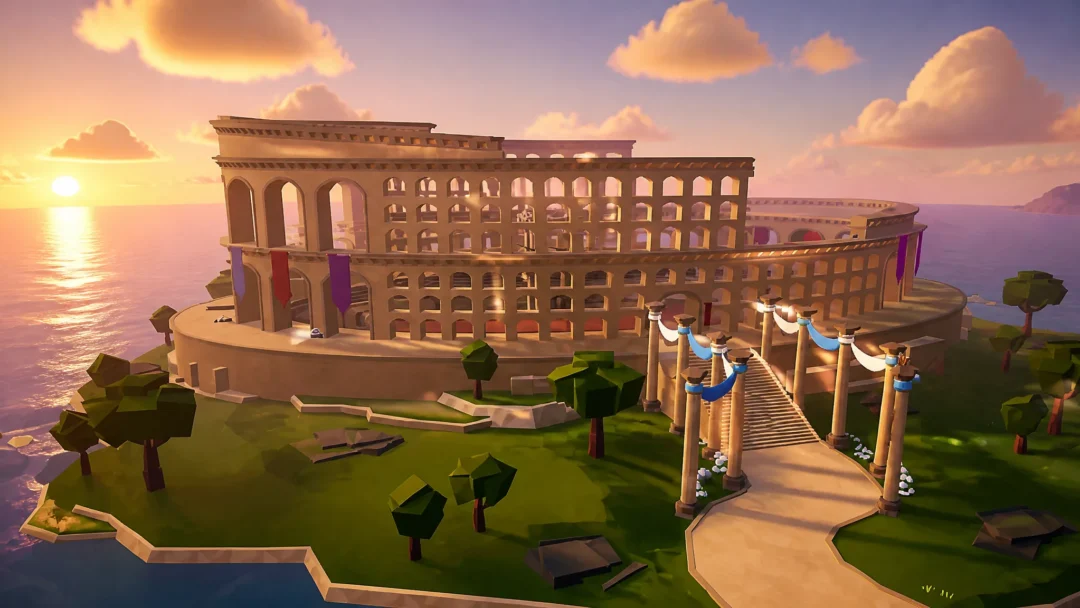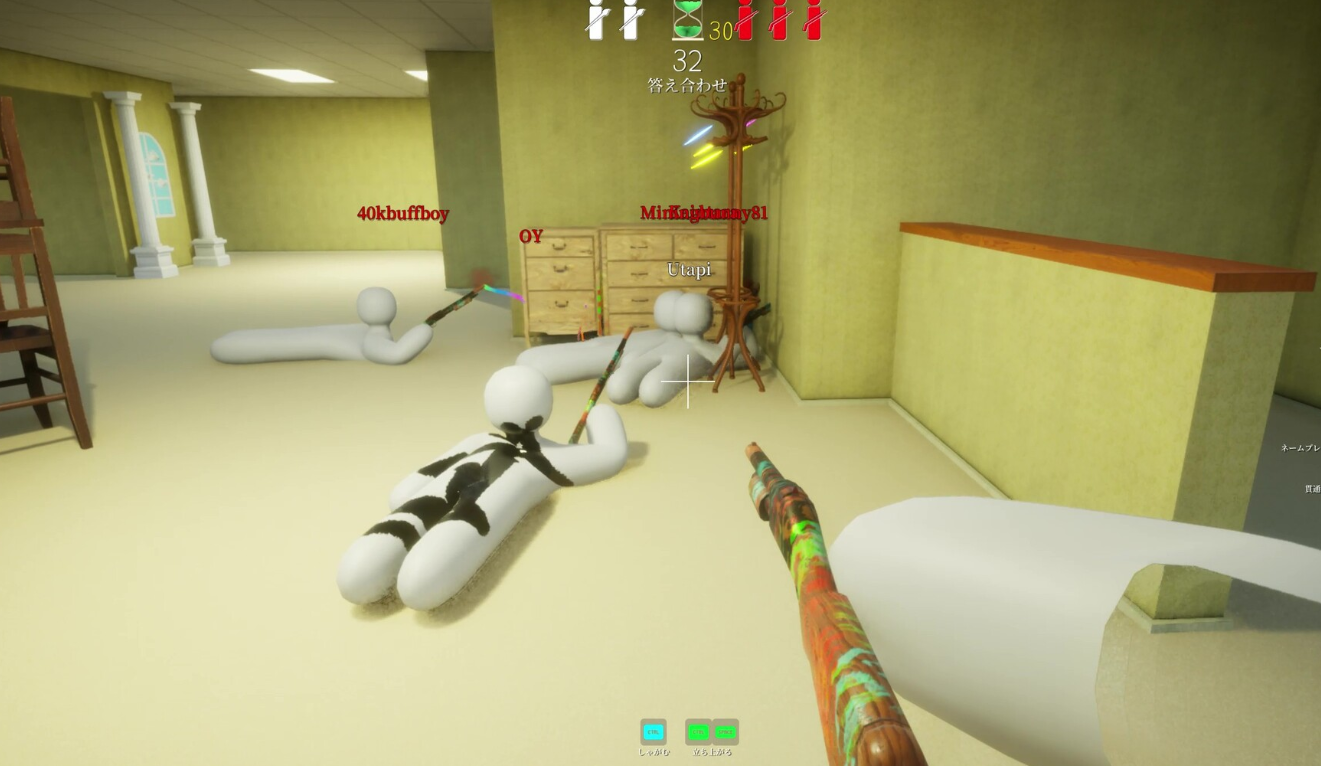
MECCHA CHAMELEON is a multiplayer hide-and-seek game built on Unreal Engine 5, and the most common launch crash right now is a shader decompression failure that drops you to the desktop before the menu even loads. The crash usually arrives with a LowLevelFatalError message pointing at ShaderCodeArchive.cpp and a line about Oodle being unable to decompress a shader group. It is most frequently reported on 13th and 14th Gen Intel Core CPUs, including the i9-14900K and i7-13700F.
Quick answer: If the game crashes on launch with the Oodle LowLevelFatalError shader message, add -dx11 to the Steam launch options, update your motherboard BIOS, and update MECCHA CHAMELEON to the latest build. The game launches successfully when you reach the main menu without the fatal error pop-up.
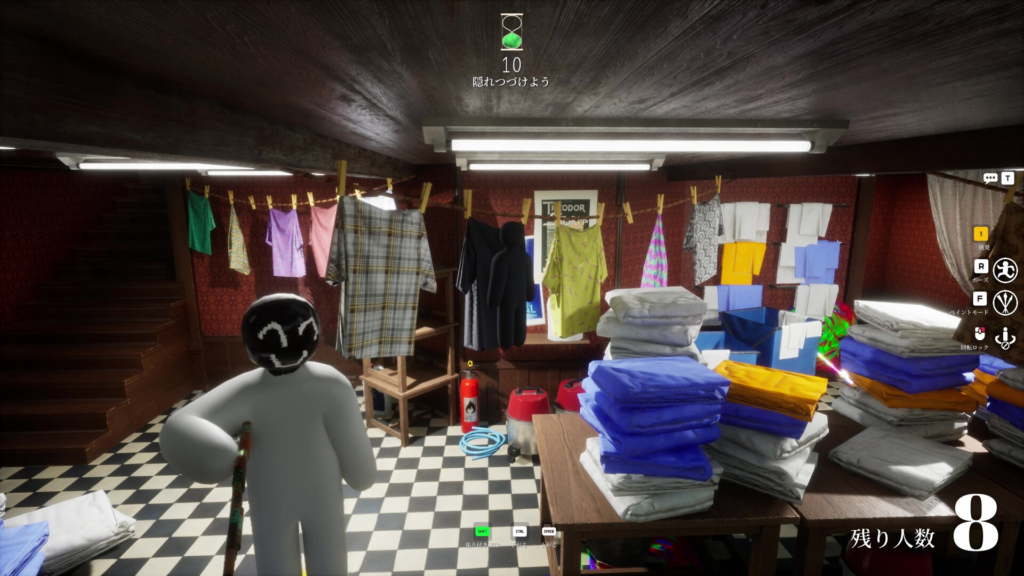
Identify the crash before changing anything
Not every crash is the same problem, so read the error on screen first. The launch crash that affects 13th and 14th Gen Intel systems produces a very specific message. The full text begins with LowLevelFatalError, references DecompressShaderWithOodleAndExtraLogging(), and includes a line that the CPU “may be unstable.” Some players also see a frozen PC or a black screen on the first one or two launches before the error appears.
A separate crash happens during gameplay when changing maps. That one was officially fixed in v1.2.0, which also optimized stage loading. If your crash only happens at launch and shows the Oodle shader text, the map-change patch will not resolve it on its own. Match the symptom to the right fix instead of trying everything at once.
| Symptom | Likely cause | First step |
|---|---|---|
Crash on launch with Oodle LowLevelFatalError | UE5 shader decompression on 13th/14th Gen Intel CPU | Force DirectX 11 and update BIOS |
| Black screen or frozen PC on first launches | Driver or rendering startup failure | Restart PC, then force DirectX 11 |
| Crash when changing maps mid-session | Map-change bug | Update the game to v1.2.0 |
| Crash after editing graphics settings | Unstable rendering config | Force DirectX 11 and reset settings |
Force DirectX 11 to fix the launch crash
Switching the game to the DirectX 11 renderer is the fastest workaround for the shader crash, and players report stable launches after making the change. The default Unreal Engine setup can trip on certain hardware, and the older renderer sidesteps the shader decompression step that triggers the fatal error.
-dx11LowLevelFatalError pop-up.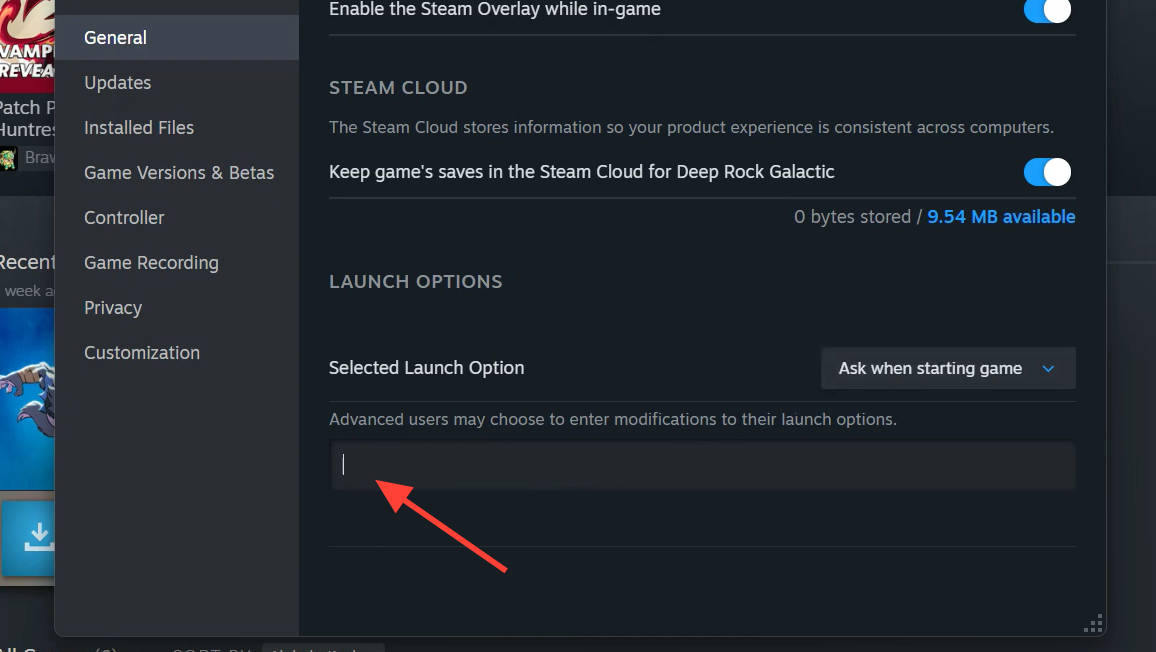
Update your BIOS for 13th and 14th Gen Intel CPUs
The Oodle error commonly appears on 13th and 14th Gen Intel Core processors, where Unreal Engine titles can surface instability. An out-of-date BIOS leaves the CPU running with older voltage and stability profiles that make this crash more likely, so updating it is an important step. Intel and the radgametools Oodle page both link this class of error to those CPU generations.
Download the latest BIOS for your exact motherboard model from the board manufacturer’s support page and follow their flashing instructions. After updating, launch the game again to check whether the crash still appears. Keep in mind that in repeated cases this error can indicate the CPU itself has degraded, so a BIOS update is a preventive measure rather than a guaranteed repair on already-affected hardware.
If the crash persists across multiple games and not just MECCHA CHAMELEON, treat it as a system-level hardware problem rather than a single-game bug.
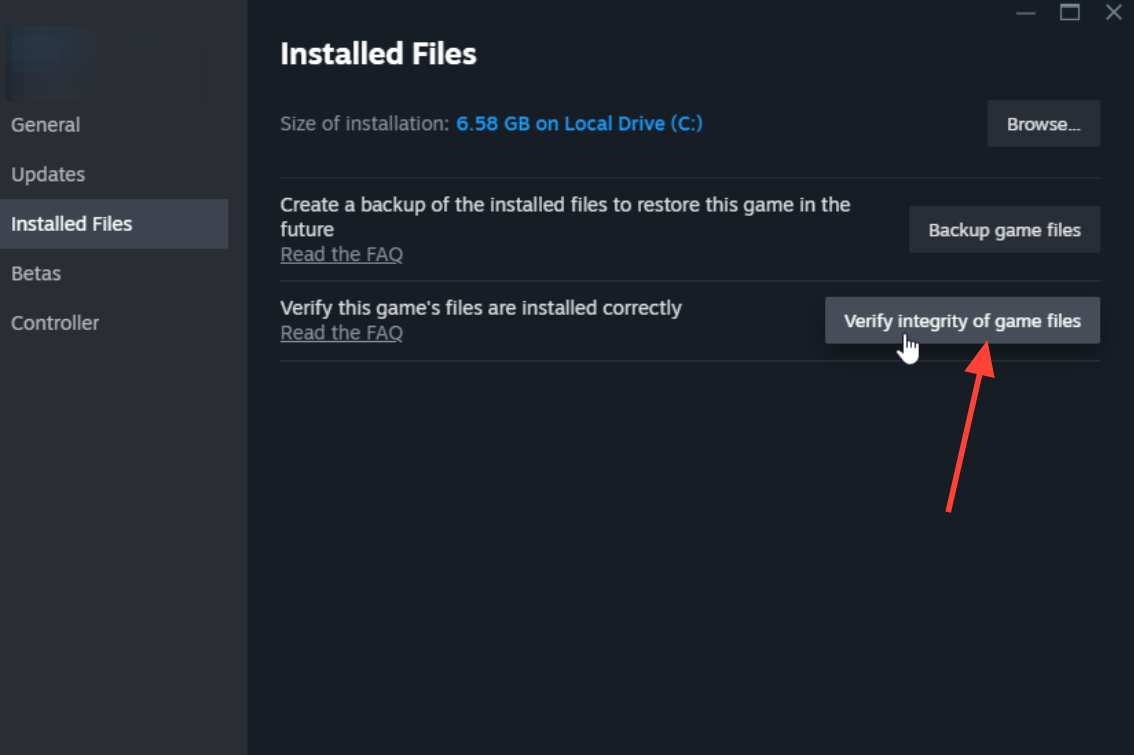
Update the game and verify files
Many early launch problems were resolved through post-launch patches, so running the newest build matters before you dig into deeper PC fixes. v1.2.0 fixed a rare crash when changing maps and optimized loading. Earlier updates fixed cloud save login failures in v1.0.1 and several connection and settings issues in v1.1.0.
Additional launch fixes that help on PC
If the renderer switch, BIOS update, and file verification do not clear the crash, work through standard PC-side steps. These are generic Windows and Unreal Engine fixes rather than MECCHA-specific patches, so try them after the steps above.
| Fix | What it does |
|---|---|
| Clean-install GPU drivers | Removes old configuration profiles from NVIDIA, AMD, or Intel that can break rendering at startup. |
| Repair Visual C++ Redistributable | Restores missing runtime libraries the game needs to initialize. |
| Run as administrator | Grants the executable the permissions some startup features require. |
| Add the game folder to antivirus exceptions | Stops security software from blocking game files it flags incorrectly. |
| Disable overlays (Discord, GeForce Experience) | Prevents overlay software from conflicting with the game’s startup. |
Reinstalling the game belongs at the very end, not the start. No cache, log, or config file locations have been confirmed for MECCHA CHAMELEON, so treat any instruction that tells you to delete specific game folders as unverified and skip it.
How to confirm the crash is fixed
You have fixed the launch crash when the game opens to the main menu and stays there without the fatal error window. For the map-change crash, load into a match and switch maps to confirm it no longer drops to desktop. If you continue to see the Oodle LowLevelFatalError after forcing DirectX 11 and updating both the BIOS and the game, the issue points at CPU stability rather than the game itself, and that is the point to stop changing game settings and look at your hardware.
If you want to report an unresolved crash to the developer, post the full error text and your CPU model on the official MECCHA CHAMELEON Steam community page so others with the same hardware can compare notes. Keep your driver, BIOS, and game build current, since the same shader crash tends to resurface on outdated systems.