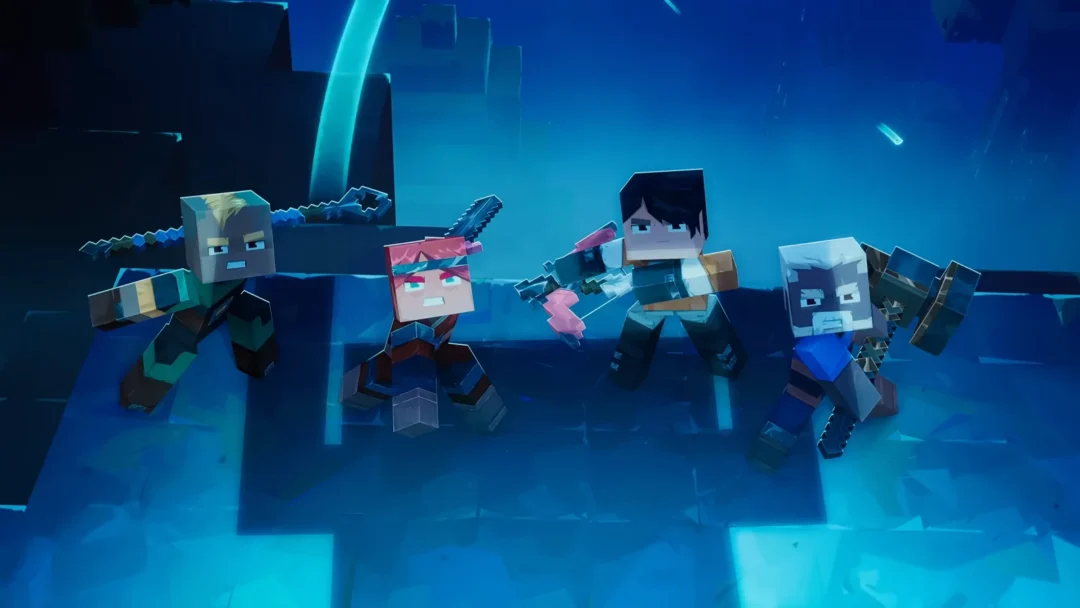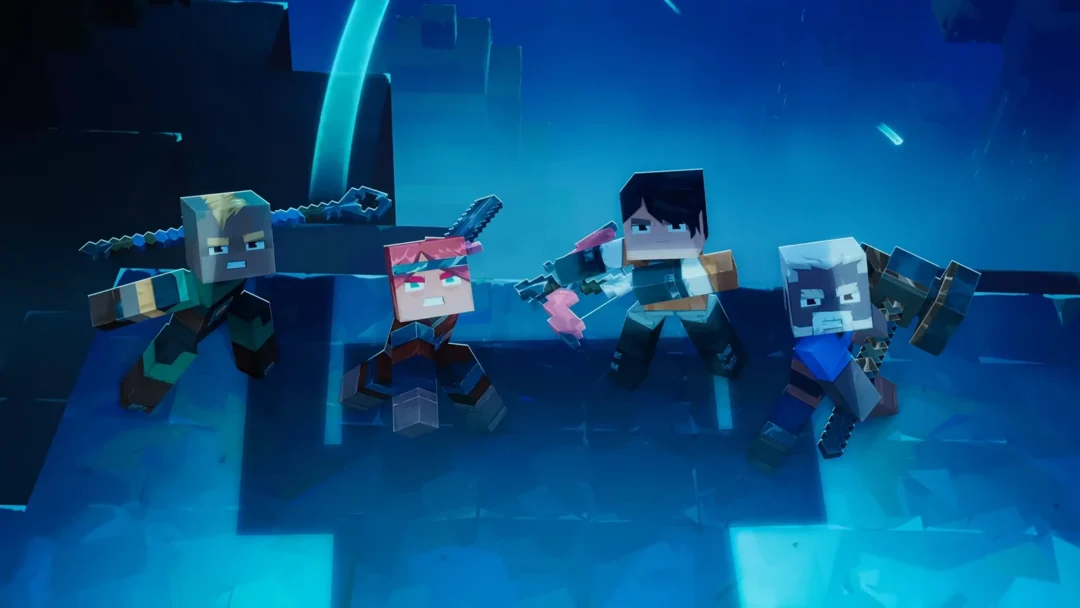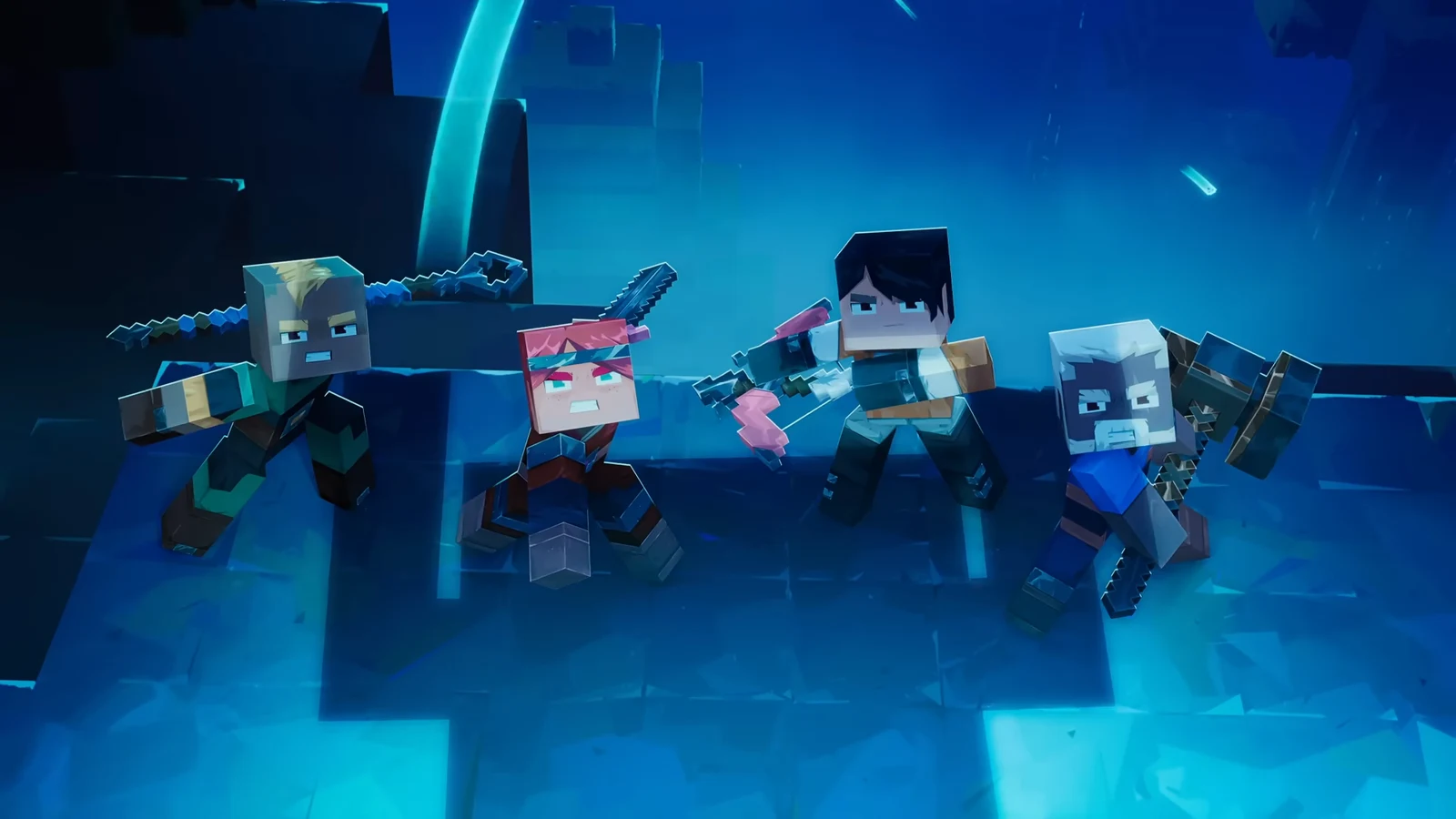
Minecraft Dungeons 2 is built around a four-hero party, and joining forces takes only a few menu steps once you know where they live. You can pull in friends online, share a couch on consoles, or mix the two, and the game connects players across every platform it launched on. Getting the invite out is mostly about linking the right account and starting from the correct menu.
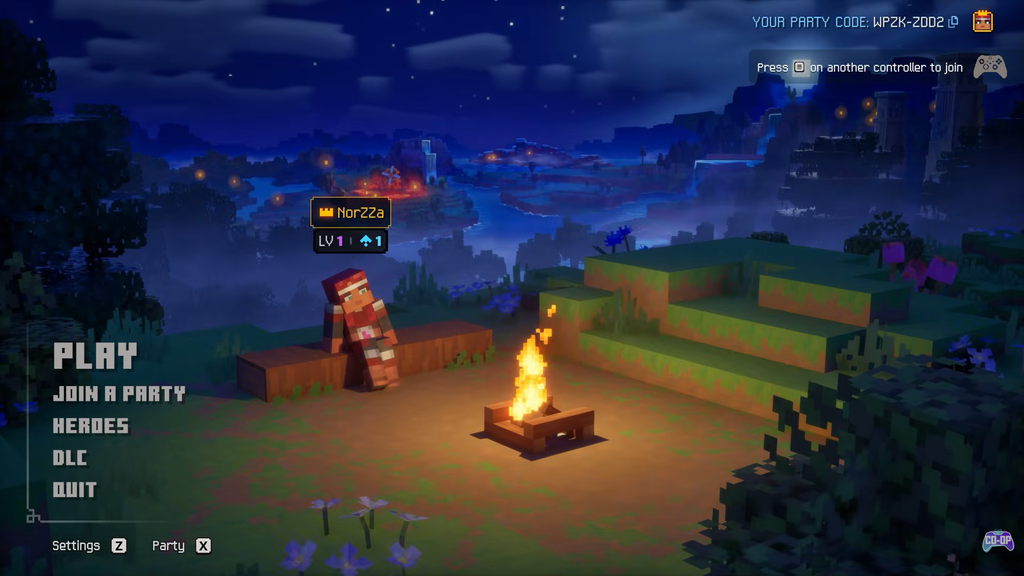
Quick answer: From the main menu, choose Online Game, open the Friends tab, select an online friend, and pick Invite to Game. For crossplay, link a free Microsoft account first.
What you need before inviting friends
A couple of things must be in place before the invite option does anything useful. Sort these out early so nobody is stuck in a menu while the rest of the group waits.
- Finish the tutorial. Multiplayer opens up only after you complete the opening section.
- A free Microsoft account, linked to your platform, is required for cross-platform play.
- Console play needs the platform’s online service: PlayStation Plus, Nintendo Switch Online, or Xbox networking.
- Everyone should be on the same game version, since hotfixes ship on all platforms together.
Link a Microsoft account for crossplay
Crossplay runs through Microsoft’s network, so the Gamertag becomes the shared identifier that lets a Steam player and a PlayStation 5 player sit in the same party. If you are on PlayStation, Steam, or Switch, link your platform profile to a Microsoft account once and it stays connected.
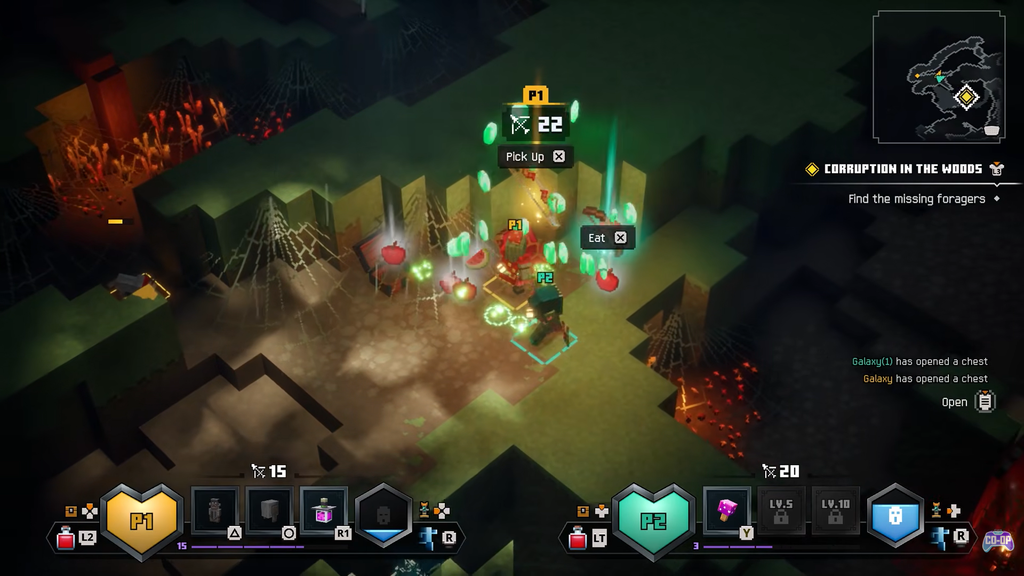
Do this before your friends are waiting in a voice call. The setup takes a couple of minutes, and it is far less annoying when nobody is standing by.
Send an online invite
Once the account is linked and the tutorial is done, the invite flow follows the same pattern the series has used, run from an Online Game session rather than a solo run.
Set your session to friends-only before you start. It keeps random players out of your camp and saves you from having to explain who the stranger is.
Play locally with couch co-op
When your friends are in the room with you, there’s no need to use the invite menus. Console couch co-op supports two to four players. Each person connects their own controller to the setup and joins the shared screen; no account linking or network setup is required. You can also combine local and online players in one party.
Local play is a solid fallback if online latency or account linking gives you trouble. It delivers the full four-player experience without any of the connection steps.
Party size and supported platforms
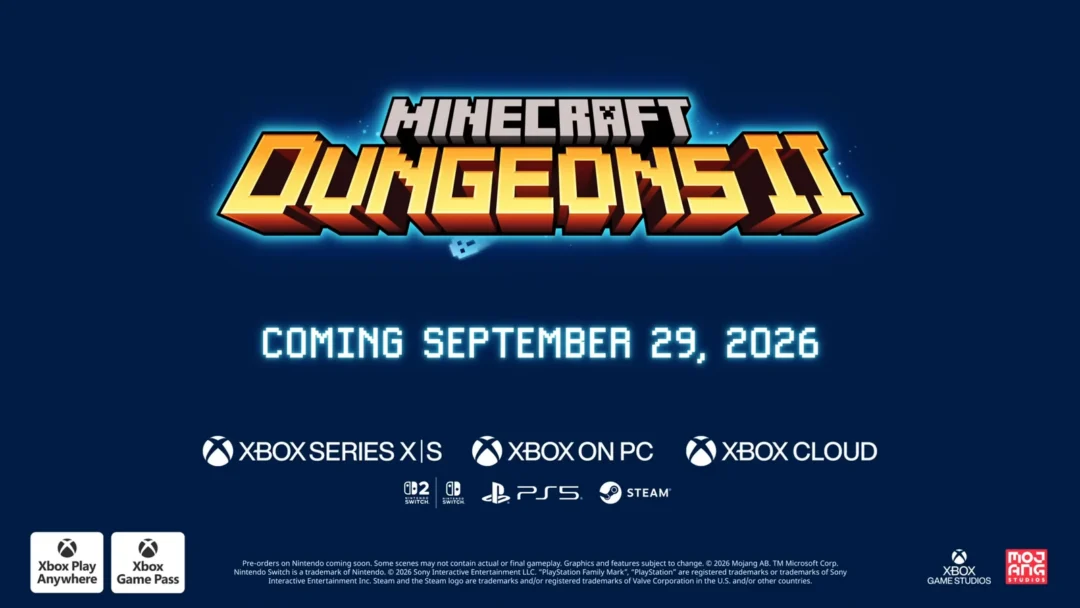
The session limit is four players for online, local, or mixed play. The game supports Xbox Play Anywhere and is available on Game Pass for PC, making cross-platform play a core part of the experience across the lineup below.
| Platform | Crossplay | Online requirement |
|---|---|---|
| Xbox Series X|S | Yes | Xbox networking |
| PC (Steam, Microsoft Store) | Yes | Microsoft account |
| PlayStation 5 | Yes | PlayStation Plus |
| Nintendo Switch / Switch 2 | Yes | Nintendo Switch Online |
System privacy controls on Xbox and PlayStation may prevent cross-network play. If a friend on another platform cannot connect, check your account privacy options and allow cross-network play.
How to confirm the invite worked
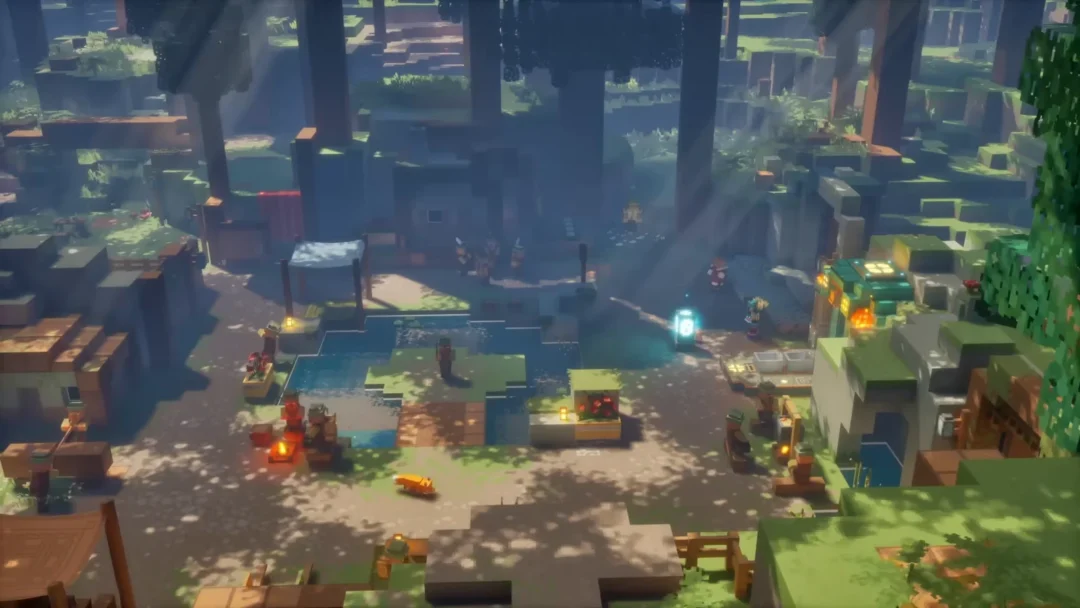
The invite has gone through when your friend appears in your party and loads into the same overworld instance, ready to run the environment alongside you. From there the group can pick up Main Story Quests and side content from NPCs together and head into the Sift’s rifts as a coordinated team.
Loot is handled per player. When a boss falls or a chest opens, each character generates its own drops scaled to its power, so there is no stealing and nothing to argue over. You cannot trade or hand gear directly to a friend, but progression and inventory follow your linked account, letting you carry the same character and loot between platforms. If a lobby still refuses to connect, restart the game and resend the invite before troubleshooting anything more complex.