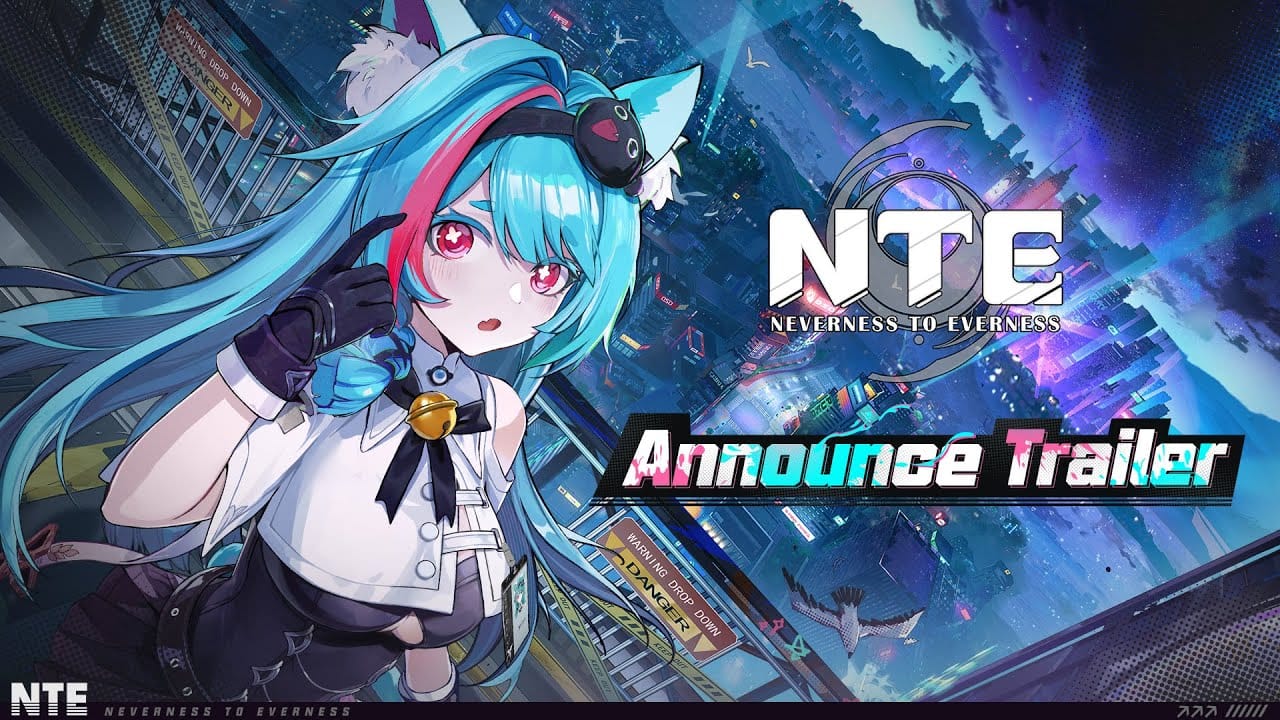
Preloads for Neverness to Everness are live on PC, iOS, and Android ahead of the game’s April 29, 2026 release, with PlayStation 5 preloading gated behind the paid preorder bundle. Mobile clients land between roughly 16 GB and 21 GB, while the PC build sits around 50 GB and the PS5 version comes in just over 52 GB.
Release time: April 29, 2026 at 10:00 (UTC+8)
File sizes by platform
Storage requirements vary noticeably between mobile, PC, and console builds. Clear room before you start the download to avoid the installer stalling halfway through.
| Platform | Preload size |
|---|---|
| PC (Windows) | ~50 GB |
| PlayStation 5 | ~52 GB |
| iOS | ~21 GB |
| Android | ~16.3 GB |
Expect a small additional download on first launch. Players who finished the preload report an extra 800 MB or so for shader compilation and optional voice-over packs once the launcher opens.
Preload on PC
The PC version isn’t on Steam or the Epic Games Store. You need the official launcher from Perfect World to pull the client.
Preload on iOS
Preload on Android
Preload on PlayStation 5
PS5 preload behaves differently from PC and mobile. Sony’s storefront only allows preloading for paid preorders, so the free-to-play client is gated behind the preorder bundle (priced at $9.99) until the game goes live.
If you bought the preorder pack, head to the PS5 Neverness to Everness store page and trigger the download manually. It does not always start automatically. If you didn’t preorder, the full ~52 GB download will become available when servers open on April 29.
How to know the preload finished
You’ll know the preload completed correctly when:
- The launcher (PC) shows a Play or Start button instead of a download progress bar.
- The mobile app icon no longer displays a download spinner and opens to a server-select screen.
- Launching the client lets you reach the language/server selection menu, even though login or play may be blocked until release time.
Some players see one extra small download (under 1 GB) for shader compilation or Japanese/Chinese voice packs the first time the launcher opens. That’s expected and not a sign of a broken preload.
Common preload issues
| Issue | Fix |
|---|---|
| Windows download button missing on the website | Hard-refresh with Ctrl + F5 to bypass the cached page. |
| “Not enough storage” on mobile despite free space | Restart the device. On Android, confirm the install target isn’t defaulting to a near-full SD card or secondary storage. |
| PS5 store only shows the $9.99 preorder bundle | Free preload is restricted to preorder buyers. Wait for the launch window to download the free client. |
| Launcher installs to the wrong drive on PC | Use the custom install option and point it at a drive with at least 60 GB free. |
| Game appears as a background process and won’t open a window | Run the launcher as administrator, allow it through the firewall, and verify files. Reinstalling the launcher (not the full client) usually clears stuck states. |
Pre-registration on any platform stays open through April 29, 2026, and counts toward the milestone rewards already unlocked at the 35-million pre-registration tier. Finishing the preload before launch day is the easiest way to skip the inevitable server-day congestion and get straight into Hethereau when servers flip on.