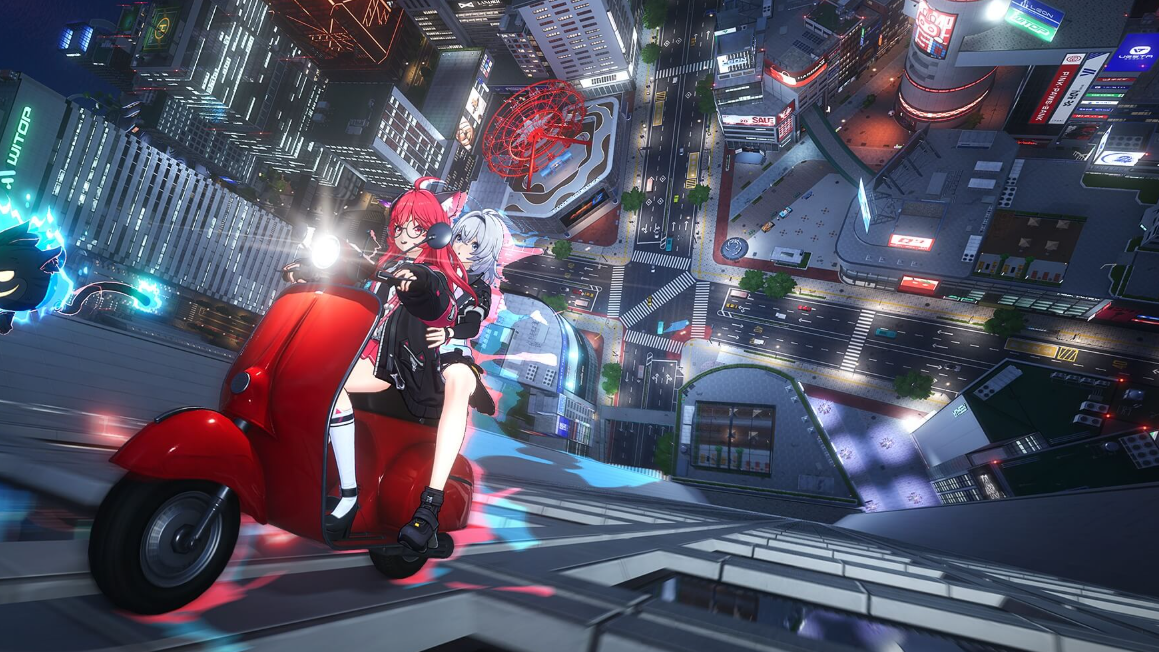
Neverness to Everness ships as a sizable open-world download, and the storage footprint differs sharply between PC and mobile. Hotta Studio’s urban action RPG runs on Unreal Engine 5 with Nanite and ray tracing on PC, which pushes the install well past most mobile gacha titles.
NTE storage requirements by platform
The PC build carries the largest footprint because it includes high-resolution assets and uncompressed textures. Mobile clients are streamlined to fit within typical phone storage budgets, while the PS5 version sits between the two.
| Platform | Install size | Extra space needed |
|---|---|---|
| Windows PC | 60GB (SSD recommended) | +60GB temporary during installation |
| PlayStation 5 | ~55GB | — |
| Android | 20GB | — |
| iOS | 20GB | — |
| Mac | Comparable to PC | SSD recommended |
The PC requirement is the one most likely to trip people up. You need roughly 120GB of total free space on your drive at install time, even though the final game settles around 60GB once unpacking finishes. If your boot drive is tight, point the installer at a secondary SSD.
Why the PC version doubles in size during install
The launcher pulls down compressed package files, then extracts them into the final game directory. Both copies coexist on disk until the installer finishes verifying assets and removes the temporary archives. Running out of space mid-extraction can corrupt the install and force you to start over.
Pre-download and launcher details
Pre-loading is supported on Windows PC, Mac, Android, iOS, and Google Play PC. PlayStation 5 players cannot pre-download and have to wait until servers go live to begin pulling the client. A stable Wi-Fi or wired connection is recommended, given the file size.
You can grab the official PC installer and pre-load instructions from the Neverness to Everness website. Mobile players install through Google Play or the App Store as usual.
How to verify the install completed
Planning for future updates
Live-service games of this scale tend to grow with each major patch. Keeping headroom beyond the listed minimums is sensible, especially on mobile, where 20GB free at install time can quickly shrink as new regions, characters, and voice packs roll out. On PC, an SSD is strongly recommended for both load times and the unpacking step during patches.
Note: storage figures reflect the launch build and are subject to change as Hotta Studio rolls out version updates after release.