Path of Exile 2 runs well on a wide range of hardware, but the difference between a smooth session and a stuttery one usually comes down to two or three settings, not the whole menu. As a top-down ARPG, it does not demand ultra-high frame rates to feel good. A steady 60 FPS with no sudden drops is enough for a clean experience, and modern mid-range machines can push well past that.
Quick answer: Set Lighting to Shadows only (not Shadows and Global Illumination), drop Shadow + GI Quality to Low, keep Engine Multithreading enabled, and use DLSS Quality or FSR if your GPU supports it. The lighting mode alone accounts for the single biggest frame-rate swing in the game.
The settings that actually move your FPS
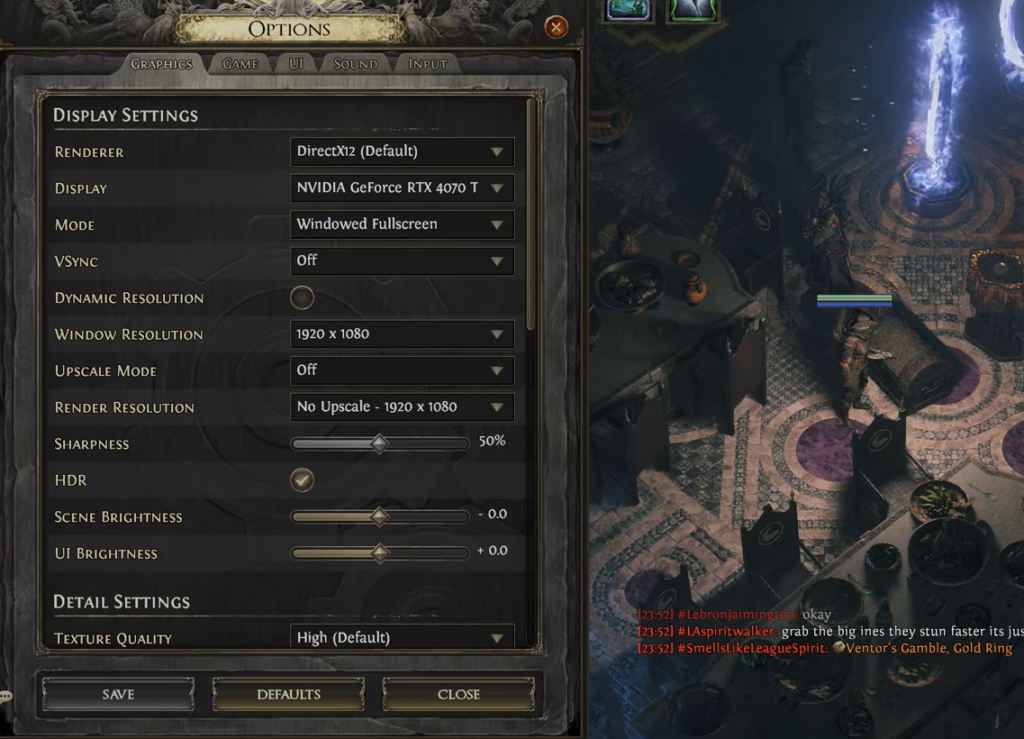
Most graphics options in Path of Exile 2 barely touch performance. A handful carry nearly all the weight, so change these first before you start dialing everything down.
| Setting | Impact | What to do |
|---|---|---|
| Lighting mode | Largest swing (around 32% between modes) | Use Shadows only for big gains |
| Shadow + GI Quality | 15–20% when GI is on | Set to Low if you need frames |
| Sun Shadow Quality | Roughly 3–5% | Lower on weaker GPUs |
| Number of Lights | Roughly 3–5% | Low or Medium on budget rigs |
| Water Detail Level | About 3% | Low for a small boost |
| Texture Quality | Affects VRAM, not FPS | Keep high if you have the memory |
The key takeaway is that both Global Illumination and heavy shadows lean hard on your CPU, not just your graphics card. When dozens of enemies fill the screen, that CPU load is what causes stutter. Lowering shadows and turning off Global Illumination helps even on powerful GPUs, because the bottleneck sits elsewhere.
Balanced settings for a modern PC
If your machine is current and you want strong visuals with a stable 60 FPS or higher, this configuration keeps the game looking sharp while staying smooth. A recent mid-range card, under about four years old, can run most of these near the top of the scale.
| Setting | Value |
|---|---|
| Antialiasing Quality | High |
| Lighting | Shadows and Global Illumination |
| Shadow + GI Quality | High |
| Sun Shadow Quality | High |
| Number of Lights | High |
| Bloom | On |
| Depth of Field | On |
| Incursion Effect | On |
| Water Detail Level | High |
| Texture Quality | High |
| Texture Filtering | High |
| Dynamic Culling | Disabled |
| Dynamic Resolution | Disabled |
| Target Frame Rate | 60 FPS |
| Engine Multithreading | Enabled |
For reference, an RTX 4070 at 1080p reaches an average of roughly 117 FPS with a 92 FPS 1% low on these settings. At 1440p that becomes about 72 FPS, and at 4K it still holds near 59 FPS. Those numbers show why you rarely need to compromise on a capable card. Dropping Shadow + GI Quality from Ultra to Low pushed 1080p from around 117 to 135 FPS in the same test, and switching Lighting from Shadows and Global Illumination to Shadows only reached about 137 FPS while keeping shadow detail high.
Display settings to check first
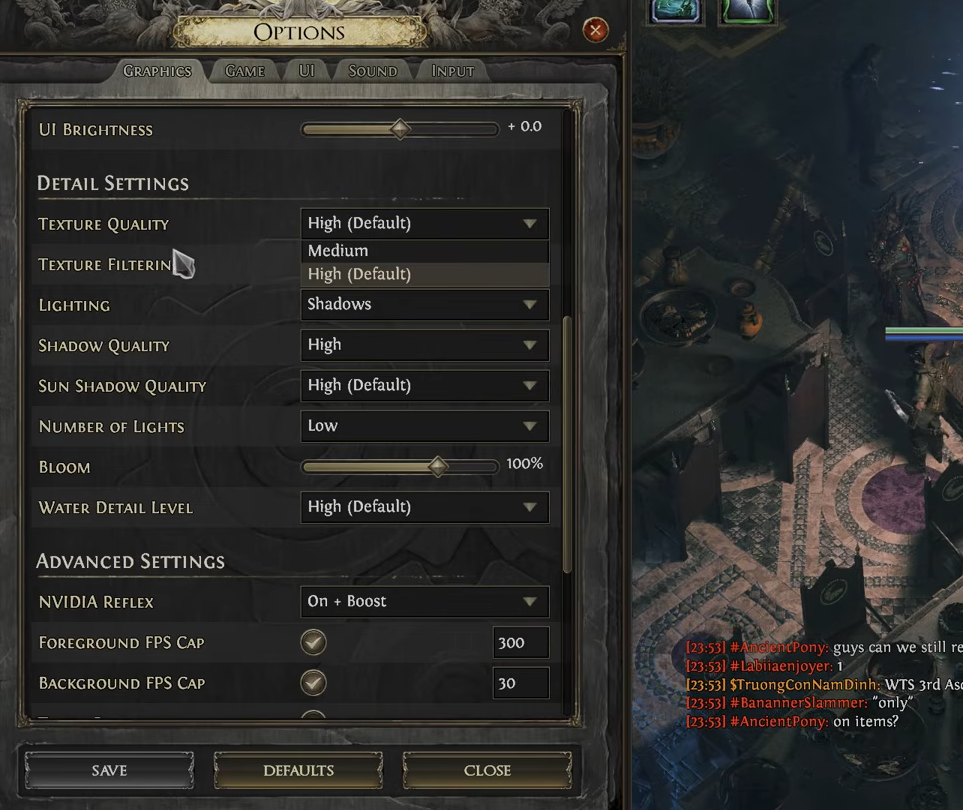
Display options are usually set correctly when you first launch, but a few are worth confirming for the best balance of clarity and frame rate.
- Display Mode: Fullscreen
- Resolution: Native (your monitor’s resolution, such as 1,920 x 1,080)
- Upscaling: Off, or Nvidia DLSS if available
- Renderer: DirectX 12
- V-Sync: Off (or On if you see screen tearing)
- Foreground FPS Cap: Disabled
- Background FPS Cap: Disabled
Running at native resolution keeps the image crisp with no added blur. If you enable upscaling, DLSS gives the sharpest result on Nvidia cards, NIS helps on older Nvidia GPUs, and FSR works on AMD hardware. On an RTX 4070 at 4K, NIS at 67% scaling lifted 59 FPS to 67 FPS but noticeably softened the image, while DLSS Quality hit 72 FPS with a much cleaner picture. The game does not currently support frame generation, so DLSS 3 and FSR 3 frame-gen are not options.
Max FPS settings for low-end or older PCs
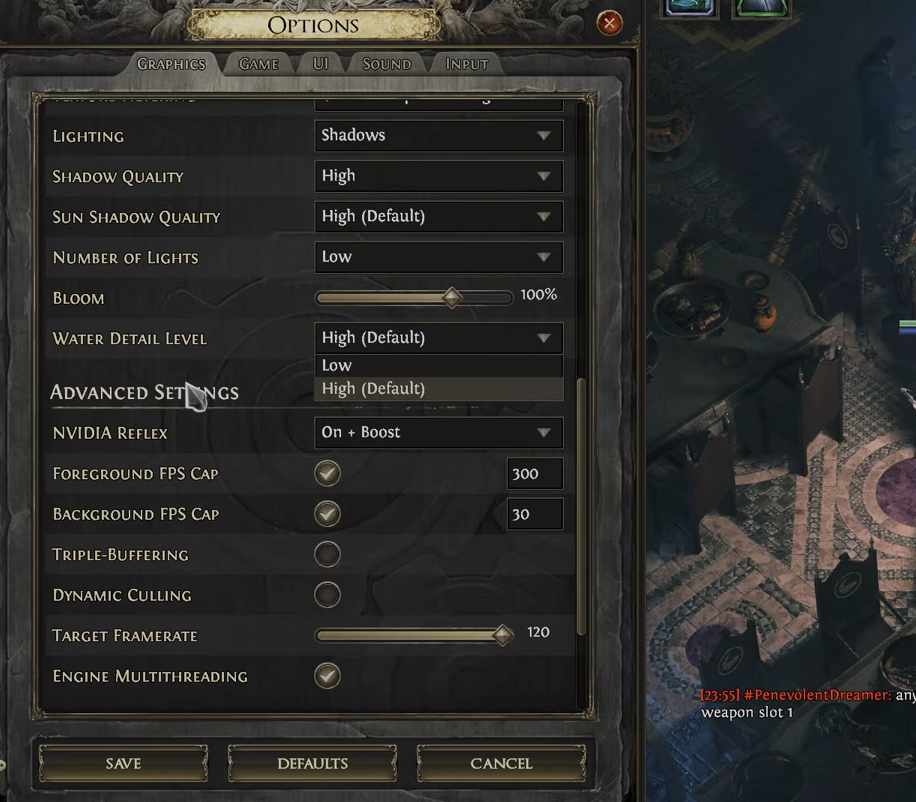
When frames matter more than fidelity, this setup trades some visual polish for smoother play. It keeps the game looking presentable while freeing up your CPU and GPU.
| Setting | Value |
|---|---|
| Antialiasing Quality | High |
| Lighting | Shadows |
| Shadow + GI Quality | Low |
| Sun Shadow Quality | Low |
| Number of Lights | Low |
| Bloom | Reduce to 25% |
| Depth of Field | On |
| Incursion Effect | On |
| Water Detail Level | Low |
| Texture Quality | Medium |
| Texture Filtering | Medium |
| Dynamic Culling | Disabled (enable if the GPU still struggles) |
| Dynamic Resolution | Disabled |
| Target Frame Rate | 60 FPS |
| Engine Multithreading | Enabled |
If your GPU cannot hold a stable baseline even after these changes, turning Dynamic Culling on can help it keep up. On the weakest machines, enabling Dynamic Resolution with a 60 FPS target lets the game scale itself to protect the frame rate.
Recommended settings by hardware tier
Rather than one global preset, match your card to the closest tier below. These targets assume you want a smooth result at the listed resolution.
| Setting | Budget (GTX 1650 / RX 6500 XT) | Mid (RTX 3060 / RX 6700 XT) | High (RTX 4070 / RX 7800 XT) | Ultra (RTX 4080+ / RX 7900 XTX) |
|---|---|---|---|---|
| Target | 60+ FPS @ 1080p | 100+ FPS @ 1080p | 100+ FPS @ 1440p | 80+ FPS @ 4K |
| Lighting | Shadows only | Shadows + GI | Shadows + GI | Shadows + GI |
| Shadow + GI Quality | Low | Low–Medium | High | Ultra |
| Sun Shadow Quality | Low | Medium | High | High |
| Number of Lights | Low | Medium | High | High |
| Water Detail | Low | Medium | High | High |
| Texture Quality | Medium | High | High | High |
| Upscaling | FSR Quality / NIS | DLSS Quality | DLSS Quality or Off | Off or DLSS Balanced |
| Dynamic Resolution | On (60 FPS target) | Off | Off | Off |
| Engine Multithreading | On | On | On | On |
Extra fixes for stutter and low frames
If the in-game settings alone do not get you there, a few system-level steps can add frames and smooth out hitches. These help on both high-end and low-end machines.
- Cap background FPS to around 15 so the game holds resources while it runs in the background.
- Close background applications that consume CPU, memory, or GPU cycles.
- Update your GPU drivers. Both Nvidia and AMD ship updates that address game-specific crashes, memory leaks, and performance.
- Install the game on an SSD. It reduces micro-freezes and helps in crowded fights.
- Set Sound Channel Count to Low. High channel counts add CPU load during dense combat.
- Disable Screen Shake to steady performance in particle-heavy encounters.
Sudden stuttering that appears out of nowhere can also come from a stale shader cache. Press Win + R, type %appdata%, open the Path of Exile 2 game data folder, and delete the ShaderCacheD3D12 or ShaderCacheVulkan folders. The game rebuilds a clean cache on the next launch, which often clears the hitching.
System requirements to keep in mind
The game is flexible, but hitting the recommended spec makes a stable frame rate far easier to reach.
| Component | Minimum | Recommended |
|---|---|---|
| OS | Windows 10 64-bit | Windows 10 64-bit |
| CPU | 4 core 2.8GHz x64 | 8 core 3.6GHz x64 |
| RAM | 8 GB | 16 GB |
| GPU | GeForce GTX 960 / Radeon RX 470 | GeForce RTX 2060 / Radeon RX 5600 XT |
| Storage | 100 GB available | 100 GB available (SSD recommended) |
How to confirm your changes worked
The clearest way to know a setting helped is to watch the frame rate before and after you change it. Test in a busy fight, not an empty town, since crowded encounters are where stutter shows up.
On Nvidia cards, install the Nvidia App or GeForce Experience, enable the in-game overlay, and press Alt + R to open the performance monitor. On AMD cards, open the Radeon overlay with Ctrl + Shift + O. Free tools like CapFrameX or Nvidia FrameView work with any GPU and give a cleaner readout of average FPS and 1% lows.
Aim for a frame rate that stays pinned at 60 or above with no sharp dips. If it holds steady through heavy combat, your configuration is doing its job. Most mid-to-high-end systems land in the 60 to 100 FPS range, and if you want to push consistently past 100 FPS on an older rig, a GPU upgrade is usually the deciding factor.