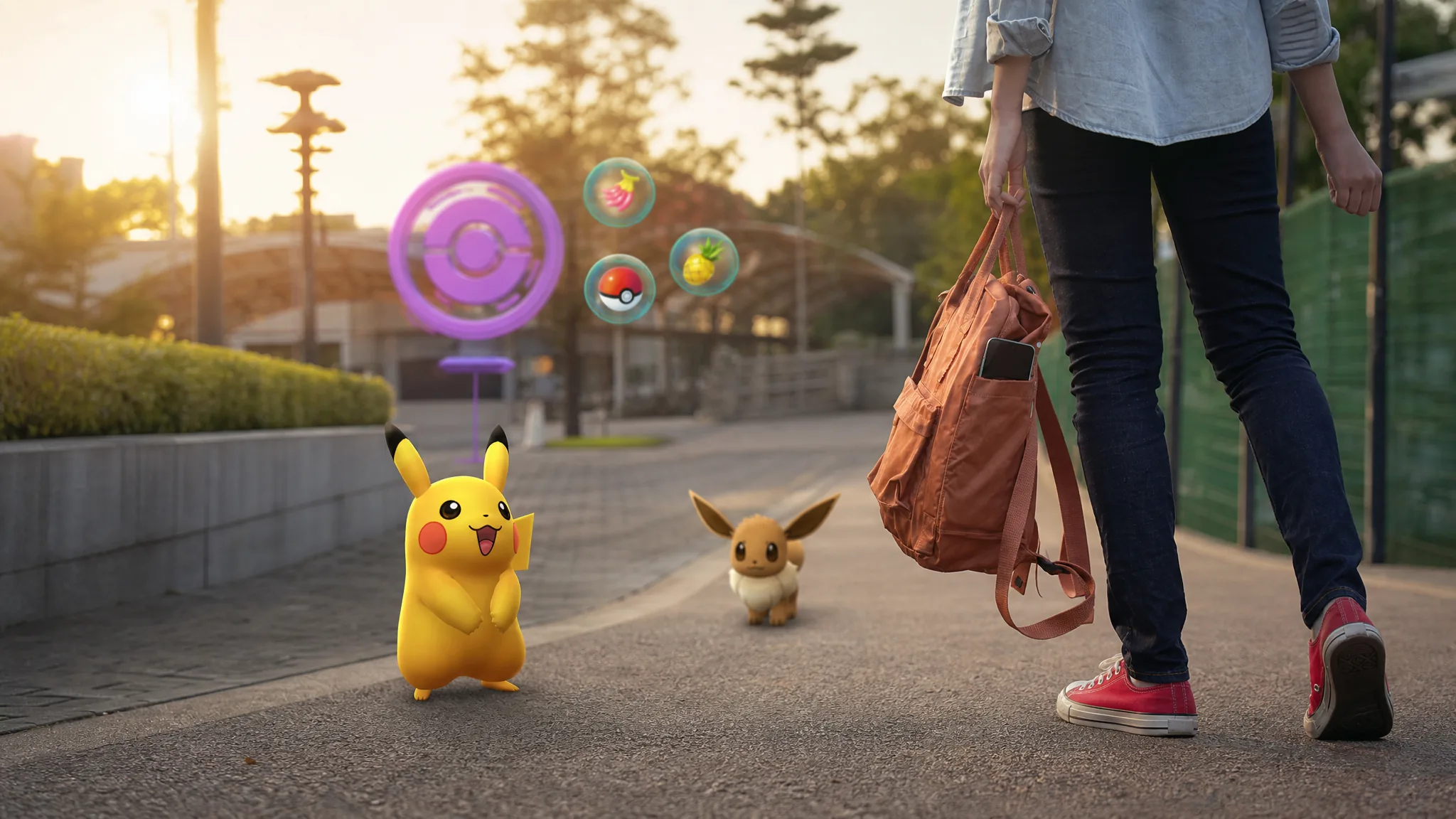
The Explorer Gadget is a built-in feature in Pokémon Go that automatically throws Poké Balls at nearby Pokémon and spins PokéStops while the app is closed or your phone is locked. It works like a virtual version of the Pokémon Go Plus +, so you get the hands-free catching and spinning without owning a physical accessory. It is rolling out in phases, so if it has not reached your region yet, it will arrive in a later wave.
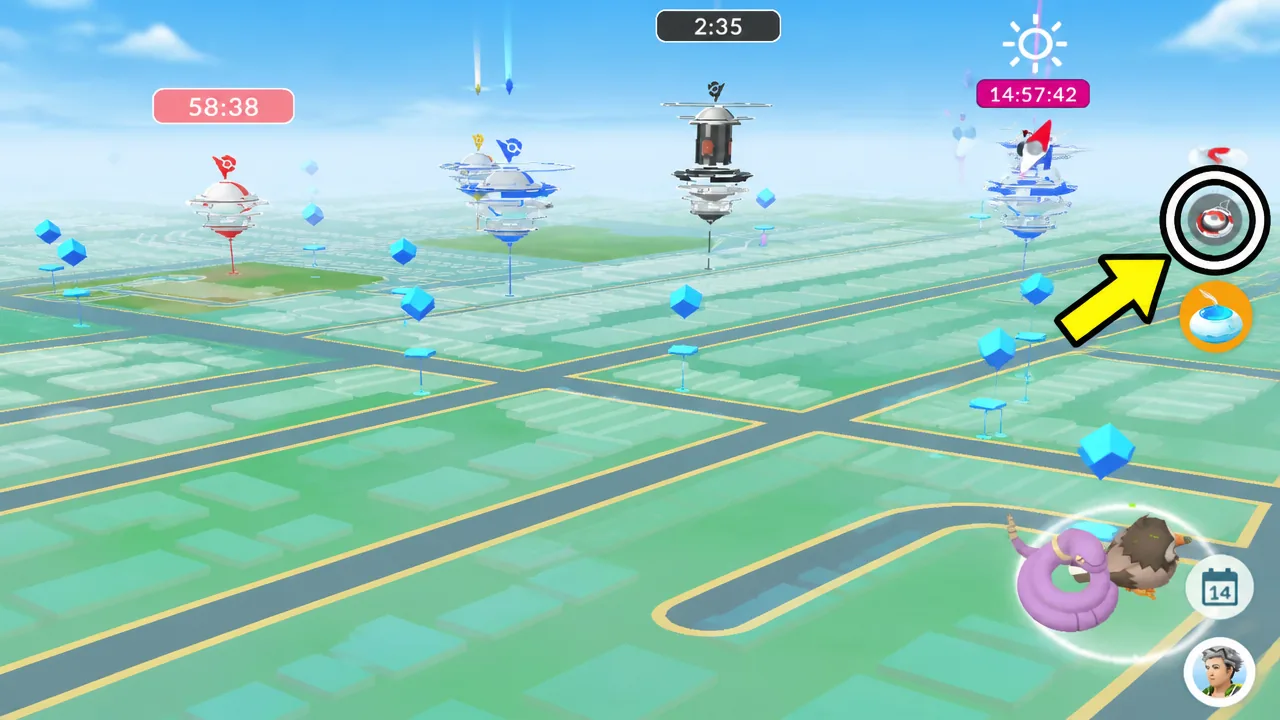
Quick answer: Reach Trainer Level 20, make sure no accessory device is actively connected, tap the Explorer Gadget icon at the top right of the map (or find it in the Key Items section of your Item Bag), press Use, then lock your phone and keep walking.
Requirements to unlock the Explorer Gadget
You must be Trainer Level 20 or higher to use the Explorer Gadget. Once you meet that level, it unlocks automatically and appears both on the map screen and in your Item Storage. You do not need to buy or claim anything separately.
To confirm you have access, look for a button on the upper-right side of the map screen. Opening your Item inventory should also show a short confirmation and tutorial for the feature. Access is still region-limited during the phased rollout, and some accounts have seen it appear and then temporarily disappear before returning.
How to activate the Explorer Gadget
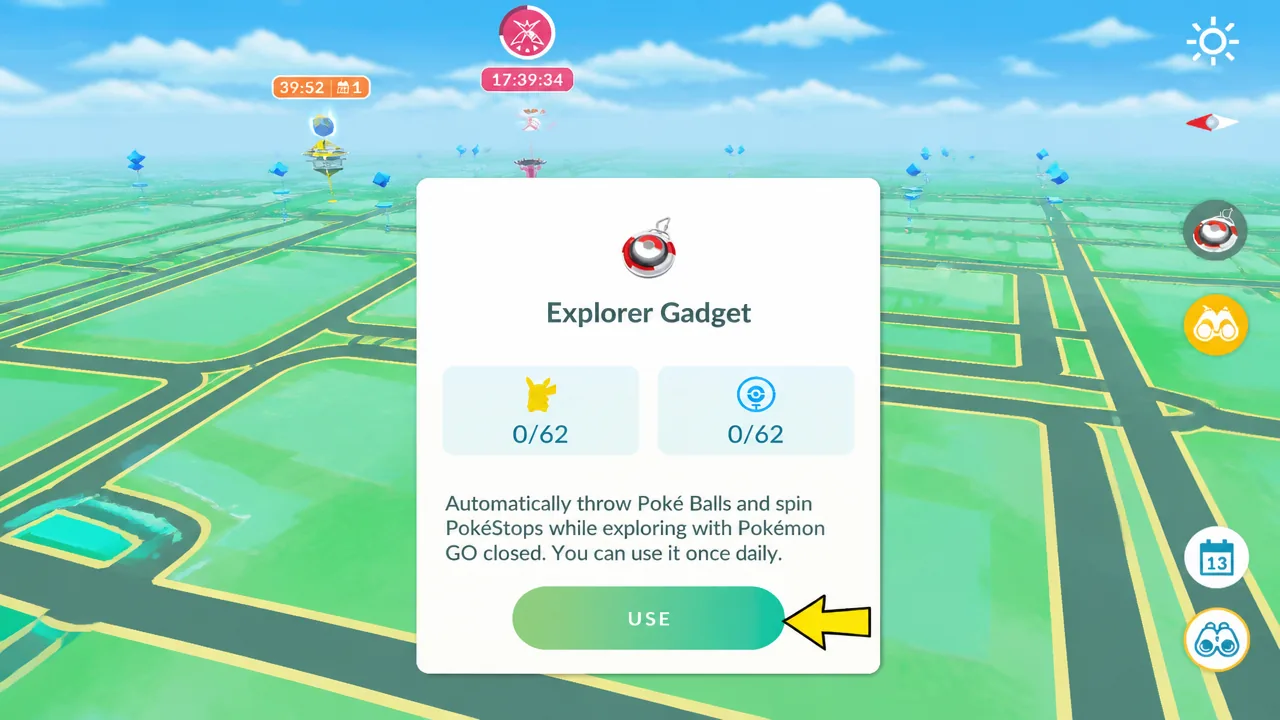
You can pause and resume the Explorer Gadget at any point during the day. Select it again, choose the pause option, and repeat the process when you want it running again. Pausing does not use up your daily allowance.
Which Pokémon it catches and which it skips
The Explorer Gadget only throws regular Poké Balls. It will never spend your Great Balls, Ultra Balls, or a Master Ball, which is a difference from the Pokémon Go Plus + that can be set to use premium balls.
It will not attempt to catch Pokémon you have not yet registered in your Pokédex, and it skips Mighty Pokémon. Because of this, catch any brand-new Pokémon in person first. Once you have caught at least one form of a species, the gadget will try to catch its other forms too. For example, if you have a White Squawkabilly registered and it encounters a Yellow one, it will still throw a ball at it.
The daily catch limit counts actual catches, not attempts. If a Pokémon breaks free, the gadget keeps working until it reaches the real catch total for the day.
Daily limit and what stops the Explorer Gadget
The Explorer Gadget has a daily cap on both catches and PokéStop spins, and that cap matches your current Trainer Level. Once it hits the limit for one activity, it keeps doing the other until that reaches its own limit. When both limits are met, it stops for the day.
| Trigger | What happens |
|---|---|
| Daily catch or spin limit reached | The matching activity stops; the limit equals your Trainer Level |
| You run out of Poké Balls | Catching stops and an alert appears on the map screen |
| Pokémon Storage is full | Catching stops until you free up space |
| Item Bag is full | PokéStop spinning stops until you make room |
| You switch to a paired accessory | The gadget stops and cannot be used again until the next day |
Note: If you activate the Explorer Gadget with no Poké Balls, the game gives you a small starter supply. If you burn through them before hitting the catch limit, you will get an alert to restock.
Using it alongside a Pokémon Go Plus +
You can still use a physical accessory like the Pokémon Go Plus +, but not at the same time as the Explorer Gadget. You do not need to unpair the accessory, you just switch between the two. Be careful, because if you switch to an accessory while the Explorer Gadget is active, you cannot use the gadget again until the next day.
Two approaches work well. Keep the gadget in reserve for when your accessory runs out of battery, then switch over mid-walk. Or run the Explorer Gadget first, let it hit its daily limit, and only then switch to your accessory so you never waste the day’s allowance.
To switch back to a physical device, open Settings, tap Connected Devices and Services, choose Accessory Devices, and select your synced Pokémon Go Plus. Remember that doing this ends the gadget’s use for the rest of the day.
Why the Explorer Gadget is not working
The most common surprise is that the Explorer Gadget only catches and spins when Pokémon Go is not the active app on your screen. That is the opposite of a physical Go Plus, which works whether the app is open or closed. If nothing is happening while you stare at the map, that is expected behavior.
- It works best while you are moving at a casual pace, so results are limited if you stay still.
- Keep regular Poké Balls in your bag and leave room in both Pokémon Storage and your Item Bag, since a full inventory halts the related activity.
- Enable Adventure Sync so the game can track your steps while the app is closed.
- It tends to locate targets more slowly than a physical Go Plus, and during the rollout it may pause on its own before the daily limit is reached.
You will know it is working when you reopen the app and see the catch summary populated with Pokémon and a spin count. When the day’s allowance is fully used, you get a complete recap of everything it caught, and the icon returns the next day for another session.