Fix My Phone is a Roblox repair-shop game where every job is a short, hands-on routine. You peel off shattered glass, fit a new panel, clean the screen, add a protector, and push out the bubbles. The opening minutes teach that loop on your own broken phone. They then hand you a paying customer, and everything after that is the same routine with more upgrades bolted on.
Quick answer: Fix your own cracked Pebble Mini at the bench. Buy the Case Shelf for $25 to reach Level 2. Then talk to your first customer with [E], carry their phone to the bench, and press [R] to repair it.
Starting Fix My Phone: Opening your shop
Launch Fix My Phone on Roblox and wait for the loading screen to hit 100 percent. A short cutscene shows the street outside before dropping you into your repair shop. The game marks the moment with an “Opening your shop” message, then “We’re open!”, and awards the Open For Business! badge.
Your first job isn’t a customer. It’s your own phone, a Pebble Mini with a cracked screen. The setup is simple: you can’t afford a repair shop, so you have to fix it yourself. Yellow arrows on the floor point toward each objective, and glowing yellow rings mark the spots where you can interact.
How to fix a cracked screen in Fix My Phone
Every screen repair uses the same set of tools at the bench. The game counts each stage at the top of the screen. Your own phone runs “Step 1 of 6” through “Step 6 of 6,” and each finished stage flashes a word like “CLEAN!” or “FRESH!” so you know it registered.
Once the payout lands, hit LEAVE to step away from the bench. The game tells you that your phone now works and that customers will send you repairs on it. That phone is the device that brings in new jobs from here on.
First repair rewards: Cash, XP, and badges
Fixing your own Pebble Mini is worth $39 in total, split across two lines on the reward screen, plus a chunk of XP.
| Reward line | Amount |
|---|---|
| Saved | +$31 |
| Spare change | +$8 |
| XP | +17 |
| Badge | First Fix |
That $39 is enough to cover the first shop purchase, which is exactly what the game points you toward next.
Buying the Case Shelf and reaching Level 2
Follow the floor arrows to the CASE SHELF, a self-serve station that costs $25. Buying it triggers several things at once. You get the “Case Shelf bought for $25!” confirmation, the Pink Cloud unlocks as a new Common case, the Pink Fix badge is awarded, and you hit Level 2.
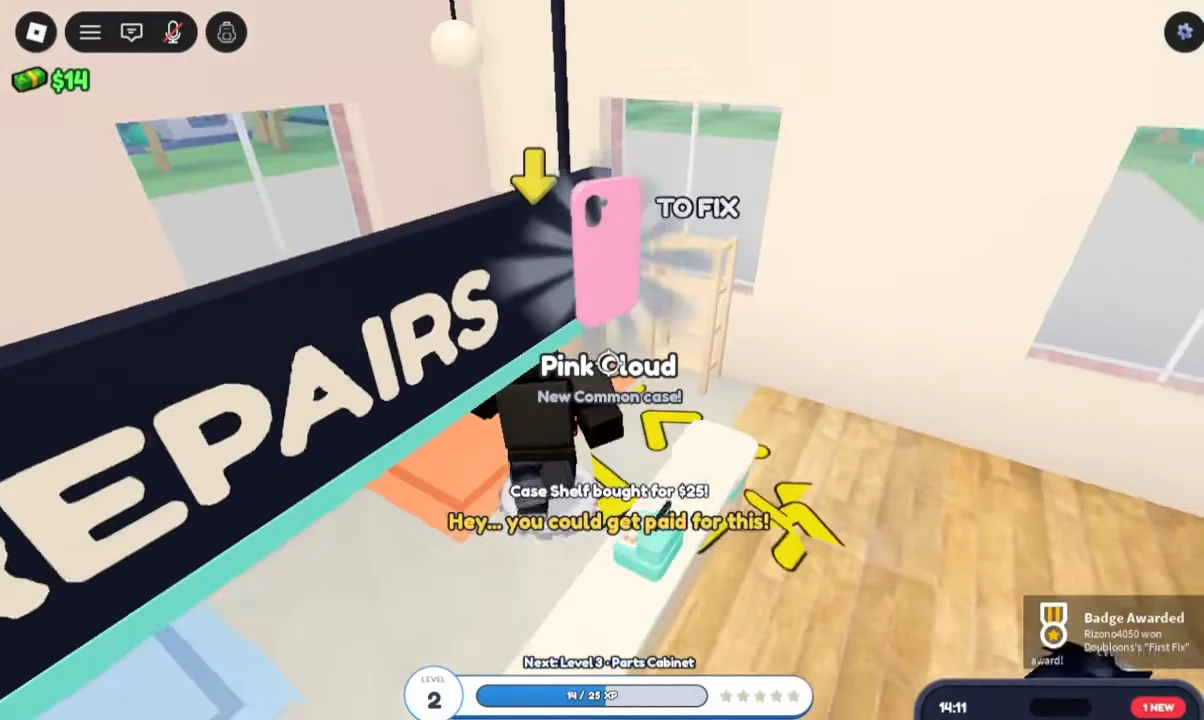
The shop shows the next upgrades in line, each tied to a level. These are the first unlocks on the track:
| Level | Unlock | What it does |
|---|---|---|
| 2 | Case Shelf | Self-serve, $25 |
| 3 | Parts Cabinet | Newer parts |
| 4 | Bench 2 | +1 repair bench |
After Level 2, the progress readout lists “Next Level: 3 – Parts Cabinet,” so you always know what the next round of XP is working toward.
How to take a customer order in Fix My Phone
Right after the Case Shelf, the game nudges you with “Hey… you could get paid for this!” and a customer shows up at the counter. Your first one is an NPC named two time. They’ve got a Pebble Mini with a cracked screen, broken because “The cat pushed it off the table. On purpose.” They also want a pink case.
Repairing a customer phone and adding a case
A customer repair runs to seven stages instead of six, counted as “Step 1 of 7” through “Step 7 of 7.” The first stretch is identical to your own phone. Peel off the broken glass, tap the new glass, peel the film, wipe it clean, apply the screen protector, and squeegee out the bubbles.
The extra stage is “Pick a case.” Since two time asked for a pink one, select Pink Cloud, the case you unlocked with the Case Shelf. Fitting the case the customer requested is the point of buying the shelf first.
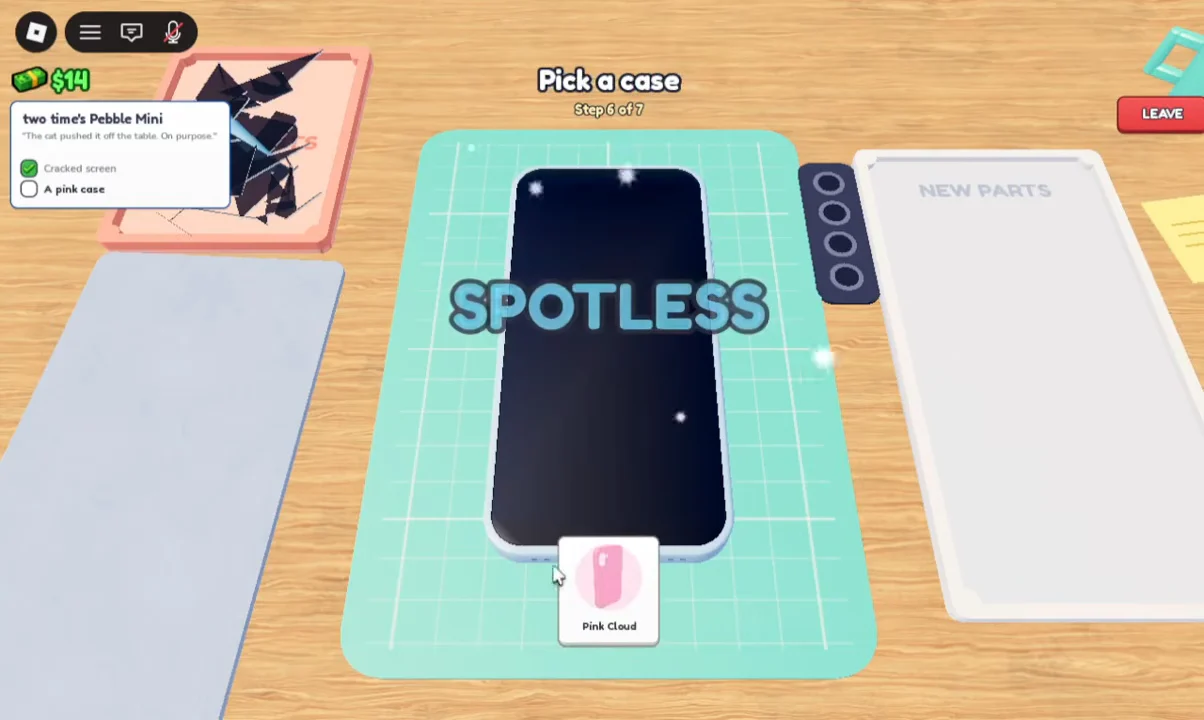
You’ll know each customer job worked the same way your first one did. Every stage flashes its confirmation word, the counter ticks to the final step, and the phone powers on when you test it. From there, the loop is the whole game: take orders as they arrive on your phone, repair them at the bench, and spend the cash and XP on the Parts Cabinet, a second bench, and whatever comes after.