

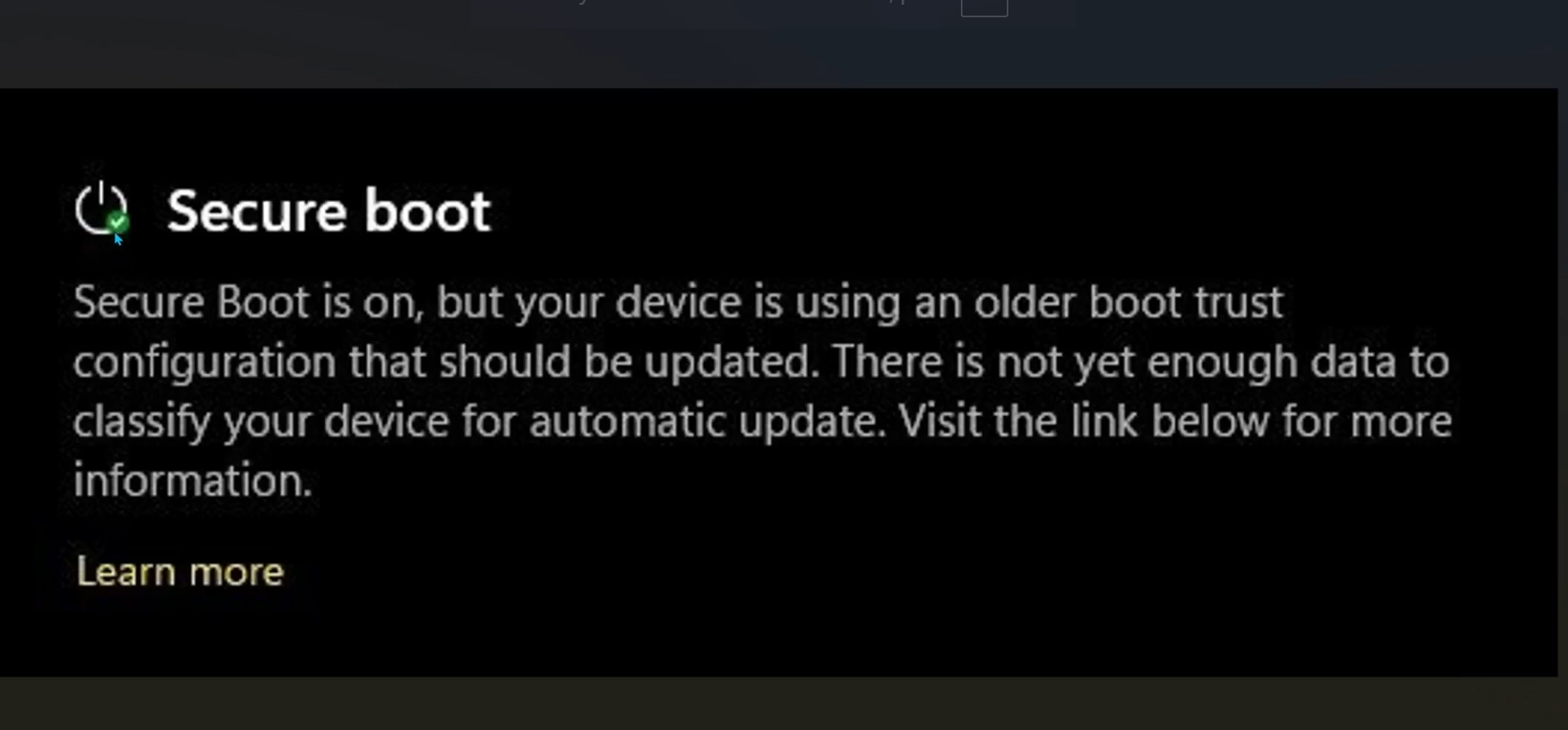
Open the Windows Security app on a Windows 11 PC right now and you might see a message that sounds alarming: “Secure Boot is on, but your device is using an older boot trust configuration that should be updated.” A second variant adds, “There is not yet enough data to classify your device for automatic update.” Both are tied to a single behind-the-scenes change. Microsoft is replacing the Secure Boot certificates that were issued back in 2011, because they begin to expire in June 2026, and it is pushing the newer 2023 certificates out through Windows Update in stages.
Quick answer: In most cases you do not need to do anything. Keep Windows fully updated, install the latest UEFI (BIOS) firmware from your device maker if one exists, leave Secure Boot turned on, and let Microsoft apply the new certificates. The warning clears on its own once your hardware and firmware are validated and the certificates are written to firmware.
What the “older boot trust configuration” warning means
Secure Boot is a firmware feature that only lets trusted, digitally signed software run while your PC starts up, which blocks boot-level malware such as rootkits. That trust relies on certificates stored in your system, and the original set from 2011 is reaching the end of its life. Without the 2023 certificates in place, an affected machine could eventually run into boot problems or lose protection against new boot-level threats after the old certificates expire.
The “older boot trust configuration” text simply tells you the machine is still running on the 2011 certificates and has not finished moving to the 2023 set. The two wordings point to slightly different stages of the rollout.
| Message | What it means |
|---|---|
| “…older boot trust configuration that should be updated to remain serviceable” | Your device has been classified for the rollout. The update may already be downloaded or scheduled to install through Windows Update. |
| “…older boot trust configuration that should be updated. There is not yet enough data to classify your device for automatic update.” | Microsoft has not yet validated your specific hardware model and firmware version. The system is waiting on backend telemetry and validation before applying the certificates. |
Neither message means your PC is unsupported or incompatible. The second one most often means the rollout simply has not reached your hardware model yet, or your firmware version has not been approved for automatic deployment. For comparison, the normal “all clear” state reads: “Secure Boot is on, and all required certificate updates have been applied. No further certificate changes are needed.”
How to confirm whether the certificates already arrived
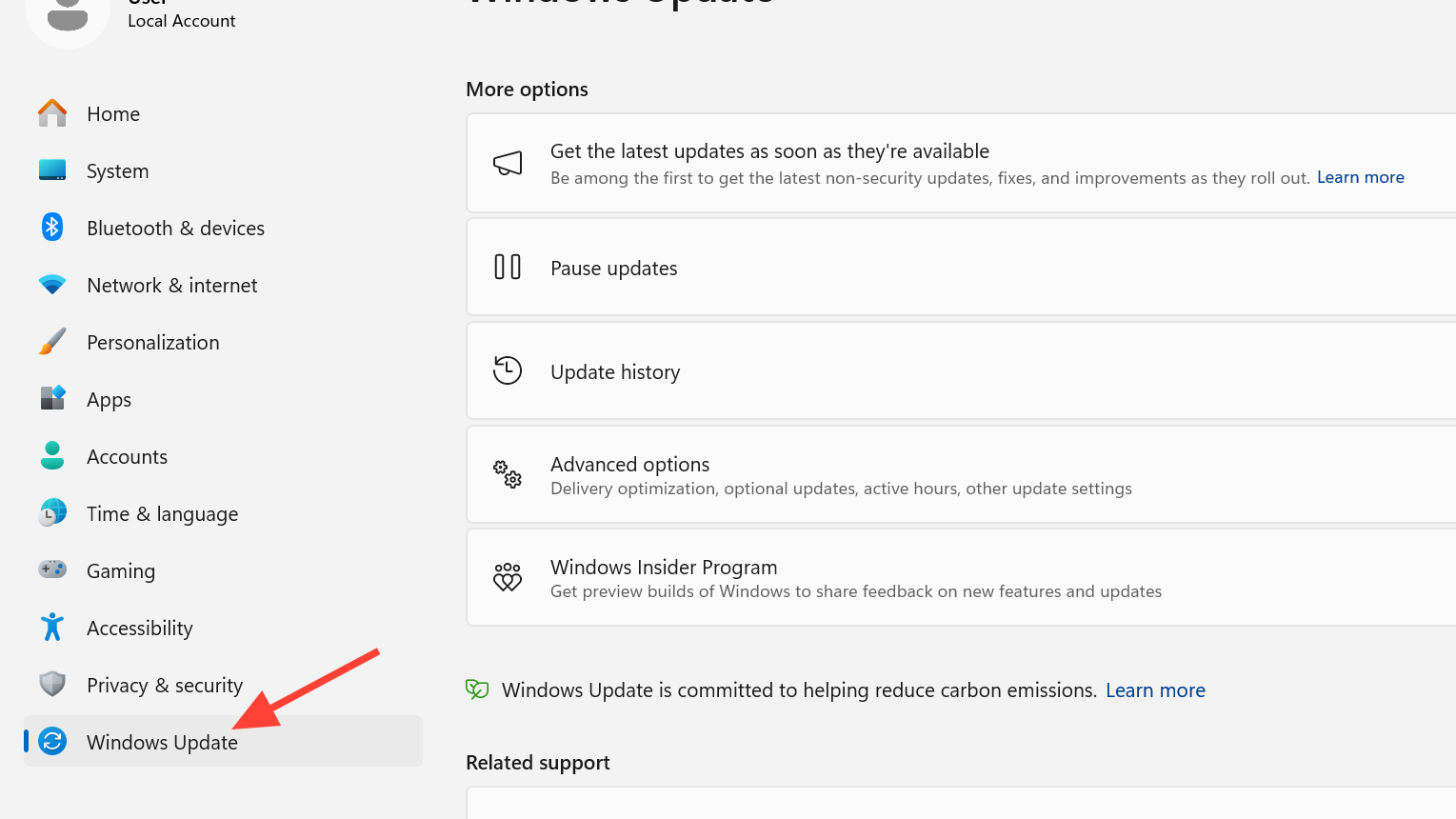
Before changing anything, check whether the update is already on your machine. Open Settings, go to Windows Update, then Update history, and expand the Other updates section. Look for an entry named Secure Boot Allowed Signatures Database (DB) Update. If it is listed, the certificate update has been delivered.
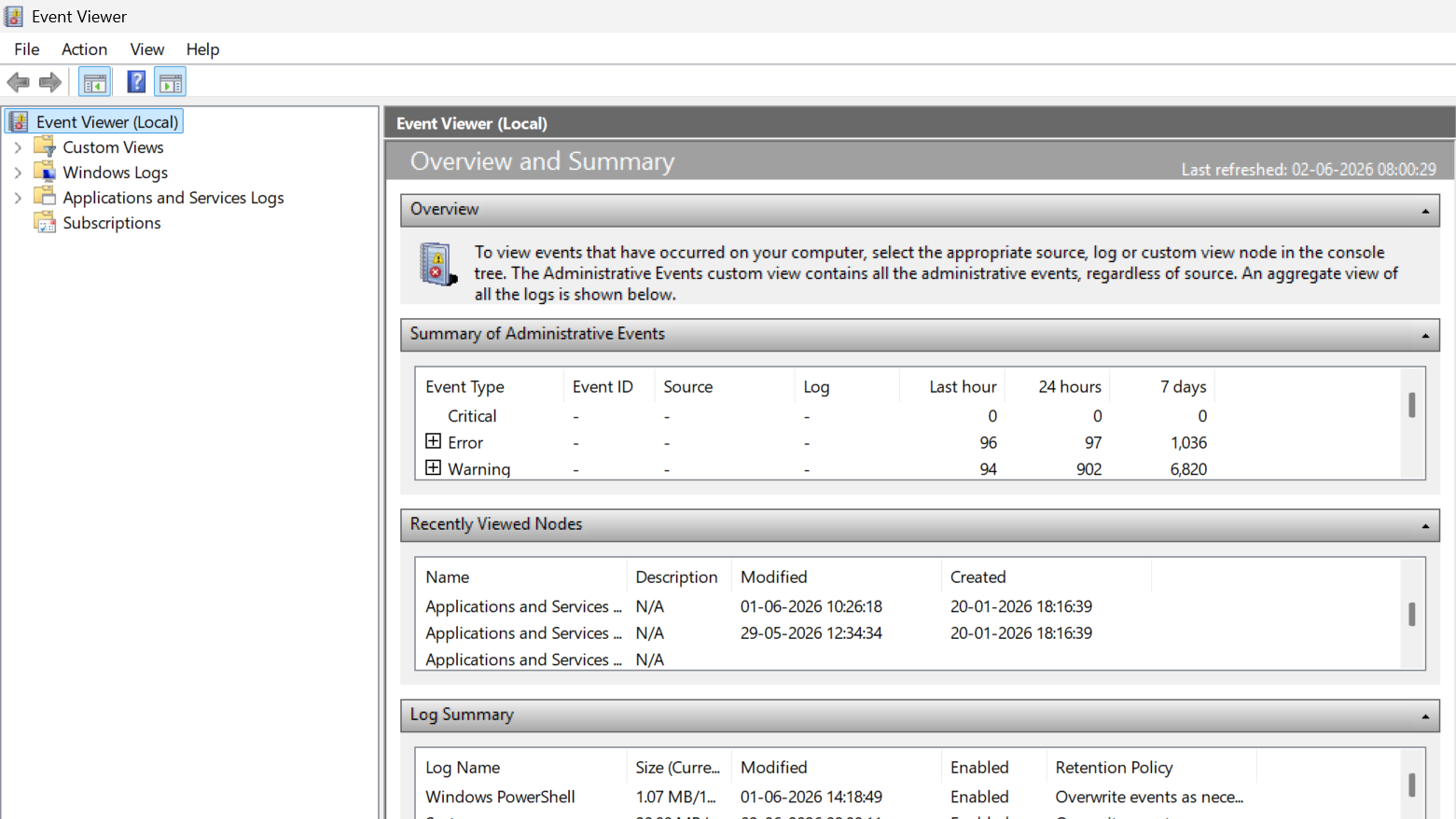
You can also open Event Viewer and search for Event ID 1808. If the certificates have been delivered but not yet written to firmware, you will see a note that updated Secure Boot certificates are available on the device but have not yet been applied to the firmware. In that case, no manual fix is needed, and the status should change after the next round of updates and restarts.
Fix the warning on Windows 11
The transition is driven entirely through the operating system and firmware. You should not manually edit Secure Boot keys or databases in the BIOS. The OEM controls the firmware defaults, and Windows updates the active Secure Boot variables for you.
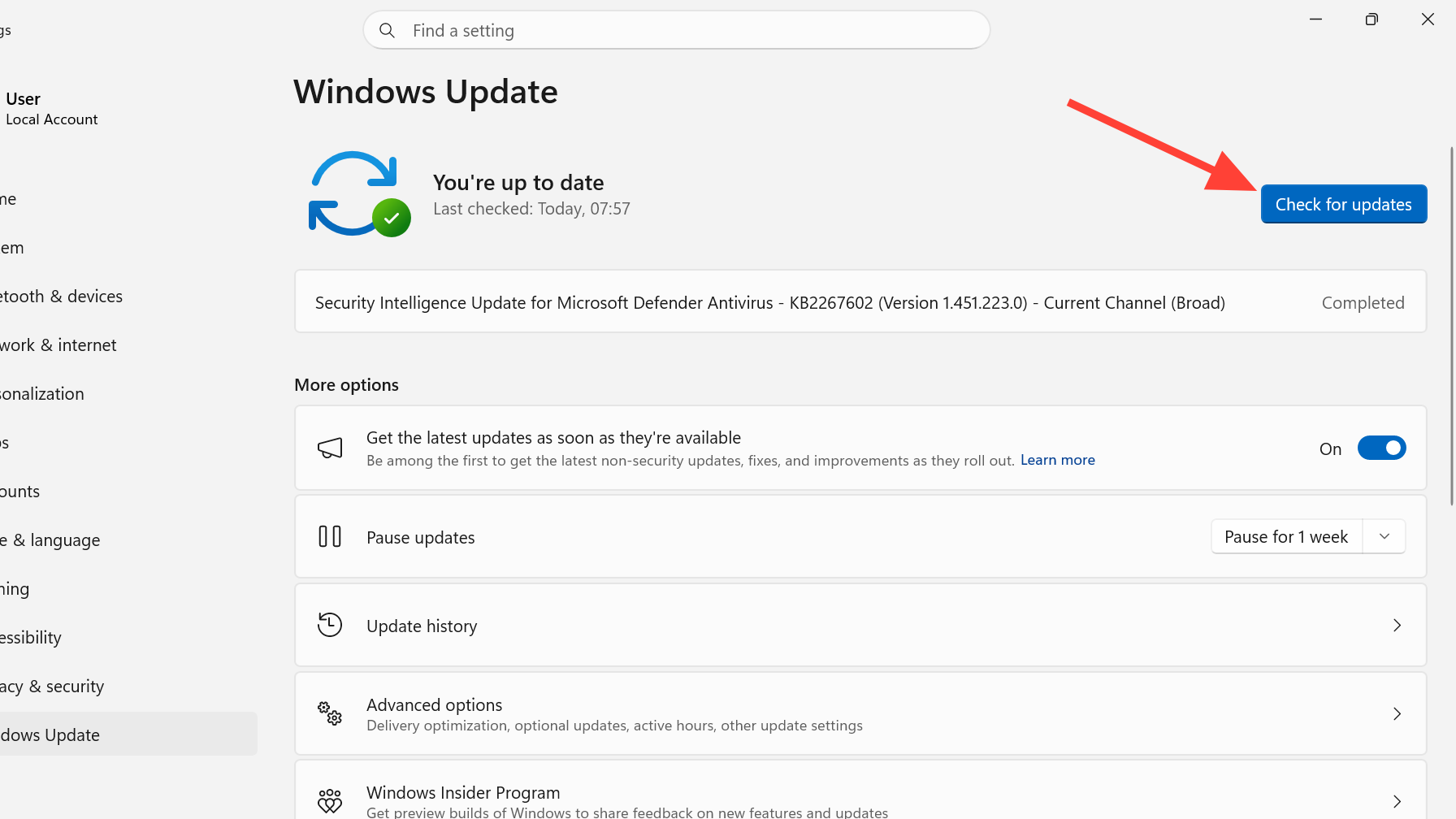
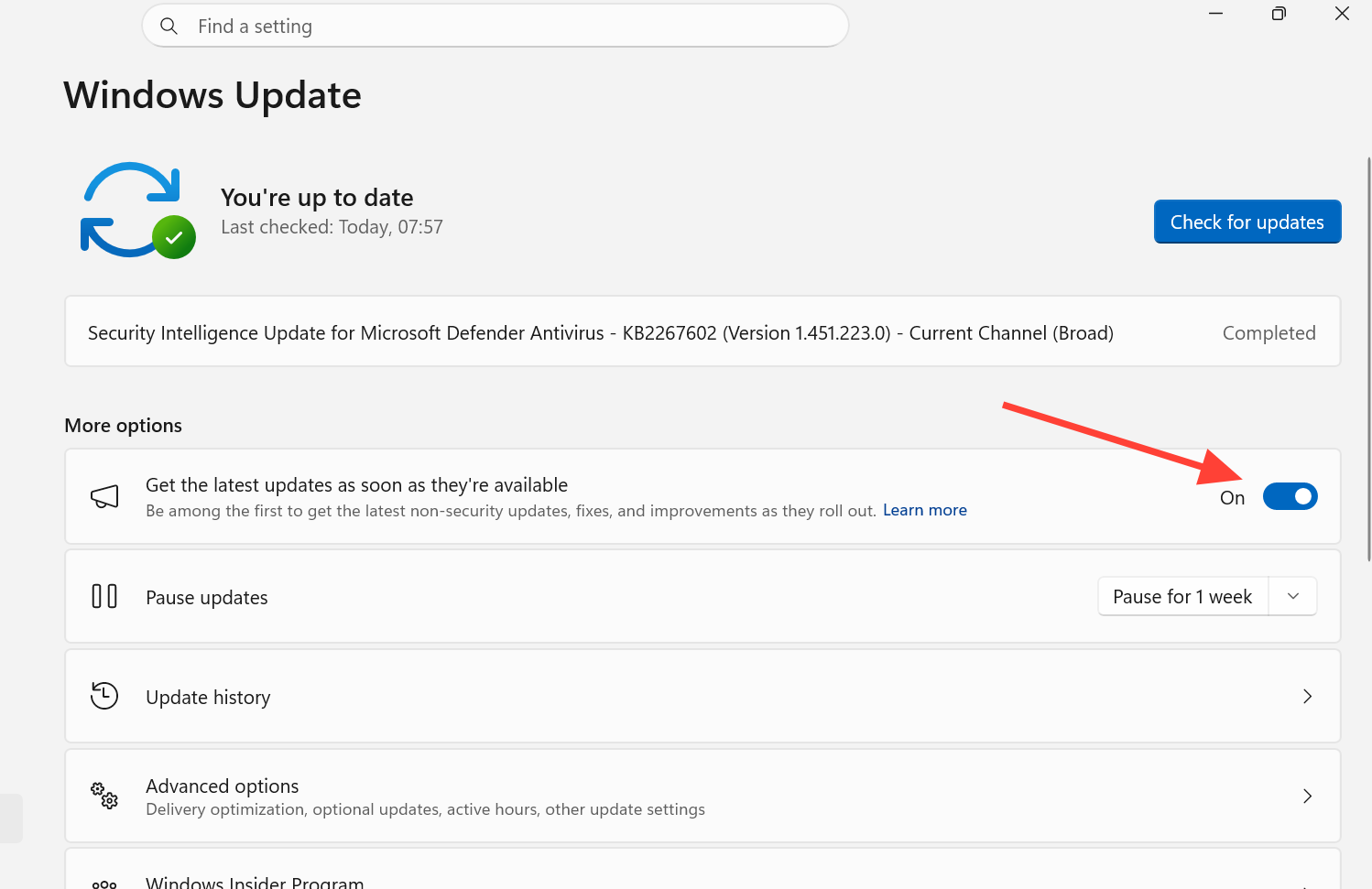
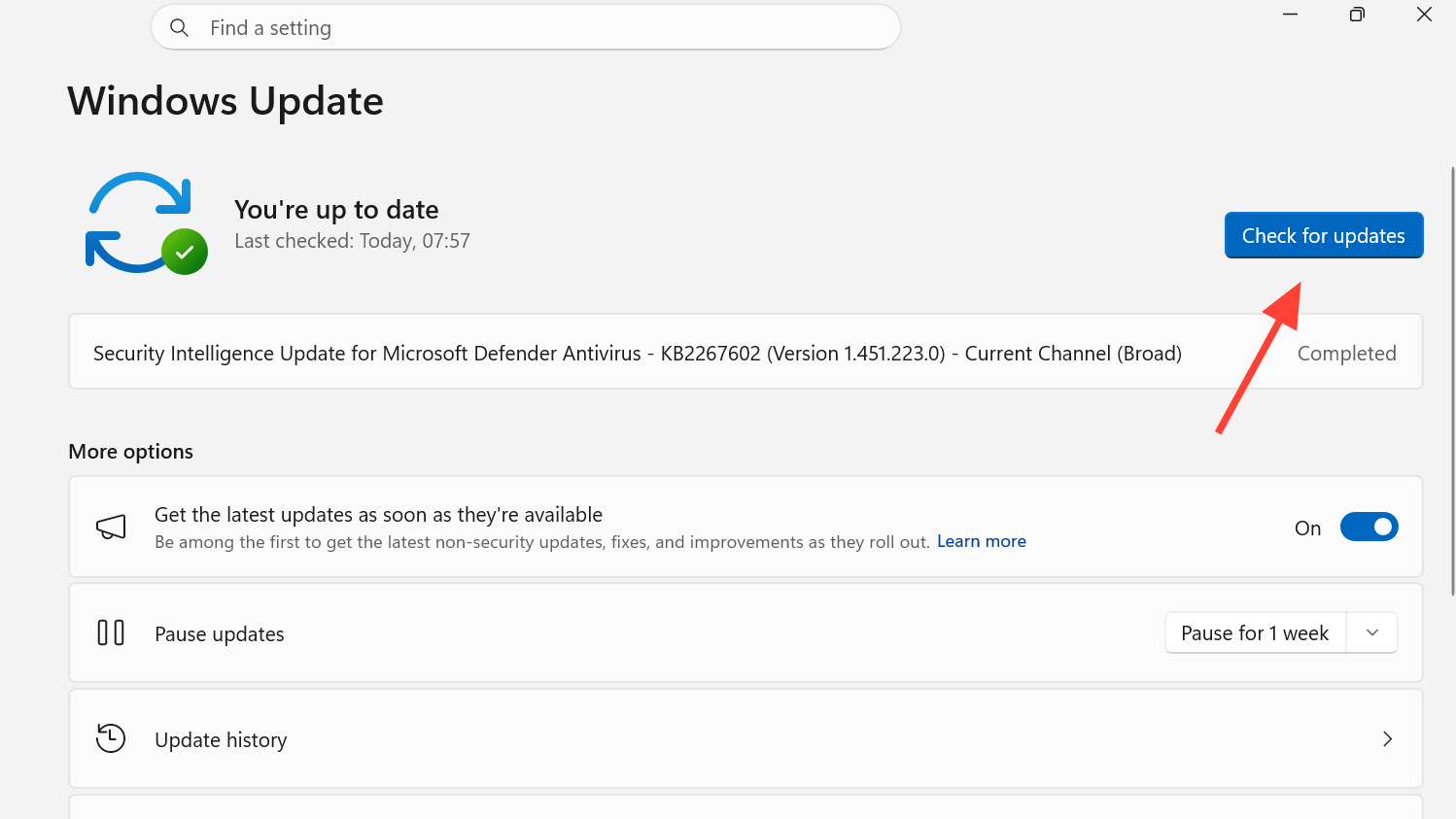
Method 1: Install all Windows updates
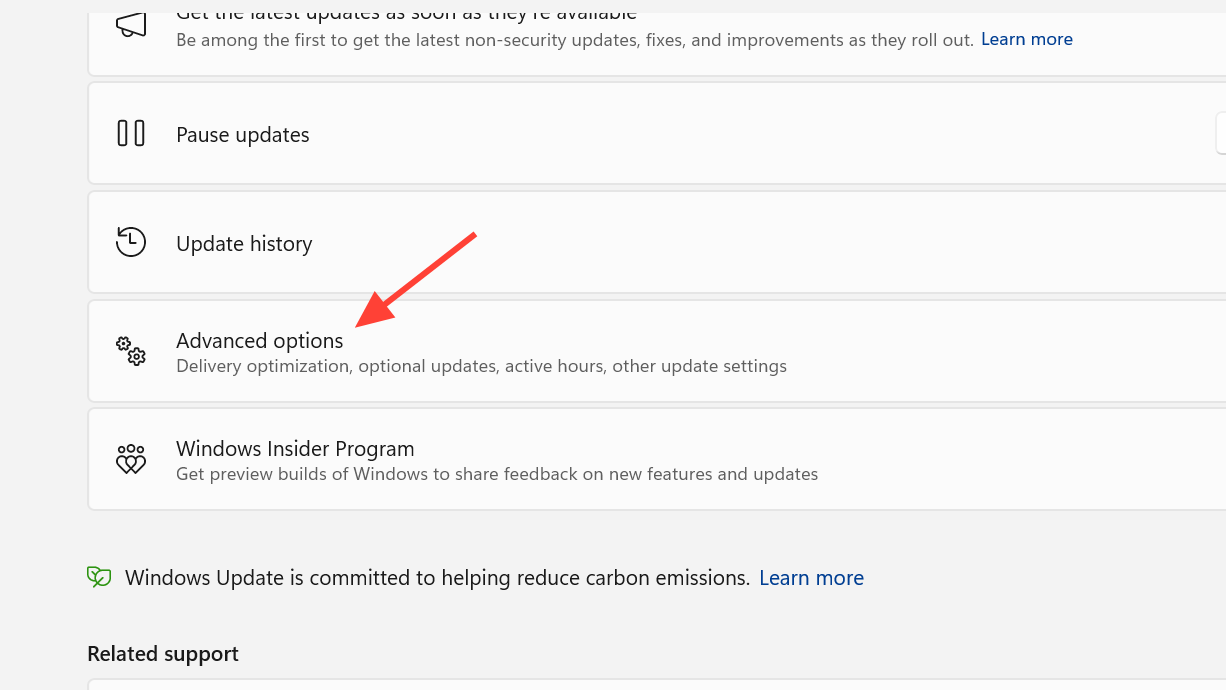
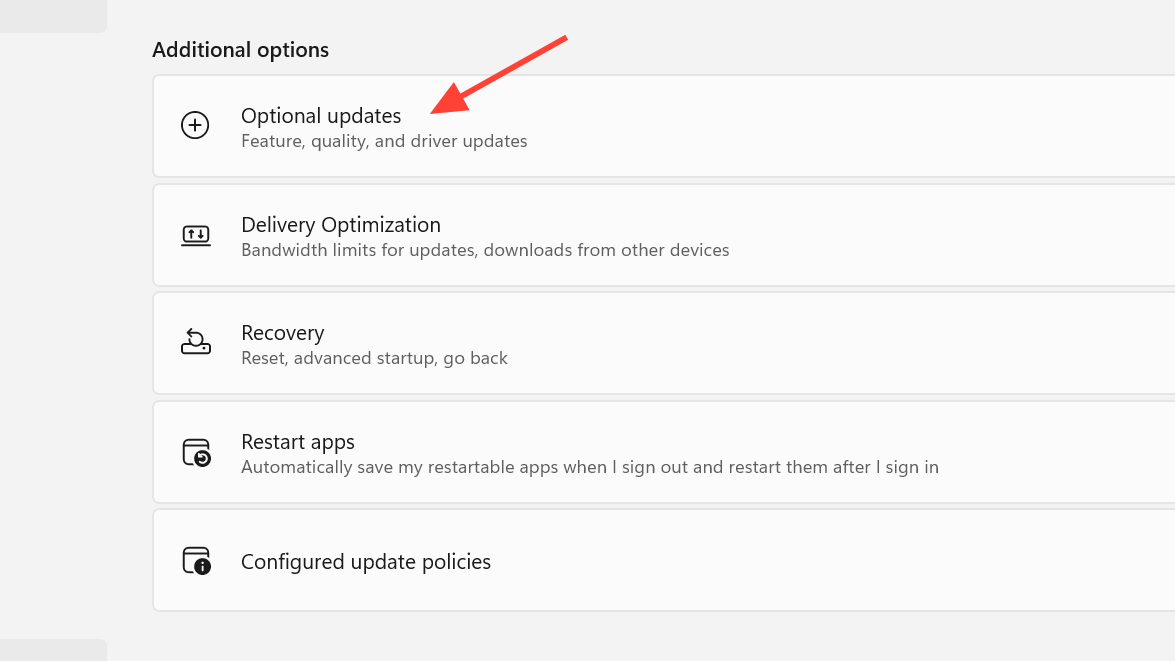
Method 2: Install optional updates
Method 3: Update the UEFI (BIOS) firmware
On some systems the warning persists until a newer firmware version is installed. A current BIOS improves compatibility with the 2023 certificates and reduces the chance of boot issues.
msinfo32, and click OK.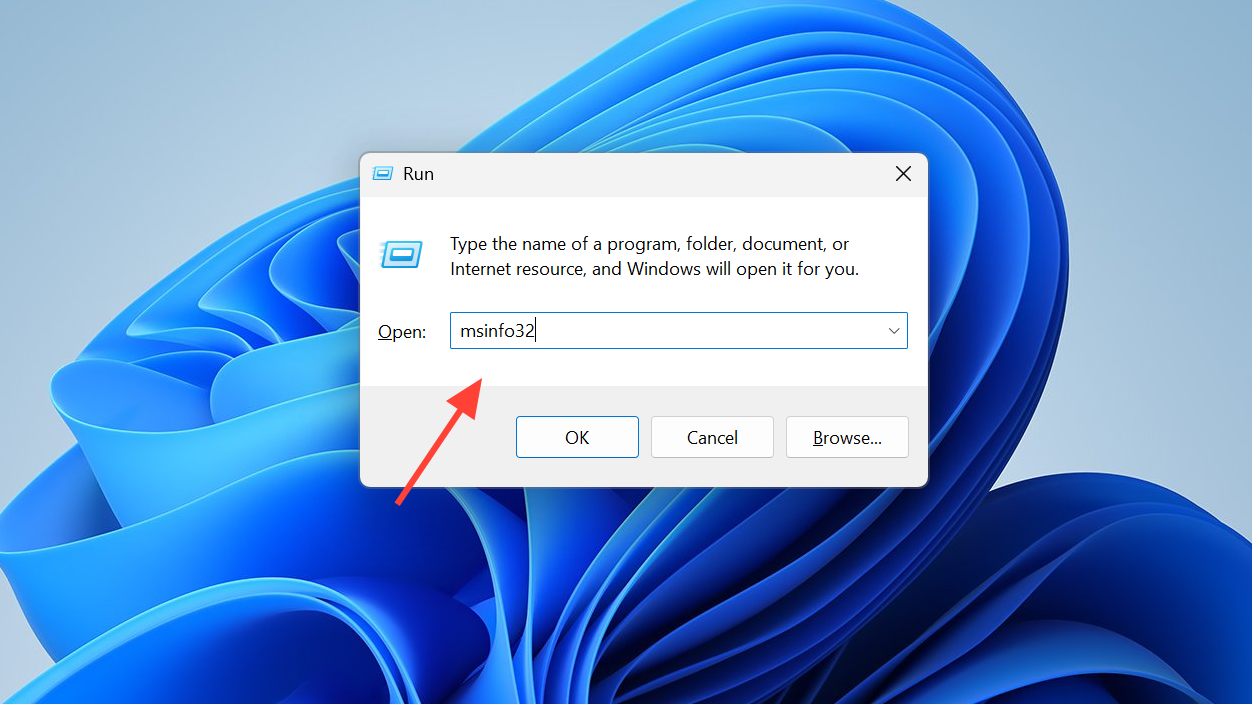
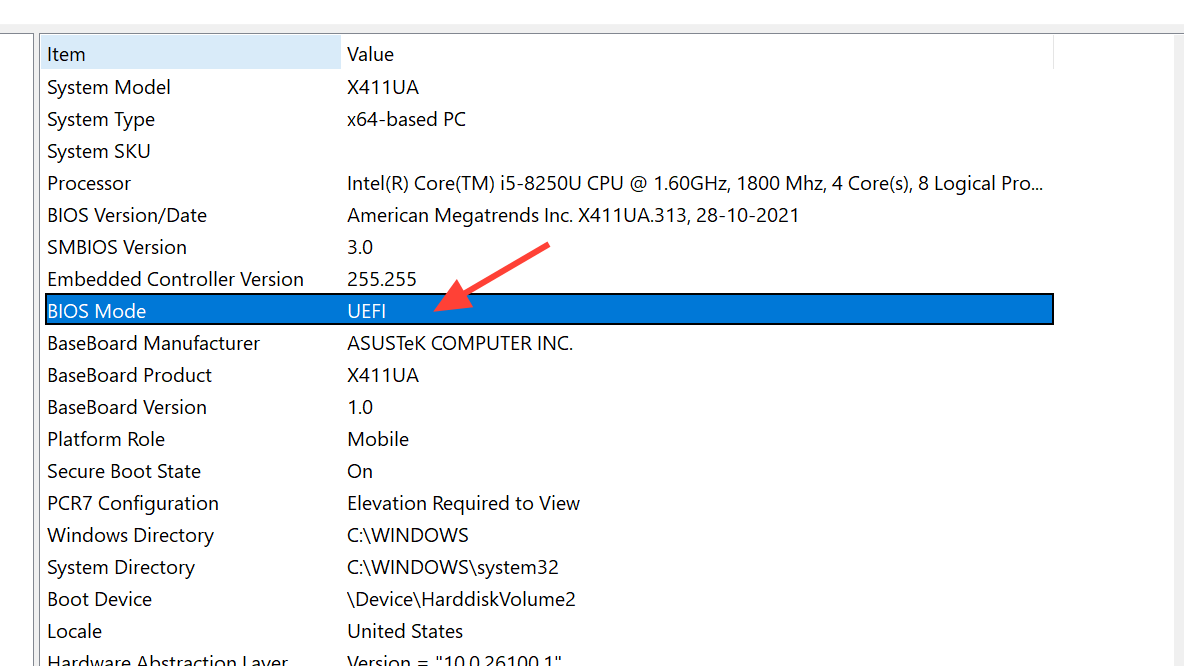
Method 4: Turn on diagnostic data
Some of Microsoft’s certificate deployment methods rely on diagnostic data to validate hardware and firmware before pushing the update automatically. For automatic delivery, three conditions generally need to be true: Secure Boot is enabled in firmware, the device sends diagnostic data to Microsoft, and (on Windows 10) the machine is enrolled in the Extended Security Updates program. Detailed enterprise and home guidance is published in Microsoft’s Secure Boot certificate update documentation.
How you know it worked
Reopen Windows Security and check the Secure Boot status. Success looks like the green message: “Secure Boot is on, and all required certificate updates have been applied. No further certificate changes are needed.” You can confirm the same from the other side by looking for the Secure Boot Allowed Signatures Database (DB) Update entry in Update history.
If you still see the warning after installing every update and the latest firmware, the most common reason is simply timing. Microsoft is rolling this out in waves, and the “not yet enough data to classify your device” wording specifically means your model has not been targeted for the final application yet. Waiting a few days and continuing to install updates usually resolves it.
Windows 10 and managed PCs
On Windows 10, you must be enrolled in the Extended Security Updates (ESU) program to receive the 2023 Secure Boot certificates. A device that cannot enroll will not get them, and the only remaining path to keep boot-level protection is upgrading to Windows 11.
If a PC is managed by an organization, the rollout is handled by IT rather than the end user. Administrators apply the certificate and revocation updates across validated devices, update the trust anchors and boot components, and then apply revocations so older, vulnerable boot managers are no longer trusted.
What happens if you ignore it
You can leave the message alone without losing any current functionality. After the 2011 certificates expire, an un-updated PC will still start and still receive ordinary Windows updates. What it loses is new boot-level security, including Windows Boot Manager updates, Secure Boot database and revocation updates, and mitigations for future boot-level vulnerabilities. Over time that gap can affect scenarios that depend on Secure Boot trust, such as BitLocker hardening and certain third-party bootloaders. For most people the practical move is the simplest one: keep Windows updated, install firmware updates when your manufacturer ships them, leave Secure Boot on, and let the certificate update reach you.



