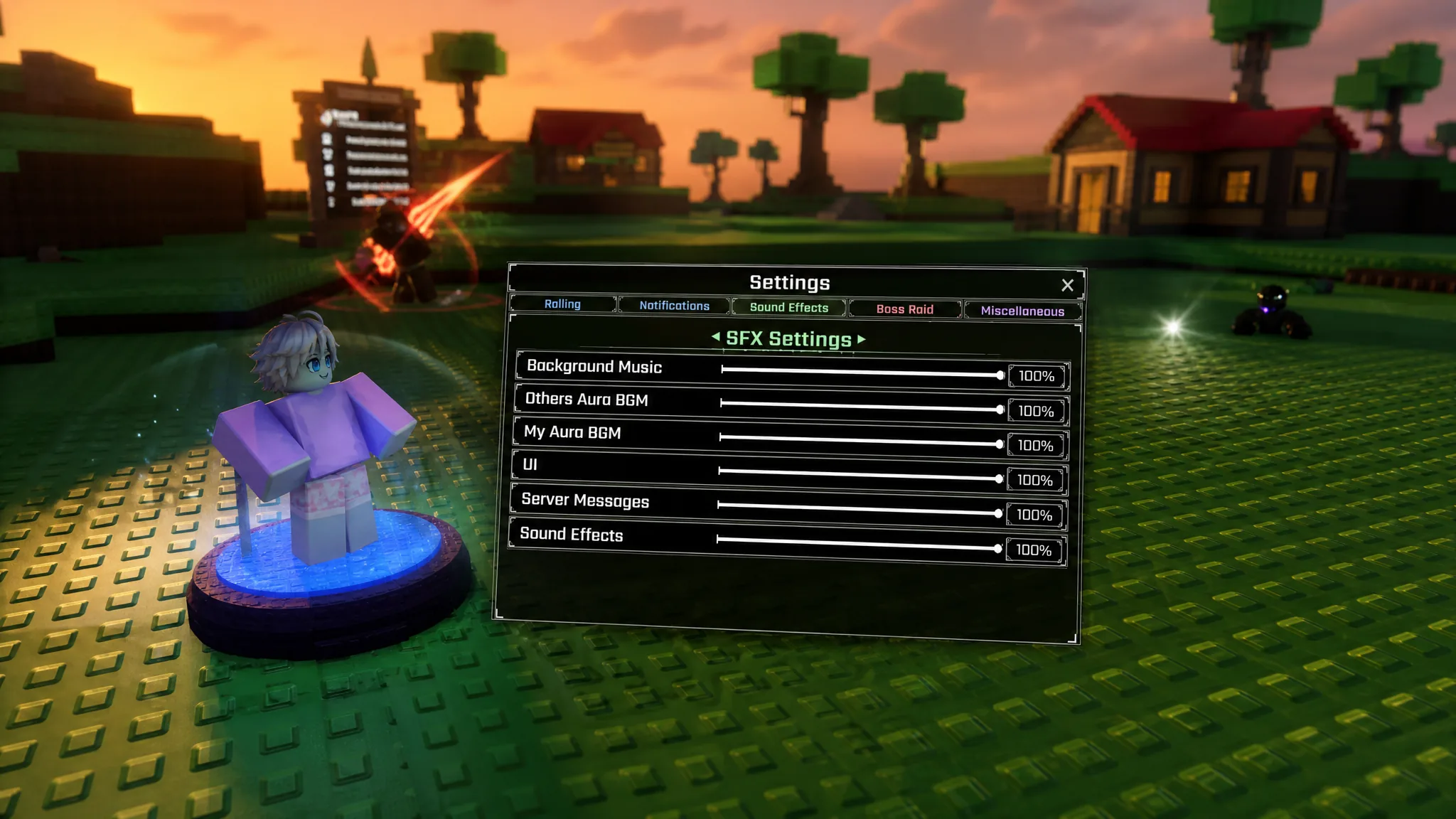
The settings menu in Sol’s RNG controls almost everything about how a roll feels, from whether cutscenes play to how loud other players’ auras are in your ears. It is also where the code redemption box hides, which is why plenty of players go looking for it and never find it.
Quick answer: Click the menu button on the left side of your screen, then choose Settings (the fourth option down the list) to open the tabs for Rolling, notifications, Sound Effects, Boss Raid, and Miscellaneous.
How to open the Settings menu in Sol’s RNG
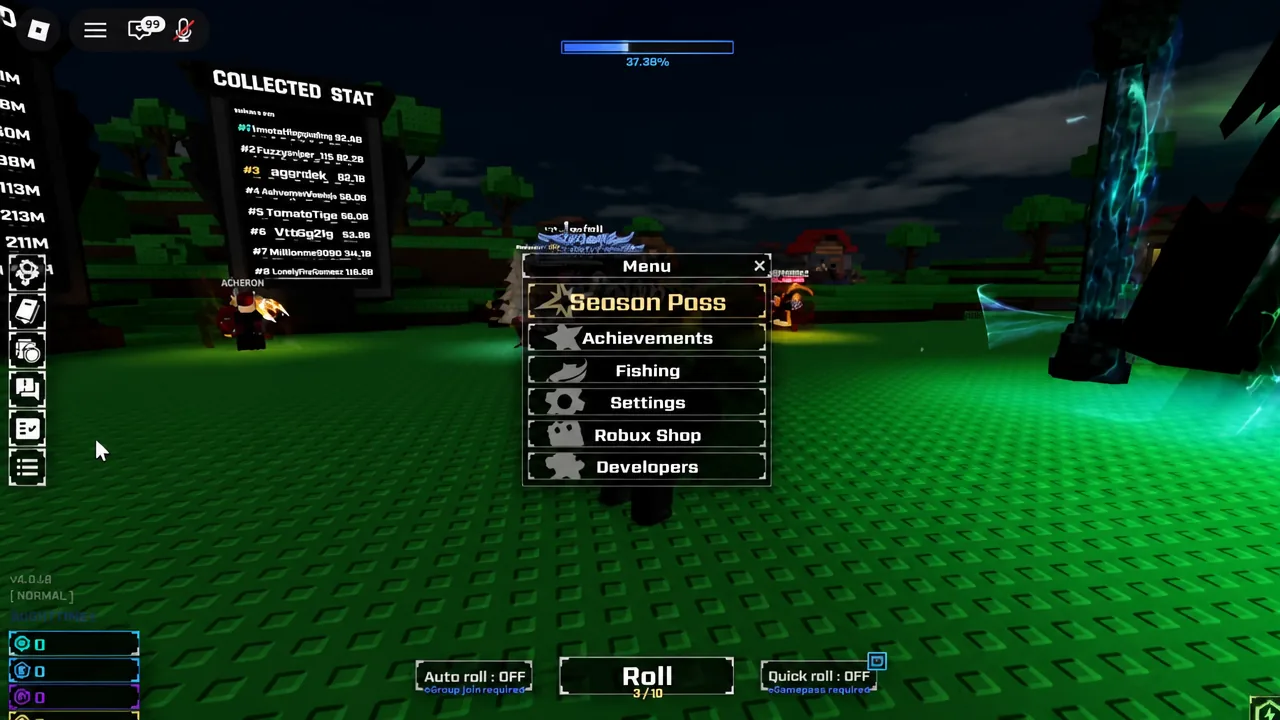
Season Pass, Achievements, Fishing, Settings, Robux Shop, and Developers, so Settings sits fourth from the top.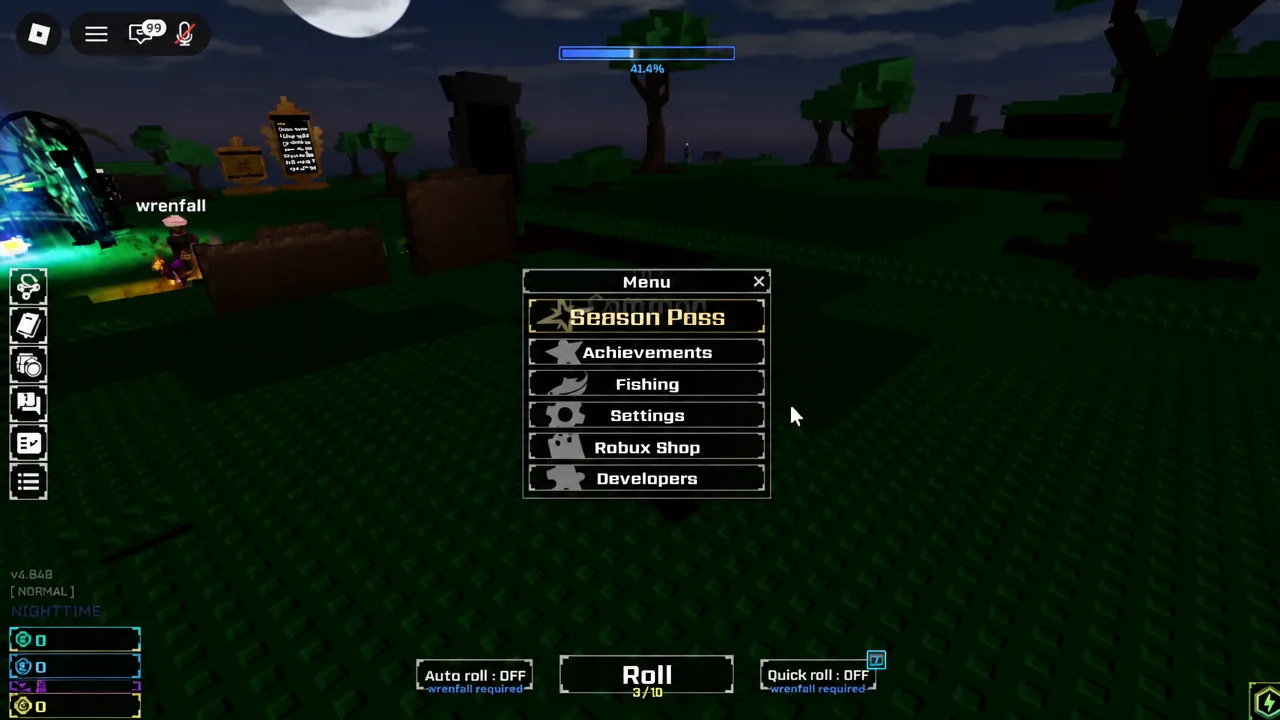
You know it worked when the panel shows a row of tab labels and a column of toggles and sliders. Changes apply as soon as you flip a switch, so there is no save button to press before closing.
Rolling tab: Warnings, auto equip, and cutscene skips
This is the tab that decides how much the game interrupts you. Most of the entries take a rarity value rather than a simple on or off, meaning the game only acts once an aura crosses the threshold you set.
| Setting | What it does |
|---|---|
| Delete Warning Rarity / Skip Warning Rarity | Warns you before an aura above the chosen value is auto-skipped or removed. |
| Swap Warning Rarity | Warns you when your equipped aura is about to be replaced by one above this rarity. |
| Auto Equip Rarity | Automatically equips any aura rolled above the value you set. |
| Cutscene Skip Rarity | Hides the opening animation for auras below the chosen rarity. |
| Buffs Enabled | Turning this off pauses every active buff and drops your luck back to 1. |
| Storage Full Warning | Alerts you while rolling if your storage has no space left. |
| Aura Filter | Lets you set equip or skip behaviour for each aura by hand. |
| Play New Aura Cutscene | Always plays the cutscene for an aura that is not yet in your Collection. |
| Modifying Disabled | Blocks aura modification. |
Note: Buffs Enabled is the one toggle worth double-checking before a long grind. Leaving it off silently resets your luck multiplier, and nothing on screen makes that obvious mid-session.
Notifications tab: Chat spam and pop-up control
Click the notifications tab to manage what appears in Roblox chat and what pops up on screen. Each entry here is a checkbox except the last one, which uses a rarity value.
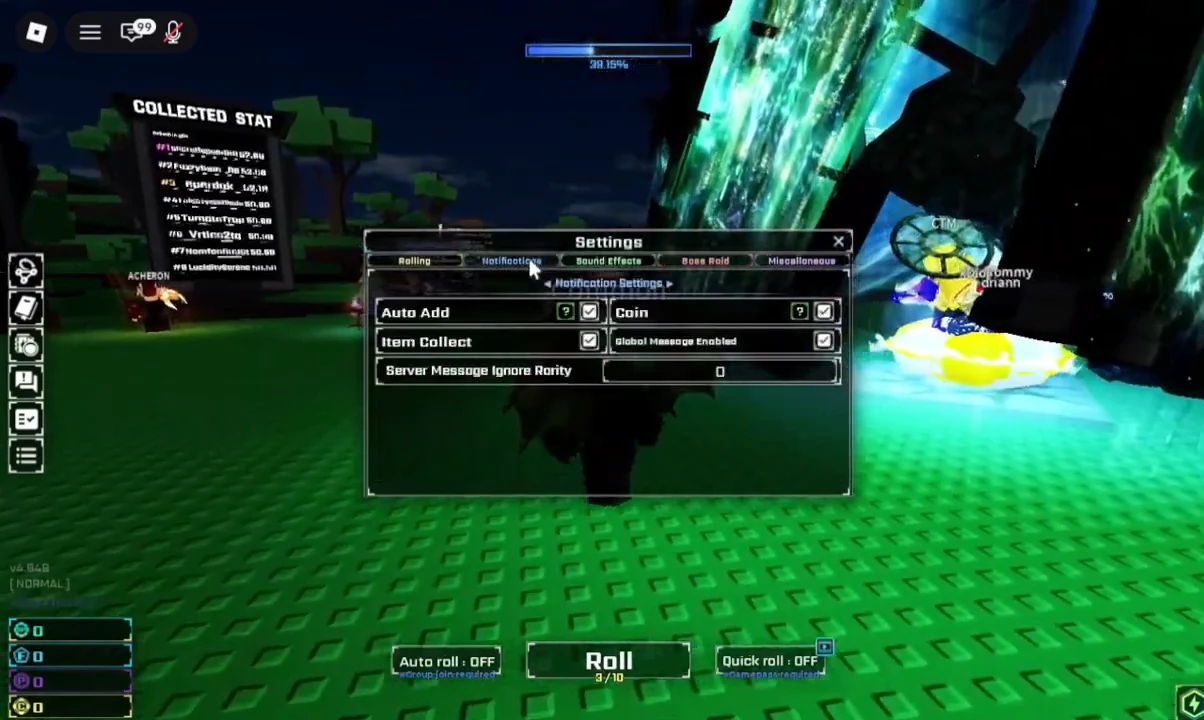
| Setting | What it does |
|---|---|
| Auto Add | Shows a white notification when an aura is auto-added to crafting, and a blue one when it is double-added. |
| Coin | Plays a sound and shows a notice when coins arrive from the Jackpot Gauntlet or the Bank. |
| Item Collect | Notifies you when an item is picked up automatically through VIP+ or the Item Collector. |
| Global Message Enabled | Shows or hides global messages in Roblox chat. |
| Server Message Ignore Rarity | Keeps auras rolled below this value out of chat. Global messages are unaffected. |
Raising the Server Message Ignore Rarity is the fastest way to quiet a busy server. The chat feed thins out immediately, so you can confirm the change without leaving the game.
Sound Effects tab: Volume sliders for music and auras
The SFX tab splits audio into separate channels instead of one master volume. That lets you mute other people’s aura music while keeping your own, which is the usual reason players open this tab.
| Slider | Controls |
|---|---|
| Background Music | The game’s background music. |
| Others Aura BGM | Aura music from other players in the server. |
| My Aura BGM | Music from your own equipped aura. |
| UI | Interface clicks and menu sounds. |
| Server Messages | Server effect audio. |
| Sound Effects | General in-game sound effects. |
Boss Raid tab: Cutscene and screen shake options
Boss Raid settings only affect raid encounters, and there are four of them. Cutscene Music and Cutscene Voice toggle the audio during raid cutscenes. Auto Cutscene Skip Vote casts your skip vote for you, and Disable Screen Shake removes the camera shake, which helps if the effect makes you uncomfortable or costs you frames on a weaker device.
Miscellaneous tab: PvP Mode, Hide AFK, and titles
The last tab collects everything that does not fit elsewhere, including the two toggles most players want and the code box. Options that need a second window, such as Title Selection and Redeem Code, use an Open button rather than a switch.
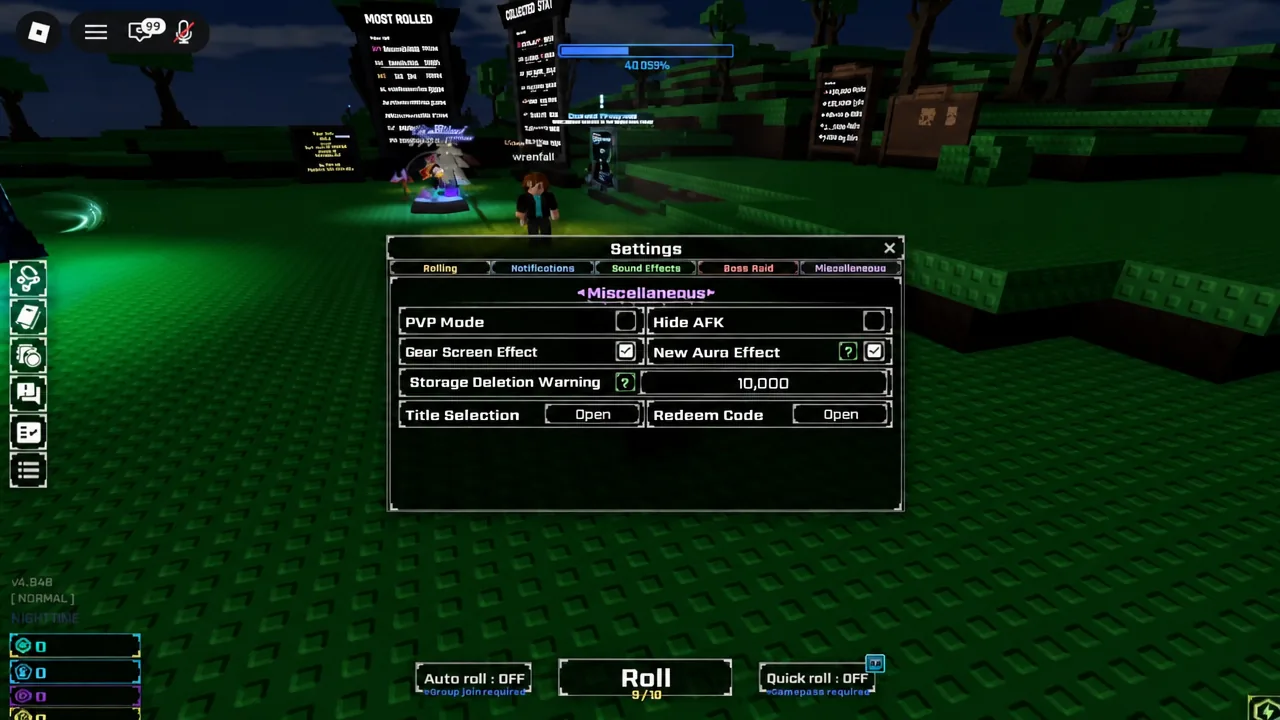
| Setting | What it does |
|---|---|
| PvP Mode | Decides whether you and other players can attack each other using auras with PvP abilities. |
| Hide AFK | Stops the [AFK] tag appearing above your character when you tab out. |
| Gear Screen Effect | Toggles the screen glow from certain gear. Currently applies to the Darkshader. |
| New Aura Effect | Makes newly obtained auras blink in your storage. |
| Storage Deletion Warning | Adds a five-second countdown to the Remove button for auras above the rarity you set. |
| Title Selection | Opens the panel for changing your leaderboard title. |
| Redeem Code | Opens the box for gamepass gift codes and developer codes. |
How to redeem a code in Sol’s RNG
Enter Code... field and a Redeem button.A successful redemption delivers the reward straight away, so check your inventory or currency total rather than waiting for a rejoin. The box accepts gamepass gift codes as well as the codes developers release occasionally.
One last thing worth flagging: third-party executor scripts advertised as Sol’s RNG tools are not part of the game and are not covered by anything in this menu. Everything described here is built into the game itself and carries no risk to your account.