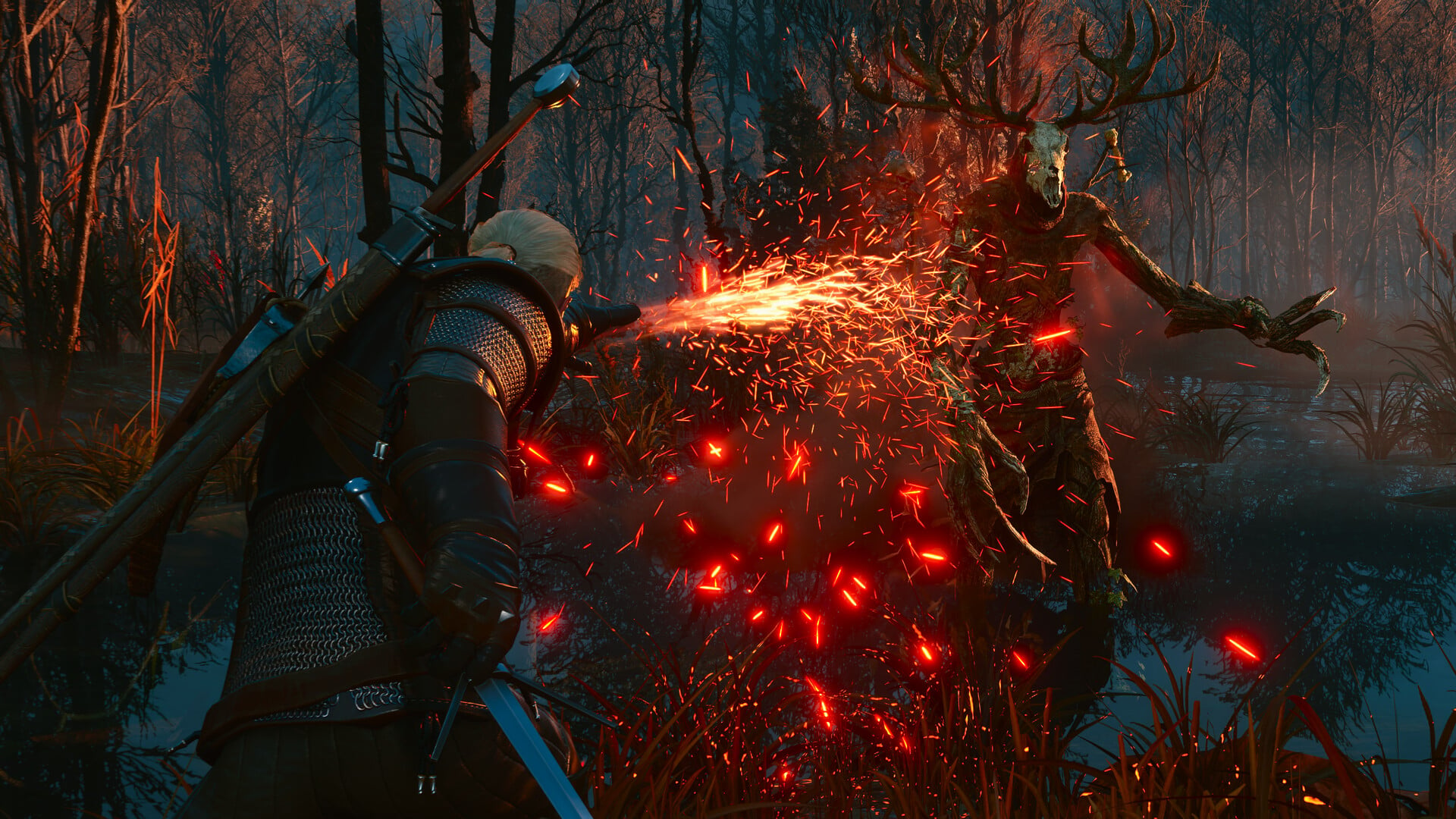
After The Witcher 3: Wild Hunt – Remastered launched, its lighting became brighter and more uniform, a visual change players soon picked up on. Landscapes outside can feel less dimensional, colors look muted, and distant ground may seem hazy or faded compared with the original game. PC players can improve much of this through the graphics menu, and a newly released mod streamlines the process.
Quick answer: In the graphics settings, switch Bloom off. Contrast and color come back right away, bringing the image closer to the classic game.
Turn off Bloom to restore contrast on PC
Bloom is designed to add atmosphere by making luminous areas radiate. In the remaster, though, the glow spills across a much larger portion of outdoor scenes than intended, creating a washed-out veil. Disabling Bloom makes the biggest difference to the flat appearance, with no performance cost.
CD Projekt Red rolled out a hotfix earlier that reduced some of the worst Bloom behavior, so the setting is less punishing than it was at launch. Whether the original overreach was a bug or a deliberate choice, turning Bloom off still delivers the cleanest result.
Other post-processing settings to disable
Bloom is the one setting that fixes a clear problem. The rest below are a matter of taste, and disabling them gives a sharper, cleaner image. A configuration that holds up well across the game is every post-processing effect switched off.
- Chromatic Aberration — creates colored fringes along the display’s borders; disable it for a tidier image.
- Motion Blur — makes rapid movement look softer; switch it off to retain more definition in motion.
- Vignetting — shades the image’s corners; whether to use it comes down to preference.
- Blur — extra softening you can switch off for more detail.
- Depth of Field and Light Shafts — off for a flatter, more consistent image.
Adjust one option, then test it in an outdoor scene; overlapping effects make simultaneous changes difficult to evaluate.
See changes live with the Real-Time Graphics and HDR Menus Preview mod
Tuning the visuals usually means nudging a slider, backing out of the menu, and playing spot-the-difference to work out what moved. gleb63’s Real-Time Graphics and HDR Menus Preview on Nexus Mods removes that friction. It strips the opaque black background and fog overlay from the in-game Graphics and HDR menus, so the world stays visible behind the settings.
With it installed, graphics changes update in real time directly in the game world while the menu is open. You can compare Bloom on against Bloom off, or test ray-tracing contrast, without repeatedly closing and reopening the menu. It installs easily and makes dialing in a look far quicker.
HDR, ray tracing, and path tracing
If your monitor supports HDR, calibrating it makes a real difference to the washed-out look, so it is worth setting up properly. Without HDR, ray tracing is the setting that improves contrast and makes colors pop the most. It can push the image too dark in places, but that is correctable through gamma and your monitor’s own controls.
Path tracing can look better in specific scenes, but it tends to make surfaces oddly shiny and swings between too dark and too bright with little middle ground. It also tanks performance hard. On an RTX 4070 it needs frame generation and DLSS just to hold a stable frame rate, so unless you have a very powerful machine, ray tracing is the better choice.
Test your settings across different lighting
Do not judge your settings from a single spot. A look that works in bright daylight can fall apart in shadow. Step outside into an open field or a hamlet, drop into a cave lit only by candlelight, and find a dim interior to check how the deep blacks hold up. Photo mode lets you change the time of day on the spot, which gives you a fuller read without travelling.
Console players cannot toggle Bloom yet
On PS5, Xbox, and other consoles, the game offers no built-in way to turn Bloom off. Display options let you adjust brightness, contrast, and gamma, but those changes cannot fully match the clarity gained by disabling Bloom on PC. Consoles would require an official patch for a fix, and no visual update has been confirmed.
Xbox owners can use Xbox Play Anywhere to download the remaster on PC without paying extra. On PC, they get the complete settings menu, including the Bloom toggle, and can use mods for additional adjustments. The compromise is the remaster’s greater hardware requirements due to its upgraded rendering.
PC system requirements
The remaster retains the previous base requirements, though ray tracing and higher visual settings place a heavier load on hardware. The official PC specifications are listed below.
| Component | Minimum | Recommended |
|---|---|---|
| OS | Windows 11 (64-bit) | Windows 11 (64-bit) |
| Processor | Core i5 8400 / Ryzen 5 2600 | Core i7 8700K / Ryzen 5 3600X |
| GPU | GTX 1660 / RX 5500 XT / Arc A580 | RTX 2060 Super / RX 6600 XT / Arc B580 |
| Memory | 12 GB | 16 GB |
| Storage | 60 GB SSD | 60 GB SSD |
Toggling Bloom off is the fastest route back to the game longtime players remember, and it is a one-setting change you will see the moment you step into the open world. Layer in the other post-processing toggles and a live-preview mod, and you can settle on a clean, high-contrast look that holds across day, night, and candlelit interiors.