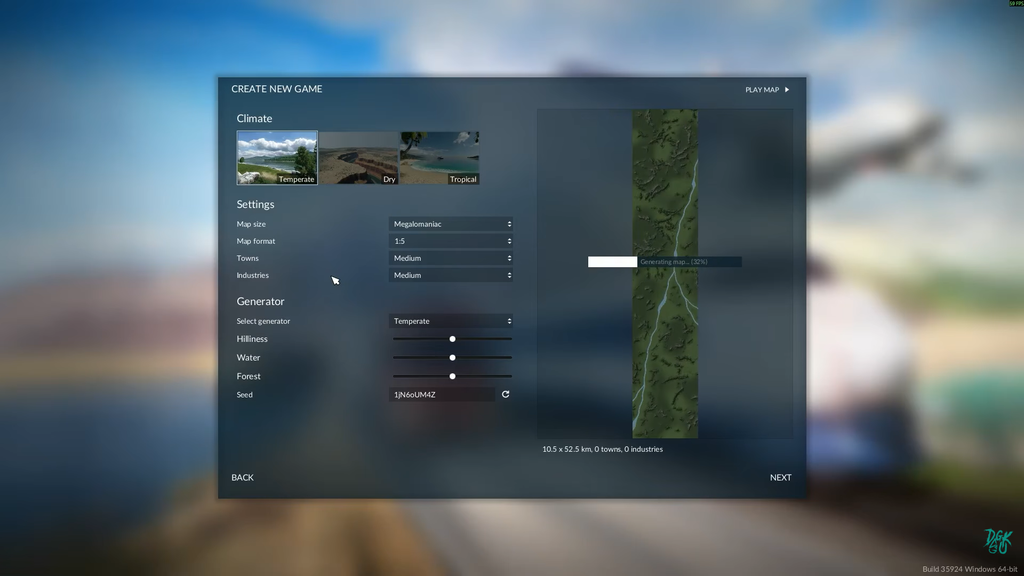
A fresh game of Transport Fever 3 caps out at Very Large on PC, a square map measuring 16,384 meters on a side. Four bigger sizes already exist in the game, but they stay switched off until you change a single setting in a text file. Turn it on and the map creation screen gains Huge, Megalomaniac, and Gigantomaniac, the last of which is wide enough that panning the camera corner to corner takes about seven seconds.
Quick answer: With the game shut down, edit settings.lua in your user data folder: replace experimentalMapFeatures = false with experimentalMapFeatures = true. Save the file, relaunch, and the additional sizes will be available when you begin a new game.
Every map size, standard and experimental
The sizes marked “exp.” only show up once the experimental flag is on, and all of them are PC and Mac only. The figures below are the square (1:1) dimensions; choosing a wider map format changes the shape, not the fact that these four sizes are hidden by default. Published dimensions are listed on Urban Games’ official map sizes manual.
| Size | Square (1:1) | Availability |
|---|---|---|
| Tiny (exp.) | 4,096 m | PC, flag required |
| Small | 8,192 m | All platforms |
| Medium | 11,264 m | All platforms |
| Large | 14,336 m | All platforms |
| Very Large | 16,384 m | PC only |
| Huge (exp.) | 20,480 m | PC, flag required |
| Megalomaniac (exp.) | 24,576 m | PC, flag required |
| Gigantomaniac (exp.) | 28,672 m | PC, flag required |
Consoles stop at Large because of memory limits, so PlayStation 5 and Xbox Series X|S cannot use Very Large or any of the experimental sizes. The developers plan to bring the larger maps to console once they leave the experimental stage.
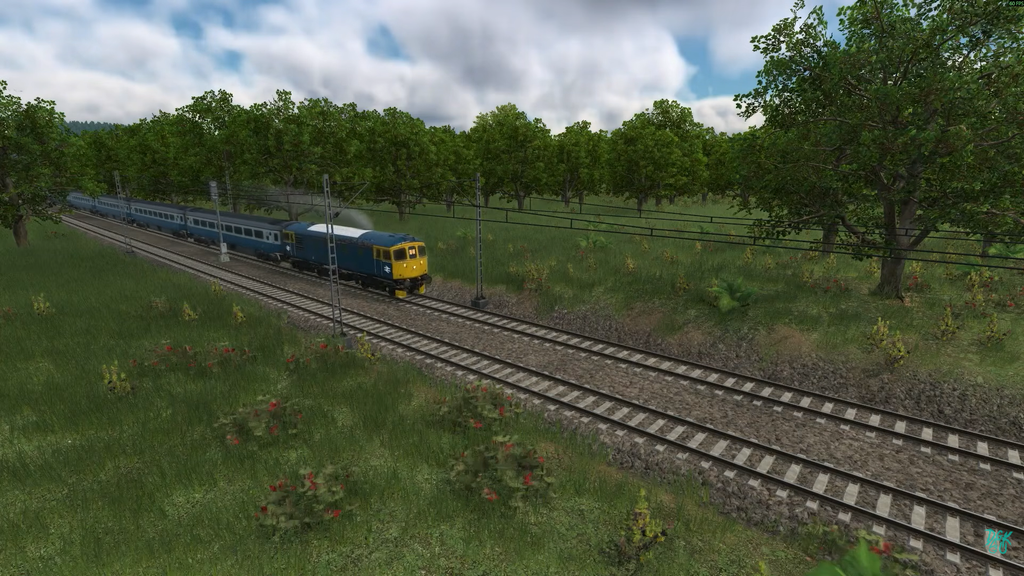
Unlock the experimental map sizes
The whole process is a one-line edit, but the game has to be fully closed when you make it, or it will overwrite your change on exit. Make a copy of settings.lua first so you can restore it if anything goes wrong.
settings.lua in your system’s file browser.settings.lua. Avoid Word or other word processors, which may disrupt the file’s formatting.experimentalMapSizes; it has since been renamed, so search for its current name.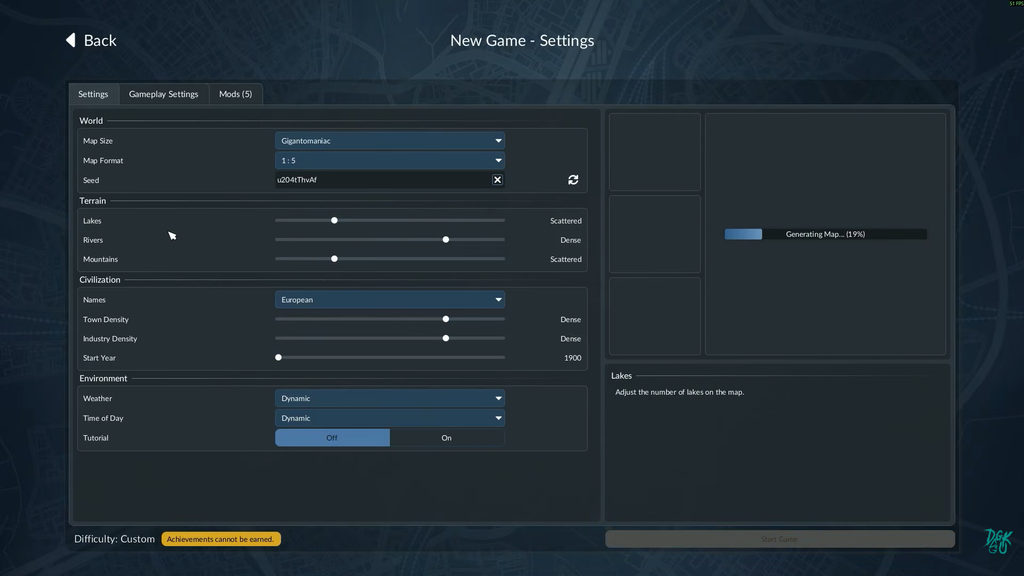
experimentalMapFeatures = false,false to true, keeping the trailing comma intact. The line should read experimentalMapFeatures = true,. Save the file and relaunch the game.While you have the file open, you can also set experimentalTunnelAndBridgeMinHeight to true the same way, which lets you place bridges and tunnels at any height.
Confirm it worked
Start a new Free Game after relaunching. In the map size dropdown you should now see Huge, Megalomaniac, and Gigantomaniac listed alongside the standard options, and the same sizes appear in the Map Editor. If they are missing, the game was probably still running when you saved the file, or the setting reverted on launch.
If the flag reverts to false, shut the game down completely and make the edit again. Verify the change was saved, relaunch, and inspect the dropdown before loading anything. If the game will not start or the settings seem broken, delete settings.lua to restore the defaults; keep a backup copy in case you need it.
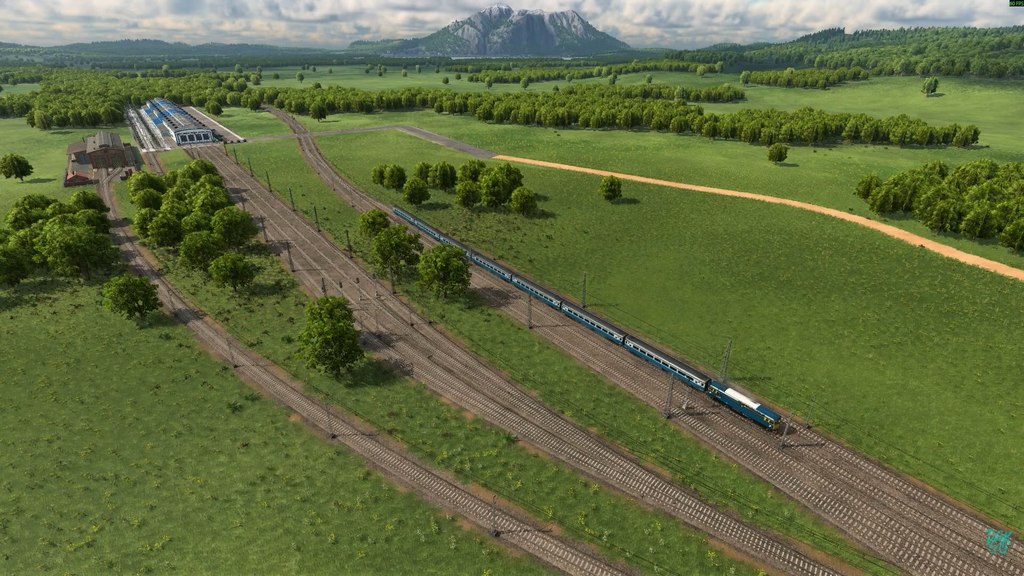
What to expect on the bigger maps
These sizes are flagged experimental for a reason. The game simulates every city, resident, industry, vehicle, and cargo link continuously, so a far larger world means a far heavier load on your CPU and memory. At least 16 GB of RAM is recommended for them, which is above the 8 GB listed in the minimum PC spec.
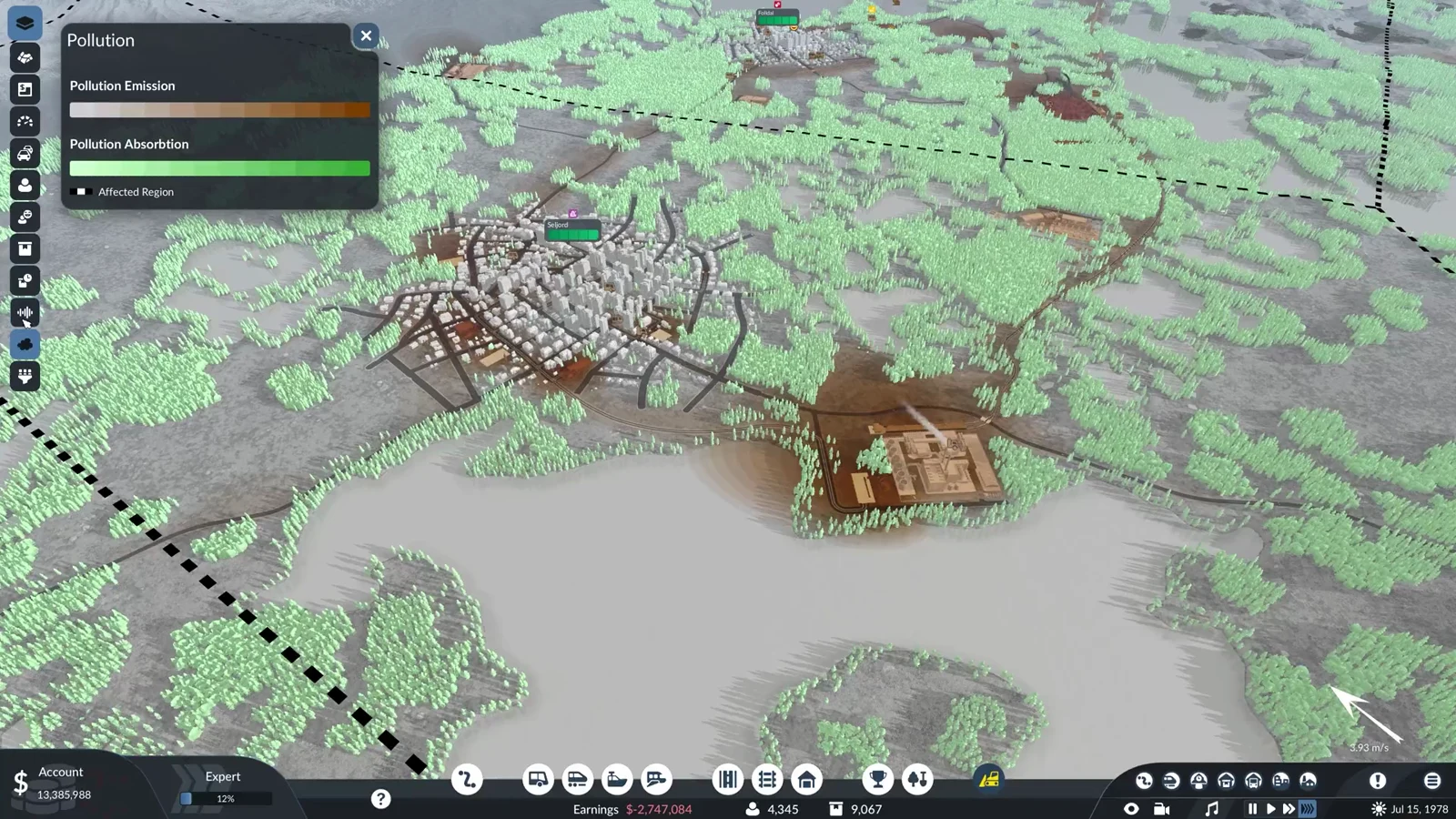
Performance also degrades over a long game. As towns grow in population, their footprint and density on the map grow with them, so a start that runs smoothly can hit heavy frame drops decades later. If your machine struggles, lower the map size or reduce town and industry density when generating the map rather than filling the whole grid at once.
The same experimentalMapFeatures flag also unlocks economy changes in existing saves, which can lead to unstable situations. Keep a separate backup save before touching those options.