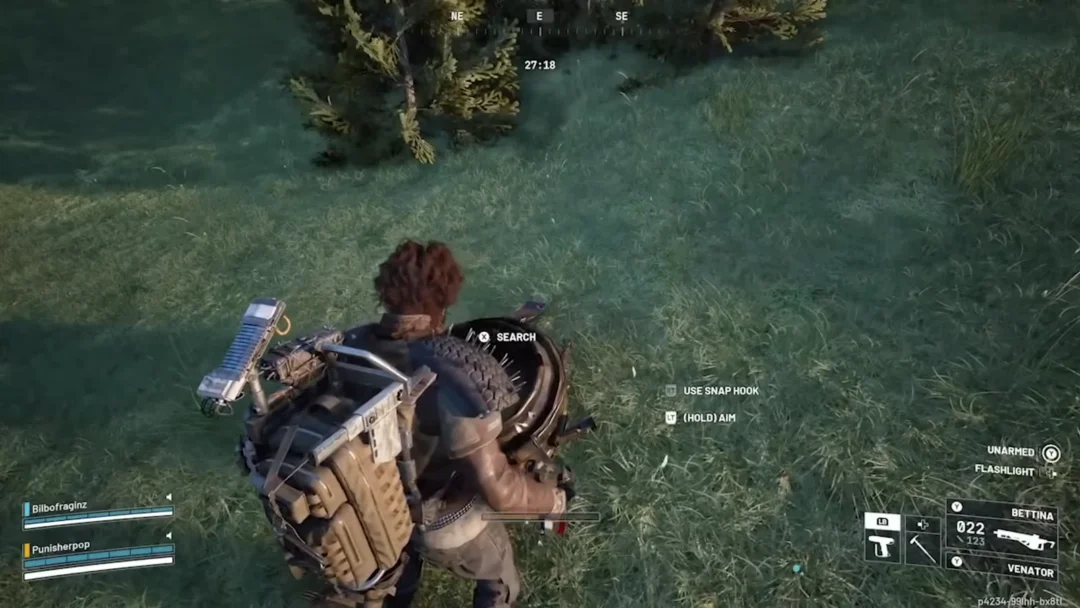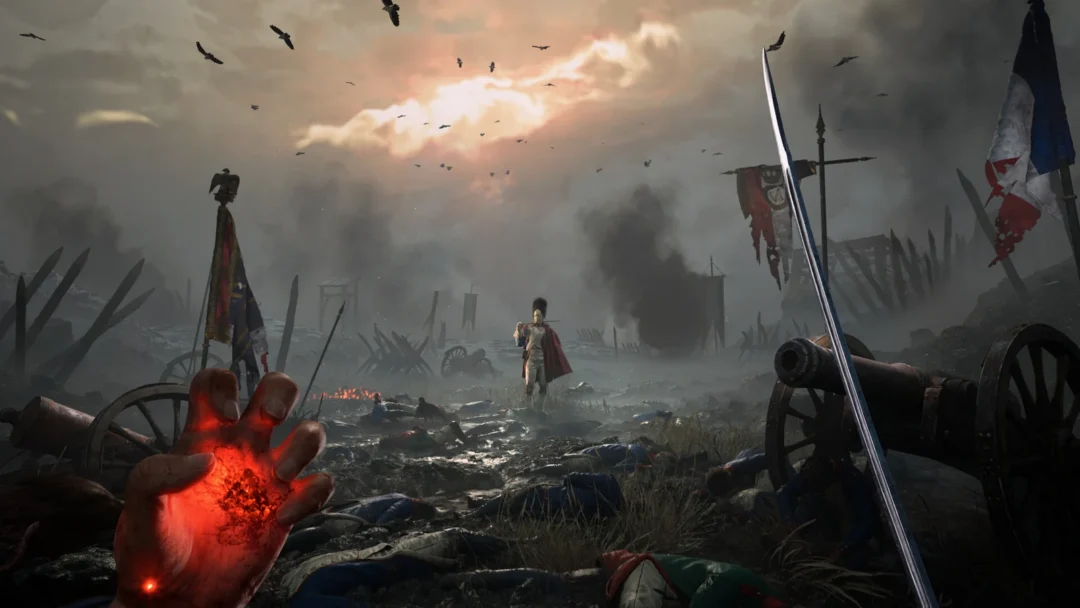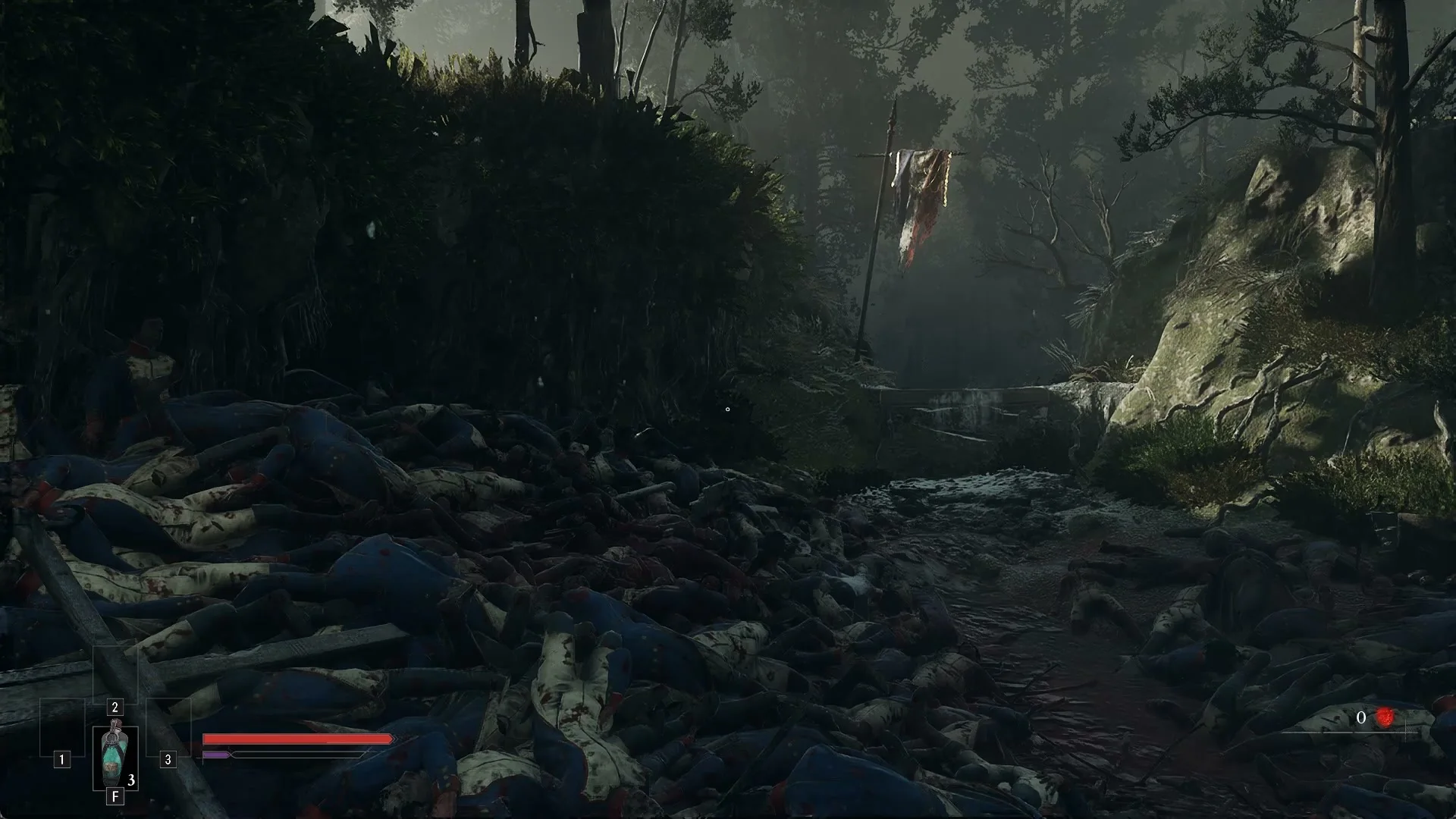
On a 6 GB GeForce RTX 2060 at 1920 x 1080, Valor Mortis pushes close to its video memory ceiling at the higher presets, so the right choice is as much about staying stable as chasing frames. Every graphics option lives in Options > VIDEO, and the presets move eleven of those rows together while leaving your upscaler and latency choices alone.
Quick answer: Set QUALITY PRESETS to HIGH, confirm the VRAM warning, keep UPSCALER on NVIDIA DLSS at DLSS MODE ULTRA PERFORMANCE. That lands around 55 FPS average on an RTX 2060 at 1080p.
How to apply changes in the VIDEO tab
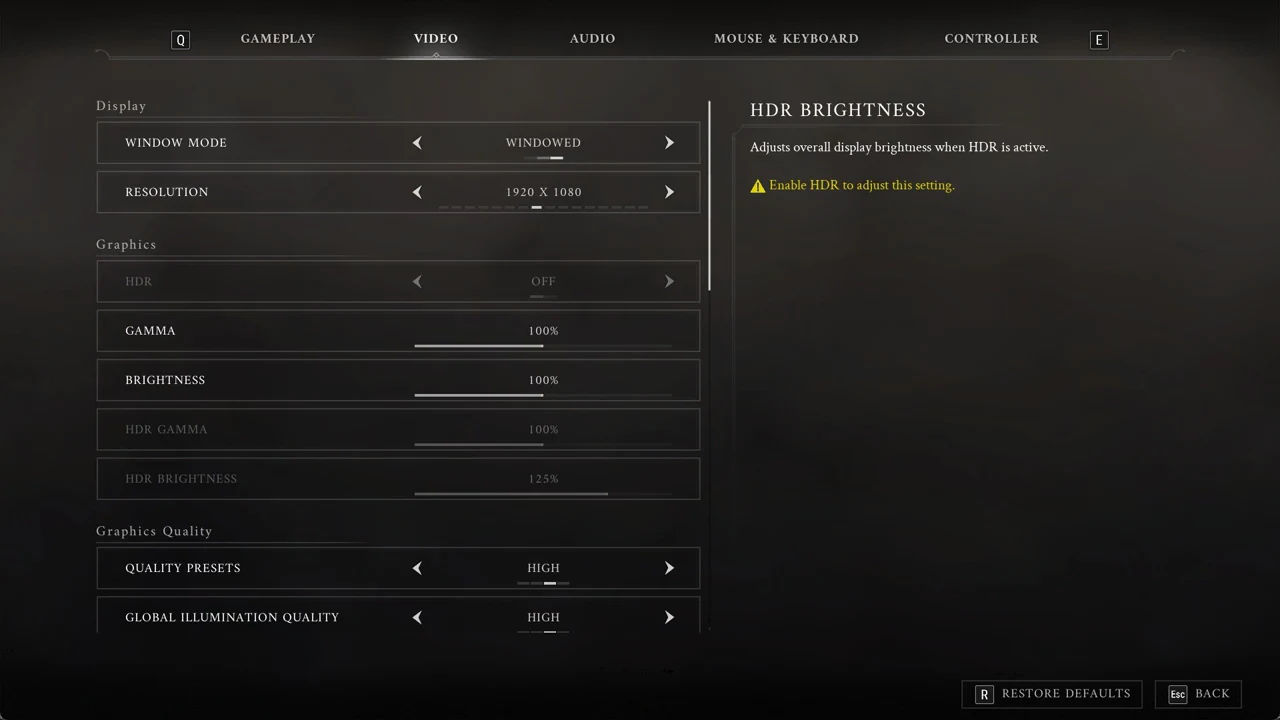
Changes do not take effect until you apply them. With something pending, the bottom bar reads “F APPLY SETTINGS”, “R DISCARD CHANGES” and “Esc BACK”. With nothing pending it shows “R RESTORE DEFAULTS” instead. You change a choice by clicking the arrows on its row, and you move a slider by dragging it.
There is no confirm-or-revert countdown after you press Apply, so a bad setting stays until you change it back yourself. On first launch the game picks for you. On the RTX 2060 it chose the LOW preset with NVIDIA DLSS at ULTRA PERFORMANCE and BORDERLESS WINDOW at the desktop resolution.
WINDOW MODE offers FULLSCREEN, BORDERLESS WINDOW and WINDOWED, defaulting to BORDERLESS WINDOW. Fullscreen makes other windows harder to reach “but the game will run slightly faster”. RESOLUTION is greyed out in Borderless Window because “When the Window mode is set to Windowed Fullscreen, the resolution must match the native desktop resolution.” HDR is only available on HDR displays since “This option requires hardware support.”, and it greys out HDR GAMMA and HDR BRIGHTNESS when off. The GAMMA and BRIGHTNESS sliders run from 50% to 150% with a 100% default.
Quality presets and what each one sets
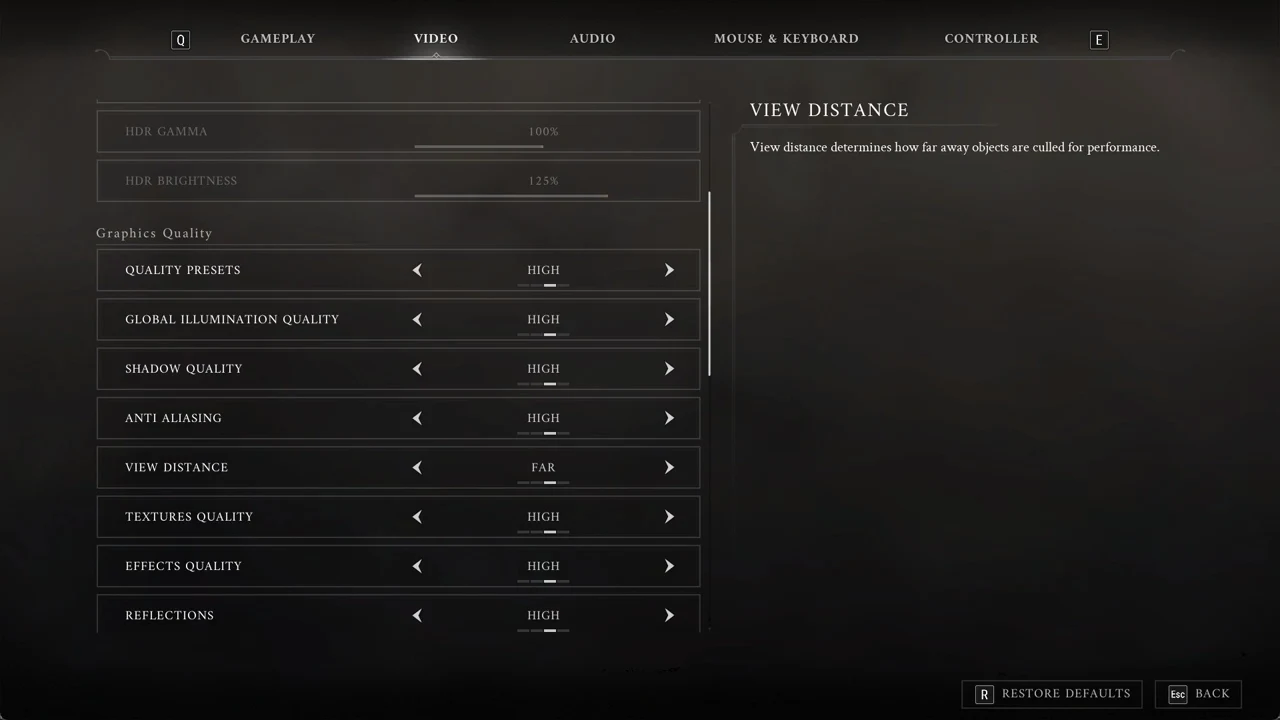
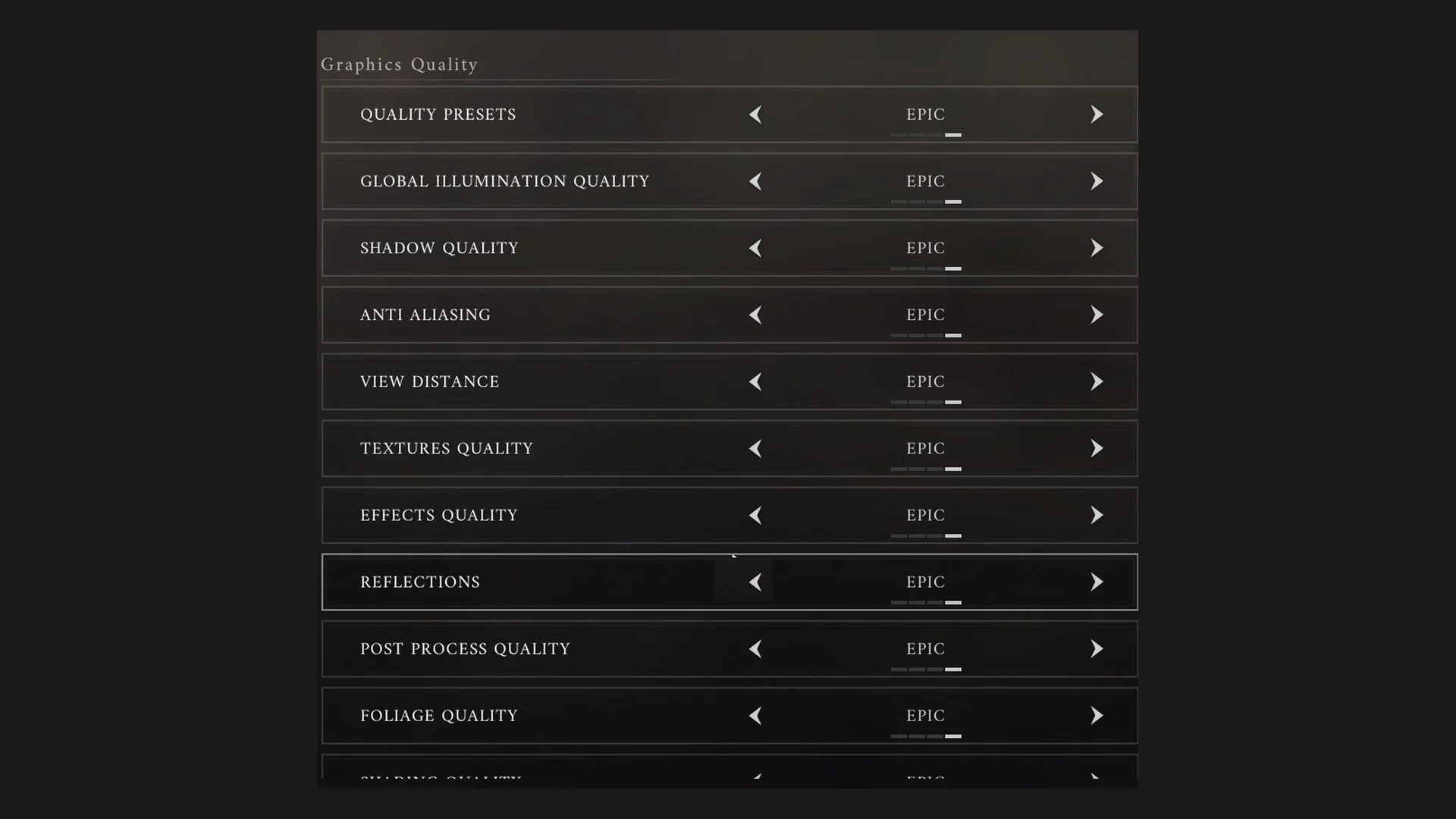
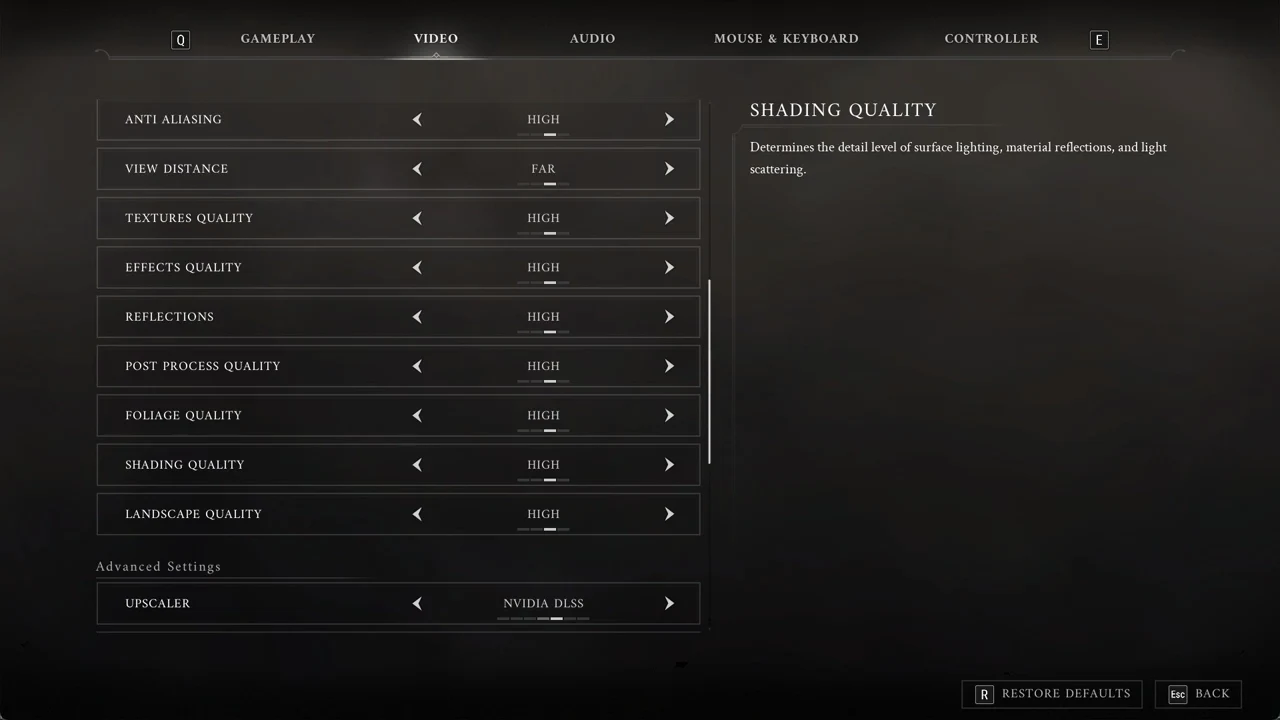
QUALITY PRESETS steps through LOW, MEDIUM, HIGH and EPIC. Picking one moves all eleven quality rows at once: GLOBAL ILLUMINATION QUALITY, SHADOW QUALITY, ANTI ALIASING, VIEW DISTANCE, TEXTURES QUALITY, EFFECTS QUALITY, REFLECTIONS, POST PROCESS QUALITY, FOLIAGE QUALITY, SHADING QUALITY and LANDSCAPE QUALITY.
| Preset | What it sets |
|---|---|
| LOW | Every row Low, except SHADOW QUALITY off, ANTI ALIASING off and VIEW DISTANCE Near |
| MEDIUM | Every row Medium |
| HIGH | Every row High (VIEW DISTANCE Far) |
| EPIC | Every row Epic |
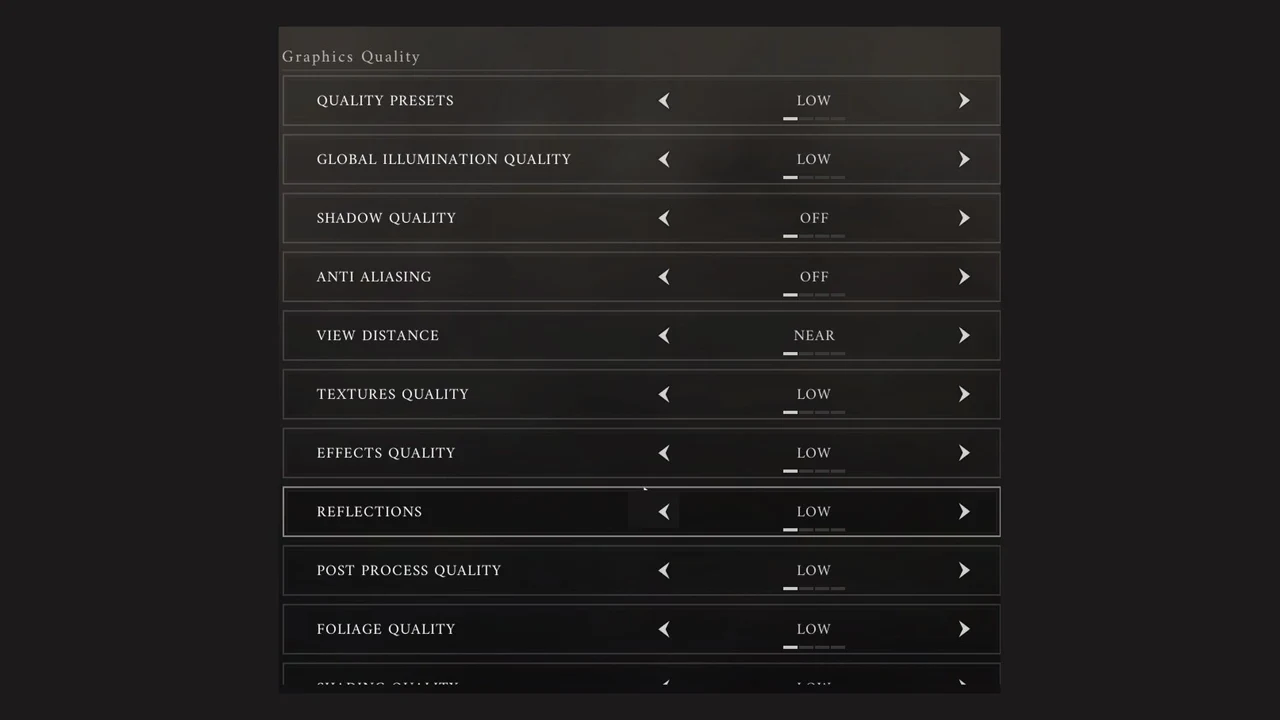
Only LOW disables both shadows and anti-aliasing completely. Choosing a preset leaves UPSCALER, RESOLUTION SCALE, DLSS MODE and NVIDIA REFLEX LOW LATENCY unchanged, so adjust those options yourself afterward.
The VRAM LIMIT EXCEEDED warning on a 6 GB card
Pressing Apply on the HIGH preset on the 6 GB RTX 2060 at 1080p brings up a box titled “VRAM LIMIT EXCEEDED” that reads: “Selected options exceed your system’s available Video RAM (VRAM). Please lower your graphics settings. Running the game with current options may cause severe frame rate drops, stuttering, or instability.” Its buttons are “Enter CONFIRM” and “Esc BACK”.
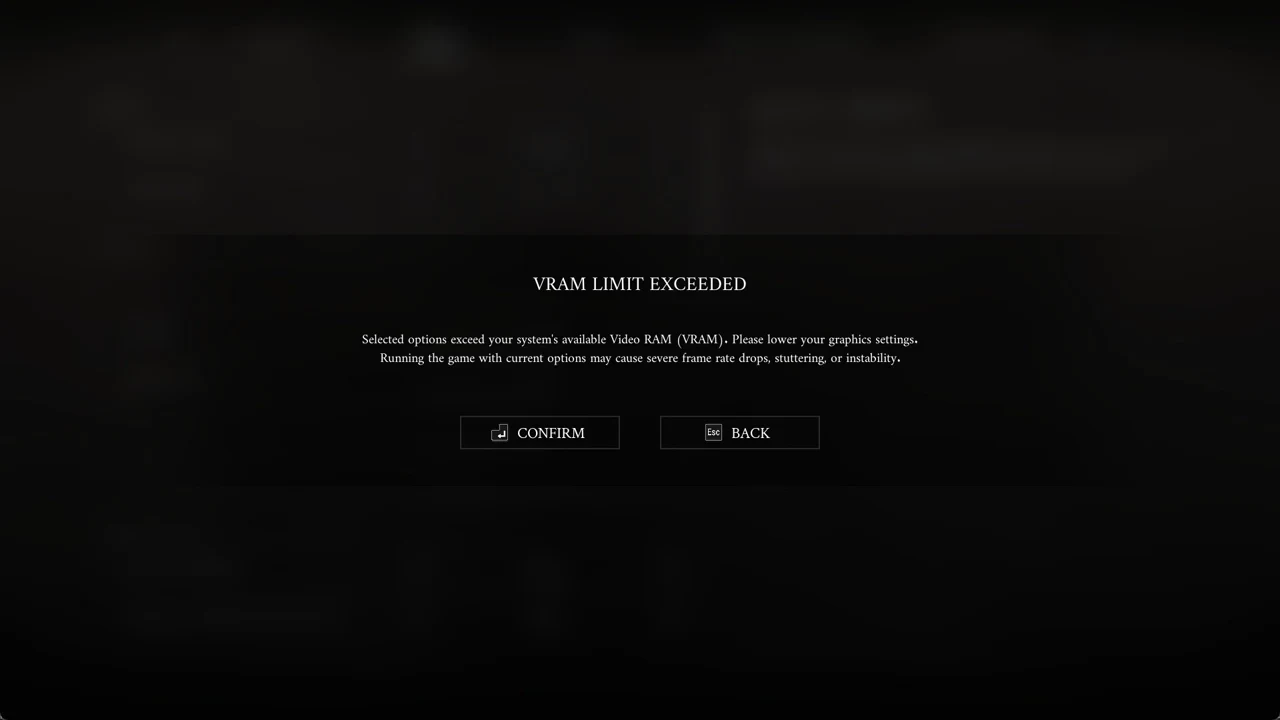
Choose Esc BACK to keep the previous settings; nothing new is applied. Enter CONFIRM proceeds with the new settings. The warning appears for HIGH and EPIC, then returns each time you apply changes with HIGH selected—even if the adjustment reduces load, such as changing DLSS MODE, the upscaler, Blur or frame generation. RAY TRACING and SHADOW QUALITY changes did not bring up the message. On a 6 GB card, the warning follows the preset rather than indicating that your most recent change was too demanding.
MEDIUM and LOW go through without a warning. Across all tested settings, video memory use measured 5.4–5.7 GB out of 6 GB; choosing HIGH through the warning also ran without crashing.
Measured FPS on an RTX 2060 at 1080p
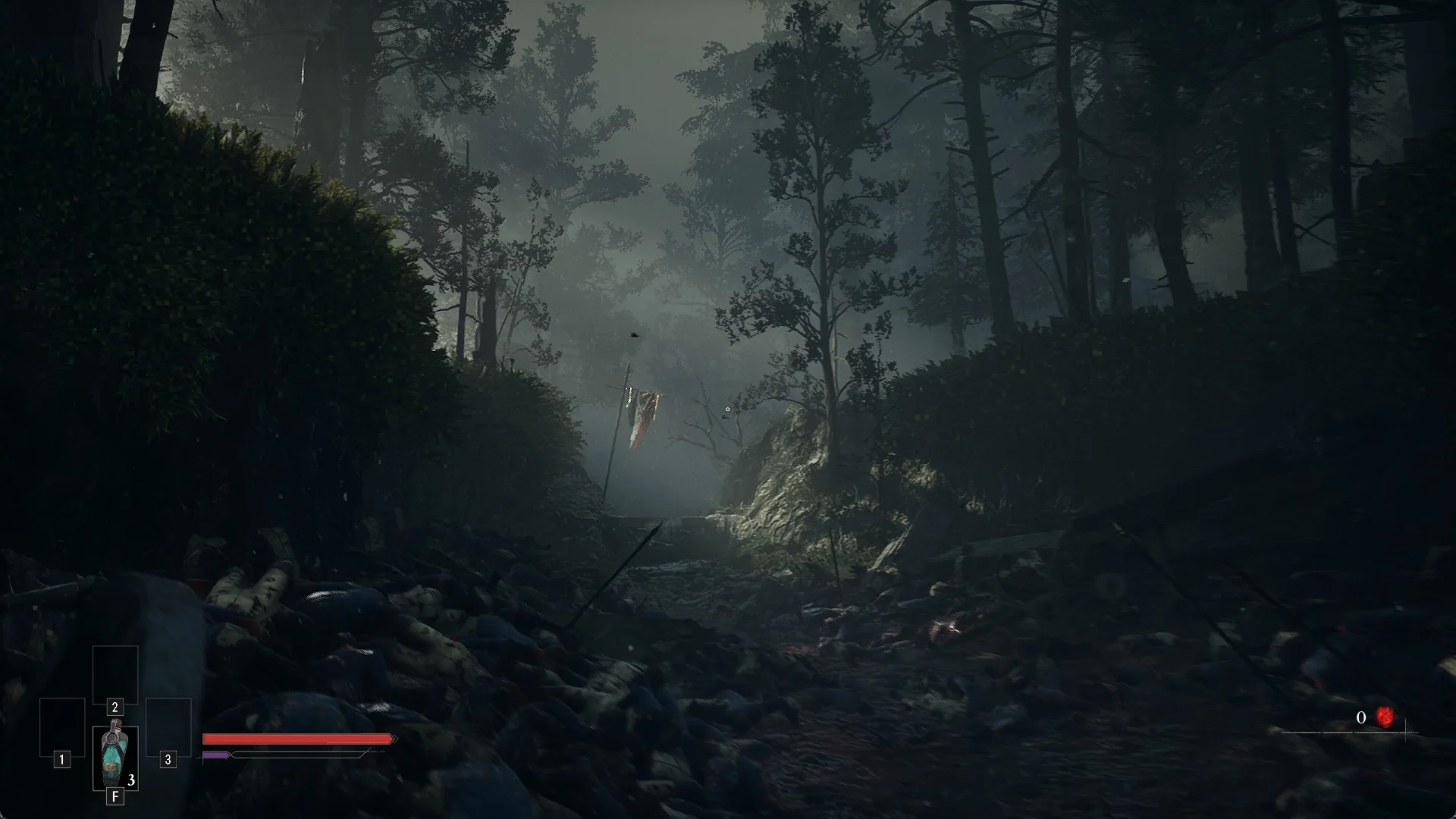
These figures come from an Intel Core i7-9700K with an RTX 2060 6 GB and 24 GB of RAM, on driver 617.42, running the game WINDOWED at 1920 x 1080 with Reflex off, V-Sync off, a 144 frame limit and Blur on. The route is 30 seconds walking up and back down the opening forest ravine on the Battlefield, taken after one warm-up lap. Upscaling is NVIDIA DLSS at ULTRA PERFORMANCE unless the row says otherwise.
| Setting | Average FPS | 1% low FPS |
|---|---|---|
| LOW preset | 66.1 | 42.2 |
| HIGH preset | 55.4 | 29.9 |
| EPIC preset | 37.8 | 24.3 |
| HIGH + RAY TRACING ON | 53.2 | 30.1 |
| HIGH + SHADOW QUALITY EPIC | 53.3 | 32.3 |
| HIGH + SHADOW QUALITY OFF | 59.3 | 32.0 |
| HIGH + DLSS MODE QUALITY | 37.7 | 24.5 |
| HIGH + TAA at 100% scale (native 1080p) | 26.2 | 17.9 |
| HIGH + AMD FSR (ULTRA PERFORMANCE) + FSR FRAME GENERATION ON | 51.5 | 30.2 |
What those runs tell you for this card:
- HIGH costs about 16% against LOW; EPIC costs about a third more than HIGH.
- Switching DLSS from ULTRA PERFORMANCE to QUALITY costs as much as going to EPIC.
- Native 1080p with no upscaler halves the frame rate and stutters.
- RAY TRACING ON costs only about 4% at HIGH; SHADOW QUALITY EPIC costs about 4%, and SHADOW OFF gains about 7%.
- AMD FSR paired with FSR FRAME GENERATION averaged 51.5, less than the 55.4 average from plain DLSS ULTRA PERFORMANCE.
Performance is slower for the first few minutes after loading as shaders and streaming settle in. Play for a few minutes before evaluating a setting instead of judging it immediately.
Recommended settings for a 6 GB RTX 2060
- Best balance: Set QUALITY PRESETS to HIGH and confirm the VRAM box, then choose NVIDIA DLSS for UPSCALER and ULTRA PERFORMANCE for DLSS MODE; expect about 55 FPS. Enabling RAY TRACING costs roughly 4% more.
- For more frames: Try HIGH with SHADOW QUALITY set to OFF for about 59 FPS, or choose MEDIUM or LOW; LOW reaches about 66 FPS.
- Avoid: EPIC and DLSS QUALITY both deliver about 38 FPS. Native resolution without an upscaler falls to about 26 FPS and stutters heavily.
- Motion blur: set BLUR to OFF if it bothers you.
What each graphics quality row does
- GLOBAL ILLUMINATION QUALITY (Low/Medium/High/Epic) — controls indirect light bounced around the scene, shadows from the sky and ambient occlusion. High and Epic provide more accurate ray tracing, at a performance cost.
- SHADOW QUALITY (Off/Medium/High/Epic, no Low) — resolution and distance of dynamic shadows.
- ANTI ALIASING (Off/Medium/High/Epic) — reduces jagged-looking edges; raising it produces smoother edges but slows performance.
- VIEW DISTANCE (Near/Medium/Far/Epic) — sets how distant an object can be before it is culled.
- TEXTURES QUALITY (Low/Medium/High/Epic) — sets texture resolution; sharper detail requires additional video memory.
- EFFECTS QUALITY (Low/Medium/High/Epic) — determines the fidelity of lighting and other visual effects.
- REFLECTIONS (Low/Medium/High/Epic) — sets how detailed and accurate reflections are; ray tracing is used at High and Epic.
- POST PROCESS QUALITY (Low/Medium/High/Epic) — adjusts the quality of bloom, depth of field and motion blur.
- FOLIAGE QUALITY (Low/Medium/High/Epic) — controls plant and grass density, their detail, and how far away they are drawn.
- SHADING QUALITY (Low/Medium/High/Epic) — affects surface-lighting detail, reflections on materials and the scattering of light.
- LANDSCAPE QUALITY (Low/Medium/High/Epic) — controls the detail level of the terrain.
Advanced settings: upscaler, DLSS, Reflex and limits
The UPSCALER menu includes OFF, FXAA, TAA, TSR, NVIDIA DLSS, AMD FSR and INTEL(R) XESS. DLSS, FSR and XeSS upscale an image rendered at a lower resolution, and DLSS requires an NVIDIA card. NVIDIA DLSS is the RTX 2060’s default. When an upscaler is enabled, RESOLUTION SCALE is disabled and the menu explains, “Resolution scale is controlled by ‘Upscaler’.” With DLSS set to ULTRA PERFORMANCE, the scale readout was 33%.
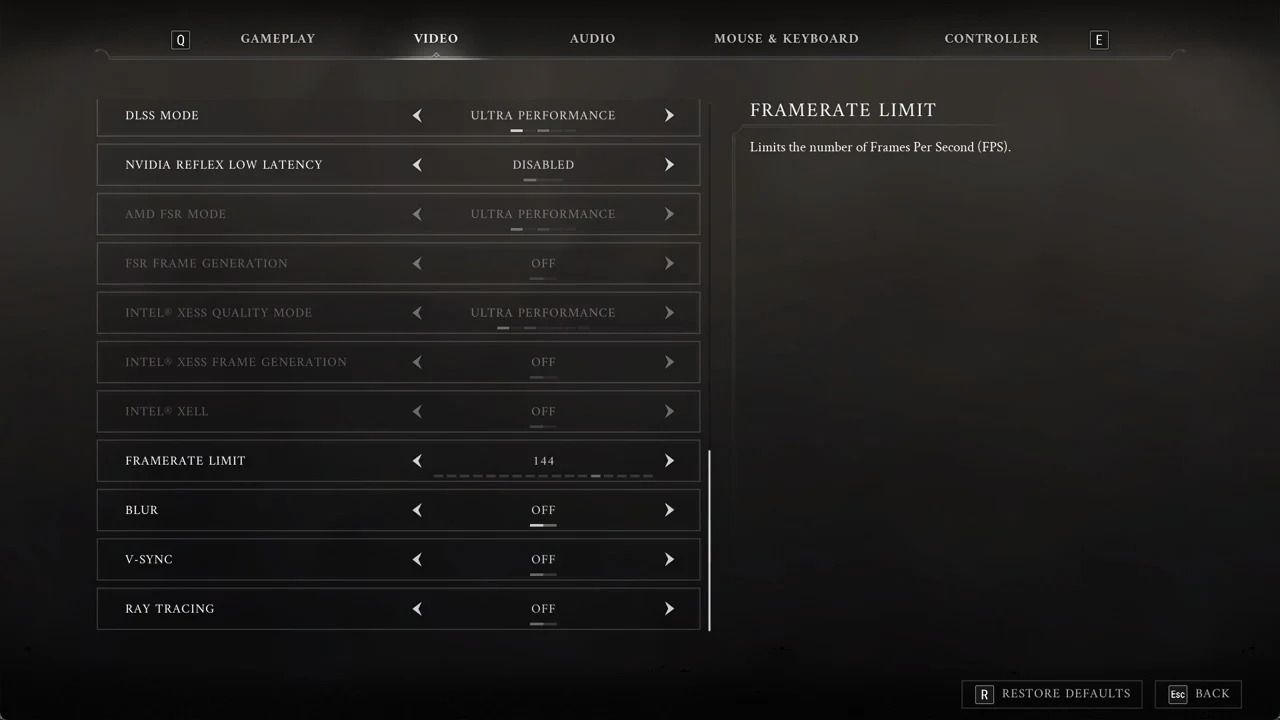
- DLSS MODE — Available selections include DLAA, QUALITY, ULTRA PERFORMANCE, BALANCED and PERFORMANCE. ULTRA PERFORMANCE was the game’s choice.
- NVIDIA REFLEX LOW LATENCY — GeForce cards can use DISABLED, ENABLED or ENABLED + BOOST; DISABLED is the default.
- AMD FSR MODE and FSR FRAME GENERATION — active only when UPSCALER is AMD FSR.
- INTEL(R) XESS QUALITY MODE, INTEL(R) XESS FRAME GENERATION and INTEL(R) XELL — active only when UPSCALER is Intel XeSS.
- FRAMERATE LIMIT — choose 30, 35, 40, 45, 50, 55, 60, 70, 80, 90, 120, 144, 165, 180, 240, 360 or UNLIMITED; the setting here is 144.
- BLUR — the motion blur control, set to ON or OFF; it starts at ON.
- V-SYNC — OFF or ON; matches the display refresh rate to stop tearing.
- RAY TRACING — enables or disables ray-traced lighting, reflections and shadows; it defaults to OFF.
Frame generation on RTX 20-series cards
There is no DLSS frame generation row on the RTX 2060 at all. Frame generation exists only as FSR FRAME GENERATION and INTEL(R) XESS FRAME GENERATION, both marked “[EXPERIMENTAL]”. To use it, set UPSCALER to AMD FSR so FSR FRAME GENERATION becomes available, or set UPSCALER to Intel XeSS for its version. While DLSS is selected, both rows stay greyed out, which is why frame generation can seem to do nothing.
In-game guidance advises against frame generation when the base rate is under 40 FPS: a low starting rate causes noticeable latency and visual artifacts. DLSS without frame generation performs faster on an RTX 20-series card.
Motion blur and the FIELD OF VIEW slider
Set BLUR to OFF to disable motion blur. POST PROCESS QUALITY is the only setting that adjusts depth of field and bloom. Under GAMEPLAY, FIELD OF VIEW ranges from 70 to 100 and defaults to 85; CAMERA SHAKE offers OFF, LOW and STANDARD.
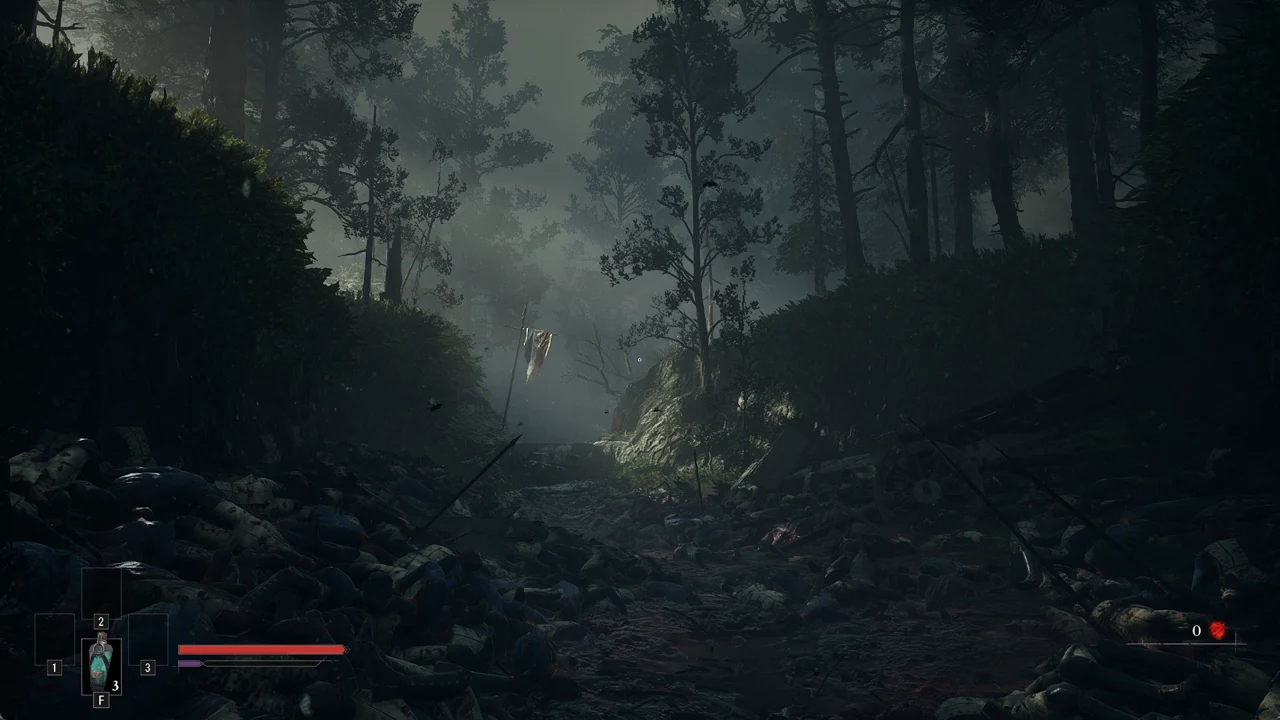
For an RTX 2060, use HIGH with DLSS ULTRA PERFORMANCE and confirm the VRAM warning when it appears; SHADOW QUALITY off or RAY TRACING on are also options. You will know the HIGH preset took effect when its quality rows are set to HIGH, with VIEW DISTANCE at FAR.