Valor Mortis runs at one difficulty for every player. The launch version on PC has no difficulty choice, no easy mode and no Story Mode.
Quick answer: No. Starting a game skips any difficulty screen, and nothing in Options or the Pause Menu changes difficulty. The studio has said the game ships without difficulty options by design.
Starting a new game skips any difficulty screen
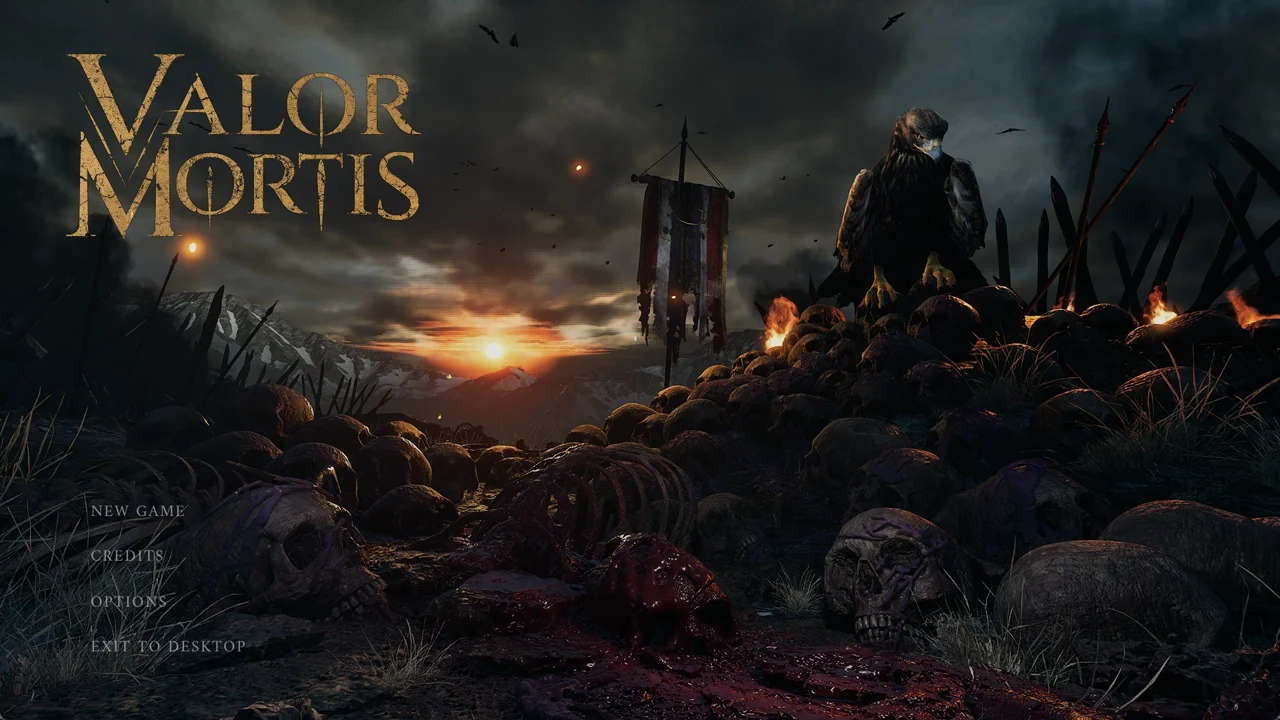
The main menu lists NEW GAME, CREDITS, OPTIONS, and EXIT TO DESKTOP. Selecting NEW GAME begins play right away. There is no difficulty screen, no character creation, and no confirmation box.
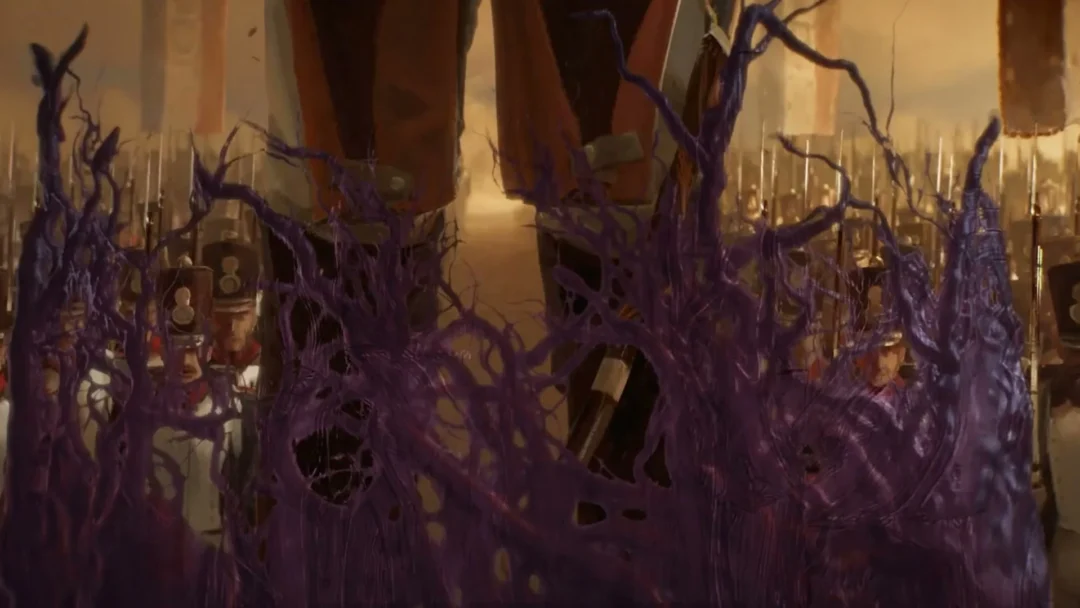
The screen fades to black and the opening cinematic plays, with Napoleon addressing the Grande Armée before the Arc de Triomphe. A short shader compile screen follows, and then play begins on the Battlefield.
What the developer has said
The studio, One More Level, has said Valor Mortis launches without difficulty options on purpose, so that every player faces the same demanding but fair challenge.
Players ask about it often, because the game has a single difficulty with no easier setting to fall back on.
Options menu: no difficulty row, but a few helpful toggles
Options is split into five tabs: GAMEPLAY, VIDEO, AUDIO, MOUSE & KEYBOARD, and CONTROLLER. There is no Accessibility tab, and no row anywhere sets difficulty.
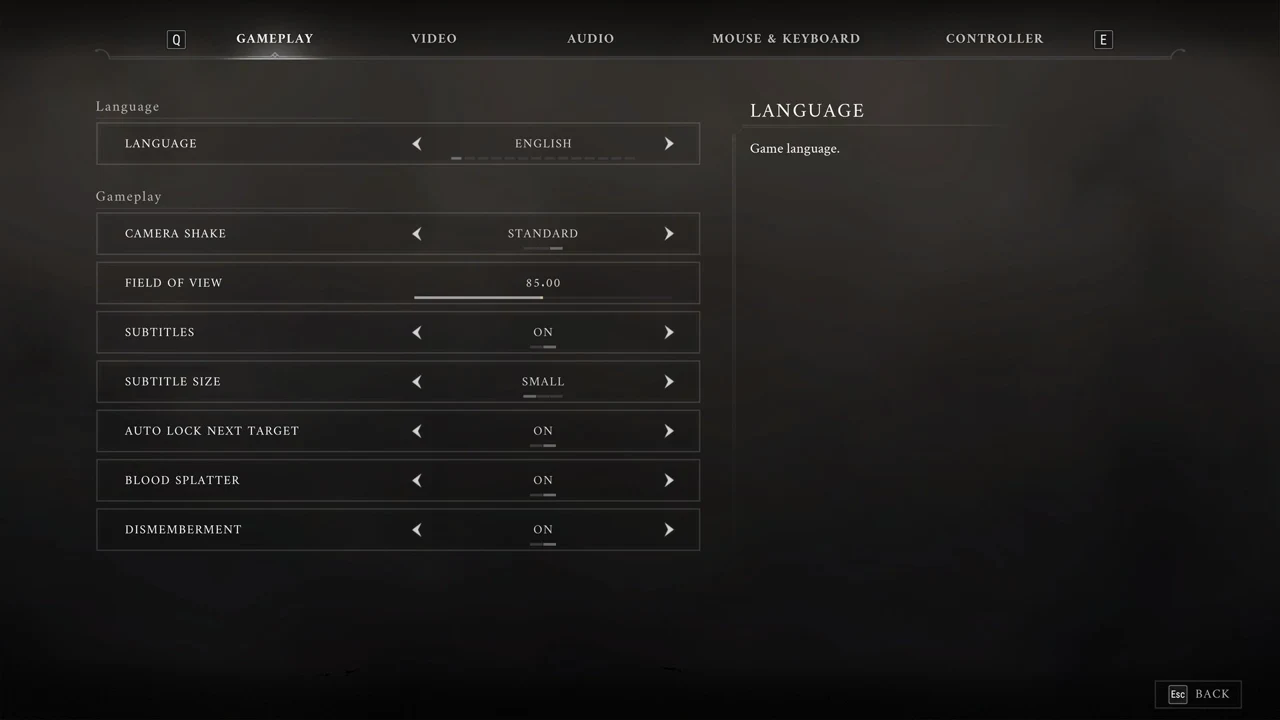
The GAMEPLAY tab holds these rows:
| Row | Options |
|---|---|
| LANGUAGE | — |
| CAMERA SHAKE | OFF / LOW / STANDARD |
| FIELD OF VIEW | 70 to 100, default 85 |
| SUBTITLES | ON / OFF |
| SUBTITLE SIZE | SMALL / MEDIUM / BIG |
| AUTO LOCK NEXT TARGET | ON / OFF, default ON |
| BLOOD SPLATTER | ON / OFF |
| DISMEMBERMENT | ON / OFF |
When AUTO LOCK NEXT TARGET is enabled, lock-on shifts to another enemy if your current target is no longer valid. This keeps you focused on a live threat during combat.
Settings that make combat easier to handle
None of these change the difficulty, but they make fights easier to read and control:
- Keep AUTO LOCK NEXT TARGET on so the camera stays on a valid enemy.
- Lower MOUSE AIMING SENSITIVITY or CONTROLLER AIMING SENSITIVITY for steadier aim.
- Widen FIELD OF VIEW to show more of the room.
- Set CAMERA SHAKE to OFF to keep the view steady.
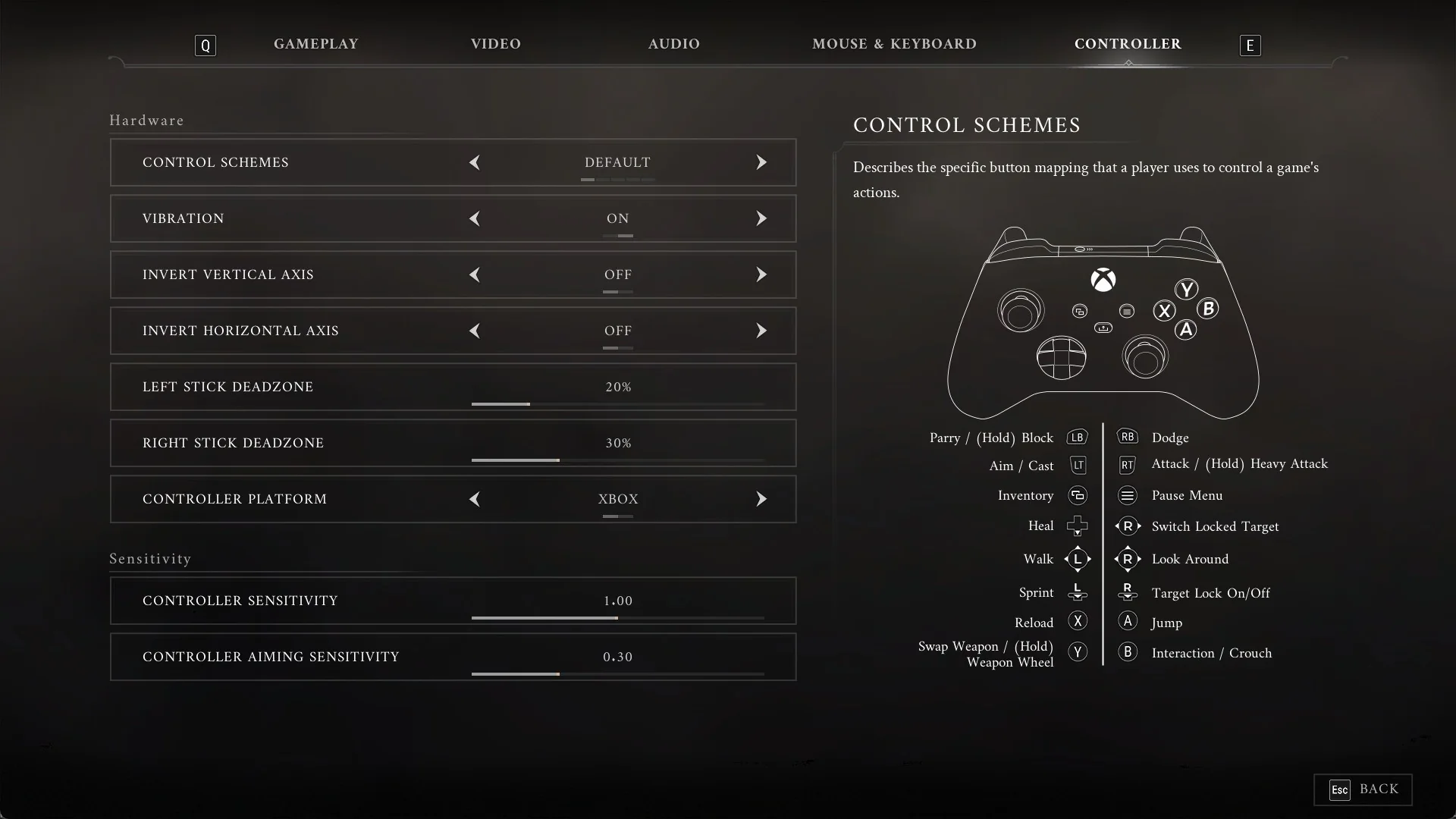
On controller, five fixed layouts move dodge and parry to different buttons: DEFAULT, CLASSIC, DODGE/BLOCK SWAP, SHOULDER JUMPER, and SHOULDER JUMPER 2. On keyboard, every action can be rebound.
Pause Menu has no difficulty option either
Press Esc during gameplay to bring up the “Pause Menu”, where you can choose CONTINUE, SURRENDER, OPTIONS, BACK TO MENU, or EXIT TO DESKTOP. This menu has no difficulty setting.
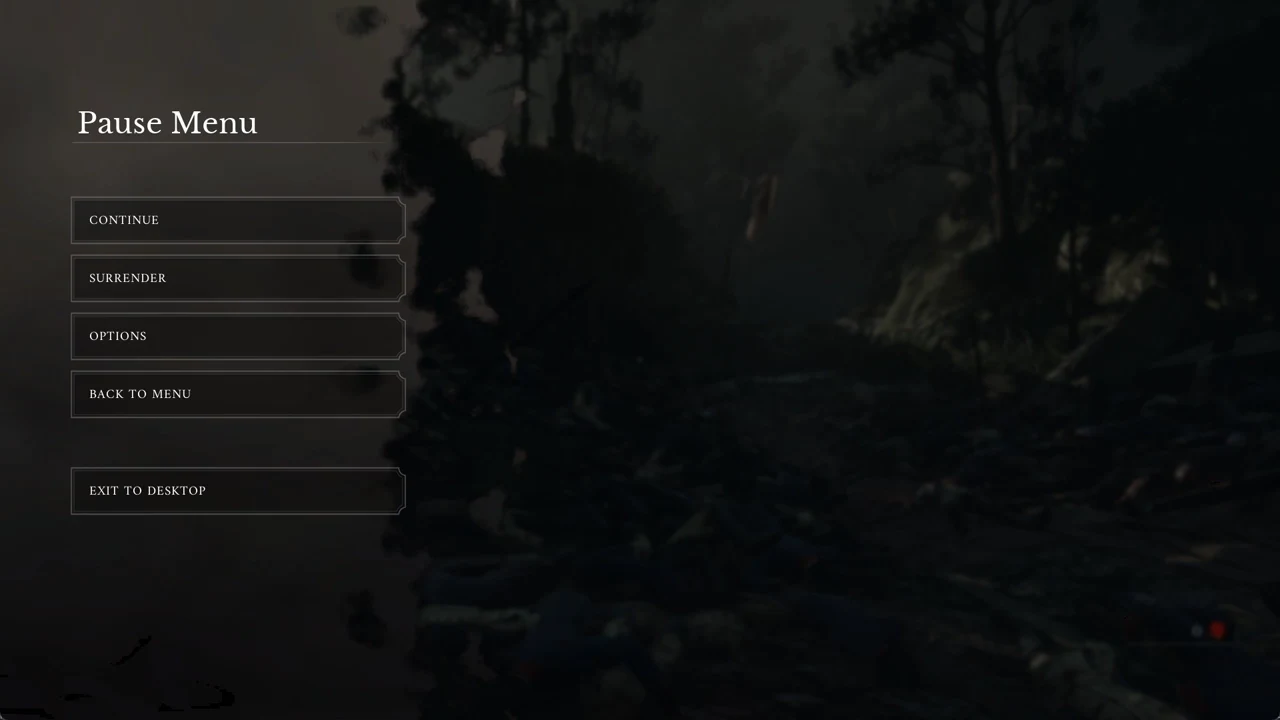
So the picture is consistent from the main menu through to a paused game. Valor Mortis gives everyone the same challenge, and your only room to adjust comes from the Gameplay, aiming, and control settings above.