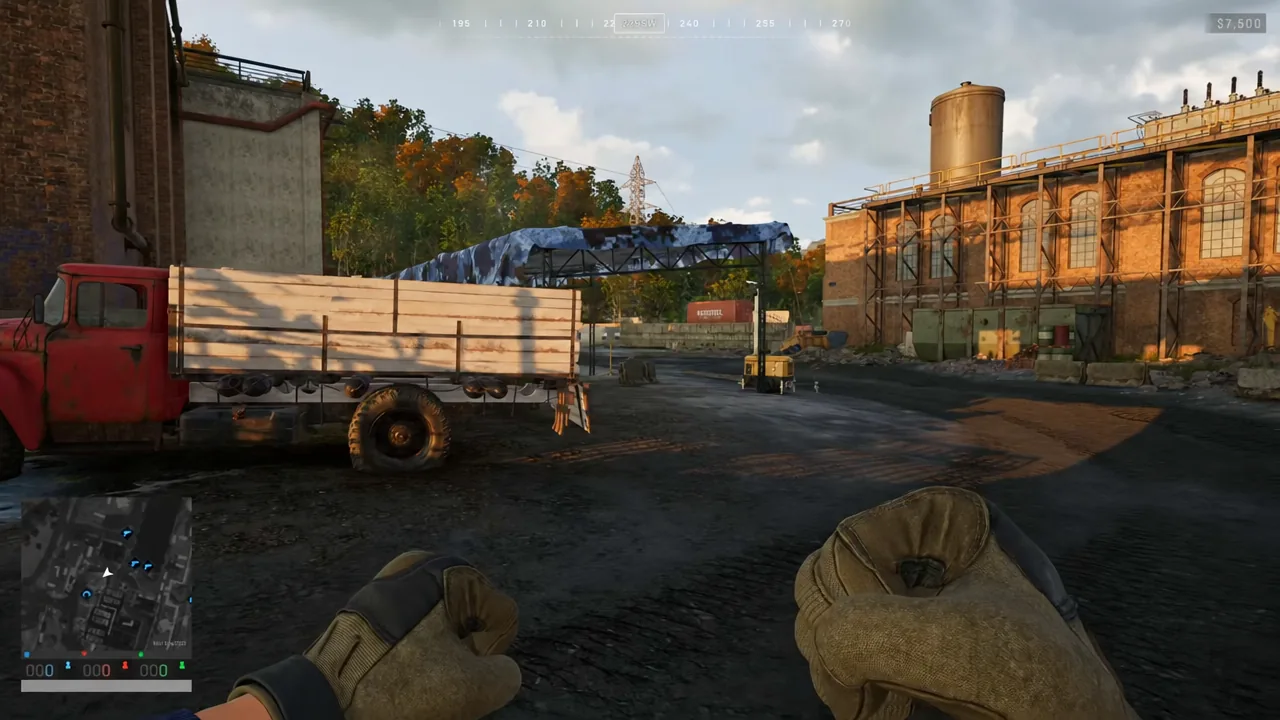
WARDOGS runs well on most modern hardware, but the default presets spend frames on lighting effects that do nothing for spotting an enemy at 300 meters. The fix is a custom quality profile that keeps view distance and textures high while stripping out global illumination, shadows, and post-processing.
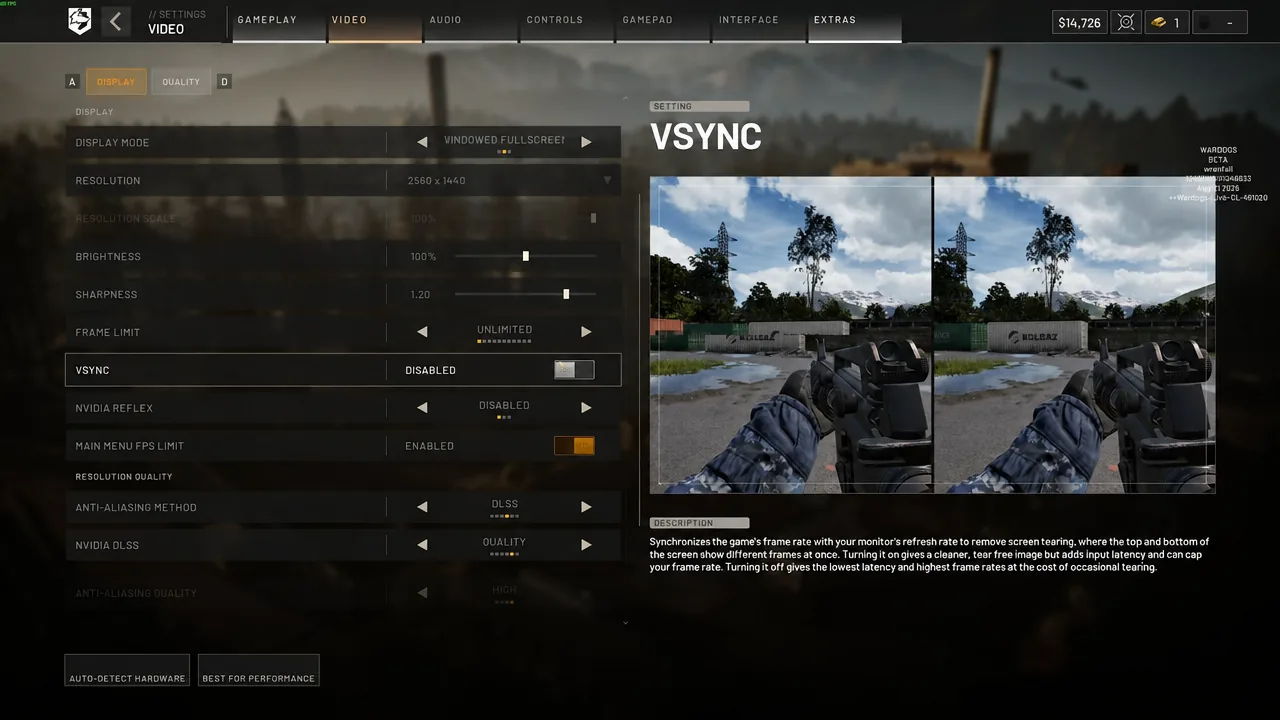
Quick answer: Set Overall Quality to Custom, then Global Illumination to Disabled, Shadows and Reflections to Low, Shading to Low, Post-Processing to Low, Particle Spawn Rate to Low, View Distance to High, and Textures to High. Keep VSync off, Nvidia Reflex on, and use DLSS Quality if native resolution drops you below your target frame rate.
The four settings that cost the most FPS in WARDOGS
Not every option matters. Mesh Detail and View Distance barely move the frame counter between High and their lowest values, while a handful of lighting options swing performance by double digits. Change these first before touching anything else.
| Setting | Value | Why |
|---|---|---|
| Global Illumination | Disabled | Indirect lighting on large maps; the single biggest gain, roughly 20% average FPS |
| Shadows | Low | Frees GPU load and makes shaded interiors easier to read |
| Reflections | Low | Almost no gameplay value at any quality level |
| Particle Spawn Rate | Low | Controls smoke and debris clutter during explosions and vehicle fights |
If your frame rate is still unstable after these four, drop Effects from Medium to Low before you touch View Distance or textures. Sightlines matter more in WARDOGS than explosion detail does.
Display settings: Resolution, frame limit, VSync, and Reflex
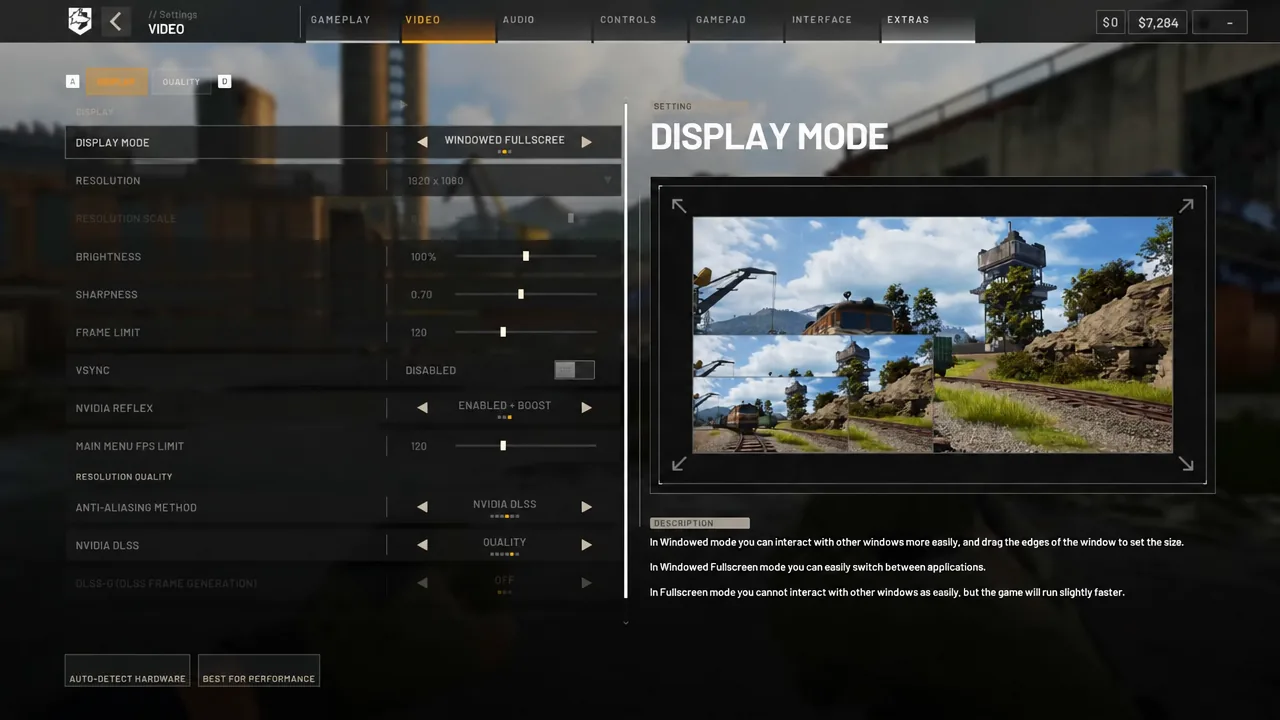
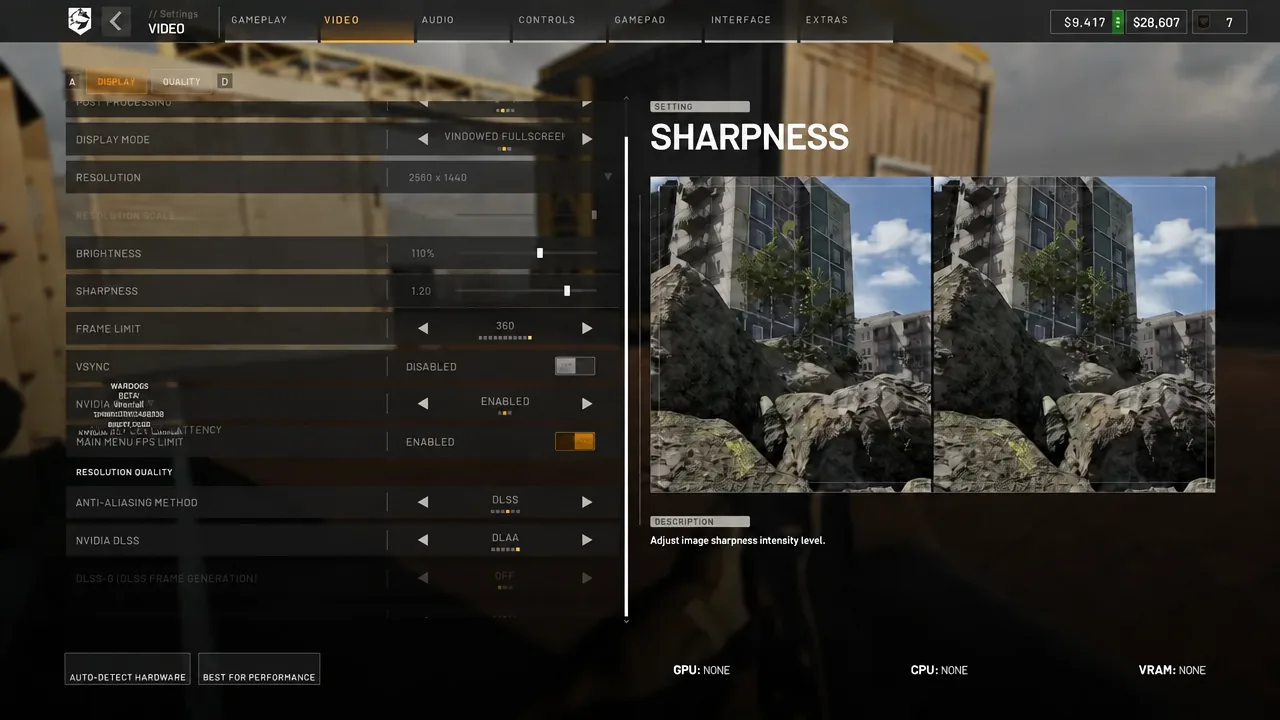
Frame delivery gets decided here, before any graphics option is involved. Open Settings, then the Video tab, and work down the Display list.
DLSS and FSR: Which upscaling mode to pick
Set Anti-Aliasing Method to NVIDIA DLSS on an RTX card, or FSR otherwise. Upscaling should solve a performance problem rather than being switched on by default, so start at native rendering if your GPU already holds your target frame rate.
| Situation | Mode |
|---|---|
| Plenty of GPU headroom | Native or DLAA |
| Best all-round balance | Quality |
| Need noticeably more frames | Balanced |
| Heavy GPU load or a weaker RTX card | Performance |
| 1440p | Quality |
| 4K | Quality or Balanced |
DLAA gives the cleanest image but renders at full resolution and costs the most performance, so it only makes sense on a strong system. At 1080p, aggressive upscaling modes soften the picture more than they do at higher resolutions, which works against spotting players in foliage.
Tip: Judge upscaling on moving targets, not still screenshots. Shimmer around distant infantry and vegetation tells you more than a sharper wall texture does.
Full custom quality profile for WARDOGS
Switch Overall Quality to Custom, then apply the values below. This profile targets a stable frame rate on a mid-range system while keeping long sightlines readable.
| Setting | Value |
|---|---|
| Mesh Detail | Medium or High |
| View Distance | High |
| Shading | Low |
| Global Illumination | Disabled |
| Shadows | Low |
| Reflections | Low |
| Effects | Medium |
| Particle Spawn Rate | Low |
| Post-Processing | Low |
| Motion Blur | Disabled |
| Depth of Field | Disabled |
| Lens Flare | Disabled |
| Bloom | Disabled |
| World / Character / Effects Textures | High if VRAM allows |
| Texture Filtering | Medium or High |
Motion Blur, Depth of Field, Lens Flare, and Bloom are the easy calls. They add visual noise, blur the screen while you turn, and give back a small amount of performance when switched off.
Why View Distance stays High
WARDOGS is built around long sightlines across open terrain, and a lower View Distance thins out the detail you need to pick out distant infantry and vehicles. The performance difference between High and the lowest preset is small, so the trade is rarely worth it. Medium is a reasonable fallback on older hardware, but reduce shadows or reflections first.
Texture quality depends on VRAM, not GPU power
Textures sit in video memory rather than consuming shader performance, so High costs almost nothing if your card has the capacity. The game shows VRAM impact information in the corner of the quality menu, which makes this easy to check.
- 8GB VRAM or more: High is safe
- 6GB VRAM: try High and lower Texture Streaming if you hitch
- 4GB VRAM or less: start at Medium or Low
If you see stuttering or a VRAM warning, reduce Texture Streaming before dropping every texture option. That usually clears the hitching while keeping surfaces readable.
Max FPS preset for low-end PCs and laptops
WARDOGS ships with a Potato preset for weak systems, and several individual settings can be pushed to Potato without the game becoming unplayable. This profile trades visual density for frames.
| Setting | Value |
|---|---|
| DLSS / FSR | Quality, then Balanced if needed |
| Mesh Detail | Medium |
| View Distance | Medium |
| Shading | Low |
| Global Illumination | Off |
| Shadows | Potato |
| Reflections | Low or Potato |
| Effects | Low |
| Particle Spawn Rate | Potato |
| Post-Processing | Low |
| Textures | Medium or Low |
| Motion Blur / Bloom / DoF / Lens Flare | Disabled |
Potato settings also thin out grass and vegetation, which players have noted makes prone enemies easier to see. That is a side effect of the preset rather than a setting you toggle directly.
Gameplay and FOV settings that affect spotting
Field of View is a visibility setting as much as a comfort one. Pushing it to the maximum shrinks distant players on screen, which is the opposite of what you want on a map full of open ground.
| Setting | Value |
|---|---|
| Field of View | 95 |
| Weapon View Model Scale | 4 |
| First Person FOV – Vehicles | 90 |
| Third Person FOV – Vehicles | 90 |
| Aim Down Sight FOV | Affected |
| Picture-in-Picture Scope | Disabled |
Setting ADS FOV to Affected means low-magnification optics scale with your chosen FOV instead of snapping to a fixed value. Disabling the Picture-in-Picture Scope removes a rendering cost and a small amount of visual clutter while aiming.
Mouse settings for consistent aim
Sensitivity is personal, but a few of the advanced options have clear correct answers for a tactical shooter. These values are a reference point to adjust from, not a target to copy exactly.
| Setting | Value |
|---|---|
| Mouse DPI | 800 |
| Sensitivity | 0.70 |
| ADS Multiplier | 1.00 |
| Mouse Acceleration | 0.00 / Off |
| Sensitivity Scaling Mode | Relative |
| Monitor Matching Distance | 100% |
| Sensitivity Scaling Transition Type | Instant |
| Invert Y Axis – Infantry | Disabled |
Keep acceleration at zero so the same hand movement always produces the same turn. Instant transition makes aiming down sights feel immediate instead of ramping in.
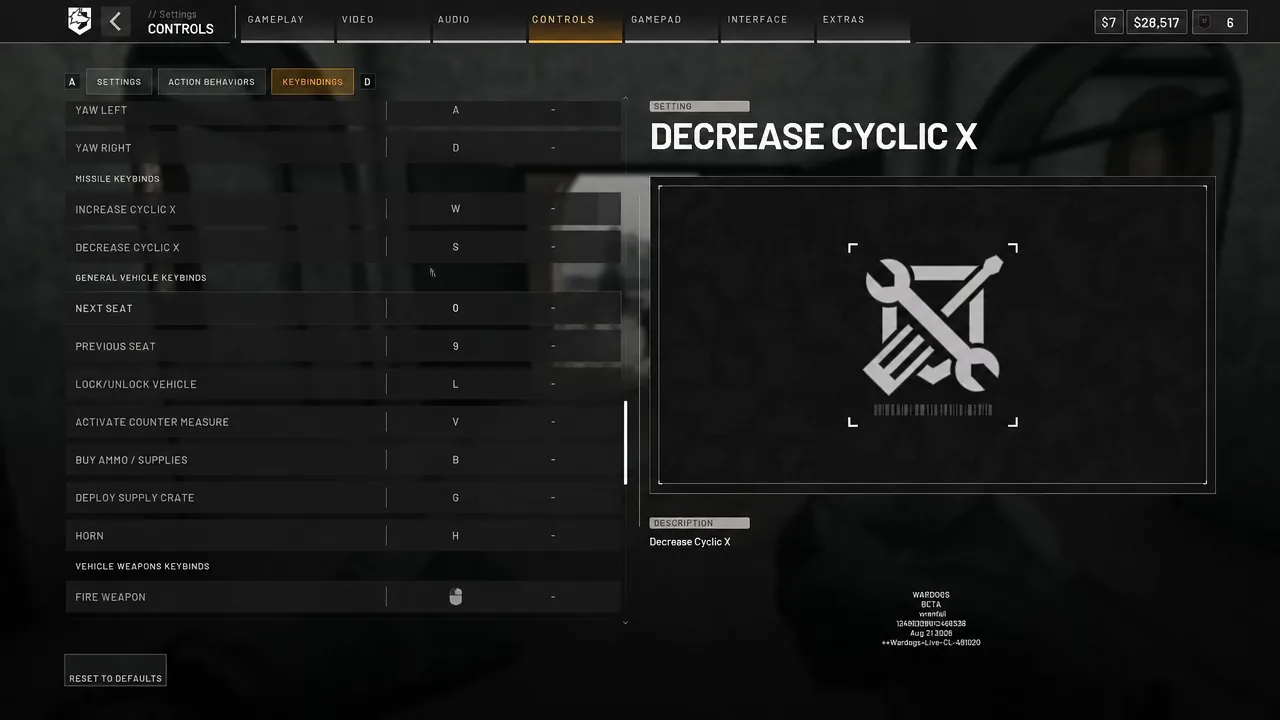
Air vehicles need their own treatment. Enable Rotary Vehicle Mouse Control and Invert Y Axis for aircraft, then check your cyclic bindings in the Keybindings tab so pitch and roll match how you expect a stick to behave.
Audio settings for clearer callouts
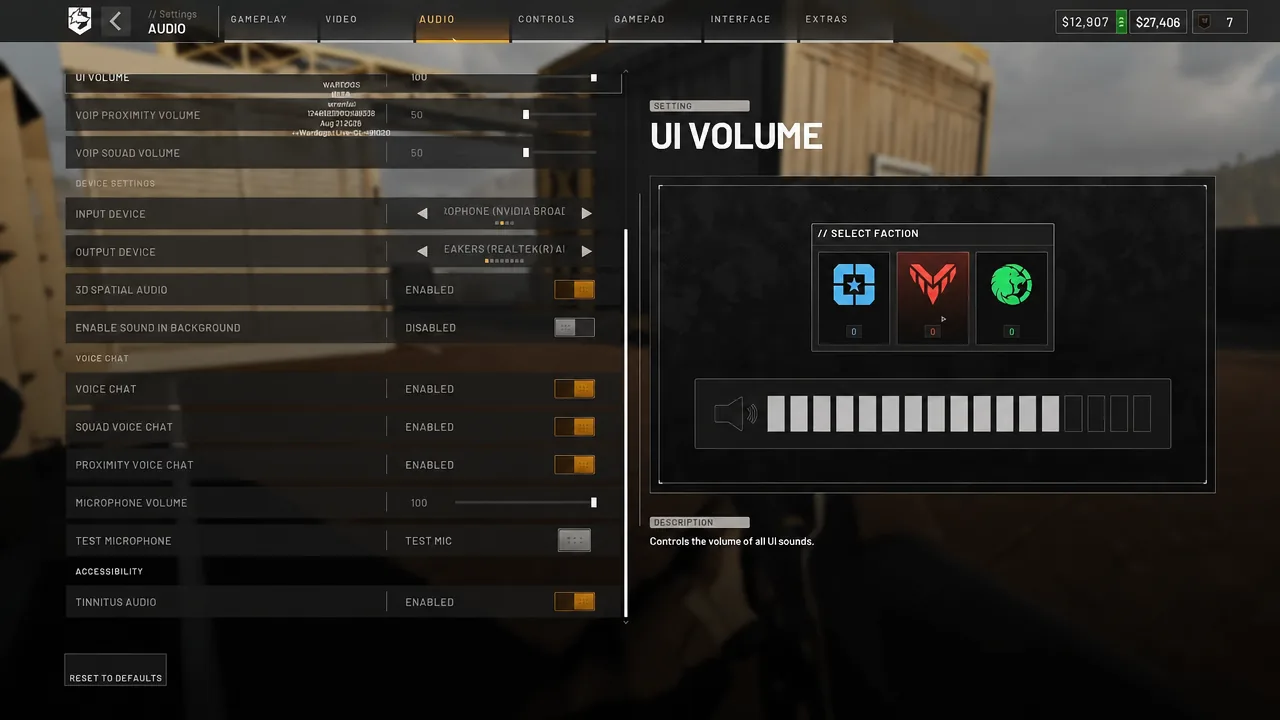
Audio has no effect on frame rate, but it does affect how quickly you place gunfire and vehicles. Enable 3D Spatial Audio, keep Effects Volume at 100, and pull music down so it does not sit on top of footsteps.
- Master Volume: 100
- Menu Music: 0
- In-Game Music: 30
- Radio Music: 15
- Effects and UI Volume: 100
- VOIP Proximity and Squad: 50
How to check the settings worked
Test in a real match rather than the firing range. An empty range will report a frame rate far above what a contested objective with vehicles and destruction produces, so the number you care about is the one during a busy fight.
If the frame rate is still unstable after applying the custom profile, work through these in order.
- Confirm Global Illumination is Disabled, not just lowered
- Drop Effects and Particle Spawn Rate one step further
- Move DLSS or FSR from Quality to Balanced
- Lower Texture Streaming if you see hitching or VRAM warnings
- Update your GPU drivers, Windows, and motherboard BIOS before blaming the game
Resolution is the final lever. Dropping from 1440p to 1080p produces an immediate jump in frames, but it also makes players at range harder to pick out, so only reach for it once the lighting and effects settings have been exhausted. Anything above 60 FPS is playable in WARDOGS, though a steady 120 is where aiming and turning start to feel comfortable.