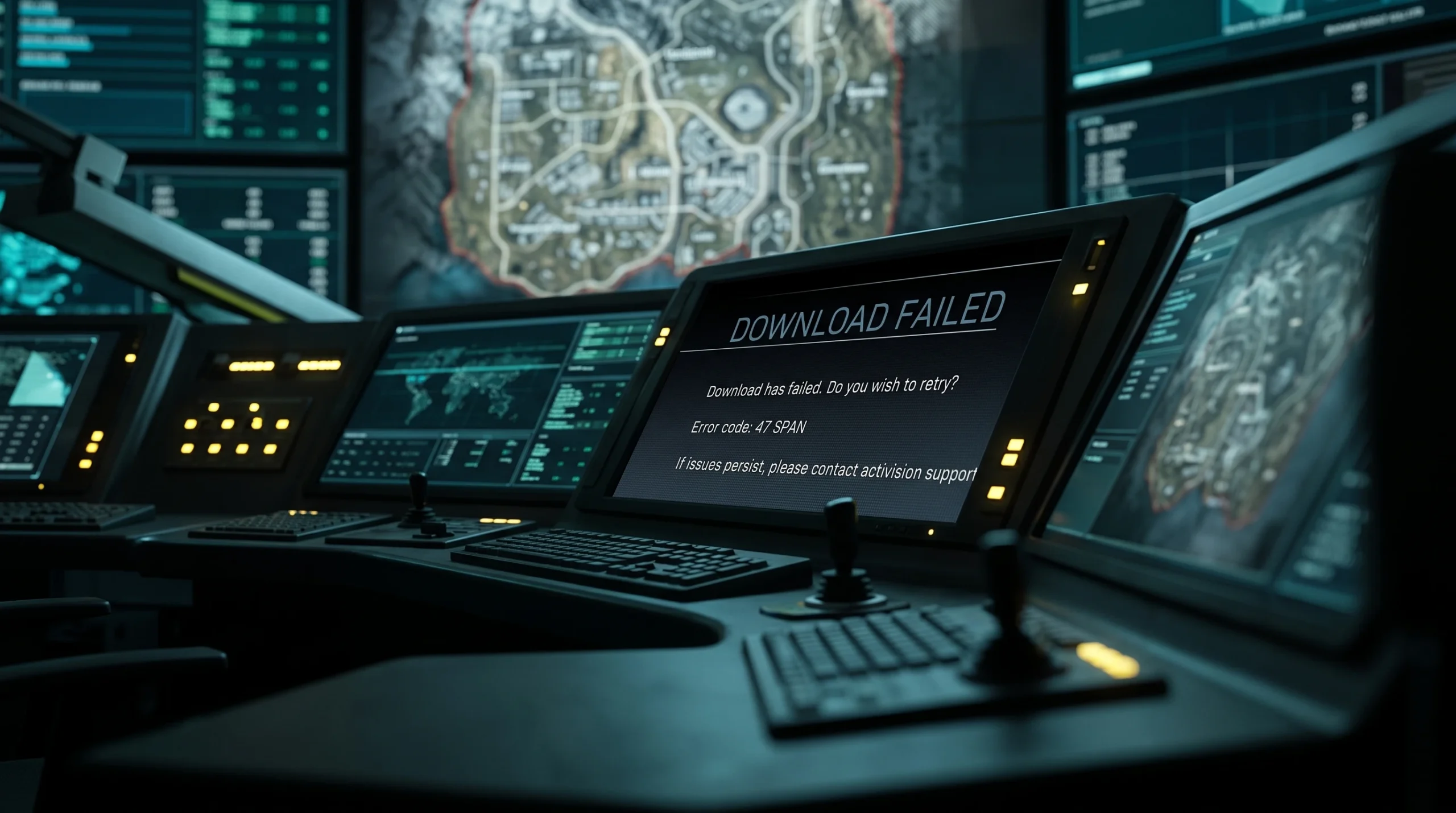
Error Code 47, shown alongside the label SPAN, blocks Call of Duty: Warzone from launching. It points to a problem with the game’s local files, which is why the download or boot fails before you ever reach a lobby. The bug traces back to 2019’s Modern Warfare and has followed the series across seasons, hitting PlayStation and PC players most often.
Quick answer: Rebuild the corrupted files. On PlayStation, boot into Safe Mode and run Rebuild Database. On PC, delete the .dcache files inside the Warzone install folder. If that fails, clear the console cache, install any system update, remove Warzone’s saved data, and reinstall the game as a last resort.
What Error Code 47 SPAN means
The code appears when Warzone’s game files are damaged or missing, so the launcher cannot verify them and stops the game from starting. Because the fault sits in the data on your device rather than on Activision’s servers, the fix almost always involves repairing, refreshing, or replacing those local files. None of the steps below erase your account progress, which is stored online.
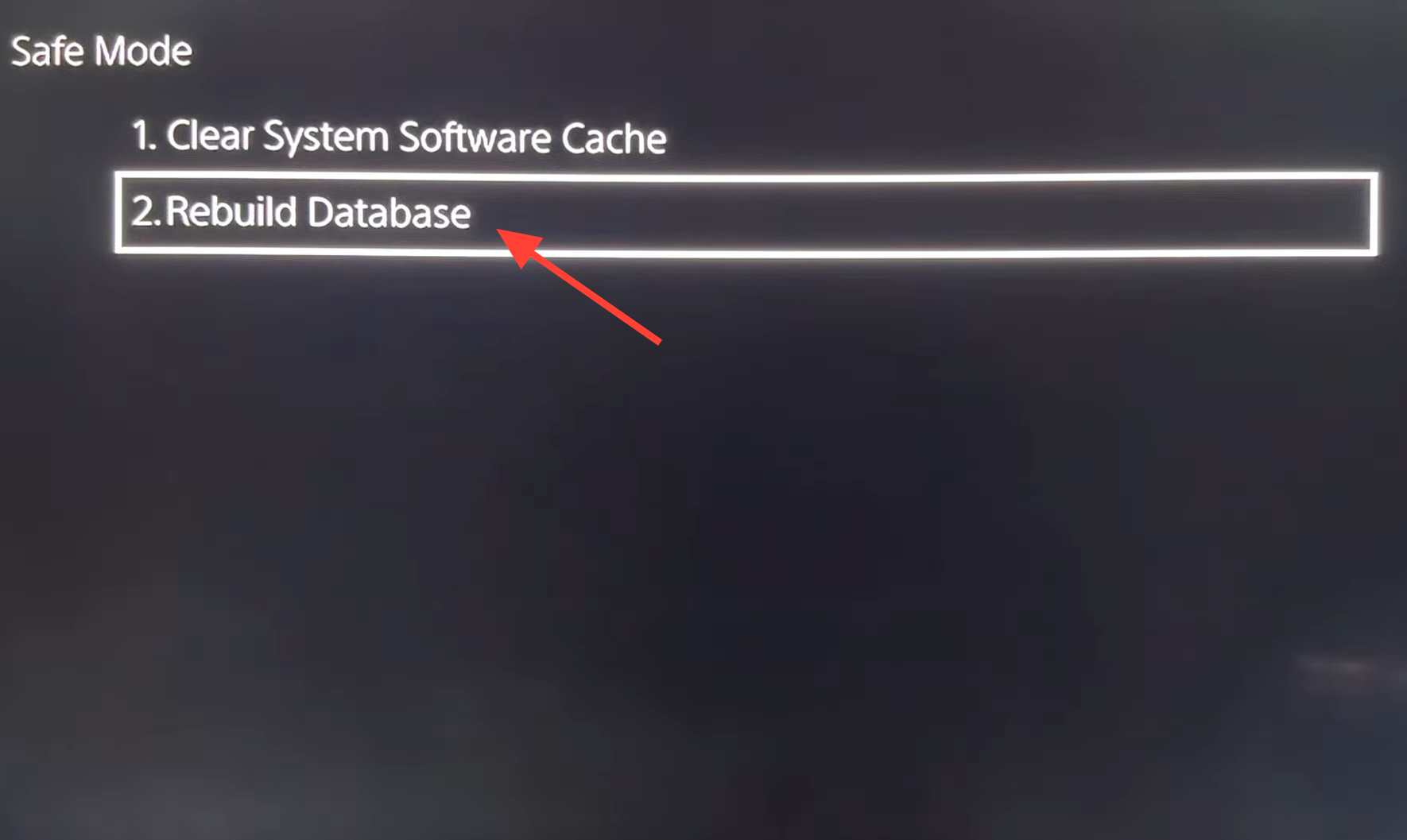
Rebuild the database in Safe Mode (PS4 and PS5)
Rebuilding the database scans your PlayStation and clears out corrupted files without deleting your games or saves. This is the most reliable fix for Error Code 47 on console.
Delete the .dcache files on PC
On Windows, the equivalent fix is to remove Warzone’s cached data files. These files help the game load faster, but when they become corrupted they can trigger Error Code 47.
data0.dcache
data1.dcache
toc0.dcache
toc1.dcache.dcache, then try again.Clear the console cache
A power cycle clears temporary files that can build up and interfere with the game. It is quick and does not touch your saved data.
PlayStation
Xbox
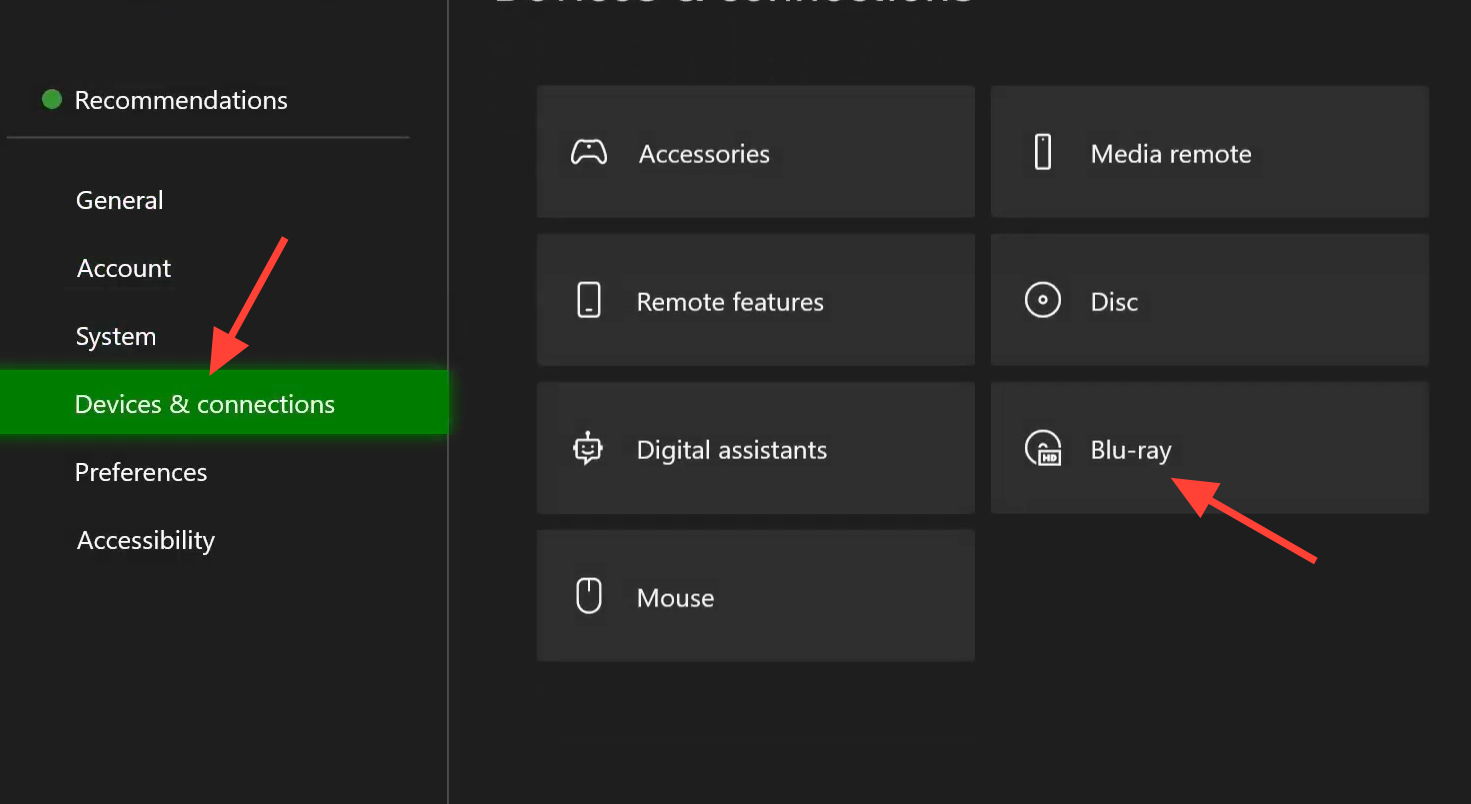
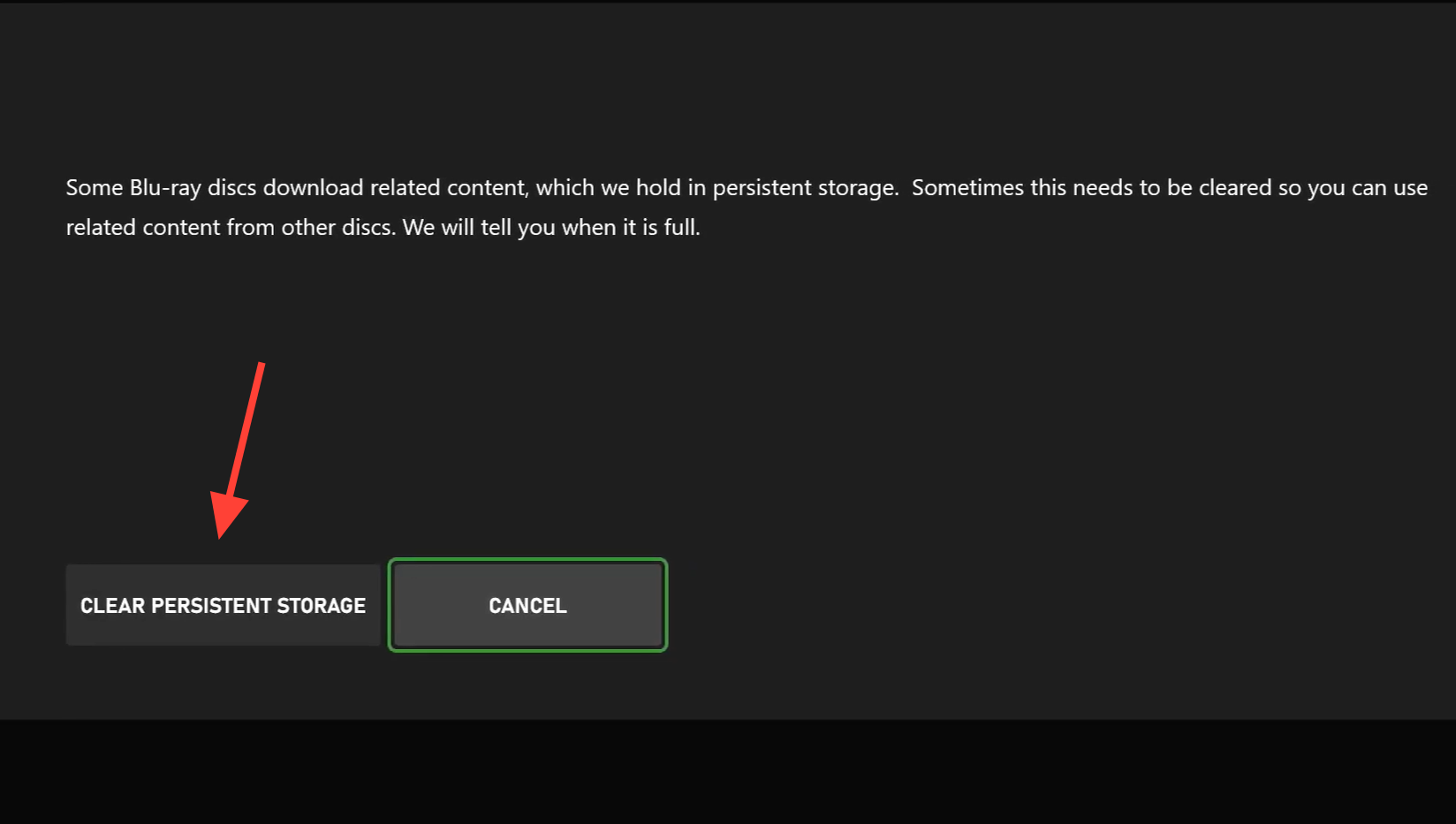
Install pending system updates
An outdated system can prevent Warzone from validating its files correctly. Make sure the platform software is current before moving to more drastic steps.
| Platform | Where to update |
|---|---|
| PlayStation | Home screen, then Settings, then System Software Update |
| Xbox | All Settings, then System, then Update, then Update Console |
| Windows | Start, then Settings, then Update & Security, then Check for updates |
Delete Warzone saved data
If the local save file itself is corrupted, the console cannot load it and throws Error Code 47. Removing it forces a clean copy. Your online progress stays intact, but back up the local save first if you want to keep it.
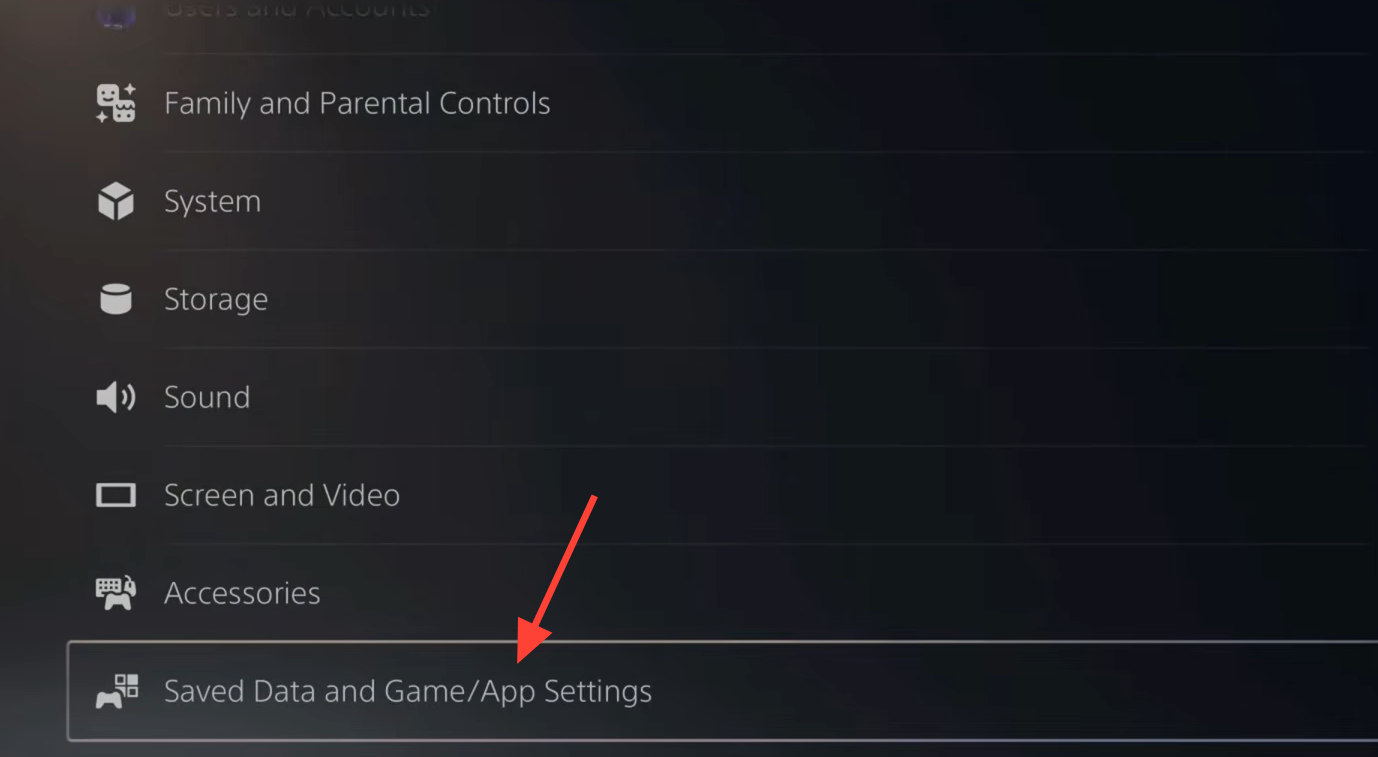
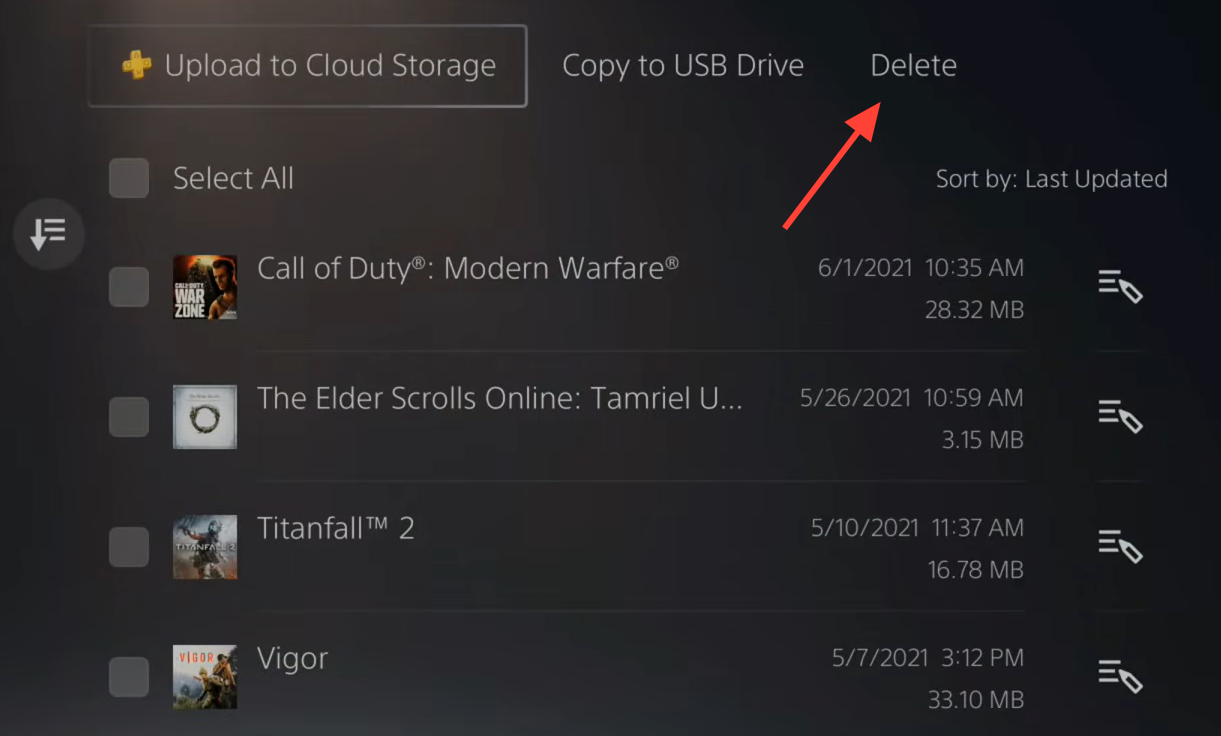
Reinstall Warzone as a last resort
A fresh install replaces every game file, which clears out any corruption the earlier steps missed. It is time consuming and downloads a large amount of data, so keep it as the final option.
You will know the fix worked when Warzone loads past the launch screen and reaches the main menu without the SPAN prompt reappearing. Work through the steps in order and stop as soon as the game boots, since rebuilding files or clearing the cache resolves the issue for most players well before a full reinstall becomes necessary.