

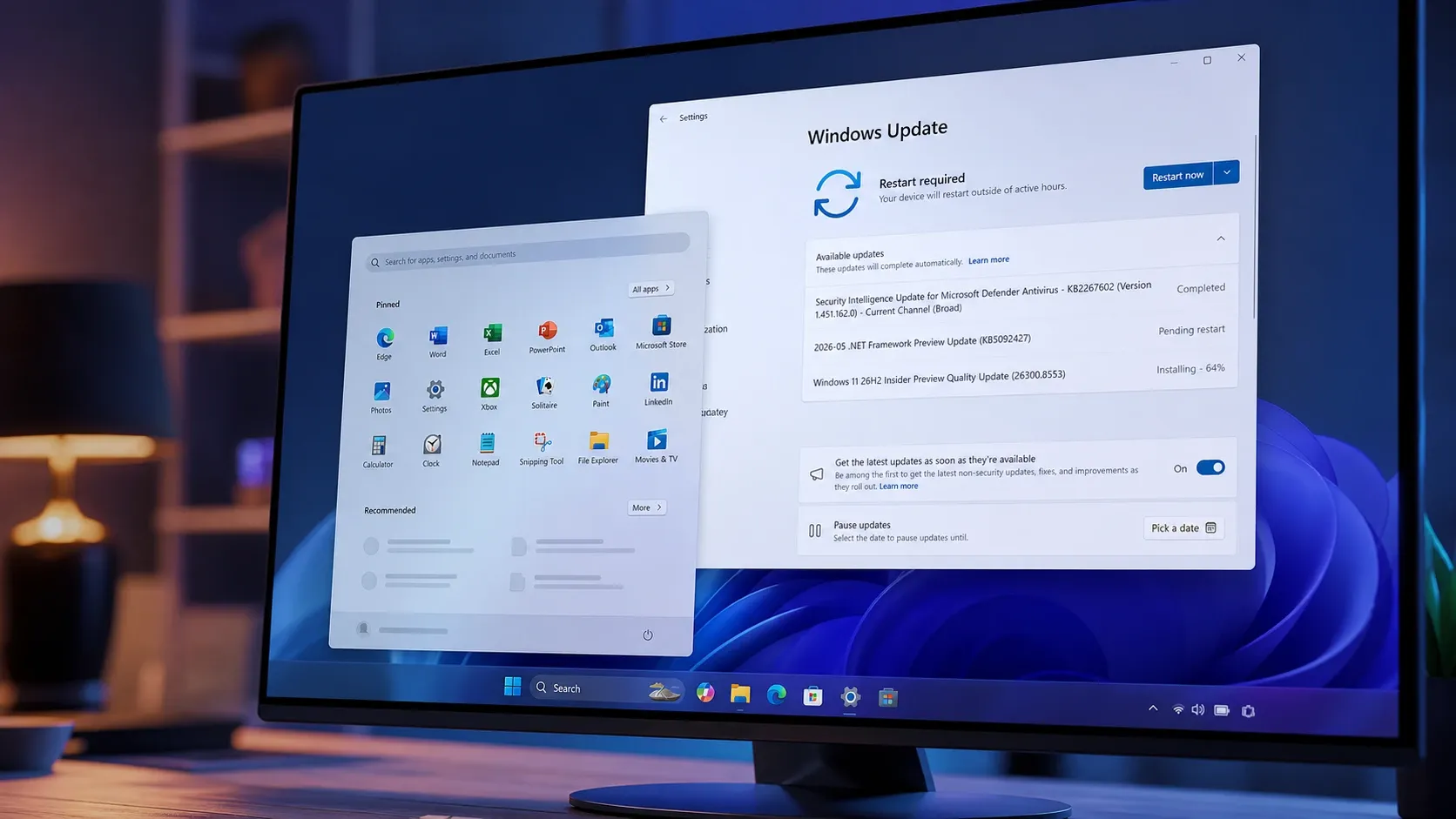
The Windows 11 Start menu has been a fixed object since 2021, and Build 26300.8553 finally pries it open. Released to the Experimental channel on May 29, 2026, this 26H2 flight lets you pick how big the Start menu is, turn individual sections on or off, drop your name and photo from view, and search files using fragments of their names. It is not a dramatic redesign, but it hands back the kind of control people have been asking for since launch.
Resizable Start menu (Small, Large, Automatic)
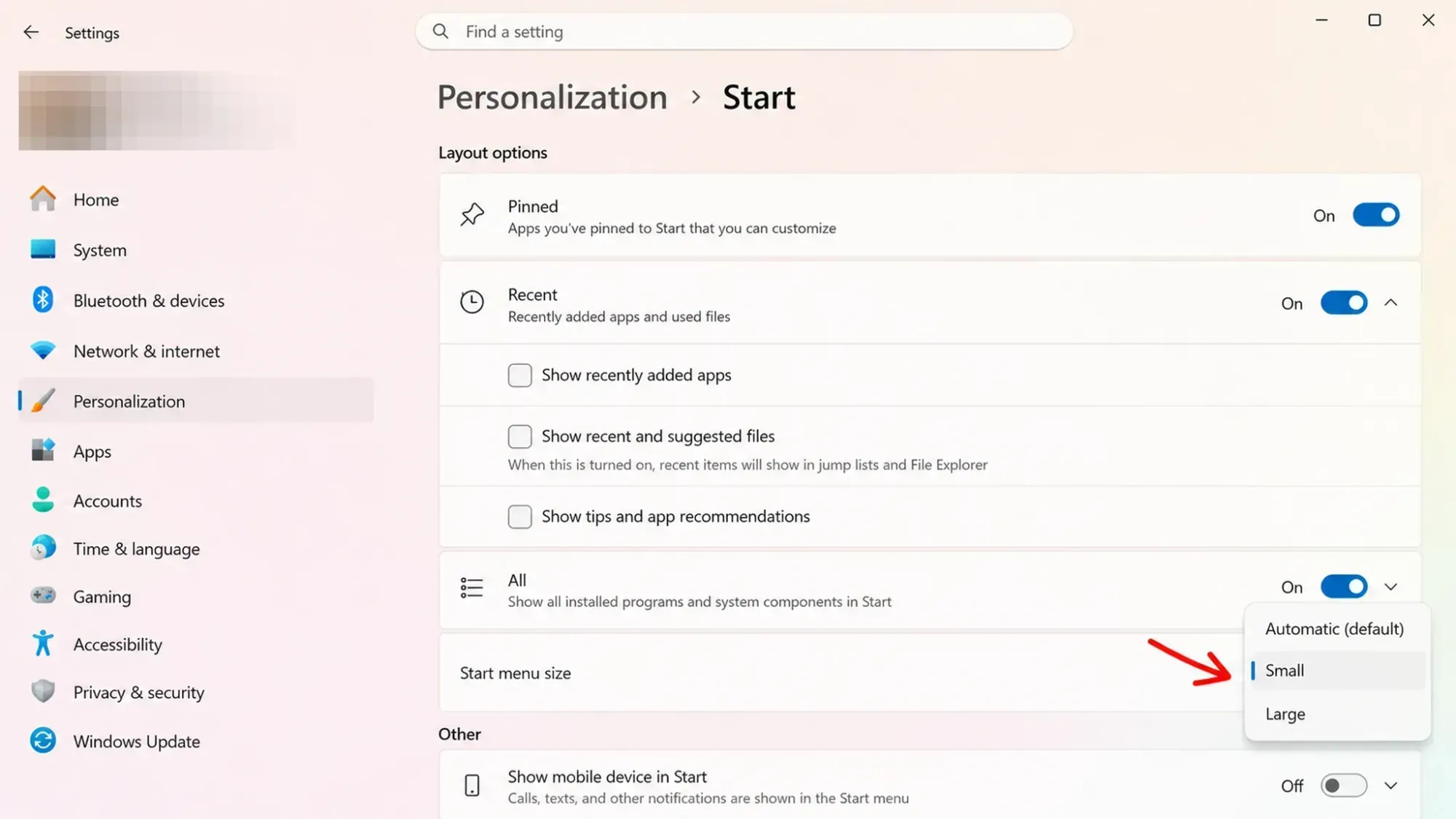
The headline change is a size control for the Start menu. You can now switch between three presets, and the menu adjusts how much content it shows on screen accordingly. Automatic is the default and scales the layout to your display, while Small tightens everything up and Large opens it out for more pinned apps and recent items.
| Size option | Behavior |
|---|---|
| Automatic (default) | Scales the Start menu proportionally based on your display configuration. |
| Small | Compresses the layout to take up less screen space. |
| Large | Expands the menu for more visible pinned apps and recent content. |
Show or hide Pinned, Recent, and All sections
You can now switch off parts of the Start menu without losing the rest of it. The build adds section-level toggles for Pinned, Recent, and All, so a person who never touches recent files can remove that block entirely and keep their pinned launcher clean.
Microsoft also renamed the former “Recommended” area to “Recent” across both the Start menu and the Settings app. The wording shift matters because “Recent” describes what you actually opened, rather than implying the system is pushing content at you. The Settings page itself has been redesigned to house these new customization controls.
Hide your account name and profile picture in Start
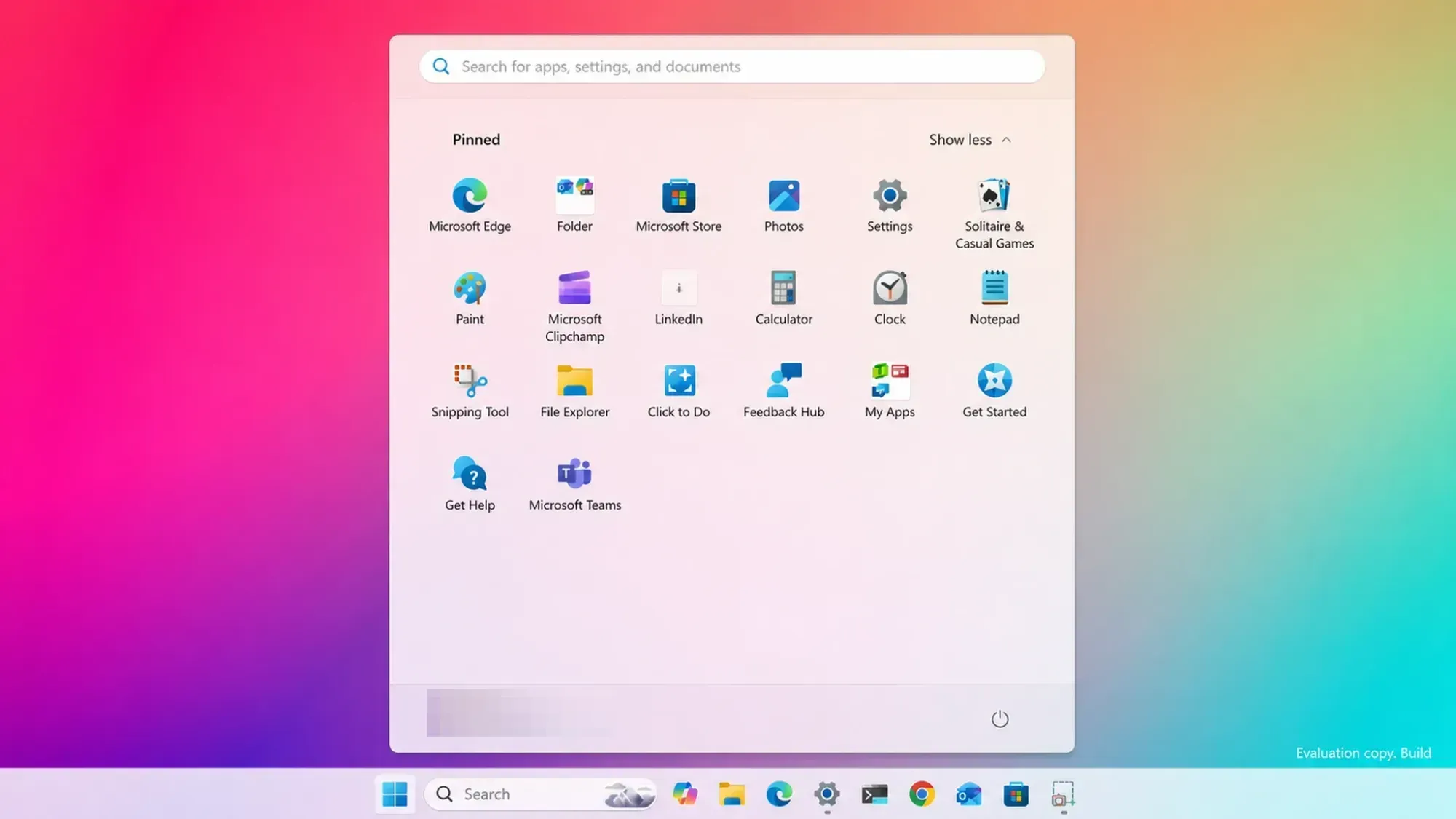
A new option lets you remove your account name and profile image from the Start menu. This is aimed at shared computers, classrooms, kiosks, and any situation where you are sharing your screen or recording it. A visible name and photo can leak personal identity during a livestream or a support session, and now you can keep that off the screen.
Windows Search adds substring matching
Search now finds files using partial words from inside compound names or content. If a document is called MeetingNotesApril, typing “april” surfaces it, and ProjectStatusReport shows up when you type “status.” This removes a long-standing annoyance where you had to remember the exact start of a file name to find it. The same search improvement is rolling out in the Beta build, 26220.8544.
Taskbar fixes for alternate positions
If you move the taskbar away from the bottom of the screen, this build cleans up several visual polish problems in those alternate positions. It also adds touch swipe support, so you can swipe to bring up the taskbar when it sits somewhere other than its default spot. These are small fixes, but they make moving the taskbar feel finished rather than half-implemented.
What the Beta channel gets (Build 26220.8544)
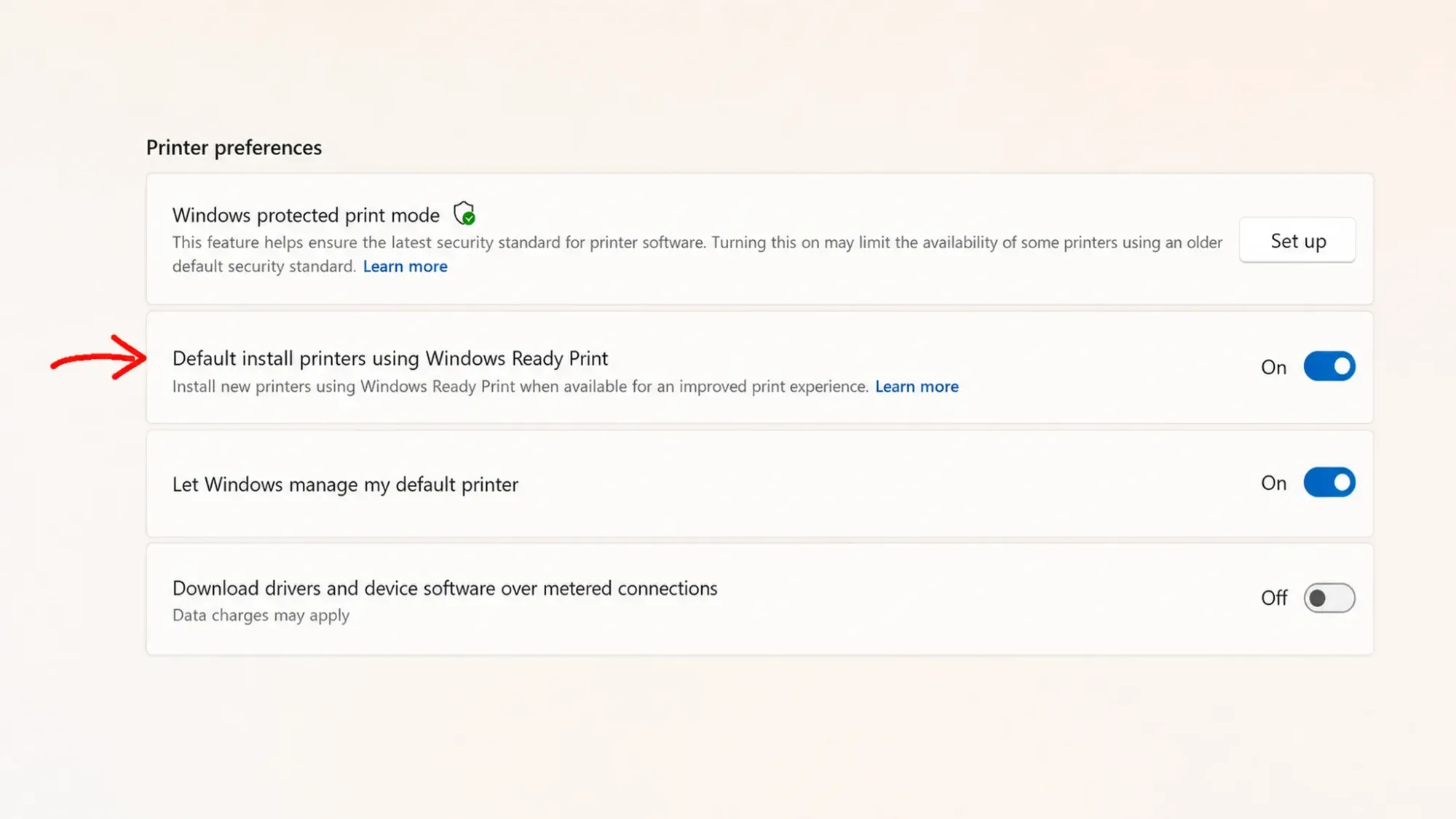
Released at the same time, Beta build 26220.8544 does not include the Start menu changes. Its additions focus on system polish. A new Windows Ready Print toggle controls how new printers install, and a unified “donut” loading spinner replaces older animations across core system flows.
Windows Ready Print appears under Settings > Bluetooth & devices > Printers & scanners as “Default install printers using Windows Ready Print.” When it is on, the system installs compatible printers using the IPP (Internet Printing Protocol) standard to improve reliability and move away from legacy third-party drivers. Turn it off and Windows falls back to other installation methods.
The new “donut” style spinner now shows up during Boot, Logon, Restart, Shutdown, and Windows Update, paired with status text like “Restarting,” “Working on updates,” and “Welcome.” The goal is a single, consistent loading look across the moments when the system is busy.
Known issue: Reset this PC may get stuck
On Build 26300.8553, the “Reset this PC” feature can hang during the reset process. If you hit this, complete the reset using the cloud download option (Cloud PBR) instead of the local reinstall, which finishes successfully.
There is also a hardware caveat. AMD machines with System Guard support in the Windows Insider Program will not be offered the Experimental Future Platforms build during this flight. The 26300.8553 Experimental build itself is not affected, but AMD Insiders should confirm their channel before updating.
How to install Build 26300.8553
Settings > Personalization > Start and look for the size options and the section toggles. If the new settings page and the Small, Large, and Automatic choices appear, the features are active on your machine.If you would rather grab a clean image, the Windows Insider Preview builds are also offered as ISO files on the Windows Insider Preview Downloads page, though specific builds are only available there for a limited time.
Everyone else will have to wait. Features that get positive feedback in the Experimental channel usually reach Beta within two to three months, and the broader 26H2 update is expected later in 2026. Given how loudly people have asked for a resizable Start menu and the ability to hide the old Recommended feed, these changes look like strong candidates to make the cut.



