

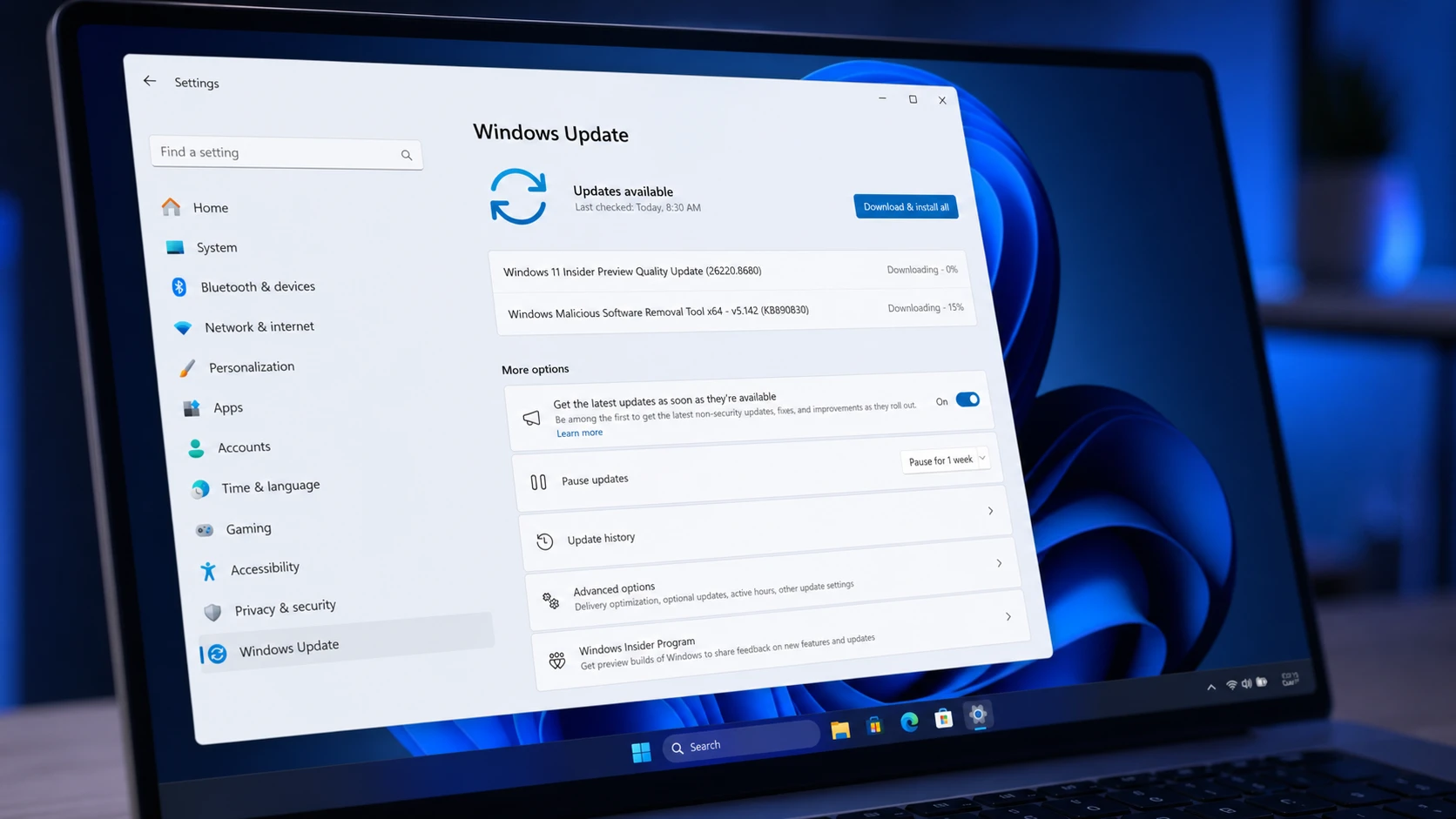
Microsoft has pushed Windows 11 Insider Preview Build 26220.8680 to the Beta Channel, and the headline change is restraint. Widgets now behave quietly by default and use less memory, a new Screen tint accessibility setting softens display intensity, and the Magnifier and File Explorer pick up practical fixes. The build landed on 12 June 2026 for version 25H2 devices.
Quick answer: Enroll a PC in the Beta Channel, then open Settings and turn on Get the latest updates as soon as they’re available, and click Check for updates to install Build 26220.8680. You can also grab the ISO from the Windows Insider Preview Downloads page.
Widgets get quieter defaults and a smaller memory footprint
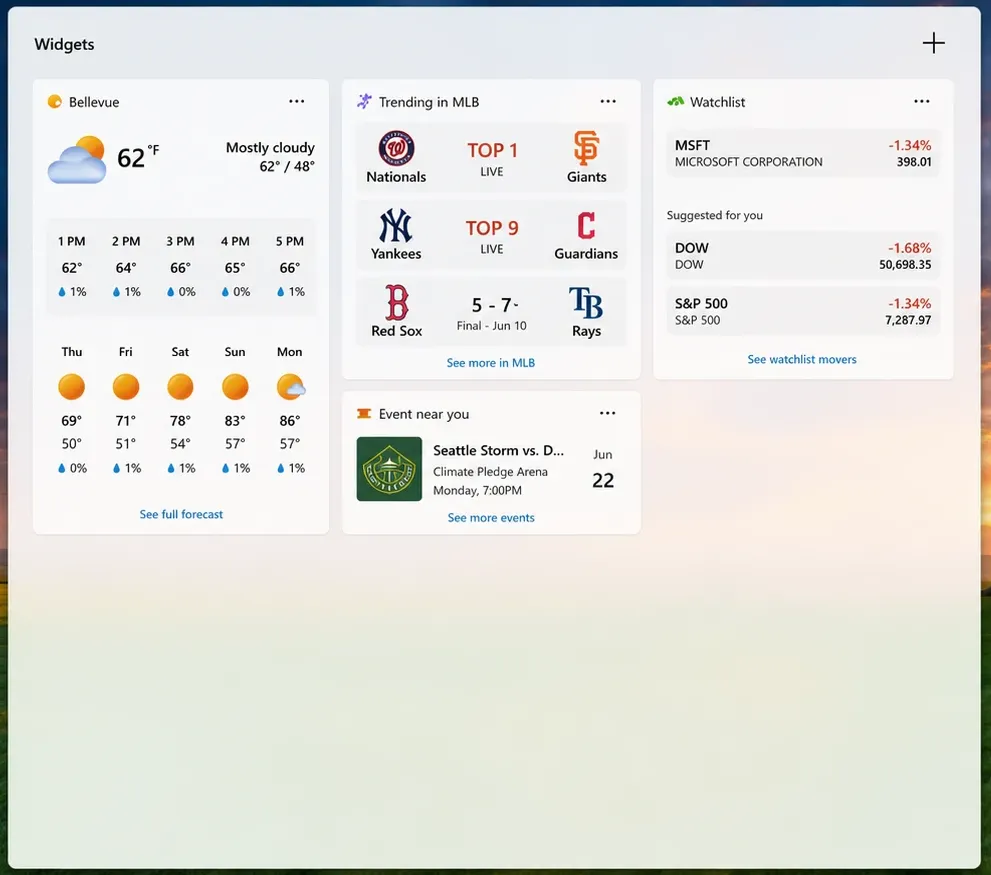
The Widgets experience now ships set to “quiet by default,” a deliberate move to cut down on unexpected alerts and visual interruptions. Several default settings change at once, all aimed at making the panel stop demanding attention.
| Default setting | New behavior |
|---|---|
| Open on hover | Disabled |
| Taskbar badging | Turned off |
| First launch | Opens to the widgets experience |
| Lock screen | Weather is the only default widget |
| Taskbar alerts | Capped per day and limited until you engage with Widgets |
For anyone who keeps taskbar badging on, the badge color now follows your Windows accent color rather than always showing red. The change removes the implied urgency of a red marker, since a widget update rarely needs the same treatment as a security alert.
Missed information is still easy to find. The icons in the Widget navigation bar can show a count of missed alerts for each dashboard, and those badges clear automatically when you leave the dashboard. A setting lets you turn navigation bar badges off entirely if you prefer none at all. The Widgets settings page itself is now a full-screen layout that is easier to read.
Engagement also shapes the experience. A user who rarely opens Widgets is quieted down with taskbar badging off, matching the new default, while a heavy user who has already tuned their settings keeps those preferences. On the performance side, Widgets now leans on device characteristics and usage patterns to reduce memory use. That means a smaller default footprint, memory returned faster when the panel is idle, and limited pre-launch on machines with less RAM.
Note: You can flip features like taskbar badging back on at any time through the Widgets settings, and feedback routes through Feedback Hub (WIN + F) under Widgets.
Screen tint: a new color overlay for eye strain
Screen tint is a new accessibility setting that lays a color overlay across the whole display, softening its intensity so bright, saturated screens are easier on the eyes during long sessions. It is built for daytime use and for anyone left with tired or sensitive eyes after a long stretch at the screen.
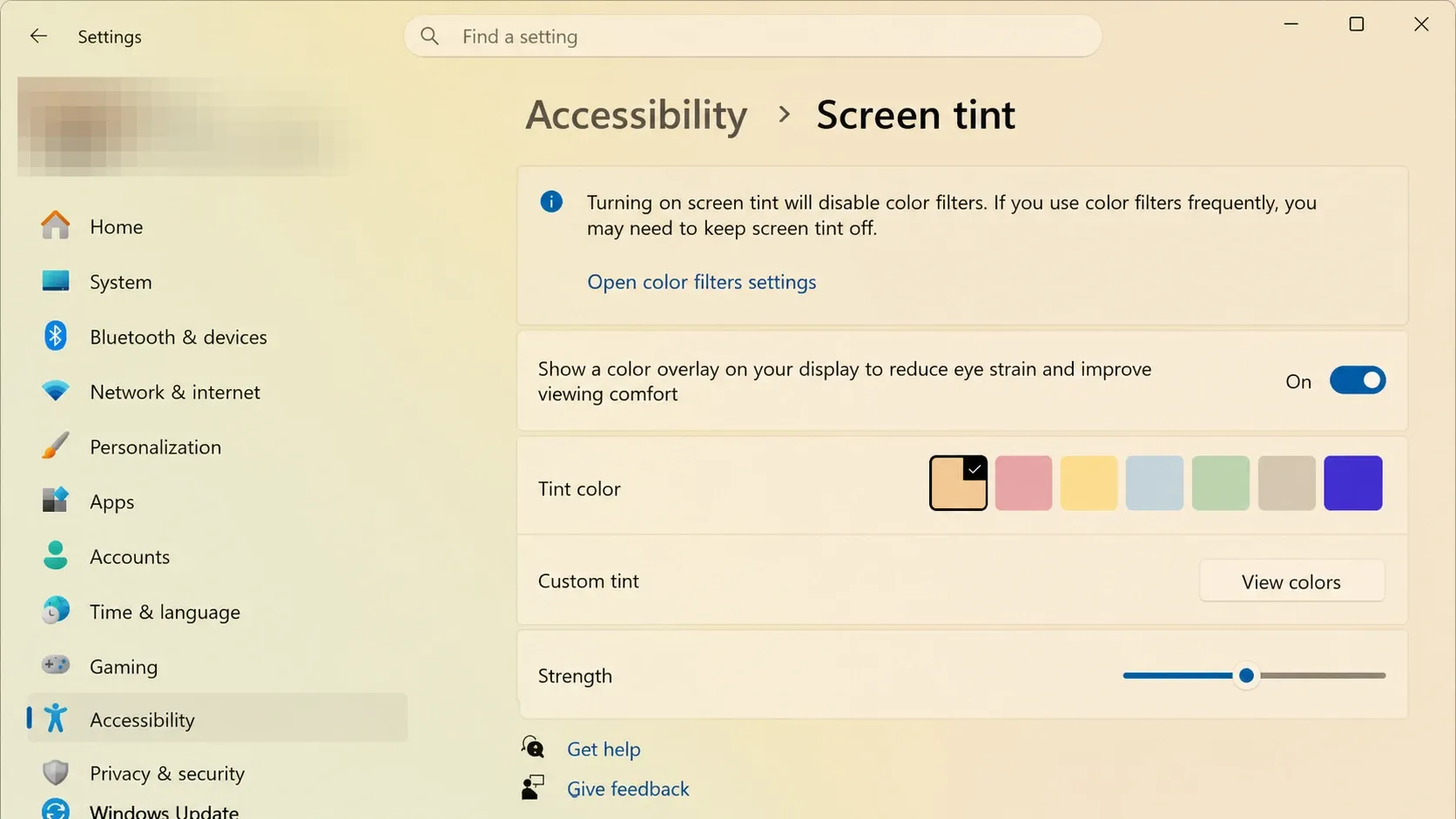
Screen tint and Night light solve different problems, so you can run both at once. Night light warms the display to cut blue light that interferes with sleep, while Screen tint lowers overall screen intensity to ease daytime eye fatigue and light sensitivity. There is one constraint to know up front. Turning on Screen tint disables color filters, and vice versa, so if you depend on color filters you may need to leave Screen tint off.
Magnifier adds exact zoom percentages and presets
Magnifier now lets you control the zoom level precisely instead of stepping up and down until you land near the value you want. You can type an exact zoom percentage straight into the Magnifier toolbar to hit the level you need.
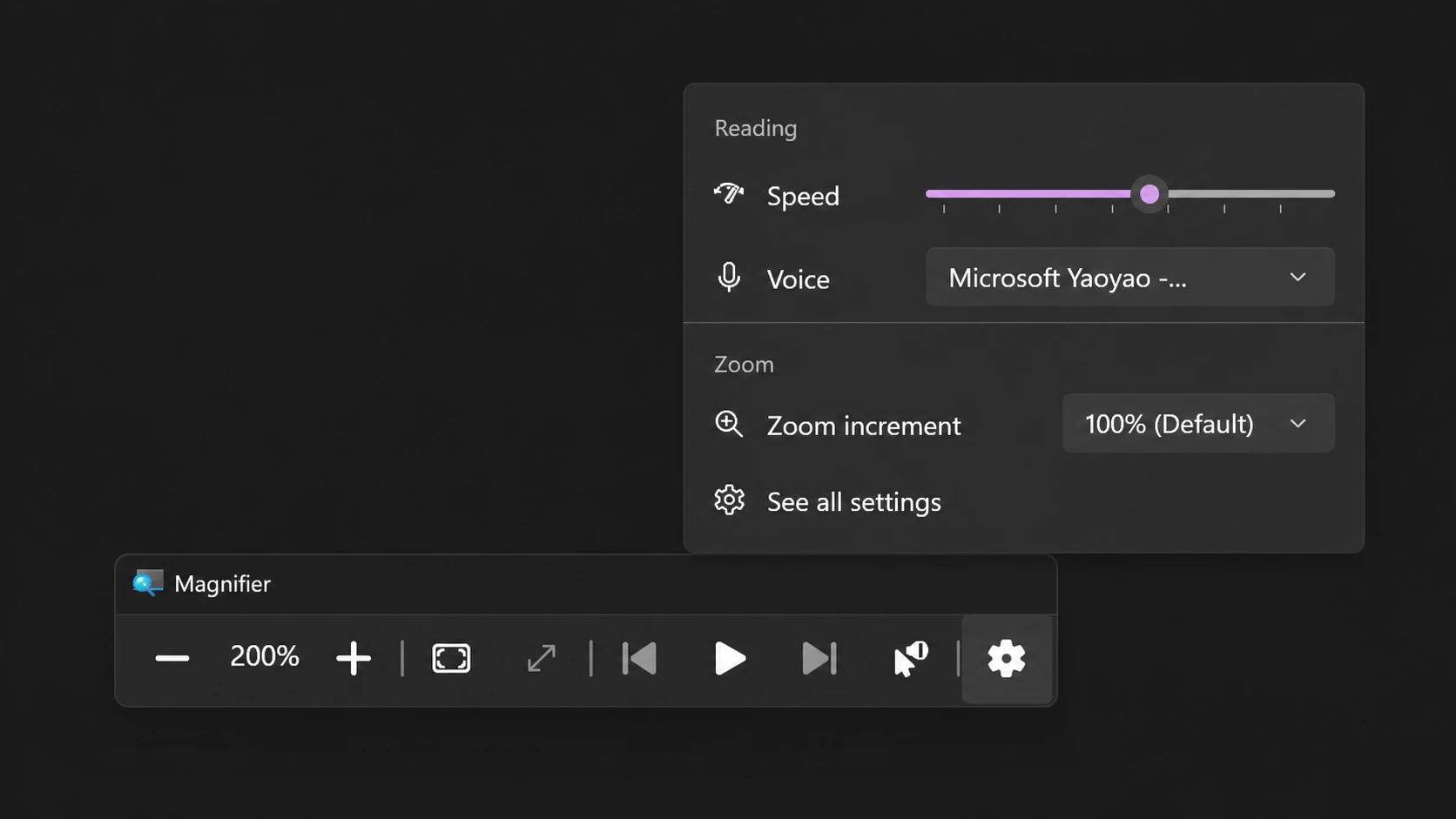
The Settings dropdown also gains preset step increments at 5%, 10%, 25%, 50%, 100%, 150%, 200%, and 400%, so you can jump to a common level in a single click. Those fixed values make the tool more predictable across shared and managed devices, where support staff can point a user to a specific magnification level.
File Explorer fixes for paths, ISO mounting, and Rename
File Explorer gets a set of reliability fixes that target everyday friction rather than a redesign. The address bar now accepts paths with double backslashes and quotation marks, for example C:\\Users\\user or "C:\\Users\\user", which helps when you paste paths copied from scripts or command-line output.
- Mounting large ISO files no longer makes File Explorer unresponsive during SmartScreen checks.
- The address bar suggestion dropdown is more reliable and now closes consistently after you select an item.
- OneDrive files no longer appear duplicated in the Favorites section on File Explorer Home.
- Rename no longer repeatedly selects text while you edit names in folder views.
- Case-only name changes now show up immediately in folder views for items stored locally or in the cloud.
Input, Remote Recovery Management, and Windows Update changes
The emoji panel, opened with Windows key + period (.), now uses GIPHY as its GIF provider following the deprecation of Tenor, which changes where GIFs are browsed and shared. Administrators also get a new recovery remote management plug-in that extends WinRE management capabilities for MDM providers.
On the update side, devices that hit error 0x800f0843 when trying to install the previous build should now install without that failure.
How to install Build 26220.8680 and confirm it worked
As with any Insider flight, some features here are still in active development and may change, be replaced, or never ship beyond the program. If you run into trouble with the quieter Widgets behavior, Screen tint, or any of the File Explorer fixes, send a report through Feedback Hub so it reaches the right team.



