

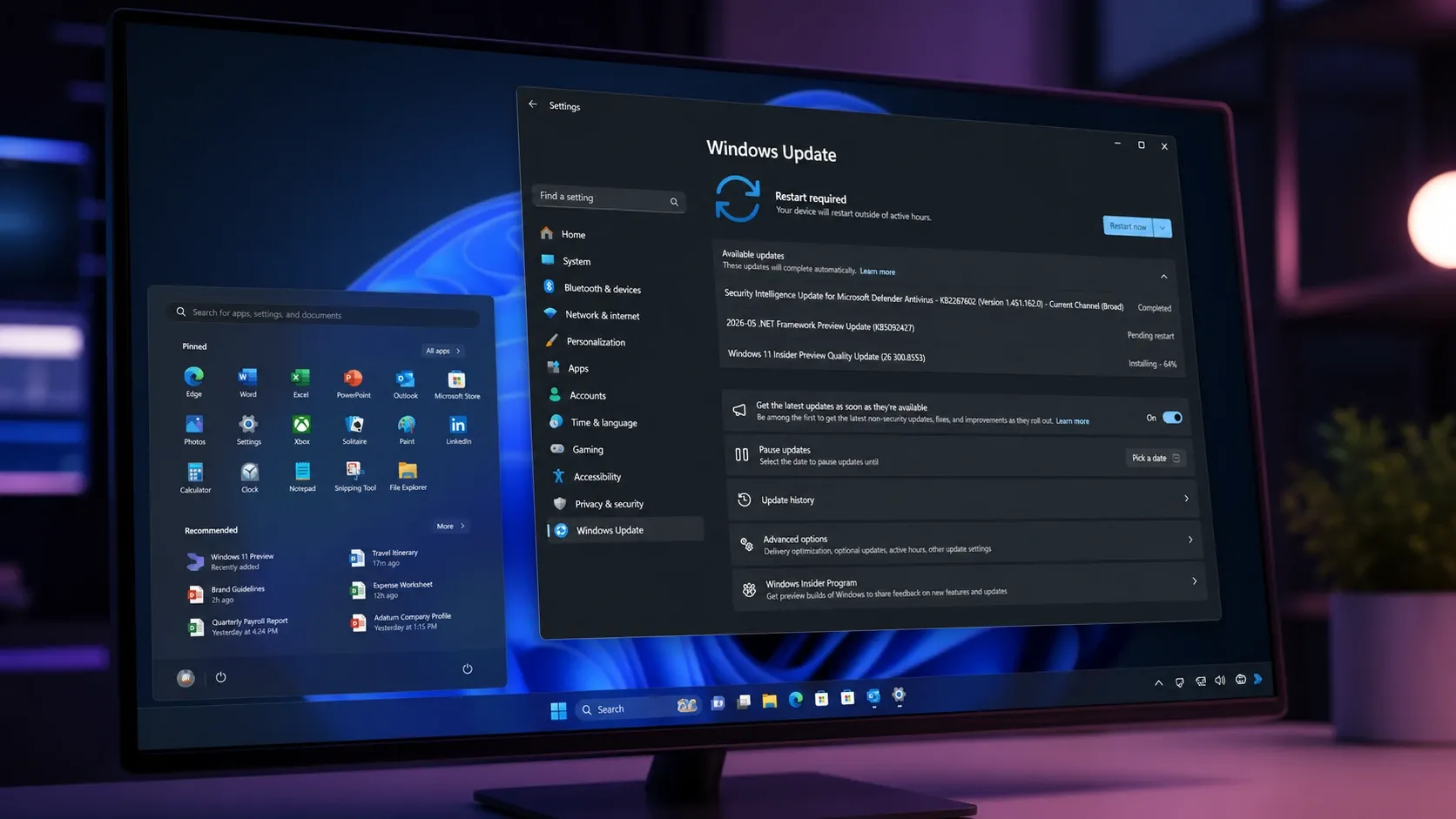
Windows 11 build 26300.8553 lands in the Experimental channel with the change Start menu holdouts have been asking for since 2021: you can now resize it, hide the sections you never use, and strip your name and photo off the panel entirely. The build went out on May 29, 2026, and it’s part of the wider 26H2 development branch, even though Settings will keep reporting version 25H2 until closer to release.
The headline work is the modular Start menu, but the same flight also reworks Windows Search and cleans up the taskbar when it isn’t sitting at the bottom. A parallel Beta build, 26220.8544, ships some of the same search work plus new printing controls and refreshed loading spinners, though it does not include the Start menu overhaul.
Start menu resize options: Small, Large, and Automatic
The Start menu now has three size presets. Small shrinks the footprint, Large gives you more room for pinned apps and recent items, and Automatic stays the default by scaling the panel based on your display. Before this build, the menu had one fixed size with no user control over it.
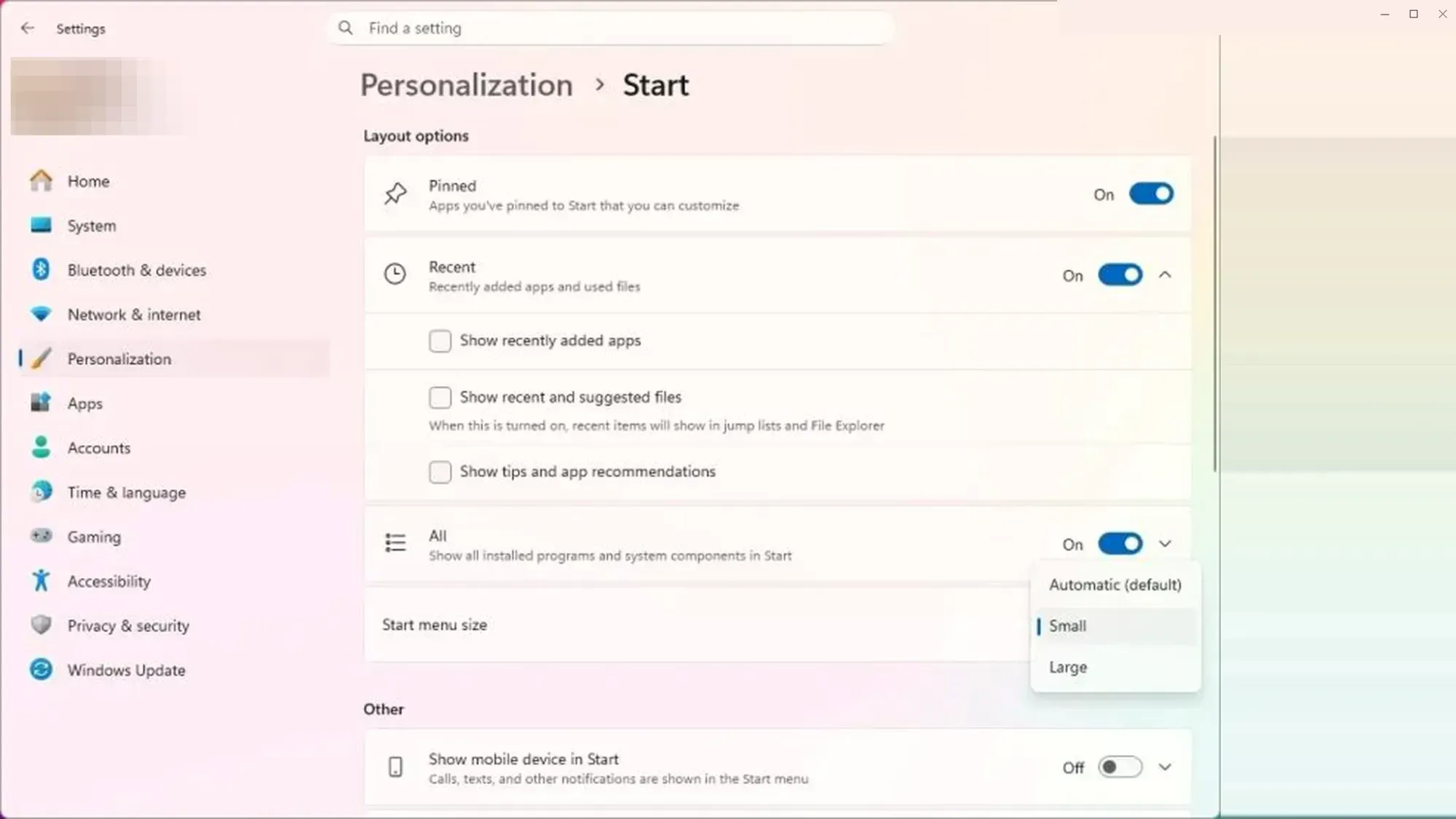
The controls live on a redesigned Start settings page, which collects the new size and visibility options in one place instead of scattering them around. You’ll find the size choice there alongside the section toggles described below.
Customize sections: hide Pinned, Recent, or All apps
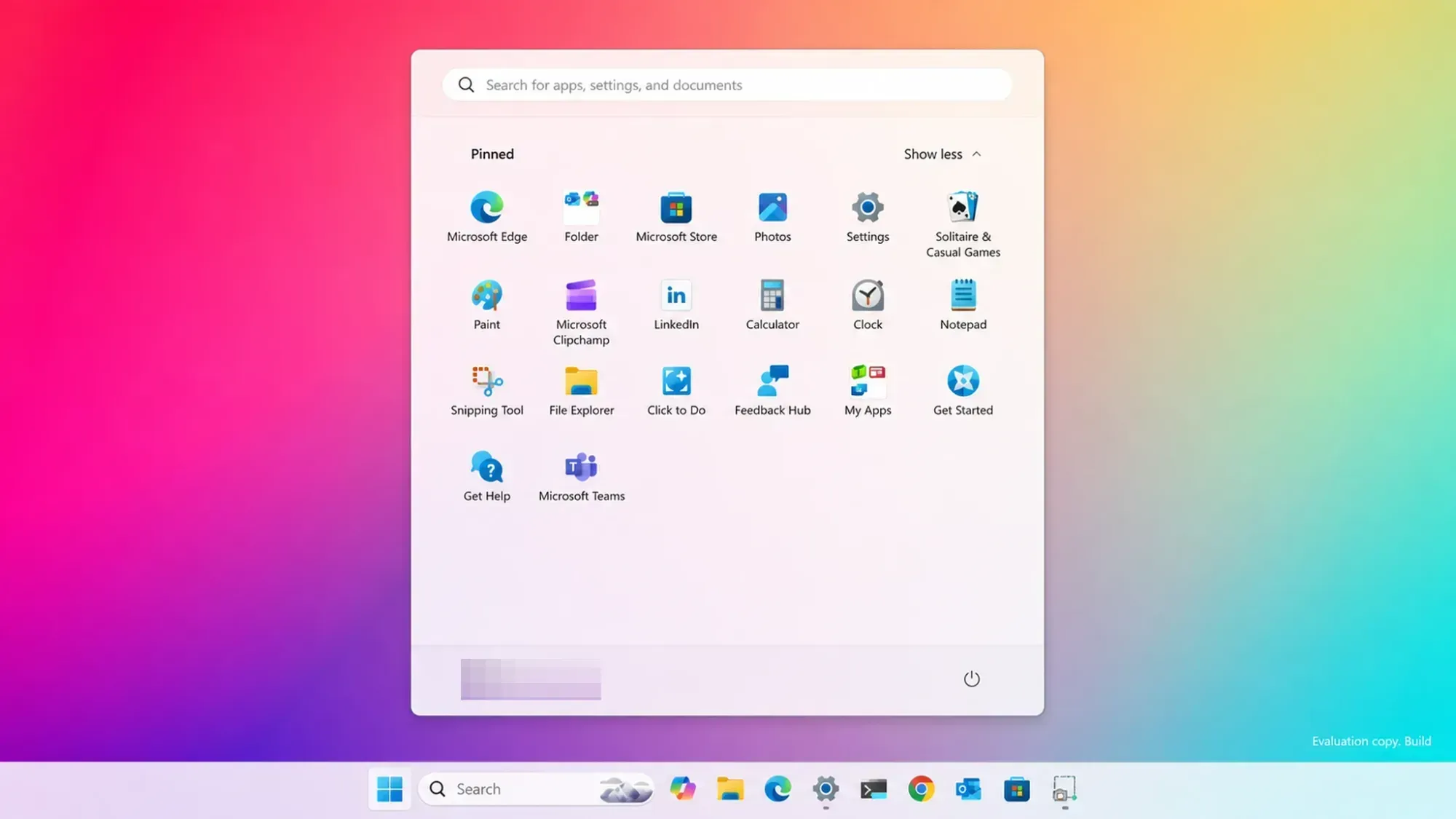
Each part of the Start menu can now be turned on or off on its own. Right-click the menu and select Customize sections, then use the checkboxes to show or hide Pinned apps, the Recent section, and All apps. That means you can drop the part you don’t want without affecting the rest of the layout.
Microsoft also renamed the old “Recommended” area to “Recent,” and the change carries across both the Start menu and the Settings app. The relabeling reflects what the section actually shows, which is files and apps you’ve used lately rather than vendor suggestions.
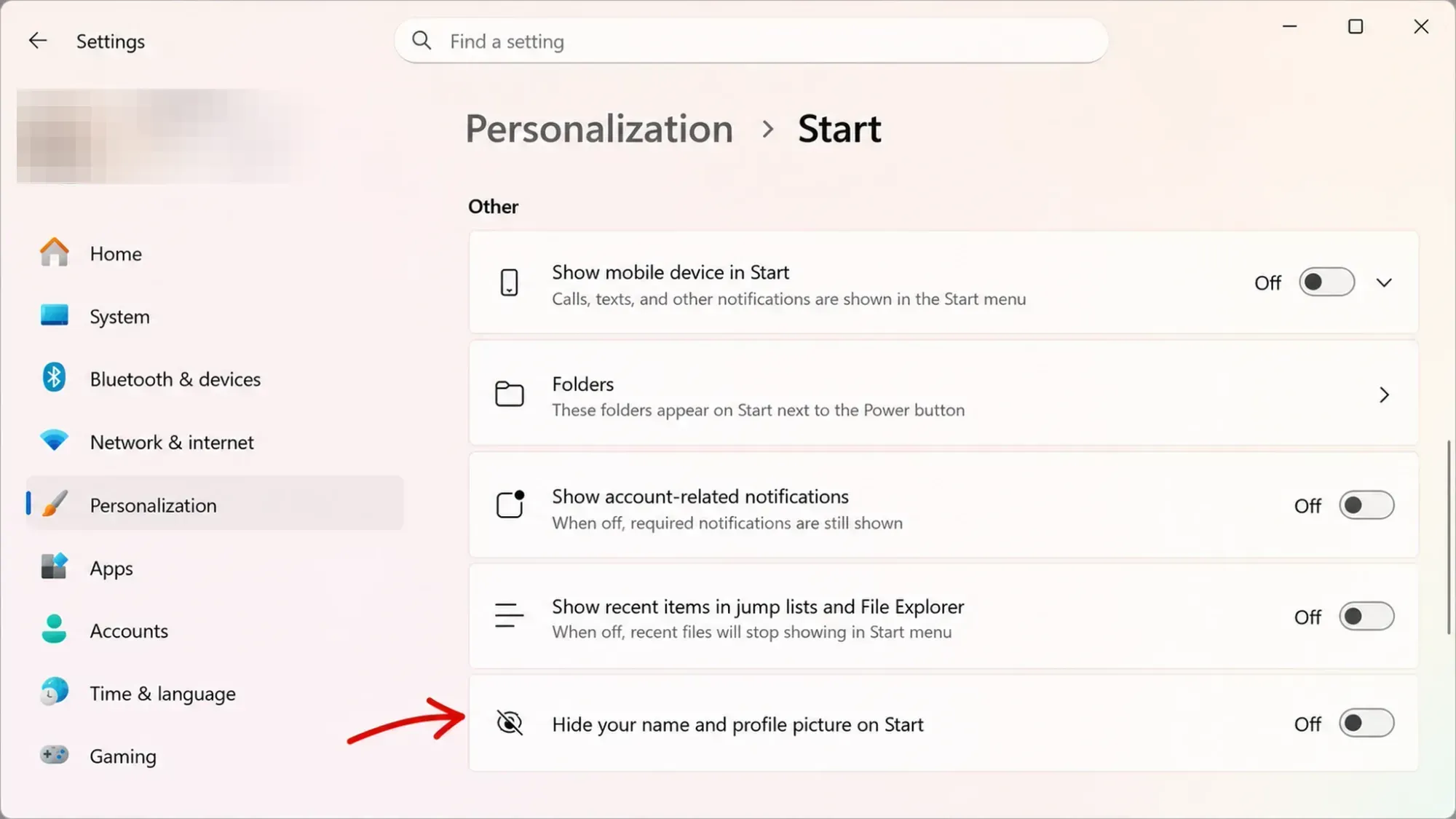
Hide your name and profile picture in Start
There’s now a toggle to remove the account name and profile photo from the Start menu. That’s useful any time the screen is visible to others, such as screen sharing in a meeting, a classroom projector, a remote support session, or a shared kiosk machine. The setting doesn’t change how your account works; it only stops Start from displaying the identity badge.
You can leave feedback on all of these Start changes through Feedback Hub by pressing WIN + F and filing under Desktop Environment, then Start.
Windows Search adds substring matching
Search now matches partial words inside compound file names and content. A file named MeetingNotesApril shows up when you type “april,” and ProjectStatusReport appears when you type “status.” Previously you often had to know the start of a name for it to surface, which made files with run-together names hard to find.
This search improvement is shared across both this build and the Beta channel’s 26220.8544.
Taskbar fixes for alternate positions
If you’ve moved the taskbar away from the bottom of the screen, this build cleans up several small visual glitches in those layouts. It also adds a touch swipe gesture to bring up the taskbar when it’s docked in an alternate position, so the feature behaves more like you’d expect on touch devices.
Known issue: Reset this PC can get stuck
On build 26300.8553, the Reset this PC feature may hang during the reset process when you use the local reinstall option. To finish a reset successfully, choose the cloud download option (Cloud PBR) instead of the local one.
You’ll know the reset is proceeding correctly when it moves past the preparation phase and begins reinstalling Windows rather than stalling at the same percentage.
What’s in the Beta build 26220.8544
The Beta channel build released alongside this one does not bring the modular Start menu. It focuses on printing and visual polish, plus the shared substring search.
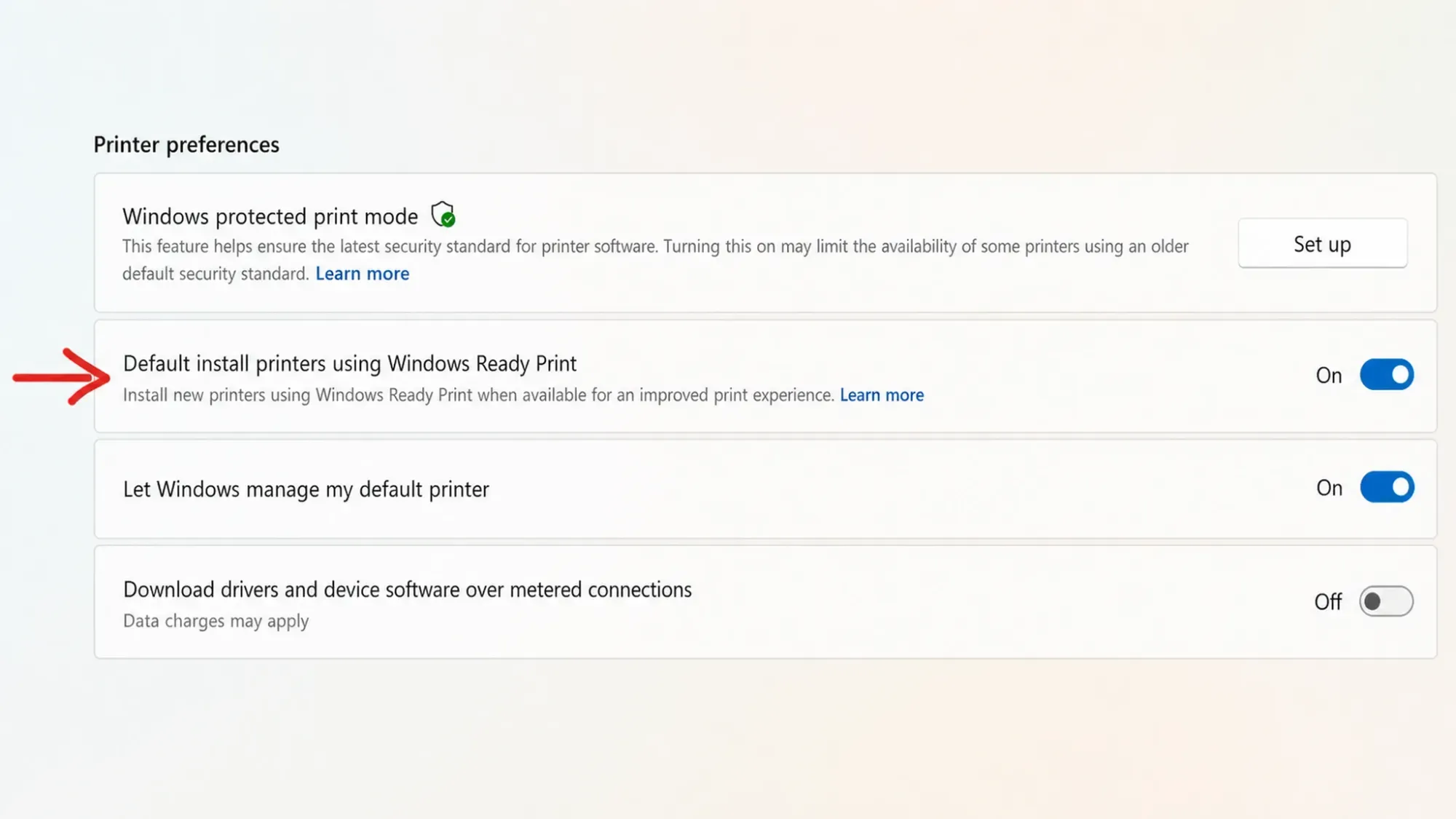
The Beta build also swaps in a unified “donut” style loading spinner across Boot, Logon, Restart, Shutdown, and Windows Update, replacing the older animations. Status text such as “Restarting,” “Working on updates,” and “Welcome” appears alongside the new indicator.
Experimental vs Beta build differences
| Change | 26300.8553 (Experimental) | 26220.8544 (Beta) |
|---|---|---|
| Resizable Start menu (Small/Large/Automatic) | Yes | No |
| Section toggles + “Recent” rename | Yes | No |
| Hide name and profile picture | Yes | No |
| Substring search | Yes | Yes |
| Taskbar fixes for alternate positions | Yes | No |
| Windows Ready Print toggle | No | Yes |
| New donut loading spinners | No | Yes |
Feature flags you can turn on early
Many of these changes roll out gradually through Controlled Feature Rollout, so they reach a subset of Insiders first. If you want to try features before they reach you, open Settings > Windows Update > Windows Insider Program > Features flags and enable the ones you want.
| Available feature flags |
|---|
| Alternate taskbar positions |
| Consistent solid (donut) spinners across key Windows scenarios |
| Faster reopening of restartable apps |
| Fluid Dictation Language Expansion in Voice Access |
| Fluid Dictation Language Expansion in Voice Typing |
| Free upgrade path to Windows 11 Pro Education for K-12 |
| Improved Magnifier quick settings access |
| Magnifier Simplification |
| New Windows Insider Program experience |
| Pause updates on your schedule |
| Screen Tint |
| Show Braille settings by default |
| Smaller Taskbar |
| Touchpad Enhancements |
| Windows Search Box |
How to get build 26300.8553
These builds run on Windows 11 version 25H2 through an enablement package, which is why the version number stays at 25H2 in Settings even though the work is part of 26H2. Some previewed features may change, ship later, or never leave the Insider channels at all, so treat the Start menu controls as a work in progress rather than a finished design.



