

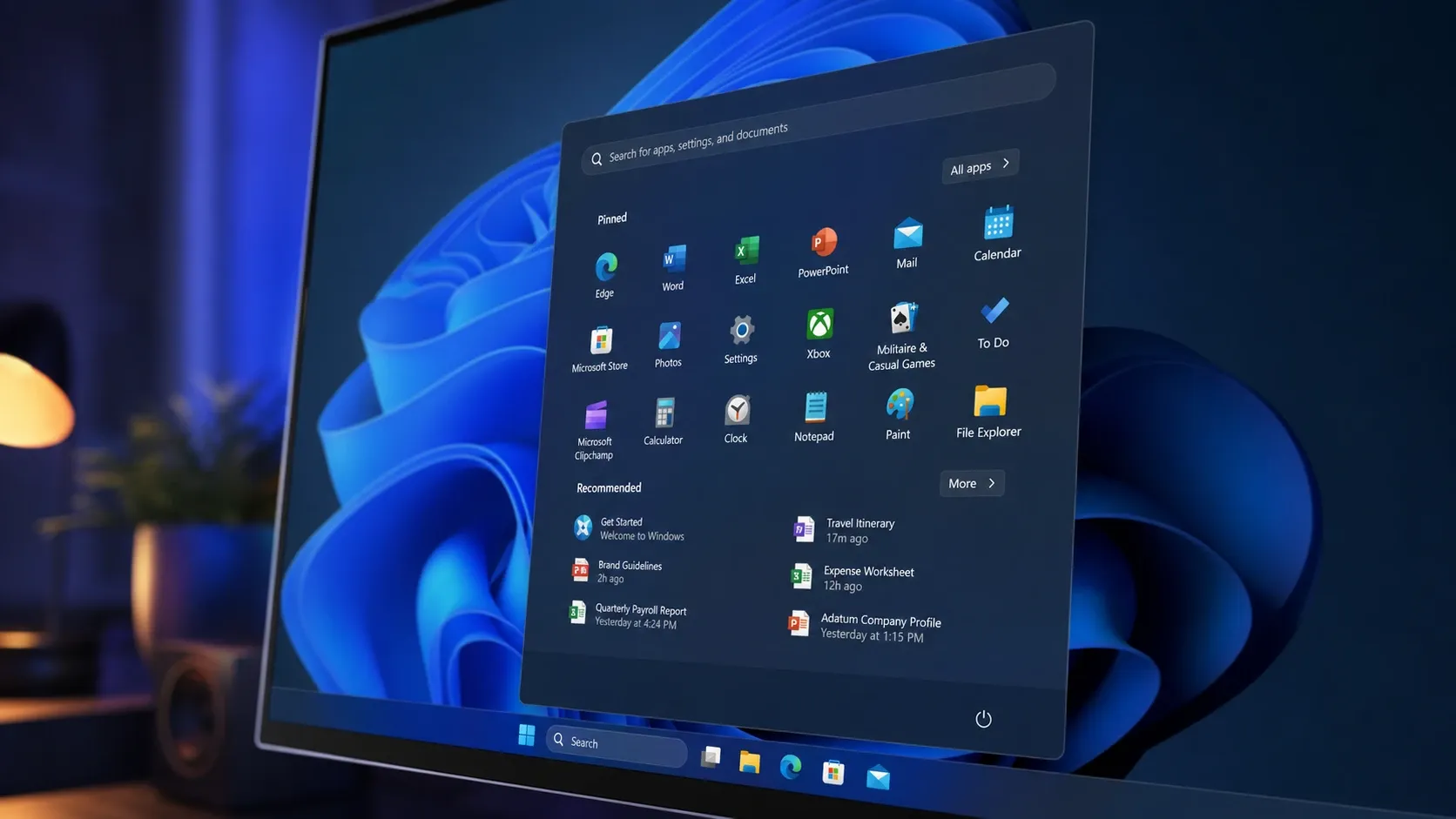
Windows 11 is finally letting you decide what the Start menu shows and how big it gets. A new preview build hands you independent toggles for the Pinned, Recent, and All apps sections, three size presets, and a switch to hide your account name and profile picture. For the first time since the operating system launched in 2021, you can strip the Start menu down to almost nothing or build it up the way you want.
Which build adds Start menu customization
The new controls arrived with Windows 11 Insider Preview Build 26300.8553, published on May 29, 2026 to the Experimental channel. The changes are described in the Windows Insider build announcement.
Build 26220.8544 shipped to the Beta channel on the same day, but it does not include the Start menu customization. The Beta build focuses on other polish work, such as modern loading spinners across boot, logon, restart, and shutdown, substring search in Windows Search, and a new Windows Ready Print toggle. If you specifically want the Start menu controls right now, you need the Experimental build.
Note: These controls are Experimental channel only for the moment. Features that get good feedback there typically reach Beta within two to three months, with broad availability expected in the 26H2 release later in 2026.
Show or hide the Pinned, Recent, and All apps sections
The Start menu is built from three parts. Pinned holds the apps you choose, the section formerly called Recommended is now named Recent, and All apps is the complete list of installed software. Each one can now be switched on or off on its own.
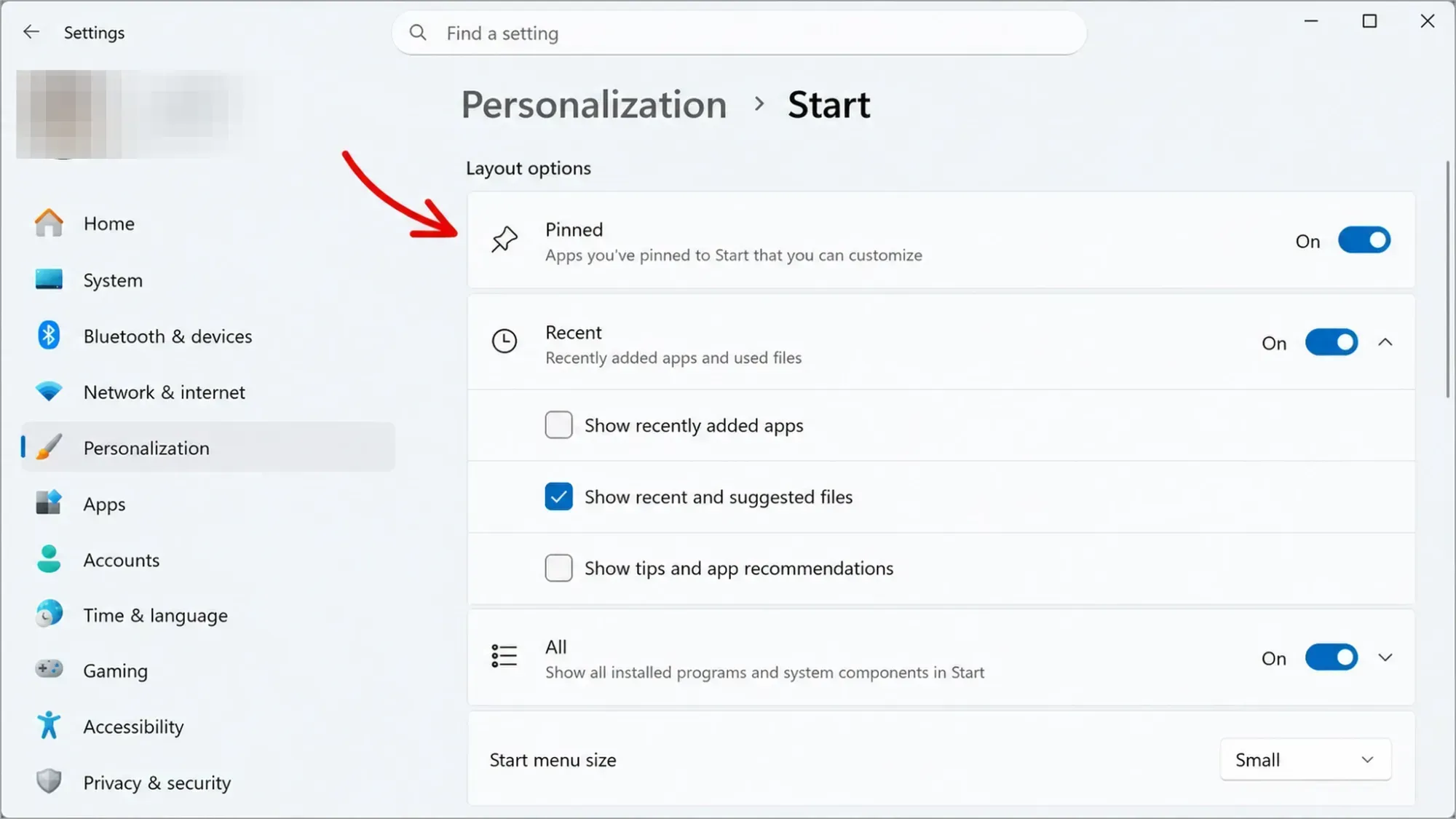
The Recent rename is more than cosmetic. Recommended pulled in suggested content, while Recent leans on the files and items you have actually opened, and it updates in close to real time. You can set it to show recently added apps, recent files, both, or nothing at all.
You can also right-click anywhere on the Start menu and choose Customize sections to reach the same checkboxes without opening Settings.
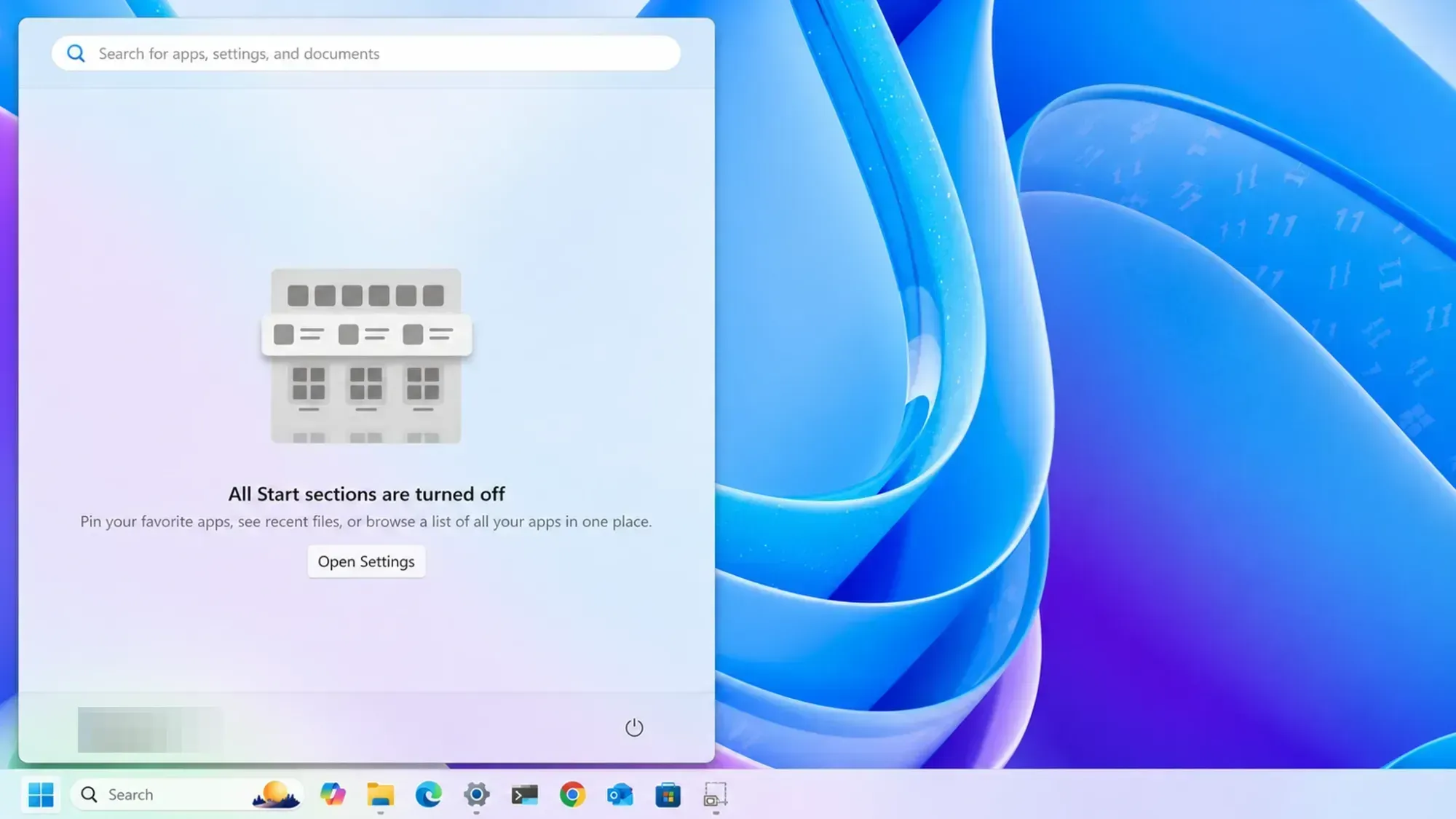
If you turn everything off, opening Start shows a short message reading “All Start menu sections are off” with a link to the Start menu settings. You can also produce a blank menu by keeping the Pinned section enabled and removing every pinned app.
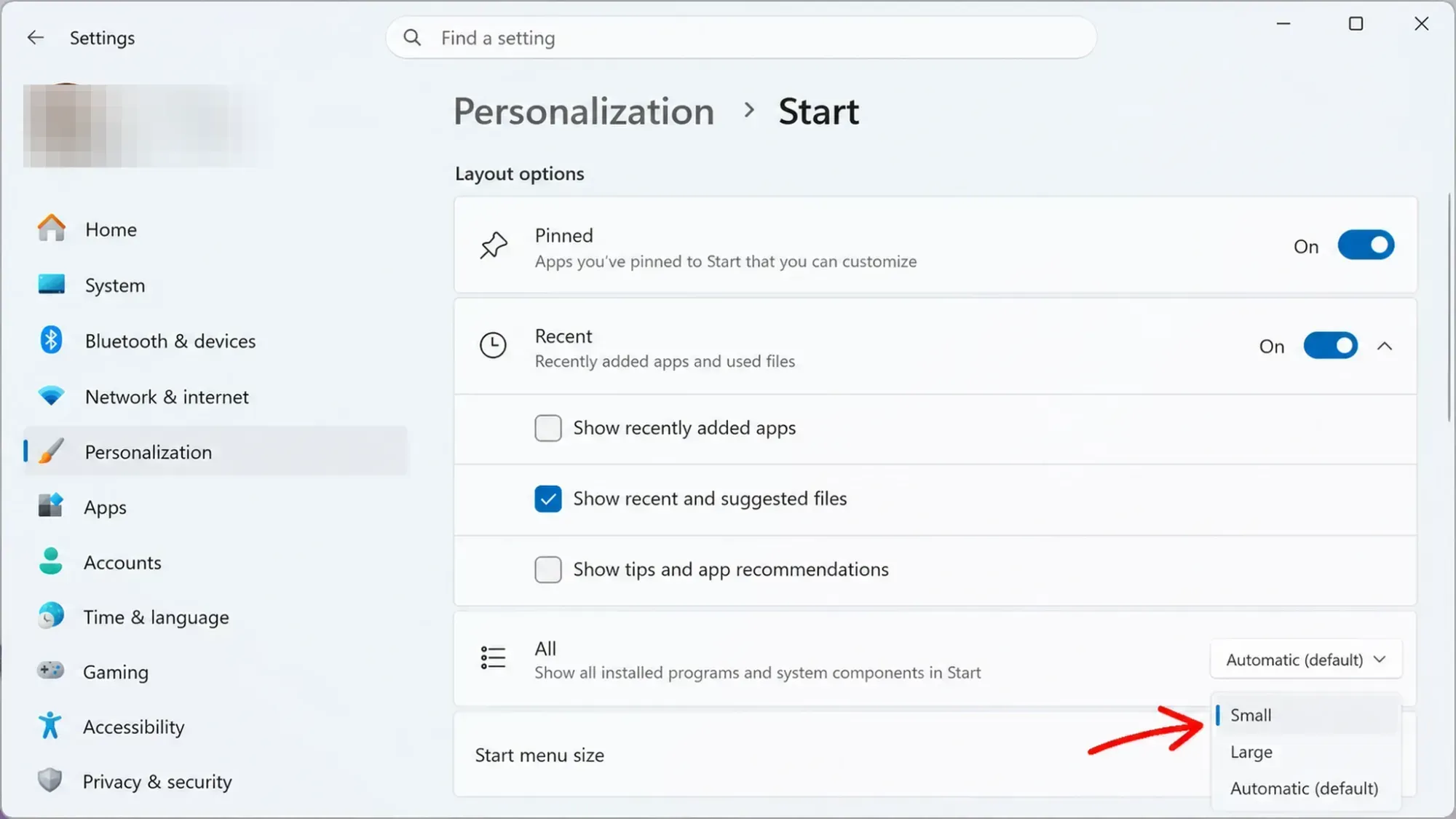
Pick a Small, Large, or Automatic Start menu size
One of the longest-running complaints was that the Start menu took over too much of the screen, with no way to shrink it. The new Size and Layout submenu fixes that with three presets.
| Size option | Behavior |
|---|---|
| Automatic | Default setting. Scales the menu to fit the display, the same behavior most PCs had before. |
| Large | The bigger standard layout, showing more pinned apps and recommendations per row. |
| Small | A compact layout you can now select manually, instead of it being forced only on smaller screens. |
Before this build, the small layout applied automatically on certain devices with smaller displays and you could not turn it on yourself. Now the choice is yours on any machine.
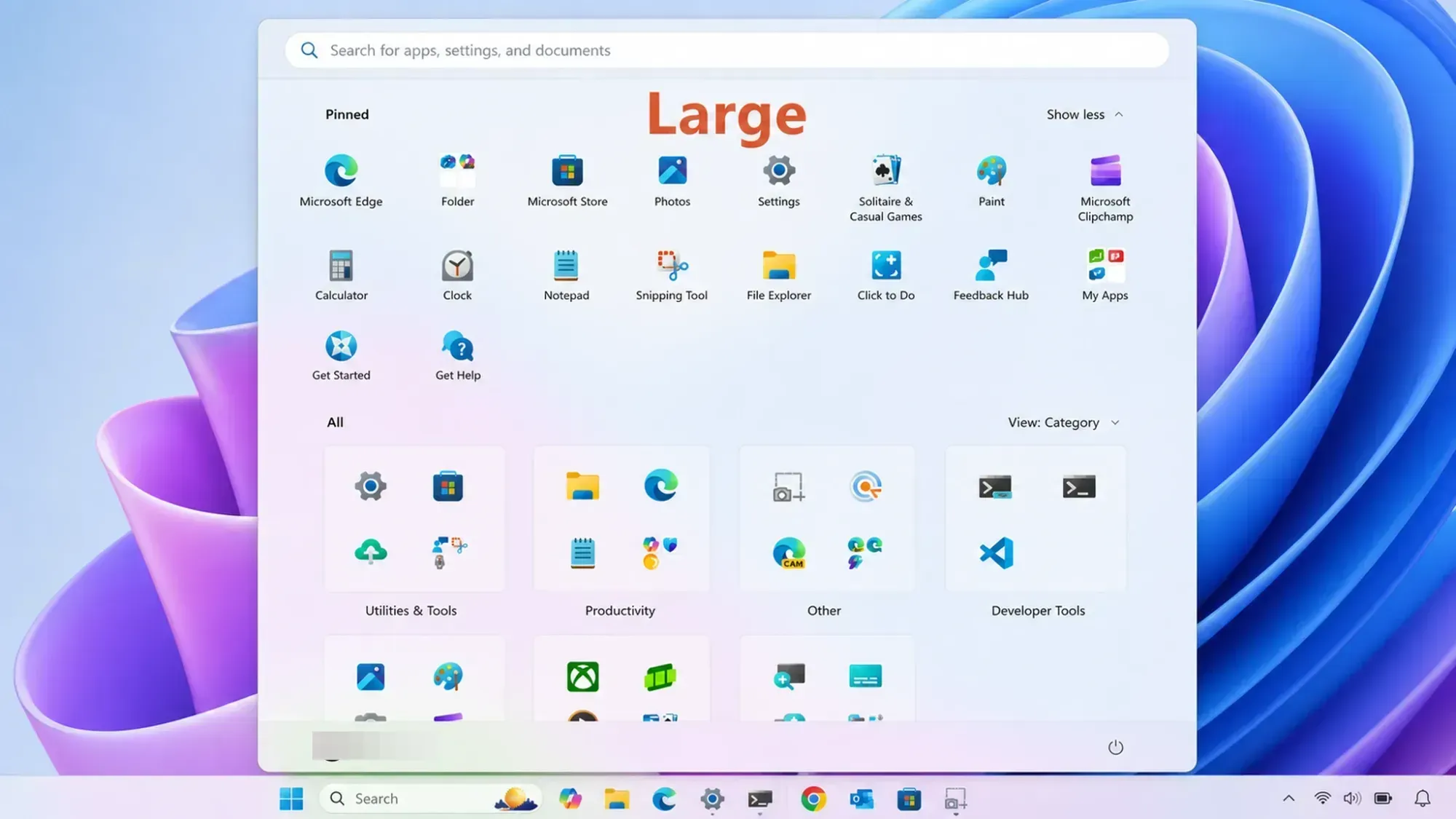
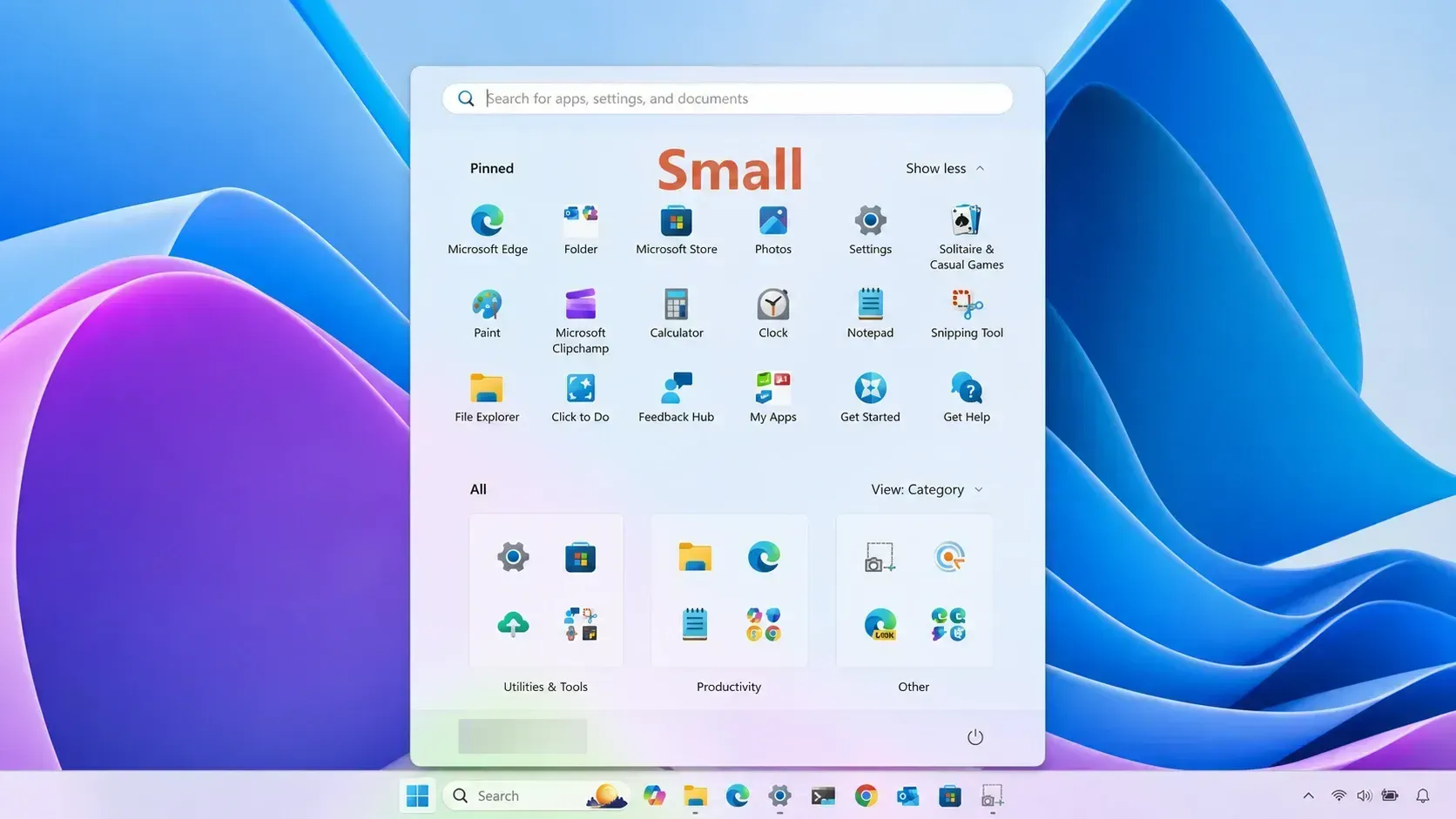
The All apps list keeps its own view options on top of this. You can switch between Category, Grid, and List views, and Category view pairs well with the Small size for a tidy layout. One limit remains. There is still no freeform resizing, so you cannot drag the edges the way you could in Windows 10. You are choosing from fixed presets.
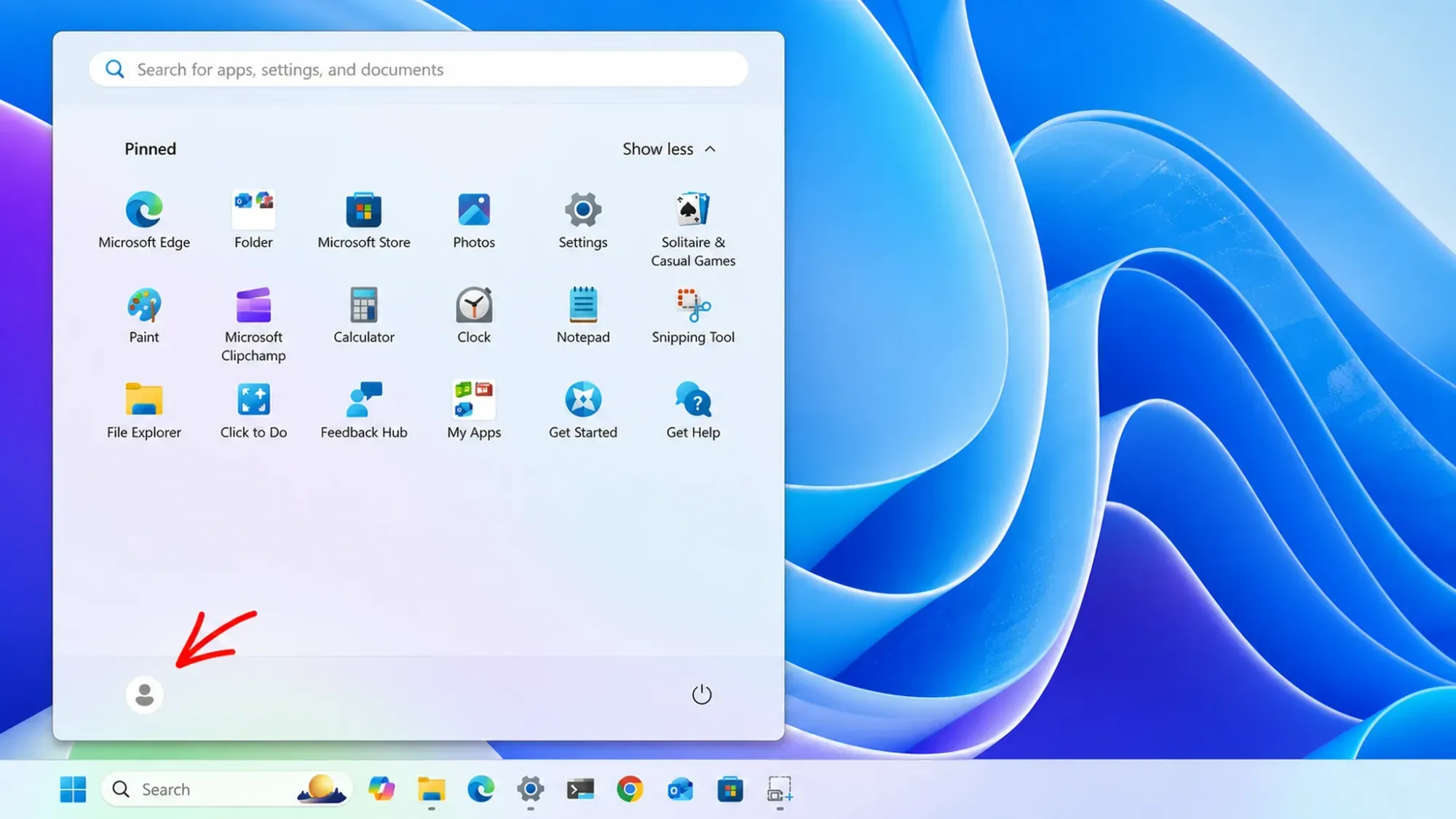
Hide your account name and profile picture
A new toggle removes your name and profile image from the bottom of the Start menu. That addresses a privacy concern on shared computers and enterprise machines, where you may not want your identity visible every time the menu opens.
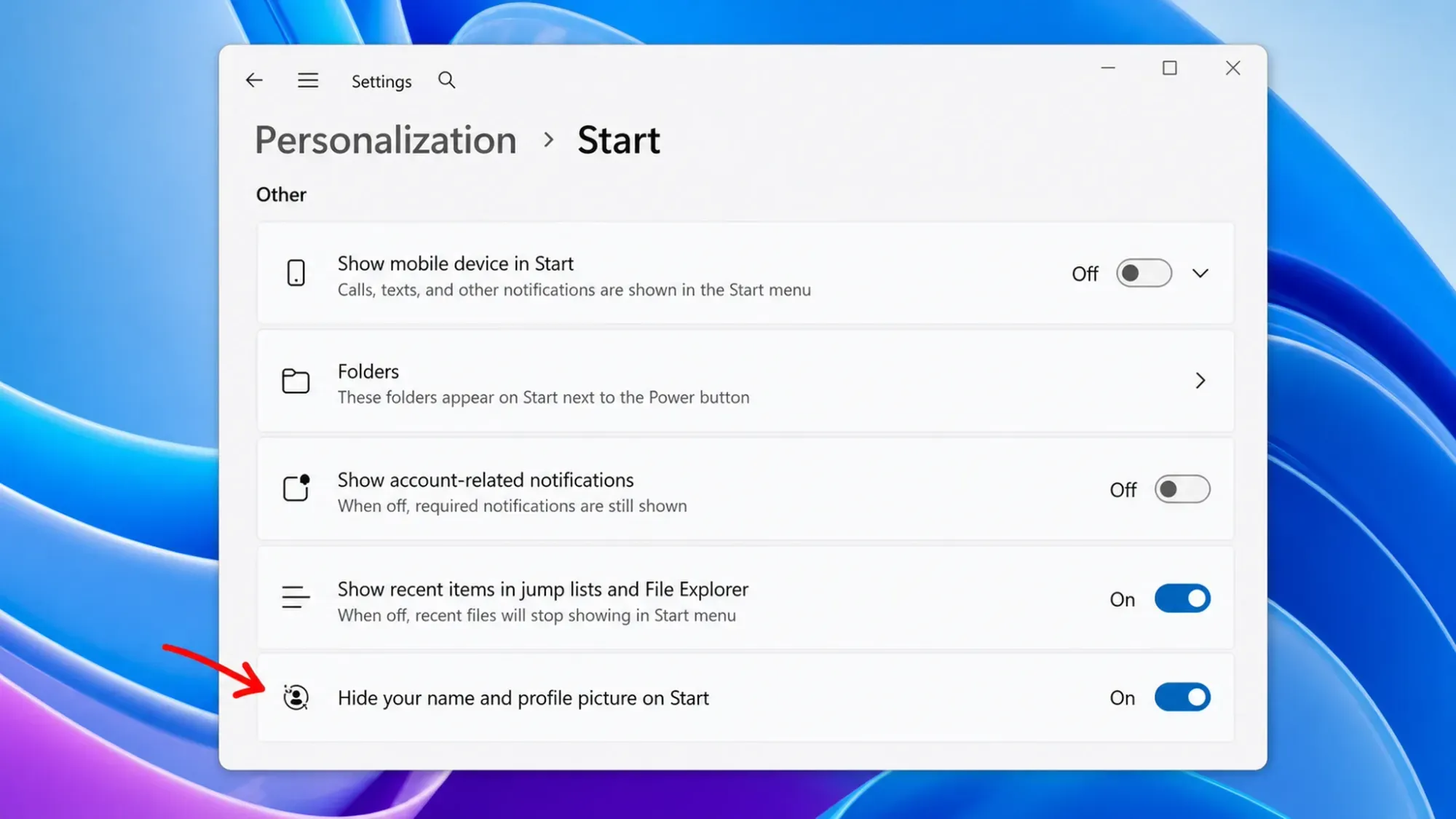
How to turn on the new Start menu controls
You know it worked when the Start menu redraws to match your choices. The sections you switched off disappear, the menu changes size to your selected preset, and your name and picture vanish if you hid them. If the options are missing, you are likely on the Beta or stable build rather than the Experimental one. AMD machines with System Guard support may not be offered the Experimental Future Platforms build during this rollout window, so confirm your channel before updating.
Performance and the native Start menu
Customization is only half of the long-running complaints. The Start menu has also felt sluggish on lower-end hardware, with choppy animations when it opens. Microsoft is testing a Low Latency Profile CPU boost, delivered through the May 2026 optional update KB5089573, which makes the menu open faster and reduces some of the micro-stutters. That is a workaround rather than a cure.
The deeper fix is a fully native Start menu. Microsoft has confirmed it is rebuilding core Windows components on the native WinUI 3 framework, including the Start menu itself, to make the interface more responsive. That work is still in progress, so performance remains the part of this redesign that is not finished. The customization side, on the other hand, is largely complete, and it puts control over the Start menu back in your hands.



